100 vba great tips
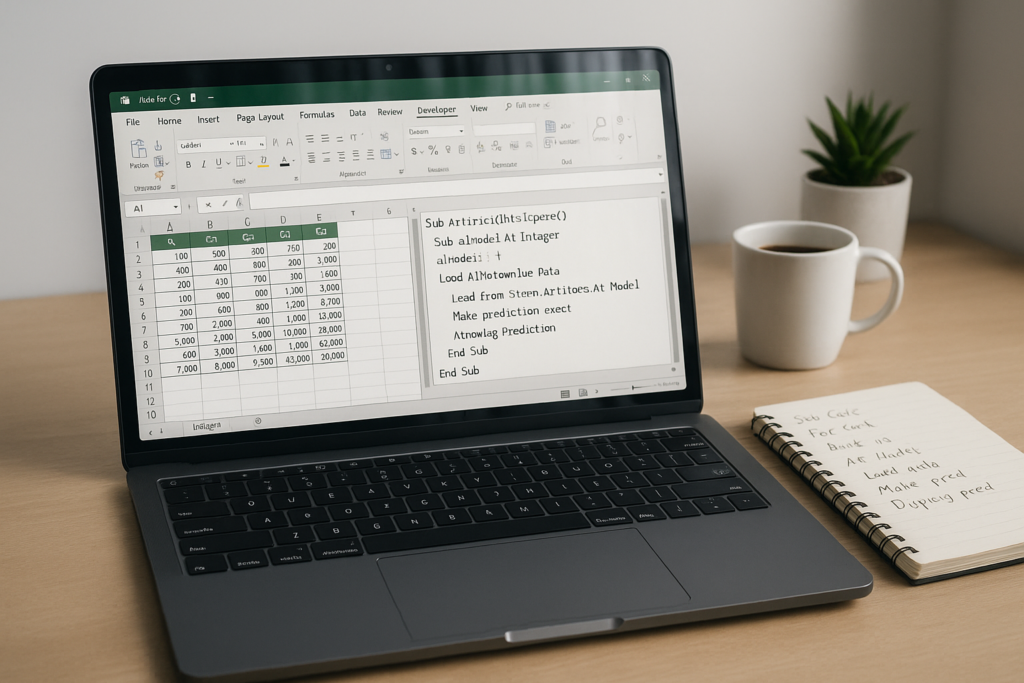
- Use Option Explicit: Always include
Option Explicitat the top of your VBA module to enforce variable declaration. This helps prevent typos and improves code reliability.
Option Explicit
- Comment Your Code: Add comments to explain your code and make it easier to understand and maintain. Use the
'symbol to comment a line or a section of code.
' This line of code performs a specific task
- Avoid Using Select or Activate: Instead of using
SelectorActivateto work with ranges or worksheets, directly reference the objects to improve code efficiency and readability.
' Bad practice

Range("A1").Select

Selection.Value = 10Range(“A1”).Value = 10
- Use With…End With: Utilize the
With...End Withstatement to work with multiple properties or methods of an object without repetitively referencing the object.
' Without With...End With

Range("A1").Font.Bold = True

Range("A1").Font.Size = 12
- Error Handling with On Error: Implement error handling using the
On Errorstatement to handle potential errors and prevent code crashes. UseOn Error Resume Nextto continue execution andOn Error GoTo [label]to jump to a specific error-handling section.
' Example of error handling

On Error Resume Next

' Code that might produce an error

If Err.Number <> 0 Then

' Error handling code

End If

On Error GoTo 0
- Use For Each Loops: When working with collections, use
For Eachloops to iterate through each element without specifying the loop bounds explicitly.
v
' Example of For Each loop

Dim cell As Range

For Each cell In Range("A1:A10")

' Code to process each cell

Next cell
- Use Constants for Magic Numbers: Instead of using magic numbers directly in your code, assign them to constants to improve code readability and maintainability.
' Example of using constants

Const MAX_ROWS As Integer = 100

If Range("A1").Value > MAX_ROWS Then

' Code logic- Avoid Using Select Case: Instead of using nested
Ifstatements orSelect Casefor multiple conditions, consider usingSelect Casedirectly on a variable to streamline your code.
' Example of using Select Case

Select Case value

Case 1

' Code for value 1

Case 2

' Code for value 2

Case Else

' Code for other values

End Select- Use Arrays for Efficient Data Processing: Utilize arrays when working with large amounts of data to improve performance. Load data into an array, perform operations, and then transfer the results back to the worksheet.
' Example of using arrays

Dim dataArr As Variant

dataArr = Range("A1:C10").Value- Use Worksheet Functions in VBA: Leverage built-in Excel worksheet functions within your VBA code to perform complex calculations or retrieve data efficiently.
' Example of using worksheet functions in VBA

Dim result As Double

result = WorksheetFunction.Sum(Range("A1:A10"))
- Regularly Test and Debug Your Code: Frequently test and debug your code to identify and fix errors. Use breakpoints, watch variables, and step through your code to ensure it functions as expected.
' Example of setting breakpoints and stepping through code

' Place breakpoints by clicking in the left margin of the code editor

' Press F8 to step through the code line by line

' Use the Locals window to inspect variables and their- Use Range Variables: Assign range objects to variables to improve code readability and performance. This prevents repetitive range lookups and enhances the efficiency of your code.
' Example of using range variables

Dim rng As Range

Set rng = Range("A1:B10")rng.Value = 10
- Use the With…End With Statement for Ranges: To work with multiple properties or methods of a range, use the
With...End Withstatement to streamline your code.
' Example of using With...End With for ranges

With Range("A1:B10")

.Font.Bold = True

.Interior.Color = RGB(255, 0, 0)

' Additional range operations

End With
- Optimize Looping: When looping through a large number of cells, disable screen updating and calculations to improve performance. Use the
Application.ScreenUpdatingandApplication.Calculationproperties.
' Example of optimizing looping

Application.ScreenUpdating = False

Application.Calculation = xlCalculationManual
‘ Code logic
Application.Calculation = xlCalculationAutomatic
- Modularize Your Code: Break down complex procedures into smaller, reusable modules or functions. This enhances code organization, readability, and maintainability.
' Example of modularizing code

Sub MainProcedure()

' Code logic

Call SubProcedure1

' More code logic

End Sub‘ Code logic for a specific task
End Sub
- Use the Immediate Window for Debugging: The Immediate Window in the VBA Editor allows you to test and debug code interactively. Use the
Debug.Printstatement to output values and messages directly to the Immediate Window.
' Example of using the Immediate Window for debugging

Debug.Print "The value of x is: " & x
- Utilize the Object Browser: The Object Browser in the VBA Editor helps you explore the available objects, properties, and methods. Press
F2or go toView>Object Browserto access it. - Use Named Ranges: Assign names to ranges in Excel to make your code more readable and maintainable. You can then refer to these named ranges in your VBA code.
' Example of using named ranges

Range("MyRange").Value = 10
- Take Advantage of VBA Functions: VBA provides a range of built-in functions to perform various operations. Explore the available functions to simplify your code and achieve desired results efficiently.
' Example of using VBA functions

Dim result As String

result = UCase("hello")
Now, let’s continue with four more tips:
- Use the Range.Find Method: The
Findmethod allows you to search for specific values or formats within a range. It returns aRangeobject representing the first occurrence found.
' Example of using Range.Find method

Dim searchRange As Range

Set searchRange = Range("A1:A10")Set result = searchRange.Find(“apple”)
If Not result Is Nothing Then
MsgBox “Found at ” & result.Address
End If
- Use the Worksheet.Change Event: Leverage the
Changeevent of a worksheet to trigger specific actions whenever a cell or range changes. This is useful for automating calculations or updating related data.
' Example of using Worksheet.Change event

Private Sub Worksheet_Change(ByVal Target As Range)

If Not Intersect(Target, Range("A1:A10")) Is Nothing Then

' Perform actions when cells in the range A1:A10 change

End If

End Sub
- Use the Application.OnTime Method: The
OnTimemethod allows you to schedule a procedure to run at a specific time. This is useful for automating tasks or executing code at regular intervals.
' Example of using Application.OnTime method

Sub ScheduleProcedure()

Application.OnTime TimeValue("10:00:00"), "MyProcedure"

End Sub‘ Code to be executed at the scheduled time
End Sub
- Use the Workbook.BeforeClose Event: The
BeforeCloseevent of a workbook allows you to run specific code before the workbook is closed. This is useful for performing cleanup tasks or saving data.
' Example of using Workbook.BeforeClose event

Private Sub Workbook_BeforeClose(Cancel As Boolean)

' Code to be executed before the workbook is closed

' Set Cancel = True to prevent the workbook from closing

End Sub- Use the Immediate If (IIf) Function: The
IIffunction allows you to perform a conditional operation in a single line. It evaluates a condition and returns one value if true and another value if false.
' Example of using the Immediate If (IIf) function

Dim result As String

result = IIf(x > 10, "Greater than 10", "Less than or equal to 10")
- Work with Multiple Workbooks: To work with multiple workbooks simultaneously, use the
Workbookscollection and theWorkbookobject. This allows you to access, manipulate, and transfer data between different workbooks.
' Example of working with multiple workbooks

Dim wb1 As Workbook

Dim wb2 As Workbook
Set wb2 = Workbooks.Open(“C:\Path\to\Workbook2.xlsx”)
- Use the Range.Offset Property: The
Offsetproperty allows you to refer to a cell or range relative to another cell or range. It’s useful for dynamically referencing adjacent or offset cells.
' Example of using the Range.Offset property

Dim rng As Range

Set rng = Range("A1")Set rng = rng.Offset(1, 2)
- Use the Worksheet.Copy Method: The
Copymethod allows you to create a copy of a worksheet within the same or another workbook. It’s useful for generating new worksheets or transferring data.
' Example of using the Worksheet.Copy method

Worksheets("Sheet1").Copy After:=Worksheets("Sheet1")

' This creates a copy of Sheet1 and places it after Sheet1- Use the Workbook.Sheets Property: The
Sheetsproperty allows you to access and manipulate worksheets within a workbook. It provides flexibility in working with different types of worksheets (e.g., chart sheets, macro sheets).
' Example of using the Workbook.Sheets property

Dim ws As Worksheet

Set ws = ThisWorkbook.Sheets("Sheet1")- Use the Worksheet.PasteSpecial Method: The
PasteSpecialmethod allows you to paste data with specific options, such as values, formats, or formulas. It gives you control over how data is pasted from the clipboard.
' Example of using the Worksheet.PasteSpecial method

Range("B1").PasteSpecial xlPasteValues
- Use the Application.WorksheetFunction Property: The
WorksheetFunctionproperty provides access to a wide range of built-in Excel worksheet functions. You can utilize these functions in your VBA code for complex calculations and data processing.
' Example of using the Application.WorksheetFunction property

Dim result As Double

result = Application.WorksheetFunction.Sum(Range("A1:A10"))
- Use the ActiveSheet Object: The
ActiveSheetobject represents the currently active worksheet. It allows you to perform operations on the sheet without explicitly referencing its name.
' Example of using the ActiveSheet object

ActiveSheet.Range("A1").Value = "Hello, World!"- Use the Range.SpecialCells Method: The
SpecialCellsmethod allows you to identify and work with specific types of cells within a range, such as blanks, constants, formulas, or errors.
' Example of using the Range.SpecialCells method

Dim rng As Range

Set rng = Range("A1:A10")rng.SpecialCells(xlCellTypeBlanks).Select
- Use the Worksheet.Protect Method: The
Protectmethod allows you to protect a worksheet to prevent unwanted changes. You can specify various options such as password protection and permission settings.
' Example of using the Worksheet.Protect method

ActiveSheet.Protect Password:="password", UserInterfaceOnly:=True
- Use the Application.InputBox Function: The
InputBoxfunction allows you to prompt the user for input within your VBA code. It can be used to retrieve values, text, or formulas from the user.
' Example of using the Application.InputBox function

Dim inputValue As String

inputValue = InputBox("Enter your name:")
- Use the Workbook.SaveAs Method: The
SaveAsmethod allows you to save a workbook with a different filename or format. It provides options to specify the file format, password protection, and other settings.
' Example of using the Workbook.SaveAs method

ThisWorkbook.SaveAs "C:\Path\to\NewWorkbook.xlsx"- Use the Application.InputBox Method with Type:=8: The
InputBoxmethod withType:=8allows you to prompt the user to select a range on the worksheet. It returns the selected range as aRangeobject.
' Example of using the Application.InputBox method with Type:=8

Dim rng As Range

Set rng = Application.InputBox("Select a range:", Type:=8)
- Use the Worksheet.Hyperlinks Property: The
Hyperlinksproperty allows you to work with hyperlinks within a worksheet. You can add, modify, or remove hyperlinks using this property.
' Example of using the Worksheet.Hyperlinks property

ActiveSheet.Hyperlinks.Add Anchor:=Range("A1"), Address:="https://www.example.com", TextToDisplay:="Example"
- Use the On Error Statement: The
On Errorstatement allows you to handle runtime errors in your VBA code. You can specify different error-handling routines to manage unexpected errors.
' Example of using the On Error statement

On Error GoTo ErrorHandlerMsgBox “An error occurred: ” & Err.Description
- Use the Worksheet.Protect Method with UserInterfaceOnly:=True: The
Protectmethod withUserInterfaceOnly:=Trueallows you to protect a worksheet while still allowing VBA code to modify it without unprotecting it.
' Example of using the Worksheet.Protect method with UserInterfaceOnly:=True

ActiveSheet.Protect UserInterfaceOnly:=True- Use the Application.ScreenUpdating Property: Setting
Application.ScreenUpdatingtoFalsecan significantly improve the performance of your code, especially when working with large amounts of data or performing repetitive actions.
' Example of using the Application.ScreenUpdating property

Application.ScreenUpdating = False- Use the Worksheet.Activate Method: The
Activatemethod allows you to switch the active worksheet programmatically. This is useful when you want to perform actions on a specific worksheet without manually selecting it.
' Example of using the Worksheet.Activate method

Worksheets("Sheet2").Activate
- Use the Range.AutoFilter Method: The
AutoFiltermethod allows you to apply filtering to a range based on specific criteria. This is useful when you want to extract or manipulate data based on certain conditions.
' Example of using the Range.AutoFilter method

Range("A1:D10").AutoFilter Field:=1, Criteria1:="apples"
- Use the Worksheet.Index Property: The
Indexproperty returns the index number of a worksheet within the workbook. It can be used to reference worksheets dynamically, especially when their order may change.
' Example of using the Worksheet.Index property

Dim ws As Worksheet

Set ws = ThisWorkbook.Worksheets(1)
- Use the Application.FileDialog Method: The
FileDialogmethod allows you to display standard dialog boxes for opening or saving files. It provides a user-friendly way to interact with files and retrieve file paths.
' Example of using the Application.FileDialog method to open a file

Dim fileDialog As FileDialog

Set fileDialog = Application.FileDialog(msoFileDialogOpen)Dim selectedFile As String
selectedFile = fileDialog.SelectedItems(1)
‘ Process the selected file
End If
- Use the Worksheet.Calculate Method: The
Calculatemethod recalculates all formulas in a worksheet. This can be useful when you want to ensure that all dependent formulas are up to date.
' Example of using the Worksheet.Calculate method

Worksheets("Sheet1").Calculate
- Use the Application.Undo Method: The
Undomethod allows you to reverse the last user action. It can be used to provide an undo feature within your VBA code.
' Example of using the Application.Undo method

Application.Undo
- Use the Worksheet.Unprotect Method: The
Unprotectmethod allows you to remove protection from a worksheet that was previously protected. This is useful when you need to modify a protected worksheet programmatically.
' Example of using the Worksheet.Unprotect method

ActiveSheet.Unprotect Password:="password"
- Use the Application.GetOpenFilename Method: The
GetOpenFilenamemethod displays the Open dialog box and allows the user to select one or more files. It returns the selected file(s) as a file path or an array of file paths.
' Example of using the Application.GetOpenFilename method

Dim selectedFile As Variant

selectedFile = Application.GetOpenFilename("Excel Files (*.xlsx), *.xlsx")- Use the Worksheet.Copy Destination Parameter: When using the
Copymethod on a worksheet, you can specify the destination parameter to copy the worksheet to a specific location within the same or another workbook.
' Example of using the Worksheet.Copy method with destination parameter

Worksheets("Sheet1").Copy After:=Worksheets("Sheet2")
- Use the Application.CutCopyMode Property: The
CutCopyModeproperty returns a value indicating whether a cut or copy operation is currently active. You can use it to check if data has been cut or copied to the clipboard.
' Example of using the Application.CutCopyMode property

If Application.CutCopyMode <> False Then

' Cut or copy operation is active

End If
- Use the Worksheet.PivotTables Property: The
PivotTablesproperty allows you to access and manipulate pivot tables within a worksheet. You can create, modify, or refresh pivot tables programmatically.
' Example of using the Worksheet.PivotTables property

Dim pt As PivotTable

Set pt = Worksheets("Sheet1").PivotTables("PivotTable1")- Use the Range.AdvancedFilter Method: The
AdvancedFiltermethod allows you to filter a range of data based on complex criteria. It provides more advanced filtering capabilities than the standard AutoFilter method.
' Example of using the Range.AdvancedFilter method

Range("A1:D10").AdvancedFilter Action:=xlFilterInPlace, CriteriaRange:=Range("F1:G2")
- Use the Application.StatusBar Property: The
StatusBarproperty allows you to display a message in the status bar at the bottom of the Excel window. It can be used to provide progress updates or notifications to the user.
' Example of using the Application.StatusBar property

Application.StatusBar = "Processing data..."

' Your code here

Application.StatusBar = False ' Clear the status bar
- Use the Worksheet.Outline Property: The
Outlineproperty allows you to group and outline rows or columns in a worksheet. It enables you to collapse or expand grouped sections of data.
' Example of using the Worksheet.Outline property

Worksheets("Sheet1").Outline.ShowLevels RowLevels:=2 ' Show 2 levels of row grouping
- Use the Range.Find Method: The
Findmethod allows you to search for specific data within a range. It can be used to locate values, text, or formulas and return the corresponding cell.
' Example of using the Range.Find method

Dim rng As Range

Set rng = Range("A1:A10").Find("apple")

If Not rng Is Nothing Then

' Value found

MsgBox "Apple found at " & rng.Address

End If
- Use the Workbook.SaveCopyAs Method: The
SaveCopyAsmethod allows you to create a copy of a workbook with a different filename or location. It saves a duplicate of the workbook without modifying the original file.
' Example of using the Workbook.SaveCopyAs method

ThisWorkbook.SaveCopyAs "C:\Path\to\NewWorkbookCopy.xlsx"
- Use the Worksheet.ScrollArea Property: The
ScrollAreaproperty allows you to restrict the visible scrollable area of a worksheet. It can be used to limit the user’s view to a specific range of cells.
' Example of using the Worksheet.ScrollArea property

Worksheets("Sheet1").
- Use the Range.Offset Property: The
Offsetproperty allows you to reference a range that is a specified number of rows and columns away from a given range. It’s useful for navigating and manipulating data in relation to a starting range.
' Example of using the Range.Offset property

Dim rng As Range

Set rng = Range("A1").Offset(1, 2) ' Offset 1 row down and 2 columns to the right of cell A1
- Use the Application.OnTime Method: The
OnTimemethod allows you to schedule a procedure to run at a specific time in the future. It’s useful for automating tasks or executing code at predetermined intervals.
' Example of using the Application.OnTime method

Application.OnTime TimeValue("10:00:00"), "MyMacro"
- Use the Worksheet.Evaluate Method: The
Evaluatemethod allows you to evaluate a string expression as a formula in a worksheet. It’s helpful when you need to perform calculations or retrieve results based on a dynamic formula.
' Example of using the Worksheet.Evaluate method

Dim result As Variant

result = Worksheets("Sheet1").Evaluate("SUM(A1:A10)")
- Use the Workbook.RefreshAll Method: The
RefreshAllmethod refreshes all external data connections and pivot tables in the workbook. It ensures that the data is up to date before performing further calculations or analyses.
' Example of using the Workbook.RefreshAll method

ThisWorkbook.RefreshAll
- Use the Application.WorksheetFunction.CountIf Method: The
CountIfmethod allows you to count the number of cells within a range that meet specific criteria. It’s useful for obtaining the count of occurrences based on conditions.
' Example of using the Application.WorksheetFunction.CountIf method

Dim count As Long

count = Application.WorksheetFunction.CountIf(Range("A1:A10"), "Apple")
- Use the Range.ClearContents Method: The
ClearContentsmethod clears the values from a range of cells, leaving formatting and other properties intact. It’s useful when you want to remove data from cells without affecting the cell formatting.
' Example of using the Range.ClearContents method

Range("A1:B10").ClearContents
- Use the Worksheet.Pictures.Insert Method: The
Insertmethod allows you to insert a picture from a file into a worksheet. It’s useful for adding visual elements to enhance your reports or dashboards.
' Example of using the Worksheet.Pictures.Insert method

Dim pic As Picture

Set pic = Worksheets("Sheet1").Pictures.Insert("C:\Path\to\Image.png")
- Use the Application.Goto Method: The
Gotomethod allows you to move the active cell or selection to a specific range in the worksheet. It’s helpful for navigating and highlighting important areas of your data.
' Example of using the Application.Goto method

Application.Goto Range("A1")
- Use the Worksheet.Copy method with Destination:=xlClipboardFormat: The
Copymethod withDestination:=xlClipboardFormatallows you to copy the contents of a range to the clipboard. It’s useful for transferring data between worksheets or applications.
' Example of using the Worksheet.Copy method with Destination:=xlClipboardFormat

Worksheets("Sheet1").Range("A1:B10").Copy Destination:=xlClipboardFormat- Use the Worksheet.Change event: The
Changeevent is triggered when a cell or range of cells on a worksheet is changed. You can use this event to perform specific actions based on user input or data changes.
' Example of using the Worksheet.Change event

Private Sub Worksheet_Change(ByVal Target As Range)

' Your code here

End Sub
- Use the Range.SpecialCells method: The
SpecialCellsmethod allows you to select cells in a range that meet specific criteria, such as constants, formulas, blank cells, or specific data types.
' Example of using the Range.SpecialCells method

Dim rng As Range

Set rng = Range("A1:A10").SpecialCells(xlCellTypeConstants)
- Use the Worksheet.Protect method with Password: The
Protectmethod allows you to protect a worksheet with a password, preventing unauthorized modifications. This is useful when you want to safeguard sensitive data.
' Example of using the Worksheet.Protect method with Password

ActiveSheet.Protect Password:="mypassword"
- Use the Application.InputBox method with Validation: The
InputBoxmethod with validation allows you to prompt the user for input and validate the entered value against specific criteria, ensuring data integrity.
' Example of using the Application.InputBox method with Validation

Dim value As Variant

value = Application.InputBox("Enter a number:", Type:=1, _

Default:=1, Title:="Number Entry", _

ValidationMessage:="Please enter a valid number.", _

ValidateInput:=True)
- Use the Range.ClearFormats method: The
ClearFormatsmethod clears all formatting, including font styles, cell colors, and borders, from a range of cells.
' Example of using the Range.ClearFormats method

Range("A1:B10").ClearFormats
- Use the Worksheet.Copy method with Before or After parameter: The
Copymethod withBeforeorAfterparameter allows you to insert a copy of a worksheet before or after a specific worksheet.
' Example of using the Worksheet.Copy method with Before parameter

Worksheets("Sheet1").Copy Before:=Worksheets("Sheet2")
- Use the Application.OnKey method: The
OnKeymethod allows you to assign a macro to a specific key or key combination. This enables you to trigger a macro with a keyboard shortcut.
' Example of using the Application.OnKey method

Application.OnKey "^k", "MyMacro" ' Assigns Ctrl + K to the macro "MyMacro"
- Use the Range.Merge method: The
Mergemethod merges multiple cells into a single cell. This is useful for creating header cells or combining data across columns or rows.
' Example of using the Range.Merge method

Range("A1:B2").Merge
- Use the Application.DisplayAlerts property: The
DisplayAlertsproperty controls whether Excel displays alerts and confirmation dialogs. You can turn off alerts to suppress prompts and enable silent execution of your code.
' Example of using the Application.DisplayAlerts property

Application.DisplayAlerts = False ' Turns off alerts

' Your code here

Application.DisplayAlerts = True ' Turns on alerts- Use the Application.WorksheetFunction property: The
WorksheetFunctionproperty allows you to access built-in Excel worksheet functions within your VBA code. It’s useful for performing complex calculations or using specialized functions.
' Example of using the Application.WorksheetFunction property

Dim result As Variant

result = Application.WorksheetFunction.Sum(Range("A1:A10"))
- Use the Workbook.Sheets property: The
Sheetsproperty returns a collection of all the worksheets in a workbook. It allows you to loop through and perform actions on each worksheet.
' Example of using the Workbook.Sheets property

Dim ws As Worksheet

For Each ws In ThisWorkbook.Sheets

' Your code here

Next ws
- Use the Range.Copy method with Destination: The
Copymethod withDestinationparameter allows you to copy a range and paste it to a specified destination range. It’s useful for duplicating or transferring data within the workbook.
' Example of using the Range.Copy method with Destination

Range("A1:B10").Copy Destination:=Range("C1")
- Use the Worksheet.Visible property: The
Visibleproperty allows you to control the visibility of a worksheet. You can hide or unhide worksheets based on specific conditions or user interactions.
' Example of using the Worksheet.Visible property

Worksheets("Sheet1").Visible = xlSheetHidden ' Hides the worksheet

Worksheets("Sheet2").Visible = xlSheetVisible ' Unhides the worksheet
- Use the Application.FindFormat property: The
FindFormatproperty allows you to specify formatting criteria when using theFindmethod. It enables you to search for cells with specific formatting attributes.
' Example of using the Application.FindFormat property

Application.FindFormat.Font.Bold = True

Dim rng As Range

Set rng = Range("A1:A10").Find(What:="SearchValue", LookIn:=xlValues, LookAt:=xlWhole, SearchFormat:=True)
- Use the Range.Replace method: The
Replacemethod allows you to find and replace specific values or text within a range. It’s useful for performing batch replacements or modifications in your data.
' Example of using the Range.Replace method

Range("A1:B10").Replace What:="OldValue", Replacement:="NewValue", LookAt:=xlWhole, MatchCase:=False
- Use the Worksheet.Paste method: The
Pastemethod allows you to paste copied or cut data from the clipboard to a specific range in a worksheet. It’s useful for controlled data transfer within your VBA code.
' Example of using the Worksheet.Paste method

Worksheets("Sheet1").Range("A1").Paste
- Use the Application.Evaluate method: The
Evaluatemethod allows you to evaluate a string expression as a formula or function. It’s useful for performing dynamic calculations or retrieving results based on user-defined formulas.
- Use the Worksheet.Hyperlinks property: The
Hyperlinksproperty allows you to add, modify, or remove hyperlinks within a worksheet. It’s useful for creating interactive elements that link to other locations or resources.
' Example of using the Worksheet.Hyperlinks property

Dim ws As Worksheet

Set ws = Worksheets("Sheet1")

ws.Hyperlinks.Add Anchor:=ws.Range("A1"), Address:="http://www.example.com", TextToDisplay:="Link"
- Use the Application.InputBox method with Type:=8: The
InputBoxmethod withType:=8allows you to prompt the user to select a range on the worksheet. It’s useful for interactive procedures that require user-defined ranges.
' Example of using the Application.InputBox method with Type:=8

Dim rng As Range

Set rng = Application.InputBox("Select a range:", Type:=8)
- Use the Worksheet.Copy method with Format:=xlPasteFormats: The
Copymethod withFormat:=xlPasteFormatsallows you to copy the formatting of a range and paste it to another range. It’s useful for applying consistent formatting across different areas of your worksheet.
' Example of using the Worksheet.Copy method with Format:=xlPasteFormats

Worksheets("Sheet1").Range("A1:B10").Copy

Worksheets("Sheet2").Range("C1").PasteSpecial Paste:=xlPasteFormats
- Use the Application.OnUndo method: The
OnUndomethod allows you to define a custom action that will be performed when the user clicks the “Undo” button. It’s useful for providing undo functionality for specific actions.
- Use the Application.ScreenUpdating property: The
ScreenUpdatingproperty controls whether Excel updates the screen to reflect changes made by VBA code. Setting it toFalsecan greatly improve the performance of your macros.
vba
' Example of using the Application.ScreenUpdating property

Application.ScreenUpdating = False ' Turns off screen updating

' Your code here

Application.ScreenUpdating = True ' Turns on screen updating
- Use the Range.AutoFilter method: The
AutoFiltermethod allows you to apply automatic filtering to a range based on specified criteria. It’s useful for quickly analyzing and filtering data.
vba
' Example of using the Range.AutoFilter method

Range("A1:D10").AutoFilter Field:=1, Criteria1:="Apple"
- Use the Worksheet.Hyperlinks property: The
Hyperlinksproperty allows you to add, modify, or remove hyperlinks within a worksheet. It’s useful for creating interactive spreadsheets with clickable links.
vba
' Example of using the Worksheet.Hyperlinks property

Worksheets("Sheet1").Hyperlinks.Add Anchor:=Range("A1"), Address:="http://www.example.com", TextToDisplay:="Visit Example"
- Use the Application.Undo method: The
Undomethod allows you to undo the last action performed in Excel. It’s useful for providing an undo functionality in your VBA macros.
vba
' Example of using the Application.Undo method

Application.Undo
- Use the Worksheet.PivotTableWizard method: The
PivotTableWizardmethod allows you to create a new pivot table in a worksheet programmatically. It provides flexibility in defining the pivot table’s structure and data source.
' Example of using the Worksheet.PivotTableWizard method

Dim pt As PivotTable

Set pt = Worksheets("Sheet1").PivotTableWizard(SourceType:=xlDatabase, SourceData:=Range("A1:D10"))
- Use the Range.Locked property: The
Lockedproperty allows you to control whether cells in a range are locked or unlocked. It’s useful for protecting specific cells while allowing editing in other areas.
' Example of using the Range.Locked property

Range("A1:B10").Locked = False ' Unlocks the range for editing
- Use the Application.GetOpenFilename method: The
GetOpenFilenamemethod displays the standard open file dialog box and allows the user to select a file. It’s useful for dynamically retrieving file paths from the user.
' Example of using the Application.GetOpenFilename method

Dim filePath As Variant

filePath = Application.GetOpenFilename("Excel Files (*.xlsx;*.xls),*.xlsx;*.xls")
- Use the Range.Hidden property: The
Hiddenproperty allows you to hide or unhide a range of cells. It’s useful for dynamically controlling the visibility of specific data based on conditions.
' Example of using the Range.Hidden property

Range("A1:B10").Hidden = True ' Hides the range
- Use the Worksheet.PageSetup property: The
PageSetupproperty allows you to configure various page setup settings for a worksheet, such as margins, orientation, print area, and headers/footers.
' Example of using the Worksheet.PageSetup property

With Worksheets("Sheet1").PageSetup

.PrintArea = Range("A1:E10").Address ' Set print area

.Orientation = xlLandscape ' Set orientation

' Configure- Use the Application.DisplayStatusBar property: The
DisplayStatusBarproperty controls whether the status bar is displayed in Excel. You can use it to provide custom progress messages or updates during the execution of your code.
' Example of using the Application.DisplayStatusBar property

Application.DisplayStatusBar = True ' Shows the status bar

Application.StatusBar = "Running macro..." ' Display custom message

' Your code here

Application.StatusBar = False ' Clears the status bar
- Use the Range.Validation property: The
Validationproperty allows you to apply data validation rules to a range of cells. It’s useful for ensuring data integrity and enforcing specific constraints.
' Example of using the Range.Validation property

With Range("A1:A10").Validation

.Add Type:=xlValidateWholeNumber, AlertStyle:=xlValidAlertStop, Operator:=xlBetween, Formula1:=1, Formula2:=100

.ErrorMessage = "Please enter a whole number between 1 and 100."

.ShowError = True

End With
- Use the Worksheet.Outline property: The
Outlineproperty allows you to control the outlining settings for a worksheet, including grouping and collapsing rows or columns. It’s useful for organizing and managing large datasets.
' Example of using the Worksheet.Outline property

Worksheets("Sheet1").Outline.ShowLevels RowLevels:=2 ' Show two levels of row grouping
- Use the Range.Calculate method: The
Calculatemethod forces Excel to recalculate all formulas within a range or worksheet. It’s useful when you need to ensure that all formula results are up to date.
' Example of using the Range.Calculate method

Range("A1:B10").Calculate ' Recalculates formulas in the range
- Use the Workbook.Close method: The
Closemethod allows you to close a workbook. You can specify whether to save changes or not and handle any potential errors or prompts.
' Example of using the Workbook.Close method

Workbooks("Book1.xlsx").Close SaveChanges:=False ' Closes the workbook without saving changes
- Use the Worksheet.Activate method: The
Activatemethod activates a specific worksheet, making it the active sheet. It’s useful for ensuring that your VBA code performs actions on the correct sheet.
' Example of using the Worksheet.Activate method

Worksheets("Sheet1").Activate ' Makes Sheet1 the active sheet
Congratulations on completing your Excel VBA tips journey! I hope these tips have been helpful in expanding your expertise in Excel VBA programming.
Want practical Excel help?
Support free Excel tutorials, get weekly tips, or contact us for Excel programming, VBA, Power Query, dashboards, and automation work.
Get weekly Excel tips