Advanced Techniques: Nesting Dynamic Array Functions in Excel
Introduction
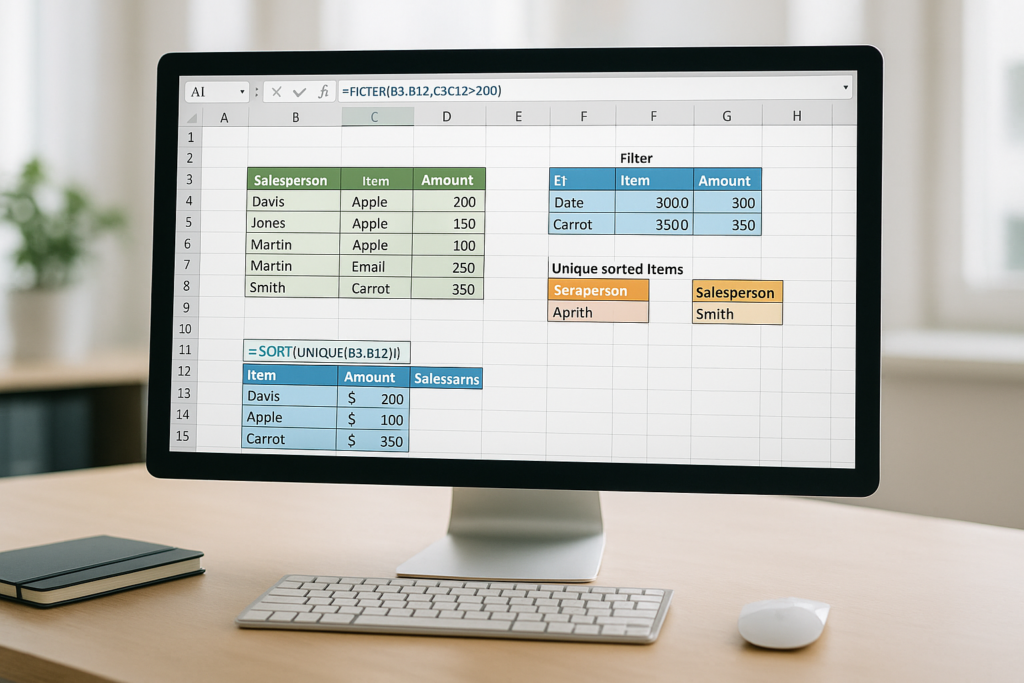
Excel’s dynamic array functions revolutionize how users handle data by automatically populating arrays without traditional CSE formulas. When combined through nesting, these functions enable complex, powerful data manipulations that were previously cumbersome or impossible. This article dives deep into advanced techniques for nesting Excel dynamic array functions, offering practical examples and expert insights to boost your spreadsheet skills.
Understanding Excel Dynamic Array Functions
Dynamic arrays in Excel allow formulas to return multiple results that spill into adjacent cells automatically. Key functions include FILTER(), SORT(), UNIQUE(), SEQUENCE(), and RANDARRAY(). These functions can be nested inside each other to perform multi-step data transformations seamlessly.
Why Nest Dynamic Array Functions?
Nesting helps combine multiple operations in a single formula, reducing complexity, avoiding intermediate steps, and improving maintainability. For instance, filtering a dataset and then sorting the results dynamically can be achieved with nested formulas, enhancing productivity.
Practical Examples of Excel Dynamic Array Nested Formulas
Example 1: Filter and Sort Unique Values
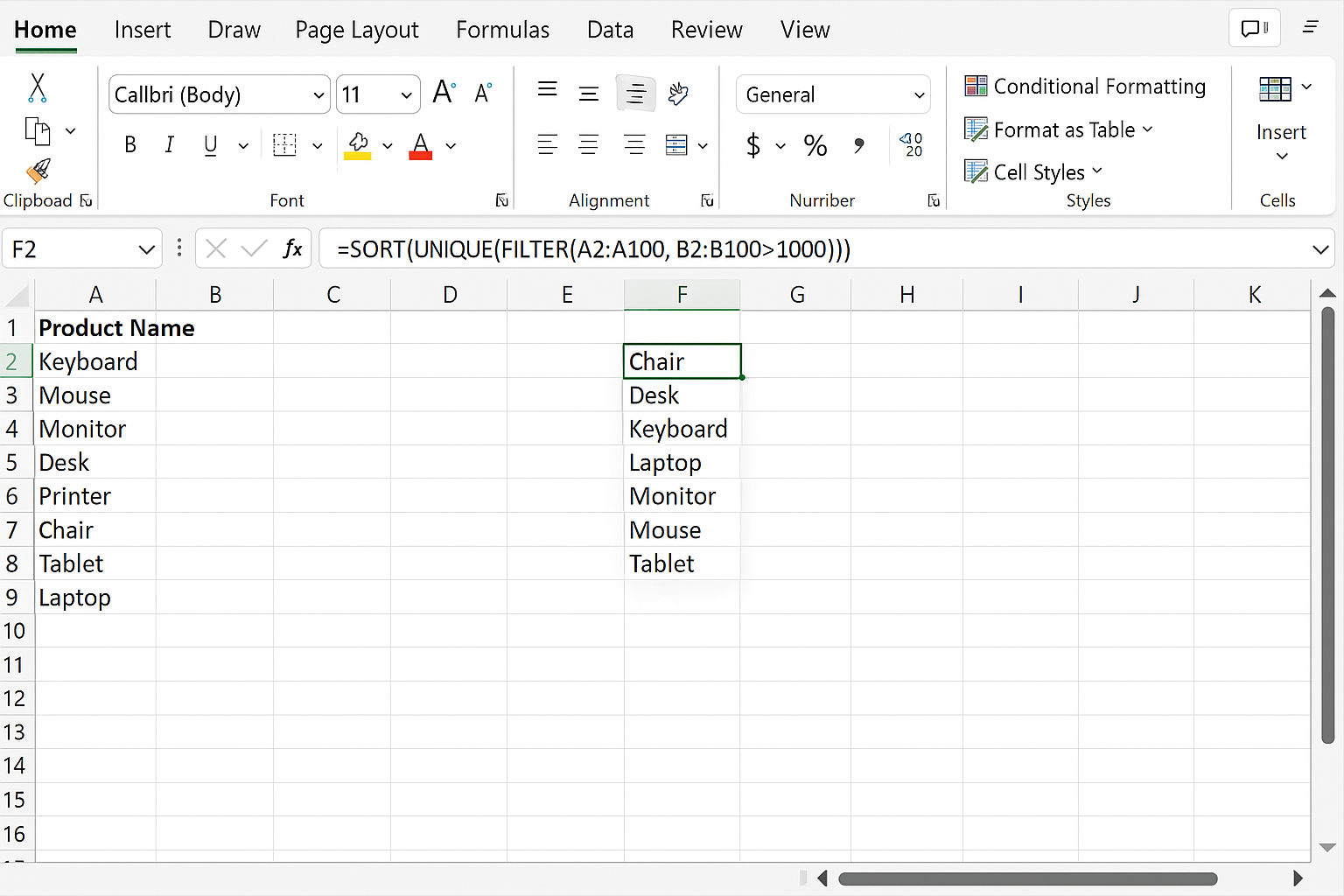
Imagine a list of sales data with repeating product names. To extract unique product names that meet certain sales criteria and sort them alphabetically, you can nest FILTER(), UNIQUE(), and SORT():
=SORT(UNIQUE(FILTER(A2:A100, B2:B100>1000)))This formula filters products with sales greater than 1000, extracts unique product names, and sorts them in ascending order.
Example 2: Generate a Dynamic Sequence with Conditions
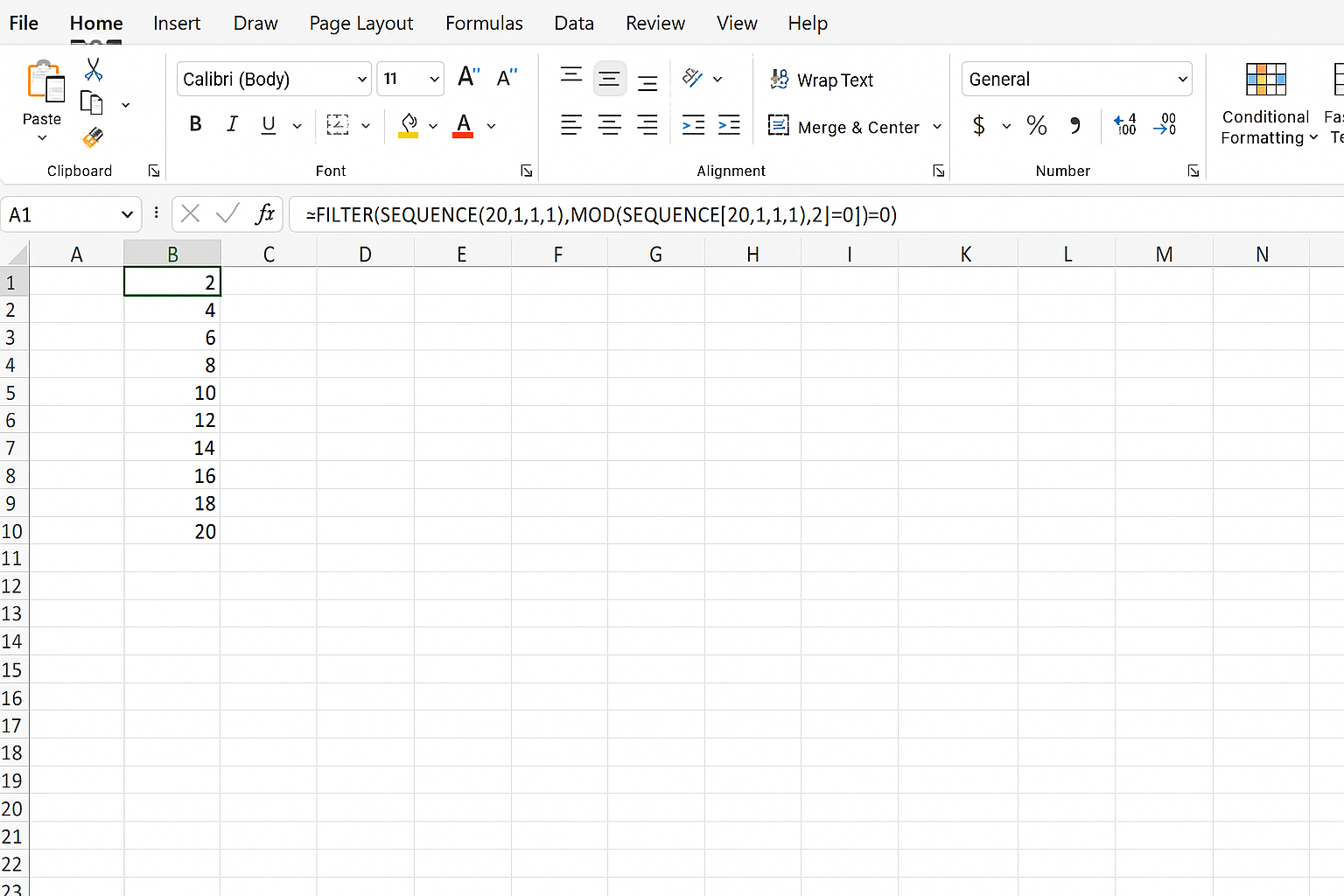
You want to create a sequence of numbers but only for even values up to 20. Nesting SEQUENCE() and FILTER() achieves this:
=FILTER(SEQUENCE(20,1,1,1), MOD(SEQUENCE(20,1,1,1),2)=0)This formula generates numbers 1 to 20, then filters only even numbers.
Example 3: Extract Top N Performers with Unique Names
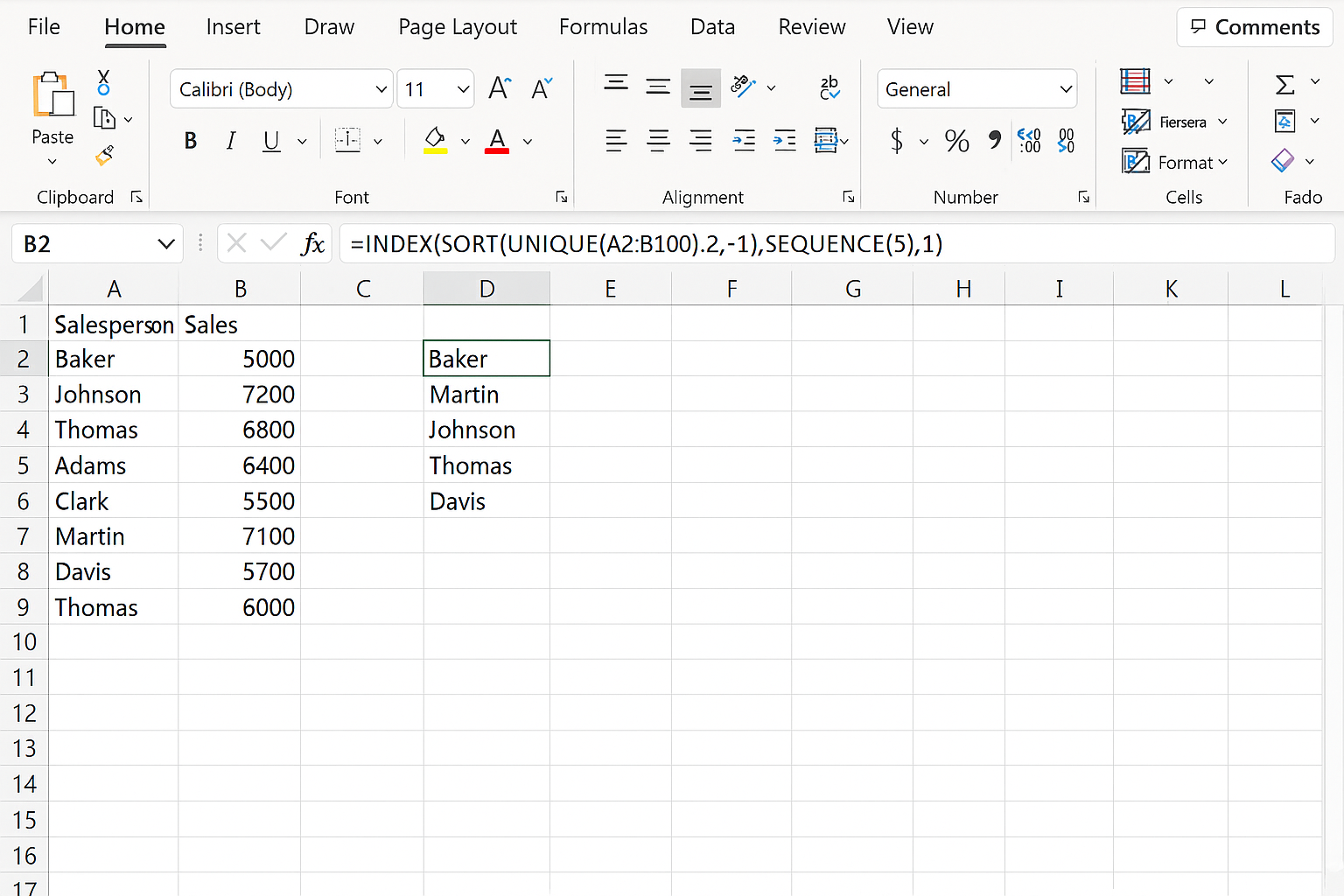
To retrieve the top 5 unique salespeople based on sales figures, you can nest SORT(), UNIQUE(), and INDEX():
=INDEX(SORT(UNIQUE(A2:B100),2,-1),SEQUENCE(5),1)This nests unique salespeople and their sales, sorts by sales descending, then extracts top 5 names.
Best Practices for Nesting Dynamic Array Functions
- Start Simple: Build your nested formulas in steps to debug easily.
- Use Named Ranges: Improve readability and manageability.
- Leverage LET() Function: Store intermediate results in variables for clarity.
- Test with Sample Data: Ensure correctness before applying to large datasets.
Advanced Tips
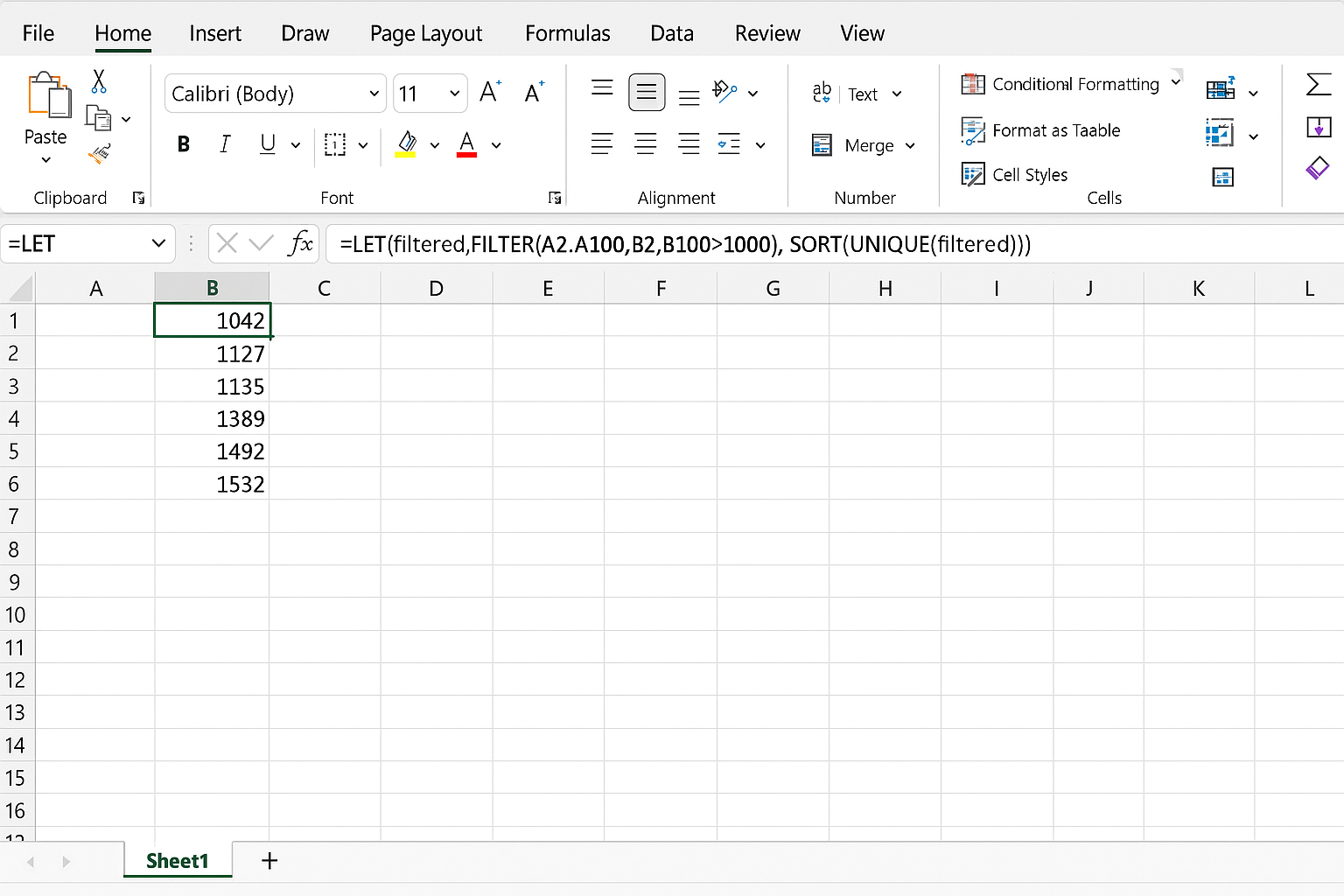
Combining LET() with nested dynamic arrays empowers you to write clearer formulas. For example:
=LET(filtered,FILTER(A2:A100, B2:B100>1000), SORT(UNIQUE(filtered)))This defines filtered as the intermediate filtered array, then sorts unique values from it.
Common Errors and Troubleshooting
- #CALC! Error: Often occurs if the range sizes mismatch or spill range is blocked.
- Incorrect Results: Check logical conditions inside
FILTER()and ensure correct nesting order.
Conclusion
Nesting Excel dynamic array functions unlocks powerful data manipulation capabilities that streamline workflows and enable sophisticated analysis. With practice, combining functions like FILTER(), SORT(), and UNIQUE() in nested formulas will become a natural part of your Excel toolkit, enhancing both efficiency and insight.
Frequently Asked Questions
Below are answers to common questions about Excel dynamic array nested formulas.
Related Articles
- Understanding Dynamic Array Functions in Excel: A Beginner’s Guide
- Top Excel Dynamic Array Formulas You Should Know
- How to Use the Excel FILTER Function with Dynamic Arrays
- Mastering the Excel SORT Function Using Dynamic Arrays
- Using the UNIQUE Function in Excel to Extract Distinct Values with Dynamic Arrays
Want practical Excel help?
Support free Excel tutorials, get weekly tips, or contact us for Excel programming, VBA, Power Query, dashboards, and automation work.