Common Issues with Excel Dynamic Array Functions and How to Fix Them
Introduction
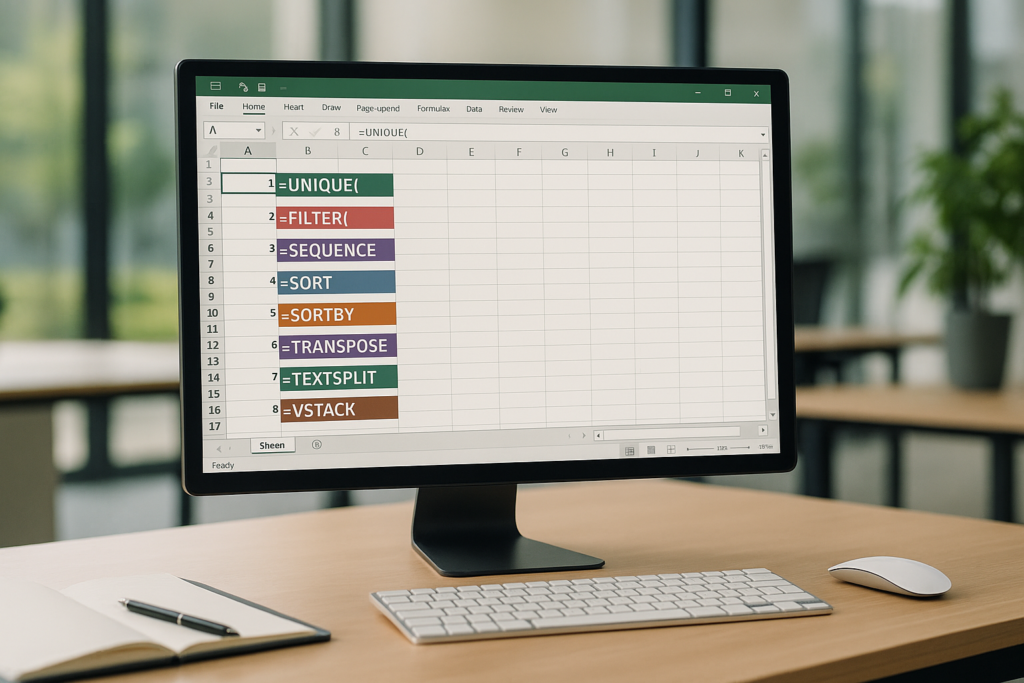
Excel’s dynamic array functions have revolutionized how users manipulate and analyze data by allowing formulas to output arrays of values that spill into adjacent cells automatically. These functions, such as FILTER, SORT, UNIQUE, and SEQUENCE, simplify complex calculations and reduce manual intervention. However, despite their power, users often encounter common issues with Excel dynamic arrays that can disrupt workflows and cause confusion. This article explores these issues in detail and provides practical solutions to fix them.
1. #SPILL! Error: Understanding and Resolving the Most Common Problem
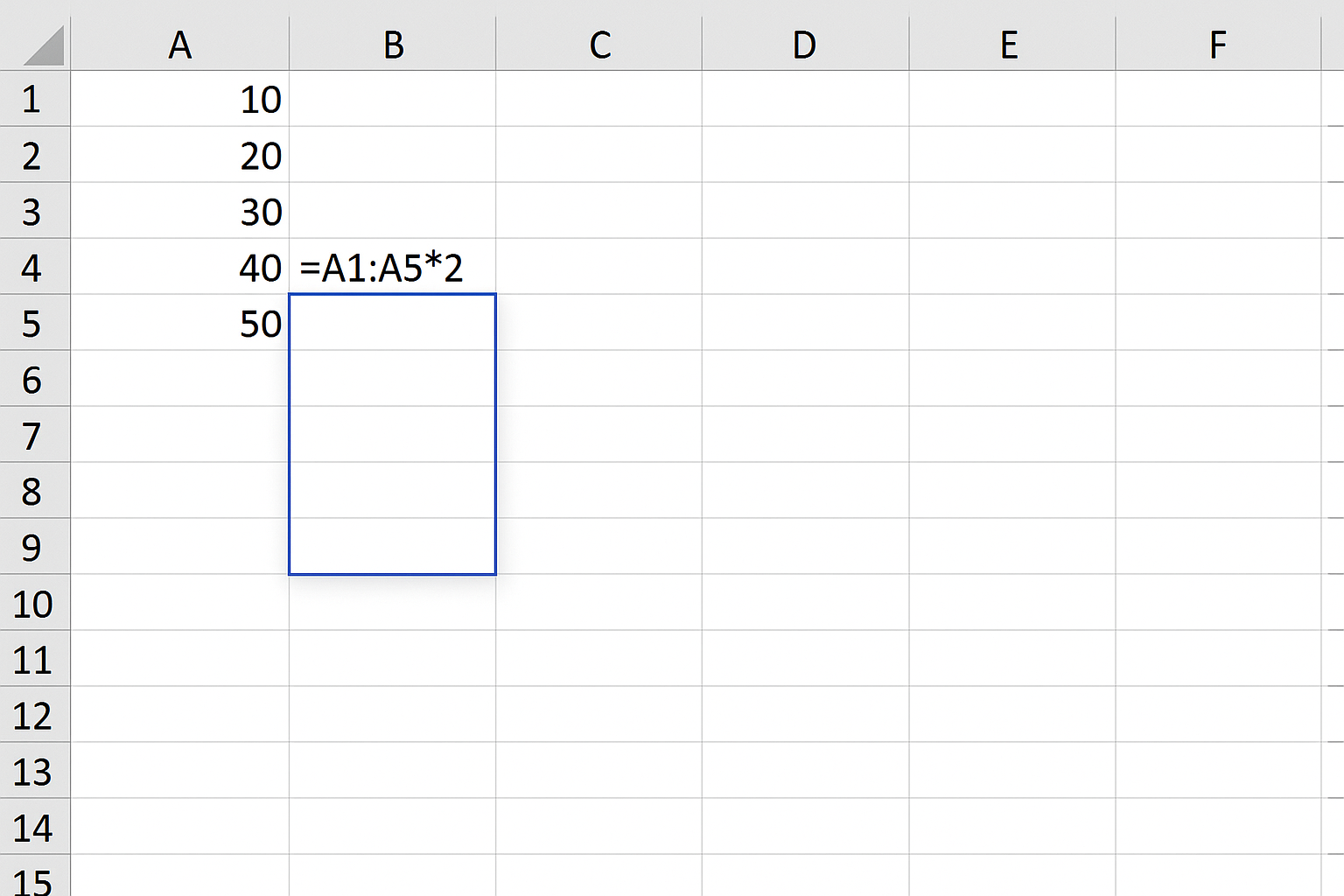
The #SPILL! error is the most frequent issue users face when working with dynamic arrays. It occurs when the output range of a dynamic array formula is obstructed by other data or when Excel cannot determine where to place the spilled array.
Causes of #SPILL! Error
- Blocked cells: Non-empty cells adjacent to the formula prevent spilling.
- Table boundaries: Dynamic arrays don’t spill into Excel tables.
- Worksheet protection: Locked cells or protected sheets can block spilling.
- Merged cells: Spilled arrays cannot overlap merged cells.
How to Fix #SPILL! Errors
Example: =SORT(A2:A10)
- Clear obstructing cells: Check the spill range indicated by the blue border and clear any contents or formatting in those cells.
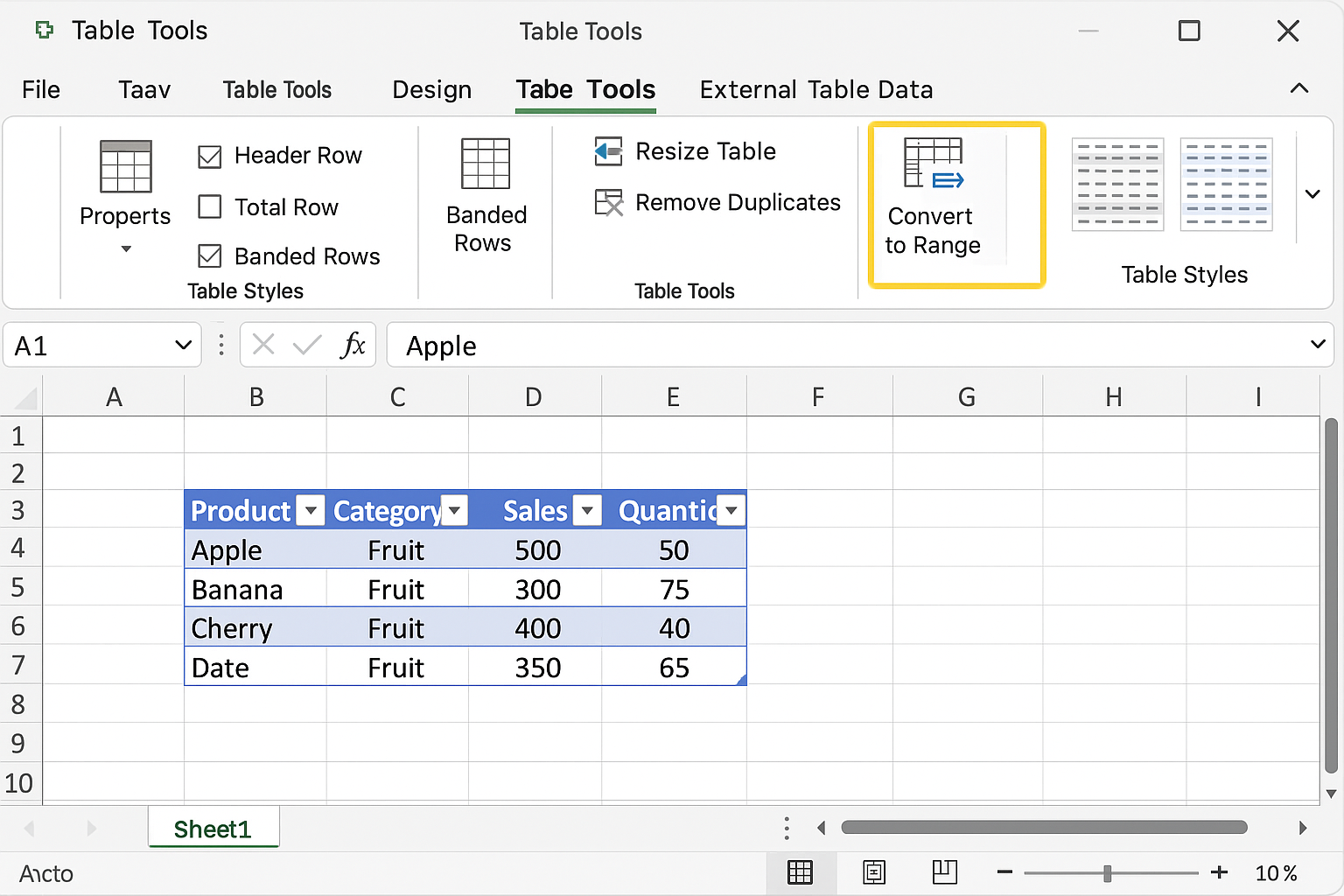
- Convert tables to ranges: If your data is in a table, convert it to a normal range by selecting the table and choosing Convert to Range under the Table Tools.
- Unmerge cells: Locate merged cells within the spill area and unmerge them.
- Adjust worksheet protection: Temporarily unprotect the sheet or unlock the spill area cells.
2. Unexpected Results with the UNIQUE Function
The UNIQUE function returns a list of unique values from a range or array. Sometimes, it may return unexpected duplicates or miss values due to data inconsistencies.
Common Causes
- Hidden characters or extra spaces in data.
- Case sensitivity issues (the UNIQUE function is case-insensitive by default).
- Non-contiguous ranges.
Fixing the UNIQUE Function Output
Example: =UNIQUE(TRIM(A2:A20))
- Use TRIM: Wrap the range with
TRIMto remove extra spaces. - Clean data: Use
CLEANto remove non-printable characters. - Check range: Ensure the range is continuous and properly selected.
3. Incorrect or Unexpected Sorting with SORT and SORTBY Functions
Dynamic array sorting functions help order data quickly but can sometimes yield incorrect results.
Common Issues
- Sorting by text that includes numbers stored as text.
- Sorting by multiple columns with inconsistent data types.
- Blank cells affecting sort order.
How to Correct Sorting Problems
Example: =SORT(A2:B20,2,1)
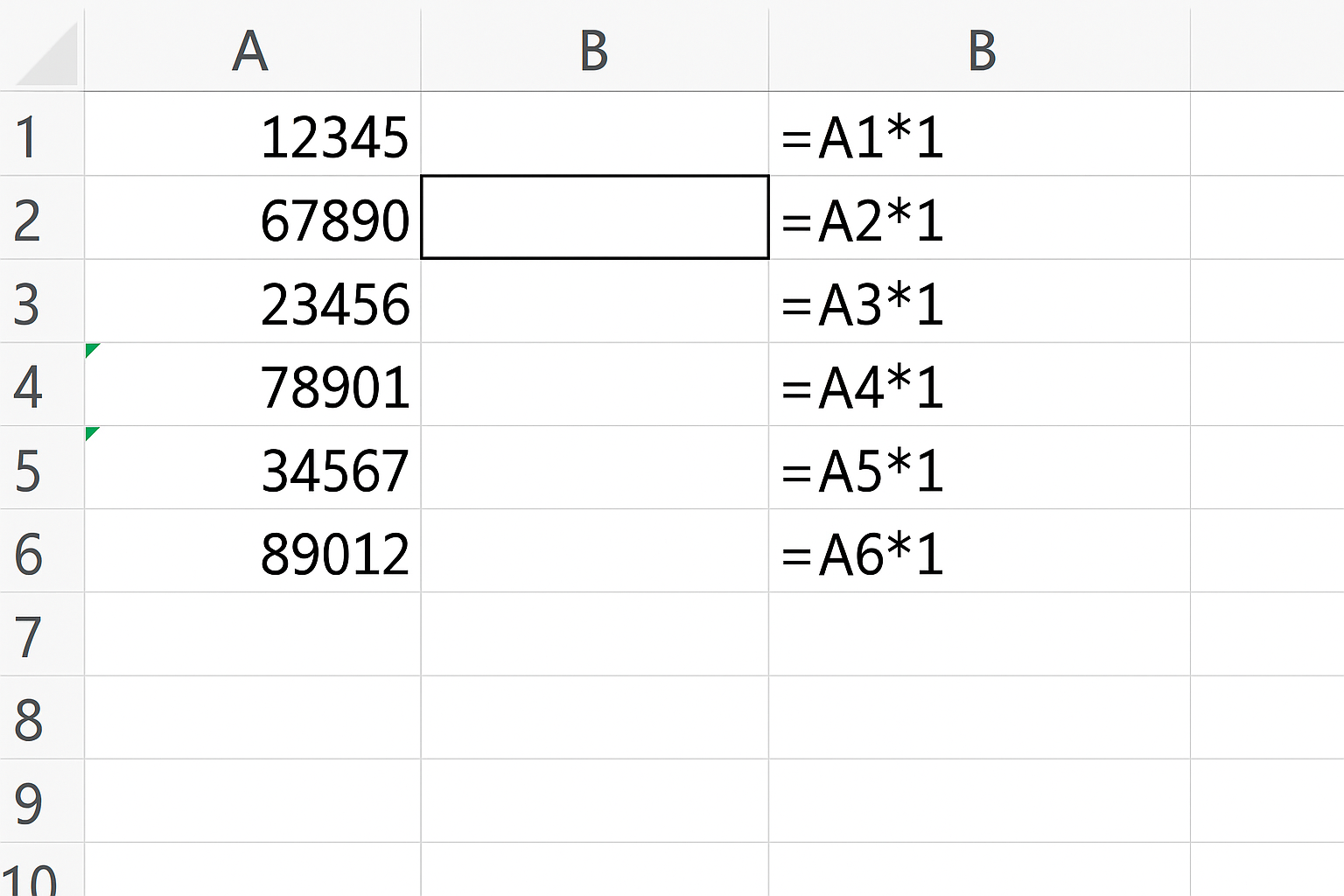
- Convert numbers stored as text: Use
VALUEor multiply by 1 to convert text to numbers. - Consistent data types: Ensure all data in the sort column is of the same type.
- Manage blanks: Use
IFto replace blank cells with a value that fits sorting logic.
4. Spill Range Overlaps When Copying or Moving Formulas
Copying or moving dynamic array formulas can cause the spill range to overlap with other data, generating #SPILL! errors.
Tips to Avoid Overlaps
- Plan spill ranges in advance to prevent overlapping with existing data.
- Use separate sheets or columns for dynamic arrays where possible.
- Clear potential spill ranges before moving formulas.
5. Compatibility Issues with Older Versions of Excel
Dynamic array functions are only available in Excel 365 and Excel 2021. Opening files with these functions in older versions results in errors or displays the formula text.
How to Handle Compatibility
- Use alternative formulas compatible with older versions.
- Inform users about required Excel versions.
- Use helper columns or VBA for backward compatibility where necessary.
Practical Examples to Troubleshoot Dynamic Array Issues
Example 1: Fixing a #SPILL! Error
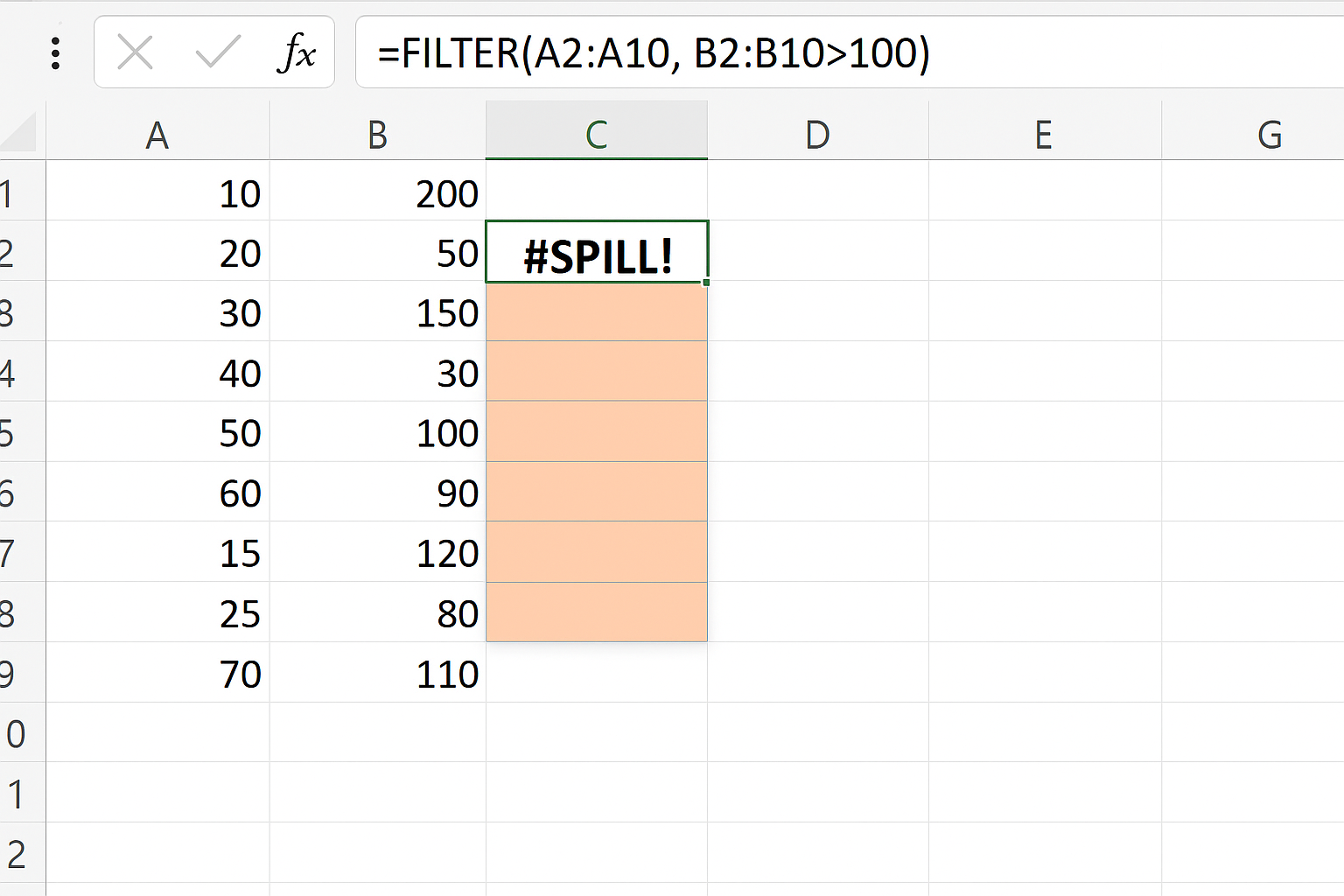
Formula: =FILTER(A2:A10, B2:B10>100)
If the formula returns a #SPILL! error, check the cells adjacent to where the filtered list would appear. Delete or move any obstructing content.
Example 2: Cleaning Data for UNIQUE
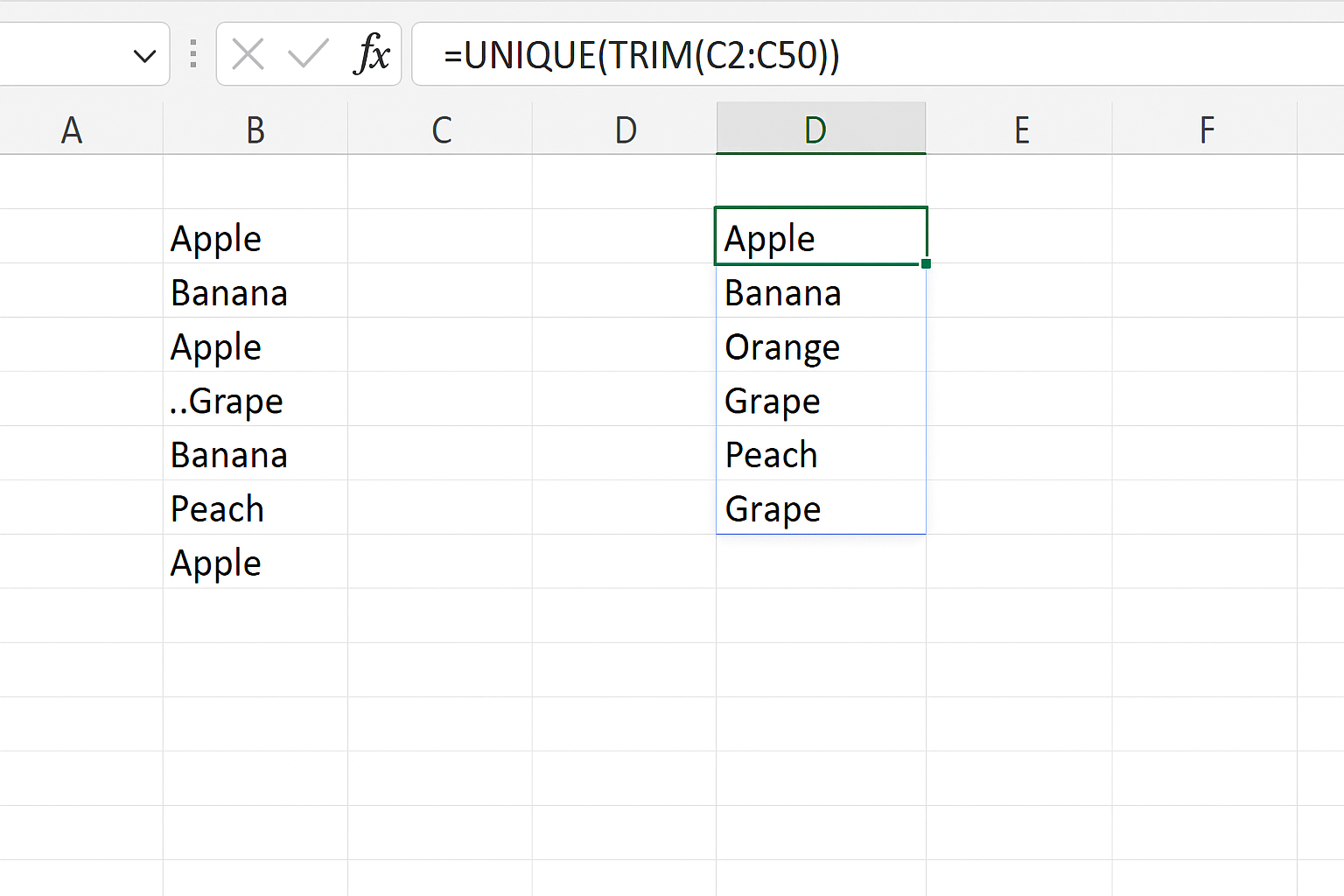
Formula: =UNIQUE(TRIM(C2:C50))
Using TRIM removes extra spaces ensuring UNIQUE returns distinct values.
Frequently Asked Questions (FAQs)
Q1: What causes the #SPILL! error in dynamic array formulas?
A1: The #SPILL! error typically occurs when the spill range is blocked by existing data, merged cells, or protected cells preventing the array from spilling.
Q2: Can dynamic array formulas be used in Excel tables?
A2: No, dynamic arrays cannot spill into Excel tables. You need to convert the table to a range to use dynamic array formulas.
Q3: Are dynamic array functions case-sensitive?
A3: By default, functions like UNIQUE are not case-sensitive. To perform case-sensitive operations, additional formulas or functions are required.
Q4: How to make dynamic array formulas compatible with older Excel versions?
A4: Older versions do not support dynamic arrays. Use traditional array formulas or helper columns, or upgrade to Excel 365 or 2021 for full support.
Q5: Why do SORT functions sometimes yield unexpected results?
A5: Sorting issues often stem from mixed data types, numbers stored as text, or blank cells affecting the sort order.
Conclusion
While Excel dynamic array functions provide powerful and flexible tools for data analysis, common issues such as #SPILL! errors, unexpected outputs, and compatibility challenges can hinder productivity. Understanding the root causes and applying practical fixes ensures smooth use of these functions. By keeping data clean, planning spill ranges carefully, and ensuring Excel version compatibility, users can fully harness the potential of dynamic arrays to simplify complex tasks.
Related Articles
- Understanding Dynamic Array Functions in Excel: A Beginner’s Guide
- Top Excel Dynamic Array Formulas You Should Know
- How to Use the Excel FILTER Function with Dynamic Arrays
- Mastering the Excel SORT Function Using Dynamic Arrays
- Using the UNIQUE Function in Excel to Extract Distinct Values with Dynamic Arrays
Want practical Excel help?
Support free Excel tutorials, get weekly tips, or contact us for Excel programming, VBA, Power Query, dashboards, and automation work.