Creating Dynamic Visualizations in Excel Using AI Techniques

Introduction
Excel remains one of the most widely used tools for data analysis, thanks to its flexibility and powerful features. With the integration of Artificial Intelligence (AI) techniques, Excel’s visualization capabilities have become more dynamic and insightful than ever before. This article explores how to leverage Excel AI visualization tools to create interactive and intelligent visualizations that adapt to your data and help you uncover deeper insights.
Understanding Excel AI Visualization
Excel AI visualization refers to the use of AI-powered features within Excel to generate charts, graphs, and dashboards that automatically adjust based on data changes, predict trends, or provide deeper context. These capabilities include features like Ideas (formerly Insights), Power Query, Power Pivot combined with AI-driven add-ins, and integration with Azure Machine Learning models.
By harnessing these AI tools, users can create dynamic visualizations that not only display data but also enhance decision-making through predictive analytics, automated pattern recognition, and natural language queries.
Key AI Features in Excel for Visualization
- Ideas (Insights): This feature uses AI to scan your data and suggest the most relevant charts and trends without manual effort.
- Data Types and Data Types Linked to AI: Excel now supports rich data types powered by AI, such as stocks, geography, and custom data types linked to online sources.
- Power Query & Power Pivot: While not AI themselves, these tools can be combined with AI models to clean, transform, and load data dynamically for visualizations.
- Natural Language Queries: Excel allows users to ask questions about their data in natural language, and AI generates the appropriate charts or tables.
- Integration with Azure Machine Learning: Advanced users can embed AI models to perform predictive analytics and display results within Excel visualizations.
Creating Dynamic Visualizations: Step-by-Step Examples
Example 1: Using Ideas to Generate AI-Driven Visualizations
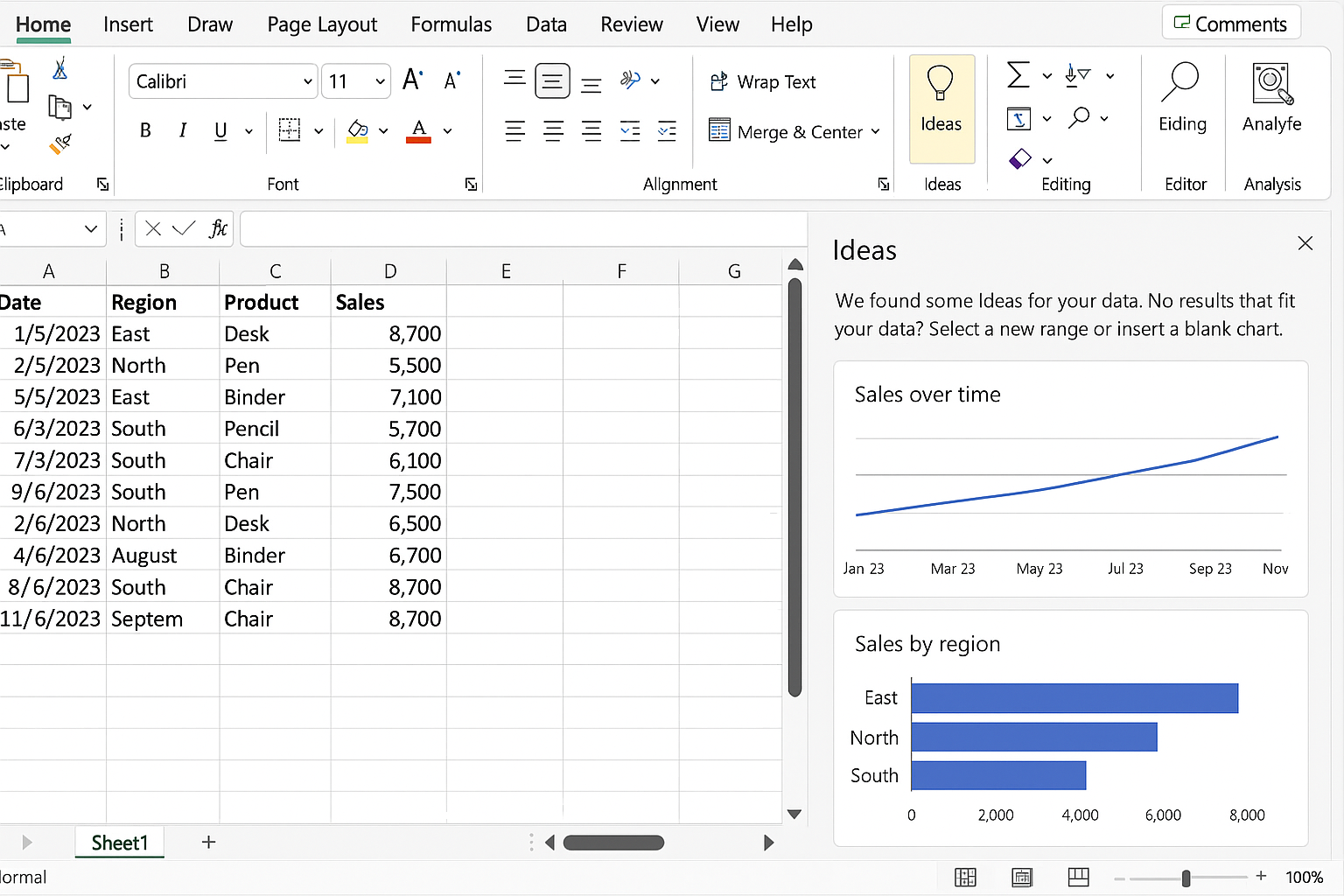
Suppose you have a sales dataset with columns for Date, Region, Product, and Sales amount. Instead of manually creating charts, you can use the Ideas feature:
- Load your data into an Excel worksheet.
- Click on the Ideas button in the Home tab.
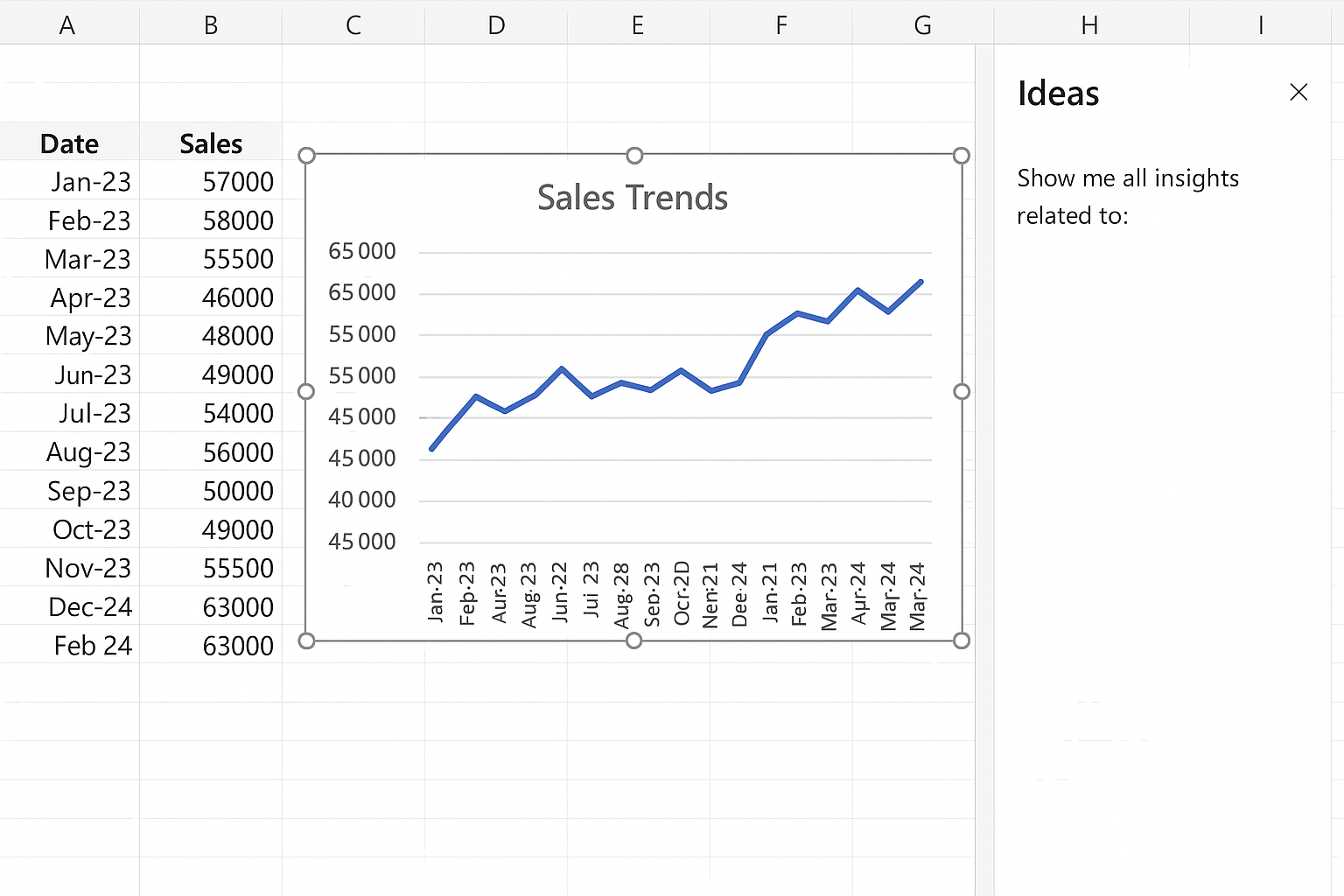
- Excel will analyze the data and provide suggested charts such as sales trends over time, top-performing regions, or product sales comparisons.
- Select a suggested visualization to insert it into your worksheet.
- The inserted chart will update dynamically as your data changes.
Example 2: Using Natural Language Queries to Generate Visualizations
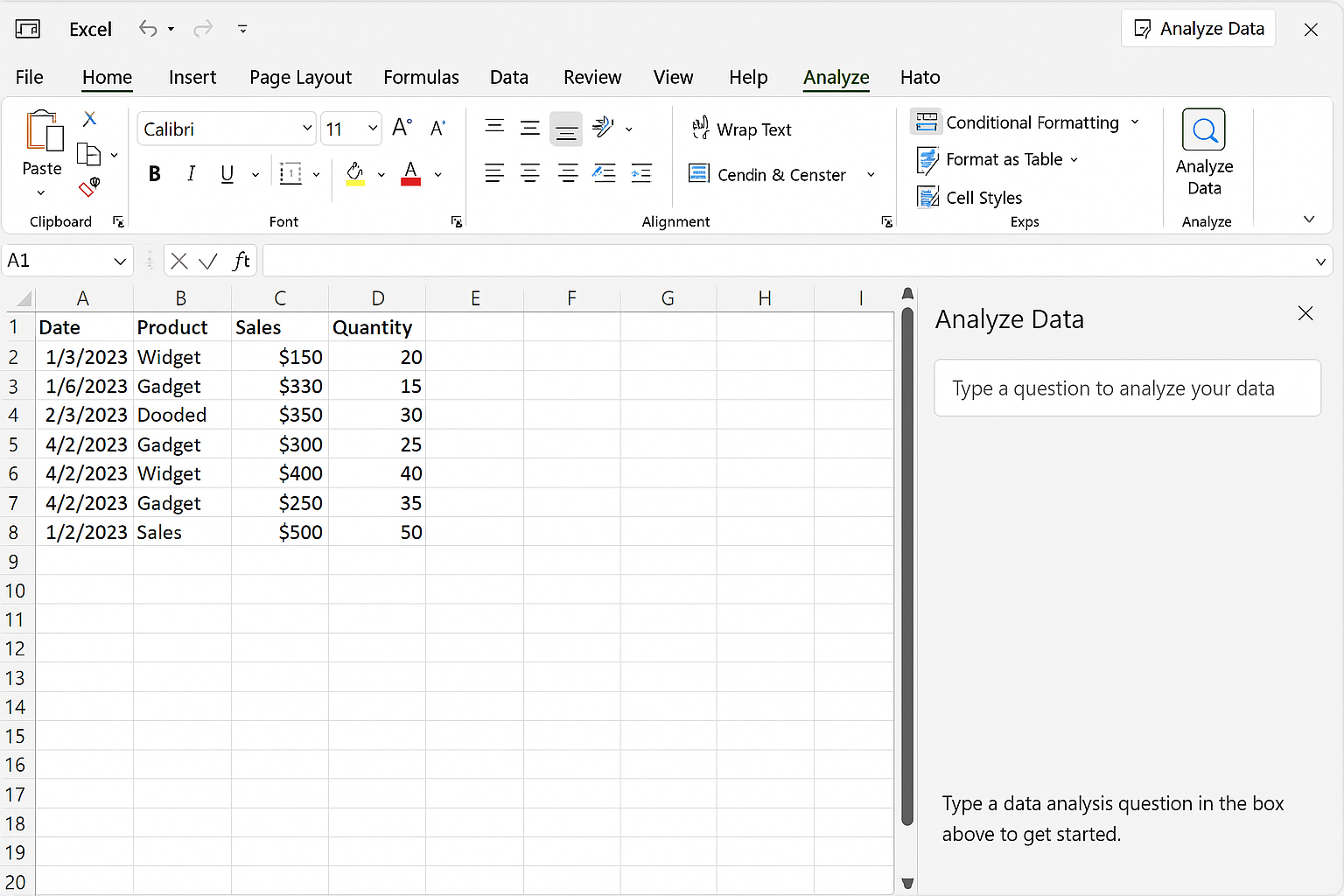
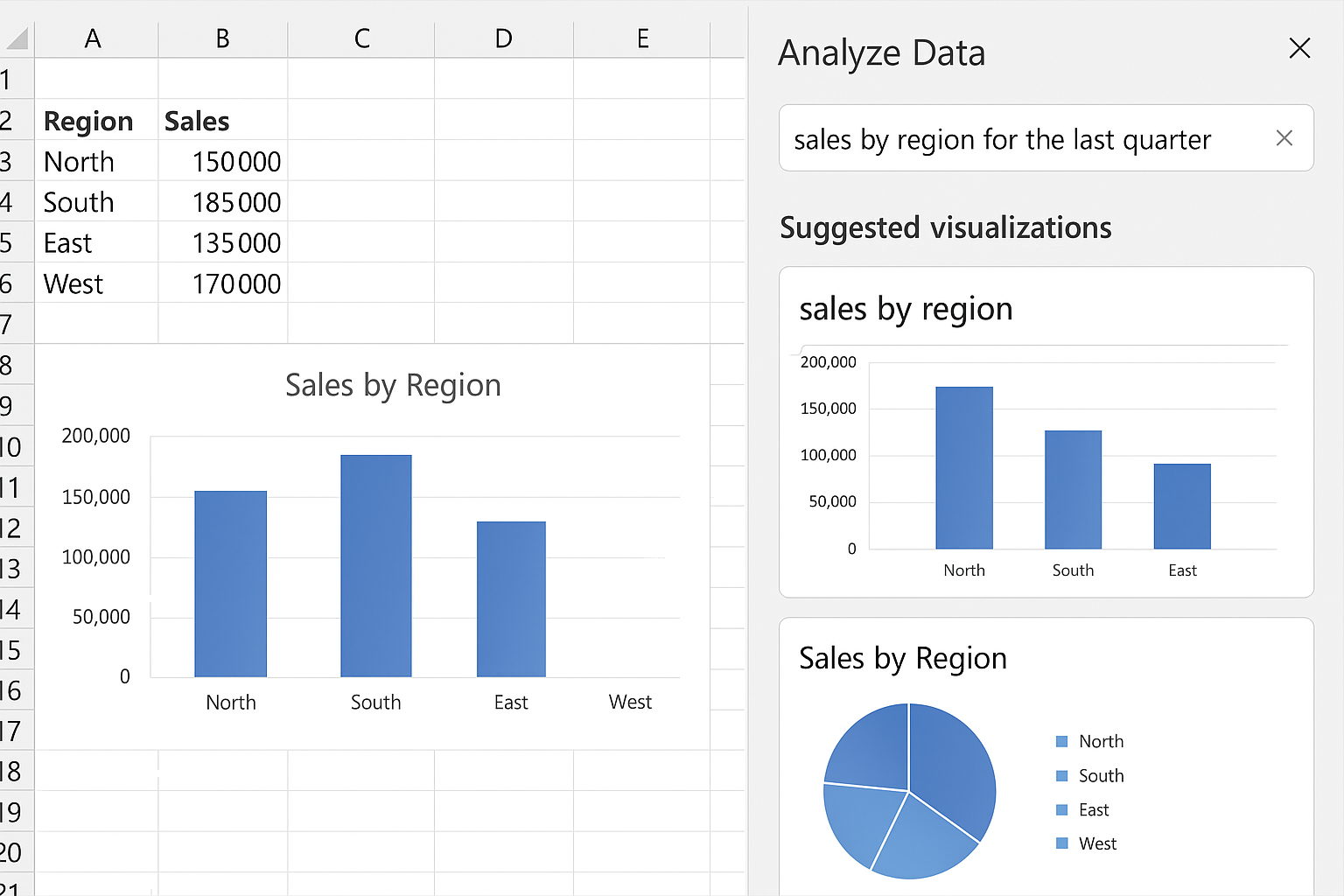
Excel’s AI allows you to type questions about your data in the Analyze Data pane:
- Load your dataset.
- Click on the Analyze Data button.
- Type a question such as “Show sales by region for the last quarter.” Excel will display charts or tables answering your query.
- Insert the visualization into your sheet for further interaction.
Example 3: Integrating Predictive Models for Forecasting
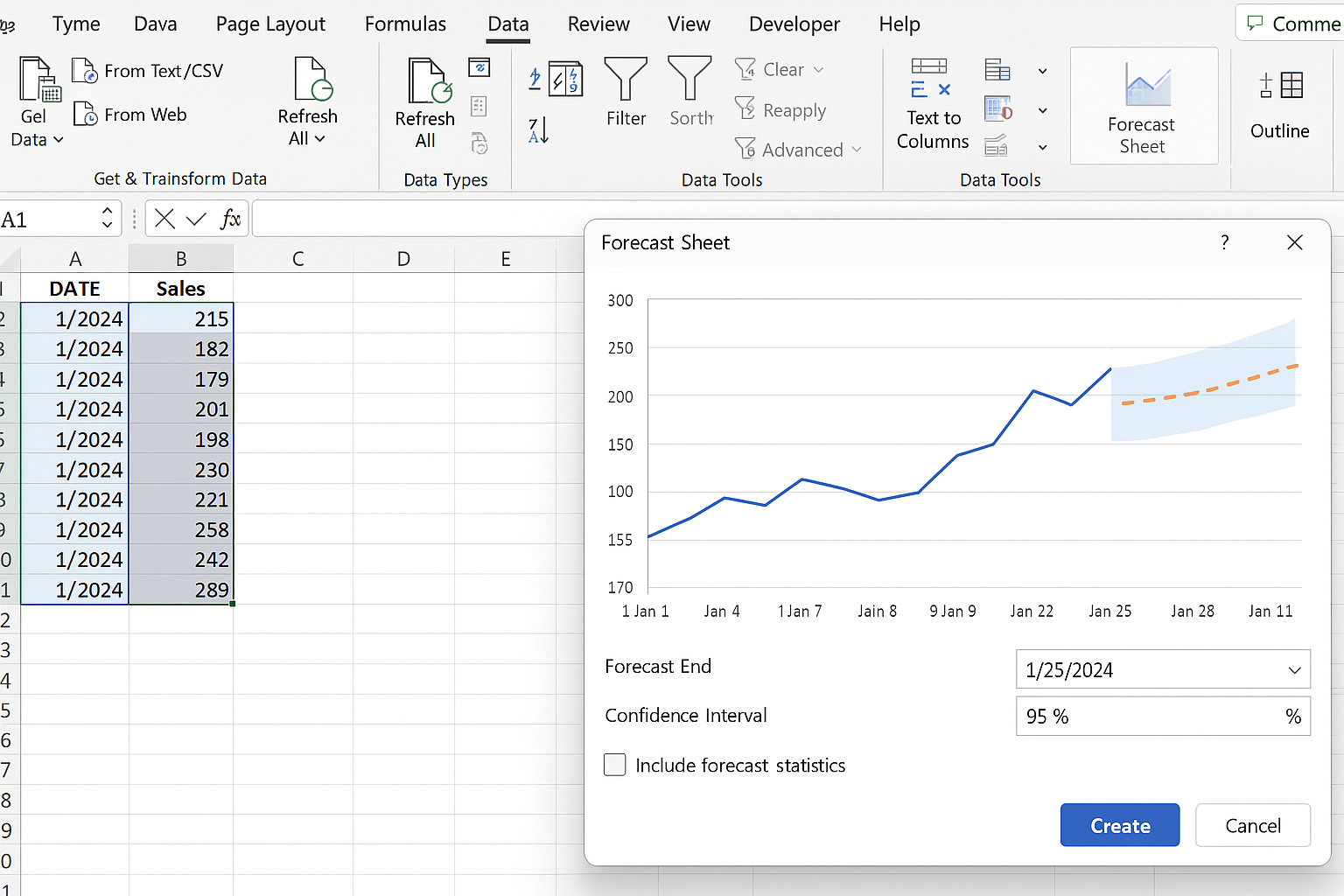
To create a dynamic forecast chart using AI:
- Use Power Query to clean and prepare your time series data.
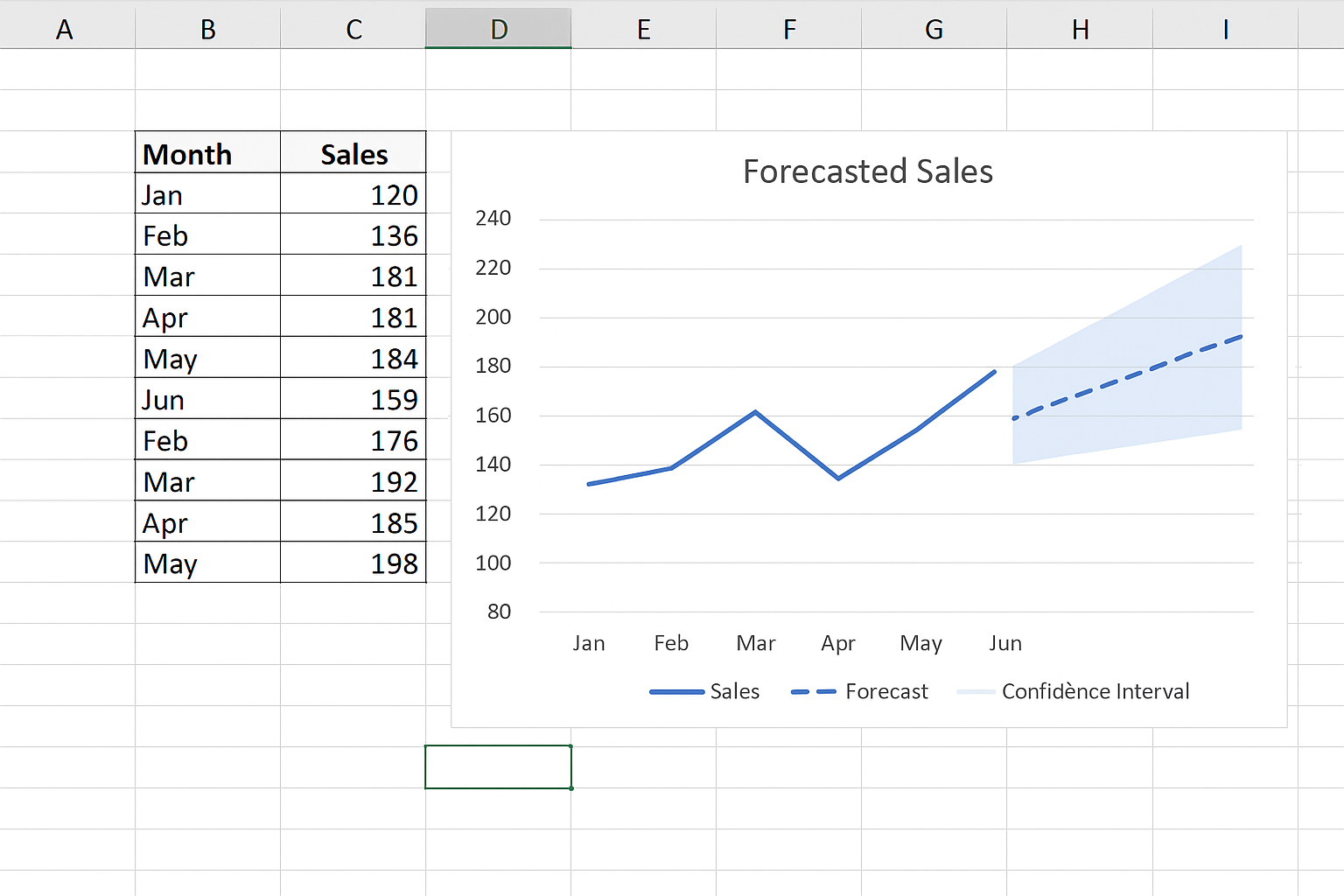
- Leverage Excel’s built-in forecast sheet feature: Select your date and sales columns, then go to Data > Forecast Sheet.
- Excel generates a forecast chart with confidence intervals, updating automatically as new data is added.
- For advanced AI forecasting, connect Excel to Azure Machine Learning models that predict sales based on multiple variables and display the results in Excel charts.
Tips for Optimizing Excel AI Visualizations
- Keep your data well-structured: Clean and organized data improves AI analysis accuracy and visualization quality.
- Use tables: Convert your data ranges into Excel tables to enable dynamic range adjustment in visualizations.
- Update data sources: If using external AI models or online data types, ensure connections are live and refreshed regularly.
- Combine AI tools: Use Ideas, natural language queries, and forecasting together for comprehensive insights.
- Customize visuals: After AI generates charts, customize them to match your presentation style and highlight key insights.
Practical Use Cases for Excel AI Visualizations
Businesses and analysts use Excel AI visualizations to:
- Automatically detect sales trends and seasonality.
- Identify anomalies or outliers in financial data.
- Forecast future performance based on historical data.
- Create interactive dashboards that update with real-time data.
- Enable non-technical users to query data in natural language and generate reports instantly.
Conclusion
Excel AI visualization tools empower users to create dynamic, insightful, and interactive charts and dashboards with minimal manual effort. By leveraging features like Ideas, natural language queries, and integration with AI models, you can transform your data analysis process and enhance decision-making. Embrace these AI capabilities within Excel to build smarter visualizations that evolve with your data.
Frequently Asked Questions
Related Articles
- How to Automate Excel Tasks Using Artificial Intelligence
- Top AI Tools to Enhance Your Excel Workflow
- Integrating Machine Learning Models into Excel for Smarter Data Analysis
- Leveraging AI to Perform Advanced Data Analysis in Excel
- Building AI-Driven Dashboards in Excel for Real-Time Insights
Want practical Excel help?
Support free Excel tutorials, get weekly tips, or contact us for Excel programming, VBA, Power Query, dashboards, and automation work.