How AI Enhances Trend Analysis and Forecasting in Excel

Introduction
In the evolving landscape of business intelligence, the integration of Artificial Intelligence (AI) with Excel has revolutionized how professionals perform trend analysis and forecasting. Excel, a widely-used tool for data management and analysis, now leverages AI capabilities to enhance accuracy, efficiency, and predictive power. This article explores how Excel AI trend analysis improves business decision-making and offers practical examples to illustrate the benefits.
Understanding Excel AI Trend Analysis
Trend analysis involves studying data patterns over time to identify consistent results or behaviors. Traditionally, Excel users relied on manual methods such as charts, linear regression, and moving averages to forecast trends. However, AI integration introduces machine learning models and natural language processing to automate complex computations and uncover deeper insights.
Excel AI trend analysis essentially means using AI-powered features within Excel—like Ideas, data types, and predictive models—to analyze historical data and predict future outcomes with higher precision.
Key AI Features in Excel for Trend Analysis
- Ideas (Insights Pane): Automatically detects patterns, highlights trends, and suggests charts or pivot tables based on your dataset.
- Forecast Sheet: Uses exponential smoothing algorithms to generate reliable forecasts and confidence intervals.
- Data Types and Linked Data: Enables dynamic data enrichment from online sources, improving the context of trend analysis.
- Integration with Azure Machine Learning: Allows advanced users to build custom AI models and integrate them into Excel workflows.
How AI Improves Trend Analysis and Forecasting Accuracy
AI enhances trend analysis in Excel through several mechanisms:
- Automation: AI automates data cleaning, pattern recognition, and model selection, reducing human error.
- Advanced Algorithms: Machine learning models can detect nonlinear trends and seasonal variations often missed by traditional methods.
- Real-Time Insights: AI can process large datasets quickly, enabling real-time trend updates and forecasting.
- Scenario Analysis: AI facilitates ‘what-if’ simulations to understand potential future trends under different conditions.
Practical Examples of Excel AI Trend Analysis
Example 1: Sales Forecasting Using the Forecast Sheet
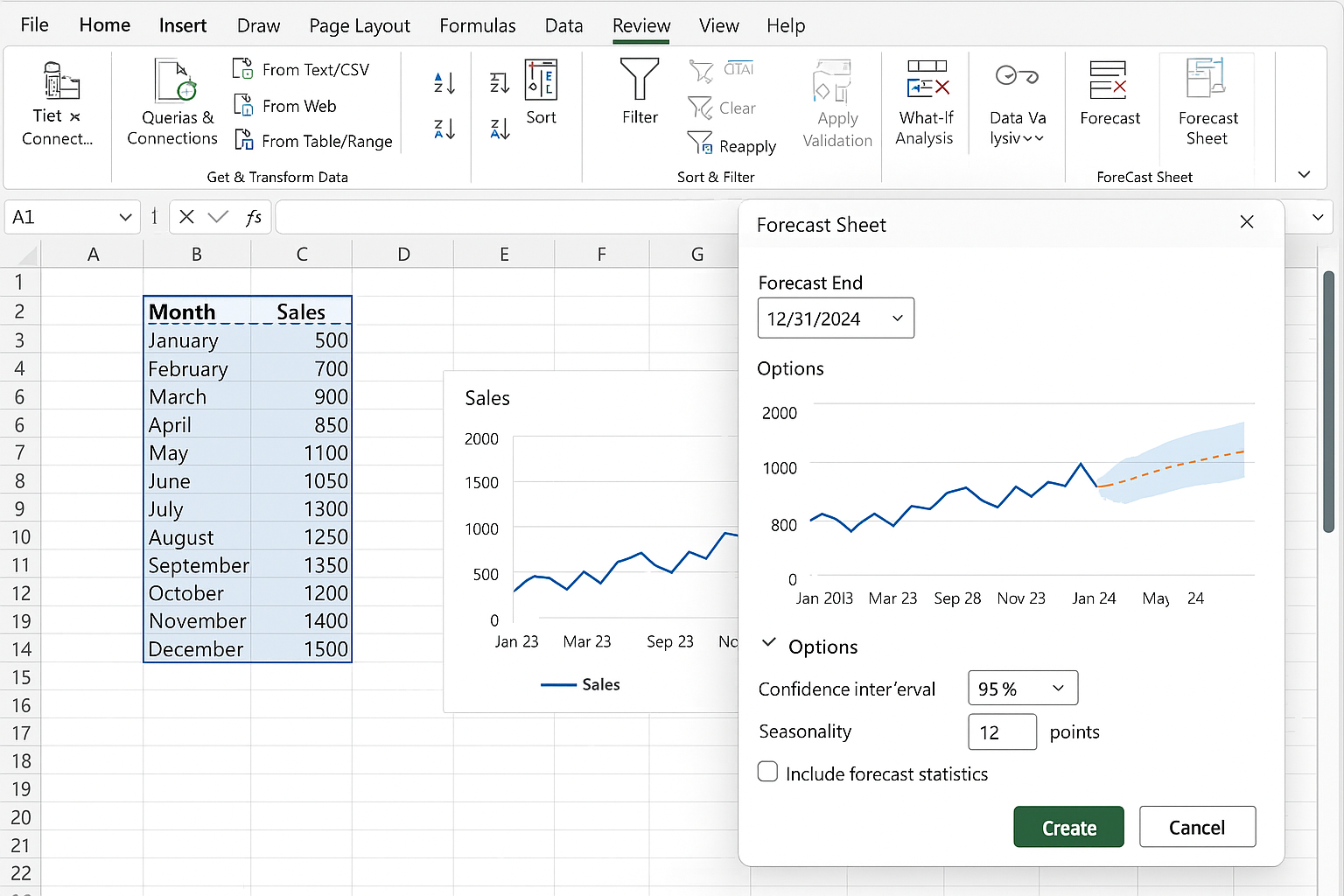
Imagine a retail business tracking monthly sales data over two years. By selecting the sales data and using Excel’s Forecast Sheet feature, the user can generate a forecast graph projecting future sales for the next six months. Excel automatically applies exponential smoothing techniques and displays confidence intervals, helping managers plan inventory and marketing strategies.
Example 2: Identifying Product Trends with Ideas
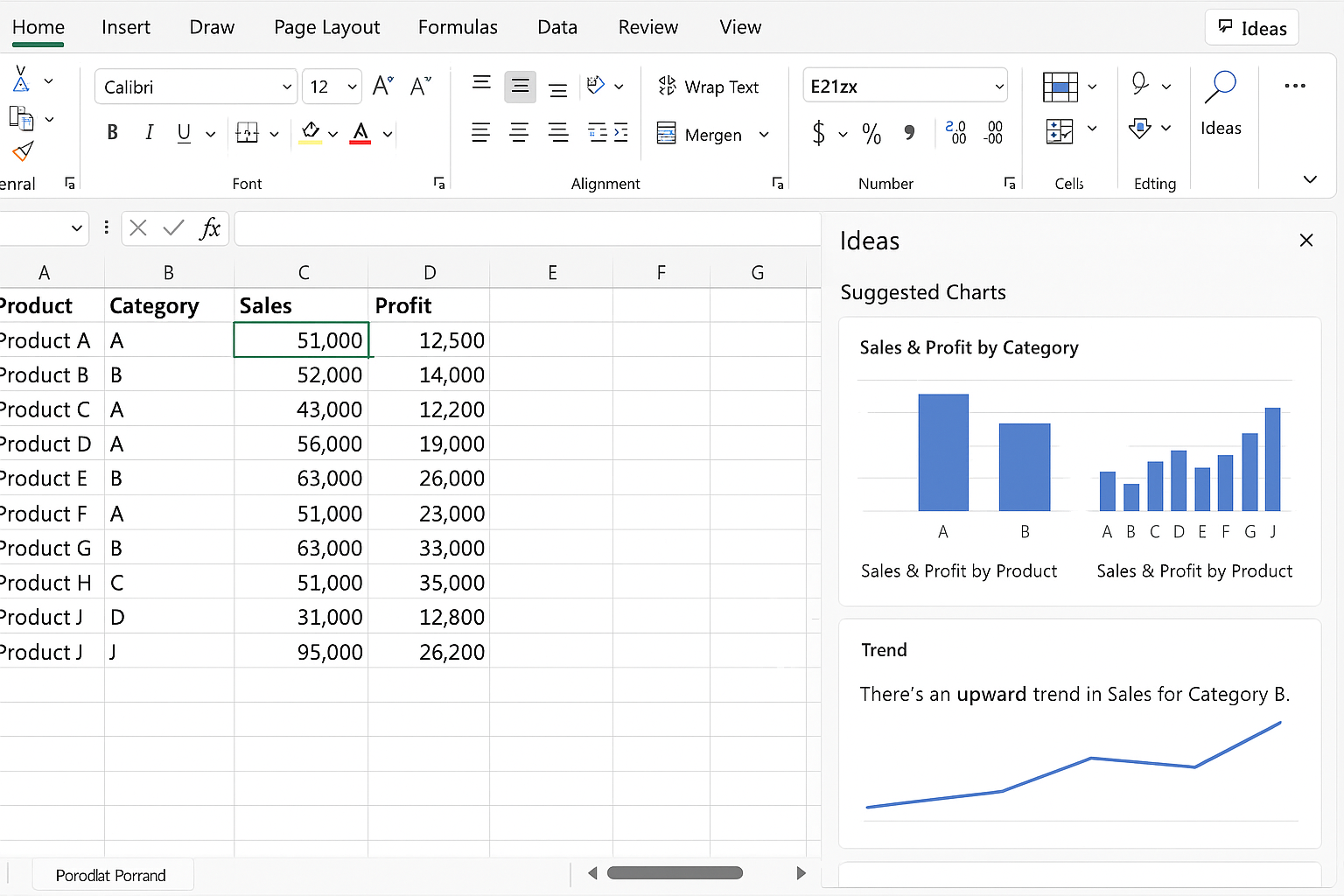
A marketing analyst uploads a dataset containing product performance metrics. By clicking the Ideas button, Excel analyzes the data and suggests that a specific product category is trending upward in a particular region. This insight helps the team focus advertising efforts where demand appears to be growing.
Example 3: Custom AI Models for Demand Prediction
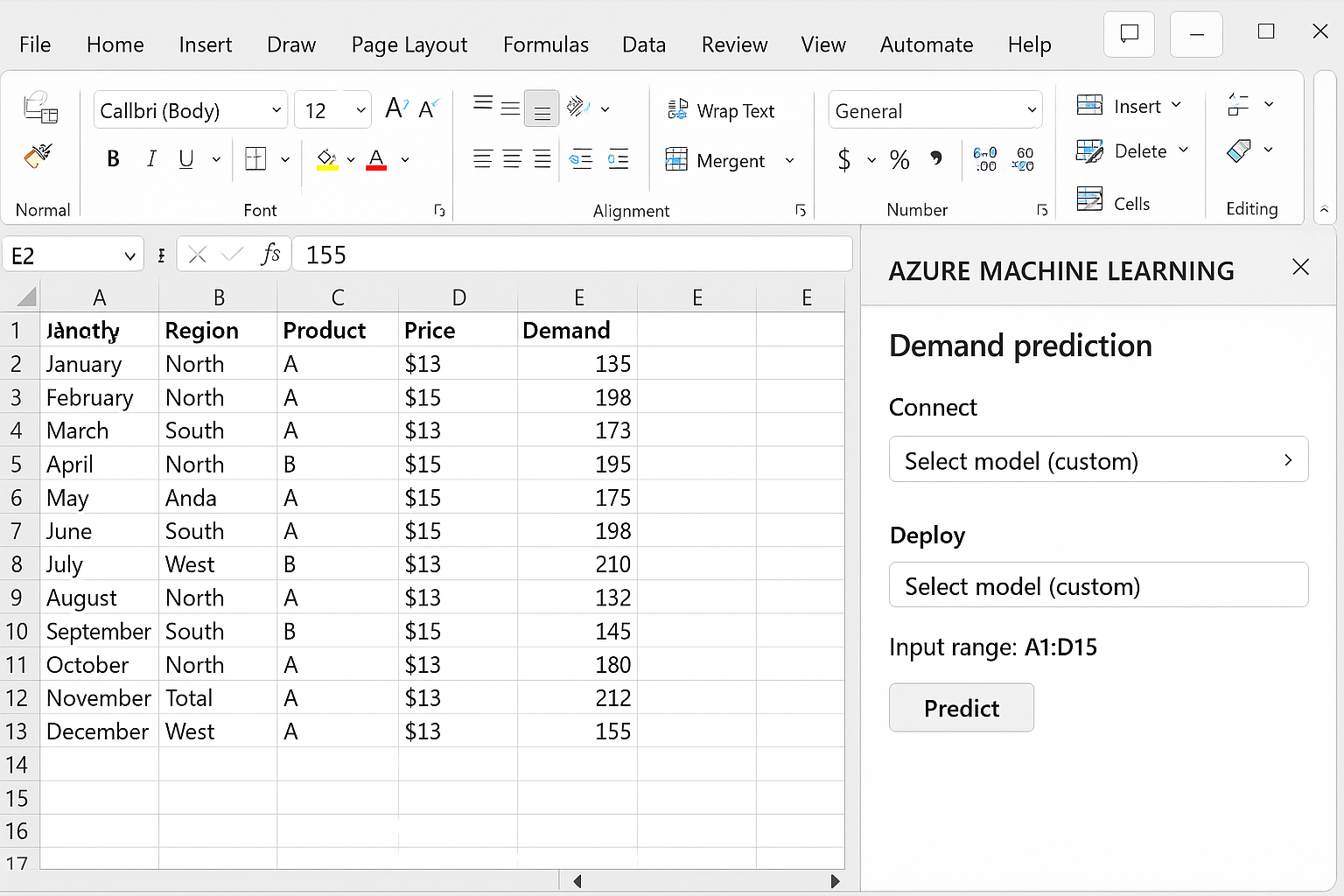
Advanced users can build custom predictive models using Azure Machine Learning and connect them to Excel. For instance, a supply chain manager may use a model trained on multiple variables—such as weather patterns, historical sales, and economic indicators—to forecast demand more accurately than standard Excel functions alone.
Best Practices for Using Excel AI in Trend Analysis
- Ensure Data Quality: Clean and organize data before analysis to improve AI results.
- Leverage Built-In Features: Start with Excel’s native AI tools like Ideas and Forecast Sheet before moving to advanced integrations.
- Combine Human Expertise: Use AI-generated insights as a supplement rather than a replacement for expert judgment.
- Regularly Update Models: Retrain custom models with new data to maintain forecasting accuracy.
- Visualize Results: Use charts and dashboards to communicate trends effectively to stakeholders.
Challenges and Considerations
While Excel AI trend analysis offers numerous benefits, users should be aware of limitations such as data privacy concerns when connecting to cloud services, the need for domain expertise to interpret AI results correctly, and potential overreliance on automated forecasts without critical evaluation.
Conclusion
Excel AI trend analysis represents a powerful fusion of traditional spreadsheet capabilities with cutting-edge artificial intelligence technologies. By automating complex computations and uncovering nuanced data patterns, AI enhances forecasting accuracy and business intelligence. Whether through built-in tools like the Forecast Sheet or custom machine learning models, Excel users can unlock new levels of insight, driving smarter decisions and better outcomes.
Frequently Asked Questions (FAQ)
Q1: What is “Excel AI trend analysis”?
Excel AI trend analysis refers to the use of artificial intelligence features within Excel to identify data trends and make forecasts more accurately and efficiently.
Q2: Can I use AI features in Excel without programming skills?
Yes, many AI features like Ideas and Forecast Sheet are user-friendly and require no coding knowledge.
Q3: How does the Forecast Sheet work in Excel?
The Forecast Sheet uses exponential smoothing algorithms to create forecasts based on historical data and visualize future trends with confidence intervals.
Q4: Is it possible to integrate custom AI models with Excel?
Yes, Excel supports integration with Azure Machine Learning, allowing advanced users to deploy custom AI models within Excel.
Q5: What types of data are best suited for AI-driven trend analysis in Excel?
Time-series data such as sales figures, stock prices, and website traffic are ideal for AI-driven trend analysis and forecasting.
Q6: Are there any risks when using AI in Excel for business decisions?
Risks include data privacy issues, misinterpretation of AI outputs, and overdependence on automated forecasts without human validation.
Related Articles
- How to Automate Excel Tasks Using Artificial Intelligence
- Top AI Tools to Enhance Your Excel Workflow
- Integrating Machine Learning Models into Excel for Smarter Data Analysis
- Leveraging AI to Perform Advanced Data Analysis in Excel
- Creating Dynamic Visualizations in Excel Using AI Techniques
Want practical Excel help?
Support free Excel tutorials, get weekly tips, or contact us for Excel programming, VBA, Power Query, dashboards, and automation work.