Introduction to VBA Programming in Excel for Economic Analysis
Introduction
Excel is a foundational tool for economists, used extensively for data analysis, modeling, and reporting. However, manual handling of large datasets and repetitive tasks can be time-consuming and error-prone. This is where Excel VBA for economic analysis becomes invaluable. Visual Basic for Applications (VBA) allows economists to automate workflows, create custom functions, and streamline complex analyses directly within Excel.
In this article, we will explore how VBA programming can enhance economic analysis, practical examples of automation, and tips for economists to get started with VBA effectively.
What is Excel VBA?
Excel VBA is a programming language embedded in Microsoft Excel that enables users to write macros and automate tasks. It provides access to Excel’s features programmatically, allowing the creation of custom tools tailored to specific analysis needs.
Economists benefit from VBA by automating data cleaning, executing repetitive calculations, performing scenario analysis, and generating reports without manual intervention.
Why Use Excel VBA for Economic Analysis?
- Efficiency: Automate repetitive tasks such as data import, formatting, and calculations.
- Accuracy: Reduce human error by standardizing processes and calculations.
- Customization: Build tailored models and analyses that are not available through standard Excel functions.
- Reproducibility: Save and share macros to ensure consistent methodology across projects.
Getting Started with VBA in Excel
To start programming in VBA, enable the Developer tab in Excel. Then, open the Visual Basic for Applications editor (VBE) to write and edit your macros.
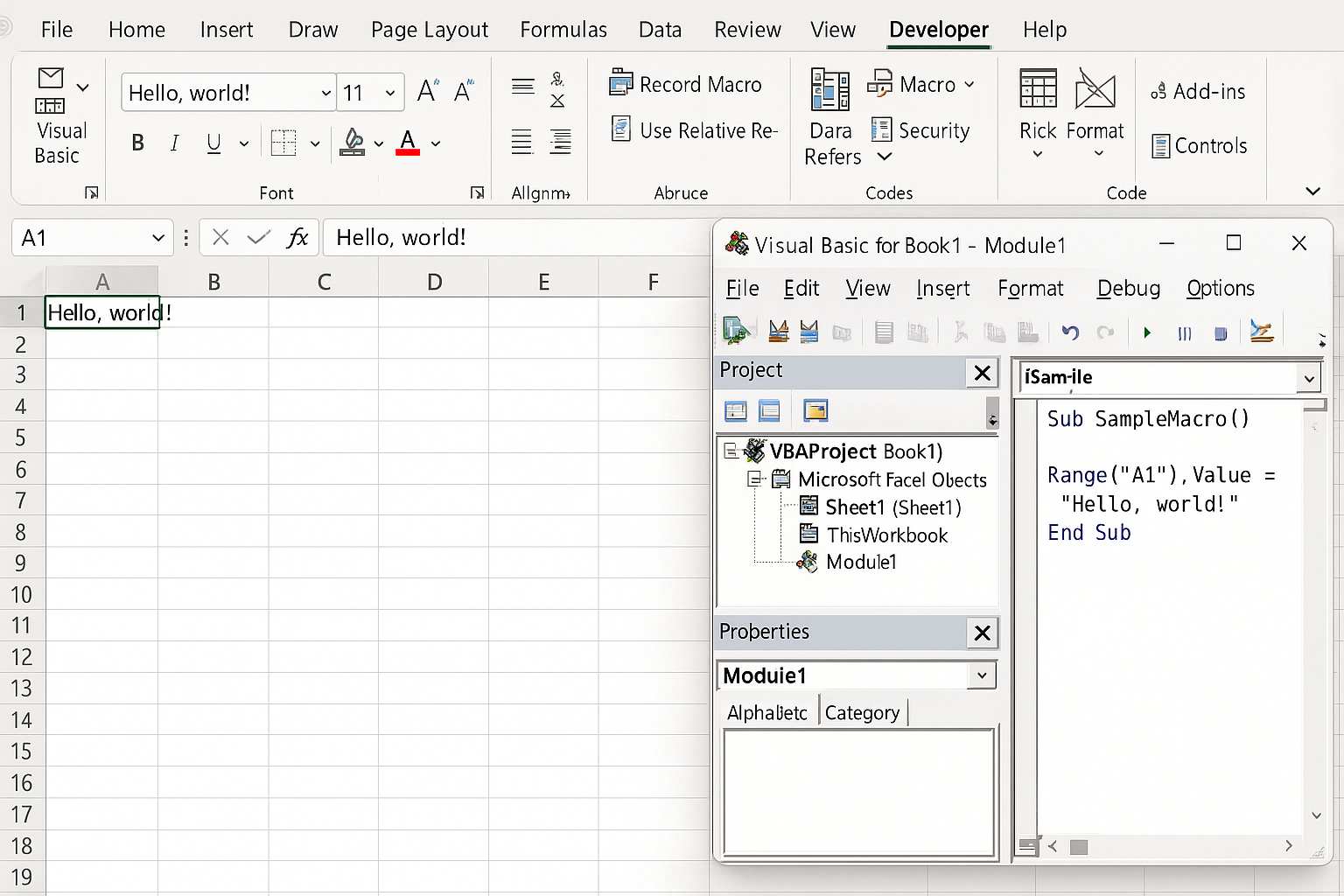
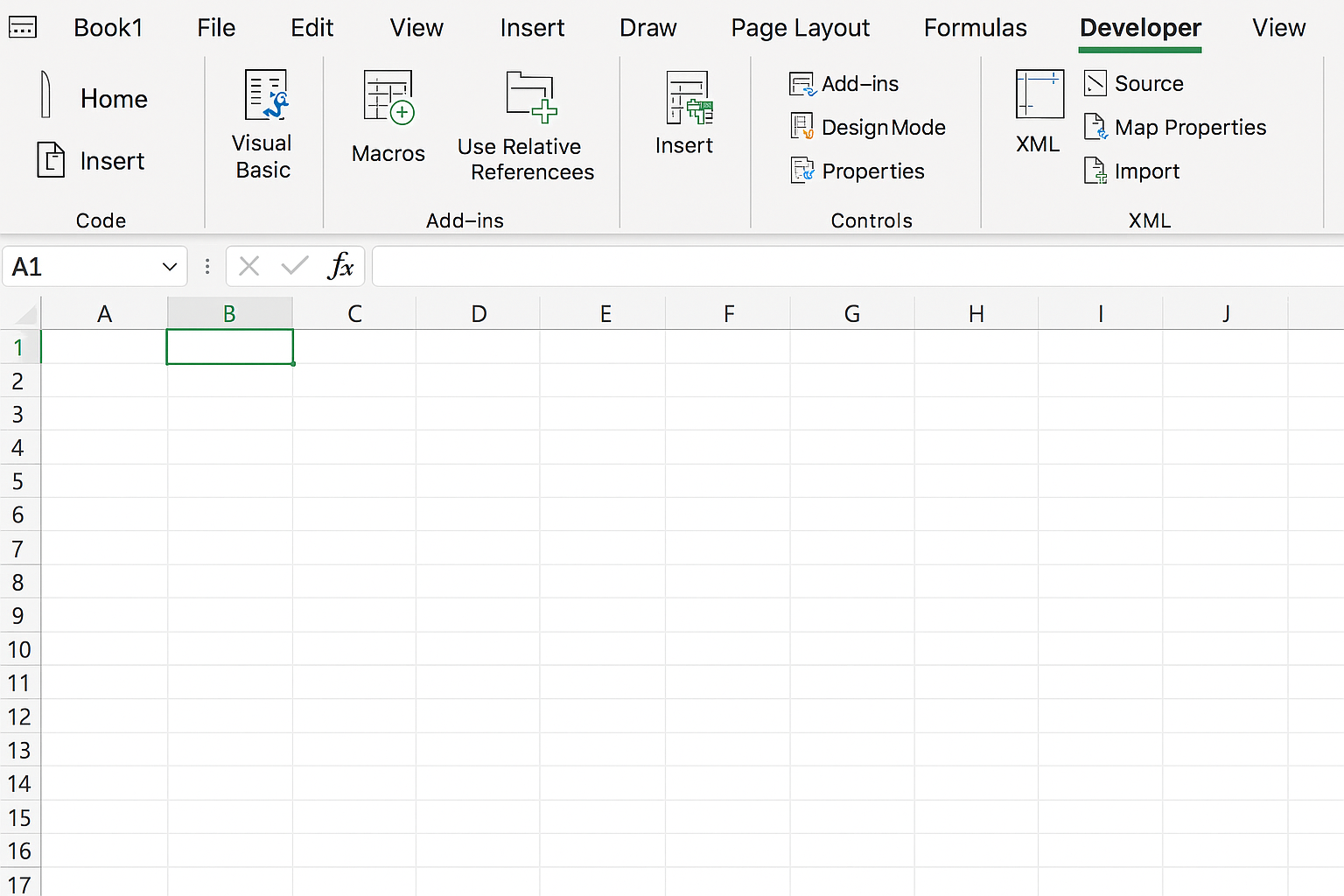
Here is a simple example of a VBA macro that calculates the average GDP growth rate from a range of cells and displays the result in a message box:
Sub CalculateAverageGDPGrowth()
    Dim rng As Range
    Dim avgGrowth As Double
    Set rng = Range("B2:B11") 'Assuming GDP growth rates are in this range
    avgGrowth = Application.WorksheetFunction.Average(rng)
    MsgBox "The average GDP growth rate is " & Format(avgGrowth, "0.00%")
End Sub
This macro can be assigned to a button for quick access during analysis.
Practical Examples of VBA for Economic Analysis
1. Automating Data Import and Cleaning
Economists often work with large datasets from external sources. VBA can automate the import process and perform standard cleaning steps such as removing blanks, correcting formats, and standardizing data entries.
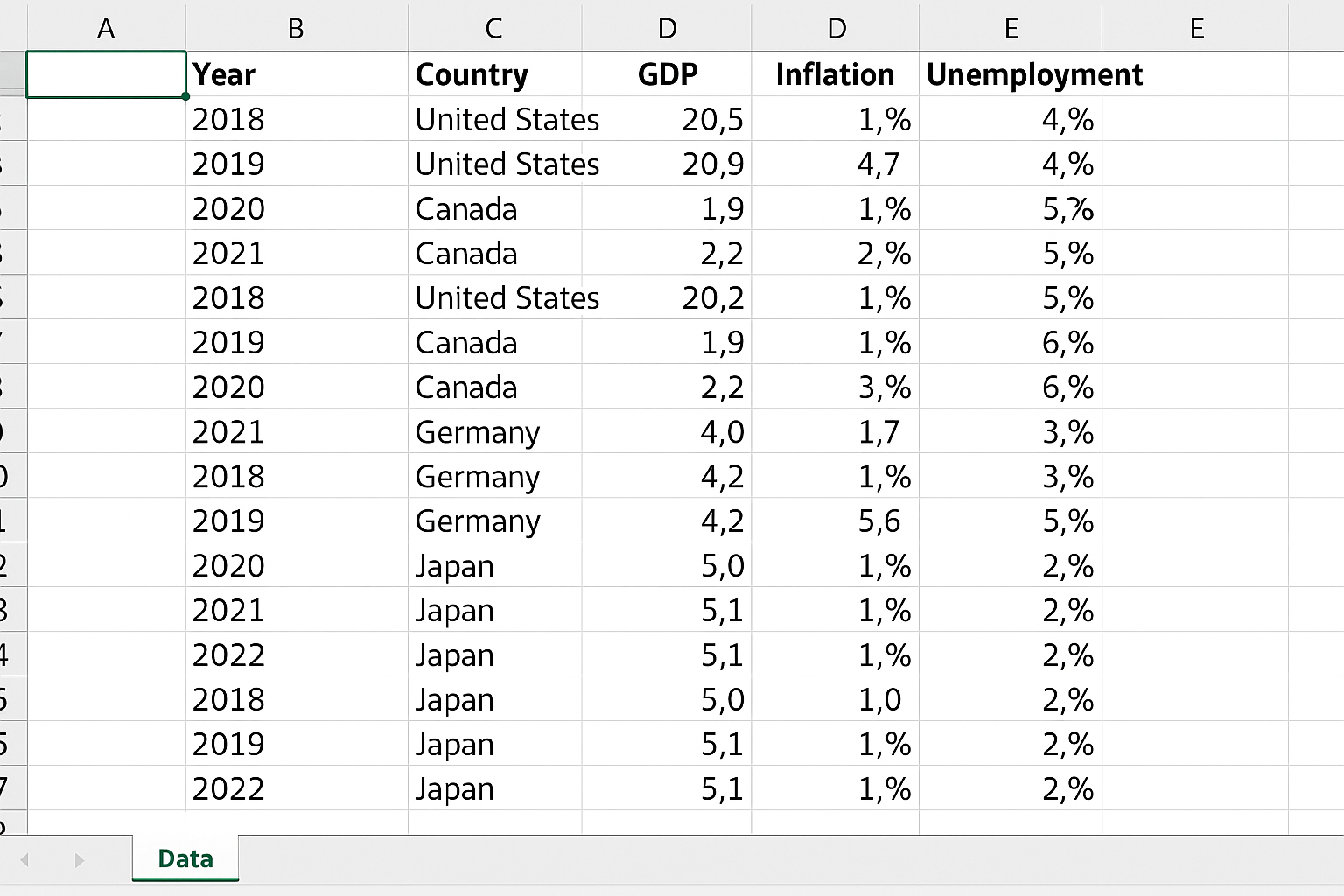
Sub ImportAndCleanData()
    Dim ws As Worksheet
    Set ws = ThisWorkbook.Sheets("Data")
    'Import CSV file
    With ws.QueryTables.Add(Connection:= "TEXT;C:\\Data\\economic_data.csv", Destination:=ws.Range("A1"))
        .TextFileParseType = xlDelimited
        .TextFileCommaDelimiter = True
        .Refresh
    End With
    'Remove blank rows
    Dim lastRow As Long
    lastRow = ws.Cells(ws.Rows.Count, "A").End(xlUp).Row
    Dim i As Long
    For i = lastRow To 2 Step -1
        If Application.WorksheetFunction.CountA(ws.Rows(i)) = 0 Then
            ws.Rows(i).Delete
        End If
    Next i
End Sub
2. Building Custom Economic Indicators
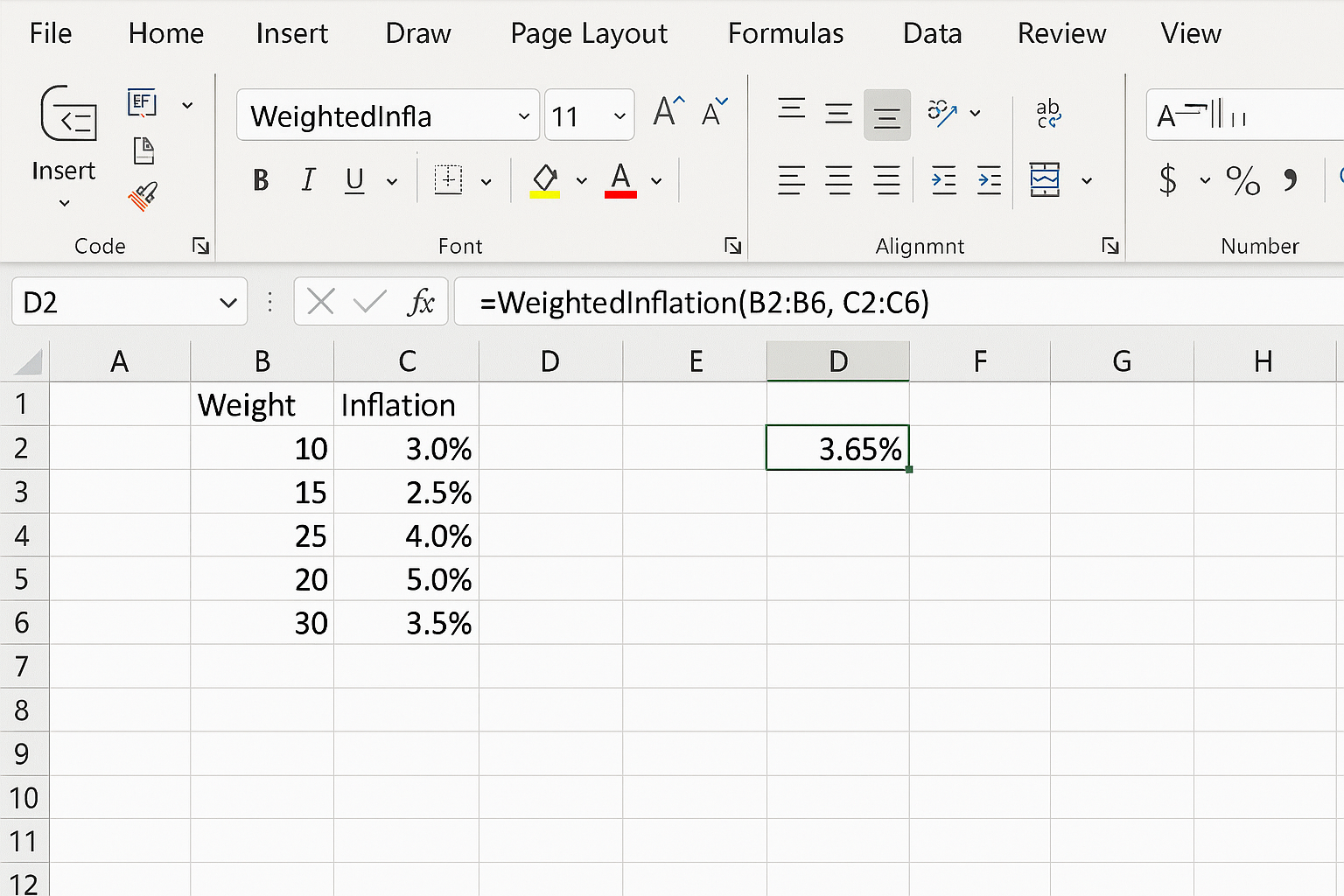
Sometimes standard Excel functions do not cover specific economic calculations. VBA allows you to create custom functions, for instance, calculating a weighted inflation index.
Function WeightedInflation(rates As Range, weights As Range) As Double
    Dim totalWeight As Double
    Dim i As Integer
    Dim sumProduct As Double
    totalWeight = Application.WorksheetFunction.Sum(weights)
    sumProduct = 0
    For i = 1 To rates.Count
        sumProduct = sumProduct + rates.Cells(i).Value * weights.Cells(i).Value
    Next i
    WeightedInflation = sumProduct / totalWeight
End Function
You can then use =WeightedInflation(B2:B6, C2:C6) in a worksheet just like any other Excel function.
3. Scenario Analysis and Forecasting
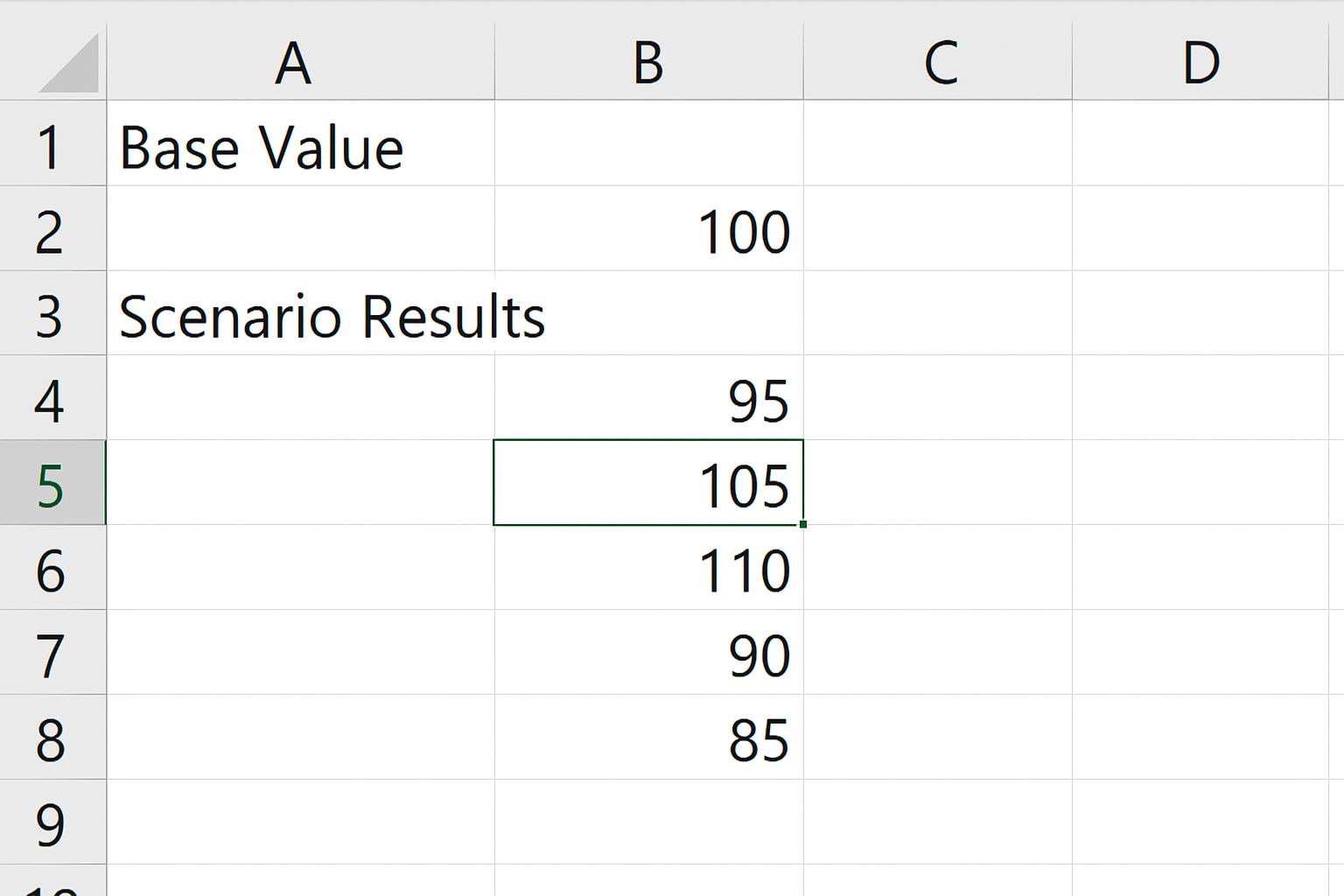
VBA can generate multiple economic scenarios by automating changes in input variables and recording the results. This is crucial for sensitivity analysis and forecasting.
Sub RunScenarioAnalysis()
    Dim baseValue As Double
    Dim scenario As Double
    Dim ws As Worksheet
    Set ws = ThisWorkbook.Sheets("Scenarios")
    baseValue = ws.Range("B2").Value
    Dim i As Integer
    For i = 1 To 5
        scenario = baseValue * (1 + 0.02 * (i - 3)) 'Adjust by +/- 4%, 2%, 0%, etc.
        ws.Cells(i + 3, 2).Value = scenario
    Next i
End Sub
Best Practices for Economists Using Excel VBA
- Comment Your Code: Add meaningful comments to explain logic and improve maintainability.
- Use Error Handling: Implement error checking to handle unexpected inputs or problems gracefully.
- Modularize: Break down large macros into smaller subroutines or functions.
- Test Thoroughly: Verify that macros work correctly with sample data before applying to real datasets.
Conclusion
Mastering Excel VBA for economic analysis empowers economists to automate tedious tasks, improve accuracy, and develop customized analytical tools within Excel. By integrating VBA into your workflow, you can save time, focus on interpretation rather than manual work, and enhance the robustness of your economic research.
Whether you are cleaning data, creating economic indicators, or running scenario analyses, VBA offers the flexibility and power to elevate your Excel skills to the next level. Start small with simple macros and gradually build your VBA expertise to unlock new efficiencies in your economic analysis projects.
Frequently Asked Questions
Related Articles
- Excel Basics Every Economist Should Know
- Top 10 Excel Functions Useful for Economists
- Data Entry Tips in Excel for Economists to Save Time
- How Economists Can Use Excel for Effective Data Analysis
- Using Excel Pivot Tables to Analyze Economic Data
Want practical Excel help?
Support free Excel tutorials, get weekly tips, or contact us for Excel programming, VBA, Power Query, dashboards, and automation work.