Excel Interface Overview: Getting Started for Beginners
Introduction
Microsoft Excel is one of the most widely used spreadsheet applications, essential for data organization, analysis, and visualization. If you are new to Excel or want to solidify your understanding, mastering the Excel interface overview is a critical first step. This article will guide you through the main components of Excel’s interface, providing practical examples to help you get started and become more confident using Excel.
The Excel Interface Overview
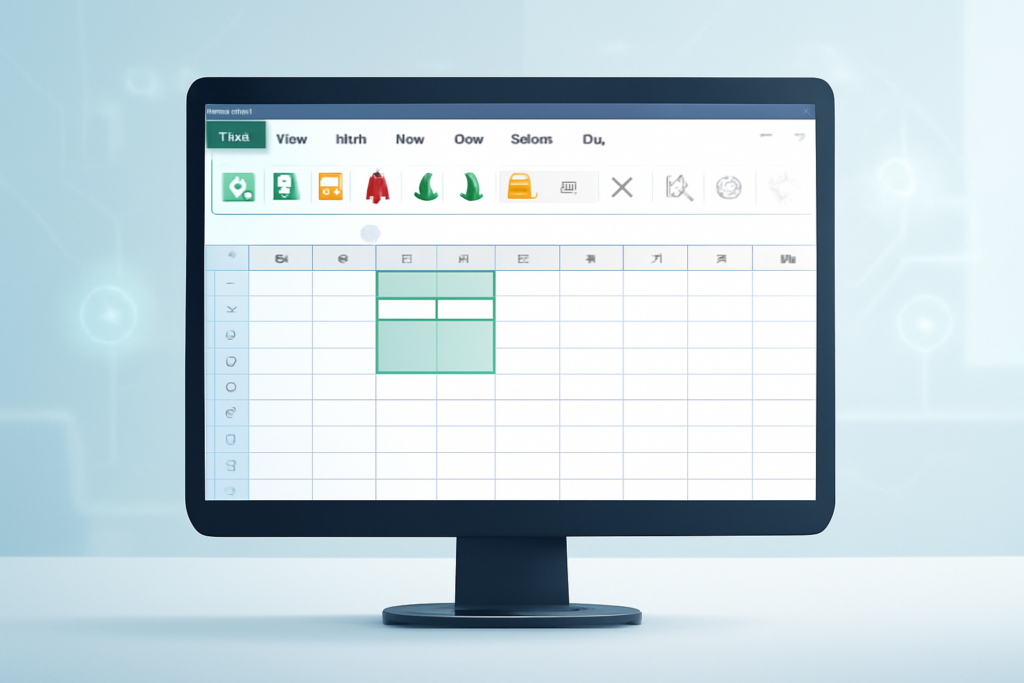
The Excel interface is designed to be user-friendly but can seem overwhelming at first glance. Understanding the key elements will help you navigate and use Excel efficiently.
1. The Title Bar
This is located at the very top of the window and displays the name of the current workbook. It also contains the Quick Access Toolbar and control buttons to minimize, maximize, or close the window.
2. The Ribbon
The Ribbon is the wide toolbar below the title bar that organizes commands into tabs such as Home, Insert, Page Layout, Formulas, Data, Review, and View. Each tab groups related commands in panels for easy access.
- Home Tab: Contains the most common commands such as font formatting, alignment, number formatting, styles, and clipboard options.
- Insert Tab: Allows you to add tables, charts, pictures, and other objects to your spreadsheet.
- Formulas Tab: Offers tools for inserting functions, formula auditing, and calculation options.
3. The Formula Bar
The formula bar, just below the ribbon, shows the content of the active cell. You can enter or edit data and formulas here directly. For example, typing =SUM(A1:A5) in the formula bar will sum the numbers in cells A1 through A5.
4. The Worksheet Area
This is the grid of cells where you enter and manipulate your data. Each cell is identified by a column letter and row number such as A1. Worksheets are organized within workbooks, and you can add multiple sheets.
5. Row and Column Headings
Columns are labeled with letters (A, B, C, …), and rows are numbered (1, 2, 3, …). These help you locate and reference specific cells.
6. Sheet Tabs
Located at the bottom of the workbook window, these tabs allow you to switch between different sheets within the same workbook. Right-clicking a tab provides options to rename, delete, or add new sheets.
7. Status Bar
The status bar at the bottom of the window displays information such as page number, zoom level, and summary calculations like average, count, and sum for selected cells.
Practical Excel Interface Examples
Let’s explore some real-world examples that demonstrate how to interact with the Excel interface components.
Example 1: Entering and Formatting Data
- Click on cell A1 in the worksheet area.
- Type Sales Data and press Enter.
- Use the Home tab on the ribbon to change the font size to 14 and make the text bold.
- Select cells A2:A6 and enter numeric sales figures.
- Format these numbers as currency by selecting the $ icon in the Number group on the Home tab.
Example 2: Using the Formula Bar to Calculate Sum
- Click cell A7.
- In the formula bar, type
=SUM(A2:A6)and press Enter. - The total sales amount will appear in cell A7.
Example 3: Inserting a Chart
- Select the range A1:A6.
- Go to the Insert tab on the ribbon.
- Click on Recommended Charts and choose a column chart.
- The chart will appear on the worksheet, visually representing your sales data.
Customizing the Excel Interface
You can personalize your Excel workspace to improve productivity.
- Quick Access Toolbar: Add frequently used commands by clicking the dropdown arrow and selecting commands like Save, Undo, or Sort.
- Ribbon Display Options: Use the small arrow at the top right of the ribbon to minimize or expand it.
- Changing Themes: Go to File > Options > General to choose between colorful, dark, or white themes.
Tips for Beginners to Navigate Excel Interface
- Use keyboard shortcuts like Ctrl + C to copy, Ctrl + V to paste, and Ctrl + Z to undo.
- Use the Name Box (left of the formula bar) to quickly jump to a specific cell by typing its address, e.g., D10.
- Hover your mouse over buttons and commands to see tooltips explaining their functions.
- Use the Tell Me box on the ribbon to quickly find commands by typing what you want to do.
FAQ
What is the Ribbon in Excel and how do I use it?
The Ribbon is the horizontal toolbar with tabs like Home, Insert, and Data that groups Excel commands. You use it to access tools for formatting, inserting objects, performing calculations, and more.
How can I customize the Excel interface to suit my needs?
You can customize Excel by adding commands to the Quick Access Toolbar, changing themes, resizing the ribbon, and rearranging sheet tabs for easier navigation.
What is the Formula Bar used for?
The Formula Bar displays and allows you to edit the contents of the active cell. It’s especially useful for entering and editing formulas, such as sums, averages, or logical tests.
How do I add a new worksheet in Excel?
Click the plus (+) icon next to the existing sheet tabs at the bottom of the workbook window to add a new worksheet.
Can I navigate cells using the keyboard?
Yes, use arrow keys to move cell by cell, Tab to move right, Enter to move down, and Ctrl + Arrow Keys to jump to the edges of data regions.
Conclusion
Understanding the Excel interface overview is fundamental for anyone starting with Excel. From the ribbon and formula bar to worksheets and status bar, becoming familiar with these elements allows you to work more efficiently and confidently. Practice entering data, using formulas, and customizing your workspace to speed up your Excel learning journey. With consistent use, navigating the Excel interface will become second nature, empowering you to unlock the full potential of this powerful tool.
Related Excel Guides
- How to Create a Spreadsheet in Excel: Step-by-Step Guide
- Top 20 Excel Keyboard Shortcuts Every Beginner Should Know
- How to Use the SUM Function in Excel for Beginners
- Using the IF Function in Excel Made Easy: A Beginner’s Guide
Want practical Excel help?
Support free Excel tutorials, get weekly tips, or contact us for Excel programming, VBA, Power Query, dashboards, and automation work.