Optimize Power Query Performance: Best Practices for Faster Queries
Introduction
Power Query is an incredibly powerful data transformation and connection tool embedded in Excel and Power BI, enabling users to import, clean, and reshape data efficiently. However, as datasets grow larger and transformations become more complex, Power Query performance can slow down significantly. Optimizing your Power Query processes is essential to improve speed, responsiveness, and overall user experience.
In this article, we’ll explore best practices for Power Query performance optimization to help you create faster, more efficient queries without compromising data quality or complexity.
Understanding Power Query Performance Factors
Before diving into optimization techniques, it’s important to understand what affects Power Query performance:
- Data Source: The type and location of your data source impact refresh speeds. Cloud-based and web sources are generally slower than local files or databases.
- Query Complexity: Multiple transformation steps, joins, and filters can slow down processing time.
- Data Volume: Larger datasets require more processing power and memory, influencing performance.
- Query Folding: The ability of Power Query to push transformations back to the source system (query folding) can greatly improve efficiency.
Best Practices for Power Query Performance Optimization
1. Limit Data Early
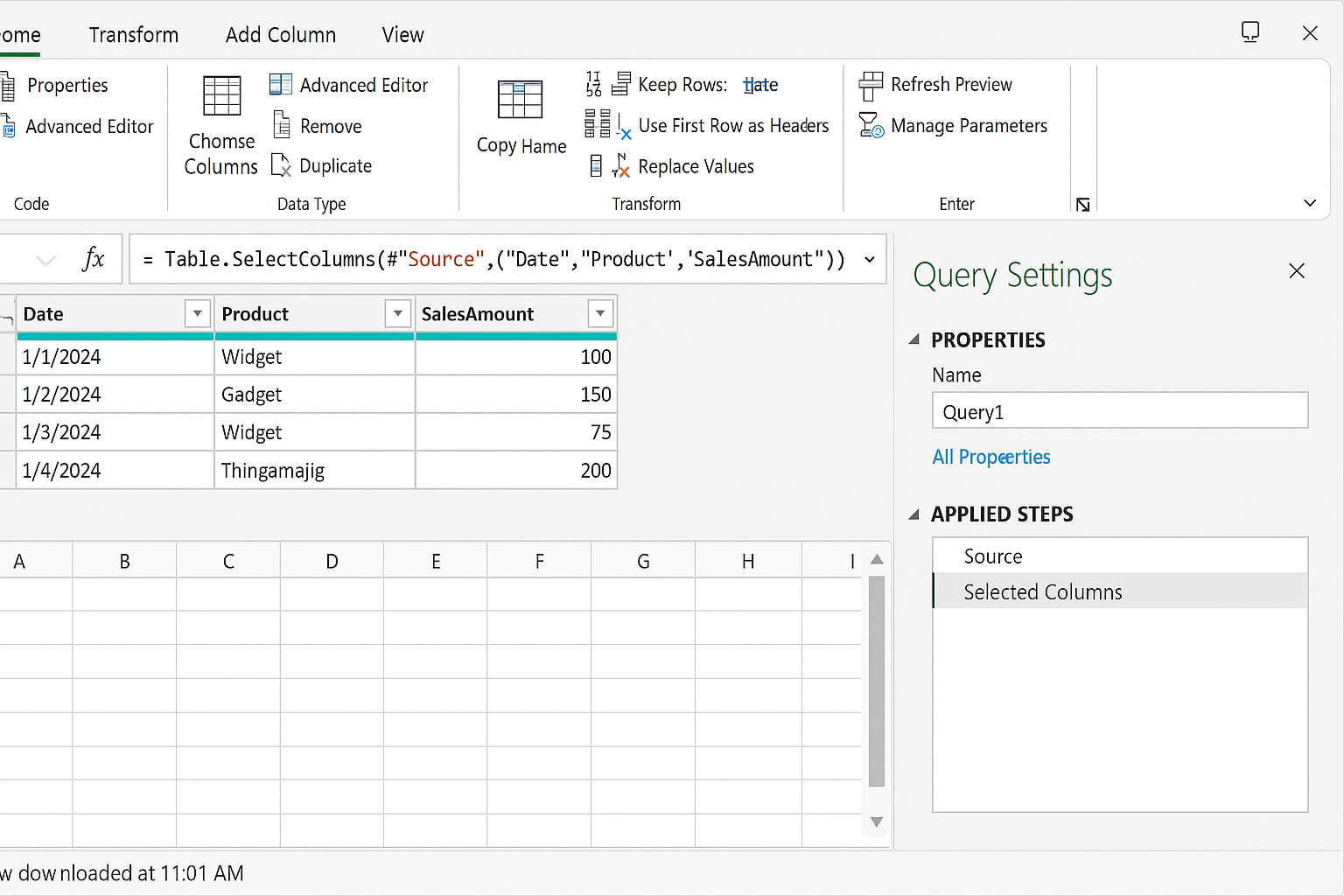
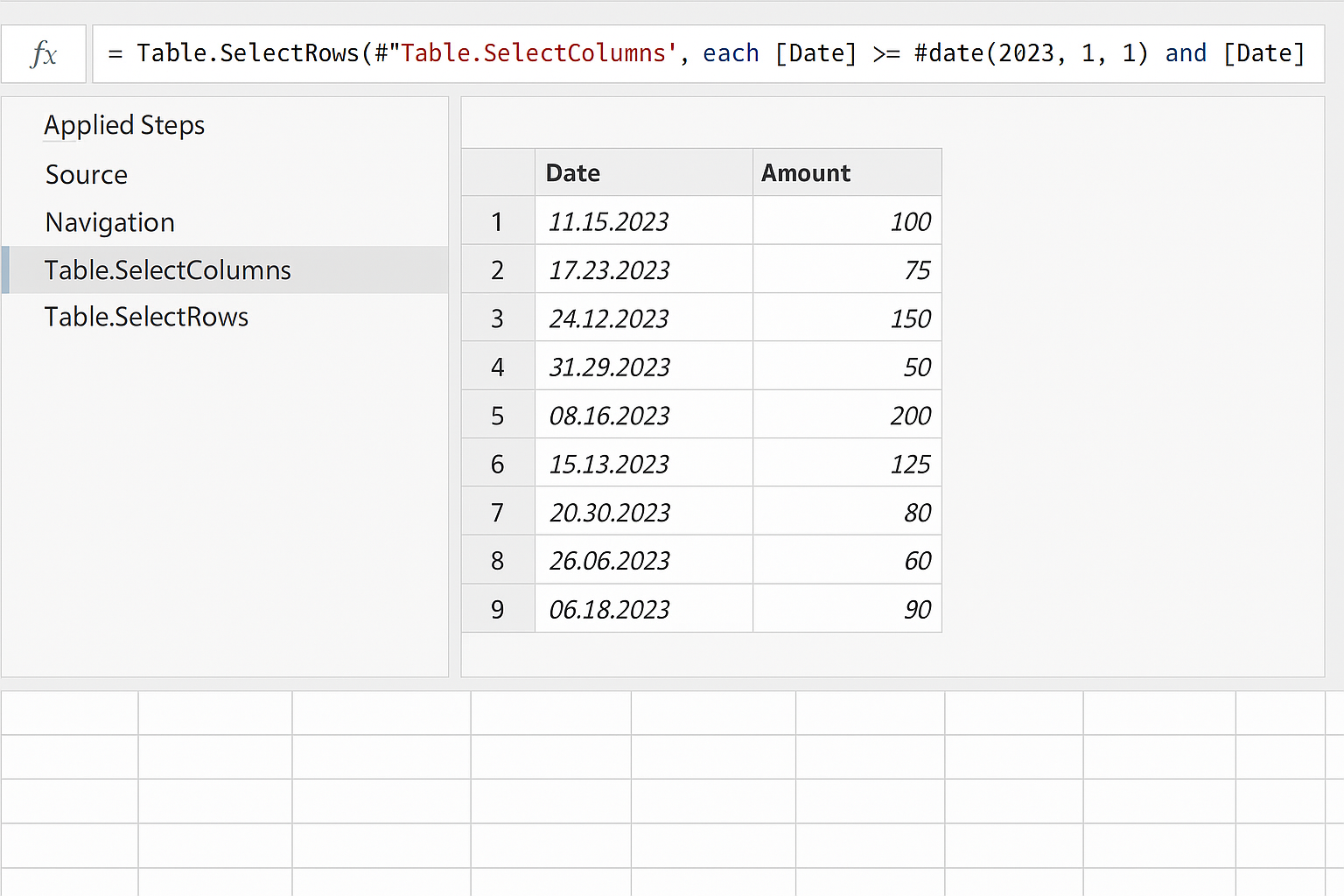
Avoid importing unnecessary columns and rows. Use filters and column selection as early as possible in your query to reduce the amount of data Power Query processes.
Example:
// Instead of loading all columns, select only needed ones using Table.SelectColumns
let
  Source = Excel.CurrentWorkbook(){[Name="SalesData"]}[Content],
  SelectedColumns = Table.SelectColumns(Source, {"Date", "Product", "SalesAmount"})
in
  SelectedColumns
2. Enable Query Folding When Possible
Query folding pushes transformations to the data source, reducing local processing. Use native database functions and avoid steps that break folding, such as adding index columns early or using custom functions.
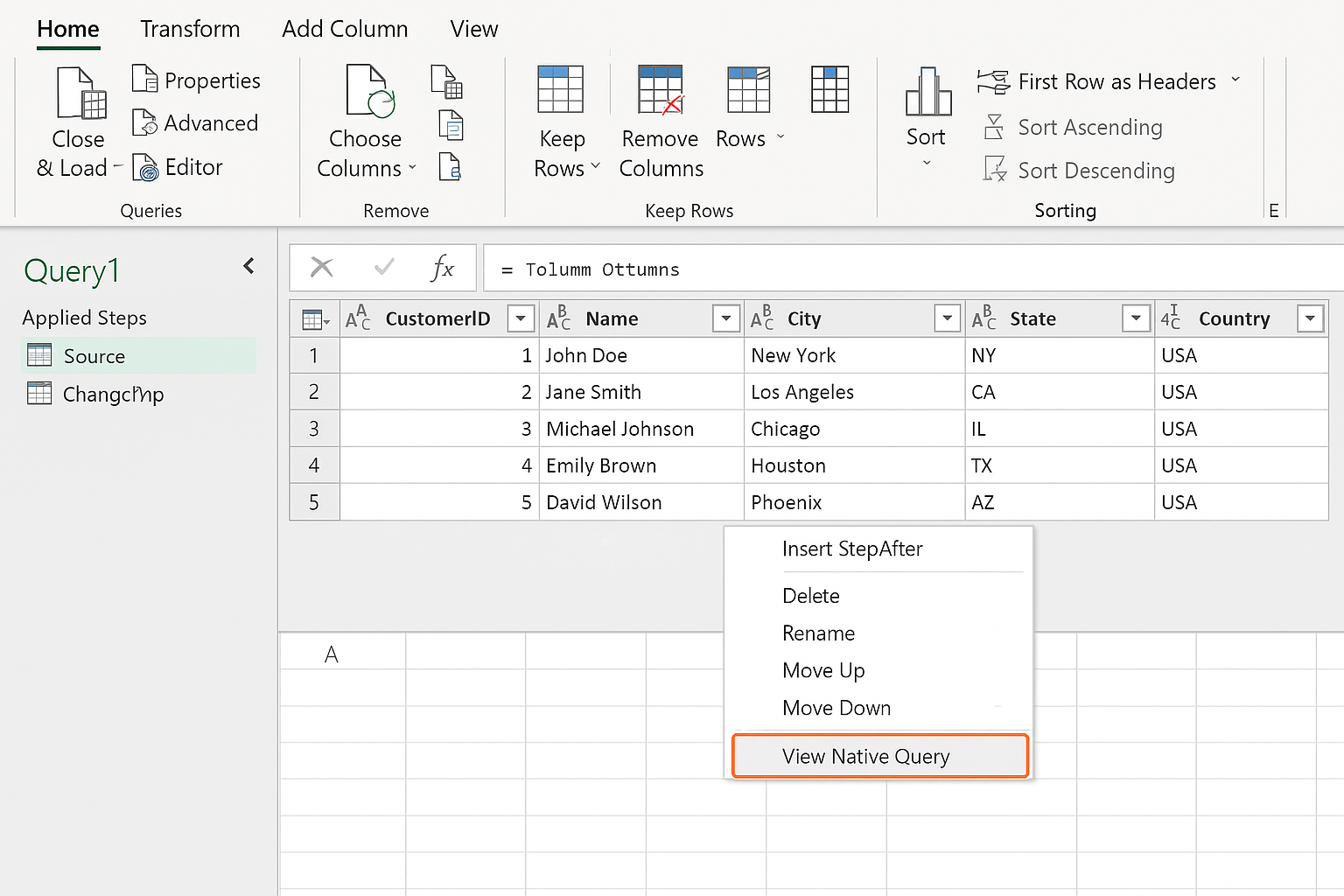
Tip: Check for query folding by right-clicking a step in Power Query and seeing if “View Native Query” is available.
3. Avoid Unnecessary Steps and Duplications
Streamline your query by removing redundant or unused steps, and avoid duplicating large datasets within your queries. Combine transformations logically to reduce overhead.
4. Use Buffering to Optimize Repeated Access
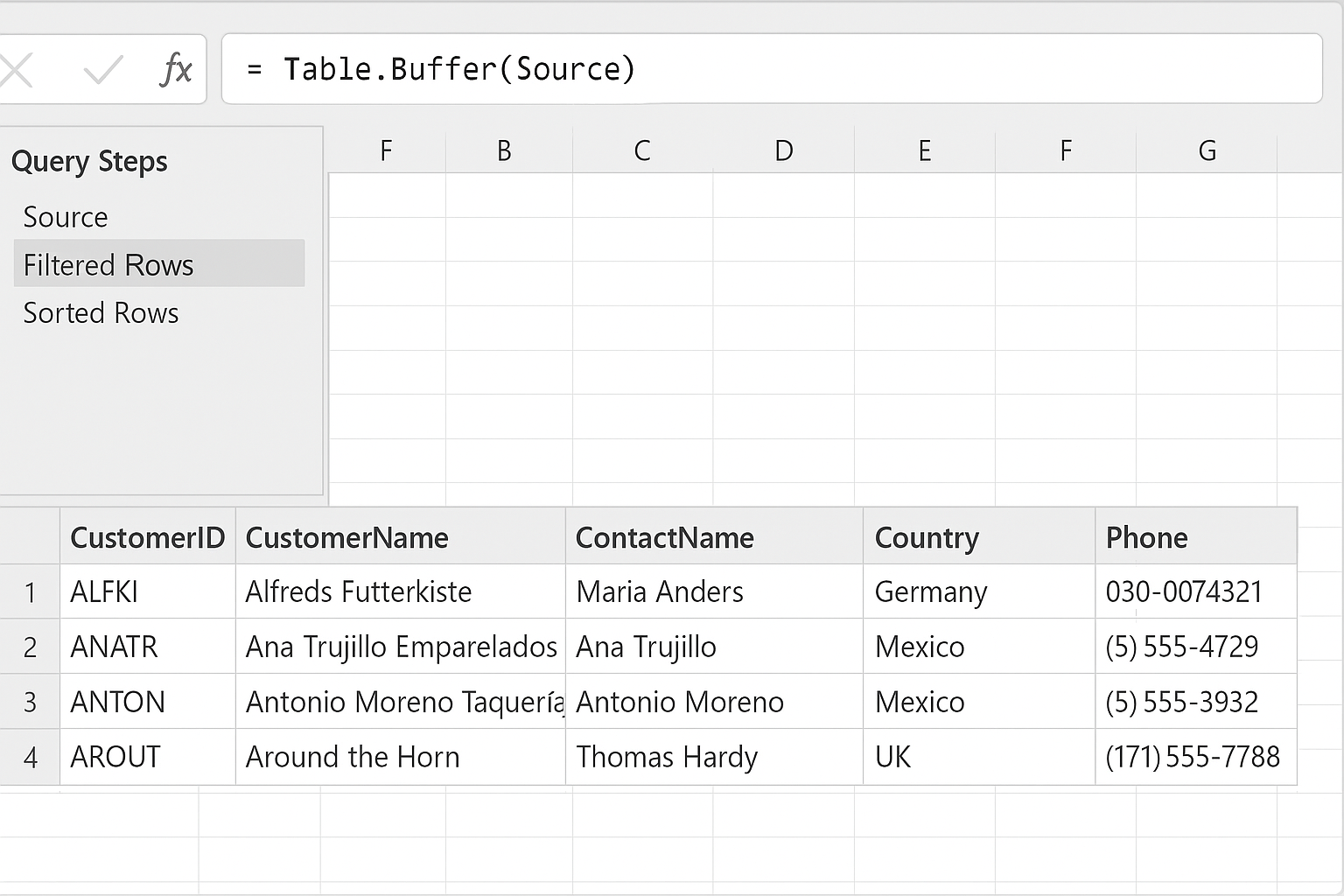
If your query references the same data multiple times, use Table.Buffer() to store the data in memory and prevent repeated source reads.
Example:
let
  Source = Excel.CurrentWorkbook(){[Name="Customers"]}[Content],
  BufferedData = Table.Buffer(Source),
  Filtered = Table.SelectRows(BufferedData, each [Country] = "USA"),
  Sorted = Table.Sort(BufferedData, {{"CustomerName", Order.Ascending}})
in
  Sorted
5. Optimize Joins and Merges
When merging tables, ensure keys are indexed in the source system if possible, and filter datasets before merging to reduce workload.
6. Reduce Use of Complex Custom Columns
Complex custom columns with nested functions or heavy calculations can slow queries. Simplify these expressions or perform calculations in the source data or post-refresh in Excel if possible.
7. Avoid Using Step Names in References
Referencing previous steps by name multiple times can cause Power Query to re-execute the step repeatedly. Instead, assign intermediate results to variables and reuse them.
8. Use Data Types Properly
Assign correct data types early to avoid implicit conversions during query execution, which can degrade performance.
Practical Example: Optimizing a Sales Data Query
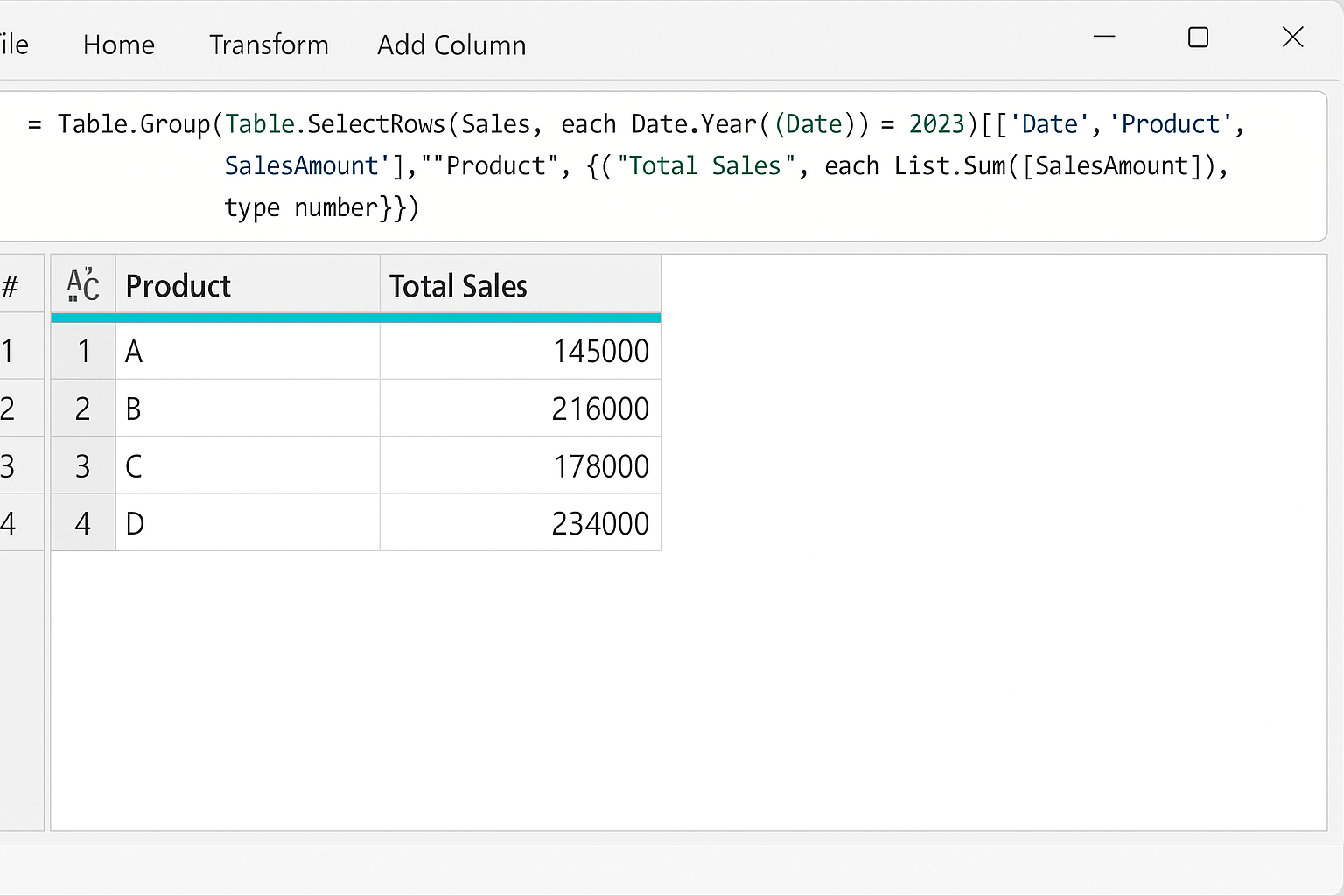
Suppose you have a large sales dataset in an Excel table named “SalesData” with 1 million rows and multiple columns. You want to filter sales for 2023, select relevant columns, and calculate total sales per product.
Non-optimized query:
let
  Source = Excel.CurrentWorkbook(){[Name="SalesData"]}[Content],
  AddedYear = Table.AddColumn(Source, "Year", each Date.Year([Date])),
  Filtered2023 = Table.SelectRows(AddedYear, each [Year] = 2023),
  SelectedColumns = Table.SelectColumns(Filtered2023, {"Product", "SalesAmount"}),
  Grouped = Table.Group(SelectedColumns, {"Product"}, {{"TotalSales", each List.Sum([SalesAmount]), type number}})
in
  Grouped
Optimized query:
let
  Source = Excel.CurrentWorkbook(){[Name="SalesData"]}[Content],
  SelectedColumns = Table.SelectColumns(Source, {"Date", "Product", "SalesAmount"}),
  Filtered2023 = Table.SelectRows(SelectedColumns, each Date.Year([Date]) = 2023),
  Grouped = Table.Group(Filtered2023, {"Product"}, {{"TotalSales", each List.Sum([SalesAmount]), type number}})
in
  Grouped
Optimization notes: The optimized query selects only necessary columns first, filters rows early, and avoids adding a separate “Year” column, reducing processing time and memory usage.
Additional Tips for Large Datasets
- Consider loading data into a database or Power BI data model for better handling of massive datasets.
- Use incremental refresh policies when supported.
- Monitor resource consumption and test queries with smaller data samples.
Frequently Asked Questions (FAQ)
Related Articles
- Power Query Tutorial: Getting Started with Data Transformation
- Understanding the Power Query Interface: A Beginner’s Guide
- How to Use Power Query in Excel for Efficient Data Cleaning
- Top 10 Excel Power Query Tips to Boost Your Data Analysis
- Mastering Data Transformation with Power Query: Step-by-Step Guide
Want practical Excel help?
Support free Excel tutorials, get weekly tips, or contact us for Excel programming, VBA, Power Query, dashboards, and automation work.