Top Excel Dynamic Array Formulas You Should Know
Introduction to Dynamic Arrays in Excel
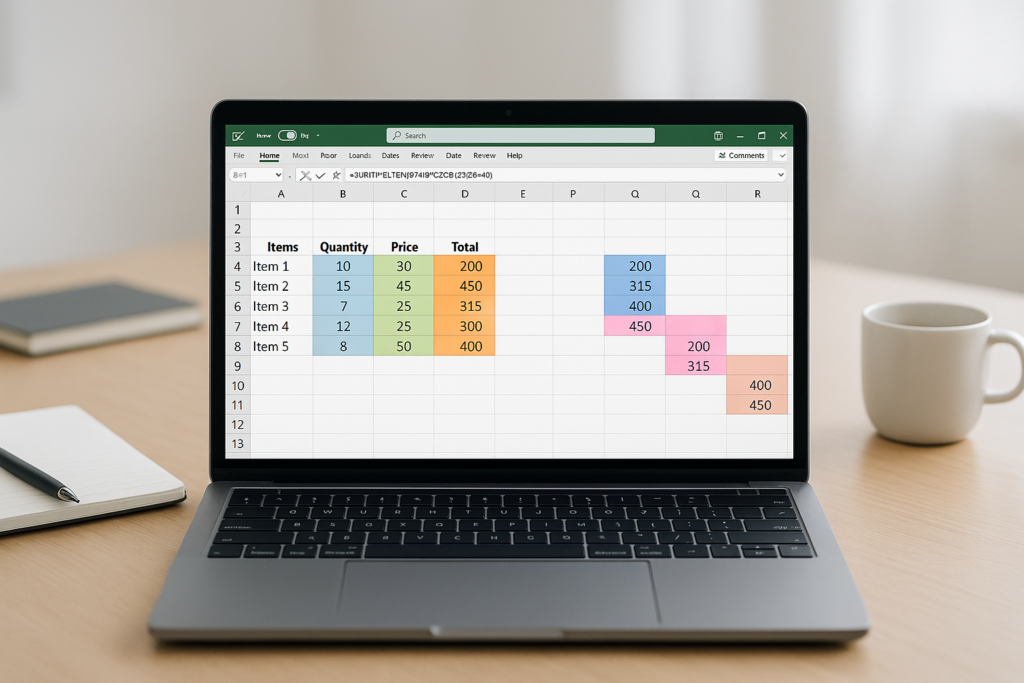
Microsoft Excel has revolutionized the way we manage and analyze data with the introduction of dynamic array formulas. These formulas allow users to return multiple results to a range of cells based on a single formula, enhancing both functionality and ease of use. If you frequently work with Excel, mastering dynamic array formulas can significantly improve your data processing capabilities.
What Are Excel Dynamic Array Formulas?
Dynamic array formulas in Excel automatically spill the results into adjacent cells without the need for copying the formula across multiple cells. Unlike traditional array formulas, dynamic arrays are easier to write, understand, and maintain.
Some key advantages include:
- Automatic spilling of results
- Improved formula readability
- Better performance with large datasets
Top Excel Dynamic Array Formulas You Should Know
1. SORT
The SORT function sorts the contents of a range or array. You can sort data in ascending or descending order and by one or multiple columns.
Syntax: =SORT(array, [sort_index], [sort_order], [by_col])
Example:
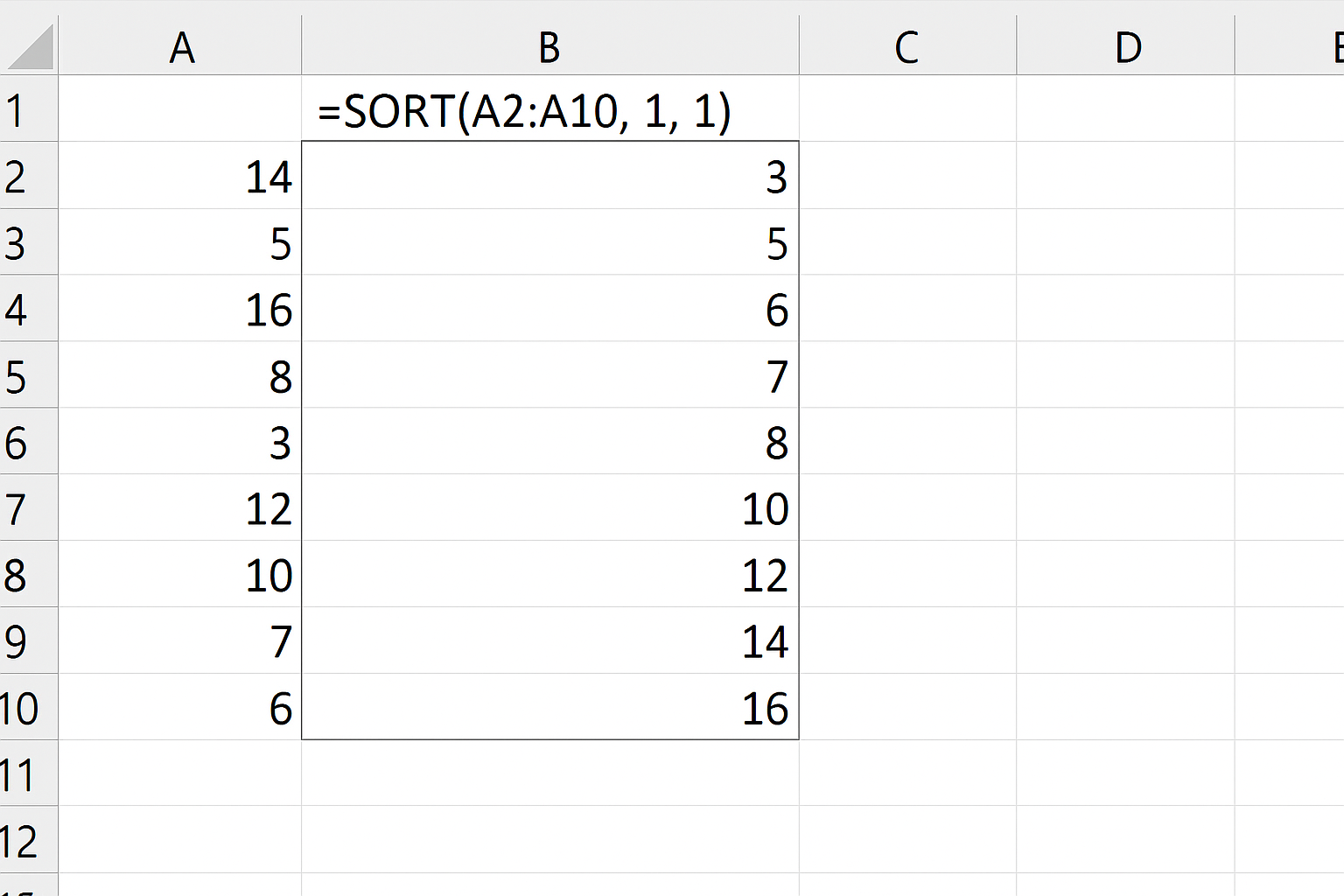
=SORT(A2:A10, 1, 1)
This formula sorts the data in cells A2 through A10 in ascending order.
2. FILTER
The FILTER function extracts data that meets specified criteria, returning all matching records dynamically.
Syntax: =FILTER(array, include, [if_empty])
Example:
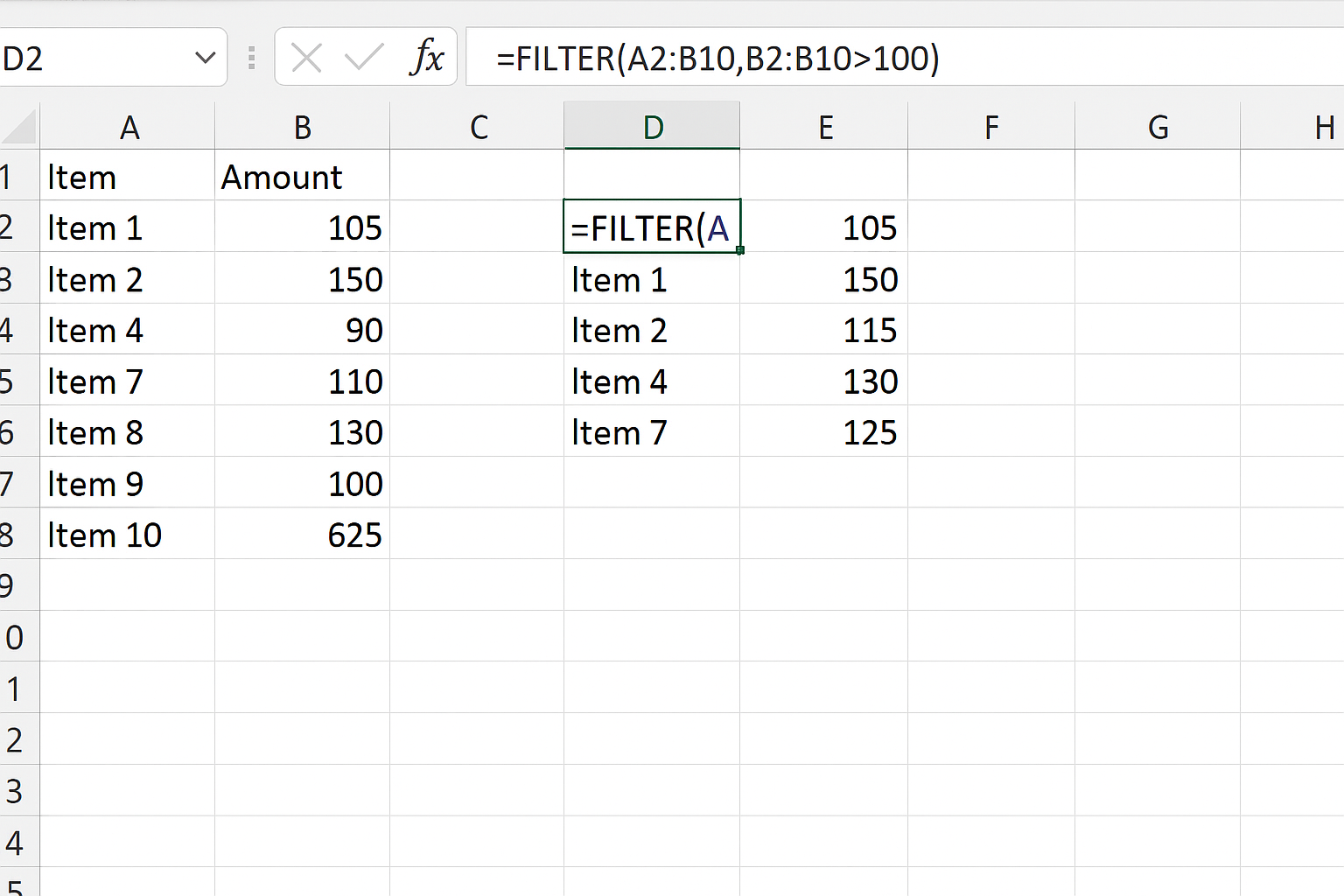
=FILTER(A2:B10, B2:B10>100)
This formula filters rows where the value in column B is greater than 100.
3. UNIQUE
The UNIQUE function returns a list of unique values from a range or array, removing duplicates automatically.
Syntax: =UNIQUE(array, [by_col], [exactly_once])
Example:
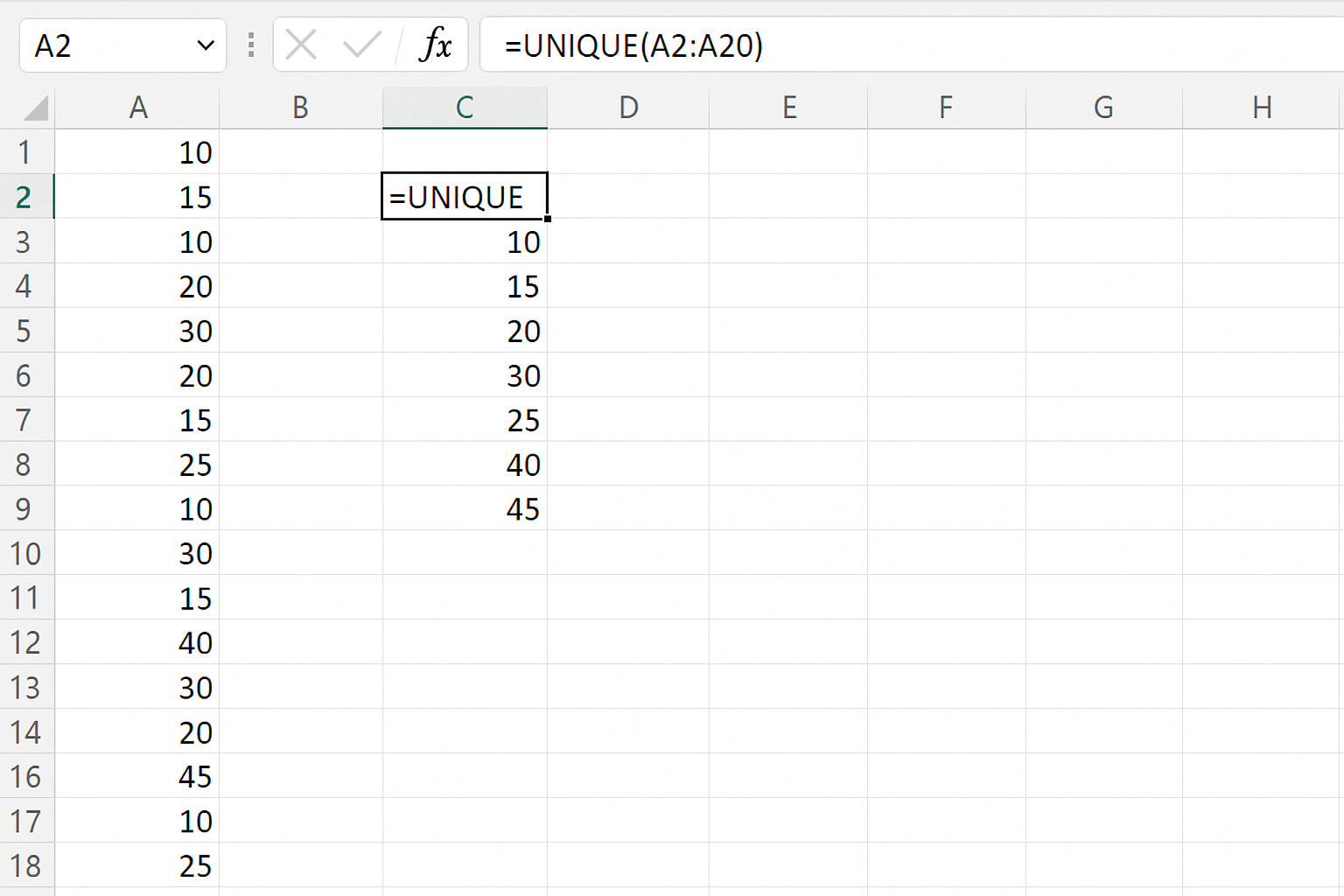
=UNIQUE(A2:A20)
This formula extracts unique values from the range A2:A20.
4. SEQUENCE
The SEQUENCE function generates an array of sequential numbers in rows and columns.
Syntax: =SEQUENCE(rows, [columns], [start], [step])
Example:
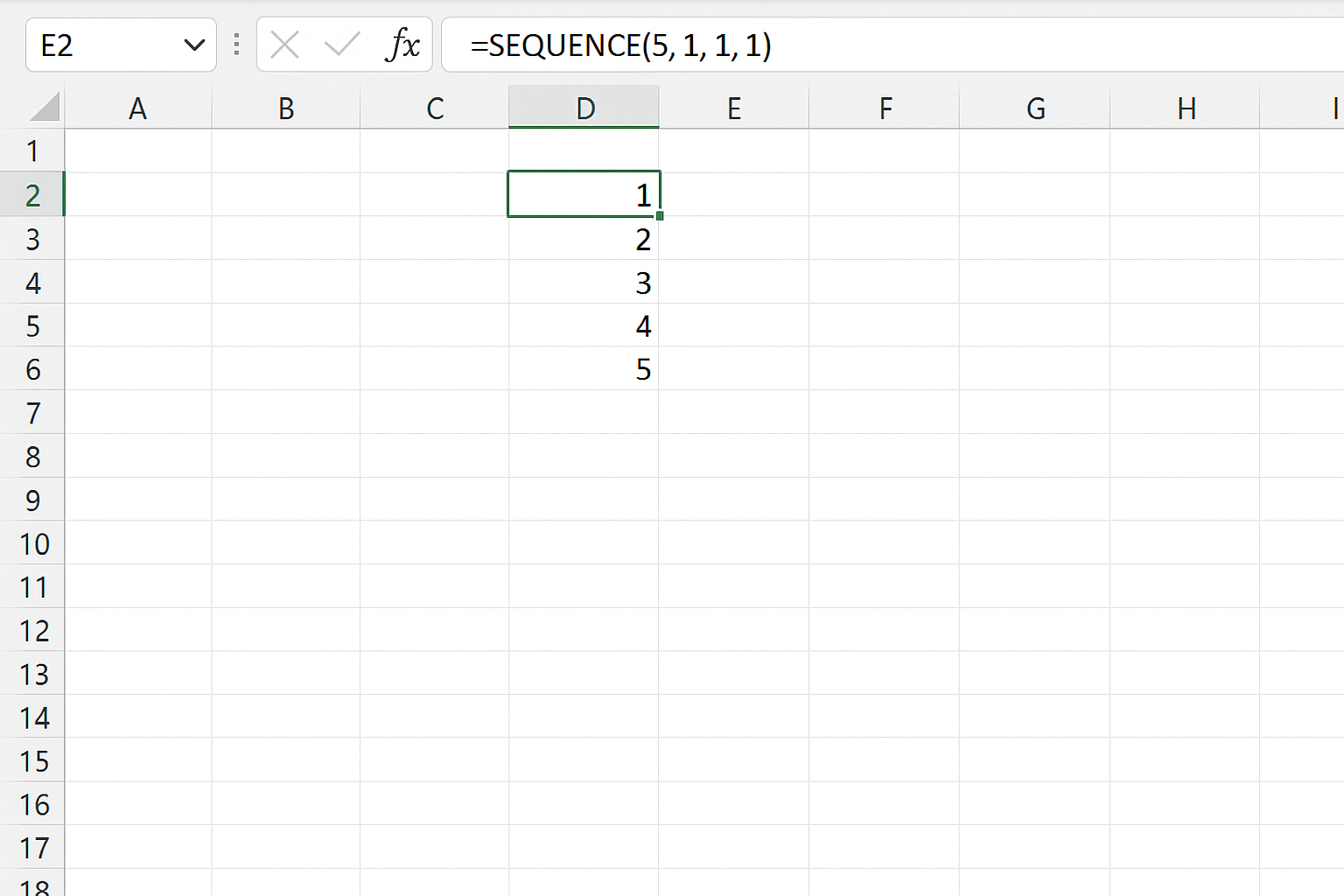
=SEQUENCE(5, 1, 1, 1)
This formula generates a vertical array of numbers from 1 to 5.
5. RANDARRAY
The RANDARRAY function generates an array of random numbers between 0 and 1 or within a specified range.
Syntax: =RANDARRAY([rows], [columns], [min], [max], [integer])
Example:
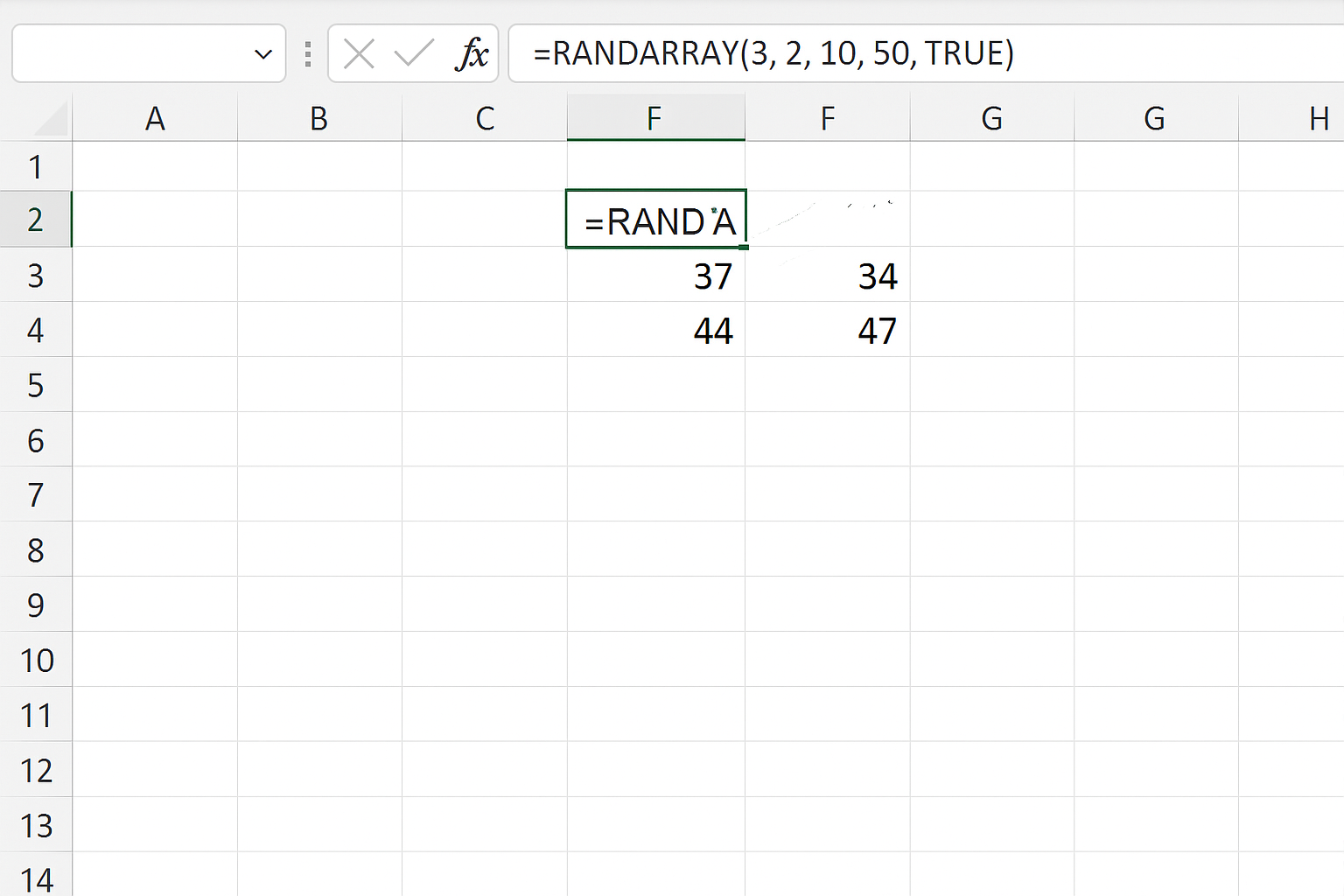
=RANDARRAY(3, 2, 10, 50, TRUE)
This formula creates a 3-row by 2-column array of random integers between 10 and 50.
6. XMATCH
The XMATCH function searches for a specified item in an array or range and returns its relative position.
Syntax: =XMATCH(lookup_value, lookup_array, [match_mode], [search_mode])
Example:
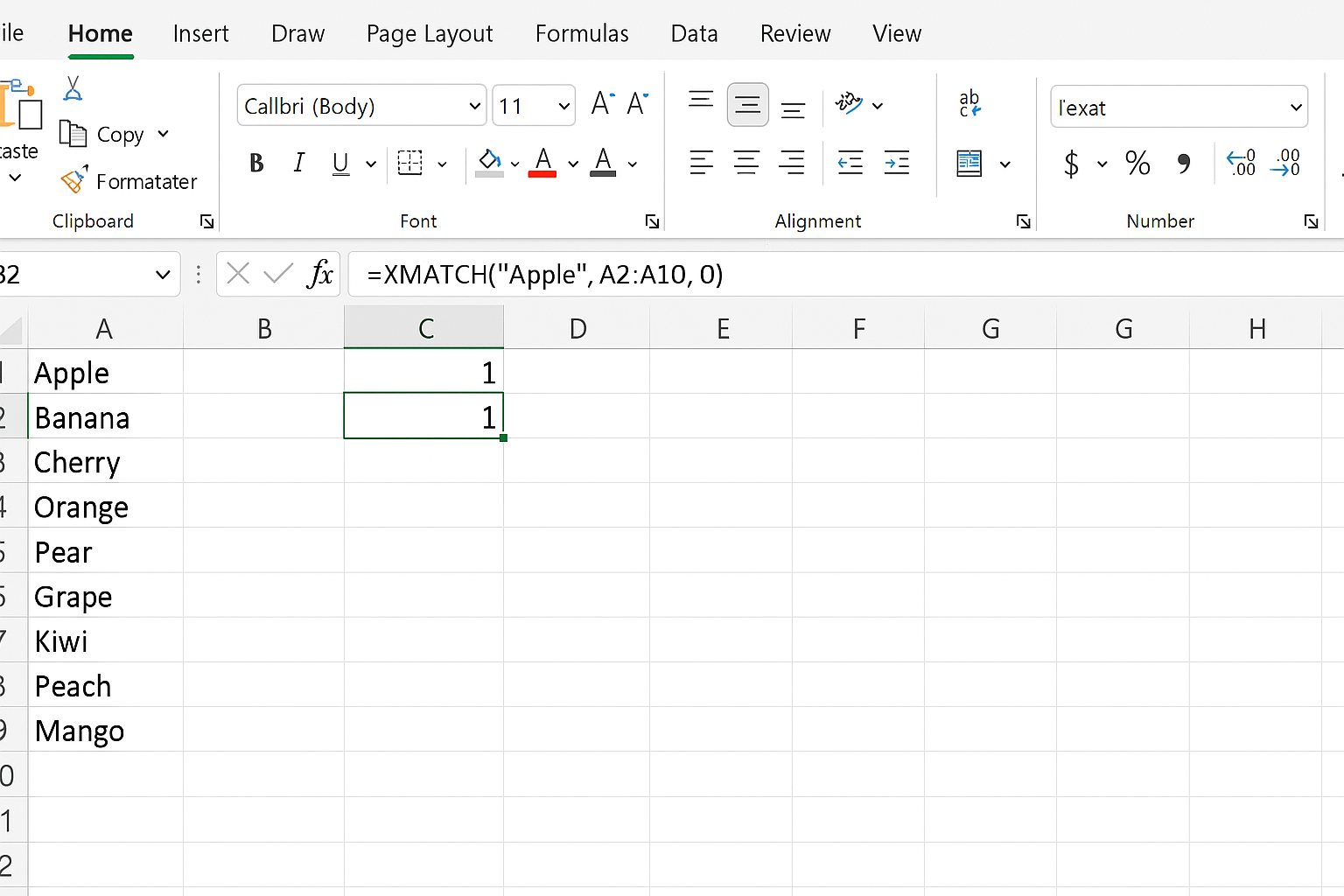
=XMATCH("Apple", A2:A10, 0)
This formula returns the position of the word “Apple” within the range A2:A10.
Practical Use Case: Combining Dynamic Array Formulas
Imagine you have a sales dataset and want to extract sorted unique products that sold more than 50 units.
You can combine FILTER, UNIQUE, and SORT formulas:
=SORT(UNIQUE(FILTER(A2:A100, B2:B100>50)))
Here, FILTER filters products with sales above 50, UNIQUE removes duplicates, and SORT sorts the list alphabetically.
How to Identify Dynamic Array Formulas in Excel
Dynamic array formulas typically spill into adjacent cells indicated by a visible blue border around the output range. The original cell contains the formula and the spilled results auto-expand as needed.
Tips for Working with Excel Dynamic Array Formulas
- Ensure there is enough empty space below or beside the formula cell for results to spill.
- Use the
#SPILL!error as an indicator that something is blocking the spill range. - Leverage dynamic arrays to simplify complex formulas by reducing helper columns.
Conclusion
Excel dynamic array formulas have transformed spreadsheet calculations by making it easier and more efficient to handle multiple results from a single formula. Understanding and utilizing key functions like SORT, FILTER, UNIQUE, and SEQUENCE can drastically improve your data analysis workflow. Experiment with these formulas and combine them to unlock the full potential of Excel’s modern capabilities.
Related Articles
- Understanding Dynamic Array Functions in Excel: A Beginner’s Guide
- How to Use the Excel FILTER Function with Dynamic Arrays
- Mastering the Excel SORT Function Using Dynamic Arrays
- Using the UNIQUE Function in Excel to Extract Distinct Values with Dynamic Arrays
- Advanced Techniques: Nesting Dynamic Array Functions in Excel
Want practical Excel help?
Support free Excel tutorials, get weekly tips, or contact us for Excel programming, VBA, Power Query, dashboards, and automation work.