Understanding Dynamic Array Functions in Excel: A Beginner’s Guide
Introduction
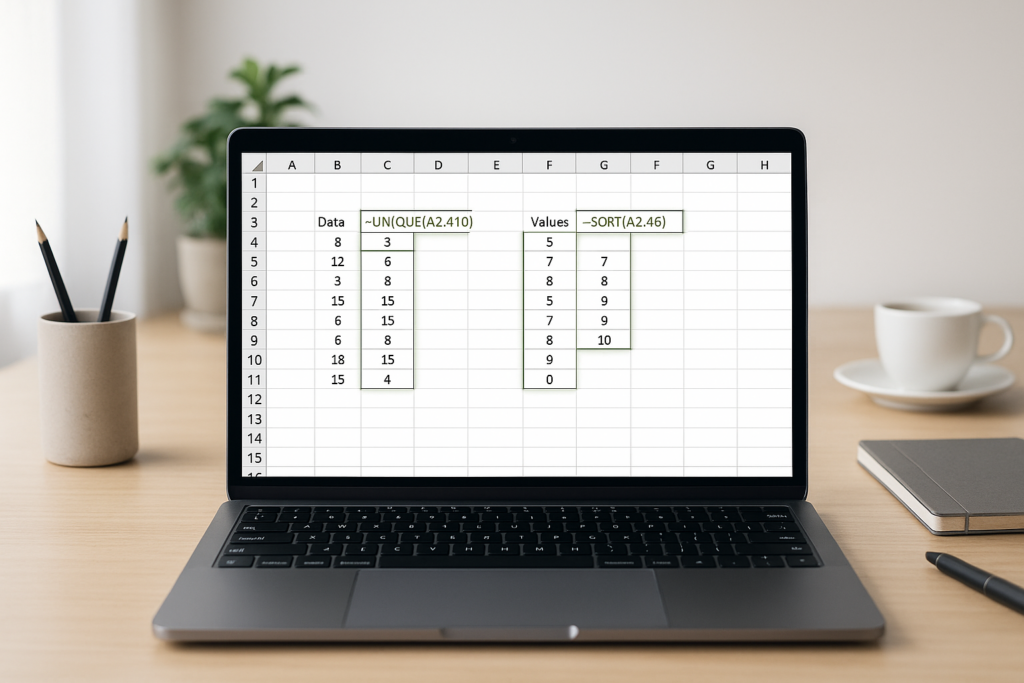
Dynamic array functions in Excel have revolutionized the way users work with data. Introduced in Excel 365 and Excel 2019, these functions allow formulas to return multiple results that spill into adjacent cells automatically. This means you no longer need to use complicated array formulas with Ctrl+Shift+Enter, making your spreadsheets easier to create and understand.
In this beginner’s guide, we will explore what dynamic array functions are, how they work, and practical examples to help you get started. Whether you are a novice or an experienced user, learning these functions will enhance your Excel skills significantly.
What are Dynamic Array Functions in Excel?
Dynamic array functions are a set of functions designed to return arrays (multiple values) that automatically spill into neighboring cells without requiring manual copying or complex array formula syntax. Traditional Excel formulas typically return a single value in one cell, but dynamic arrays can output a range of values dynamically.
This new behavior simplifies many tasks such as filtering, sorting, returning unique values, and more, with simple and intuitive formulas.
Key Features of Dynamic Arrays
- Spilling: Dynamic arrays automatically spill the results into multiple cells below or beside the formula cell.
- Simple Syntax: No need for Ctrl+Shift+Enter to enter array formulas.
- New Functions: Several new functions have been introduced that leverage dynamic arrays, such as
FILTER(),SORT(),UNIQUE(),SEQUENCE(), andRANDARRAY().
Popular Dynamic Array Functions in Excel
1. UNIQUE()
The UNIQUE() function returns a list of unique values from a range or array.
Example:
=UNIQUE(A2:A10)
If cells A2 to A10 contain names with duplicates, this formula will return a spilled list of unique names.
2. FILTER()
The FILTER() function returns an array that meets specific criteria.
Example:
=FILTER(A2:B10, B2:B10>50)
This formula filters rows where the value in column B is greater than 50 and returns the matching rows.
3. SORT()
The SORT() function sorts the values in a range or array.
Example:
=SORT(A2:A10)
This formula sorts the values in ascending order.
4. SEQUENCE()
The SEQUENCE() function generates a sequence of numbers in an array.
Example:
=SEQUENCE(5,1,1,1)
This generates a vertical array of numbers from 1 to 5.
5. RANDARRAY()
The RANDARRAY() function creates an array of random numbers.
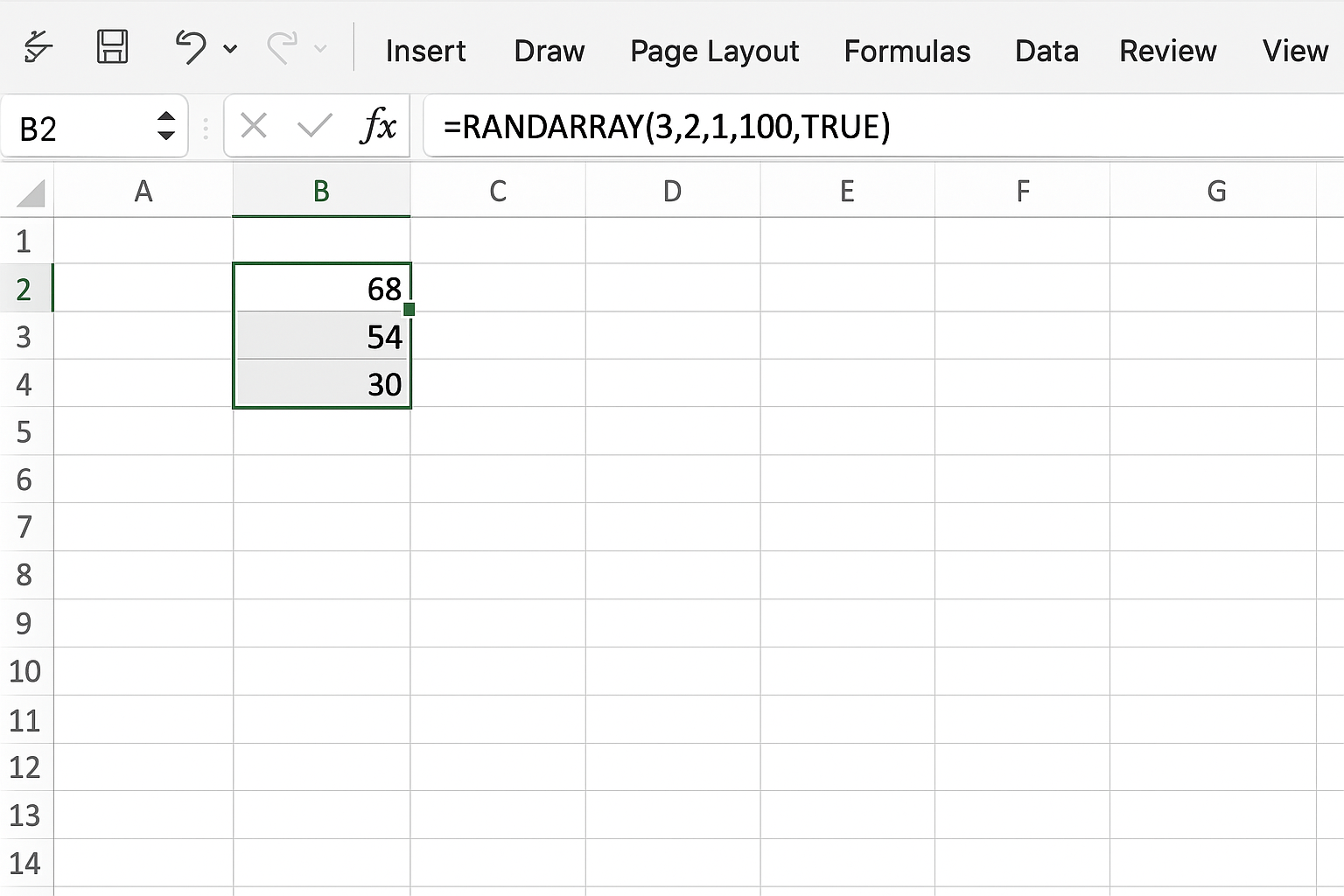
Example:
=RANDARRAY(3,2,1,100,TRUE)
This creates a 3-row by 2-column array of random whole numbers between 1 and 100.
How to Identify If You Have Dynamic Array Support
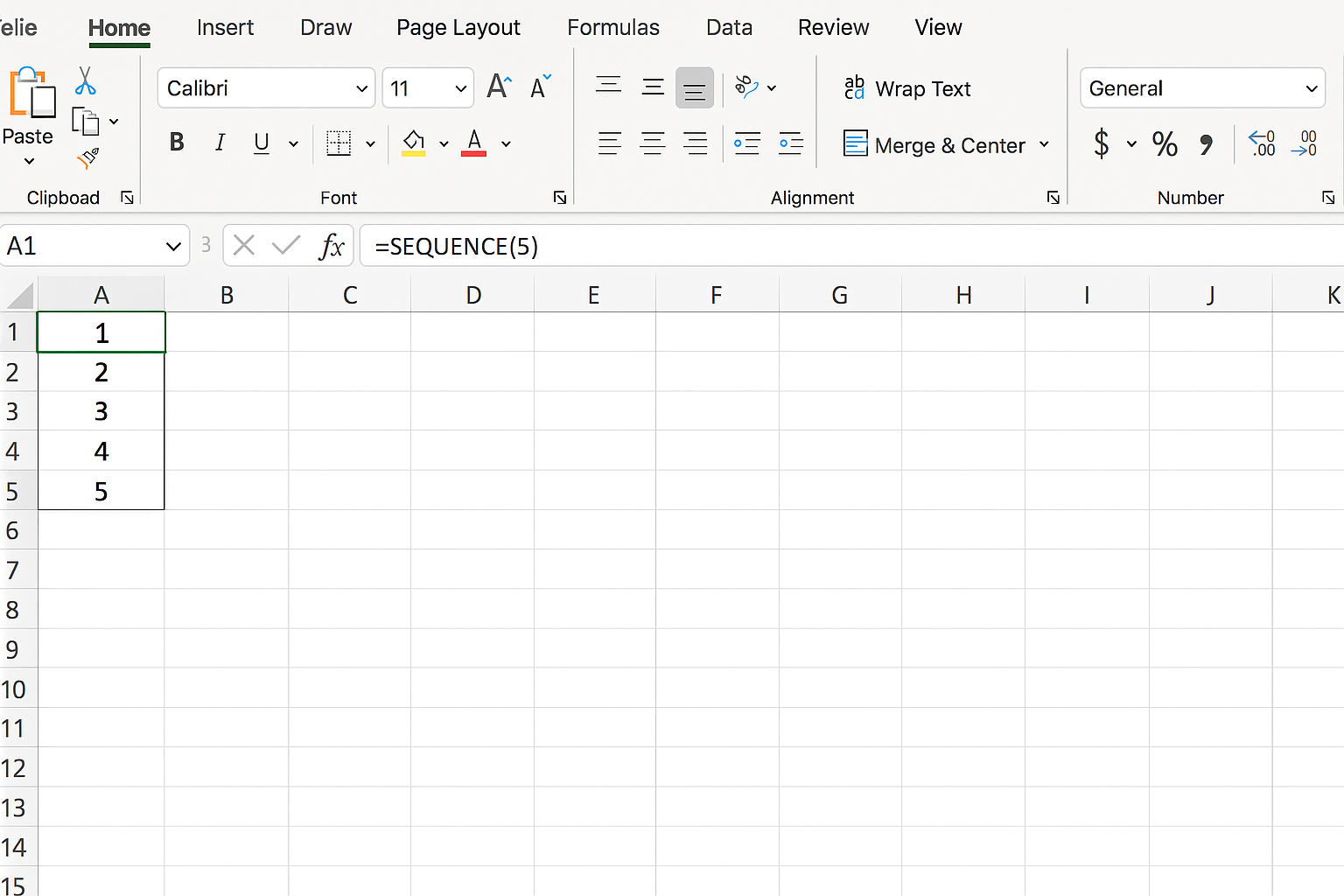
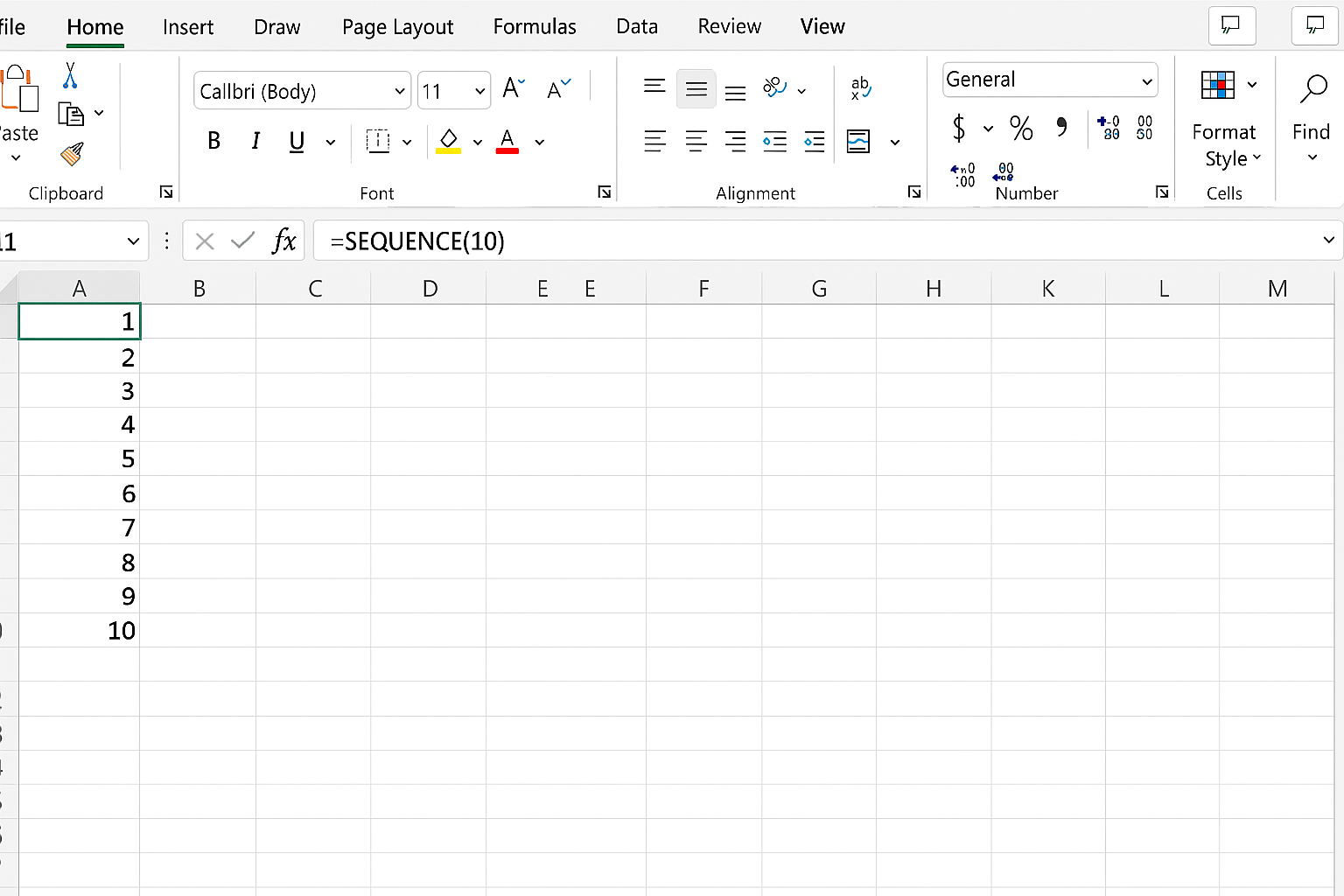
Dynamic array functionality is available in Excel 365 and Excel 2019 and later versions. You can test this by typing a formula like =SEQUENCE(5) in a blank cell. If the numbers 1 through 5 spill down into the cells below automatically, your Excel version supports dynamic arrays.
Practical Examples Using Dynamic Array Functions
Example 1: Extract Unique Customer Names
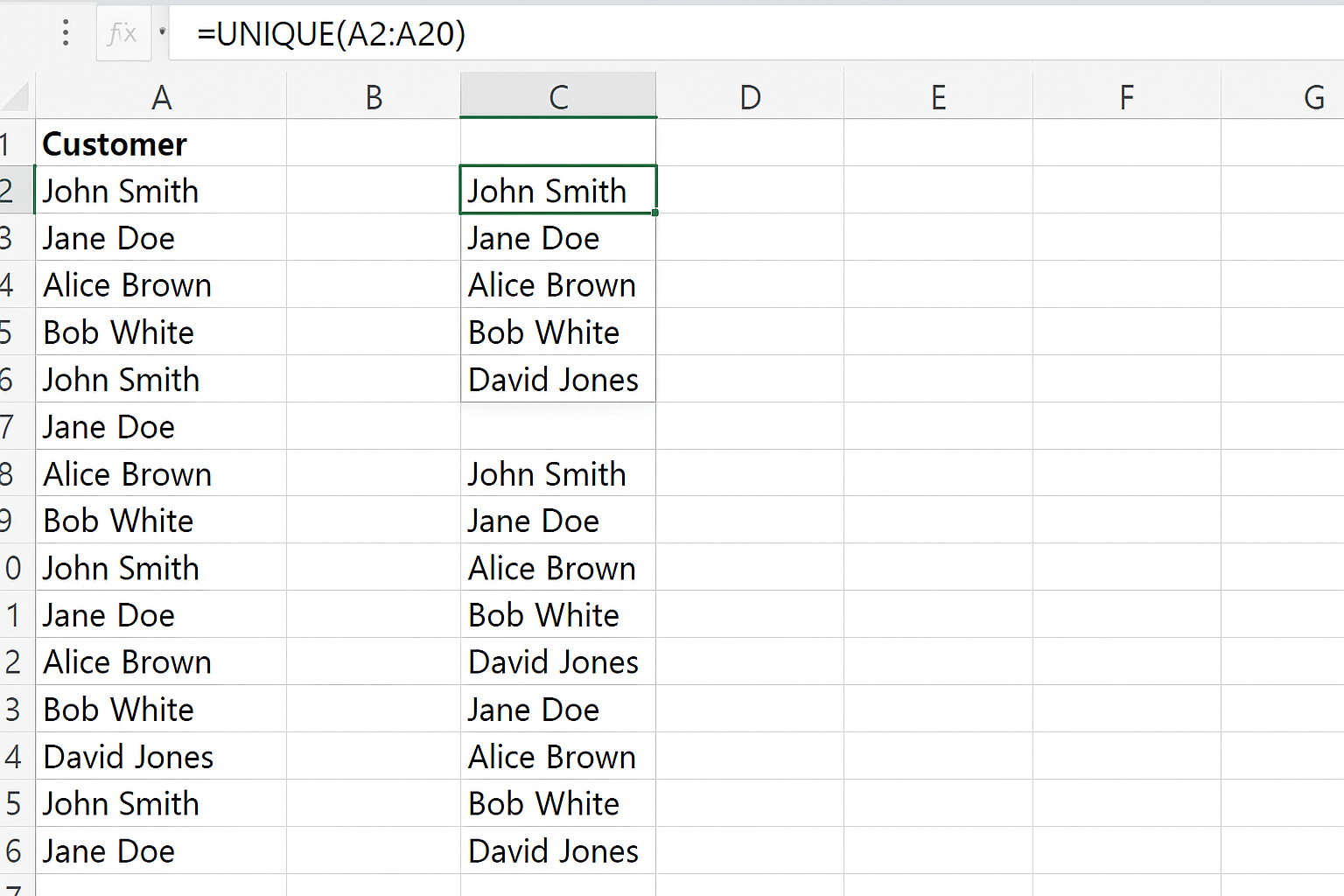
Suppose you have a list of customer names with duplicates in column A (A2:A20). To get a list of unique names, use:
=UNIQUE(A2:A20)
This will spill the unique names into the cells below the formula cell.
Example 2: Filter Sales Above a Threshold
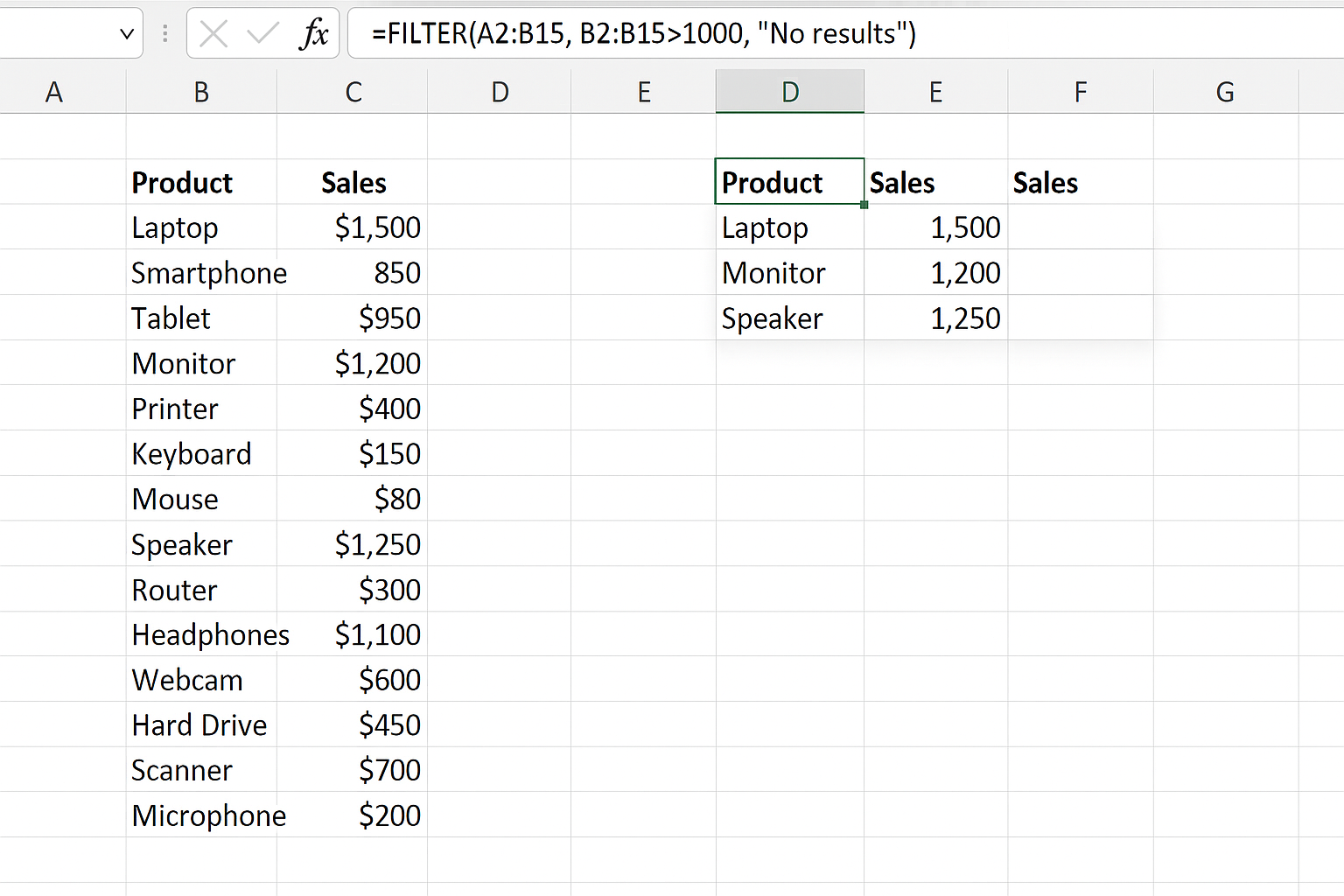
Assuming columns A and B contain Product Names and Sales Amounts respectively (A2:B15), to filter products with sales greater than $1000:
=FILTER(A2:B15, B2:B15>1000, "No results")
If no sales exceed 1000, it will display “No results”.
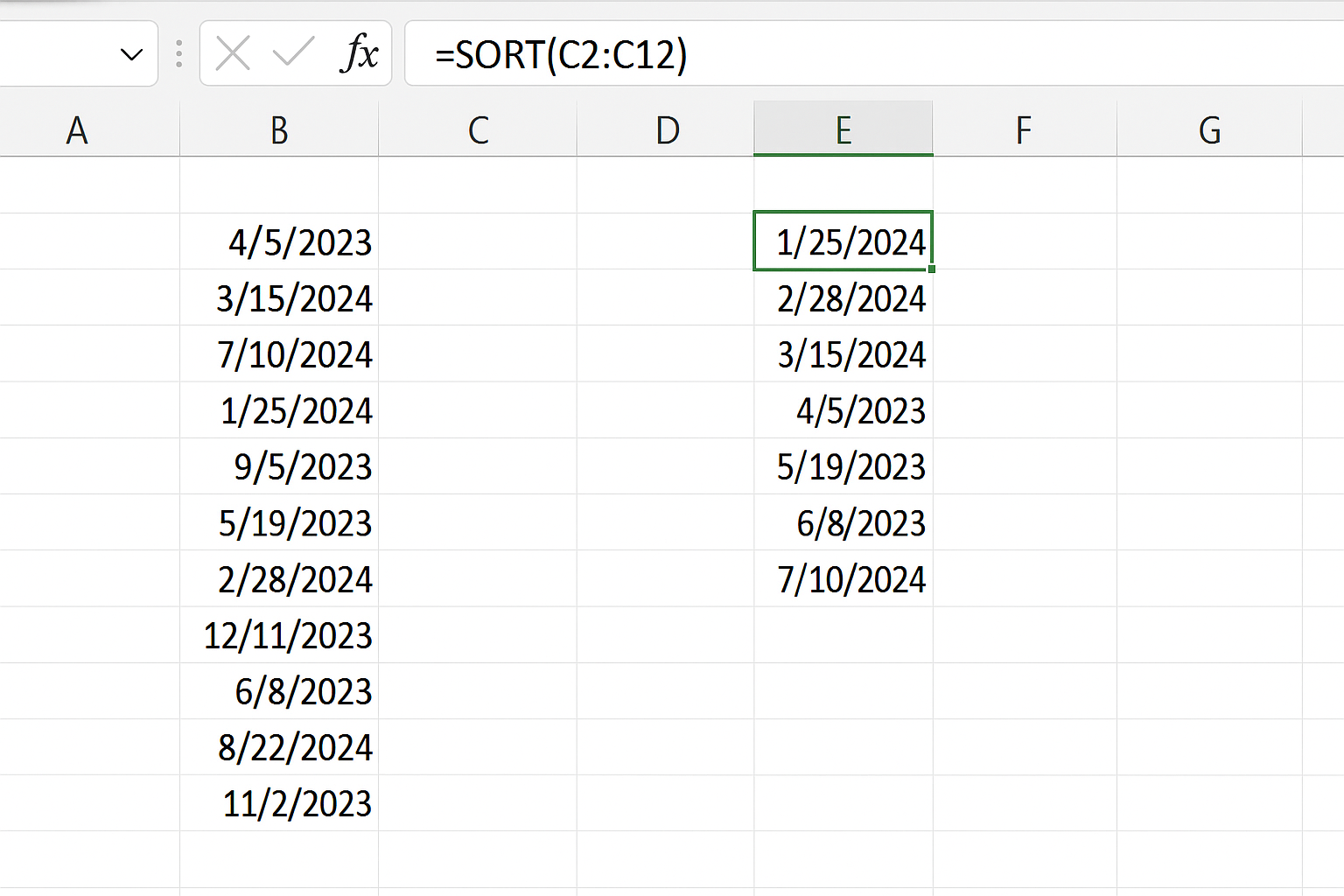
Example 3: Sort a List of Dates
Given a list of unsorted dates in C2:C12, to sort them in ascending order:
=SORT(C2:C12)
Example 4: Generate a Number Sequence for Rows
To create a numbered list from 1 to 10:
=SEQUENCE(10)
Tips for Working with Dynamic Arrays
- Make sure there is enough space below or to the side of your formula cell for the array to spill into.
- If there is any data blocking the spill range, Excel will show a #SPILL! error.
- You can reference the whole spilled array by referencing the formula cell with a
#sign, e.g.=SUM(A2#)sums all values in the spilled array starting at A2.
Conclusion
Dynamic array functions in Excel simplify formulas and enable powerful new capabilities for data analysis. By understanding these functions and how to use them, you can create more efficient, readable, and interactive spreadsheets. Whether you’re extracting unique values, filtering data, or sorting lists, dynamic arrays offer an easier and more dynamic way to handle your data.
Start experimenting with these functions today to unlock the full potential of Excel’s modern features.
Related Articles
- Top Excel Dynamic Array Formulas You Should Know
- How to Use the Excel FILTER Function with Dynamic Arrays
- Mastering the Excel SORT Function Using Dynamic Arrays
- Using the UNIQUE Function in Excel to Extract Distinct Values with Dynamic Arrays
- Advanced Techniques: Nesting Dynamic Array Functions in Excel
Want practical Excel help?
Support free Excel tutorials, get weekly tips, or contact us for Excel programming, VBA, Power Query, dashboards, and automation work.