Using Excel Dynamic Array Functions for Efficient Data Analysis

Introduction
Excel has been an indispensable tool for data analysis for decades. With the introduction of dynamic array functions, it has become even more powerful and efficient. Dynamic arrays allow formulas to return multiple values that spill into adjacent cells automatically, simplifying complex data manipulation tasks. This article explores how you can leverage dynamic arrays for data analysis in Excel to save time, reduce errors, and improve your workflow.
What Are Dynamic Arrays in Excel?
Dynamic arrays are a new way Excel handles formulas that return multiple values. Traditionally, Excel formulas returned a single value per cell, and handling arrays required special array formulas entered with Ctrl+Shift+Enter. Dynamic arrays eliminate this complexity by automatically spilling results into adjacent cells. This functionality is available in Excel 365 and Excel 2021.
Some of the most popular dynamic array functions include:
- FILTER – Extracts data that meet specified criteria.
- SORT – Sorts data in ascending or descending order.
- UNIQUE – Returns a list of unique values.
- SEQUENCE – Generates a sequence of numbers.
- RANDARRAY – Creates an array of random numbers.
- XLOOKUP – A modern lookup function that supports dynamic arrays.
Benefits of Using Dynamic Arrays for Data Analysis in Excel
Dynamic arrays bring several benefits to data analysis:
- Automatic Spill: No need to manually select ranges or use complex array formulas.
- Improved Readability: Formulas are simpler and easier to understand.
- Efficiency: Faster calculations for large datasets.
- Flexibility: Easily handle changing data sizes without adjusting formulas.
Practical Examples of Dynamic Array Functions for Data Analysis
1. Extracting Unique Values with UNIQUE
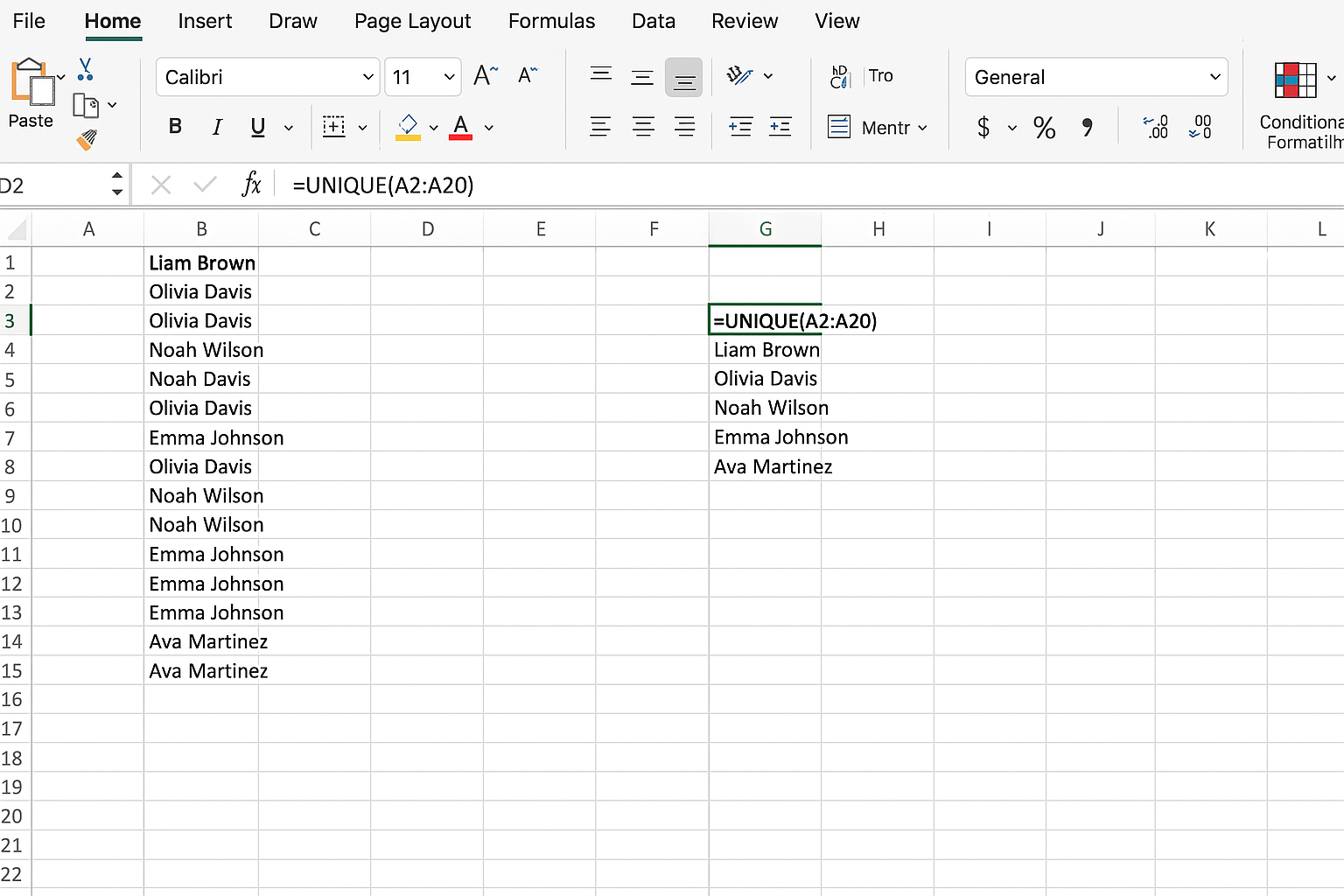
Suppose you have a list of sales representatives’ names with duplicates and want to get a unique list.
=UNIQUE(A2:A20)This formula returns a spilled array of unique names from the range A2:A20.
2. Filtering Data with FILTER
You want to extract all sales transactions greater than $1000 from a table with sales amounts in column C.
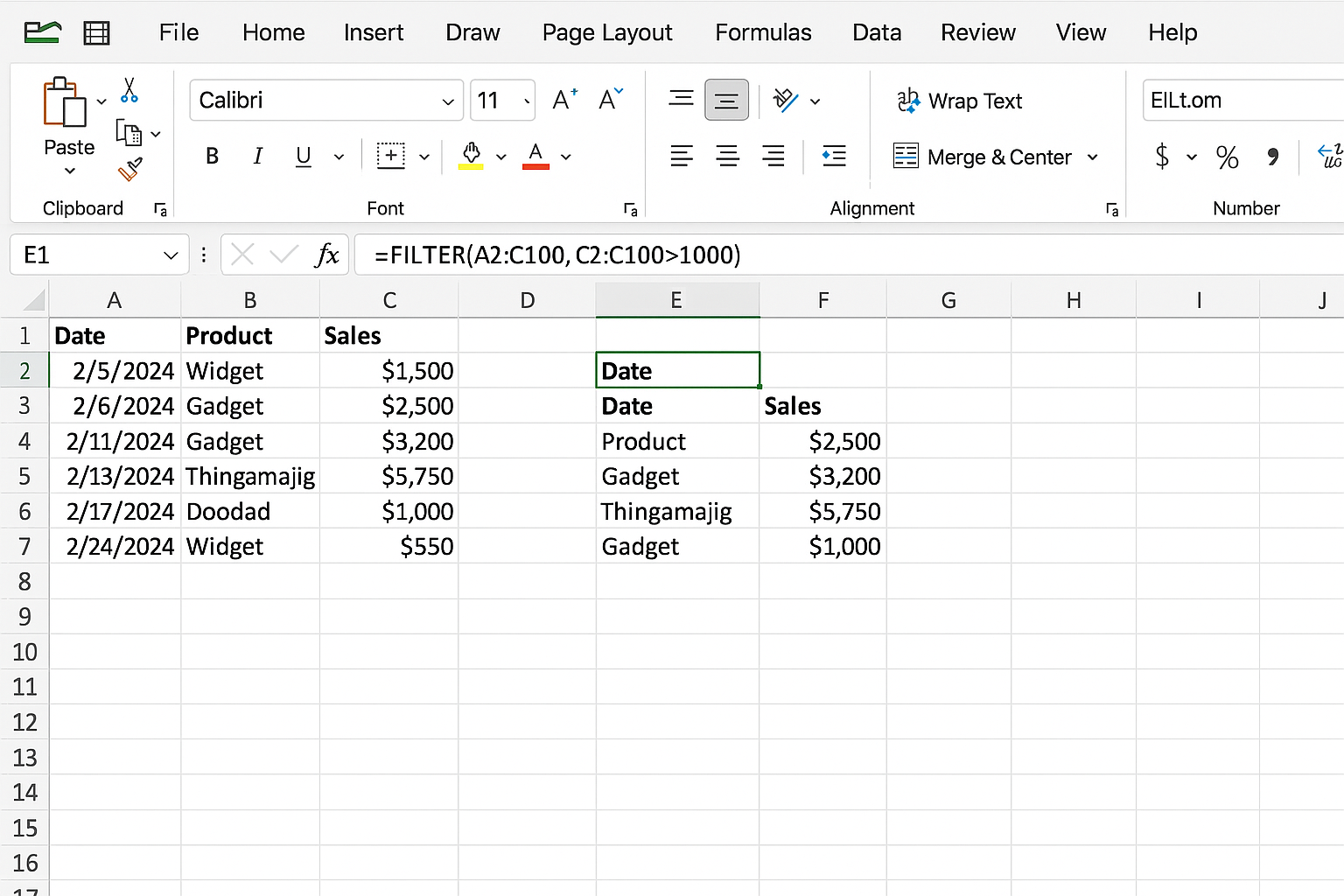
=FILTER(A2:C100, C2:C100>1000)This returns all rows where the sales amount exceeds $1000.
3. Sorting Data with SORT
To sort a list of product names in column A alphabetically:

=SORT(A2:A50)This spills the sorted list into cells below.
4. Combining UNIQUE and SORT
To get a sorted list of unique product categories:

=SORT(UNIQUE(B2:B100))This returns a sorted array of unique categories from column B.
5. Generating Sequential Numbers with SEQUENCE
To create a list of numbers from 1 to 20:
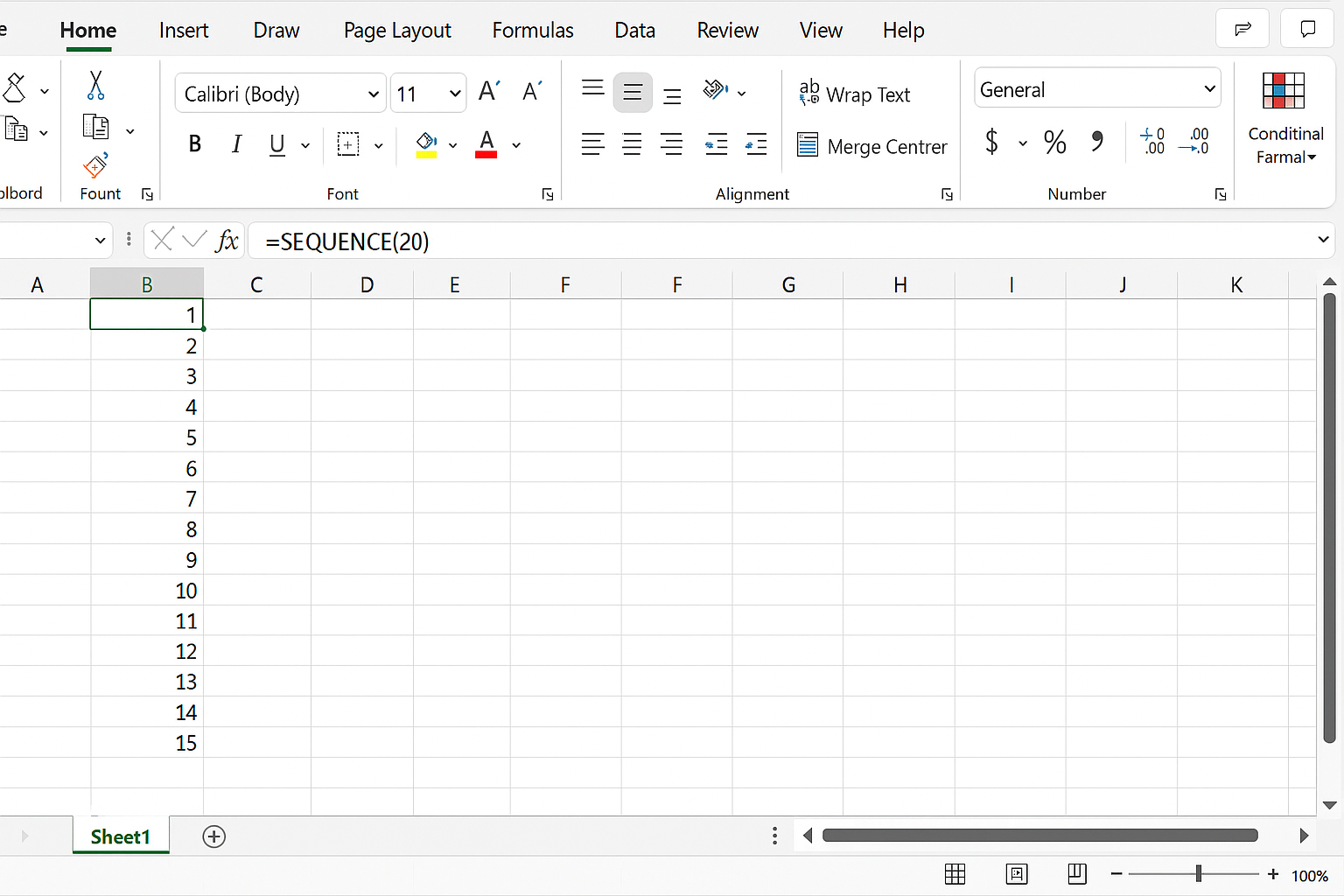
=SEQUENCE(20)This spills numbers 1 through 20 into 20 rows.
6. Using XLOOKUP with Dynamic Arrays
To lookup multiple product prices based on a list of product IDs in column E:
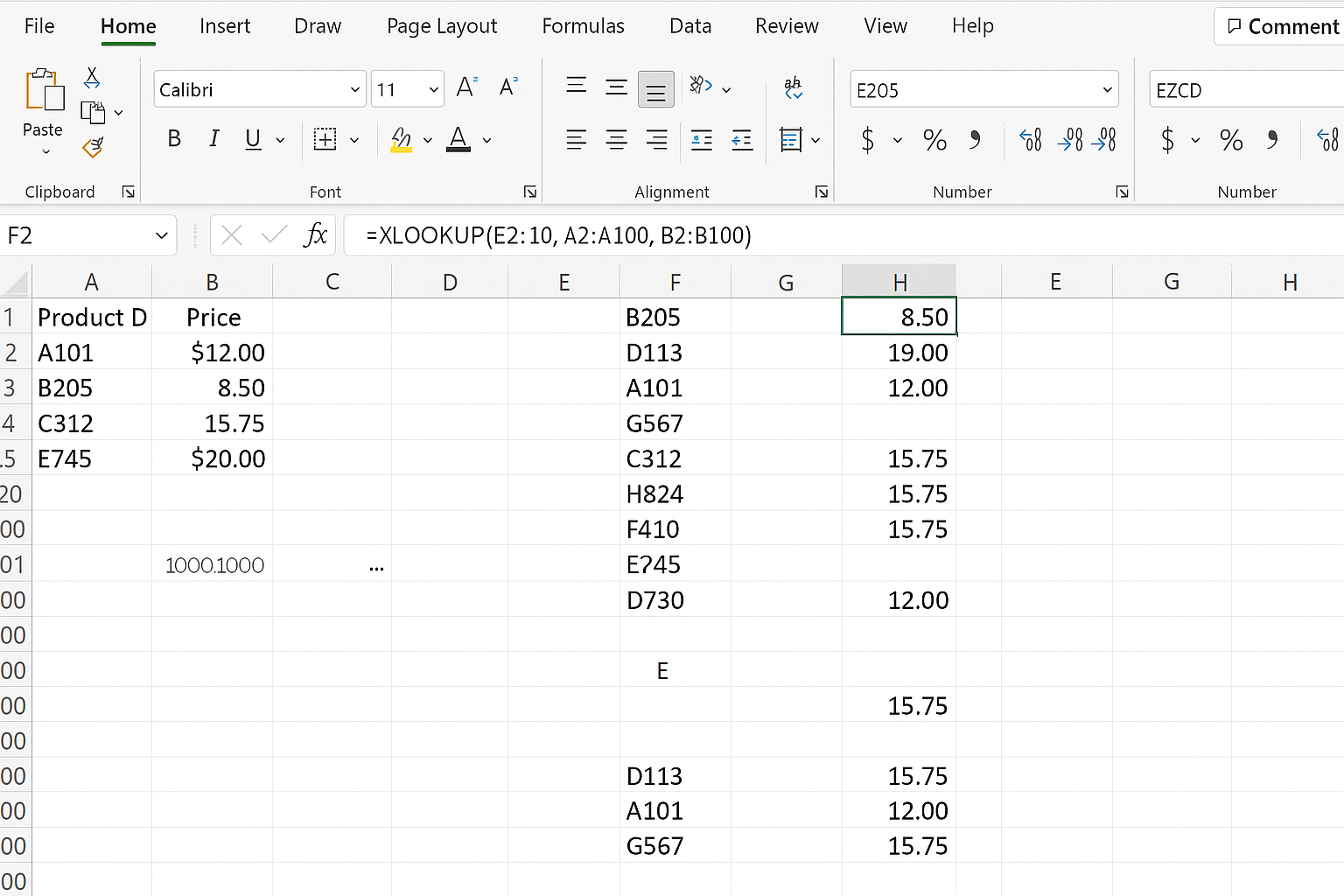
=XLOOKUP(E2:E10, A2:A100, B2:B100)This returns prices for all product IDs in E2:E10.
Tips for Using Dynamic Arrays Effectively
- Be mindful of spill ranges: Ensure there are blank cells where the array can spill; otherwise, you will get a #SPILL! error.
- Combine functions: Nest functions like FILTER, SORT, and UNIQUE for powerful data manipulation.
- Use named ranges: Improves formula readability and reduces errors.
- Check compatibility: Dynamic arrays work only in newer Excel versions (365, 2021).
FAQ
Related Articles
- Understanding Dynamic Array Functions in Excel: A Beginner’s Guide
- Top Excel Dynamic Array Formulas You Should Know
- How to Use the Excel FILTER Function with Dynamic Arrays
- Mastering the Excel SORT Function Using Dynamic Arrays
- Using the UNIQUE Function in Excel to Extract Distinct Values with Dynamic Arrays
Want practical Excel help?
Support free Excel tutorials, get weekly tips, or contact us for Excel programming, VBA, Power Query, dashboards, and automation work.