Leveraging Pivot Tables for Project Management and Task Tracking
Introduction
Managing projects and tracking tasks effectively is crucial for successful project delivery. With numerous tasks, deadlines, and team members involved, project managers need efficient tools to analyze and organize data. One powerful feature in Excel that can help streamline project management and task tracking is the pivot table.
Pivot tables allow users to summarize large datasets quickly and extract meaningful insights without complex formulas. In this article, we will explore how to leverage a pivot table for project management, complete with practical examples to demonstrate its benefits.
Understanding Pivot Tables in Project Management
A pivot table is an interactive Excel tool that summarizes, sorts, reorganizes, groups, counts, totals, or averages data stored in a table. For project management, pivot tables can condense task lists, deadlines, statuses, and resource allocations into digestible reports. They enable managers to view project progress at a glance and make data-driven decisions.
Setting Up Your Data for Pivot Tables
Before creating a pivot table, ensure your project data is organized in a tabular format. Each column should have a clear header, such as:
- Task ID
- Task Name
- Assigned To
- Status (e.g., Completed, In Progress, Pending)
- Priority (High, Medium, Low)
- Start Date
- End Date
- Hours Spent
Having structured data enables pivot tables to summarize and filter effectively.
Example 1: Tracking Task Status and Progress
Imagine you have a project task list of 100 tasks with various statuses and assigned team members. To understand how many tasks are completed, in progress, or pending, you can create a pivot table as follows:
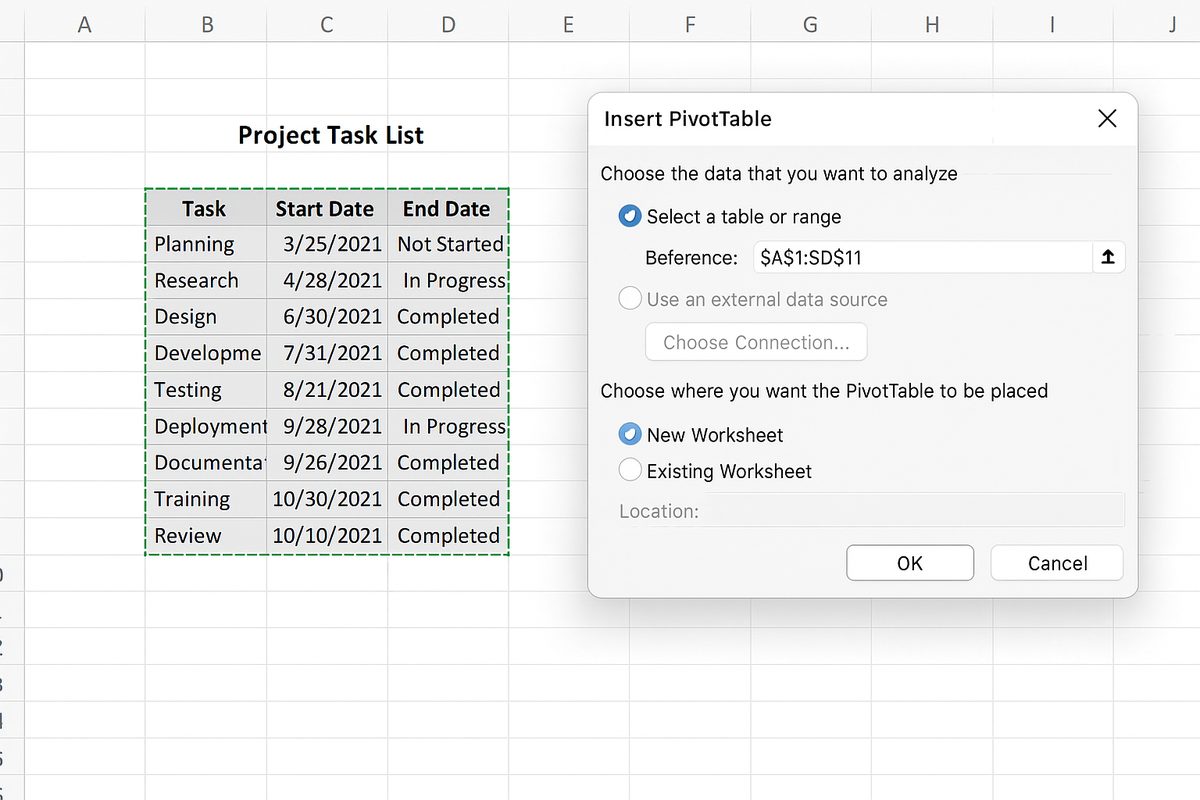
- Select your data range and insert a pivot table.
- Drag Status into the Rows area.
- Drag Task ID into the Values area, set to count to see how many tasks fall under each status.
- Drag Assigned To into the Columns area to see task distribution per team member by status.
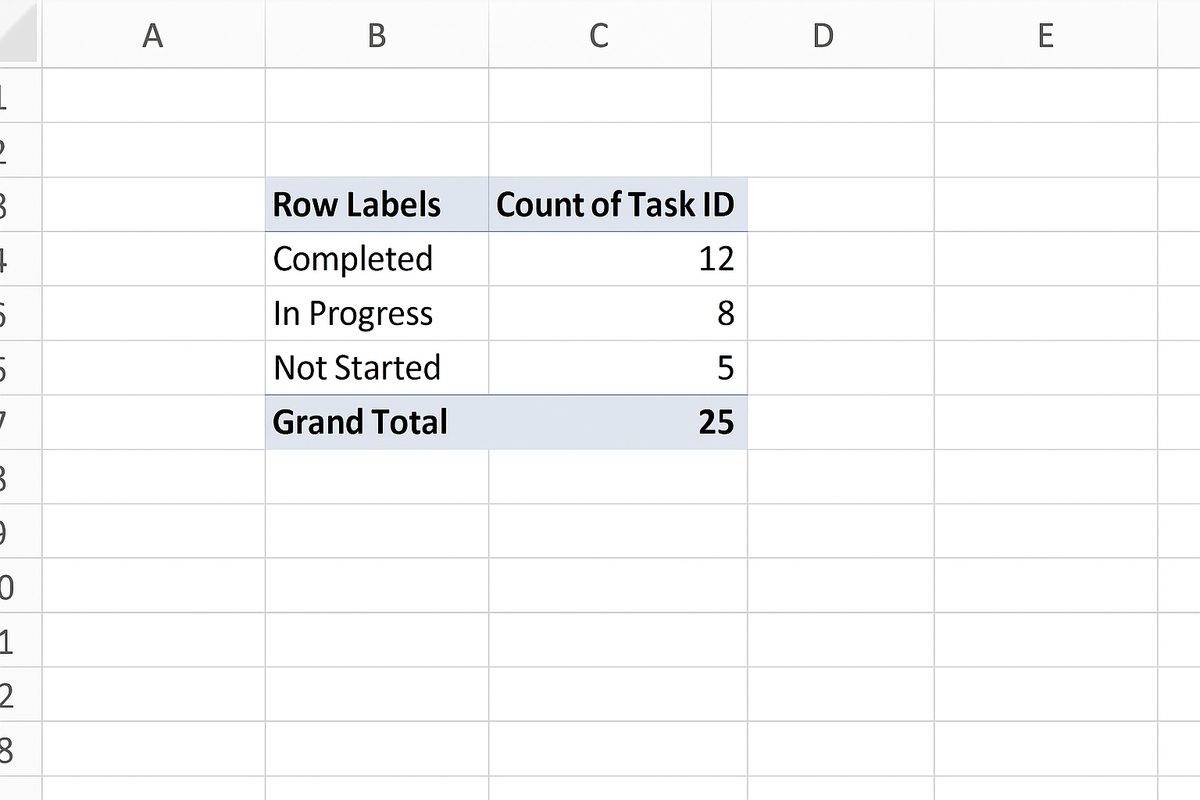
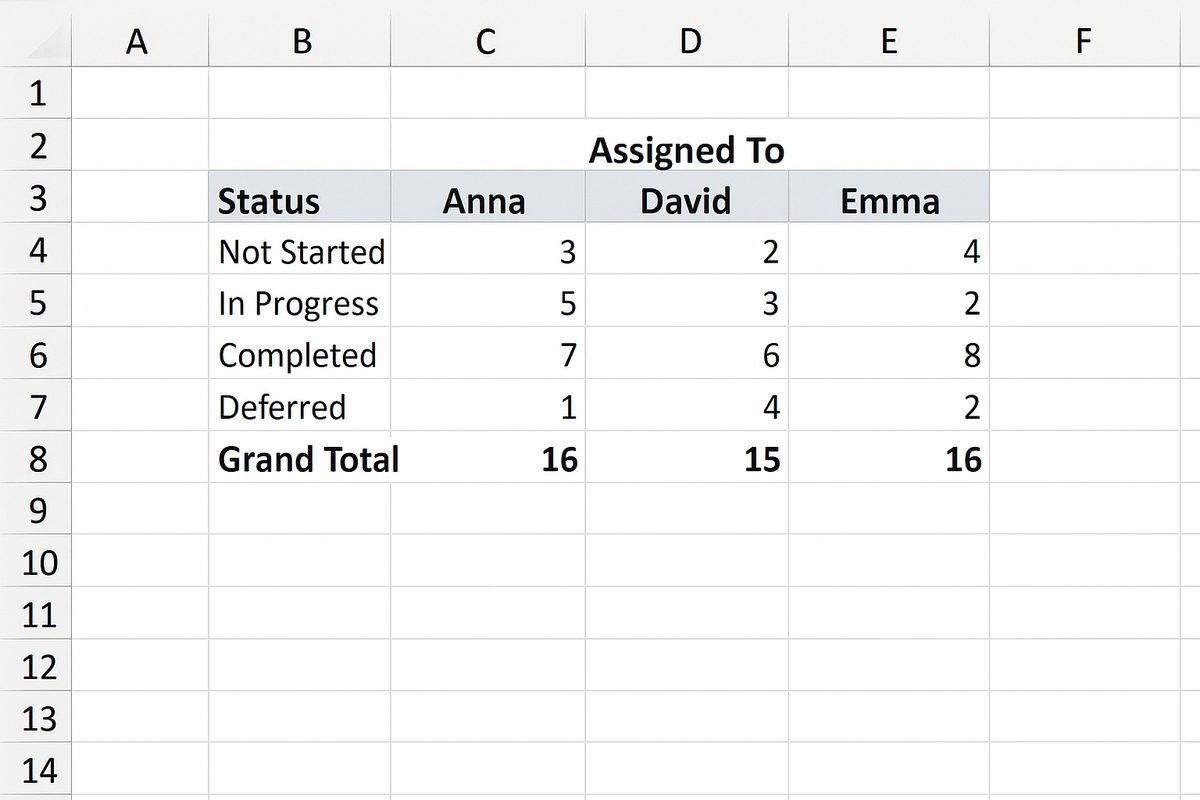
This pivot table quickly displays task counts by status and assignee, helping managers identify bottlenecks or workload imbalances.
Example 2: Monitoring Project Timeline and Deadlines
To monitor deadlines and upcoming tasks, use a pivot table that groups tasks by their end dates and highlights overdue items:
- Insert a pivot table based on your project data.
- Drag End Date into Rows. Excel will allow grouping by days, weeks, or months.
- Drag Task ID into Values, counting tasks due on each date or period.
- Drag Status into Filters to focus on incomplete tasks.
Grouping tasks by deadline periods helps project managers focus on urgent tasks and plan resources accordingly.
Example 3: Resource Allocation and Hours Tracking
To analyze how many hours each team member has spent on tasks, you can summarize data like this:
- Create a pivot table from your task data.
- Drag Assigned To into Rows.
- Drag Hours Spent into Values, set to sum.
- Optionally, add Priority to Columns to compare hours spent on high, medium, or low priority tasks.
This helps identify which team members are over or underutilized and where time is being invested.
Advanced Tips for Using Pivot Tables in Project Management
- Use slicers: Add slicers for quick filtering by status, priority, or team member.
- Conditional formatting: Highlight critical values like overdue tasks or high-priority work.
- Calculated fields: Create custom metrics such as % completion or remaining hours.
- Refresh data: Always refresh your pivot table after updating the source data to keep reports current.
FAQ
What is the main advantage of using a pivot table for project management?
Pivot tables provide a fast, flexible way to summarize and analyze large volumes of project data without complex formulas, improving visibility and decision-making.
Can pivot tables help track task deadlines?
Yes, pivot tables can group tasks by deadlines and filter by status to help managers focus on upcoming or overdue tasks.
Do I need advanced Excel skills to use pivot tables for projects?
Basic knowledge of Excel is sufficient to create functional pivot tables; however, mastering features like slicers and calculated fields can enhance your reports.
How often should I update my pivot table data?
You should refresh your pivot table whenever the source data changes to ensure your project reports reflect the latest information.
Can pivot tables be used for resource allocation analysis?
Absolutely. Pivot tables can sum hours spent per team member and analyze workload distribution across tasks and priorities.
Conclusion
Pivot tables are invaluable tools for project managers seeking efficient ways to track tasks, deadlines, and resource allocation. By transforming raw project data into organized summaries, pivot tables simplify progress monitoring and facilitate informed decision-making. Whether you manage small teams or complex projects, incorporating pivot tables into your workflow can boost productivity and clarity. With the practical examples and tips shared here, you can start leveraging pivot tables for project management and task tracking today.
Related Articles
- Pivot Tables Tutorial: A Beginner’s Guide to Summarizing Data
- What Is a Pivot Table and How Can It Help You Analyze Data?
- How to Create a Pivot Table in Excel Step-by-Step
- Understanding Pivot Table Fields: Rows, Columns, Filters, and Values Explained
- Advanced Pivot Table Techniques to Master Data Analysis
Want practical Excel help?
Support free Excel tutorials, get weekly tips, or contact us for Excel programming, VBA, Power Query, dashboards, and automation work.