Troubleshooting Pivot Table Showing Wrong Data: Common Causes and Fixes
Introduction
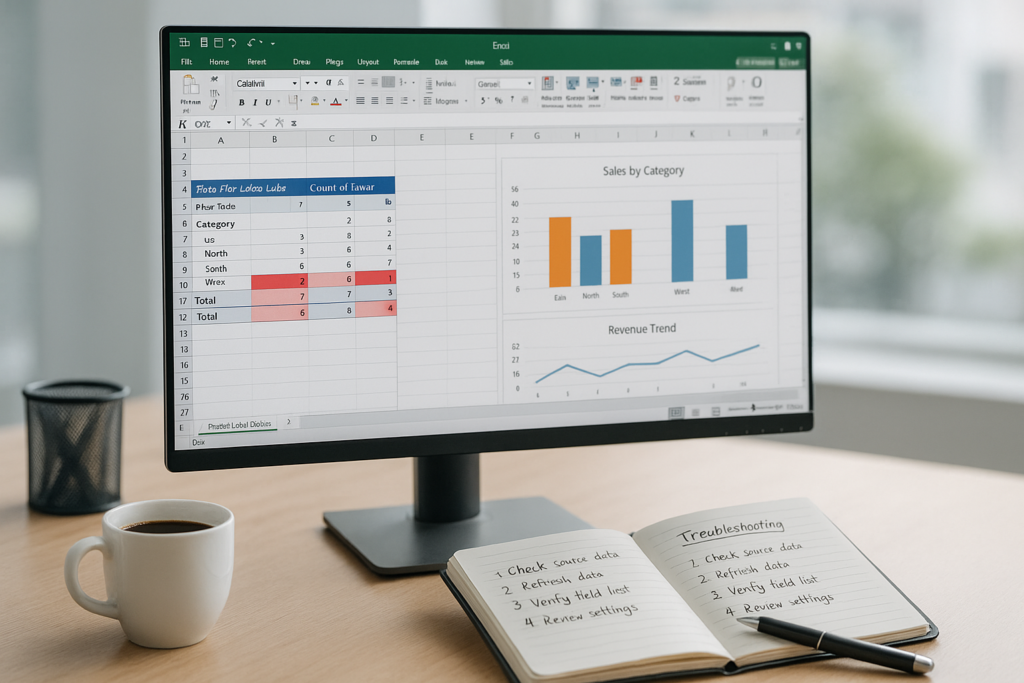
Pivot tables are powerful tools in Excel that allow users to summarize, analyze, and present large datasets quickly. However, one of the most frustrating issues users face is when the pivot table shows wrong data. This can lead to incorrect conclusions and flawed decision-making. Understanding the common causes and applying the right troubleshooting steps can help you resolve these errors efficiently. In this article, we will explore why your pivot table might be displaying wrong data and provide practical fixes with examples.
Common Causes of Pivot Table Showing Wrong Data
1. Source Data Not Updated
One of the most frequent reasons for incorrect pivot table data is that the source data has changed but the pivot table has not been refreshed. Pivot tables do not automatically update when the underlying data changes.
Example: You add new sales data in your source worksheet, but your pivot table still shows old totals.
2. Incorrect Data Range Selected
If the data range selected for the pivot table does not include all relevant rows or columns, the pivot table will miss important data.
Example: Your sales data extends to row 1000, but the pivot table range ends at row 900.
3. Blank or Inconsistent Data
Blank cells or inconsistent data formats (e.g., numbers stored as text) can cause pivot tables to aggregate data incorrectly.
Example: Sales figures in your source data have some cells formatted as text with numbers, which leads to those values being ignored.
4. Filters and Slicers Applied
Filters or slicers applied to pivot tables can hide certain data, which might give the impression that the pivot table is showing wrong or incomplete information.
Example: A slicer is set to show only data from a specific region, but the user expects data from all regions.
5. Duplicate Data or Incorrect Data Entry
Duplicates in the source data or errors in data entry such as typos can skew the results.
Example: The same transaction is entered twice, inflating total sales.
6. Calculated Fields or Items Errors
Misconfigured calculated fields or items within the pivot table can produce misleading outcomes.
Example: A calculated field uses wrong formulas or references resulting in incorrect totals.
Step-by-Step Fixes for Pivot Table Showing Wrong Data
1. Refresh the Pivot Table
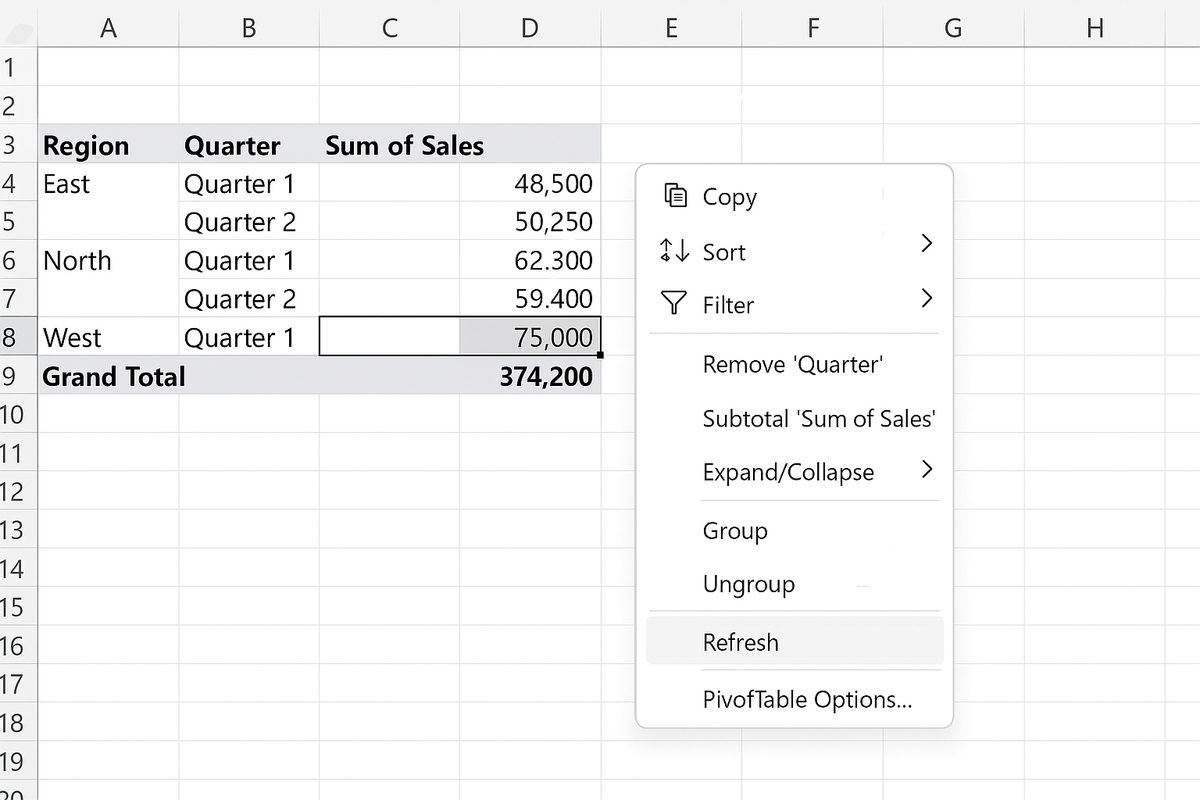
Whenever you update your source data, refresh the pivot table to reflect changes:
- Right-click anywhere in the pivot table.
- Select Refresh.
You can also press Alt + F5 or use the Data tab’s Refresh button.
2. Verify and Adjust the Source Data Range
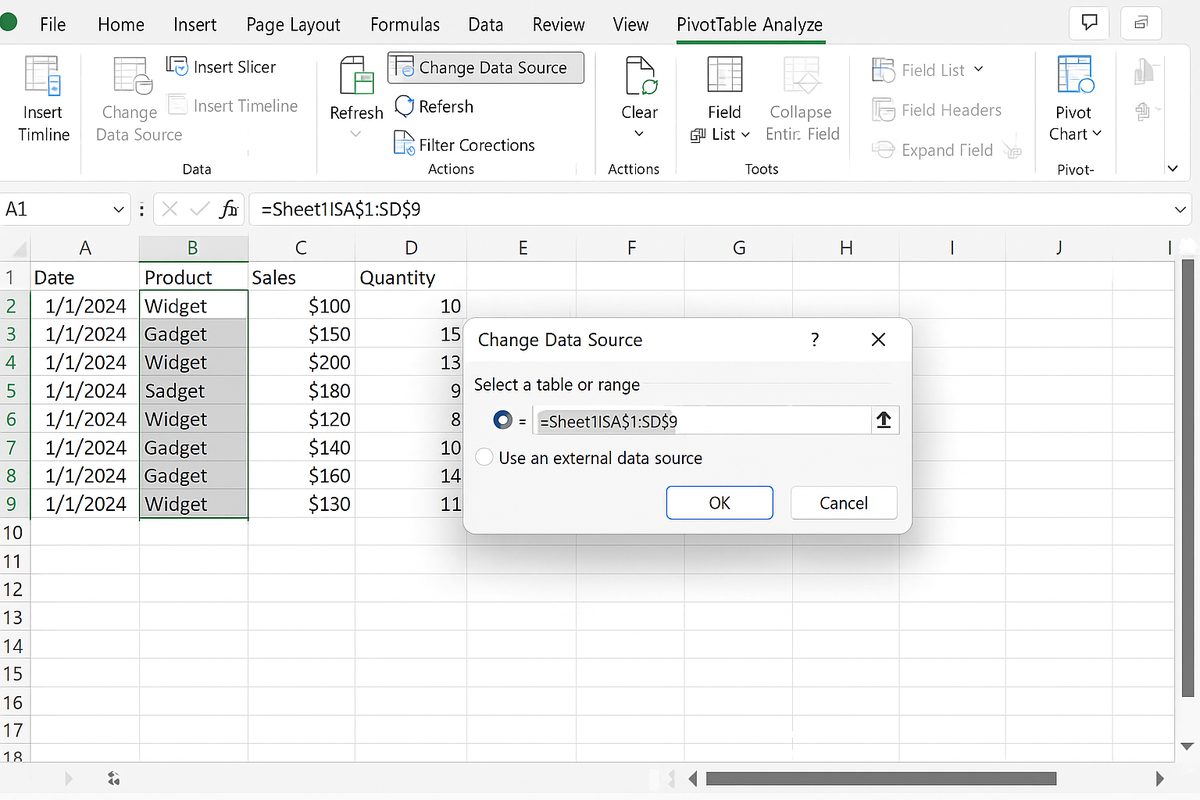
Ensure the pivot table source range covers all data:
- Click inside the pivot table.
- Go to PivotTable Analyze (or Options) tab > Change Data Source.
- Adjust the range to include all rows and columns.
For dynamic ranges, consider using Excel Tables (Insert > Table) as your data source. Tables automatically expand with new data.
3. Clean and Standardize Data
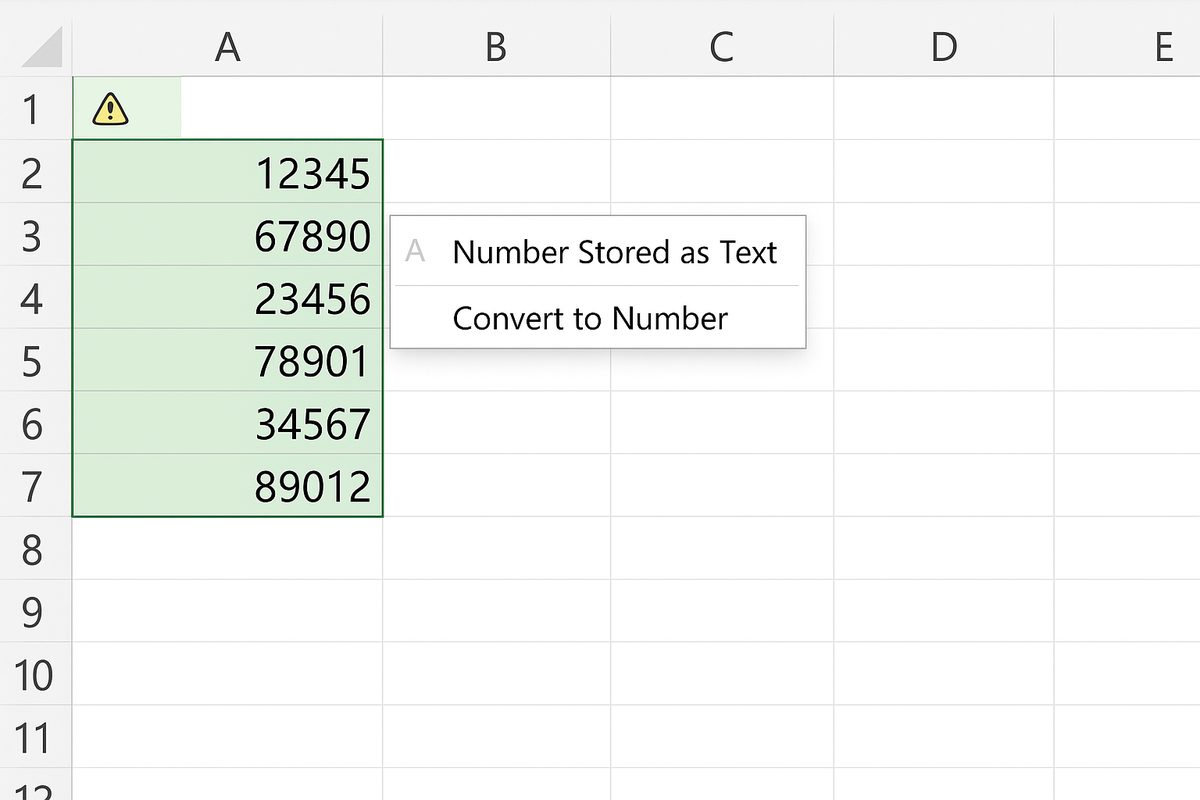
Make sure data types are consistent. For numbers stored as text:
- Select the cells.
- Click the warning icon and convert to number, or use
VALUE()function.
Remove blanks or fill them with appropriate values if needed.
4. Check and Clear Filters and Slicers
Review applied filters and slicers:
- Click on filter drop-downs in the pivot table fields.
- Clear any filters that might be hiding data.
- Reset slicers by clicking on the clear filter icon.
5. Remove Duplicate Records
Use Excel’s Remove Duplicates feature:
- Select the data range.
- Go to Data tab > Remove Duplicates.
- Choose relevant columns and confirm.
6. Review Calculated Fields and Items
If using calculated fields:
- Go to PivotTable Analyze tab > Fields, Items & Sets > Calculated Field.
- Edit and verify formulas for correctness.
Practical Example
Imagine you have a sales dataset with columns: Date, Region, Salesperson, and Sales Amount. You create a pivot table summarizing total sales by Region. After adding new sales data for May, your pivot table still shows totals only through April. To fix this:
- Refresh the pivot table.
- Verify the data range includes the new May data.
- Ensure all sales amounts are numbers (no text format).
- Clear any filters limiting display to April only.
Following these steps will update the pivot table to show accurate total sales through May.
FAQ
Why does my pivot table show zeros instead of actual values?
This commonly happens when source data contains blank cells or numbers stored as text. Check the data format and ensure all relevant cells contain valid numeric values.
How can I make my pivot table update automatically when source data changes?
Pivot tables don’t update automatically by default. You can use VBA macros to auto-refresh or convert your data range into an Excel Table and refresh manually as needed.
Can pivot tables handle multiple data sources without showing errors?
Pivot tables typically work with a single contiguous data source. To combine multiple sources, use Power Query or Data Model in Excel to create relationships before building a pivot table.
What should I do if my pivot table shows duplicate records?
Check your source data for duplicates and remove them using the Remove Duplicates tool or by applying filters to identify repeated entries.
How do calculated fields affect pivot table data accuracy?
Incorrect formulas or references in calculated fields can cause wrong results. Always double-check the logic and test calculations with sample data.
Is it possible that pivot table grouping causes wrong data display?
Yes, grouping dates or numbers incorrectly can aggregate data unexpectedly. Review group settings and adjust or remove them if necessary.
Conclusion
Pivot tables are essential for data analysis in Excel, but encountering wrong data can disrupt your workflow. By understanding the common causes such as outdated source data, incorrect data ranges, inconsistent data formats, applied filters, duplicates, and misconfigured calculated fields, you can quickly troubleshoot and fix the issues. Regularly refreshing your pivot tables, cleaning your data, and confirming your setup helps maintain accuracy and reliability. Following the practical steps and tips shared in this article will empower you to handle pivot table errors efficiently and make the most of this powerful Excel feature.
Related Articles
- Pivot Tables Tutorial: A Beginner’s Guide to Summarizing Data
- What Is a Pivot Table and How Can It Help You Analyze Data?
- How to Create a Pivot Table in Excel Step-by-Step
- Understanding Pivot Table Fields: Rows, Columns, Filters, and Values Explained
- Advanced Pivot Table Techniques to Master Data Analysis
Want practical Excel help?
Support free Excel tutorials, get weekly tips, or contact us for Excel programming, VBA, Power Query, dashboards, and automation work.