Data Entry Tips in Excel for Economists to Save Time

Introduction
For economists, handling data efficiently is crucial for timely and accurate analysis. Excel remains one of the most widely used tools in economic research and data management. However, manual data entry can be time-consuming and prone to errors. This article focuses on practical Excel data entry tips for economists designed to save time and improve productivity.
1. Use Excel Tables for Structured Data
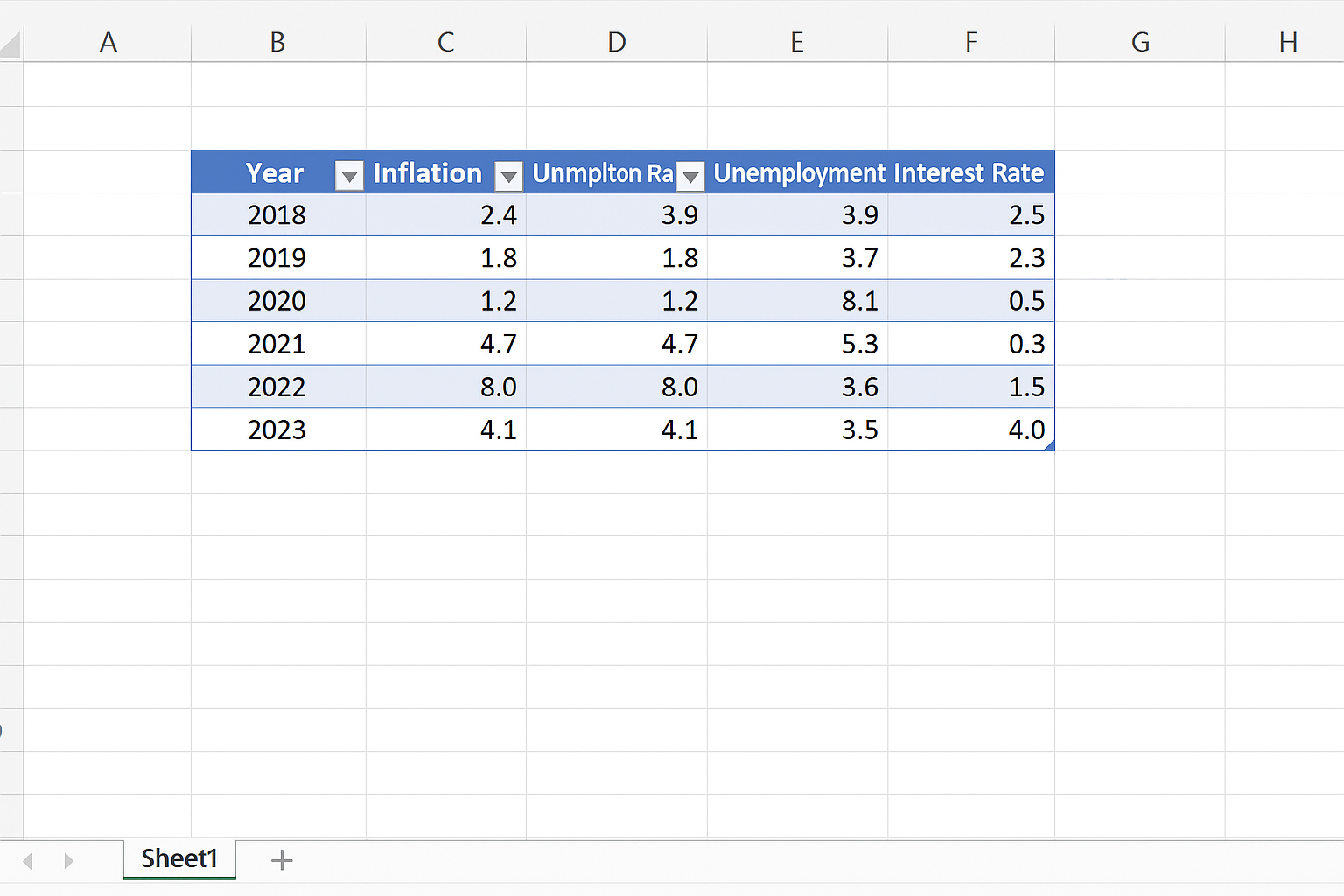
Excel Tables automatically organize data with features like filtering, sorting, and structured references. For economists working with datasets such as GDP figures, inflation rates, or employment statistics, converting raw data ranges into tables helps maintain data integrity.
Example: Select your dataset and press Ctrl + T to convert it into a table. This enables easy expansion of data and maintains formulas dynamically.
2. Utilize Data Validation to Reduce Entry Errors
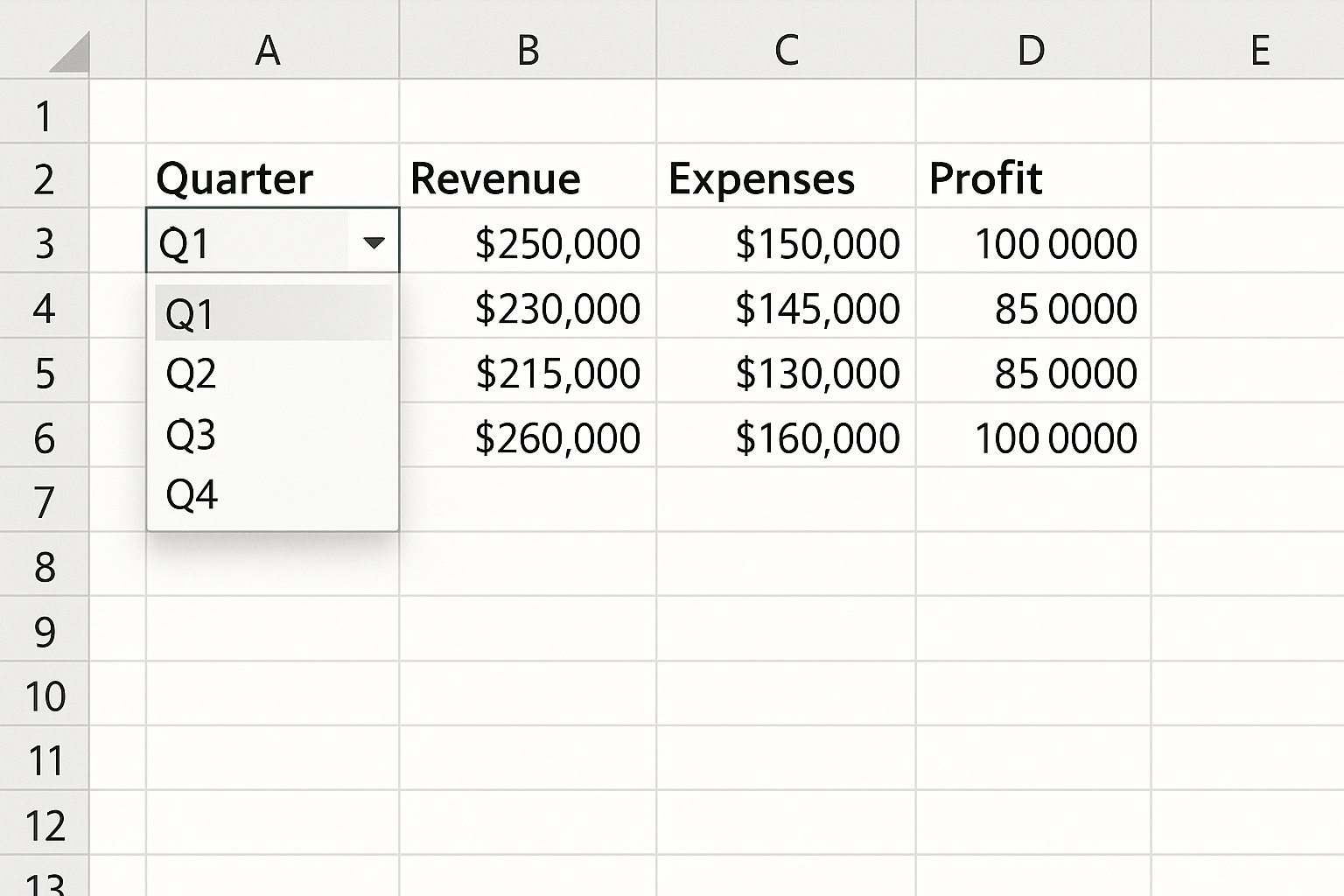
Data validation restricts input to predefined types, helping economists avoid entry mistakes. For example, when entering quarterly economic indicators, restrict inputs to valid quarters or numeric ranges.
Example: Select cells where you want to limit entries, go to Data > Data Validation, choose List, and enter values like Q1,Q2,Q3,Q4. This creates a dropdown menu for consistent input.
3. Apply AutoFill for Repetitive Data
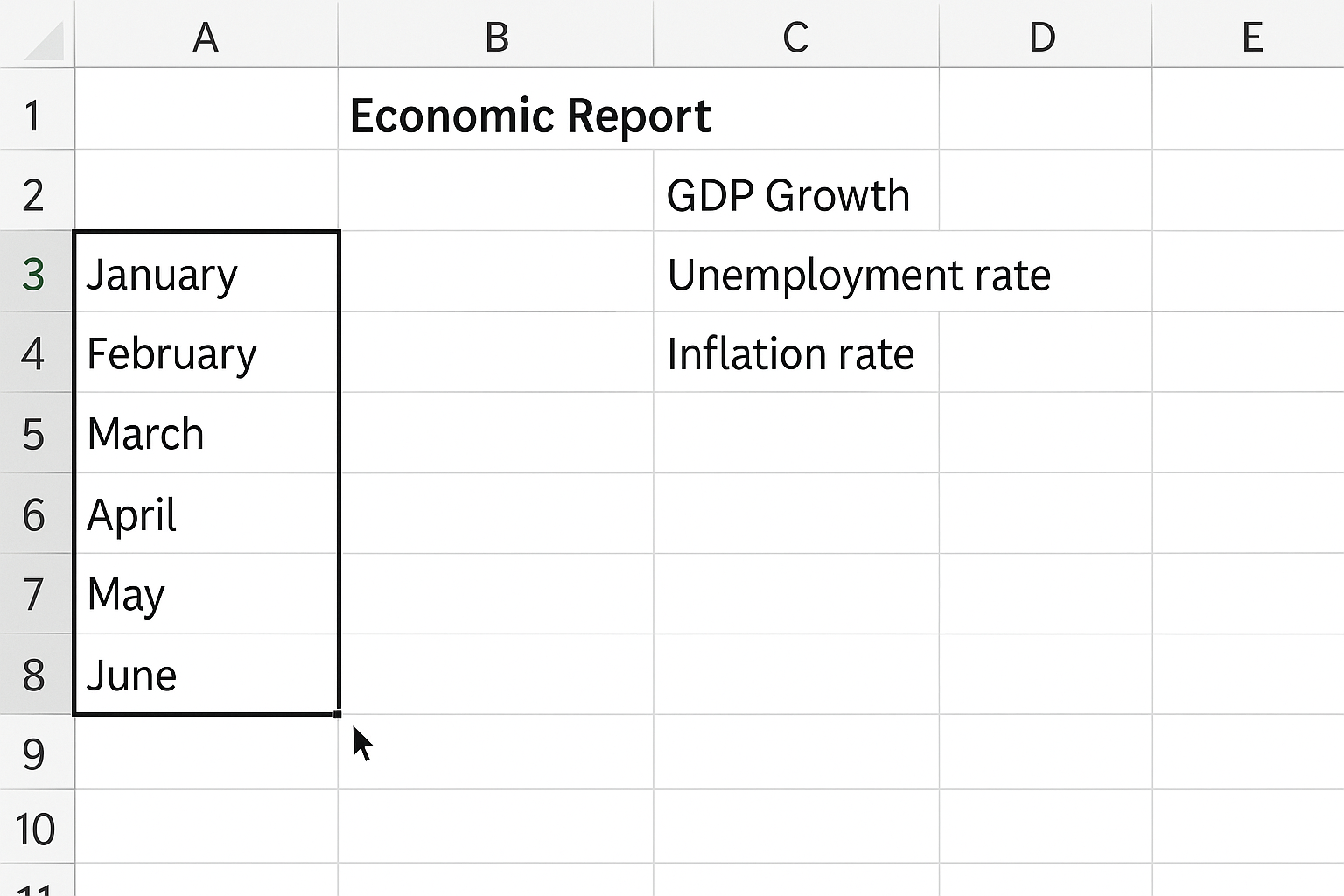
AutoFill lets you quickly fill cells with a series of numbers, dates, or custom lists. Economists can use this for entering dates of economic reports, sequential identifiers, or repeated categories.
Example: Enter the starting date of a monthly report, then drag the fill handle down to populate subsequent months automatically.
4. Leverage Keyboard Shortcuts to Speed Up Data Entry
Keyboard shortcuts reduce dependence on mouse navigation, accelerating data entry. Some useful shortcuts for economists include:
Ctrl + ;– Enter current dateCtrl + Shift + " + "– Insert new rowAlt + Enter– Insert line break within a cellCtrl + D– Fill down from the cell above
5. Use Flash Fill to Automatically Format Data
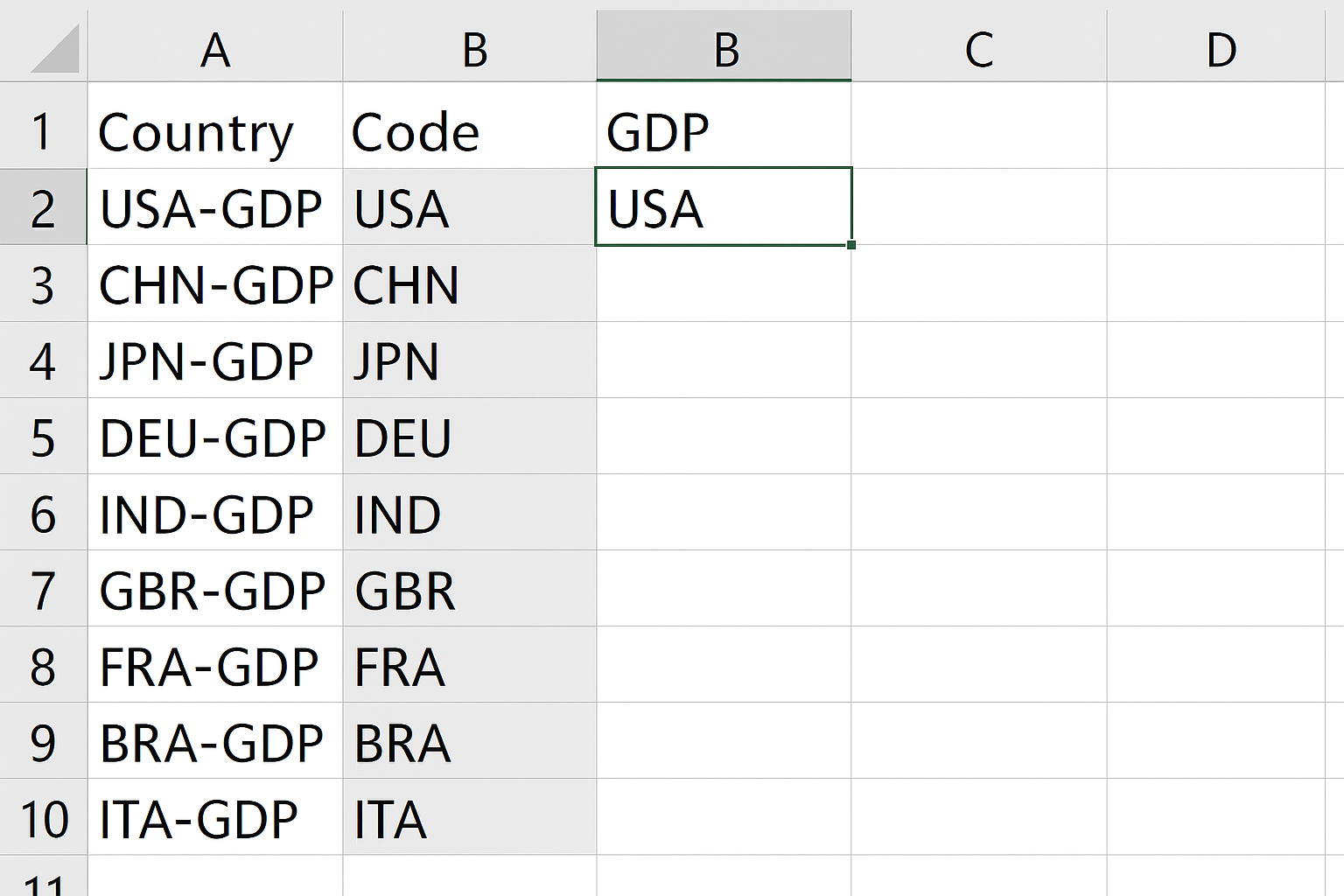
Flash Fill detects patterns and fills data accordingly, which is handy for economists formatting codes or splitting combined data like “Country-Indicator” into separate columns.
Example: Suppose you have a cell with USA-GDP. In the adjacent column, type USA and press Ctrl + E to auto-extract all country codes.
6. Protect Worksheets to Prevent Unintended Changes
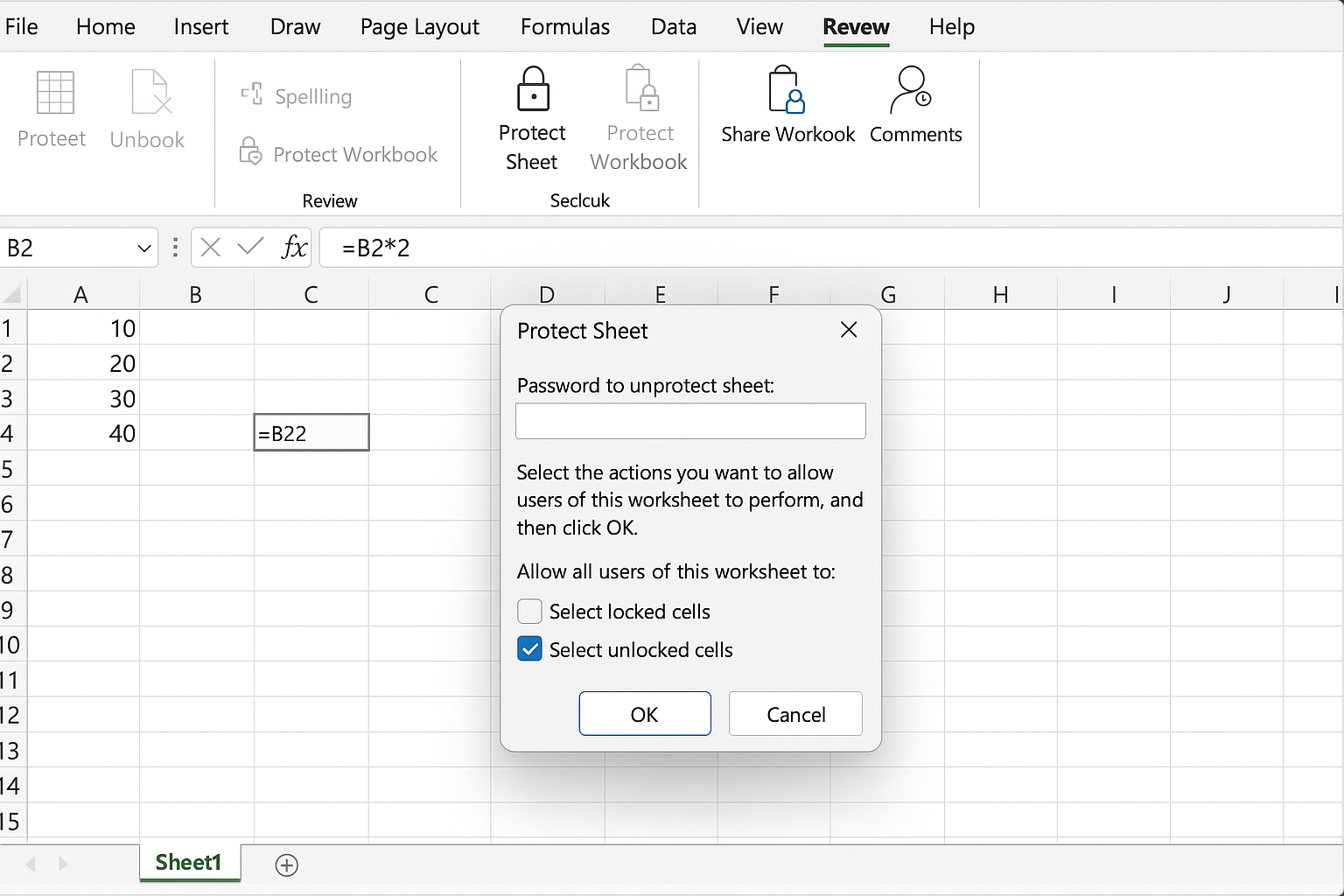
Protecting sheets can prevent accidental edits during data entry, especially when sharing files with colleagues.
Example: Go to Review > Protect Sheet and set a password. Allow users to select only unlocked cells for data entry.
7. Import Data from External Sources
Economists often work with data from databases or statistical software. Importing directly into Excel can save time instead of manual typing.
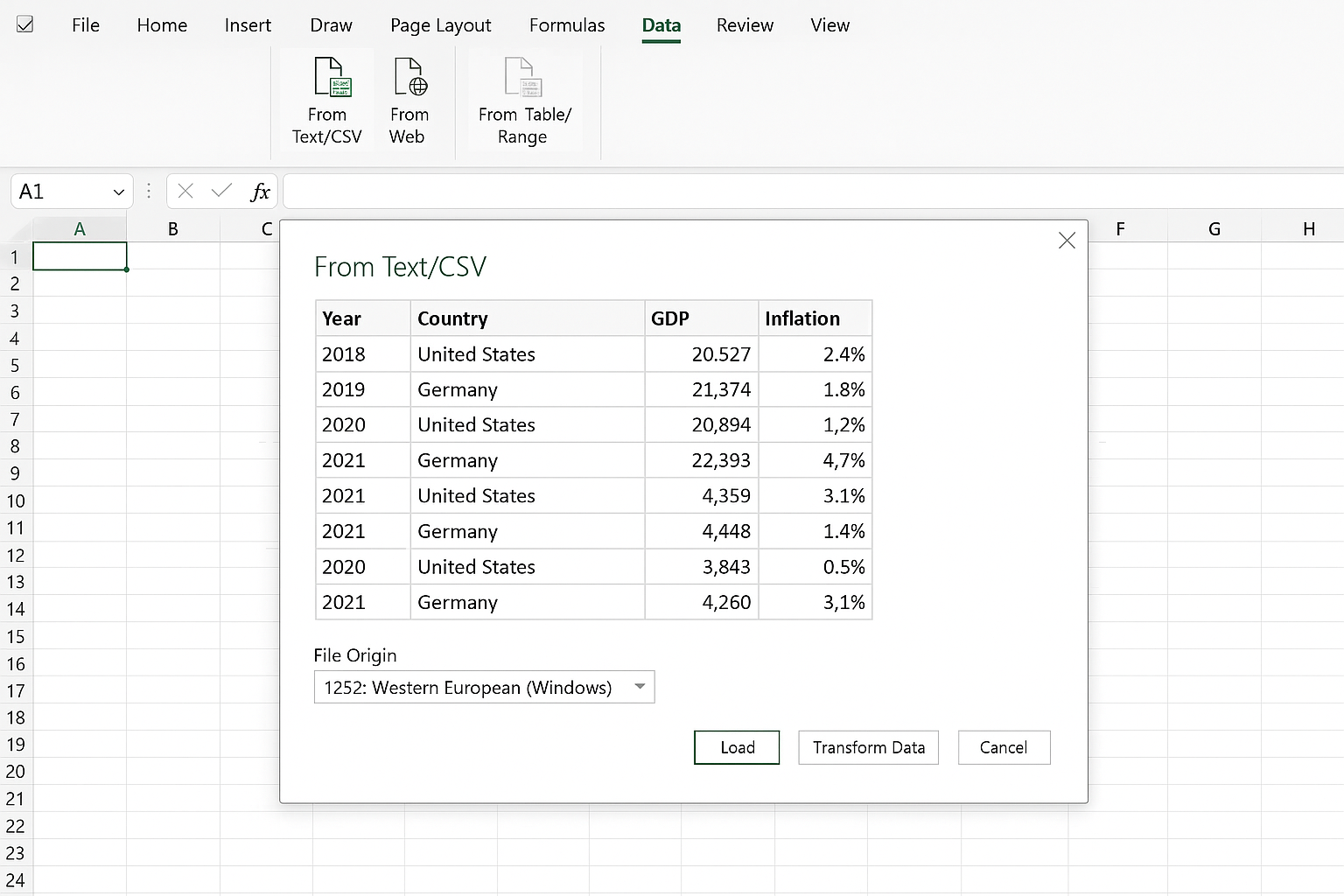
Example: Use Data > Get & Transform Data > From Text/CSV to import datasets exported from economic databases or statistical packages.
8. Use Named Ranges for Easier Reference
Named ranges make formulas easier to understand and reduce errors.
Example: Select the range containing unemployment rates, then name it UnemploymentRates. Use formulas like =AVERAGE(UnemploymentRates) for clarity.
9. Avoid Blank Cells in Data Ranges
Blank cells can disrupt analysis and cause formula errors. Fill missing data with appropriate placeholders like NA() or 0, depending on context.
10. Regularly Save and Backup Your Work
Frequent saving prevents data loss. Enable AutoSave if working on cloud services like OneDrive or SharePoint.
FAQ
What are the best Excel data entry tips for economists?
Using Excel Tables, Data Validation, AutoFill, Flash Fill, and keyboard shortcuts are some of the best ways to streamline data entry and reduce errors.
How can I reduce errors when entering economic data in Excel?
Implement data validation dropdowns, restrict input types, and use named ranges to minimize errors during entry.
Is it possible to automate some parts of data entry in Excel?
Yes, features like Flash Fill, AutoFill, and importing data from external sources help automate repetitive tasks.
Can keyboard shortcuts really improve data entry speed?
Absolutely. Familiarity with shortcuts like Ctrl + ; for the current date or Ctrl + D to fill down can significantly speed up data input.
How do I protect my economic data worksheets?
Use the Protect Sheet feature under the Review tab to lock cells, preventing unintended edits while allowing data entry in unlocked cells.
What should I do if I encounter missing data during entry?
Use placeholders such as NA() or zeroes depending on the analysis context, and avoid leaving blank cells to maintain formula integrity.
Conclusion
Efficient data entry in Excel is essential for economists to focus more on analysis rather than manual data handling. By implementing these Excel data entry tips for economists, including tables, validation, automation tools, and keyboard shortcuts, you can save time, minimize errors, and improve overall productivity. Mastering these basics will contribute to better economic data management and more insightful research outcomes.
Related Articles
- Excel Basics Every Economist Should Know
- Top 10 Excel Functions Useful for Economists
- How Economists Can Use Excel for Effective Data Analysis
- Using Excel Pivot Tables to Analyze Economic Data
- Performing Regression Analysis in Excel for Economic Research
Want practical Excel help?
Support free Excel tutorials, get weekly tips, or contact us for Excel programming, VBA, Power Query, dashboards, and automation work.