How to Automate Repetitive Tasks in Excel Using VBA

Introduction
Excel is one of the most widely used tools for data manipulation, analysis, and reporting. However, many users find themselves repeatedly performing the same tasks, which can be time-consuming and prone to errors. Fortunately, Excel VBA automation offers a powerful way to automate repetitive tasks, saving time and increasing accuracy. In this article, we will explore how to leverage VBA (Visual Basic for Applications) to automate Excel workflows with practical examples.
What is Excel VBA Automation?
Excel VBA automation refers to the process of using Visual Basic for Applications to write scripts (macros) that perform tasks automatically within Excel. VBA is a programming language built into Microsoft Office applications, allowing users to customize and extend Excel’s functionality beyond what is possible with formulas and standard features.
Benefits of Using VBA for Automation
- Time-saving: Automate repetitive tasks like formatting, data entry, and report generation.
- Accuracy: Reduce human errors by automating calculations and data manipulation.
- Consistency: Maintain uniformity in reports and data presentation.
- Customization: Tailor automation scripts to fit specific business needs.
Getting Started with Excel VBA Automation
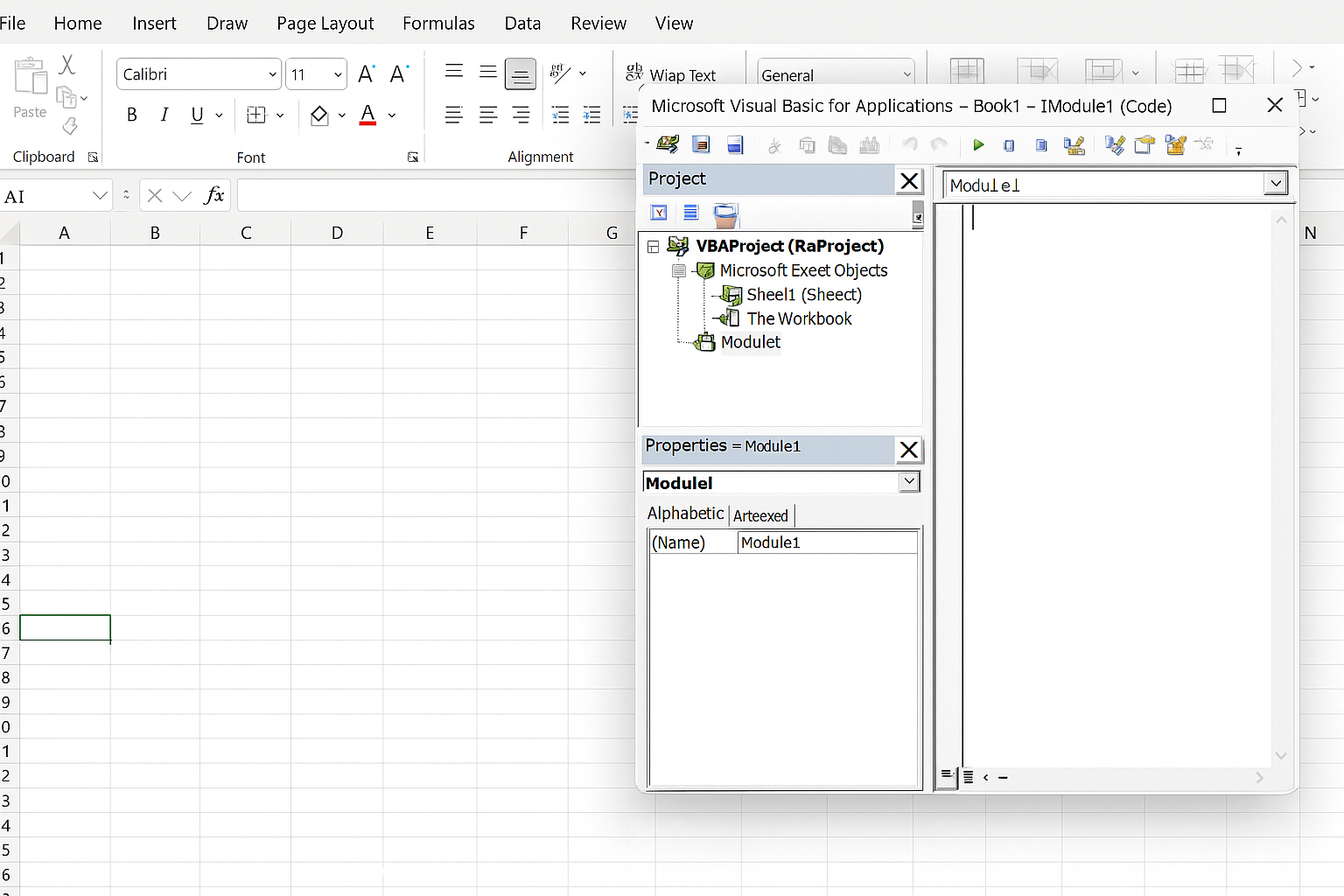
To start automating tasks in Excel using VBA, you need to access the VBA Editor. Here is how:
- Open Excel.
- Press
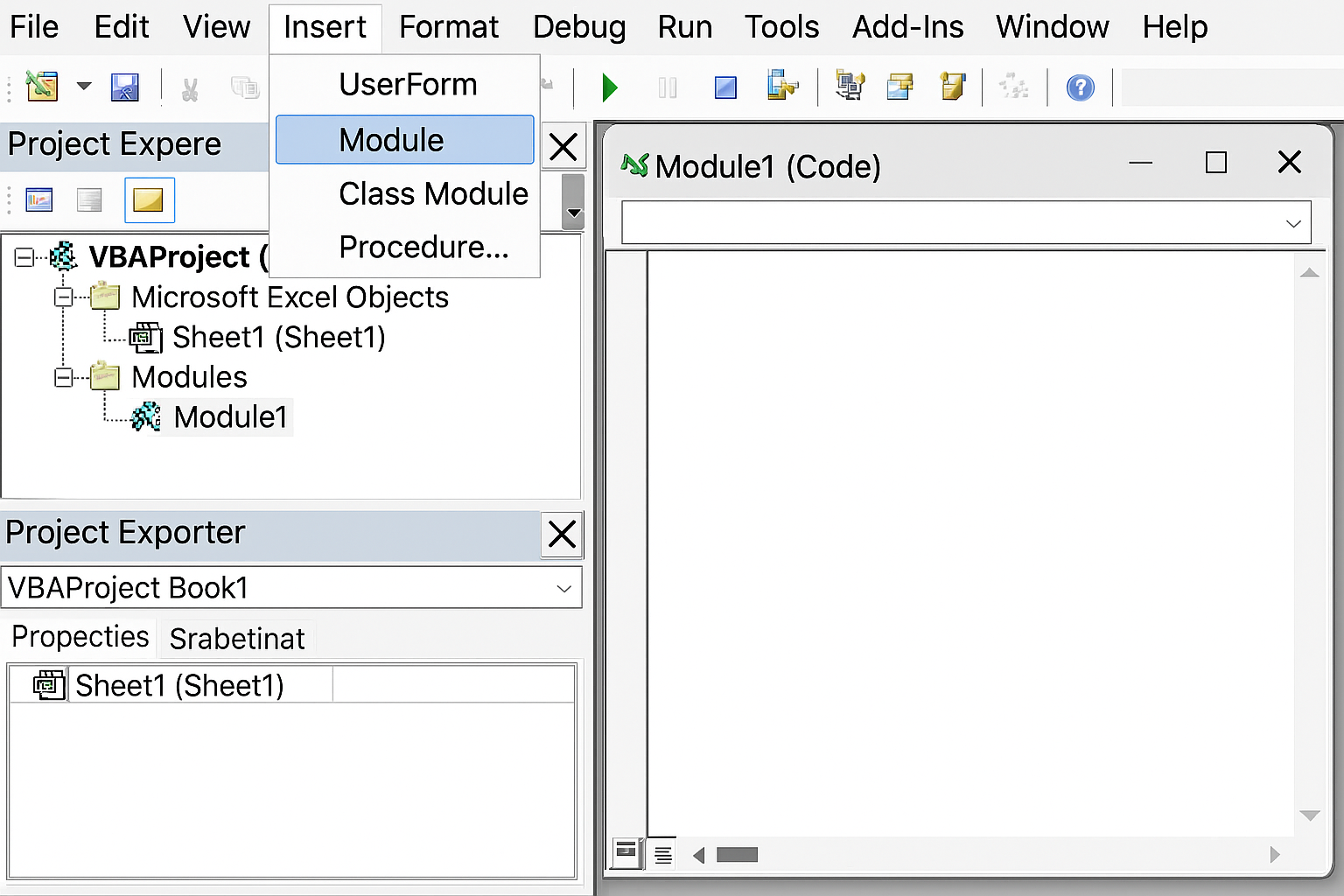
Alt + F11to open the VBA Editor. - Insert a new module by clicking Insert > Module.
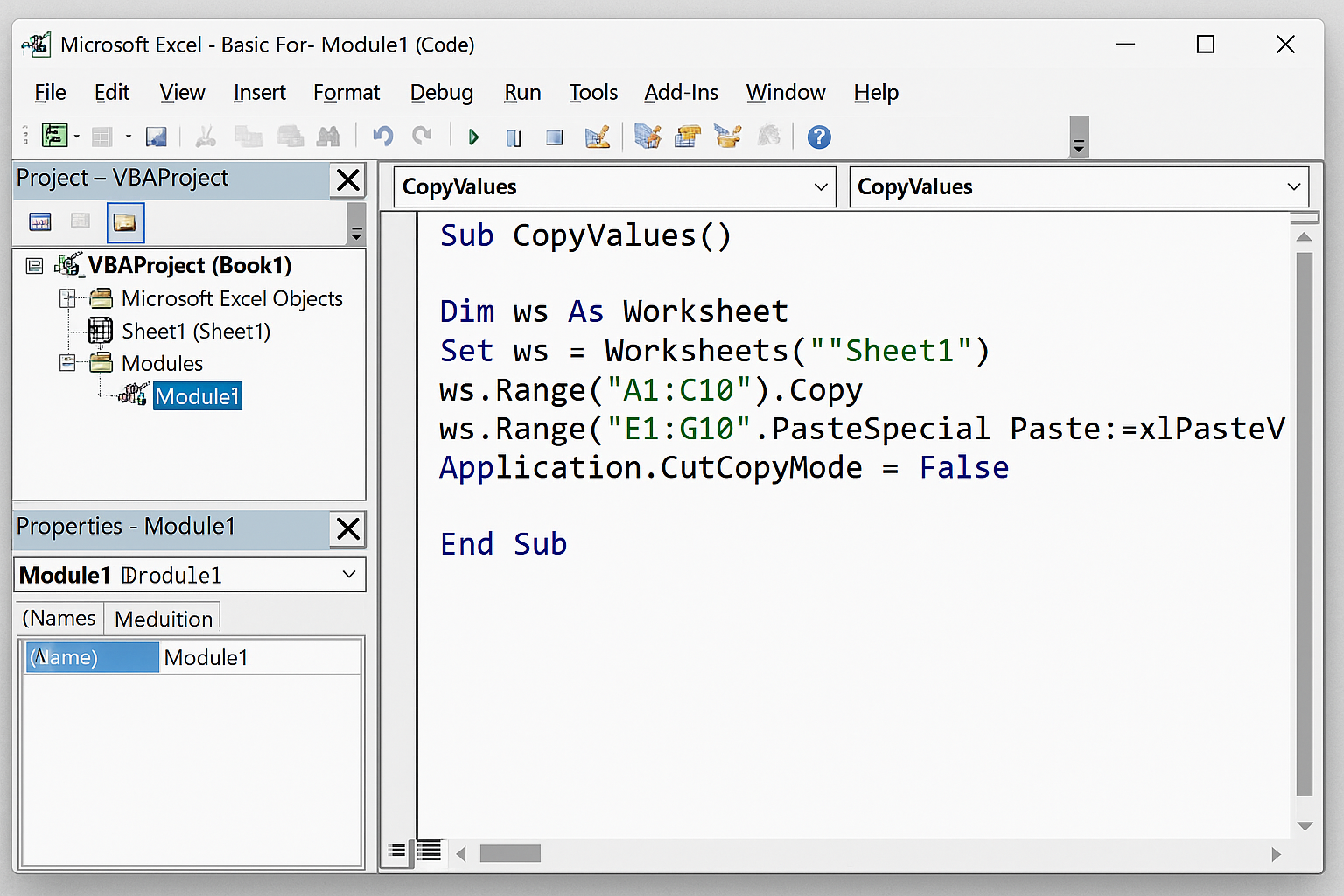
- Write or paste your VBA code inside the module.
- Run the macro by pressing
F5or through Excel’s Developer tab.
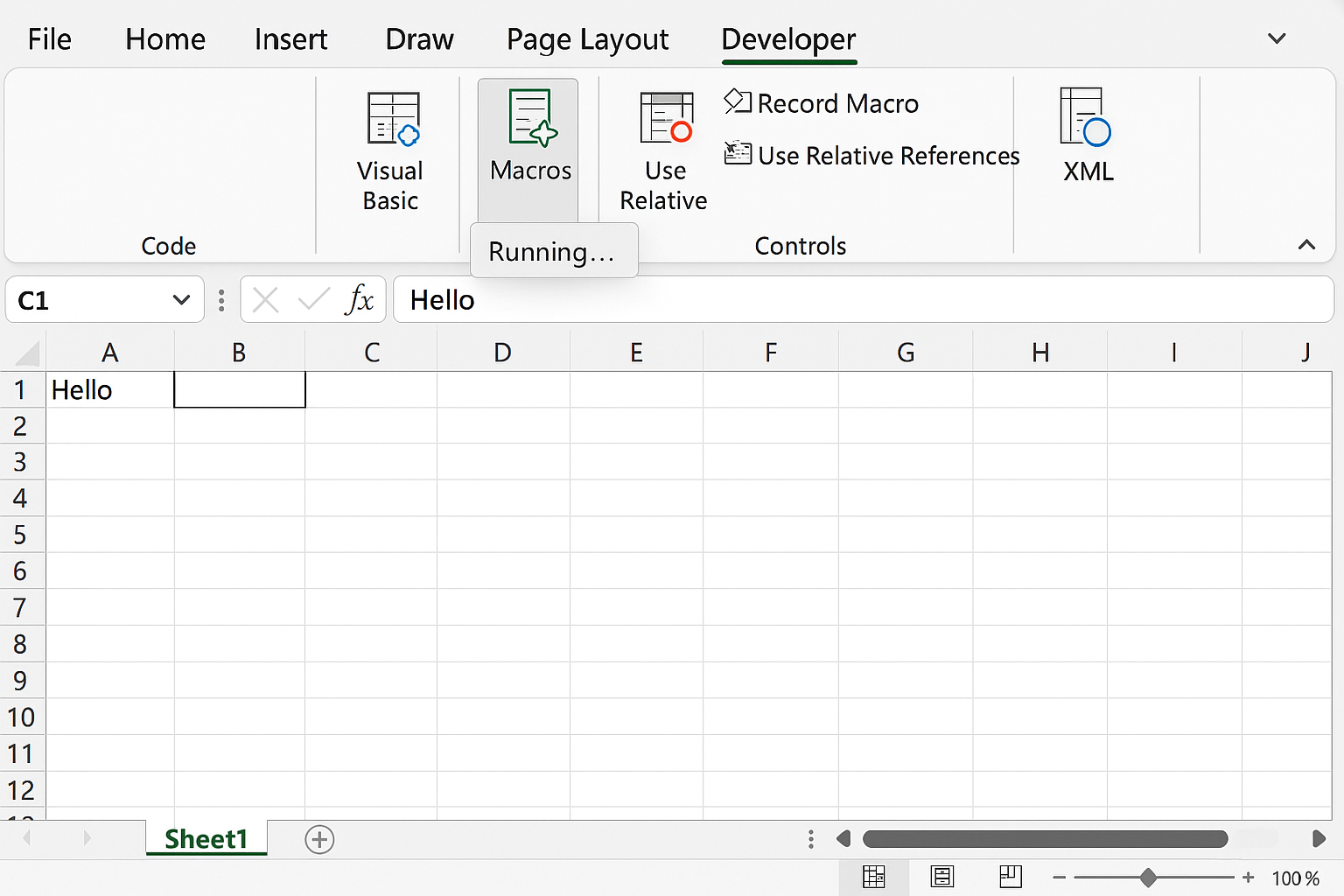
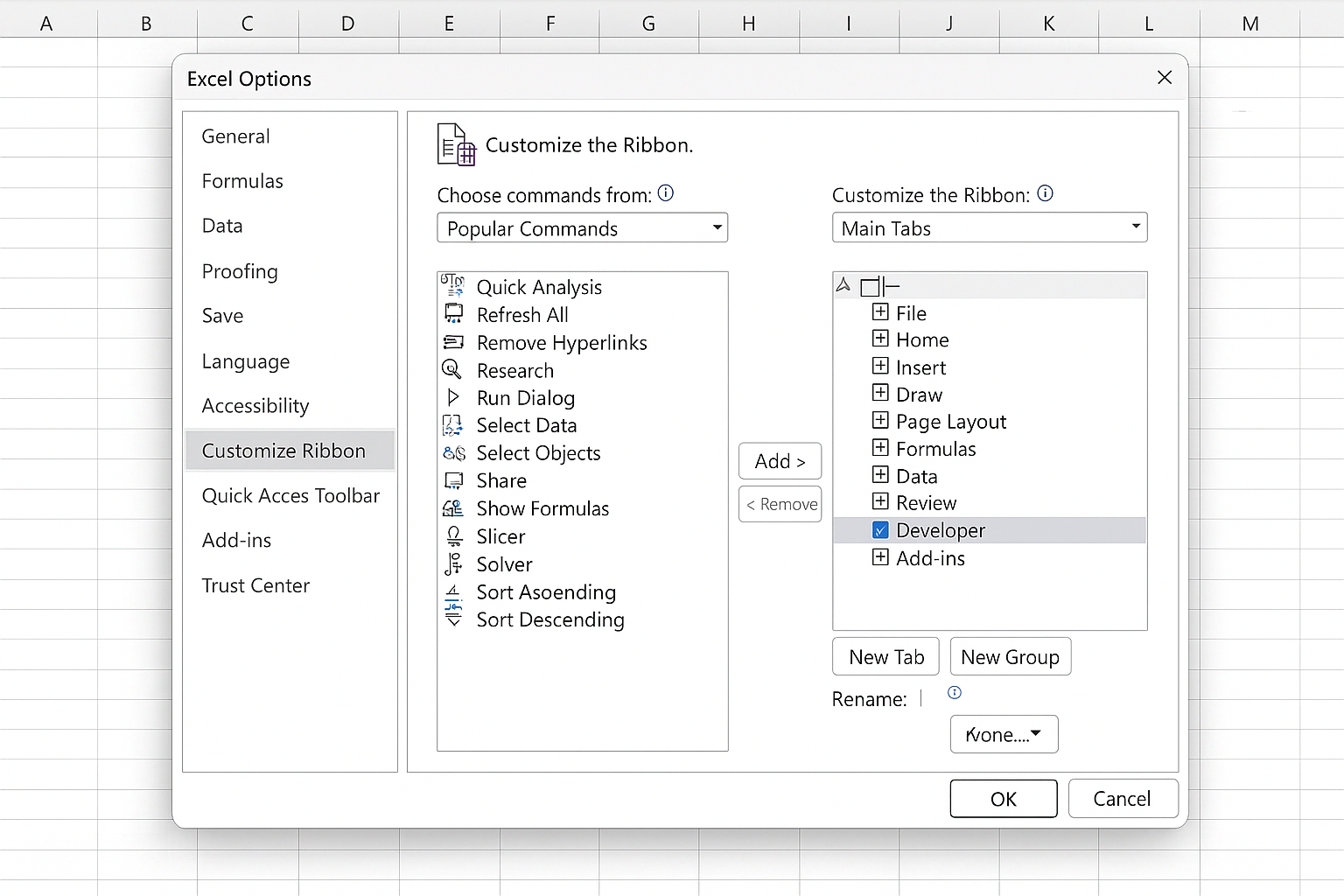
Make sure the Developer tab is enabled in Excel’s ribbon by going to File > Options > Customize Ribbon and checking the Developer box.
Practical Examples of Excel VBA Automation
Example 1: Automatically Formatting a Report
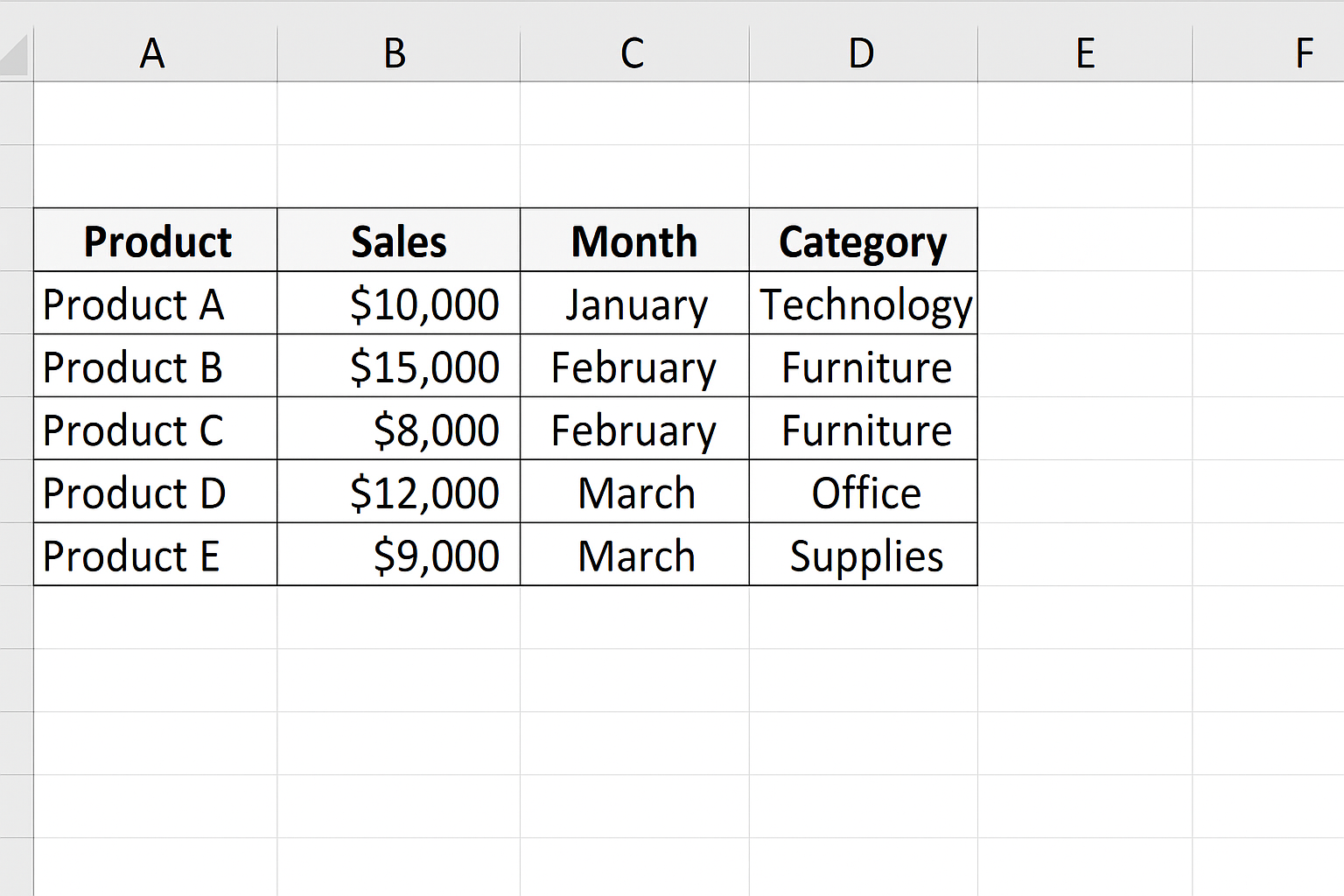
This VBA macro formats the active worksheet by setting font styles, column widths, and adding borders to improve readability.
Sub FormatReport()
    With ActiveSheet
        .Cells.Font.Name = "Calibri"
        .Cells.Font.Size = 11
        .Columns.AutoFit
        .Cells.Borders.LineStyle = xlContinuous
    End With
    MsgBox "Report formatted successfully!"
End Sub
Example 2: Automating Data Entry
This macro prompts the user to enter data and inserts it into the next available row in a specified table.
Sub AddDataEntry()
    Dim lastRow As Long
    Dim userInput As String
    lastRow = Sheets("Sheet1").Cells(Rows.Count, 1).End(xlUp).Row + 1
    userInput = InputBox("Enter data to add to column A:")
    If userInput <> "" Then
        Sheets("Sheet1").Cells(lastRow, 1).Value = userInput
        MsgBox "Data added successfully!"
    Else
        MsgBox "No data entered."
    End If
End Sub
Example 3: Generating Monthly Reports Automatically
This example demonstrates how to create a new worksheet, copy filtered data for a specific month, and save the workbook.
Sub GenerateMonthlyReport()
    Dim wsSource As Worksheet
    Dim wsReport As Worksheet
    Dim monthToFilter As String
    monthToFilter = InputBox("Enter the month (e.g., January):")
    Set wsSource = Sheets("Data")
    Set wsReport = Sheets.Add(After:=Sheets(Sheets.Count))
    wsReport.Name = monthToFilter & " Report"

    wsSource.Range("A1").CurrentRegion.AutoFilter Field:=2, Criteria1:=monthToFilter
    wsSource.Range("A1").CurrentRegion.SpecialCells(xlCellTypeVisible).Copy Destination:=wsReport.Range("A1")
    wsSource.AutoFilterMode = False

    MsgBox "Report for " & monthToFilter & " generated successfully!"
End Sub
Tips for Effective Excel VBA Automation
- Plan your automation: Identify repetitive tasks that benefit most from automation.
- Start simple: Begin with small macros and gradually increase complexity.
- Use comments: Document your code for easier maintenance.
- Test thoroughly: Run your macros on sample data before applying to critical workbooks.
- Backup your work: Always keep backups to avoid accidental data loss.
Common Challenges and How to Overcome Them
While VBA is powerful, beginners may face challenges such as syntax errors, runtime errors, or security warnings when running macros. Overcome these by:
- Using the VBA Editor’s debugging tools (breakpoints, step execution).
- Consulting online resources and forums for solutions.
- Adjusting Excel’s macro security settings carefully.
- Learning from examples and gradually building your skills.
Conclusion
Excel VBA automation is a valuable skill that empowers users to streamline repetitive tasks, increase productivity, and reduce errors in their daily workflows. By learning and applying VBA programming, you can transform tedious manual processes into efficient automated solutions tailored to your needs. Use the examples and tips provided here as a starting point to explore the vast potential of Excel VBA automation.
Frequently Asked Questions (FAQs)
What types of tasks can I automate with Excel VBA?
You can automate tasks such as data entry, formatting, report generation, data cleaning, and interaction with other Office applications.
Is Excel VBA automation suitable for beginners?
Yes, VBA has a relatively gentle learning curve, and many resources are available to help beginners start automating tasks quickly.
Can VBA macros slow down my Excel workbook?
If macros are poorly optimized or handle large datasets inefficiently, they may slow down performance. Proper coding and testing help maintain speed.
Are there security risks associated with VBA macros?
Macros can contain malicious code, so always enable macros from trusted sources and keep your antivirus software up to date.
Can I run VBA macros on Excel Online or Mac?
Excel Online has limited support for VBA macros, and while VBA runs on Mac versions of Excel, some features may differ or be unsupported.
Related Articles
- Creating Your First Macro in Excel with VBA: A Step-by-Step Guide
- Top 10 Simple VBA Scripts to Automate Excel Tasks for Beginners
- Using Loops in Excel VBA to Save Time on Data Entry
- Introduction to Excel VBA Programming for Absolute Beginners
- Understanding Variables and Data Types in Excel VBA Programming
Want practical Excel help?
Support free Excel tutorials, get weekly tips, or contact us for Excel programming, VBA, Power Query, dashboards, and automation work.