Top 10 Simple VBA Scripts to Automate Excel Tasks for Beginners
Introduction
Microsoft Excel is one of the most powerful tools for data management and analysis. However, repetitive tasks can slow down productivity. This is where Excel VBA for beginners becomes a game-changer. Visual Basic for Applications (VBA) allows users to automate repetitive tasks, create custom functions, and enhance Excel’s capabilities. In this article, we explore the top 10 simple VBA scripts that beginners can use to automate common Excel tasks effortlessly.
1. Automatically Insert Current Date
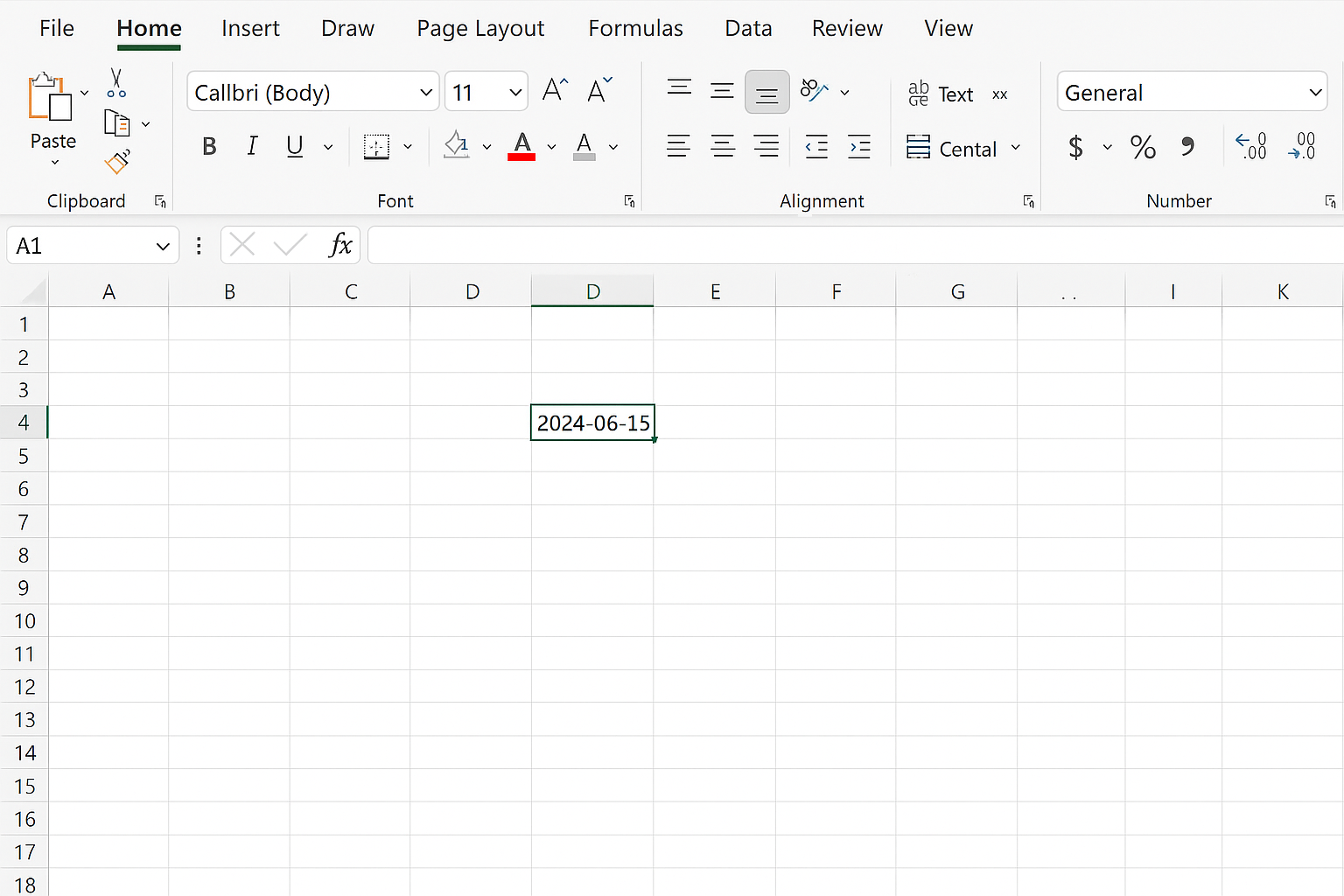
This script inserts the current date into the selected cell when run. It’s useful for timestamping data entries.
Sub InsertCurrentDate()
    ActiveCell.Value = Date
End Sub
How to use: Select any cell and run this macro to insert today’s date.
2. Clear Contents of a Range
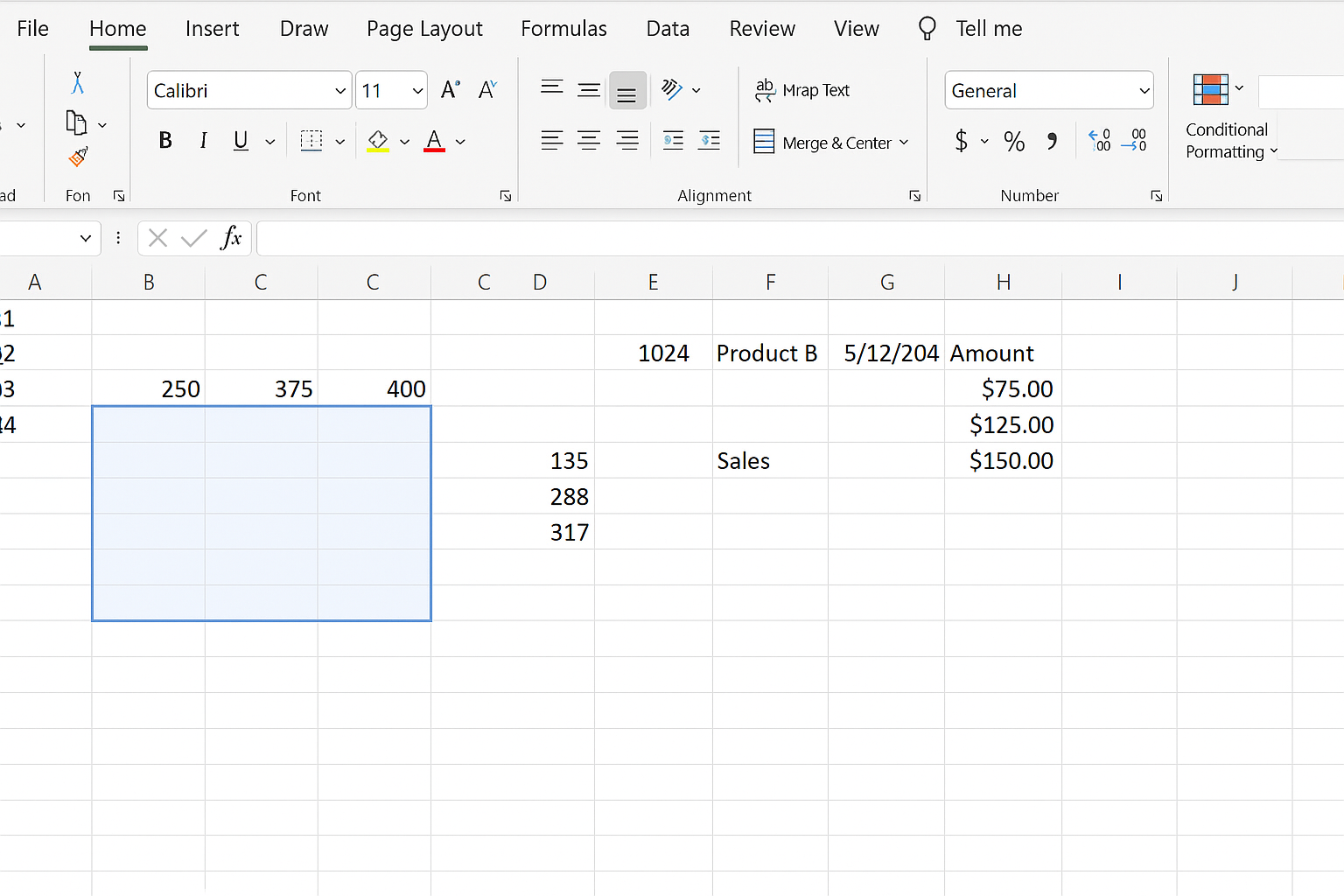
Quickly clear data from a specified range without deleting the formatting.
Sub ClearRangeContents()
    Range("A1:D10").ClearContents
End Sub
Modify the range to suit your worksheet.
3. Auto Autofit Columns
Automatically adjusts all columns in the active worksheet to fit their contents neatly.
Sub AutoFitColumns()
    Cells.EntireColumn.AutoFit
End Sub
4. Highlight Duplicate Values in a Column
Highlight duplicates in column A by changing their background color.
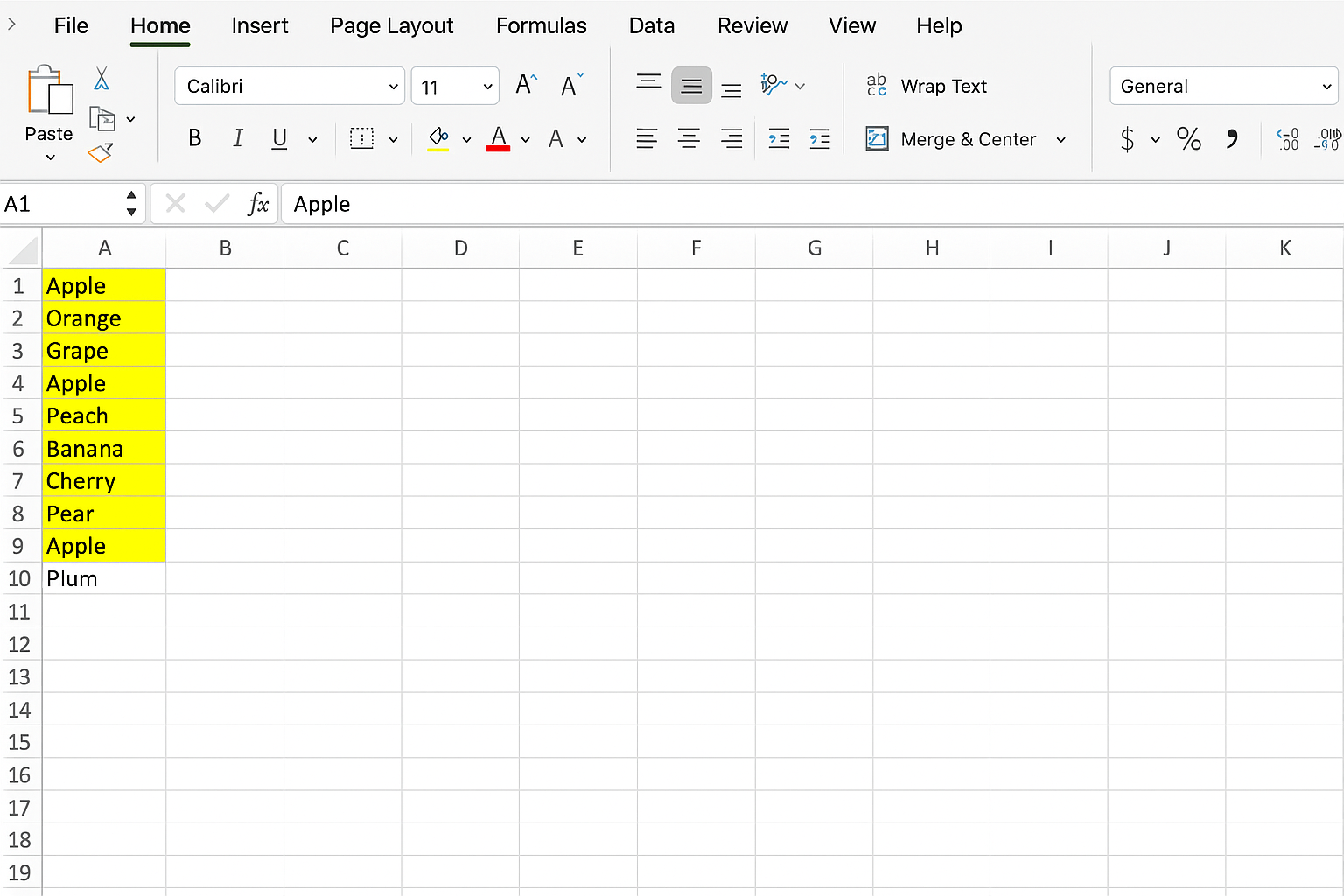
Sub HighlightDuplicates()
    Dim cell As Range
    Dim rng As Range
    Set rng = Range("A1:A100")
    rng.Interior.ColorIndex = 0 'Clear previous highlights

    For Each cell In rng
        If WorksheetFunction.CountIf(rng, cell.Value) > 1 And Not IsEmpty(cell.Value) Then
            cell.Interior.Color = vbYellow
        End If
    Next cell
End Sub
5. Create a Message Box Greeting
Show a simple greeting message to users.
Sub ShowGreeting()
    MsgBox "Welcome to Excel VBA for beginners!", vbInformation, "Greeting"
End Sub
6. Copy Data from One Sheet to Another
Copy data from the first 10 rows and 5 columns of Sheet1 to Sheet2 starting at cell A1.
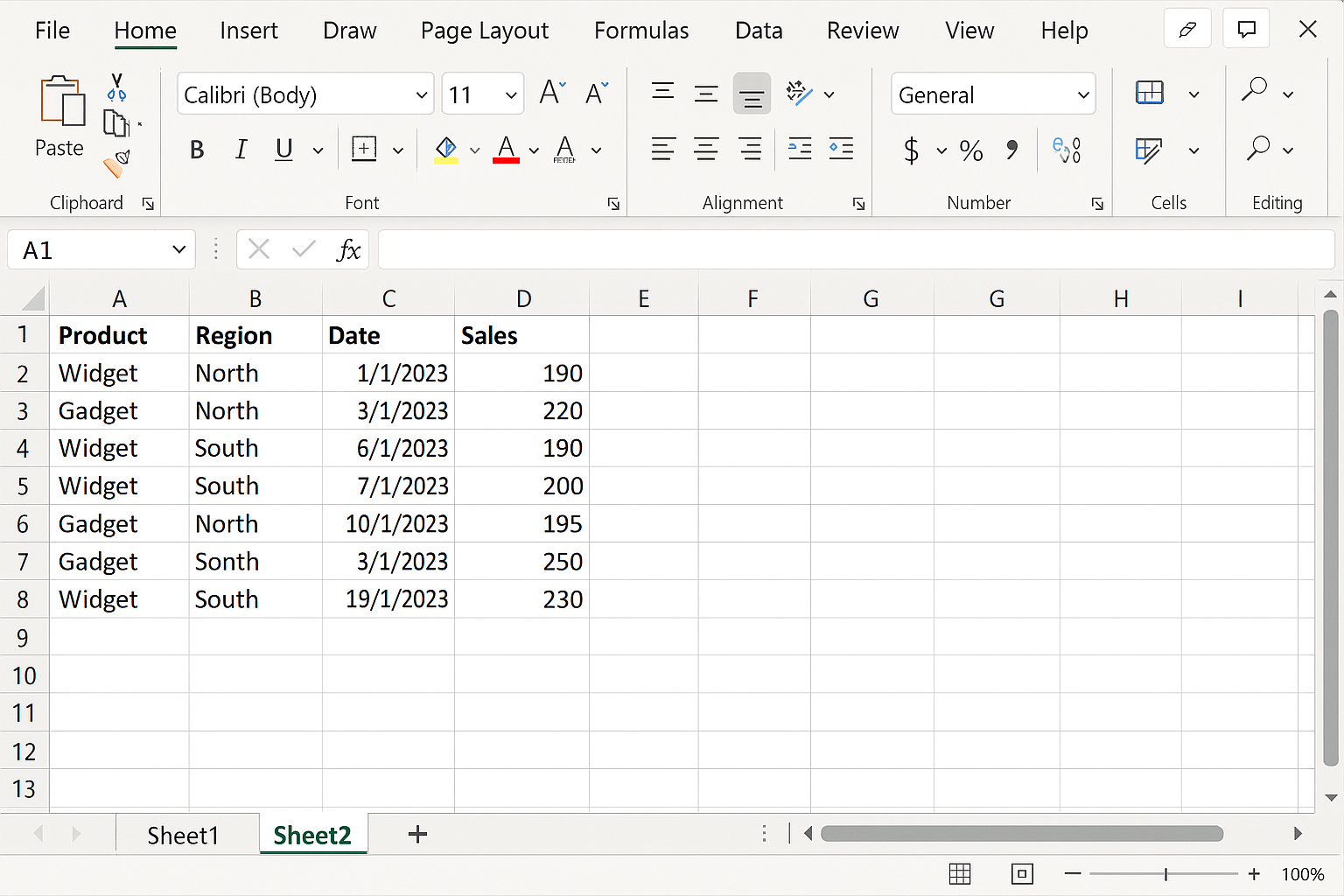
Sub CopyData()
    Sheets("Sheet1").Range("A1:E10").Copy Destination:=Sheets("Sheet2").Range("A1")
End Sub
7. Loop Through a Range and Sum Values
This script loops through cells in B1:B10 and calculates the total sum.
Sub SumRange()
    Dim cell As Range
    Dim total As Double
    total = 0
    For Each cell In Range("B1:B10")
        If IsNumeric(cell.Value) Then
            total = total + cell.Value
        End If
    Next cell
    MsgBox "Total sum is: " & total, vbInformation, "Sum Result"
End Sub
8. Insert a New Worksheet
Quickly add a new worksheet at the end of the workbook and rename it.
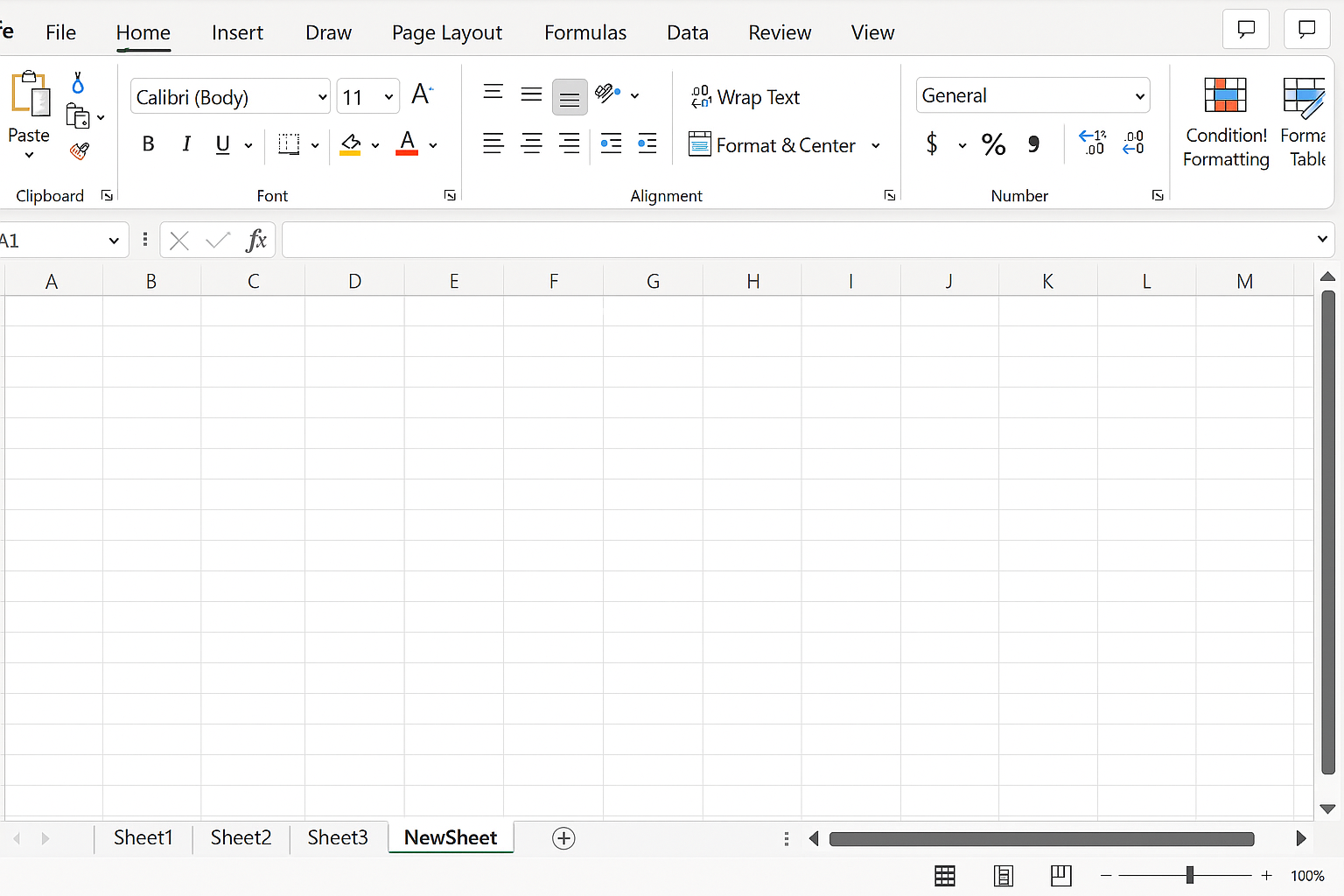
Sub AddNewSheet()
    Dim ws As Worksheet
    Set ws = Sheets.Add(After:=Sheets(Sheets.Count))
    ws.Name = "NewSheet"
End Sub
9. Protect Worksheet with Password
Protect the active worksheet with a specified password.
Sub ProtectSheet()
    ActiveSheet.Protect Password:="mypassword", AllowFiltering:=True
End Sub
10. Save Workbook with Timestamp
Save the current workbook with the date and time appended to the filename.
Sub SaveWithTimestamp()
    Dim filePath As String
    filePath = ThisWorkbook.Path & "\" & "Workbook_" & Format(Now, "yyyy-mm-dd_hhmmss") & ".xlsm"
    ThisWorkbook.SaveAs Filename:=filePath, FileFormat:=xlOpenXMLWorkbookMacroEnabled
    MsgBox "Workbook saved as " & filePath, vbInformation, "Save Complete"
End Sub
Frequently Asked Questions (FAQ)
Q1: What is VBA in Excel?
VBA stands for Visual Basic for Applications, a programming language used to automate tasks in Microsoft Office applications like Excel.
Q2: Do I need to be an expert to use Excel VBA?
No, beginners can start with simple scripts like the ones shared here and gradually build their skills.
Q3: How do I run a VBA script in Excel?
Press Alt + F11 to open the VBA editor, insert a module, paste your code, and then run it directly or assign it to a button.
Q4: Is VBA safe to use?
Yes, but only run VBA macros from trusted sources to avoid security risks.
Q5: Can VBA automate tasks in all versions of Excel?
Most desktop versions of Excel support VBA, but some online or mobile versions have limited or no VBA support.
Conclusion
Starting with Excel VBA for beginners can seem intimidating, but these 10 simple scripts demonstrate how easy it is to automate everyday Excel tasks. By integrating VBA automation into your workflow, you save time, reduce errors, and increase productivity. Experiment with these examples, modify them to fit your needs, and gradually explore more advanced VBA programming to maximize Excel’s potential.
Related Articles
- How to Automate Repetitive Tasks in Excel Using VBA
- Creating Your First Macro in Excel with VBA: A Step-by-Step Guide
- Using Loops in Excel VBA to Save Time on Data Entry
- Introduction to Excel VBA Programming for Absolute Beginners
- Understanding Variables and Data Types in Excel VBA Programming
Want practical Excel help?
Support free Excel tutorials, get weekly tips, or contact us for Excel programming, VBA, Power Query, dashboards, and automation work.