Creating Effective Excel Charts to Visualize Economic Data
Introduction
In the field of economics, data visualization plays an essential role in interpreting and communicating complex datasets. Excel charts for economists provide a powerful, accessible way to present economic trends, comparisons, and forecasts clearly and effectively. This article explores how economists can create effective Excel charts to visualize economic data, enhancing analysis and decision-making.
Why Use Excel Charts for Economic Data?
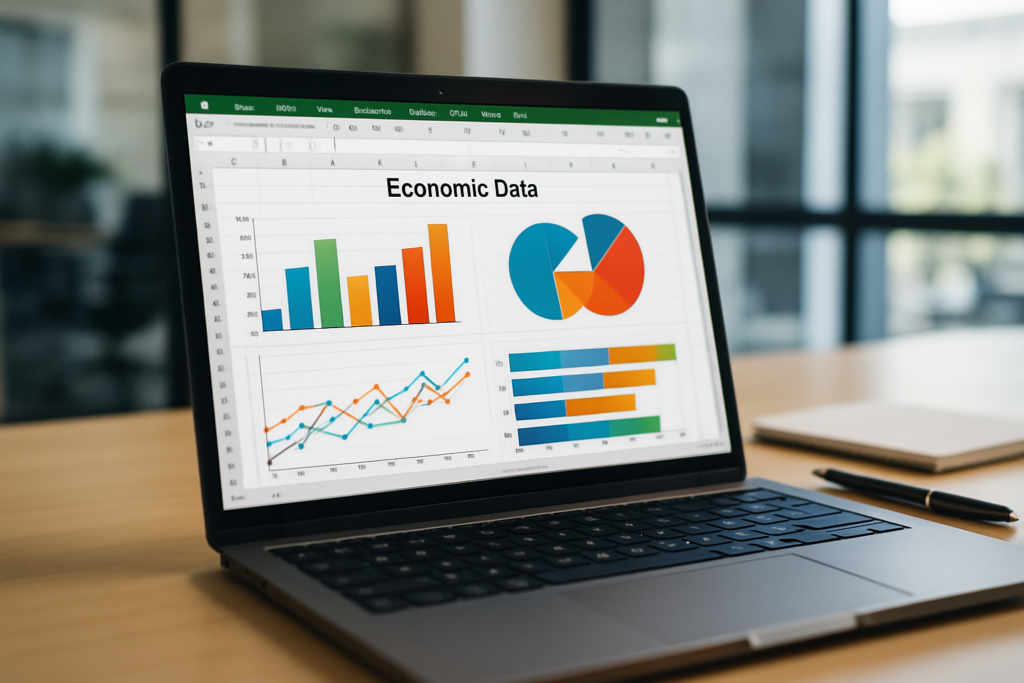
Excel is one of the most widely used tools for data analysis due to its versatility and ease of use. For economists, Excel charts help transform raw data into meaningful visual representations, making it easier to interpret trends, identify patterns, and communicate findings to non-technical stakeholders. Excel supports various chart types, including line graphs, bar charts, scatter plots, and histograms, all of which can be customized to fit specific economic datasets.
Choosing the Right Chart Type for Economic Data
Selecting the appropriate chart type depends on the nature of the economic data and the story you want to tell:
- Line Charts: Ideal for showing trends over time, such as GDP growth, unemployment rates, or inflation trends.
- Bar Charts: Useful for comparing discrete categories, like economic output by sector or country.
- Scatter Plots: Perfect for illustrating relationships between two economic variables, such as investment and GDP.
- Pie Charts: Suitable for showing proportions like market share or budget allocation, though they should be used sparingly.
- Histograms: Great for displaying the distribution of a dataset, such as income distribution.
Step-by-Step Guide to Creating Excel Charts for Economists
Step 1: Prepare Your Economic Data
Ensure your data is clean, organized, and properly labeled. For example, arrange time series data chronologically in columns, with clear headers for each variable.
Step 2: Select Your Data Range
Highlight the data you want to visualize, including labels. For instance, if you want to plot GDP growth over ten years, select the years and corresponding GDP values.
Step 3: Insert the Chart
Navigate to the Insert tab and choose the chart type best suited for your data. For economic trends, a line chart is often appropriate.
Step 4: Customize the Chart
Enhance your chart by adding titles, axis labels, and legends. Use the Chart Tools options to format colors, adjust scales, and add data labels to improve readability.
Step 5: Analyze and Interpret
Use the chart to draw insights. For example, a line chart showing inflation rates over time can reveal periods of high inflation or deflation, guiding economic policy discussions.
Practical Example: Visualizing Unemployment Rates Over Time
Suppose you have annual unemployment rates from 2010 to 2020. Here’s how to create a line chart:
- Input years in column A (2010-2020).
- Input corresponding unemployment rates in column B.
- Select both columns, go to Insert > Line Chart.
- Add chart title “Unemployment Rate (2010-2020)” and label the axes appropriately.
- Customize line color and markers for clarity.
The resulting chart clearly displays fluctuations in unemployment, highlighting economic downturns and recoveries.
Advanced Tips for Economists Using Excel Charts
- Use Dynamic Ranges: Set up dynamic named ranges to automatically update charts when new data is added.
- Combine Chart Types: Mix bar and line charts to compare different economic indicators on the same graph.
- Apply Trendlines: Add trendlines to identify long-term trends or forecast future values.
- Use Sparklines: Embed small charts in cells to show trends compactly within tables.
- Leverage Pivot Charts: Use PivotTables and PivotCharts to summarize and visualize large economic datasets interactively.
Common Mistakes to Avoid When Creating Excel Charts
- Overcomplicating Charts: Avoid clutter by limiting data series and focusing on key insights.
- Ignoring Axis Scaling: Ensure axes use consistent and appropriate scales to prevent misleading representations.
- Poor Labeling: Always include clear titles, axis labels, and legends to guide interpretation.
- Inappropriate Chart Types: Choose the chart type that best matches the data and message.
- Neglecting Data Quality: Use accurate, up-to-date economic data to maintain credibility.
Conclusion
Excel charts for economists are invaluable tools for visualizing economic data in a clear and impactful way. By selecting the right chart type, preparing clean data, and customizing charts thoughtfully, economists can effectively communicate complex information to a wide audience. Incorporating advanced Excel features like dynamic ranges and PivotCharts further enhances the analytical capabilities. With practice and attention to best practices, creating effective Excel charts can significantly improve economic data analysis and presentation.
Frequently Asked Questions
What types of Excel charts are best for economists?
Line charts, bar charts, scatter plots, and histograms are among the most useful for visualizing economic data, depending on the specific dataset and analysis goal.
How can I make my Excel charts more understandable to non-economists?
Use clear titles, axis labels, legends, and avoid technical jargon. Simplify the chart by focusing on key data points and using consistent colors.
Can Excel handle large economic datasets for charting?
Excel can manage moderately large datasets, especially when using PivotTables and PivotCharts. For extremely large datasets, specialized software might be necessary.
How do I update charts when new economic data is added?
Set up dynamic named ranges or use Excel tables to automatically include new data in your charts without manual adjustments.
Are there Excel add-ins to enhance economic data visualization?
Yes, there are add-ins like Power Query and Power BI integration that can extend Excel’s data visualization capabilities for more advanced economic analysis.
Related Articles
- Excel Basics Every Economist Should Know
- Top 10 Excel Functions Useful for Economists
- Data Entry Tips in Excel for Economists to Save Time
- How Economists Can Use Excel for Effective Data Analysis
- Using Excel Pivot Tables to Analyze Economic Data
Want practical Excel help?
Support free Excel tutorials, get weekly tips, or contact us for Excel programming, VBA, Power Query, dashboards, and automation work.