How to Write Custom Functions in Excel Using VBA
Introduction
Microsoft Excel is an incredibly powerful tool widely used for data analysis, reporting, and automation. While Excel offers a vast library of built-in functions, sometimes you need functionality that isn’t available by default. This is where Excel VBA functions come into play. VBA (Visual Basic for Applications) allows you to write custom functions that can be used just like native Excel functions, increasing your productivity and enabling tailored solutions.
In this article, we’ll explore how to write custom functions in Excel using VBA. We’ll cover the basics, provide practical examples, and explain how to use these functions in your worksheets effectively.
What Are Excel VBA Functions?
Excel VBA functions are user-defined functions (UDFs) written in the VBA programming language. These functions extend Excel’s capabilities by enabling custom calculations or operations that aren’t possible with standard Excel formulas. Once created, these functions can be used in cells just like any other Excel function.
Unlike macros that perform actions, VBA functions return values and can be embedded directly within formulas.
Setting Up the Environment to Write VBA Functions
Before writing your first VBA function, you need to prepare Excel:
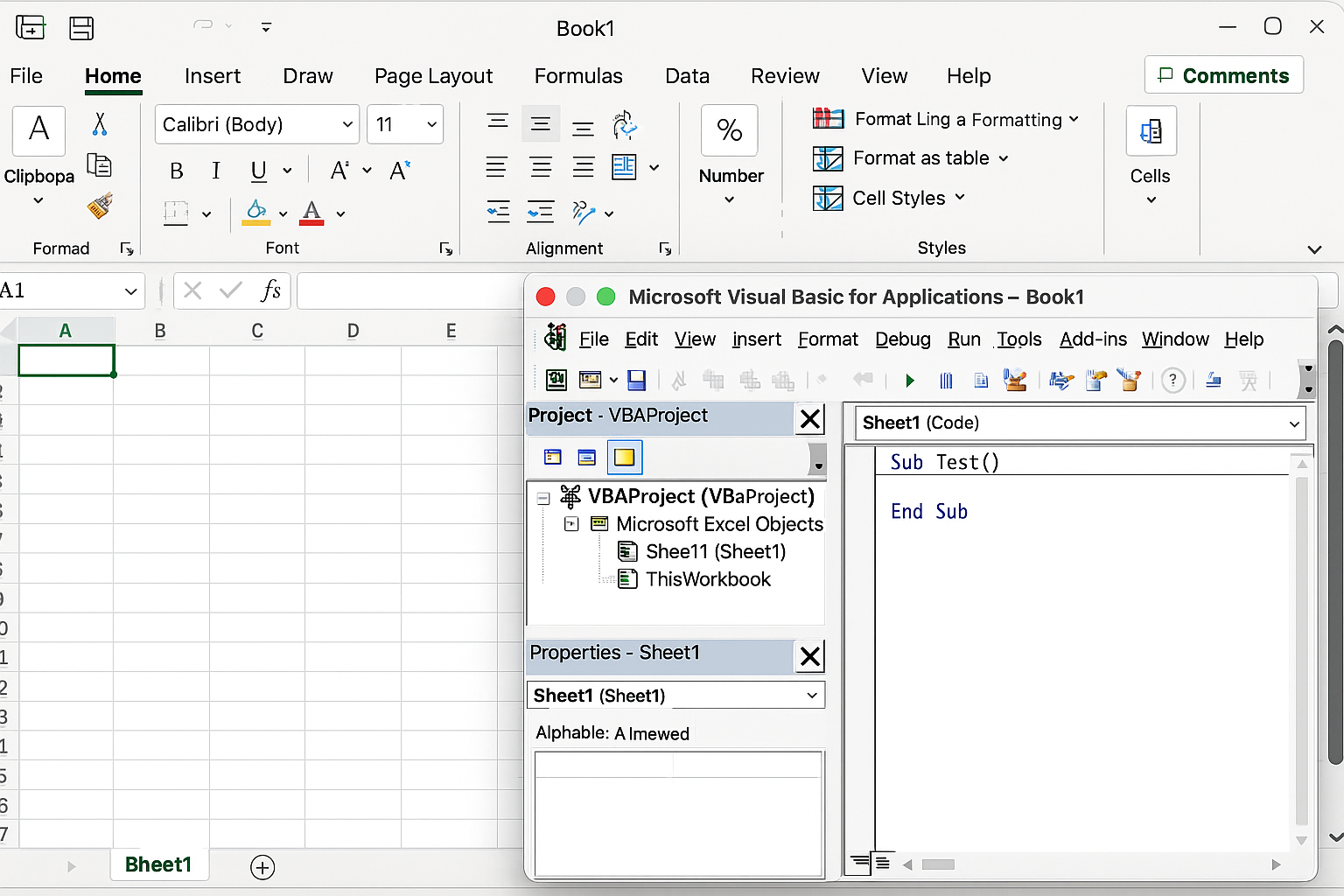
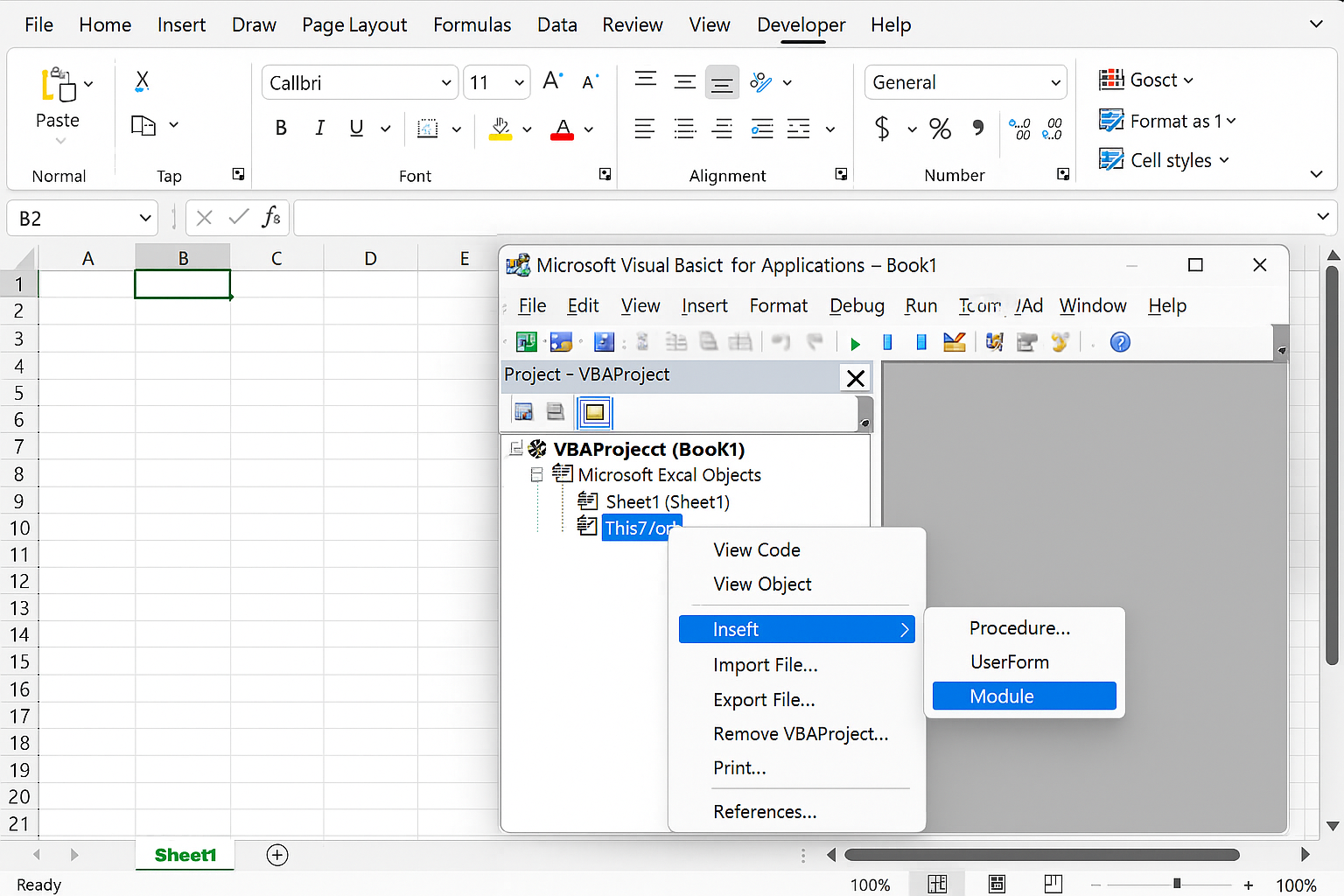
- Open the VBA Editor: Press
Alt + F11to open the Visual Basic for Applications editor. - Insert a New Module: In the Project Explorer pane, right-click on your workbook name, choose Insert > Module. This is where you will write your VBA functions.
- Use Explicit Declarations: Always declare variable types to avoid unexpected errors.
- Keep Functions Focused: Each function should perform a single clear task.
- Handle Errors Gracefully: Use error handling to avoid crashes when invalid inputs are provided.
- Optimize for Performance: Avoid unnecessary calculations or loops inside your functions.
- Use
Debug.Printstatements to output variable values to the Immediate Window. - Set breakpoints by clicking on the left margin in the VBA editor to pause execution.
- Step through your code line-by-line using
F8. - Test your functions with various inputs directly in Excel.
- Performing complex mathematical calculations not supported by Excel.
- Text manipulation and formatting.
- Data validation and conditional logic.
- Interacting with external data sources or APIs.
- They cannot change the Excel environment (like formatting cells) when called from worksheet formulas.
- Performance may be slower than native Excel functions, especially on large datasets.
- Security settings might restrict macro-enabled workbooks.
- How to Automate Repetitive Tasks in Excel Using VBA
- Creating Your First Macro in Excel with VBA: A Step-by-Step Guide
- Top 10 Simple VBA Scripts to Automate Excel Tasks for Beginners
- Using Loops in Excel VBA to Save Time on Data Entry
- Introduction to Excel VBA Programming for Absolute Beginners
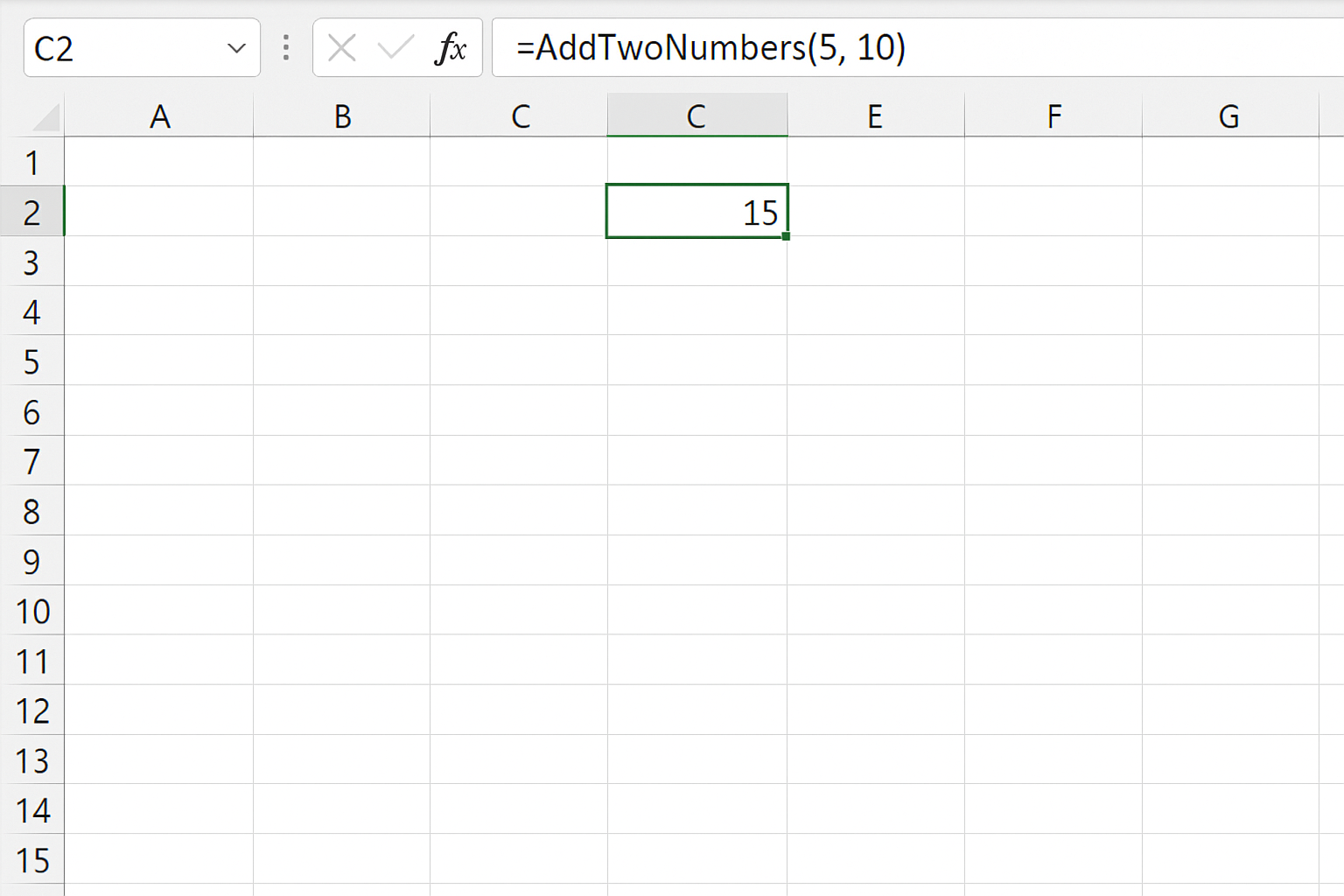
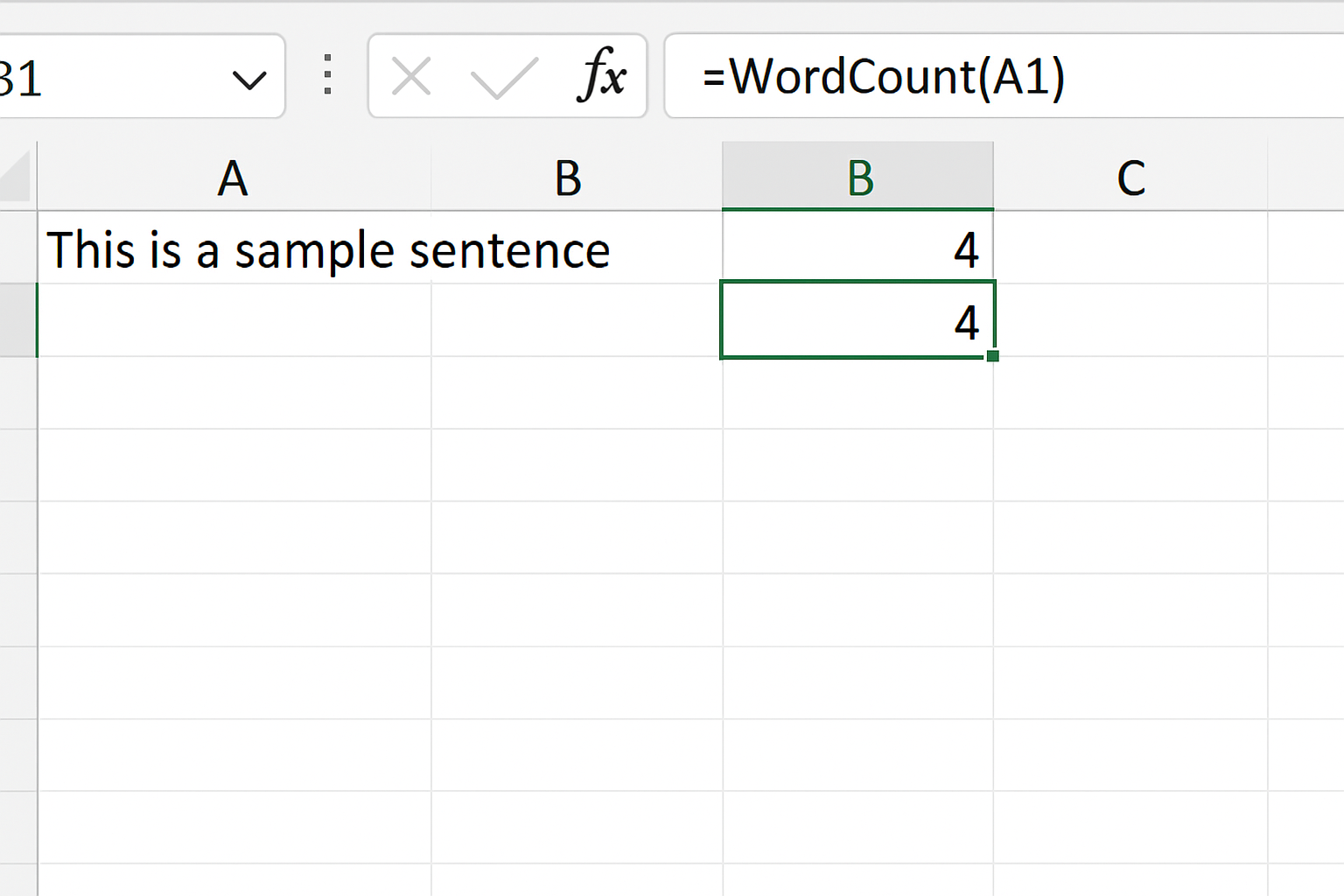
Usage:
=WordCount(A1)This will count the number of words in the text contained in cell A1.
Tips for Writing Efficient Excel VBA Functions
How to Debug VBA Functions
Debugging is essential to ensure your function works as expected:
Common Use Cases for Custom Excel VBA Functions
Limitations of Excel VBA Functions
While VBA functions are powerful, they have some limitations:
Conclusion
Custom Excel VBA functions significantly enhance Excel’s capabilities by allowing you to create tailored formulas for your specific needs. By learning the basics of VBA programming and practicing with practical examples, you can automate complex tasks, improve efficiency, and make your spreadsheets smarter. Start with simple functions and gradually explore advanced topics to become proficient in Excel and VBA programming.
Frequently Asked Questions
Related Articles
Want practical Excel help?
Support free Excel tutorials, get weekly tips, or contact us for Excel programming, VBA, Power Query, dashboards, and automation work.