How to Use Power Query in Excel for Efficient Data Cleaning
Introduction
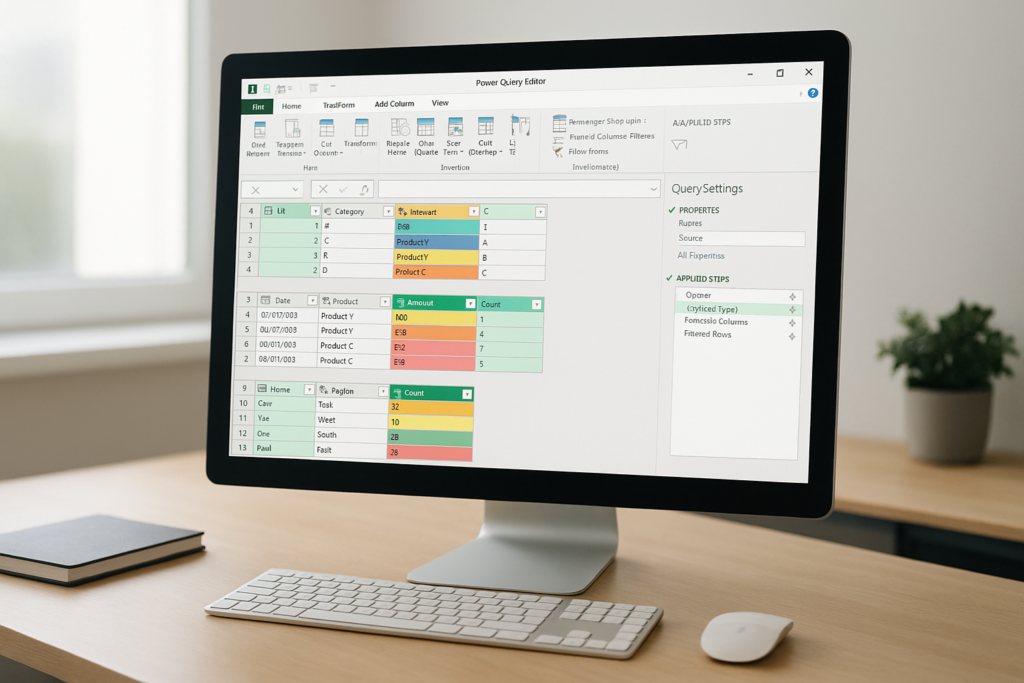
Data cleaning is a critical step in data analysis, ensuring that your datasets are accurate, consistent, and ready for further processing. Microsoft Excel, widely used for data handling, offers a powerful tool called Power Query that significantly simplifies and accelerates the data cleaning process. This article will explore how to use Power Query in Excel for efficient data cleaning, focusing on the seamless Excel Power Query integration that enhances your data workflow.
What is Power Query?
Power Query is a data connection technology that enables you to discover, connect, combine, and refine data sources to meet your analysis needs. Integrated into Excel, Power Query allows users to perform complex data transformations without writing code, using a user-friendly interface for data import and cleaning.
Benefits of Excel Power Query Integration for Data Cleaning
- Automated Data Transformation: Repetitive cleaning tasks can be automated, saving time and reducing errors.
- Seamless Connectivity: Connect to various data sources such as Excel files, CSV, databases, and web data.
- Easy Data Shaping: Filter, sort, merge, and transform data with a few clicks.
- Repeatability: Apply the same cleaning steps to new data with one refresh.
Getting Started with Power Query in Excel
To begin using Power Query, follow these steps:
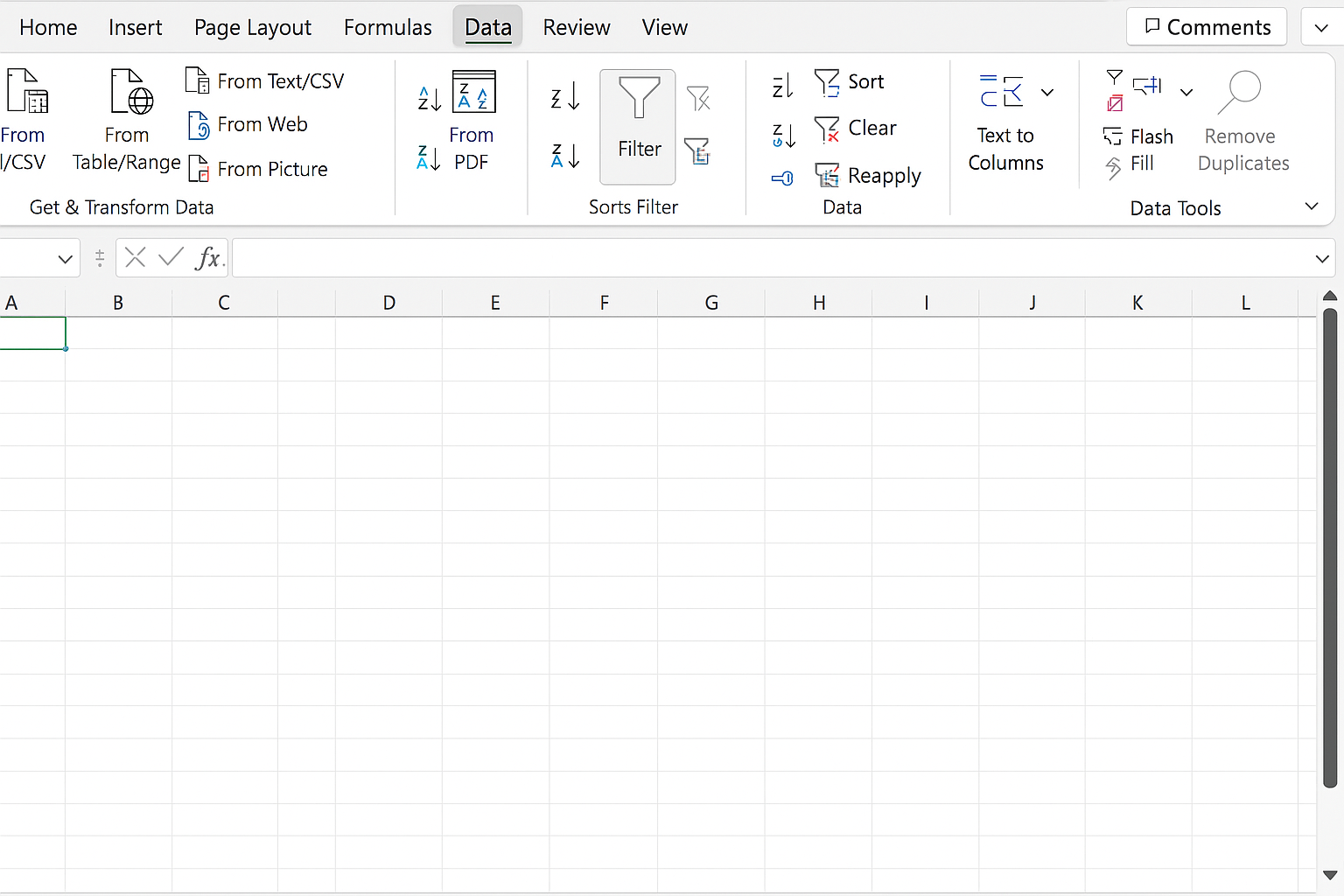
- Open Excel and go to the Data tab.
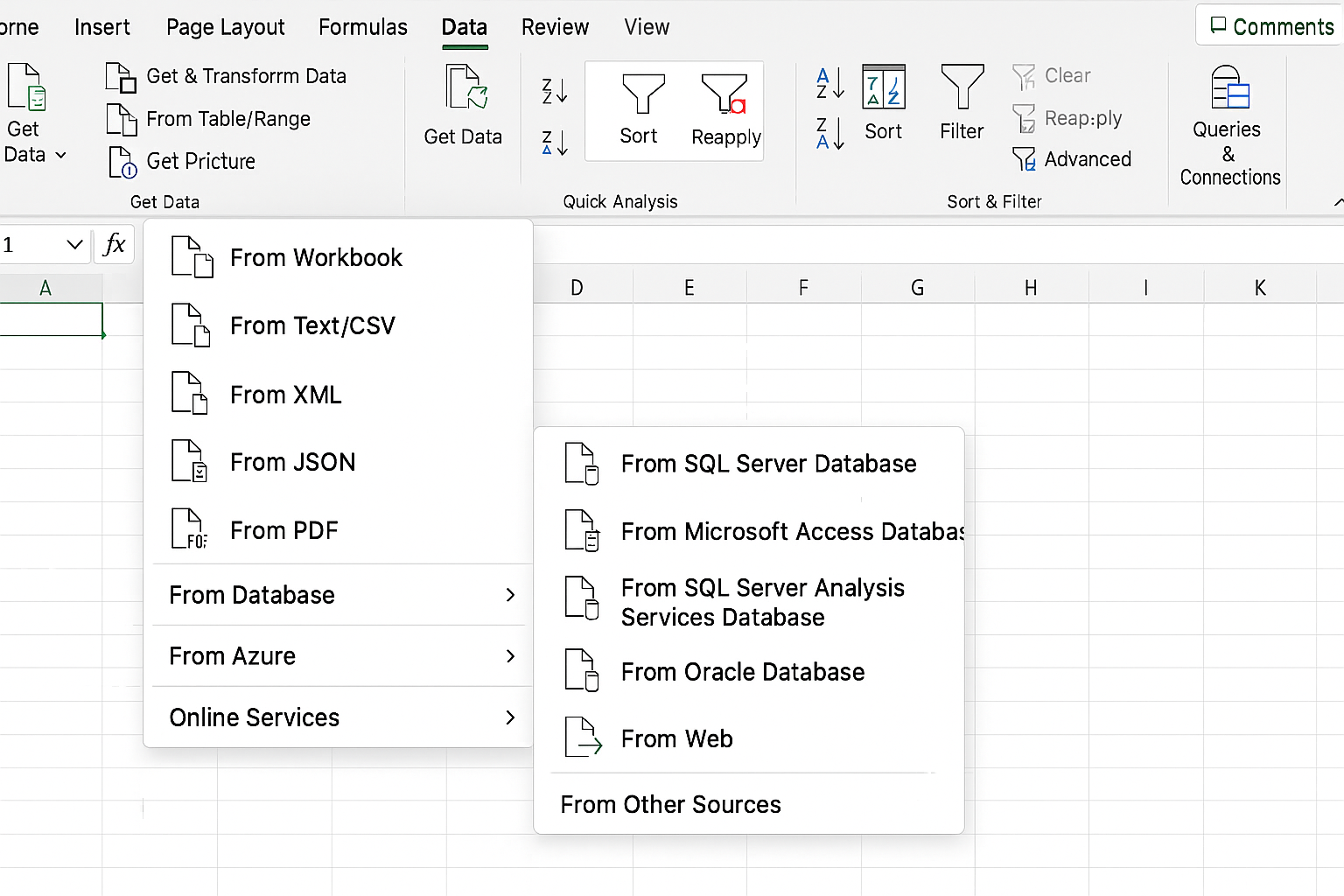
- Click Get Data to import data from various sources.
- Choose your data source (e.g., Excel workbook, CSV file).
- Load the data into the Power Query Editor for cleaning.
Practical Examples of Data Cleaning Using Power Query
Example 1: Removing Duplicates
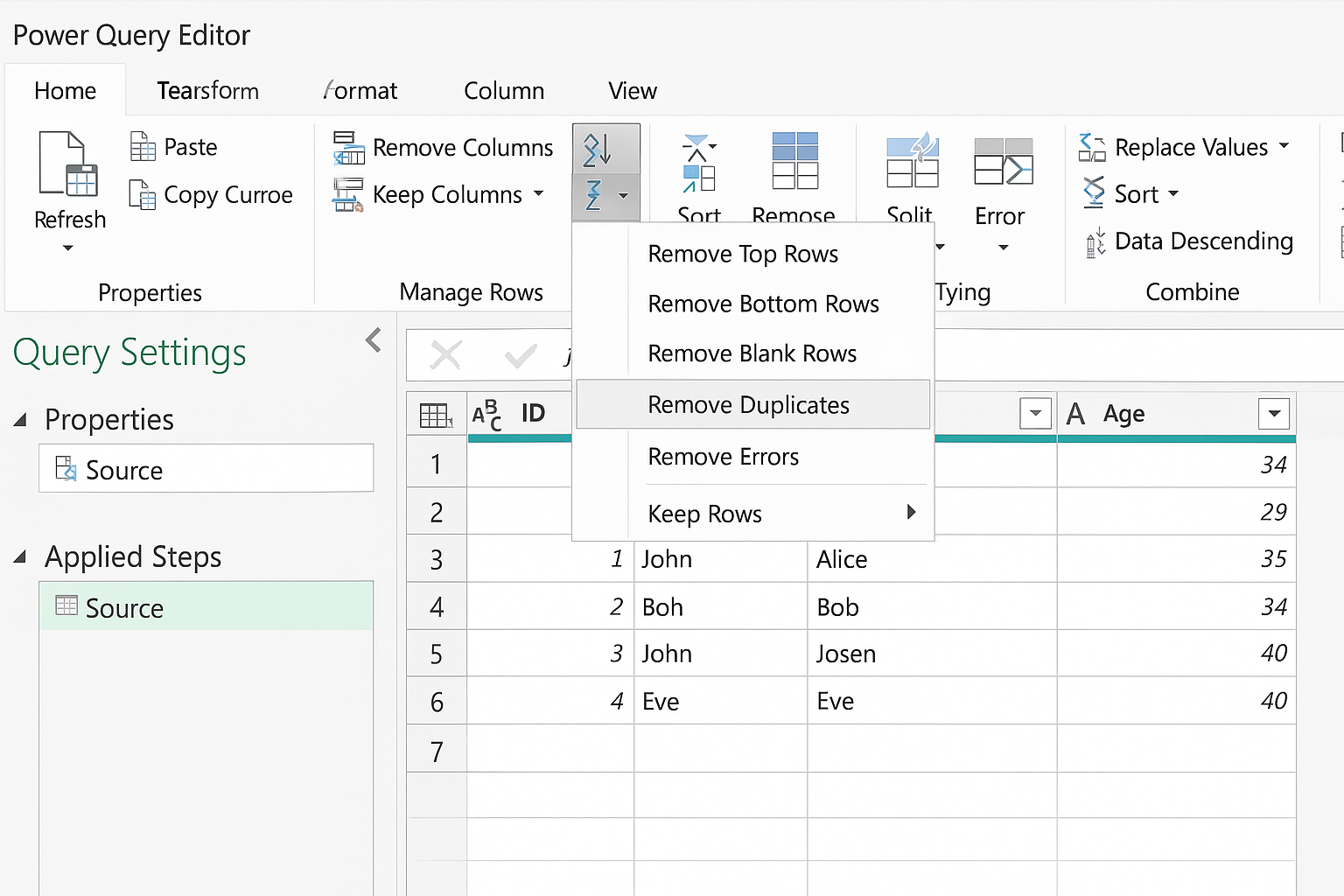
Duplicate records can skew analysis. To remove duplicates:
- Load your dataset into Power Query Editor.
- Select the columns that identify duplicates.
- On the Home tab, click Remove Rows > Remove Duplicates.
- Apply changes and load cleaned data back to Excel.
Example 2: Splitting Columns
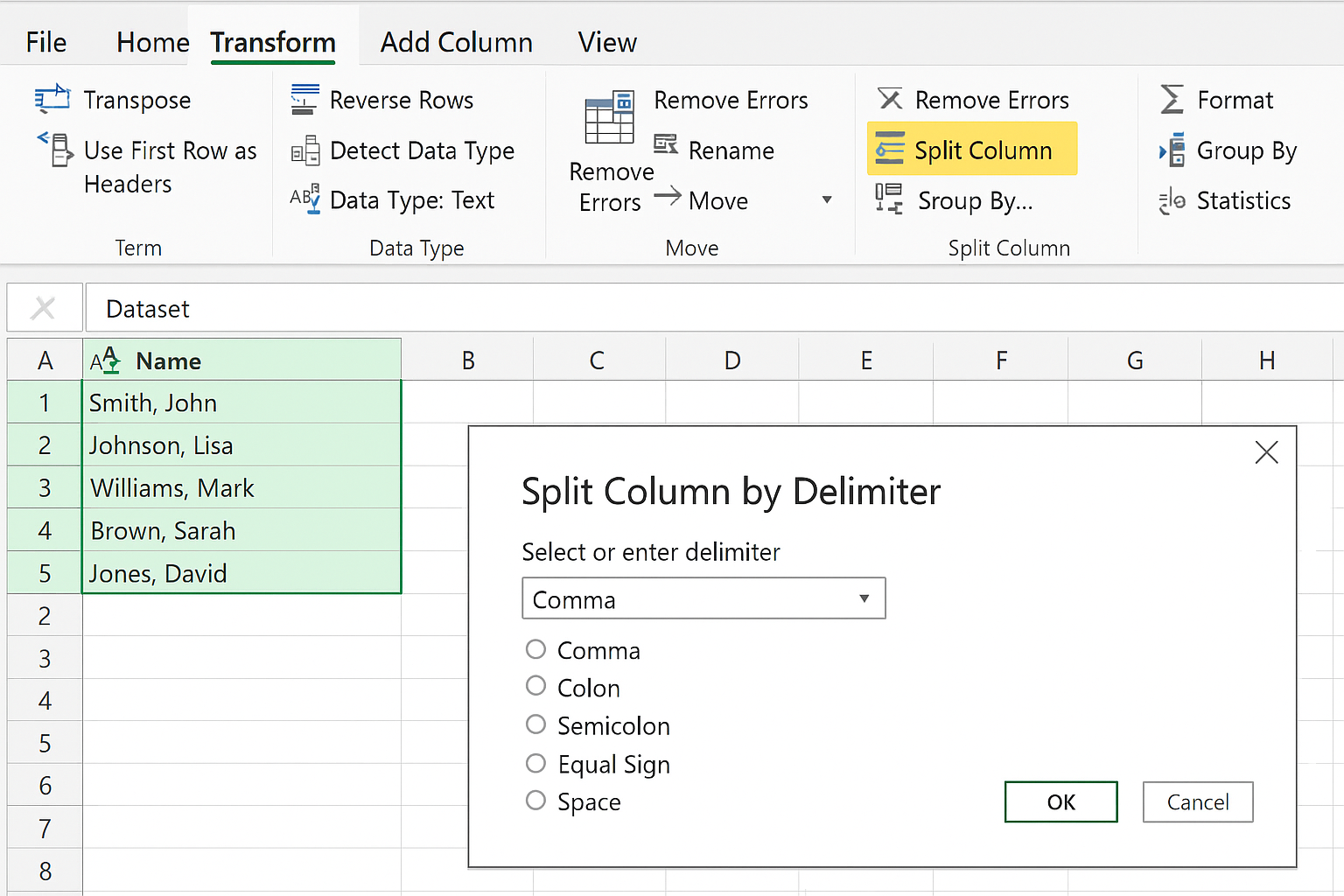
If your data includes combined information, such as full names, you can split them:
- Select the column to split.
- Go to Transform tab and click Split Column.
- Choose the delimiter (e.g., space, comma).
- Power Query will create new columns with separated data.
Example 3: Changing Data Types
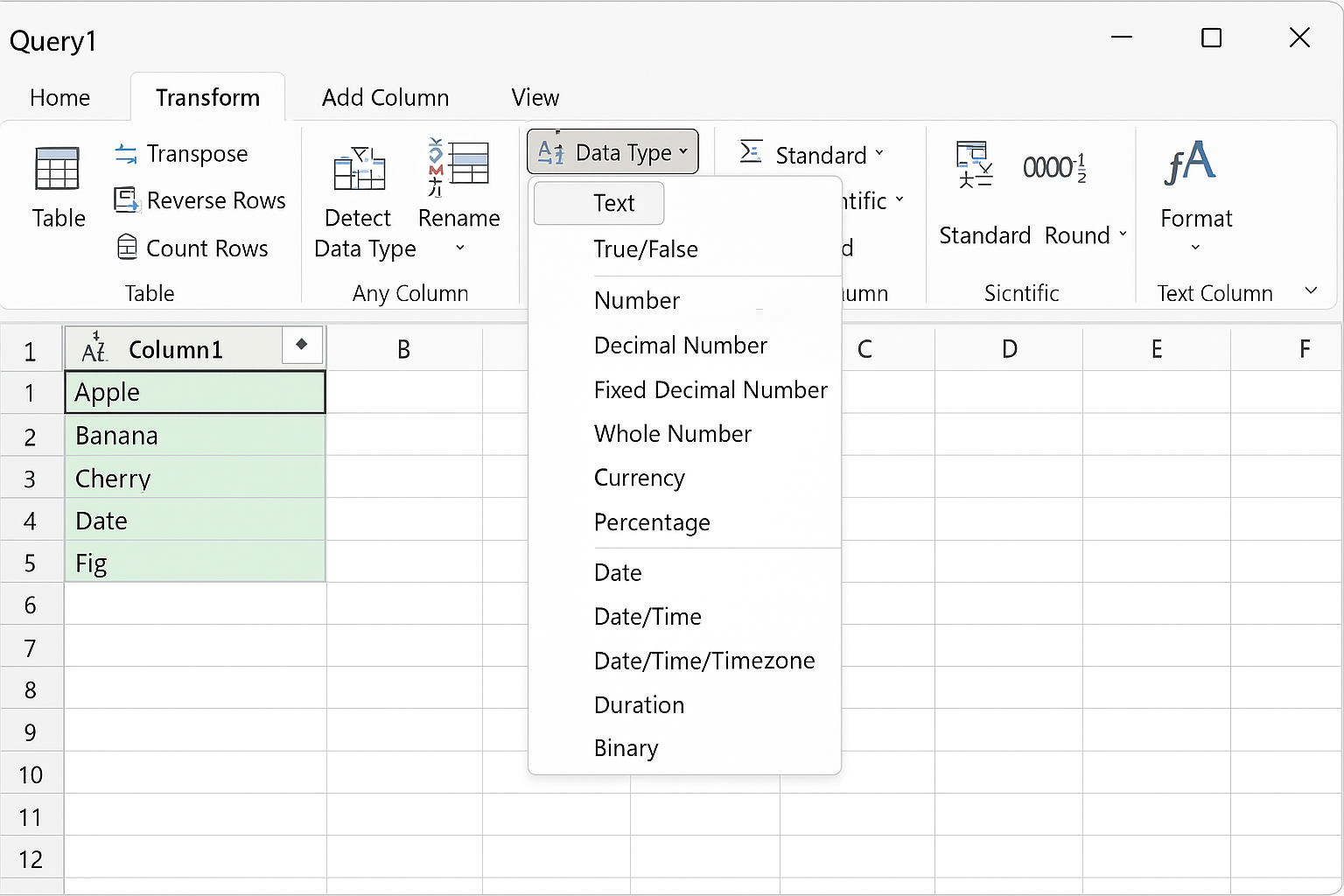
Ensuring columns have the correct data type is essential:
- In Power Query Editor, select the column.
- On the Transform tab, click Data Type and select the correct type (e.g., text, number, date).
Example 4: Filtering Rows
To exclude irrelevant data:
- Use the dropdown on column headers to filter rows.
- Choose to keep or remove rows based on criteria.
Example 5: Merging Queries
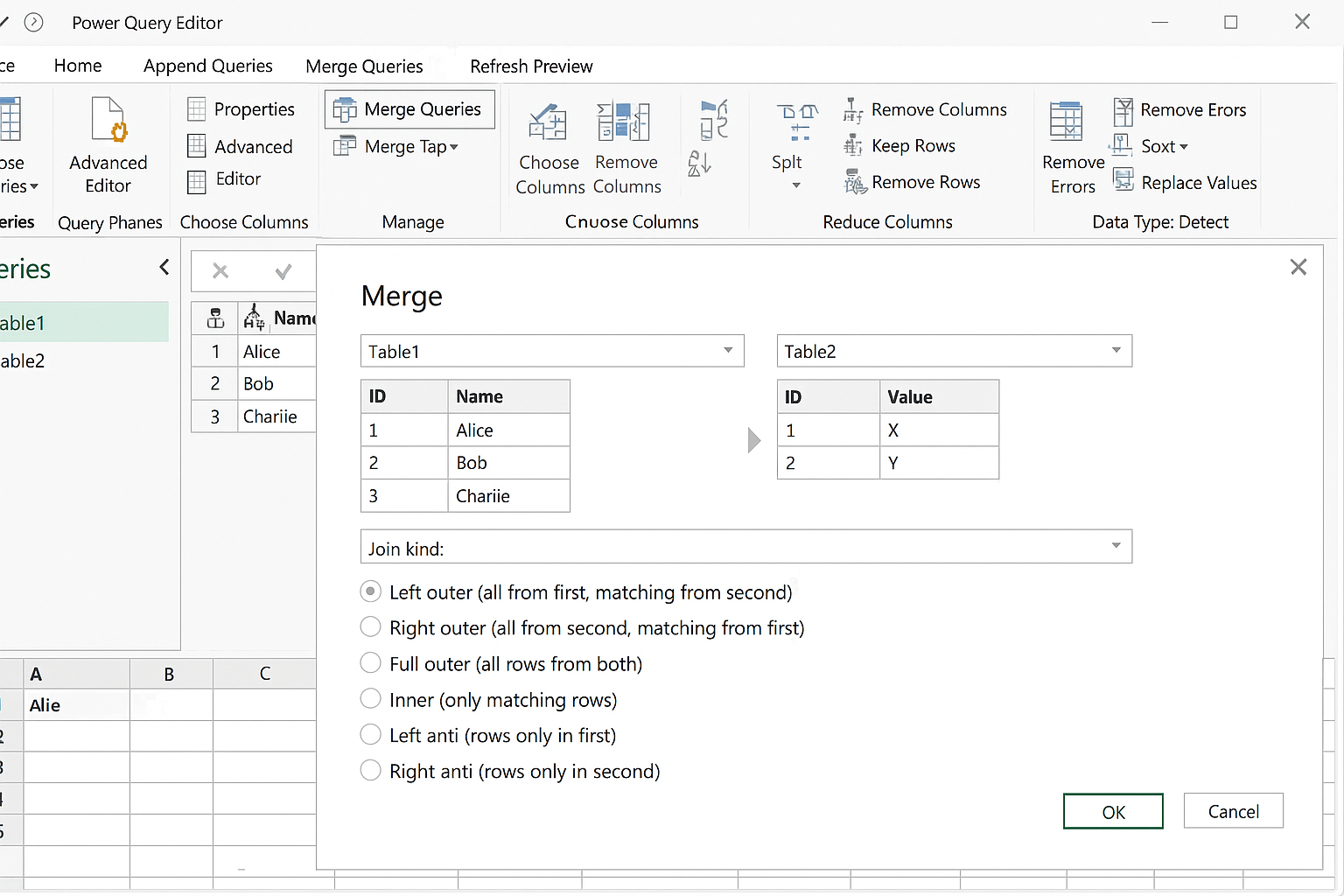
Combine data from different tables:
- In Power Query Editor, click Home > Merge Queries.
- Select matching columns from both tables.
- Choose the type of join (Left, Right, Inner, etc.).
- Expand merged columns as needed.
Tips for Efficient Data Cleaning with Power Query
- Use Descriptive Step Names: Rename each transformation step to keep track of changes.
- Leverage Query Parameters: Make dynamic queries that adjust based on input.
- Keep Original Data Intact: Always load cleaned data as a new table to preserve source data.
- Refresh Data: Power Query allows refreshing data after updating source files without rebuilding queries.
Common Challenges and Solutions
Challenge: Large datasets slow down Excel performance.
Solution: Filter data during import to limit rows or use Power BI for heavy-duty tasks.
Challenge: Complex transformations require advanced knowledge.
Solution: Use the Power Query GUI and explore the advanced editor for custom M code.
Conclusion
Excel Power Query integration revolutionizes the way you clean and prepare data. With its intuitive interface and powerful transformation capabilities, it streamlines the data cleaning process and reduces manual effort. By mastering Power Query, you can ensure your data is accurate, consistent, and ready for analysis, ultimately making your Excel workflows more efficient and reliable.
FAQ
1. What types of data sources can Power Query connect to?
Power Query supports a wide range of data sources including Excel files, CSV, databases (SQL Server, Access), web pages, and cloud services.
2. Can I undo changes made in Power Query?
Yes, Power Query records each step in the Applied Steps pane, allowing you to modify or delete steps to undo changes.
3. Does Power Query change the original data?
No, Power Query works on a copy of your data and does not alter the original source files.
4. Is Power Query available in all Excel versions?
Power Query is built-in for Excel 2016 and later versions. For Excel 2010 and 2013, it is available as a free add-in.
5. How can I refresh my cleaned data after source updates?
Simply click the Refresh button on the Data tab to update your cleaned dataset with changes from the source.
Related Articles
- Power Query Tutorial: Getting Started with Data Transformation
- Understanding the Power Query Interface: A Beginner’s Guide
- Top 10 Excel Power Query Tips to Boost Your Data Analysis
- Mastering Data Transformation with Power Query: Step-by-Step Guide
- How to Merge Queries in Power Query for Advanced Data Analysis
Want practical Excel help?
Support free Excel tutorials, get weekly tips, or contact us for Excel programming, VBA, Power Query, dashboards, and automation work.