How to Merge Queries in Power Query for Advanced Data Analysis

Introduction
Power Query is a powerful data transformation tool embedded within Excel that enables users to connect, combine, and refine data from various sources effortlessly. One of its most valuable features is the ability to merge queries, which allows you to join tables much like SQL joins, enabling advanced data analysis and better insights. This article will guide you through the process of merging queries in Power Query with practical examples, helping you leverage this technique for efficient data transformation.
What is Power Query Merge Queries?
Merging queries in Power Query refers to combining two or more tables based on a related column or columns. It works similarly to database joins, where data is matched and merged according to specified criteria. This technique is essential for data analysis when your data is split across multiple tables or sources and you need to consolidate information for more comprehensive insights.
Types of Merge Joins in Power Query
Power Query supports several types of joins when merging queries:
- Left Outer Join: Returns all rows from the first (left) table and matched rows from the second (right) table.
- Right Outer Join: Returns all rows from the second (right) table and matched rows from the first (left) table.
- Full Outer Join: Returns all rows from both tables, matching where possible.
- Inner Join: Returns only the rows where there is a match in both tables.
- Anti Joins (Left Anti and Right Anti): Return rows from one table that do not have matching rows in the other.
Step-by-Step Guide to Merge Queries in Power Query
Step 1: Load Data into Power Query
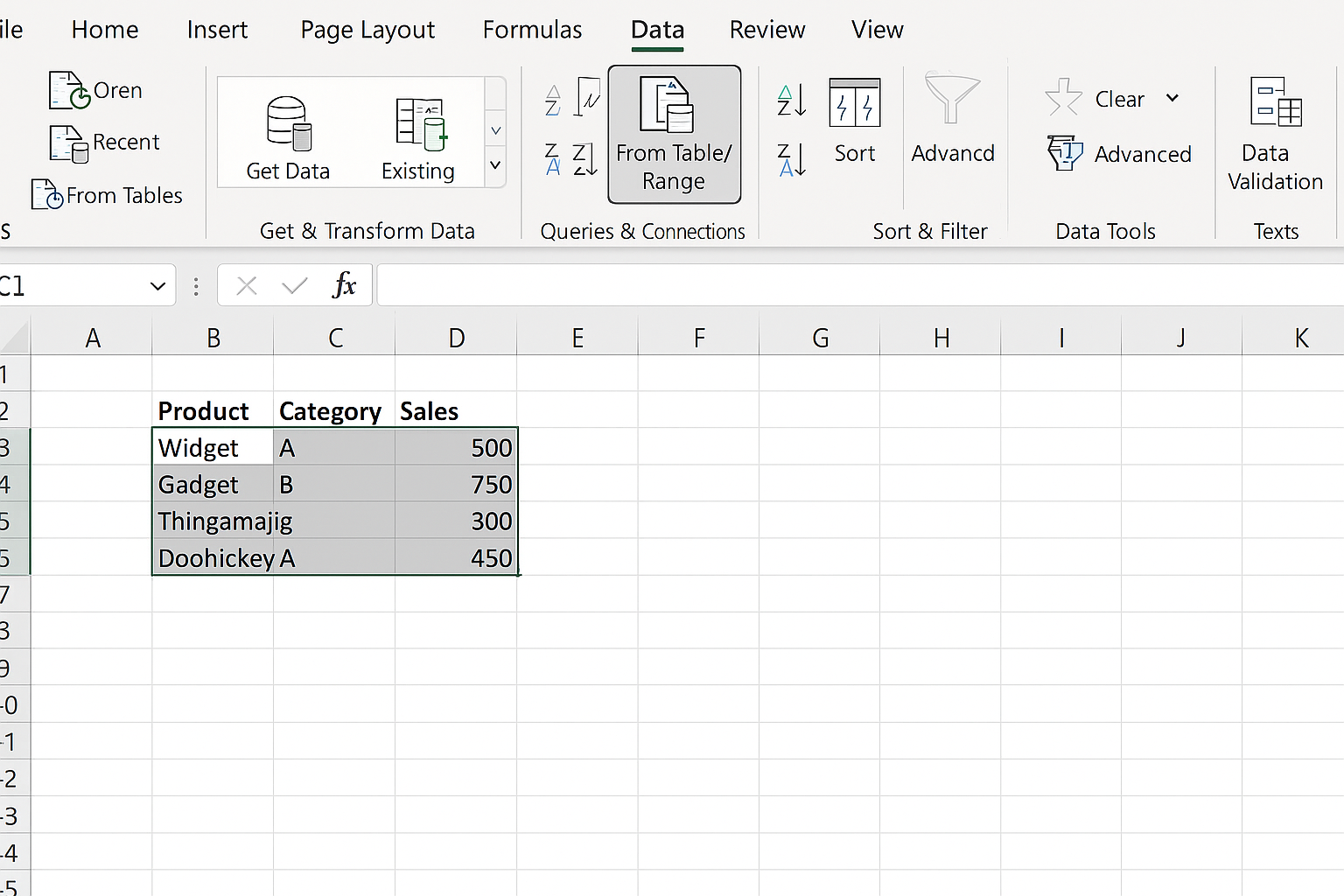
First, load the tables you want to merge into Power Query. You can do this by selecting your data range in Excel and navigating to Data > Get & Transform Data > From Table/Range. Repeat this for both tables.
Step 2: Open the Merge Queries Dialog
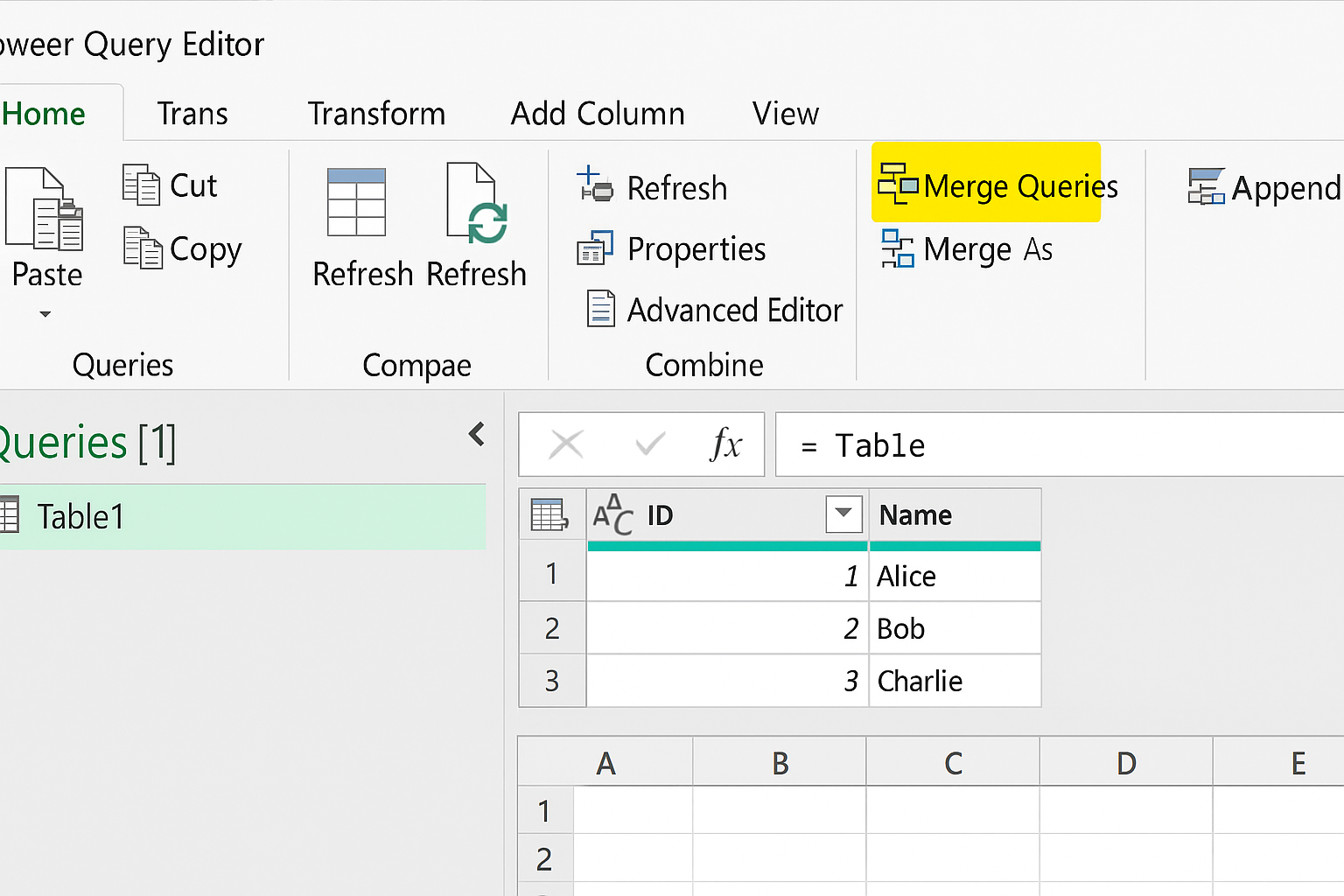
In the Power Query Editor, select one of the queries you want to merge. Then go to the Home tab and click on Merge Queries (choose between Merge Queries or Merge Queries as New depending on whether you want to create a new query or merge into an existing one).
Step 3: Select Tables and Columns to Merge
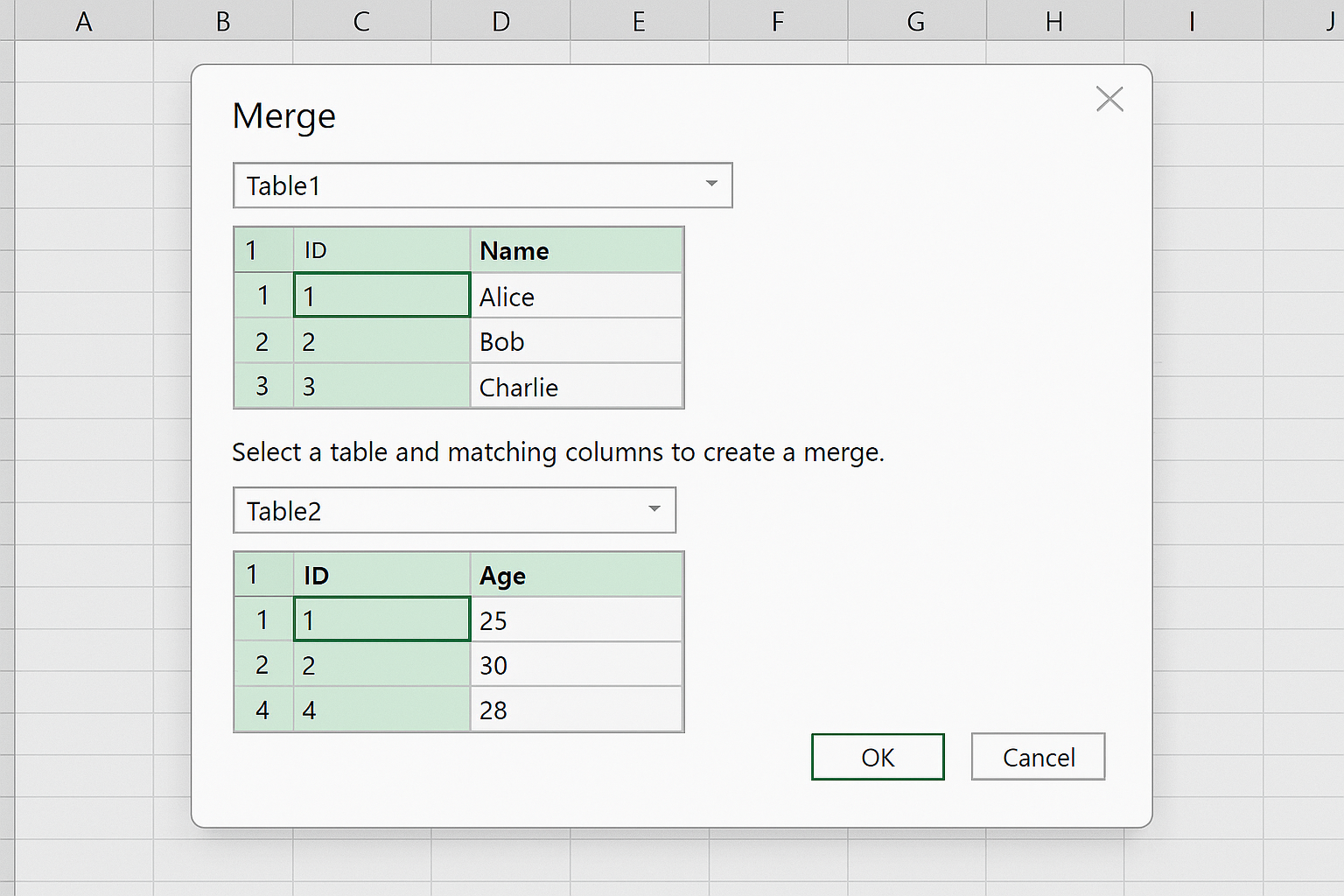
In the merge dialog box, select the second query from the dropdown. Then select the matching columns from both tables. These columns should contain the related data you want to join on, such as IDs or names.
Step 4: Choose the Join Type
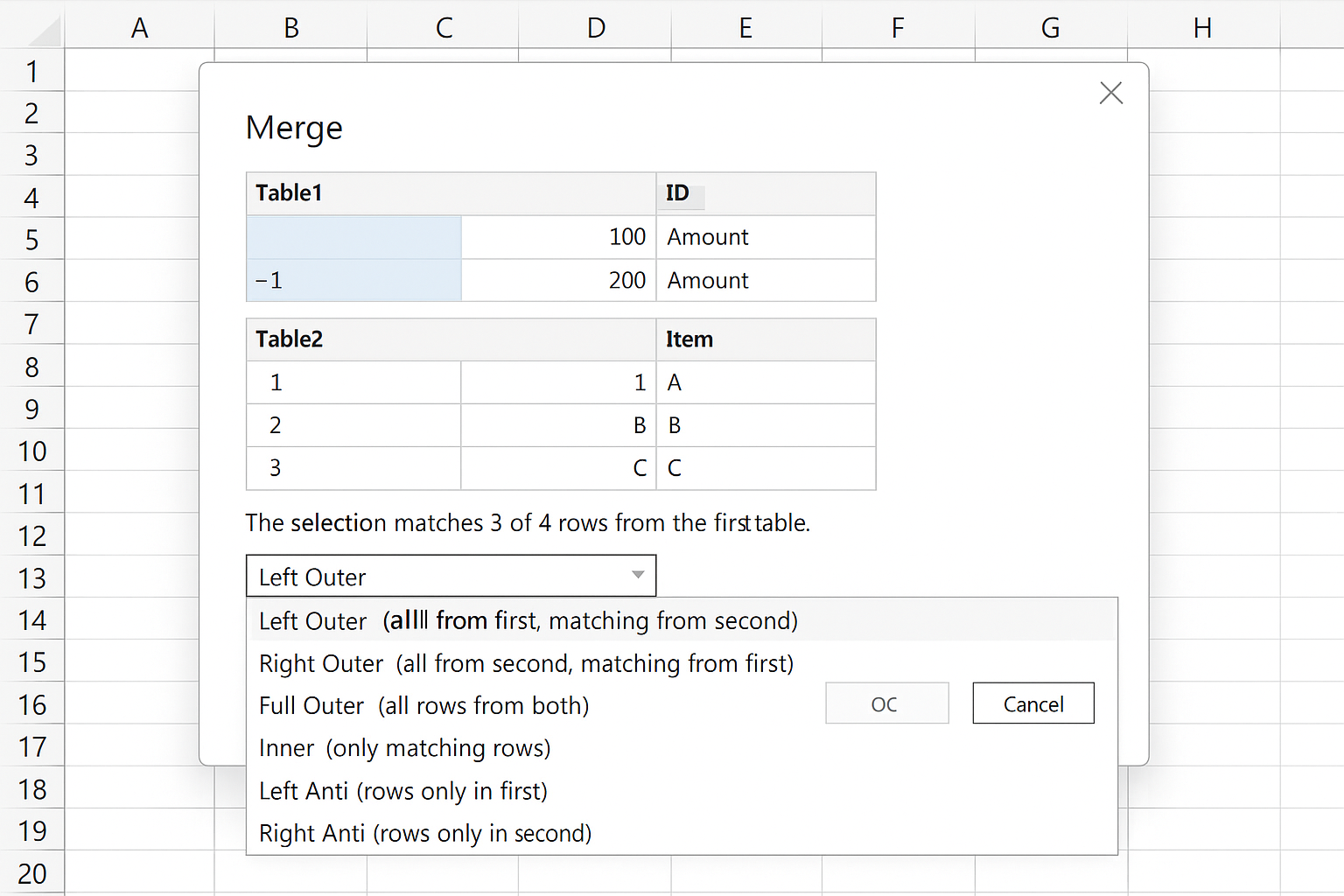
Select the appropriate join type from the dropdown menu based on your data needs (e.g., Left Outer, Inner, Full Outer).
Step 5: Expand the Merged Table
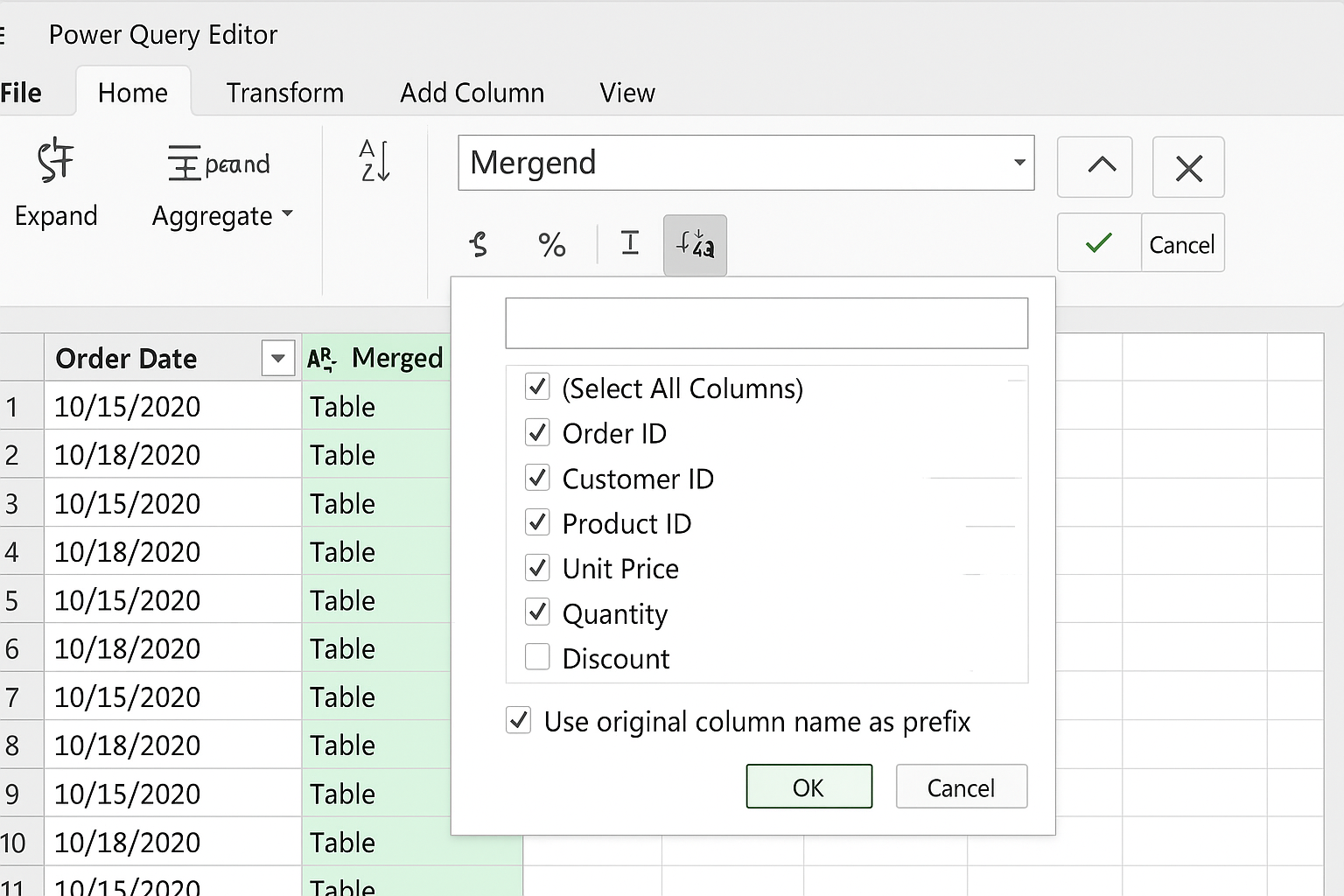
After completing the merge, Power Query adds a new column with a table icon. Click the expand icon (a small double-arrow) next to this column header to select which columns from the merged table you want to include in your primary table.
Practical Example: Merging Sales Data with Customer Information
Imagine you have two tables: SalesData with columns OrderID, CustomerID, and Amount, and CustomerInfo with columns CustomerID, Name, and Region. You want to merge these to see sales amounts alongside customer names and regions.
Step-by-Step
- Load both tables into Power Query.
- In the SalesData query, click Merge Queries.
- Select CustomerInfo as the second table.
- Choose CustomerID in both tables as the matching column.
- Select Left Outer Join to keep all sales records even if customer info might be missing.
- Expand the merged column and select Name and Region.
- Close and load the merged query back to Excel.
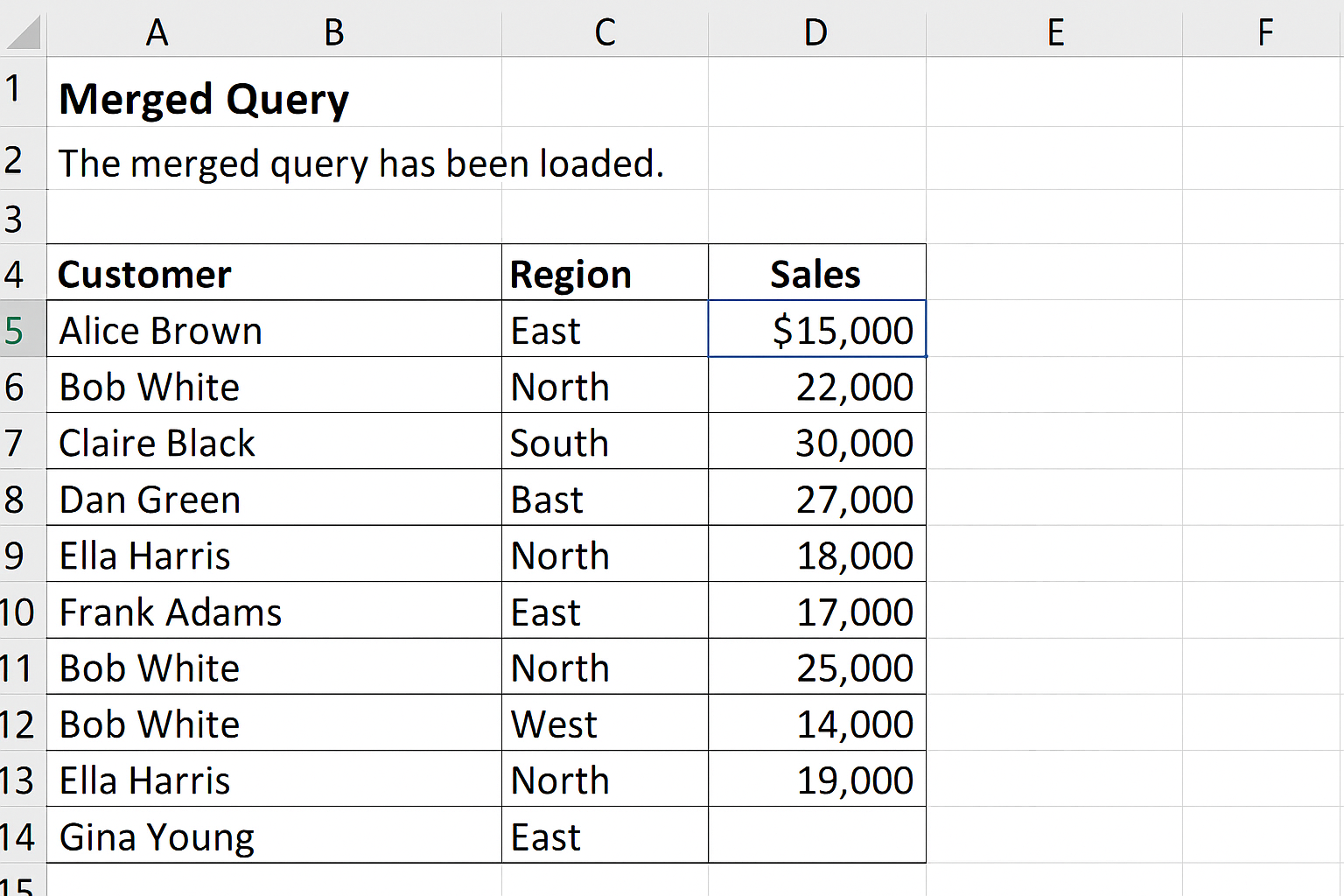
This results in a combined table showing sales alongside customer details, empowering deeper analysis such as sales by region or customer segmentation.
Tips for Effective Query Merging
- Ensure Data Compatibility: Matching columns should have the same data type (e.g., both numbers or text).
- Remove Duplicates: Clean your data to avoid unexpected duplicates causing inaccurate merges.
- Rename Columns: Use meaningful column names before merging to keep your data organized and readable.
- Use Filters: Filter rows before merging to reduce data size and improve performance.
Common Errors When Merging Queries and How to Fix Them
1. “Column not found” error: This usually happens if the column selected for merging does not exist in one of the tables. Double-check column names and spelling.
2. Data type mismatch: Ensure the columns used for matching have compatible data types. Convert columns to the same type via Transform > Data Type if needed.
3. Unexpected nulls after merge: This indicates no matching value was found in the other table. Verify your join type and the integrity of your data.
Conclusion
Merging queries in Power Query is a fundamental skill for advanced data analysis in Excel. It allows you to integrate multiple data sources, enrich your datasets, and perform complex transformations with ease. By mastering different join types and following best practices, you can unlock powerful insights and enhance your data-driven decision making. Practice with your own datasets and explore the full capability of Power Query merge queries to streamline your data workflows.
FAQ
1. What is the difference between merging and appending queries in Power Query?
Merging combines tables side-by-side based on matching columns (like SQL joins), while appending stacks tables vertically by adding rows. Merging is for joining related data, appending is for combining similar data structures.
2. Can I merge more than two queries at once?
Power Query merges two queries at a time, but you can perform multiple merge steps sequentially to combine more than two tables.
3. How do I handle mismatched data types when merging?
Use the Transform tab in Power Query Editor to convert columns to the same data type before merging to ensure proper matching.
4. Will merging queries affect my original data?
No, Power Query works on copies of your data. Your original tables remain unchanged unless you explicitly overwrite them.
5. Can I undo a merge in Power Query?
Yes, you can remove or modify merge steps in the Applied Steps pane within the Power Query Editor anytime before loading the data back to Excel.
Related Articles
- Power Query Tutorial: Getting Started with Data Transformation
- Understanding the Power Query Interface: A Beginner’s Guide
- How to Use Power Query in Excel for Efficient Data Cleaning
- Top 10 Excel Power Query Tips to Boost Your Data Analysis
- Mastering Data Transformation with Power Query: Step-by-Step Guide
Want practical Excel help?
Support free Excel tutorials, get weekly tips, or contact us for Excel programming, VBA, Power Query, dashboards, and automation work.