Mastering the Excel SORT Function Using Dynamic Arrays

Introduction
In the ever-evolving world of Excel, the introduction of dynamic array functions has revolutionized the way users manipulate and analyze data. One of the standout functions in this category is the Excel SORT function. This powerful tool allows users to sort data dynamically without the need for manual sorting or complicated formulas. In this article, we will explore the Excel SORT function in detail, understand how it integrates with dynamic arrays, and provide practical examples to help you master its use.
What is the Excel SORT Function?
The Excel SORT function is a dynamic array function that sorts the contents of a range or array. Unlike traditional sorting methods, the SORT function automatically spills the sorted results into adjacent cells, updating in real-time when the source data changes. This makes it an essential function for creating dynamic and interactive spreadsheets.
Syntax:
=SORT(array, [sort_index], [sort_order], [by_col])
- array: The range or array to sort.
- sort_index (optional): The column or row number to sort by. Default is 1.
- sort_order (optional): 1 for ascending (default), -1 for descending.
- by_col (optional): FALSE to sort by row (default), TRUE to sort by column.
Understanding Dynamic Arrays
Dynamic arrays are a groundbreaking feature in Excel that allow functions to return multiple values that spill over into adjacent cells. This means you no longer need to copy formulas across rows or columns; the formula automatically populates the necessary range. The SORT function leverages this feature, making sorting more intuitive and less prone to errors.
Practical Examples of the Excel SORT Function
Example 1: Basic Sorting of a List
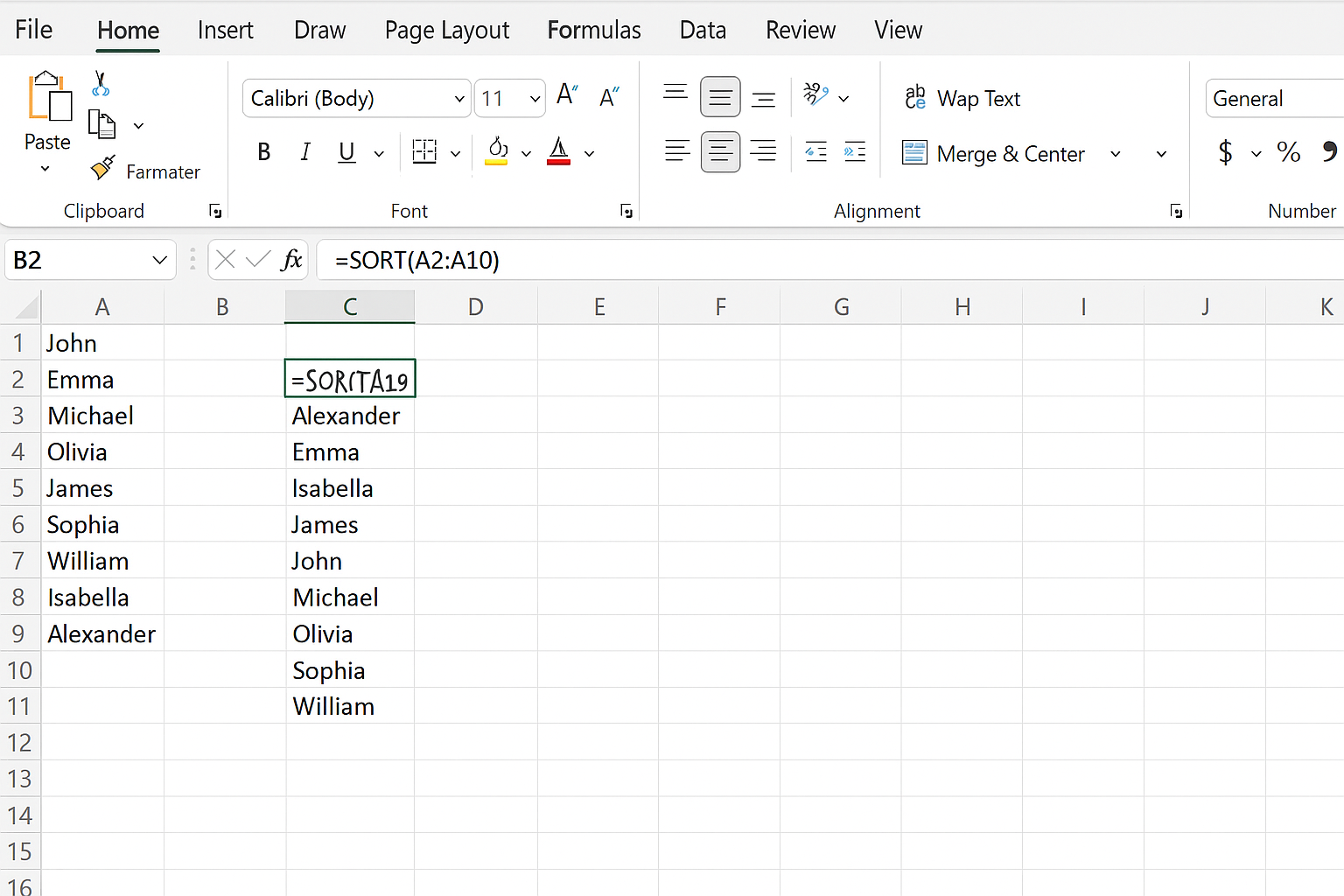
Suppose you have a list of names in cells A2:A10 and you want to sort them alphabetically. Simply use:
=SORT(A2:A10)
This will output the sorted list starting from the cell where the formula is entered.
Example 2: Sorting by a Specific Column
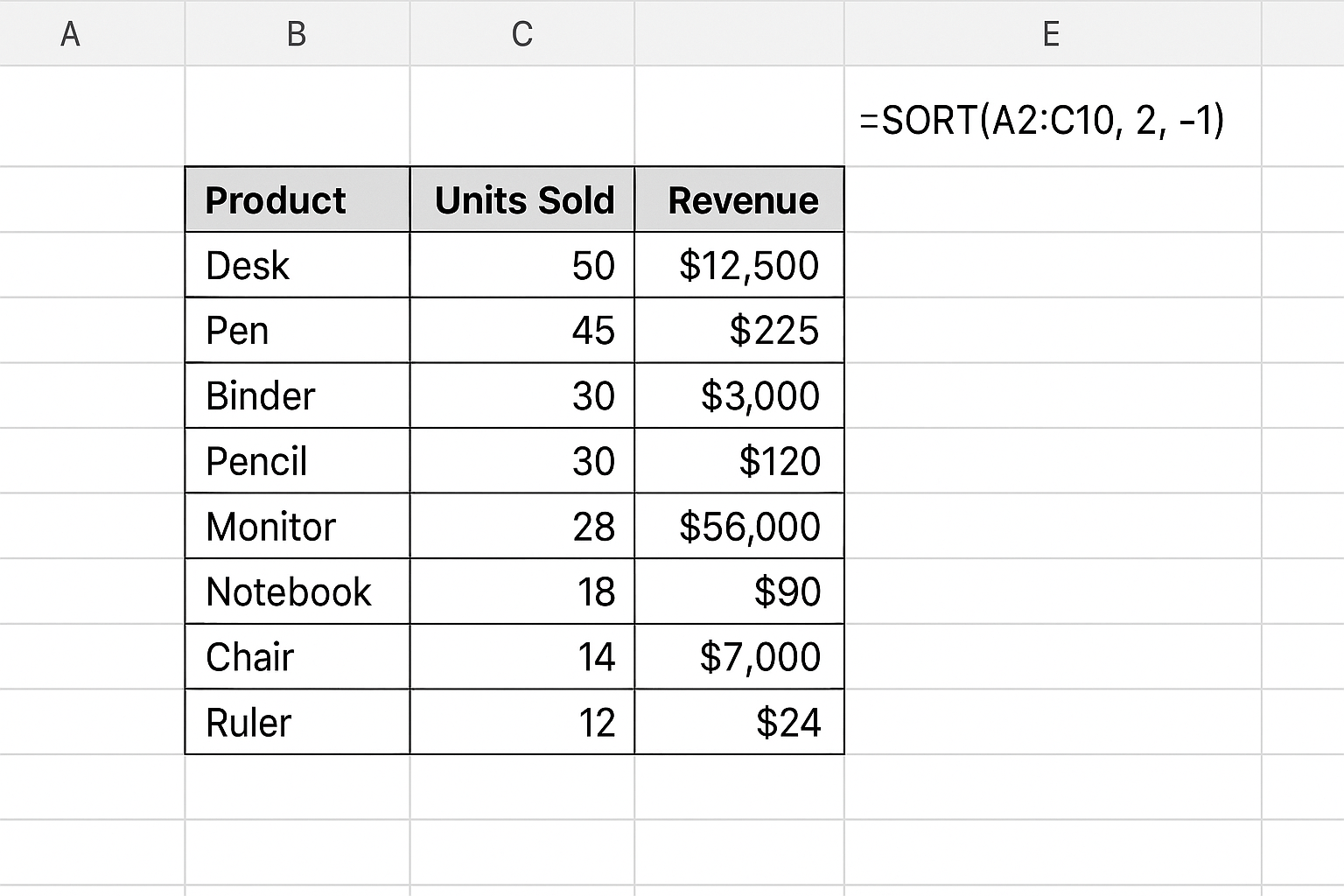
Consider a table with sales data in A2:C10 where column A is Product, column B is Units Sold, and column C is Revenue. To sort the data by Units Sold in descending order, use:
=SORT(A2:C10, 2, -1)
This sorts the entire range based on the second column (Units Sold) in descending order.
Example 3: Sorting Horizontally by Row
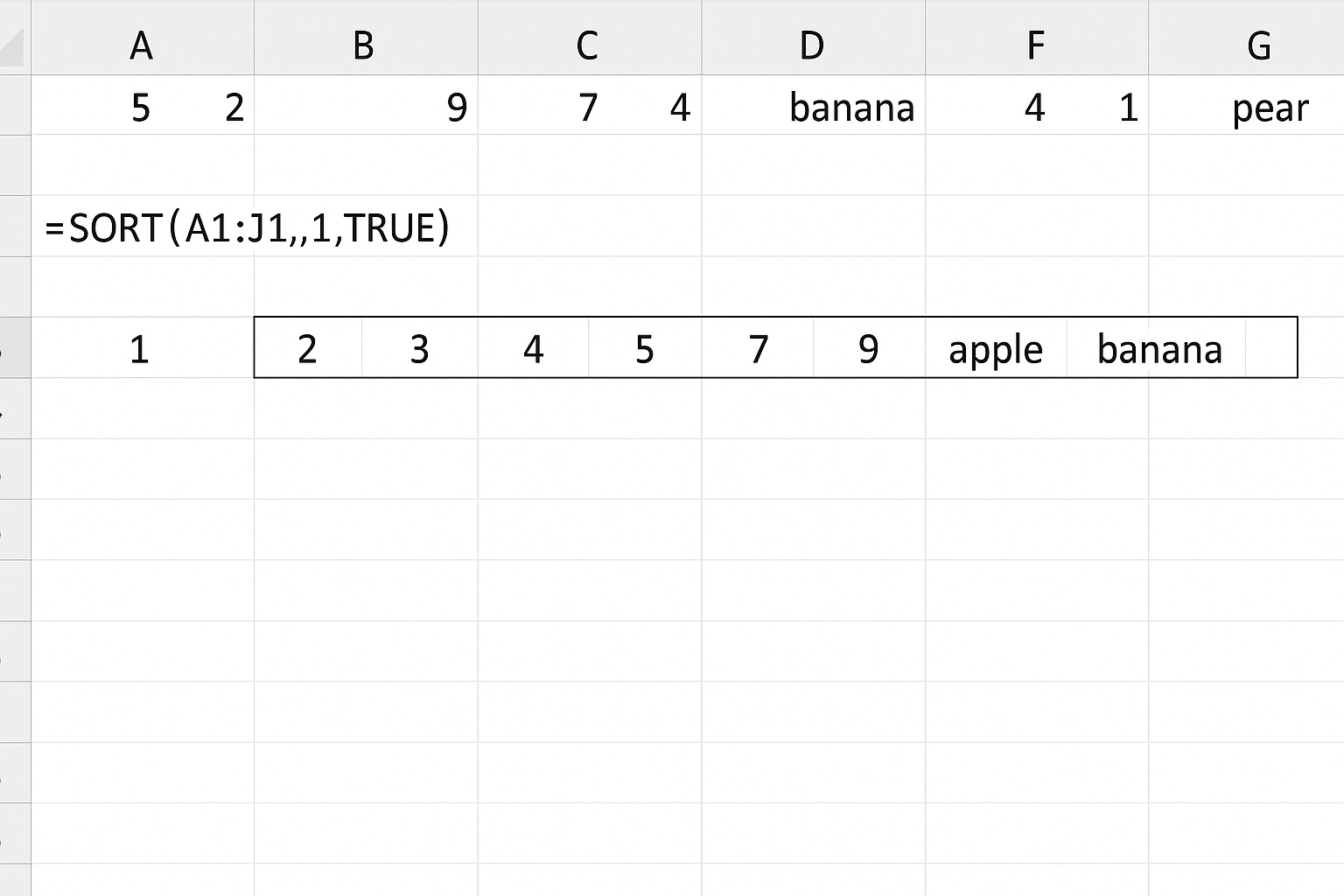
If you have data in A1:J1 and want to sort the values in ascending order across the row, use:
=SORT(A1:J1,,1,TRUE)
Here, the last argument TRUE specifies sorting by columns (i.e., horizontally).
Example 4: Combining SORT with FILTER
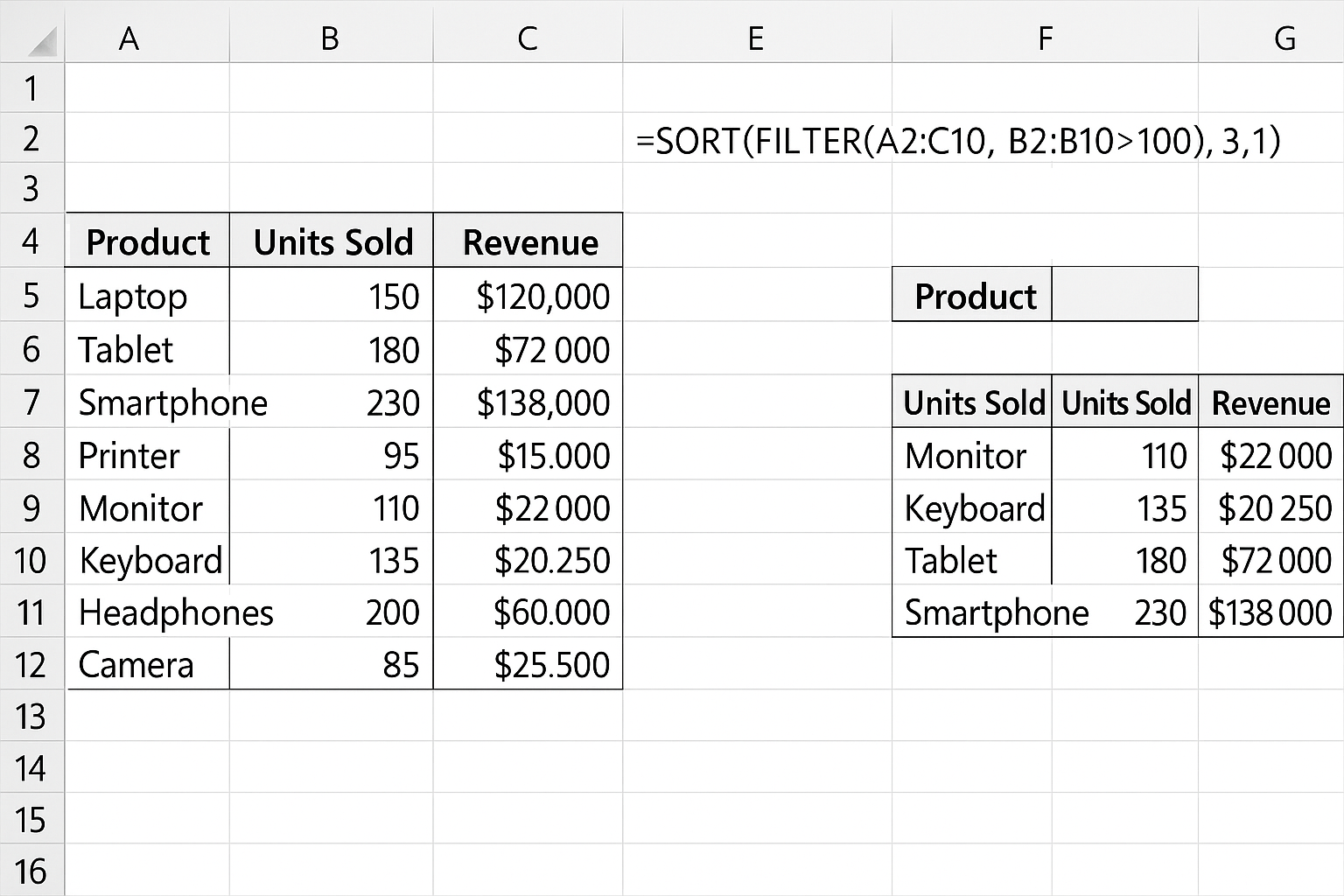
You can combine SORT with the FILTER function to sort filtered data dynamically. For example, to filter sales greater than 100 and sort them by revenue ascending, use:
=SORT(FILTER(A2:C10, B2:B10>100), 3, 1)
This filters the table to only rows where units sold are greater than 100 and sorts the result by the third column (Revenue) ascending.
Tips for Using the Excel SORT Function Effectively
- Always ensure the output range is free from data to avoid #SPILL! errors.
- Use the
sort_indexto control the sorting priority especially in multi-column arrays. - Combine SORT with other dynamic array functions like FILTER, UNIQUE, and SEQUENCE for advanced data manipulation.
- Remember that SORT does not modify the original data but returns a sorted copy, preserving the original dataset.
Common Use Cases
- Creating dynamic reports that update automatically as data changes.
- Sorting lists, tables, or datasets without manual intervention.
- Improving data visualization by automatically organizing data in charts or dashboards.
- Streamlining data analysis workflows by integrating SORT with other Excel dynamic functions.
Conclusion
The Excel SORT function harnesses the power of dynamic arrays to provide a versatile and user-friendly method for sorting data. Whether you’re dealing with simple lists or complex data tables, mastering SORT can significantly enhance your Excel productivity and data management capabilities. By understanding its syntax, applying practical examples, and combining it with other functions, you can unlock new possibilities for dynamic and efficient spreadsheets.
Frequently Asked Questions
What versions of Excel support the SORT function?
The SORT function is available in Excel for Microsoft 365, Excel 2021, and Excel for the web. It is not available in older versions like Excel 2019 or Excel 2016.
Can I sort data by multiple columns using the SORT function?
Yes, you can nest the SORT function or use it in combination with other functions to sort by multiple columns. However, the basic SORT function sorts by one column or row at a time.
Does the SORT function change the original data?
No, the SORT function returns a sorted copy of the data and does not alter the original dataset.
What happens if the SORT function’s output range contains data?
If the output spill range contains existing data, Excel will return a #SPILL! error. Make sure the spill range is clear before applying the formula.
Can I sort data horizontally with the SORT function?
Yes, by setting the by_col argument to TRUE, you can sort data horizontally by row.
Related Articles
- Understanding Dynamic Array Functions in Excel: A Beginner’s Guide
- Top Excel Dynamic Array Formulas You Should Know
- How to Use the Excel FILTER Function with Dynamic Arrays
- Using the UNIQUE Function in Excel to Extract Distinct Values with Dynamic Arrays
- Advanced Techniques: Nesting Dynamic Array Functions in Excel
Want practical Excel help?
Support free Excel tutorials, get weekly tips, or contact us for Excel programming, VBA, Power Query, dashboards, and automation work.