Using the UNIQUE Function in Excel to Extract Distinct Values with Dynamic Arrays

Introduction
Microsoft Excel has transformed data analysis with its introduction of dynamic array functions. Among these, the Excel UNIQUE function stands out as a powerful tool for extracting distinct values from a range or array. This function simplifies the process of removing duplicates and allows users to work more efficiently with dynamic data sets. In this article, we will explore the UNIQUE function in depth, provide practical examples, and explain how it fits within the broader category of popular dynamic array functions.
What is the Excel UNIQUE Function?
The UNIQUE function returns a list of unique values from a range or array, automatically spilling the results into adjacent cells. This means that when you use the UNIQUE function, Excel dynamically adjusts the output size depending on the number of distinct values found.
Syntax: =UNIQUE(array, [by_col], [exactly_once])
array: The range or array from which to extract unique values.by_col(optional): Logical value indicating whether to compare by column (TRUE) or by row (FALSE, default).exactly_once(optional): Logical value specifying if you want values that appear exactly once (TRUE) or all unique values regardless of frequency (FALSE, default).
Why Use the UNIQUE Function?
Prior to the introduction of dynamic arrays and the UNIQUE function, extracting distinct values typically required complex formulas or manual filtering. UNIQUE streamlines this by:
- Automatically updating as data changes
- Simplifying formulas and reducing errors
- Improving readability and maintainability of spreadsheets
Practical Examples of the UNIQUE Function
Example 1: Extracting Unique Values from a Column
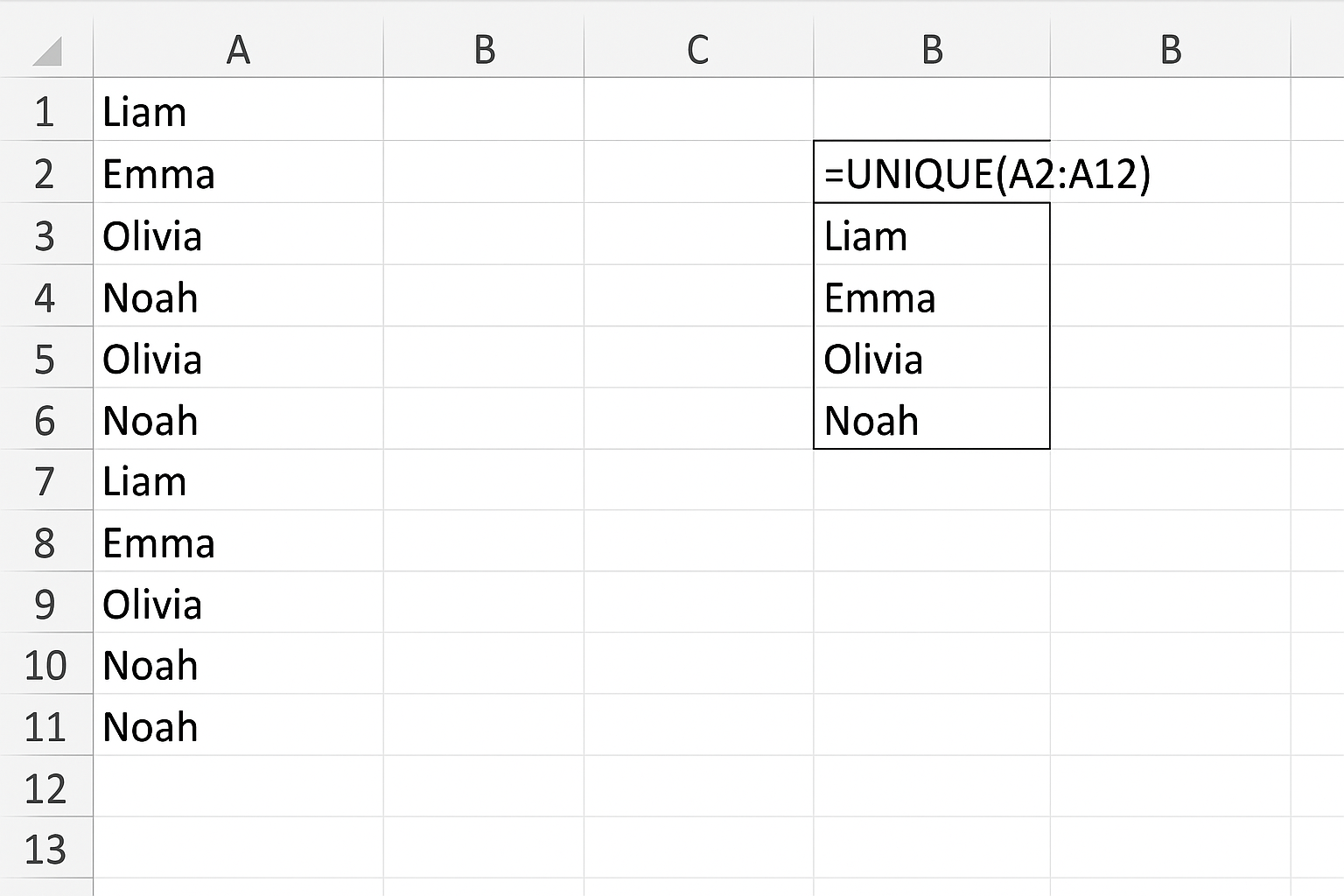
Suppose you have a list of names in cells A2:A12 with duplicates. To extract unique names, use:
=UNIQUE(A2:A12)
This formula spills the list of distinct names into the cells below, updating automatically if the original list changes.
Example 2: Extracting Unique Values by Column
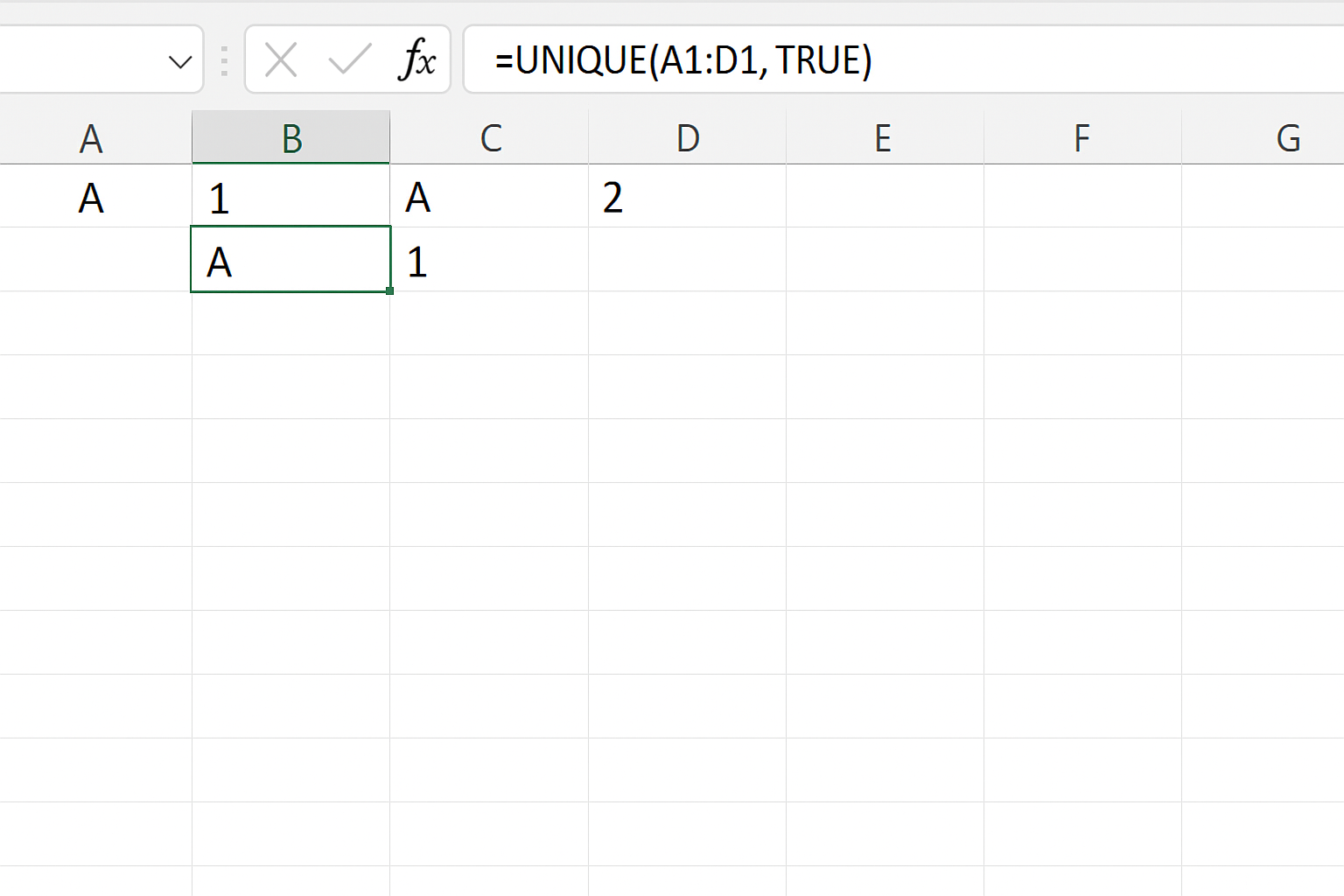
If you have data arranged by columns and want to find unique values across each column separately, you can set the by_col argument to TRUE:
=UNIQUE(A1:D1, TRUE)
This returns unique values from each column of the range A1:D1.
Example 3: Extracting Values that Appear Exactly Once
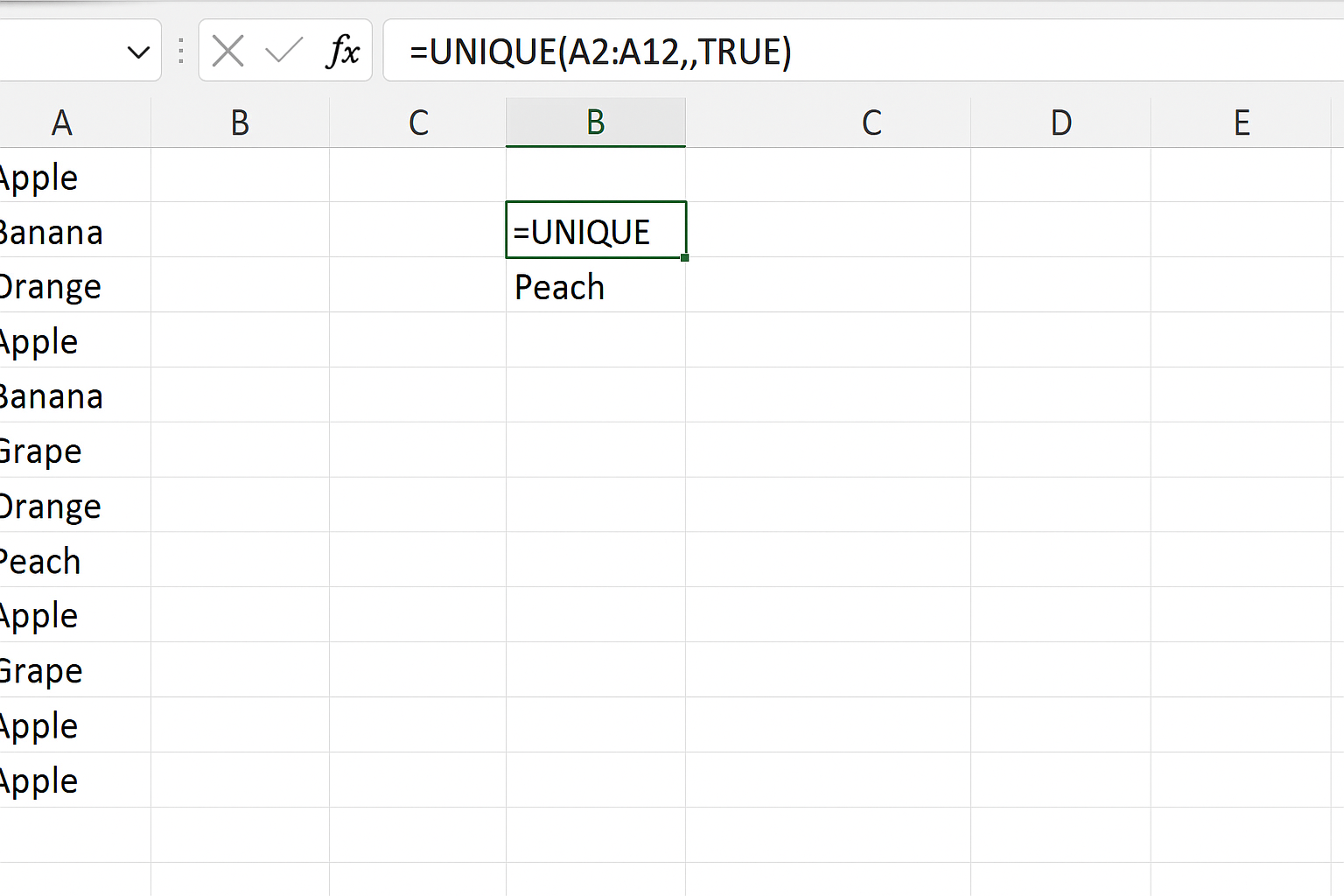
To get values that appear only once in a list, set exactly_once to TRUE.
=UNIQUE(A2:A12,,TRUE)
This will exclude any values that occur multiple times, showing only those that appear exactly one time.
Example 4: Combining UNIQUE with Other Dynamic Array Functions
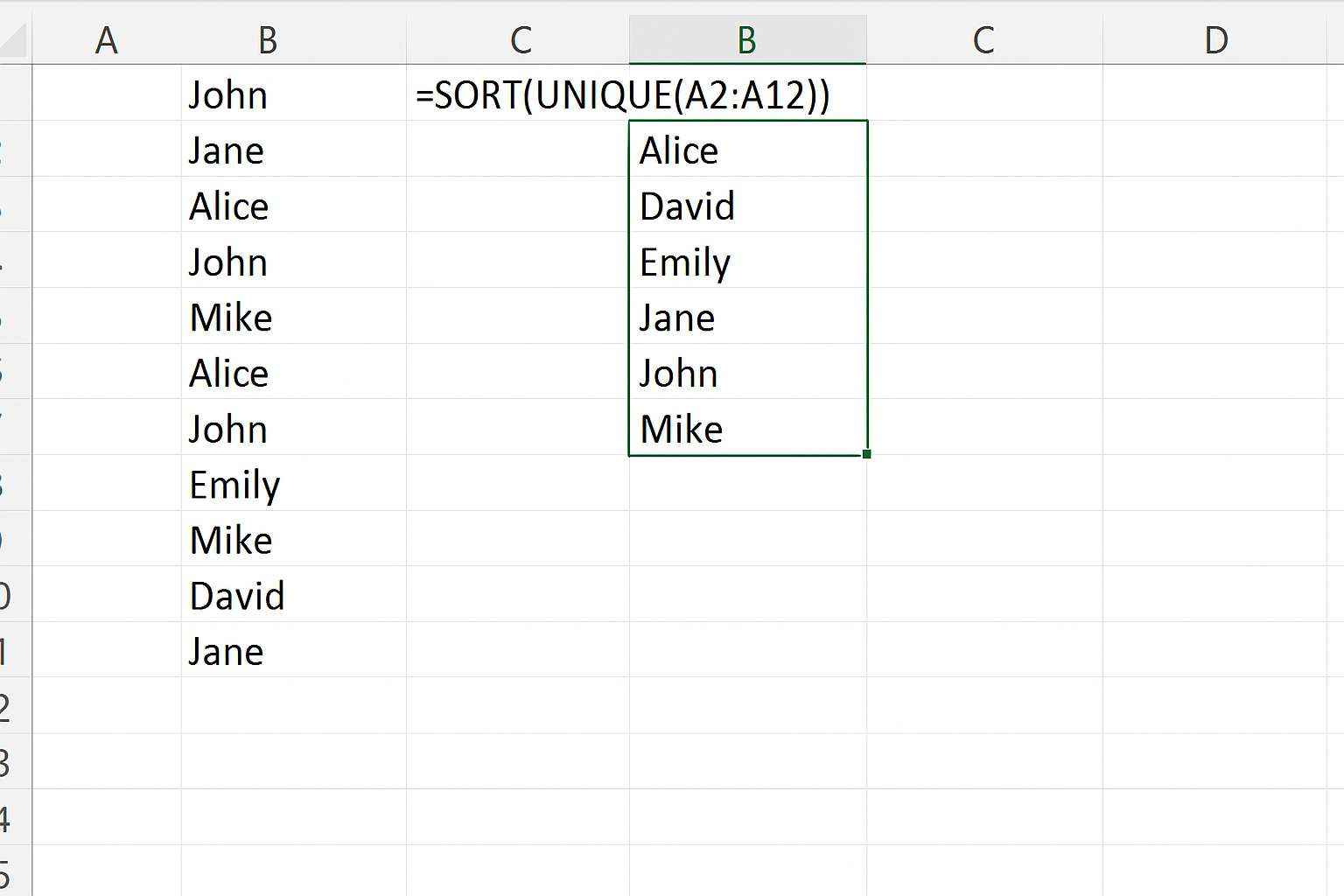
You can combine UNIQUE with other dynamic array functions like SORT and FILTER to create powerful data analysis formulas. For example, to extract unique values sorted alphabetically:
=SORT(UNIQUE(A2:A12))
This returns a sorted list of distinct values from the range A2:A12.
How UNIQUE Fits Within Popular Dynamic Array Functions
The UNIQUE function is part of a family of dynamic array functions released by Microsoft including SORT, FILTER, SEQUENCE, and RANDARRAY. Together, these functions unlock more powerful and flexible spreadsheet capabilities by allowing formulas to return arrays of values that spill into multiple cells without the need for Ctrl+Shift+Enter.
Understanding how UNIQUE works alongside these functions can greatly enhance your data manipulation and reporting skills in Excel.
Tips and Best Practices
- Dynamic spill ranges: Be mindful of where the UNIQUE function spills its results to avoid overwriting data.
- Combine with FILTER: Use FILTER with UNIQUE to extract unique values based on criteria.
- Handling blanks: UNIQUE includes blank cells as unique values; use FILTER to exclude blanks if needed.
- Compatibility: The UNIQUE function requires Excel 365 or Excel 2021 and later versions.
Conclusion
The Excel UNIQUE function revolutionizes how users extract and analyze distinct values in their spreadsheets. By leveraging the power of dynamic arrays, it offers a simple yet robust solution for data cleaning, reporting, and analysis. Whether used alone or combined with other dynamic array functions, UNIQUE can save time, reduce errors, and improve the overall efficiency of your Excel workflows.
Frequently Asked Questions (FAQ)
1. Can the UNIQUE function handle multiple columns?
Yes, by setting the by_col argument to TRUE, UNIQUE can extract unique values by comparing columns instead of rows.
2. Does UNIQUE remove blank cells automatically?
No, UNIQUE treats blank cells as valid entries. To exclude blanks, use the FILTER function in combination with UNIQUE.
3. Which versions of Excel support the UNIQUE function?
The UNIQUE function is available in Excel 365 and Excel 2021 or later. It is not supported in earlier versions.
4. How does UNIQUE differ from the Remove Duplicates feature?
Remove Duplicates is a manual process that deletes duplicate values in place, whereas UNIQUE is a dynamic formula that extracts distinct values and updates automatically as data changes.
5. Can UNIQUE return values that appear only once?
Yes, by setting the exactly_once argument to TRUE, UNIQUE returns only values that appear exactly once in the array.
Related Articles
- Understanding Dynamic Array Functions in Excel: A Beginner’s Guide
- Top Excel Dynamic Array Formulas You Should Know
- How to Use the Excel FILTER Function with Dynamic Arrays
- Mastering the Excel SORT Function Using Dynamic Arrays
- Advanced Techniques: Nesting Dynamic Array Functions in Excel
Want practical Excel help?
Support free Excel tutorials, get weekly tips, or contact us for Excel programming, VBA, Power Query, dashboards, and automation work.