Using Calculated Fields in Pivot Tables to Perform Custom Calculations
Introduction
Pivot tables are one of the most powerful tools in Excel for summarizing and analyzing large datasets quickly. While standard pivot tables allow you to aggregate data using functions like sum, average, and count, sometimes you need to perform custom calculations that go beyond these basic operations. This is where pivot table calculated fields come into play. Calculated fields enable you to create new data fields based on formulas applied to existing pivot table data, expanding your analytical capabilities without altering the original dataset.
What Are Pivot Table Calculated Fields?
A calculated field in a pivot table is a user-defined formula that uses the fields in the pivot table to create custom calculations. Unlike calculated items, which perform calculations on items within a field, calculated fields add a new field to the pivot table that performs calculations across multiple fields. This feature is especially useful when you want to analyze derived metrics such as profit margins, ratios, or other business KPIs directly inside your pivot table.
How to Insert a Calculated Field in a Pivot Table
Follow these steps to add a calculated field:
- Select any cell inside your pivot table.
- Go to the PivotTable Analyze tab (or Options tab in older Excel versions).
- Click on the Fields, Items & Sets drop-down.
- Select Calculated Field.
- In the dialog box, give your field a name.
- Enter the formula using existing pivot table fields.
- Click Add and then OK.
The calculated field will now appear as a new column or row in your pivot table, depending on your layout.
Practical Examples of Using Calculated Fields
Example 1: Calculating Profit
Suppose you have sales data with fields: Sales Amount and Cost. You want to calculate the profit directly inside the pivot table.
- Insert a calculated field named Profit.
- Use the formula:
= Sales Amount - Cost. - This adds a new field showing profit for each row in your pivot table.
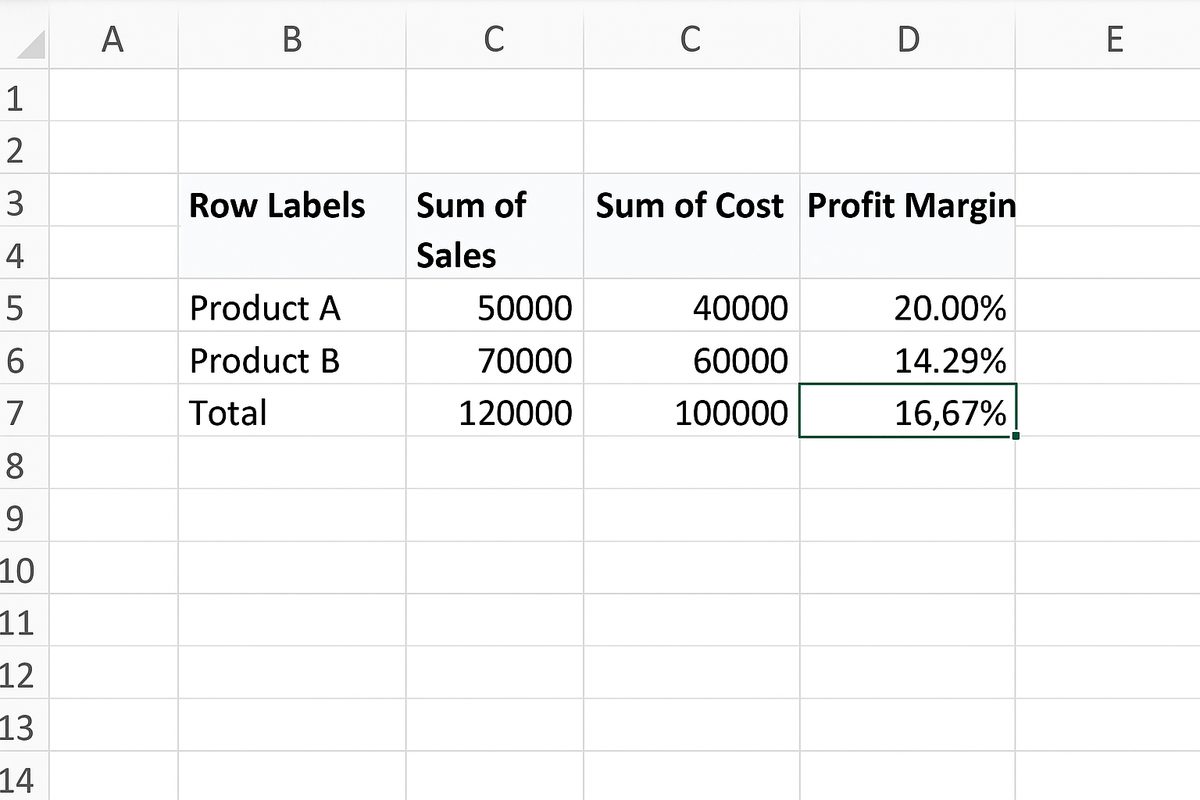
Example 2: Calculating Profit Margin Percentage
After adding profit, you might want to see profit margin as a percentage.
- Create a calculated field named Profit Margin %.
- Use the formula:
= Profit / Sales Amount. - Format the calculated field as a percentage.
Example 3: Combining Multiple Fields
Imagine a dataset with fields: Quantity Sold, Unit Price, and Discount. You want to calculate the final sales amount after discount.
- Add a calculated field named Net Sales.
- Formula:
= Quantity Sold * Unit Price * (1 - Discount).
Best Practices When Using Calculated Fields
- Use clear and descriptive field names: This helps avoid confusion, especially in complex pivot tables.
- Check your formulas carefully: Ensure that your formulas use the correct field names exactly as they appear in the pivot table.
- Be mindful of data types: Calculated fields work best with numeric data.
- Use formatting: Format calculated fields to improve readability, such as applying currency or percentage formatting.
- Refresh pivot tables: If your source data changes, refresh the pivot table to update calculated fields.
Limitations of Calculated Fields
While calculated fields are powerful, they have some limitations:
- You cannot reference cells outside the pivot table in formulas.
- Calculated fields can only use basic arithmetic operators (+, -, *, /) and some functions; complex Excel functions are not supported.
- Calculated fields operate on aggregated data, so they may produce unexpected results if the aggregation logic is not considered.
Advanced Tip: Using Calculated Fields with Multiple Conditions
Although calculated fields do not support IF statements directly, you can sometimes mimic conditional calculations by creating helper columns in your source data before building your pivot table. For example, adding a column that flags certain conditions allows you to filter or segment data effectively within the pivot table.
Conclusion
Pivot table calculated fields are a robust feature for performing custom calculations without modifying your raw data. By mastering calculated fields, you can create more insightful, dynamic reports and dashboards in Excel. Whether calculating profit margins, combining multiple fields, or tailoring specific business metrics, calculated fields empower you to take your data analysis to the next level.
Frequently Asked Questions
- Q1: Can I use text functions in pivot table calculated fields?
A1: No, calculated fields only support arithmetic operations and basic mathematical functions. Text functions are not supported. - Q2: How do calculated fields differ from calculated items?
A2: Calculated fields perform calculations across entire fields in the pivot table, creating new fields. Calculated items perform calculations on specific items within a field. - Q3: Will calculated fields update automatically when source data changes?
A3: Calculated fields update when you refresh the pivot table, but they do not update automatically when source data changes until a refresh is performed. - Q4: Can I delete a calculated field?
A4: Yes, you can delete a calculated field by opening the calculated field dialog and selecting the field to remove. - Q5: Is it possible to use complex Excel formulas in calculated fields?
A5: No, calculated fields only support simple formulas with basic operators. For complex calculations, consider adding helper columns in your source data.
Related Articles
- Pivot Tables Tutorial: A Beginner’s Guide to Summarizing Data
- What Is a Pivot Table and How Can It Help You Analyze Data?
- How to Create a Pivot Table in Excel Step-by-Step
- Understanding Pivot Table Fields: Rows, Columns, Filters, and Values Explained
- Advanced Pivot Table Techniques to Master Data Analysis
Want practical Excel help?
Support free Excel tutorials, get weekly tips, or contact us for Excel programming, VBA, Power Query, dashboards, and automation work.