How to Fix Pivot Table Not Refreshing Issues in Excel
Introduction
Pivot tables are powerful tools in Microsoft Excel that allow users to analyze large datasets efficiently. However, one common issue that users encounter is the pivot table not refreshing to reflect updated data. This can cause confusion and lead to inaccurate analysis. In this article, we will explore several practical solutions to fix the “pivot table not refreshing” problem, ensuring your data stays current and accurate.
Understanding Why Pivot Tables May Not Refresh
Before diving into the fixes, it’s important to understand why pivot tables sometimes fail to update. Common reasons include:
- Data source changes not recognized
- Pivot cache issues
- Manual refresh requirement
- External data source connection problems
- Corrupted pivot table or workbook
How to Refresh a Pivot Table Properly
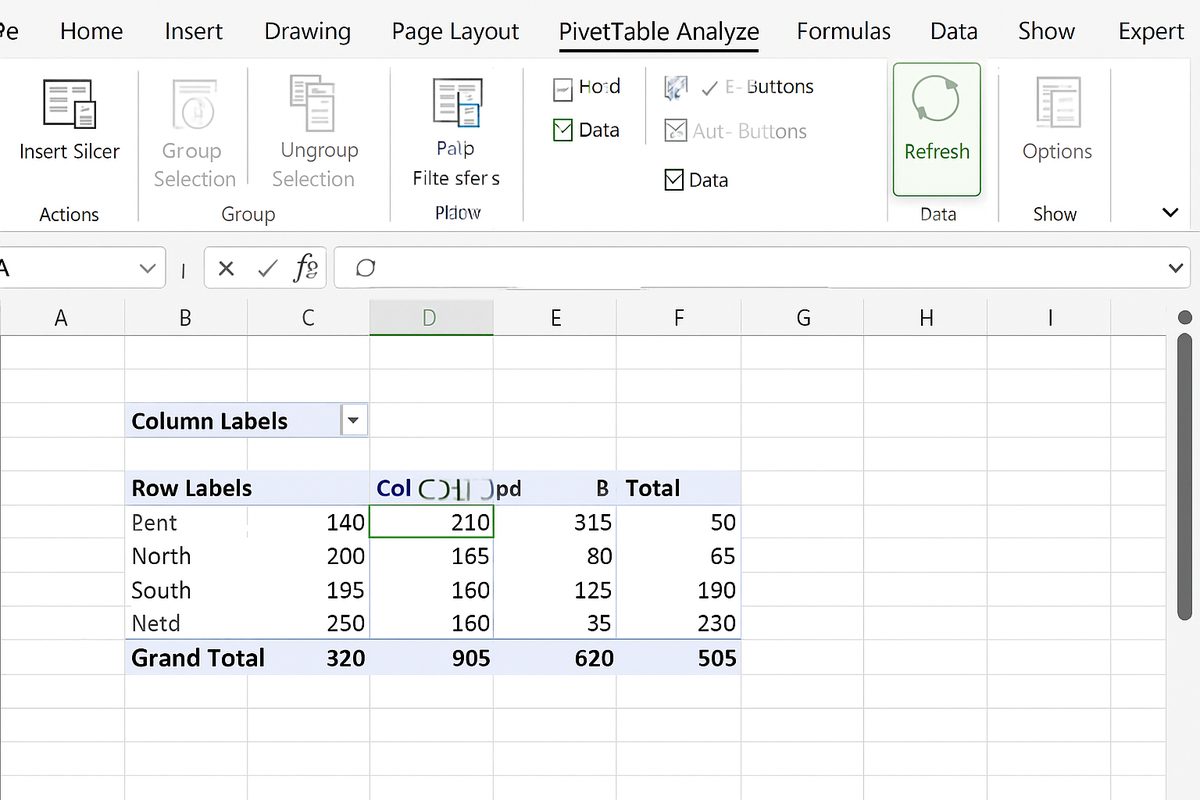
The simplest way to refresh a pivot table is:
- Click anywhere inside the pivot table.
- Go to the PivotTable Analyze or Options tab on the Ribbon.
- Click the Refresh button.
This will update the pivot table data based on the current source data.
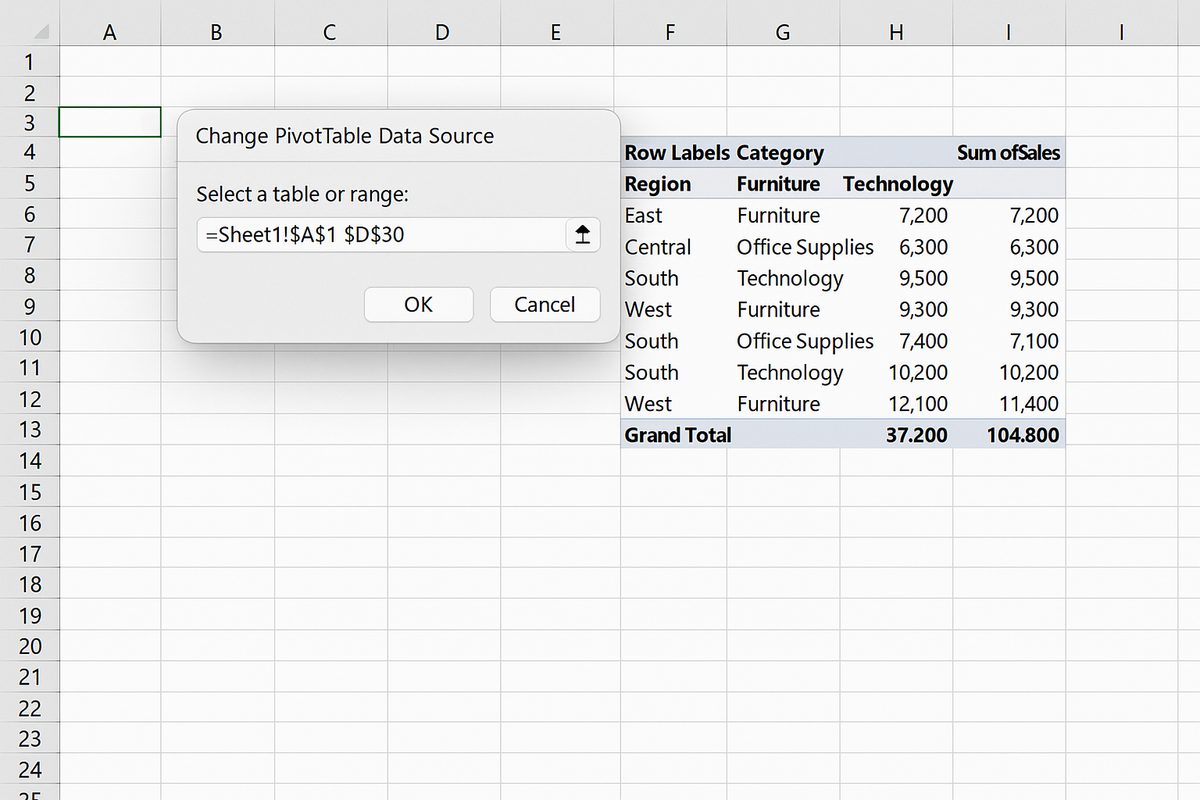
Fix 1: Ensure the Data Source Range is Correct
If your pivot table is not updating, the data source range might be incorrect or not include new rows or columns.
Example: Suppose your data initially ranges from A1:D20, and you add more data up to row 30. The pivot table source may still be set to A1:D20, missing the new rows.
To fix this:
- Click on the pivot table.
- Go to PivotTable Analyze > Change Data Source.
- Adjust the range to include all updated data (e.g.,
A1:D30). - Click OK and refresh the pivot table.
Fix 2: Use a Dynamic Named Range or Excel Table
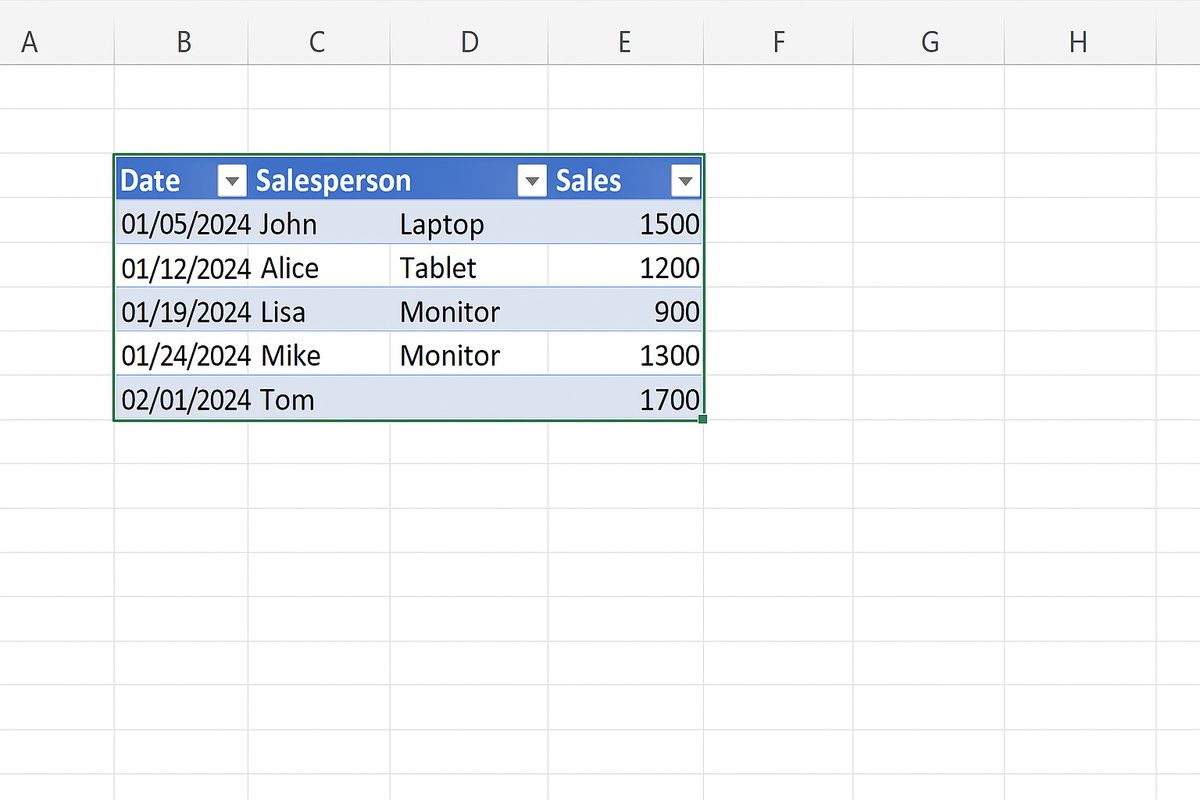
To avoid manually updating the data source range, convert your data into an Excel Table:
- Select your data range.
- Press Ctrl + T to create a table.
- Confirm the table creation.
Excel Tables automatically expand when you add new data, and if your pivot table data source points to the table, it will always include new rows. To link the pivot table to the table:
- Click inside the pivot table.
- Go to PivotTable Analyze > Change Data Source.
- Enter the table name (e.g.,
Table1) instead of a cell range. - Click OK and refresh.
Fix 3: Enable Automatic Refresh on File Open
If you want the pivot table to refresh automatically when you open the workbook:
- Right-click on the pivot table.
- Select PivotTable Options.
- Go to the Data tab.
- Check the box for Refresh data when opening the file.
- Click OK.
Fix 4: Refresh All Pivot Tables
If your workbook contains multiple pivot tables, refreshing one may not update all others. To refresh all pivot tables simultaneously:
Use the Ribbon option:
- Go to Data > Refresh All.
Or use the keyboard shortcut Ctrl + Alt + F5.
Fix 5: Clear Pivot Cache to Fix Corruption
Sometimes the pivot cache that stores pivot table data becomes corrupted, causing refresh issues.
To clear the pivot cache:
- Right-click the pivot table.
- Choose PivotTable Options.
- In the Data tab, set Number of items to retain per field to None.
- Click OK.
- Refresh the pivot table.
Fix 6: Check for External Data Connection Issues
Pivot tables linked to external data sources may fail to refresh if the connection is lost or credentials are invalid.
To troubleshoot:
- Go to Data > Queries & Connections.
- Check the status of connections.
- Update credentials if needed.
- Try refreshing the pivot table again.
Practical Example: Fixing a Pivot Table Not Refreshing After Adding Data
Imagine you have sales data in columns A to D with 50 rows, and you’ve created a pivot table summarizing total sales by region.
You add 20 more rows of sales data below row 50 but notice the pivot table totals don’t include the new data.
Steps to fix:
- Click any cell in the pivot table.
- Go to PivotTable Analyze > Change Data Source.
- Change the range from
A1:D50toA1:D70. - Click OK.
- Click Refresh.
The pivot table will now include the new sales data.
Best Practices to Avoid Pivot Table Refresh Issues
- Convert datasets to Excel Tables before creating pivot tables.
- Use dynamic named ranges or tables to automatically include new data.
- Regularly refresh pivot tables after data updates.
- Save workbooks with refresh settings enabled if data changes often.
- Check external connections frequently if your data is linked to other sources.
Conclusion
Pivot tables are invaluable for summarizing and analyzing data in Excel, but they require proper refreshing to stay accurate. By understanding common causes and applying the fixes outlined above—such as updating data source ranges, using Excel Tables, enabling automatic refresh, and checking connections—you can quickly resolve pivot table not refreshing issues. Following best practices will help you maintain dynamic and reliable pivot tables that reflect your latest data changes with ease.
Related Articles
- Pivot Tables Tutorial: A Beginner’s Guide to Summarizing Data
- What Is a Pivot Table and How Can It Help You Analyze Data?
- How to Create a Pivot Table in Excel Step-by-Step
- Understanding Pivot Table Fields: Rows, Columns, Filters, and Values Explained
- Advanced Pivot Table Techniques to Master Data Analysis
Want practical Excel help?
Support free Excel tutorials, get weekly tips, or contact us for Excel programming, VBA, Power Query, dashboards, and automation work.