How to Set Pivot Tables to Refresh Automatically in Excel
Introduction
Pivot tables are one of the most powerful features in Excel, allowing users to summarize, analyze, and explore large datasets quickly. However, one common challenge many users face is ensuring that their pivot tables reflect the most current data without manually refreshing them every time the source data changes. This article will guide you through how to set pivot tables to refresh automatically in Excel, helping you maintain up-to-date reports and dashboards efficiently.
Why Refreshing Pivot Tables Automatically Matters
When you create a pivot table, it is based on a snapshot of your data at that time. If the underlying data changes, the pivot table does not update automatically unless refreshed. Manually refreshing can be tedious and error-prone, especially with large workbooks or multiple pivot tables. Setting your pivot table to refresh automatically ensures your data analysis is always current, saving time and improving accuracy.
Methods to Set Pivot Tables to Refresh Automatically
1. Refresh Pivot Table When Opening the Workbook
Excel provides a simple option to refresh pivot tables automatically when you open the workbook.
Steps:
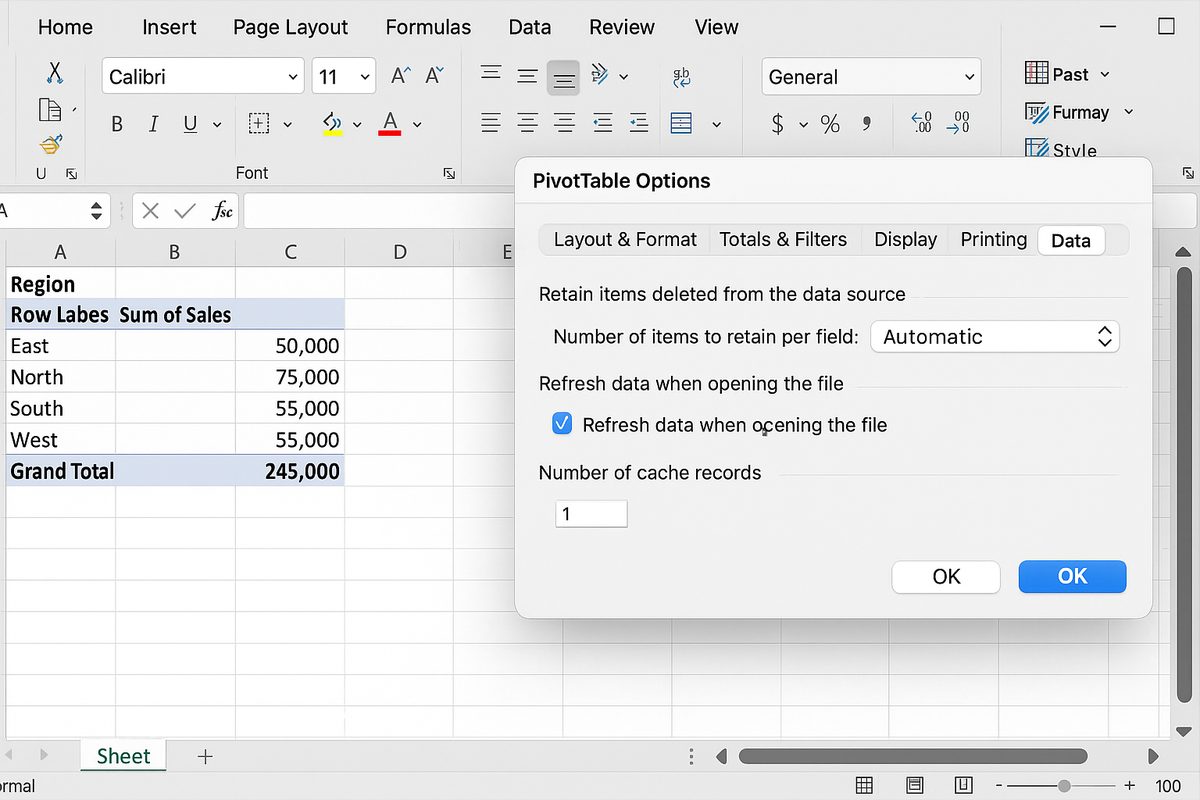
- Right-click on your pivot table.
- Select PivotTable Options.
- In the PivotTable Options dialog box, go to the Data tab.
- Check the box for Refresh data when opening the file.
- Click OK.
This method ensures your pivot table is updated each time you open the workbook, but it will not refresh automatically while the workbook is open.
2. Use VBA to Refresh Pivot Tables Automatically on Data Change
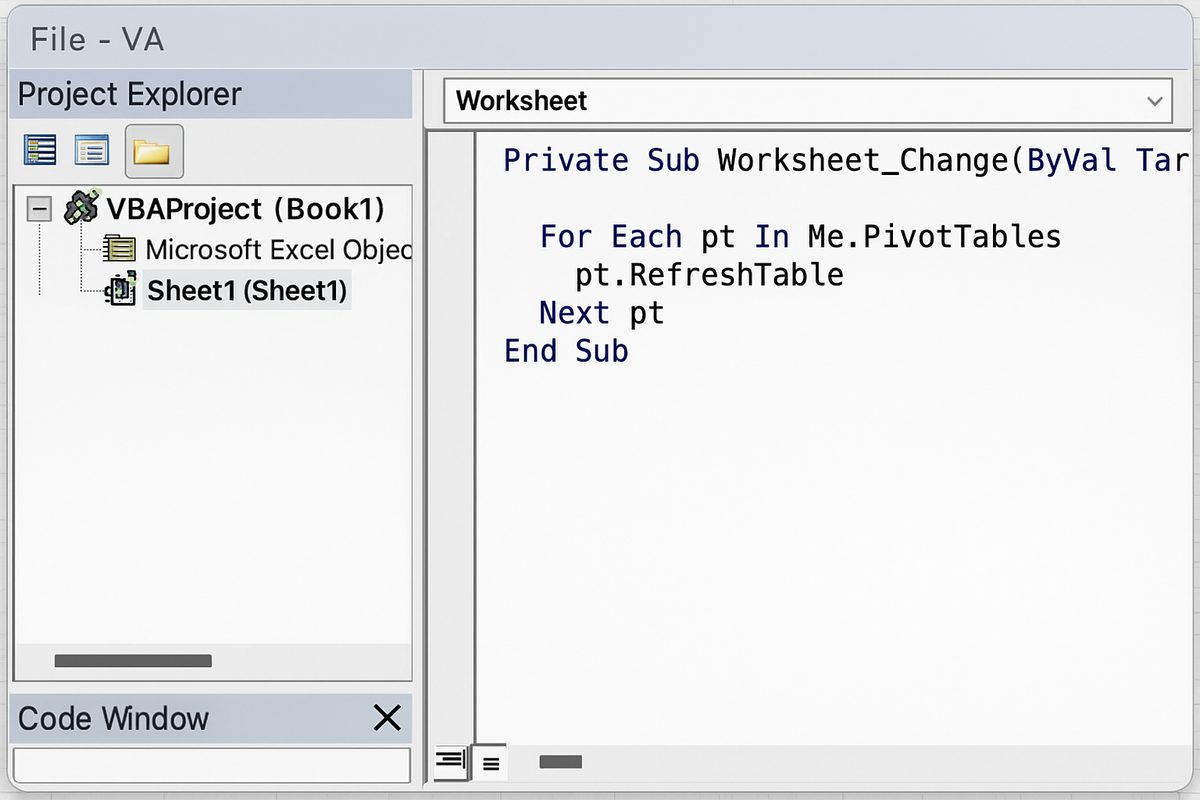
For real-time refresh capabilities, you can use a small VBA (Visual Basic for Applications) script to trigger pivot table refreshes whenever the data changes.
Example VBA code to refresh pivot tables on data change:
Private Sub Worksheet_Change(ByVal Target As Range)
    Dim pt As PivotTable
    Dim ws As Worksheet

    ' Specify the worksheet containing your pivot table
    Set ws = ThisWorkbook.Sheets("PivotTableSheet")

    ' Loop through all pivot tables on the worksheet and refresh them
    For Each pt In ws.PivotTables
        pt.RefreshTable
    Next pt
End Sub
How to add this VBA code:
- Press Alt + F11 to open the VBA editor.
- In the Project Explorer, find the sheet with your data source (not the pivot table sheet).
- Double-click that worksheet name to open its code window.
- Paste the code above, adjusting the sheet name “PivotTableSheet” to your pivot table’s worksheet name.
- Close the editor and save your workbook as a macro-enabled file (.xlsm).
Now, whenever you make changes to the data, the pivot table(s) will refresh automatically.
3. Refresh All Pivot Tables Using Workbook Open Event
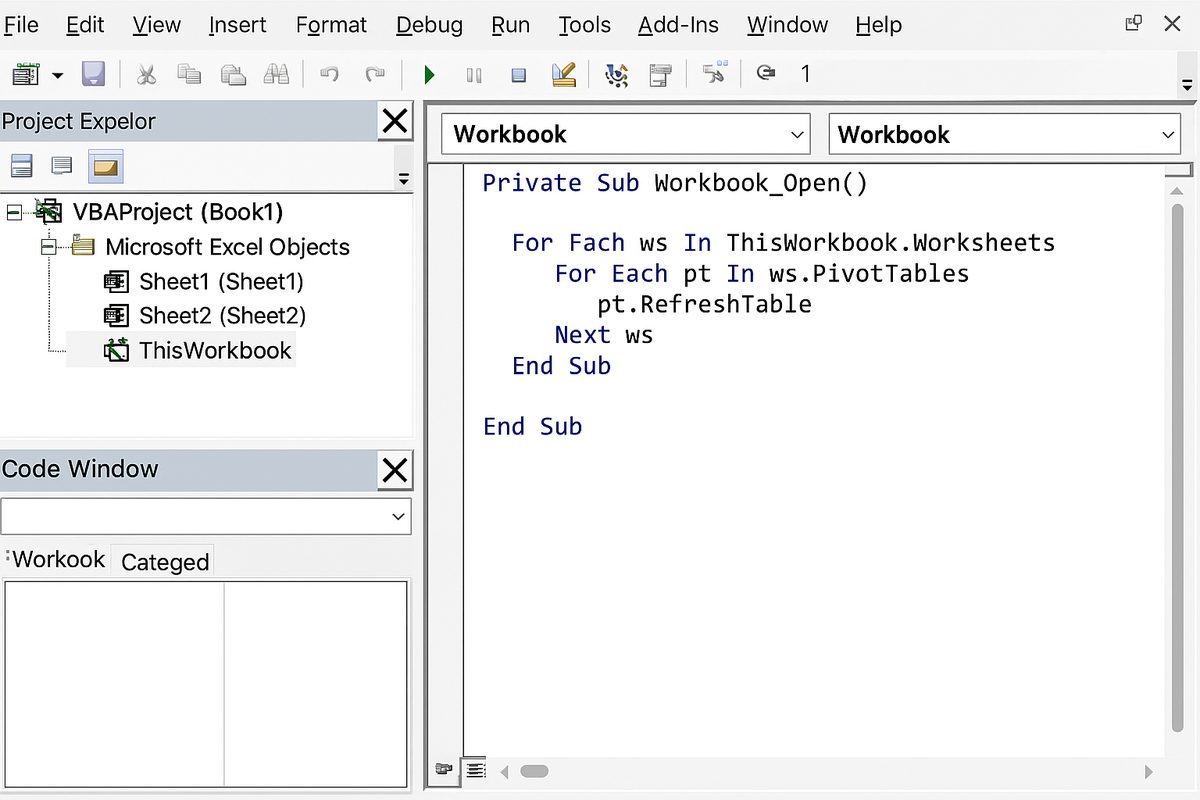
If you have multiple pivot tables across different sheets, you can refresh all of them when the workbook opens with this VBA snippet:
Private Sub Workbook_Open()
    Dim ws As Worksheet
    Dim pt As PivotTable

    For Each ws In ThisWorkbook.Worksheets
        For Each pt In ws.PivotTables
            pt.RefreshTable
        Next pt
    Next ws
End Sub
Add this code to the ThisWorkbook object in the VBA editor to refresh all pivot tables automatically upon opening the workbook.
Practical Example: Automating Refresh for a Sales Report
Imagine you have a sales data worksheet named “SalesData” and a pivot table summarizing sales by region on a worksheet called “SummaryReport.” You want the pivot table to update automatically whenever new sales data is added.
Step-by-step:
- Use the first method to enable refresh on open for the pivot table in “SummaryReport”.
- For automatic refresh during editing, add the VBA code below to the “SalesData” worksheet code window:
Private Sub Worksheet_Change(ByVal Target As Range)
    Dim pt As PivotTable
    For Each pt In ThisWorkbook.Sheets("SummaryReport").PivotTables
        pt.RefreshTable
    Next pt
End Sub
- Save the workbook as a macro-enabled file.
- Now, whenever you add or modify sales data in “SalesData,” your pivot table in “SummaryReport” refreshes automatically.
Additional Tips for Managing Pivot Table Refresh
- Use Tables as Data Sources: Convert your raw data into an Excel Table (Ctrl + T). This makes the data range dynamic and easier to manage when adding new data.
- Refresh All: Use the Refresh All button on the Data tab to refresh multiple pivot tables and external connections at once.
- Consider Performance: Automatically refreshing pivot tables with very large datasets or complex calculations can slow down your workbook.
FAQ
Can I set pivot tables to refresh automatically without using VBA?
Yes, you can enable the option to refresh pivot tables when opening the workbook without VBA. However, for real-time automatic refresh during data editing, VBA is required.
Will refreshing pivot tables affect my workbook’s performance?
Refreshing pivot tables, especially multiple ones or those connected to large data sources, can temporarily slow down your workbook. It is best to balance refresh frequency with performance needs.
How do I refresh all pivot tables at once?
You can use the “Refresh All” button on the Data tab in Excel or use a VBA macro that loops through all pivot tables to refresh them.
What happens if I add new rows to the data source?
If your data source is an Excel Table, pivot tables will automatically include new rows after refresh. If not, you may need to update the data range manually.
Can I schedule pivot tables to refresh at specific times?
Excel does not natively support scheduled refreshes. However, you can use VBA along with Windows Task Scheduler to automate opening the workbook and refreshing pivot tables on a schedule.
How do I troubleshoot pivot tables that don’t refresh?
Check that the data source range is correct, ensure macros are enabled if using VBA, and verify there are no errors in your VBA code causing refresh failure.
Conclusion
Setting pivot tables to refresh automatically in Excel is a practical way to ensure your reports always reflect the latest data without manual intervention. Whether you choose the simple built-in option to refresh on workbook open or implement VBA for real-time updates, keeping pivot tables current improves your data analysis accuracy and efficiency. Use the methods and examples provided in this guide to troubleshoot and automate your pivot table refresh process effectively.
Related Articles
- Pivot Tables Tutorial: A Beginner’s Guide to Summarizing Data
- What Is a Pivot Table and How Can It Help You Analyze Data?
- How to Create a Pivot Table in Excel Step-by-Step
- Understanding Pivot Table Fields: Rows, Columns, Filters, and Values Explained
- Advanced Pivot Table Techniques to Master Data Analysis
Want practical Excel help?
Support free Excel tutorials, get weekly tips, or contact us for Excel programming, VBA, Power Query, dashboards, and automation work.