Using Pivot Tables for Budget Tracking and Financial Analysis
Introduction
Managing finances effectively is essential for both individuals and businesses. One of the most powerful tools in Excel for budget tracking and financial analysis is the pivot table. Pivot tables enable users to quickly summarize, analyze, and visualize complex financial data, making them indispensable for anyone looking to improve their budgeting process. In this article, we’ll explore how to leverage pivot tables for budgeting and financial analysis, complete with practical examples to help you get started.
What is Pivot Table Budgeting?
Pivot table budgeting refers to the use of pivot tables in Excel to organize and analyze budget data. Instead of manually calculating totals or averages, pivot tables allow you to dynamically reorganize large datasets by categories such as income, expenses, dates, or departments. This makes it easier to track spending, compare budget versus actuals, and identify financial trends.
Setting Up Your Data for Pivot Table Budgeting
Before creating a pivot table, ensure your data is well-structured:
- Consistent columns: Include columns for categories like Date, Expense Type, Amount, and Department (if applicable).
- No blank rows or columns: Ensure your data is continuous for Excel to recognize it properly.
- Use Excel tables: Convert your dataset into an Excel Table (Ctrl + T) to make it easier to update dynamically.
Creating a Pivot Table for Budget Tracking
Here’s a step-by-step example to build a pivot table for budget tracking:
- Prepare your dataset: For example, columns might include Date, Category (Rent, Utilities, Supplies), Amount, and Month.
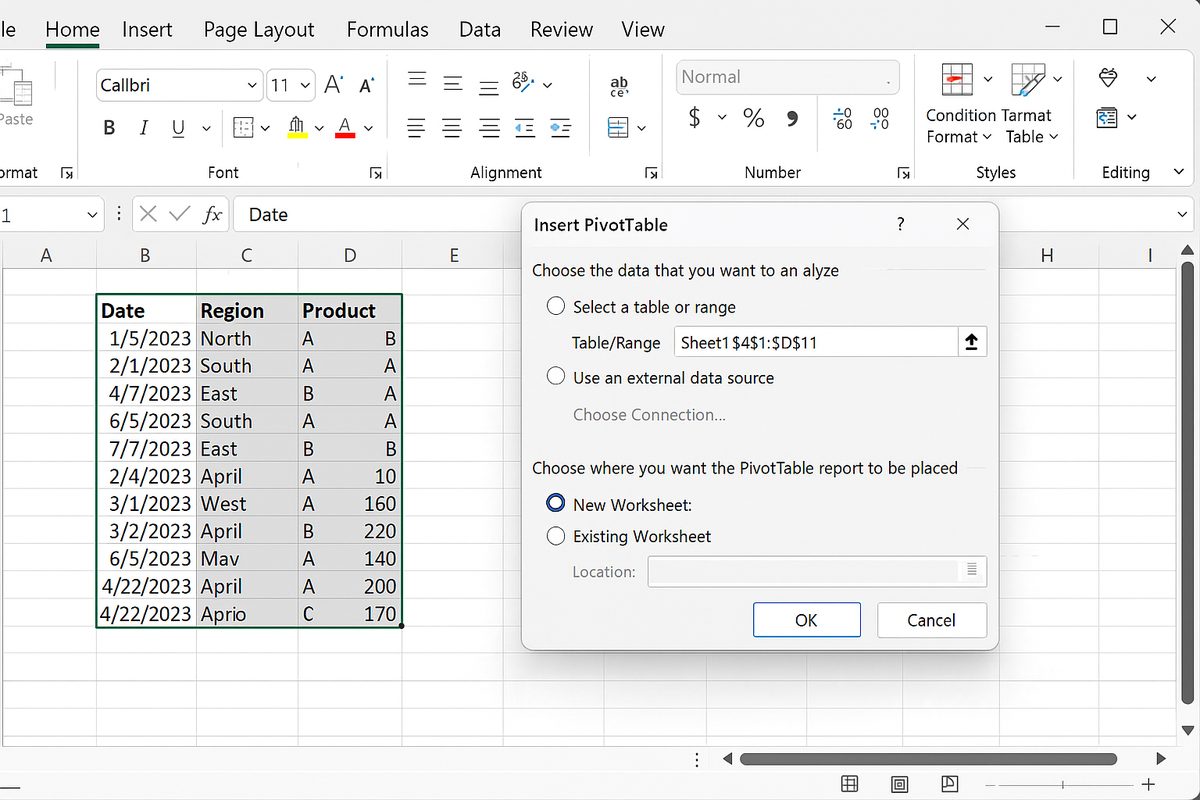
- Insert the pivot table: Select your data range, then go to Insert > PivotTable. Choose a new worksheet for placement.
- Set rows and columns: Drag the Category field to the Rows area and the Month field to the Columns area.
- Add values: Drag the Amount field to the Values area, which will default to sum totals.
- Format for readability: Use number formatting to display currency and apply design styles.
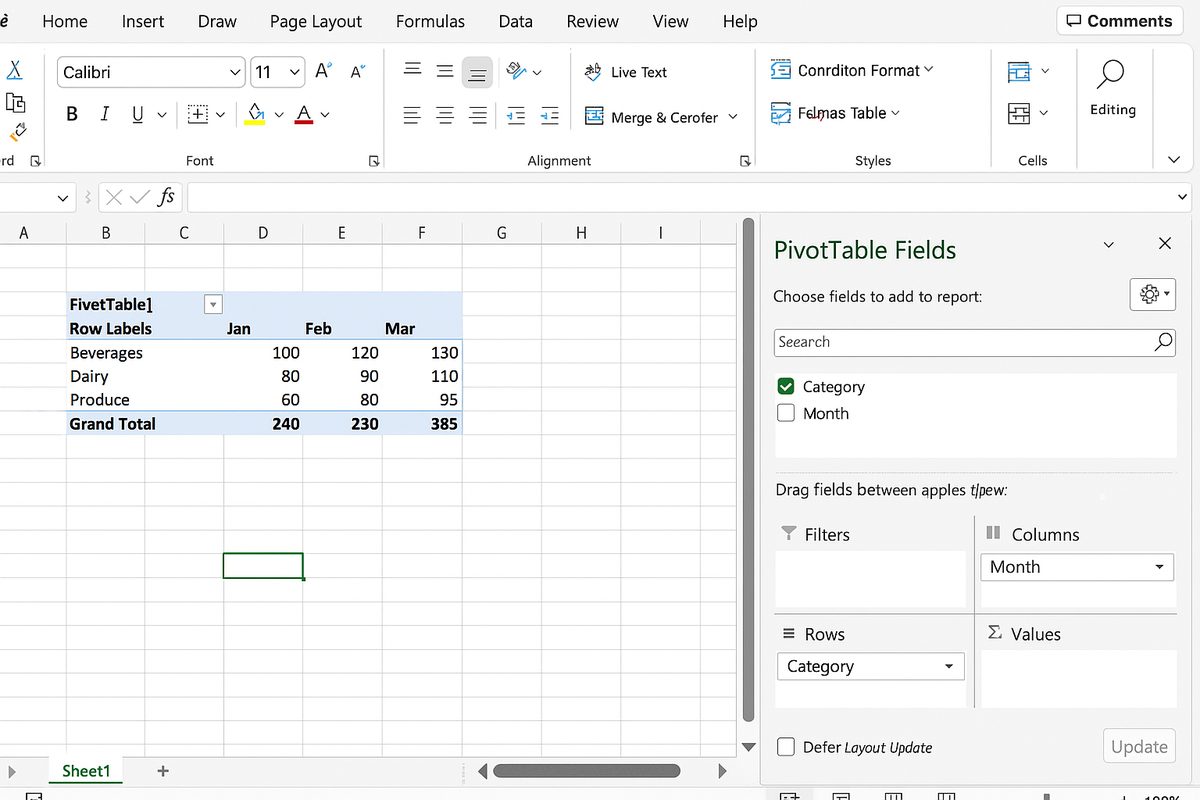
This pivot table now summarizes your monthly expenses by category, allowing you to track spending patterns easily.
Advanced Pivot Table Techniques for Financial Analysis
Beyond basic budget tracking, pivot tables offer advanced features valuable to financial analysts:
- Calculated Fields: Create custom formulas within the pivot table to calculate variances like budget vs. actual spending.
- Grouping: Group dates by weeks, months, quarters, or years to analyze trends over different time frames.
- Multiple consolidation ranges: Combine data from multiple sheets or tables to get a comprehensive financial overview.
- Pivot Charts: Visualize your pivot table data with dynamic charts that update as you filter or rearrange data.
Practical Example: Budget vs. Actual Expense Analysis
Imagine you have two columns in your dataset: Budgeted Amount and Actual Amount. You can add both fields to the Values area of your pivot table to compare the numbers side by side.
To calculate the difference, use a calculated field:
- Click inside the pivot table.
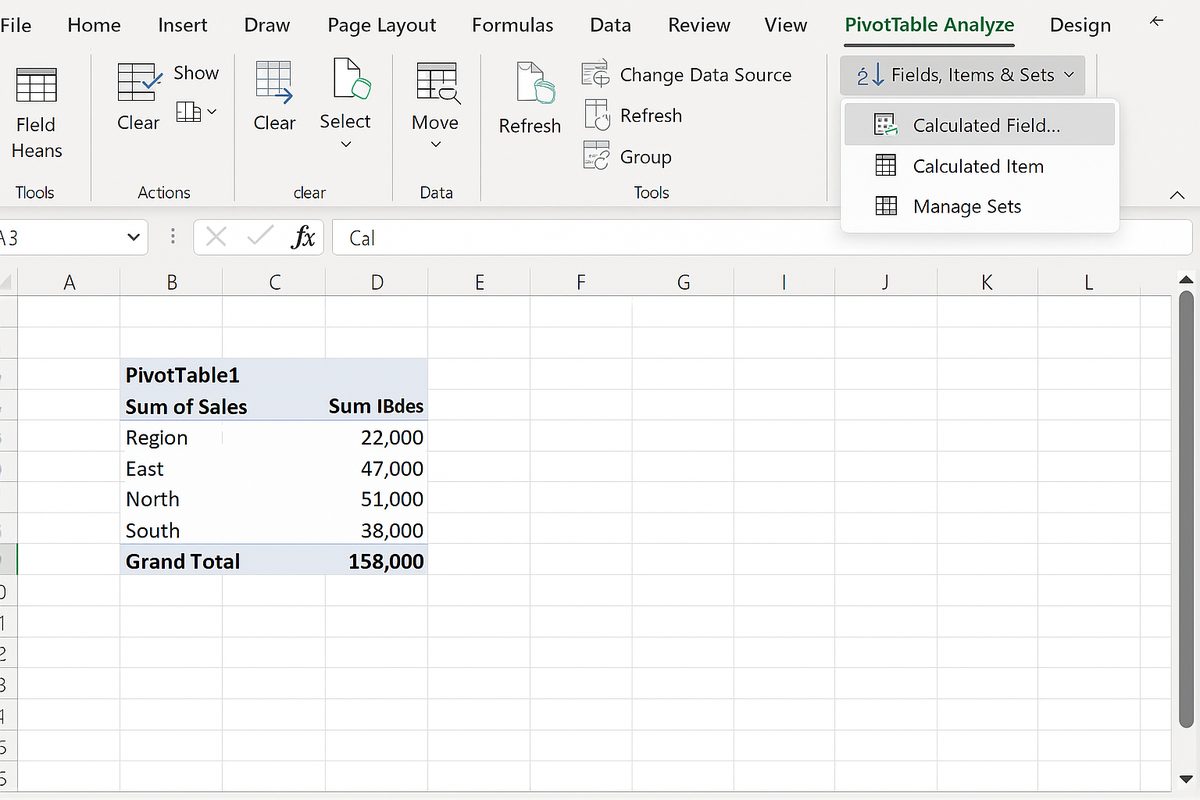
- Go to the PivotTable Analyze tab, select Fields, Items & Sets > Calculated Field.
- Enter a name like “Variance” and formula
= 'Actual Amount' - 'Budgeted Amount'. - Click OK.
Now your pivot table will show the variance, highlighting where you overspent or saved money.
Tips for Effective Pivot Table Budgeting
- Refresh data regularly: If your source data changes, right-click the pivot table and select Refresh.
- Use slicers and filters: These tools help you quickly filter data by time periods, departments, or categories.
- Keep data clean: Avoid typos or inconsistent naming, which can create fragmented categories.
- Backup before major changes: Pivot tables can be complex; saving versions protects your work.
Common Pitfalls and How to Avoid Them
Some common mistakes when using pivot tables for budgeting include:
- Incorrect data ranges: Ensure your pivot table references the entire dataset.
- Not refreshing pivot tables: This leads to outdated summaries.
- Overcomplicating layouts: Keep pivot tables simple for easier interpretation.
- Ignoring data validation: Implement data validation rules to maintain consistent entries.
Conclusion
Pivot table budgeting is a powerful technique that transforms raw financial data into clear, actionable insights. Whether you’re tracking personal expenses or managing corporate budgets, pivot tables simplify financial analysis by enabling quick data summarization and trend detection. By mastering pivot tables, you can enhance your budgeting accuracy, save time, and make smarter financial decisions.
FAQ
What is pivot table budgeting?
Pivot table budgeting is the use of pivot tables in Excel to organize, summarize, and analyze budget and financial data efficiently.
Can pivot tables handle large financial datasets?
Yes, pivot tables are designed to work with large datasets, allowing users to analyze thousands of rows of financial information quickly.
How do I update a pivot table when my source data changes?
Right-click anywhere inside the pivot table and select ‘Refresh’ to update the data displayed.
Can I use pivot tables to compare budgeted amounts versus actual spending?
Yes, by adding both budgeted and actual amounts to the pivot table and creating calculated fields, you can easily compare and analyze variances.
Are pivot tables suitable for users new to Excel?
While pivot tables may have a learning curve, they are accessible to beginners with practice, and numerous tutorials are available to help users get started.
Related Articles
- Pivot Tables Tutorial: A Beginner’s Guide to Summarizing Data
- What Is a Pivot Table and How Can It Help You Analyze Data?
- How to Create a Pivot Table in Excel Step-by-Step
- Understanding Pivot Table Fields: Rows, Columns, Filters, and Values Explained
- Advanced Pivot Table Techniques to Master Data Analysis
Want practical Excel help?
Support free Excel tutorials, get weekly tips, or contact us for Excel programming, VBA, Power Query, dashboards, and automation work.