Creating Custom Calculations in Pivot Tables with Formulas
Introduction
Pivot tables are powerful tools in Excel that allow users to quickly summarize, analyze, and explore large datasets. While their default aggregations like Sum, Count, and Average are useful, sometimes you need more tailored calculations to extract meaningful insights. This is where pivot table custom calculations using formulas come into play. In this article, we will guide you through creating custom calculations within pivot tables, enhancing their utility for your data analysis needs.
What Are Pivot Table Custom Calculations?
Custom calculations in pivot tables enable you to perform calculations beyond the standard aggregation functions. These calculations can be based on existing data fields or derived fields and involve formulas to compute specific values such as percentages, differences, running totals, or user-defined metrics.
Excel offers two main ways to create custom calculations in pivot tables:
- Calculated Fields: Add a new field to your pivot table that uses a formula based on other fields.
- Calculated Items: Create calculations between items within a field.
How to Create Calculated Fields for Custom Calculations
Calculated fields are the most common method for adding custom calculations to pivot tables. They allow you to define a formula that operates on the sum or aggregated values of other fields.
Step-by-Step Guide
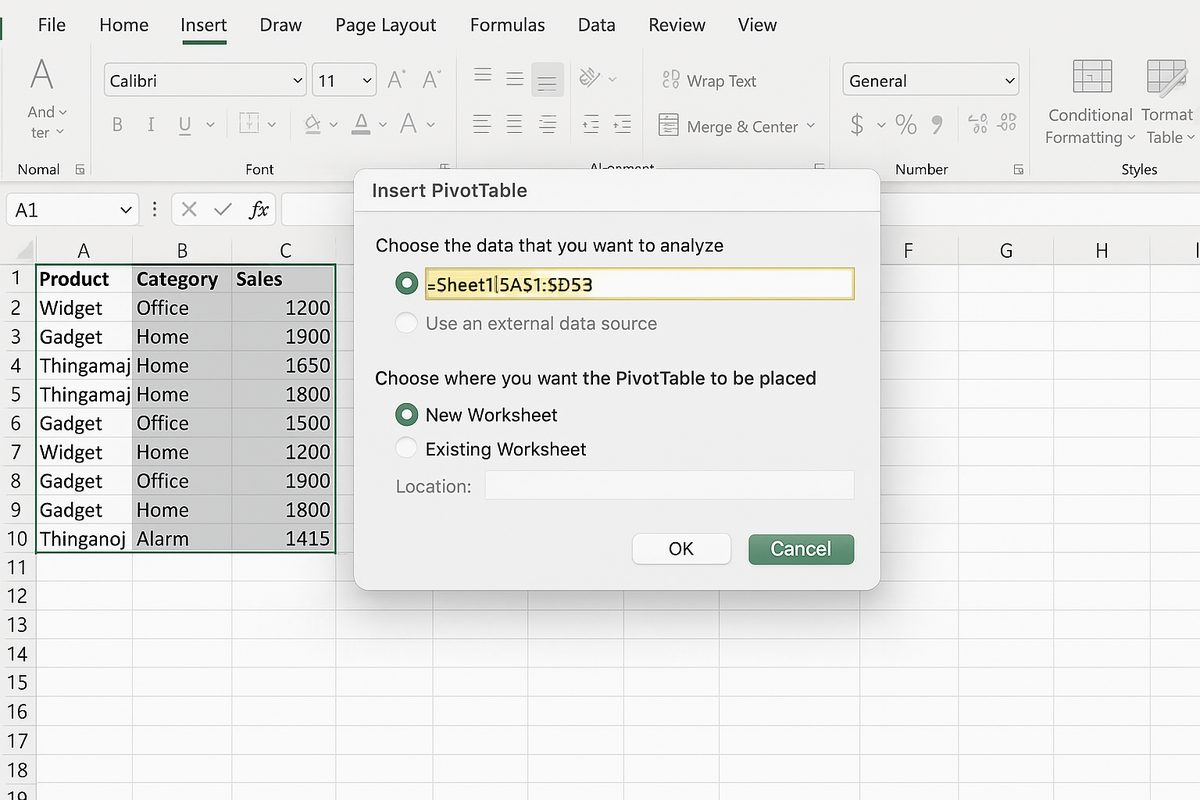
- Create a Pivot Table: Select your data range and insert a pivot table via Insert > PivotTable.
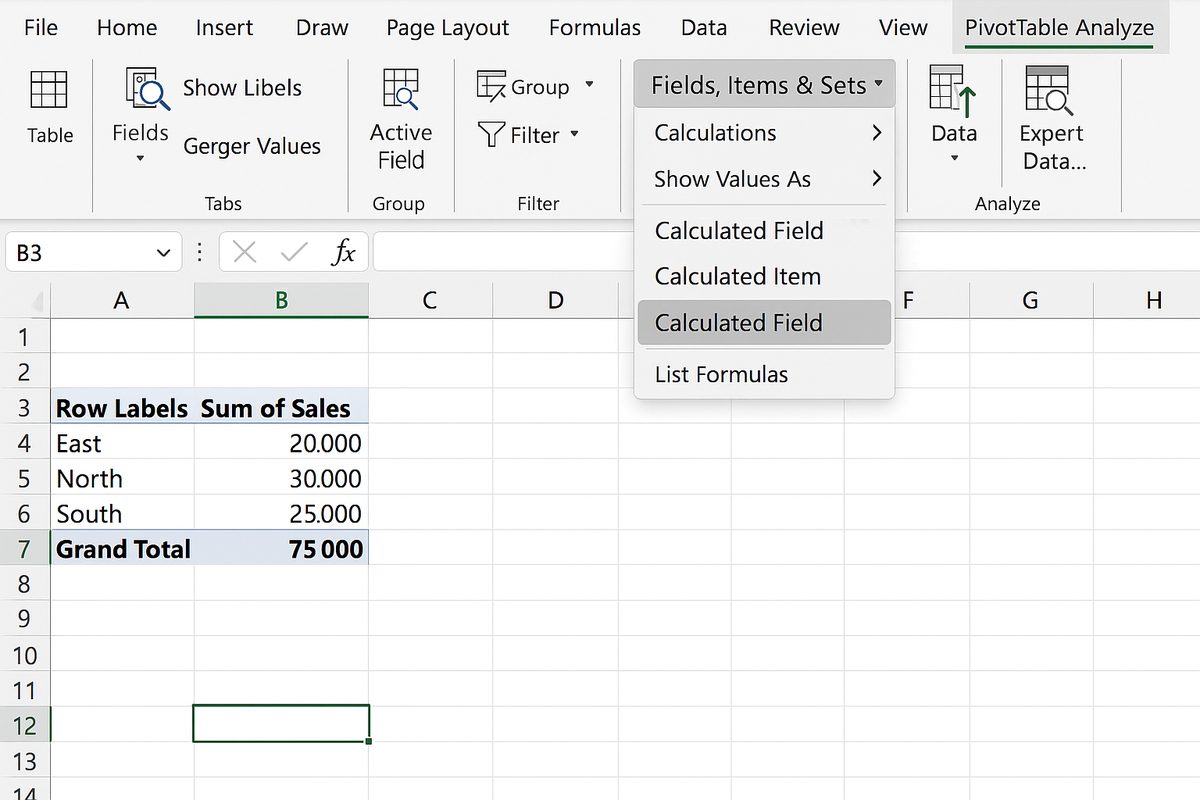
- Open Calculated Field Dialog: Click anywhere inside the pivot table. Go to the PivotTable Analyze tab (or Options in some versions) and select Fields, Items & Sets > Calculated Field.
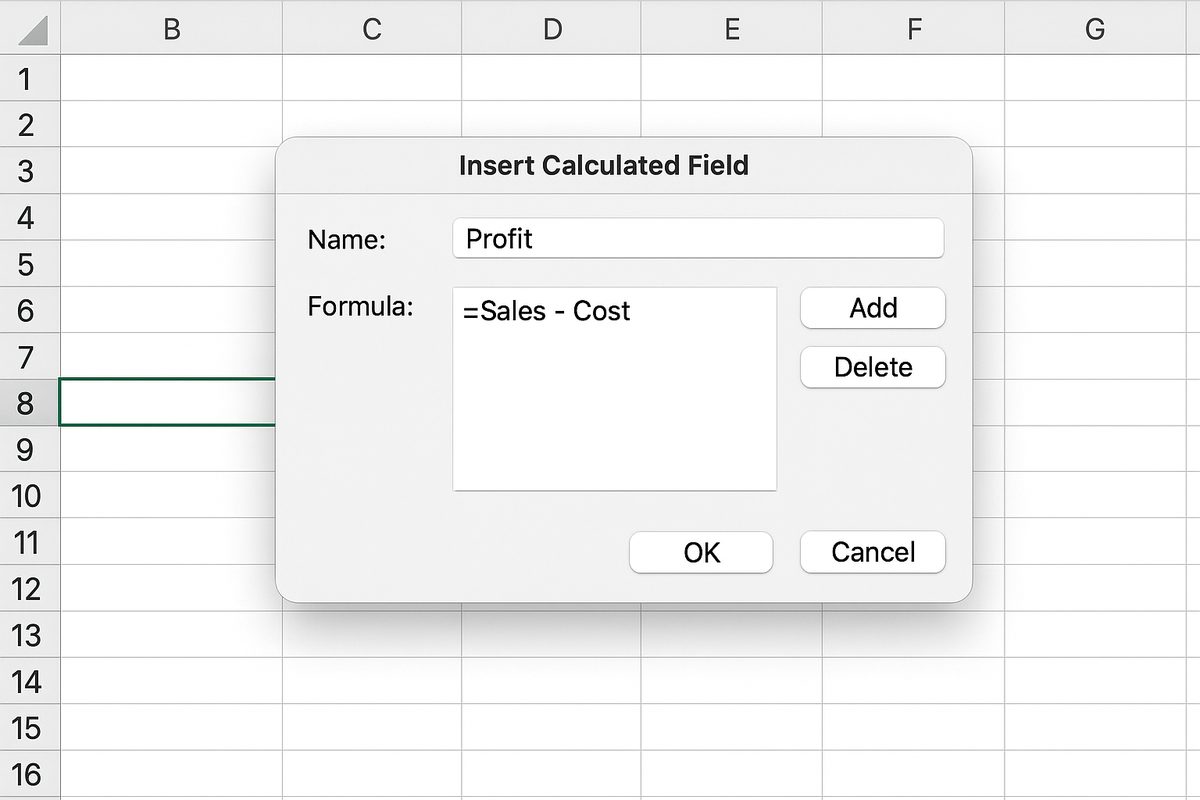
- Define the Calculated Field: In the dialog box, enter a name for your calculated field and type a formula using existing field names. For example, if you have fields named “Sales” and “Cost”, you can create a calculated field named “Profit” with the formula
=Sales - Cost. - Add the Field: Click Add then OK. The new calculated field will appear in your pivot table values area.
Example: Calculating Profit Margin
Assuming you have a sales dataset with fields “Sales” and “Cost”, you can create a calculated field called “Profit” and then another called “Profit Margin”.
- Profit:
=Sales - Cost - Profit Margin:
=Profit / Sales
Note: Calculated fields operate on aggregated data, so the calculation is performed on the sum of Sales and Cost for the relevant pivot table grouping.
Using Calculated Items for Custom Calculations
Calculated items let you create custom calculations between specific items within a field. This is useful if you want to compare or combine individual items.
Example: Comparing Product Sales
Suppose your pivot table has a field called “Product” with items “Product A” and “Product B”. You can create a calculated item named “Difference” with the formula = 'Product A' - 'Product B' to display the sales difference between these two products.
Steps to Create Calculated Items
- Select a cell in the pivot table column or row where the field is located.
- Go to PivotTable Analyze > Fields, Items & Sets > Calculated Item.
- Enter the name and formula for your calculated item.
- Click Add then OK.
Practical Examples of Pivot Table Custom Calculations
1. Calculating Running Totals
Running totals show cumulative sums over a period. While Excel offers a built-in running total option, you can also create custom running totals using calculated fields or value field settings.
2. Percentage of Grand Total
You can calculate each item’s contribution to the grand total by creating a calculated field or by using the “Show Values As” option in the pivot table value field settings.
3. Custom Profitability Metrics
For example, if you track sales and returns, you can create a calculated field for Net Sales (=Sales - Returns) and then calculate profit margin based on net sales.
Tips for Effective Use of Custom Calculations
- Use Clear Field Names: When defining calculated fields, use descriptive names for easy reference.
- Test Formulas: Validate your formulas to ensure accuracy in your pivot table results.
- Remember Aggregation Behavior: Calculated fields work on aggregated data; they don’t calculate row-by-row.
- Limitations: Avoid using calculated fields with text fields or complex array formulas, as they may not work as expected.
Frequently Asked Questions
For more clarity, here are some common questions about pivot table custom calculations.
Related Articles
- Pivot Tables Tutorial: A Beginner’s Guide to Summarizing Data
- What Is a Pivot Table and How Can It Help You Analyze Data?
- How to Create a Pivot Table in Excel Step-by-Step
- Understanding Pivot Table Fields: Rows, Columns, Filters, and Values Explained
- Advanced Pivot Table Techniques to Master Data Analysis
Want practical Excel help?
Support free Excel tutorials, get weekly tips, or contact us for Excel programming, VBA, Power Query, dashboards, and automation work.