Power Query Tutorial: Getting Started with Data Transformation
Introduction
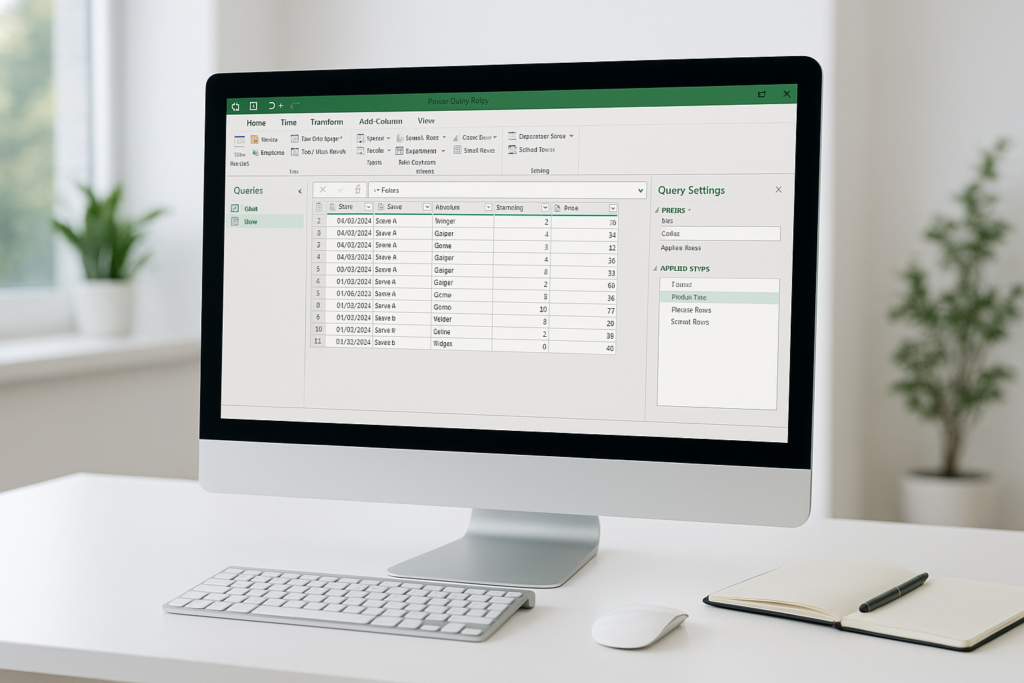
Power Query is a powerful data connection technology that enables you to discover, connect, combine, and refine data sources to meet your analysis needs. Whether you’re an Excel user or working with Power BI, understanding how to use Power Query effectively can save you significant time and effort in preparing your data. This tutorial will guide you through the basics of Power Query, showing you how to get started with data transformation step-by-step.
What is Power Query?
Power Query is a data transformation and data preparation tool integrated into Microsoft Excel and Power BI. It allows users to extract data from various sources, transform it through a user-friendly interface without the need for coding, and load it into Excel worksheets or data models. Common transformations include filtering rows, changing data types, merging tables, and pivoting data.
Getting Started with Power Query
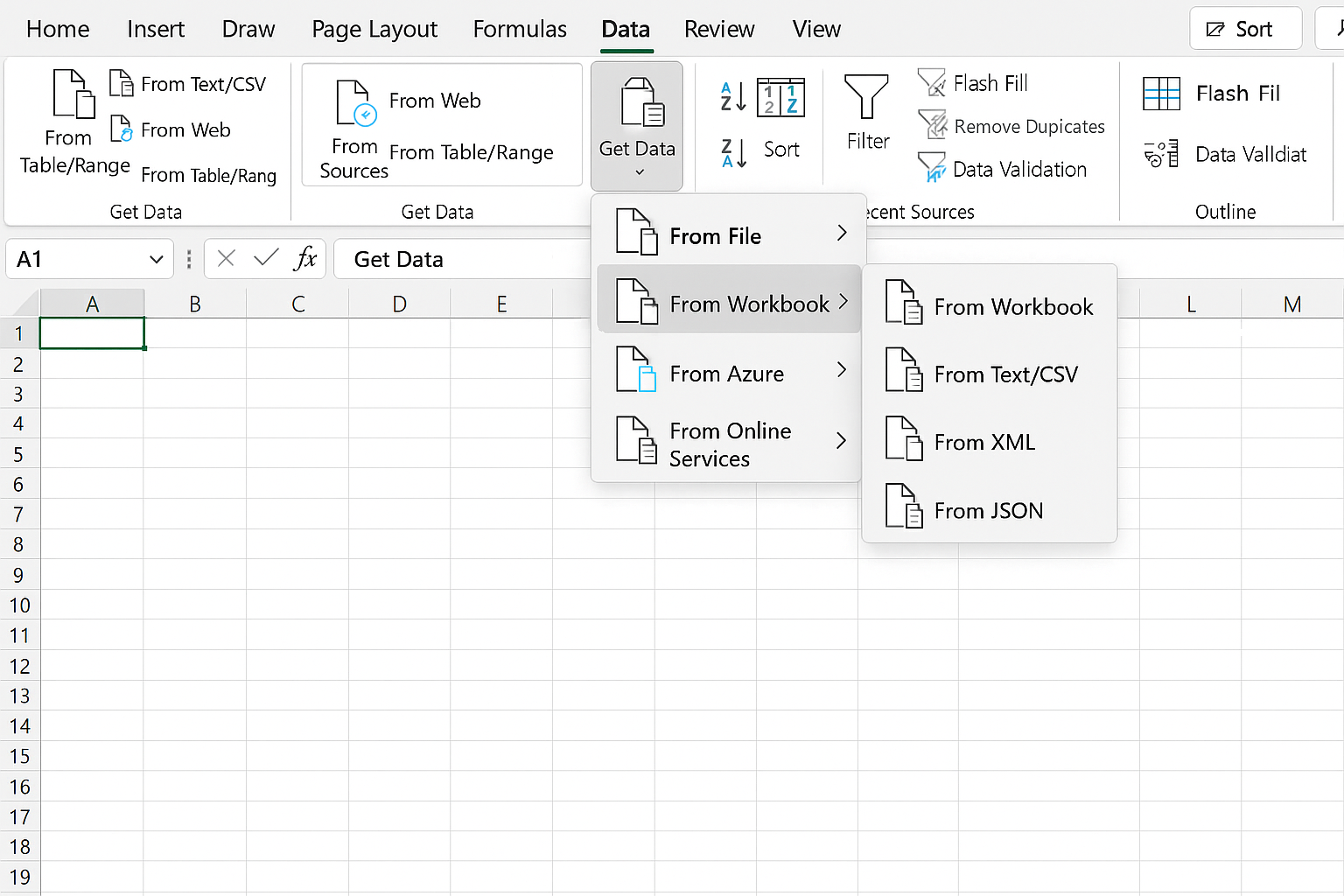
To access Power Query in Excel, go to the Data tab and select Get & Transform Data. From there, you can connect to various data sources like Excel workbooks, CSV files, databases, web pages, and more.
Example: Importing Data from an Excel File
- Click Data > Get Data > From File > From Workbook.
- Navigate to your Excel file and select it.
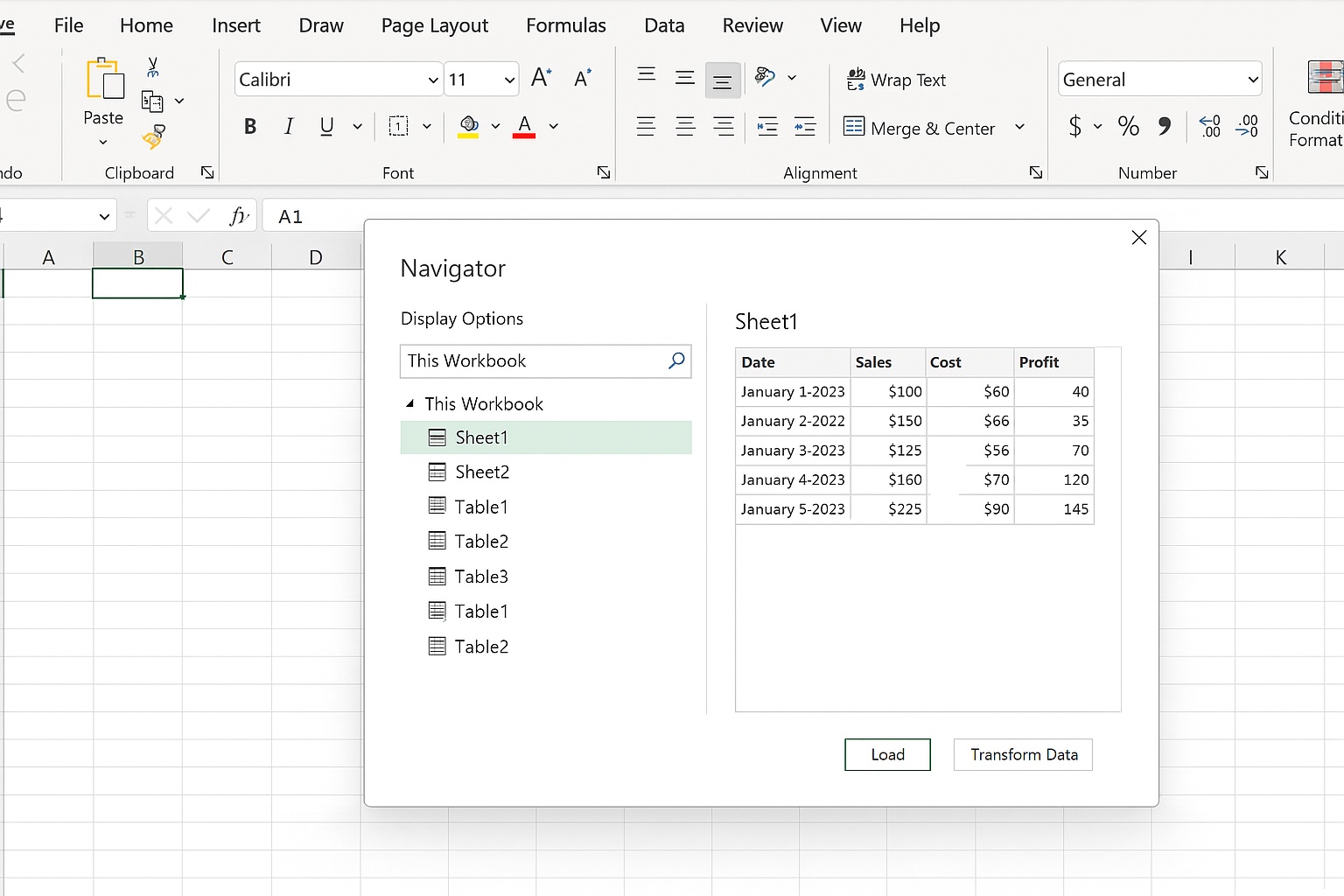
- In the Navigator window, select the worksheet or table you want to import.
- Click Transform Data to open the Power Query Editor.
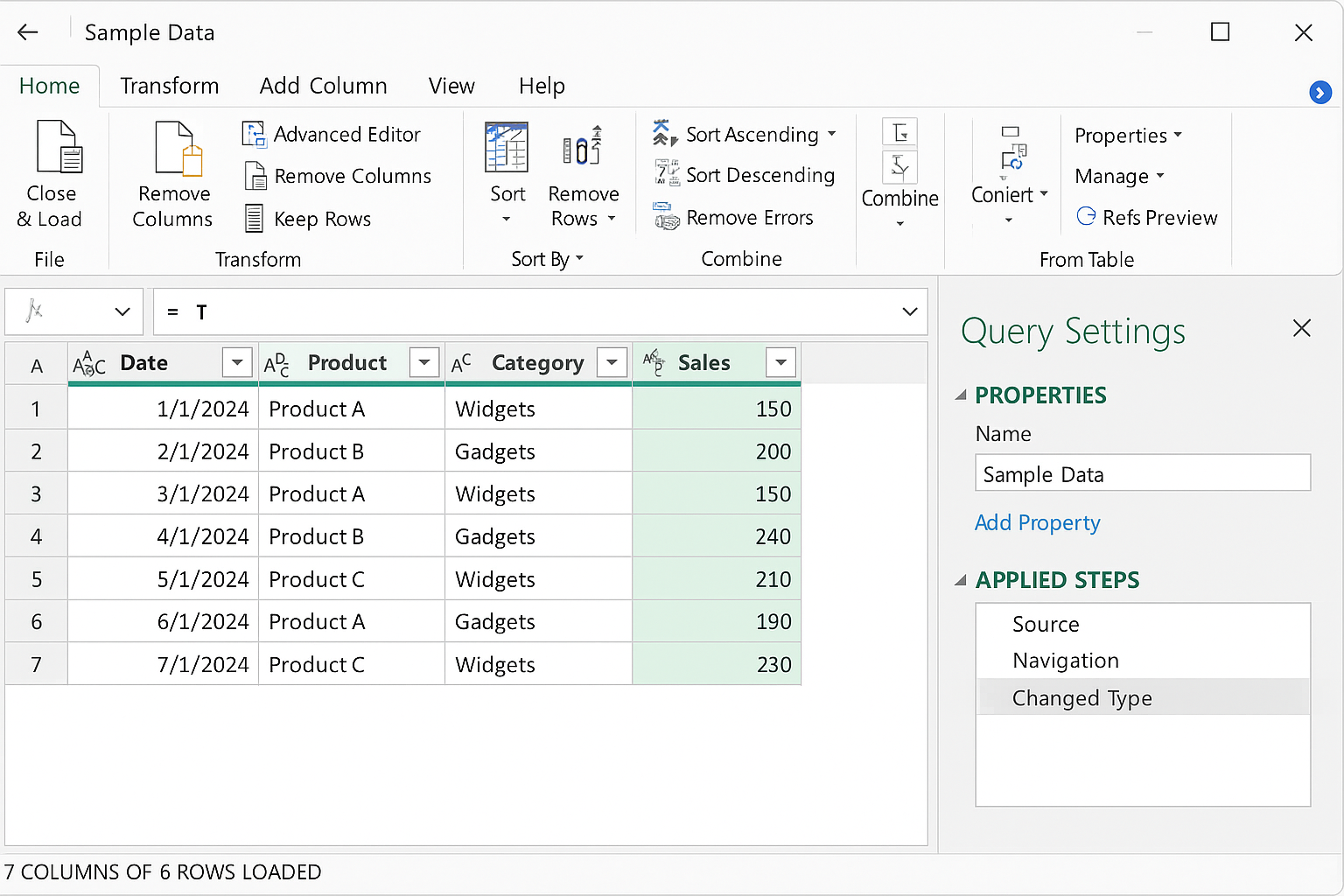
This opens the Power Query Editor where you can start applying transformations.
Basic Data Transformation Techniques
Once your data is loaded into Power Query Editor, you can apply various transformations. Here are some practical examples:
1. Removing Columns
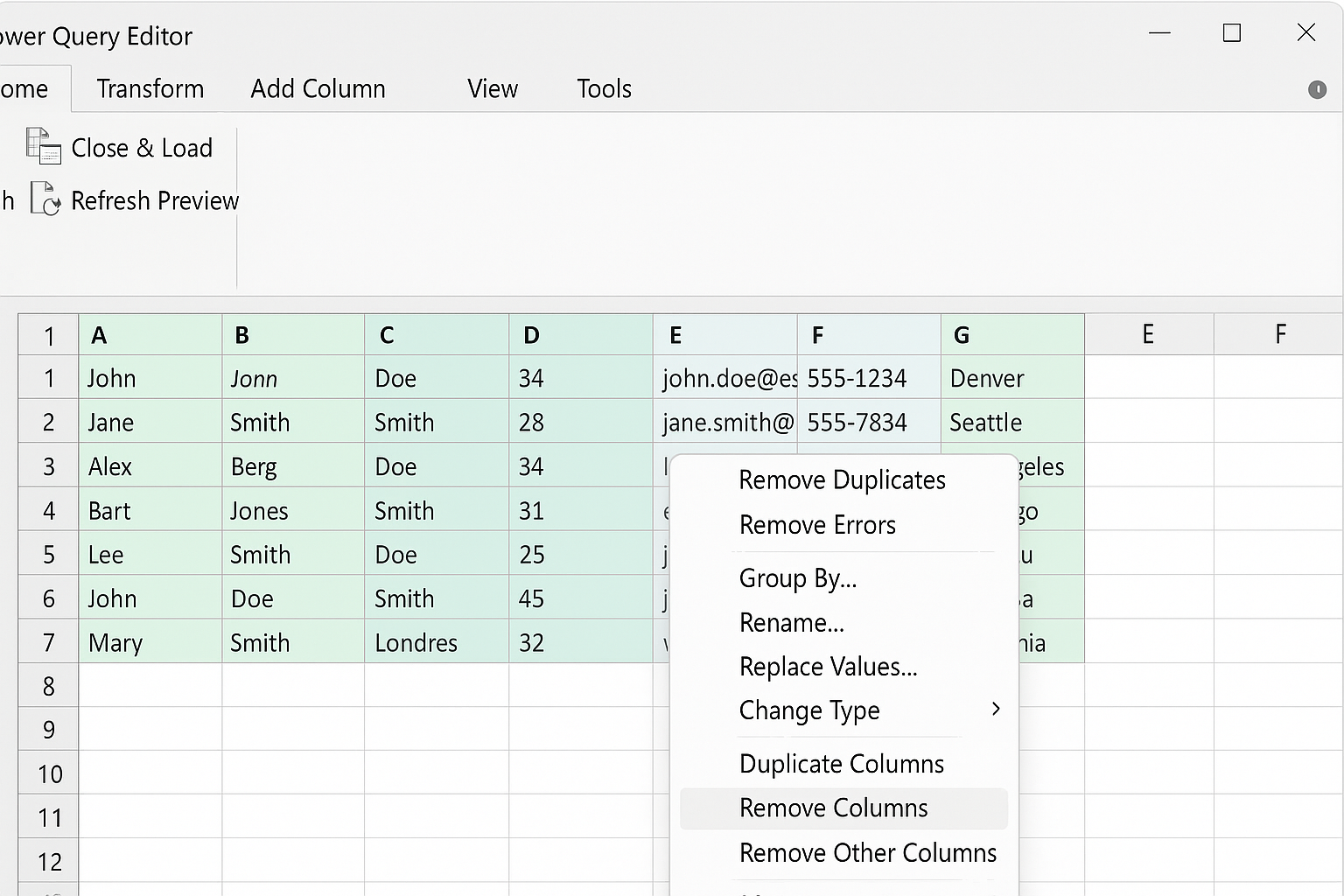
If your data has unnecessary columns, select them, right-click, and choose Remove Columns. This helps in focusing on relevant data.
2. Filtering Rows
Use the filter dropdown in column headers to include or exclude data. For example, filter out rows where sales are less than a certain amount.
3. Changing Data Types
Ensure your columns have the correct data types. Click the icon next to the column header and select the appropriate type (e.g., text, number, date).
4. Splitting Columns
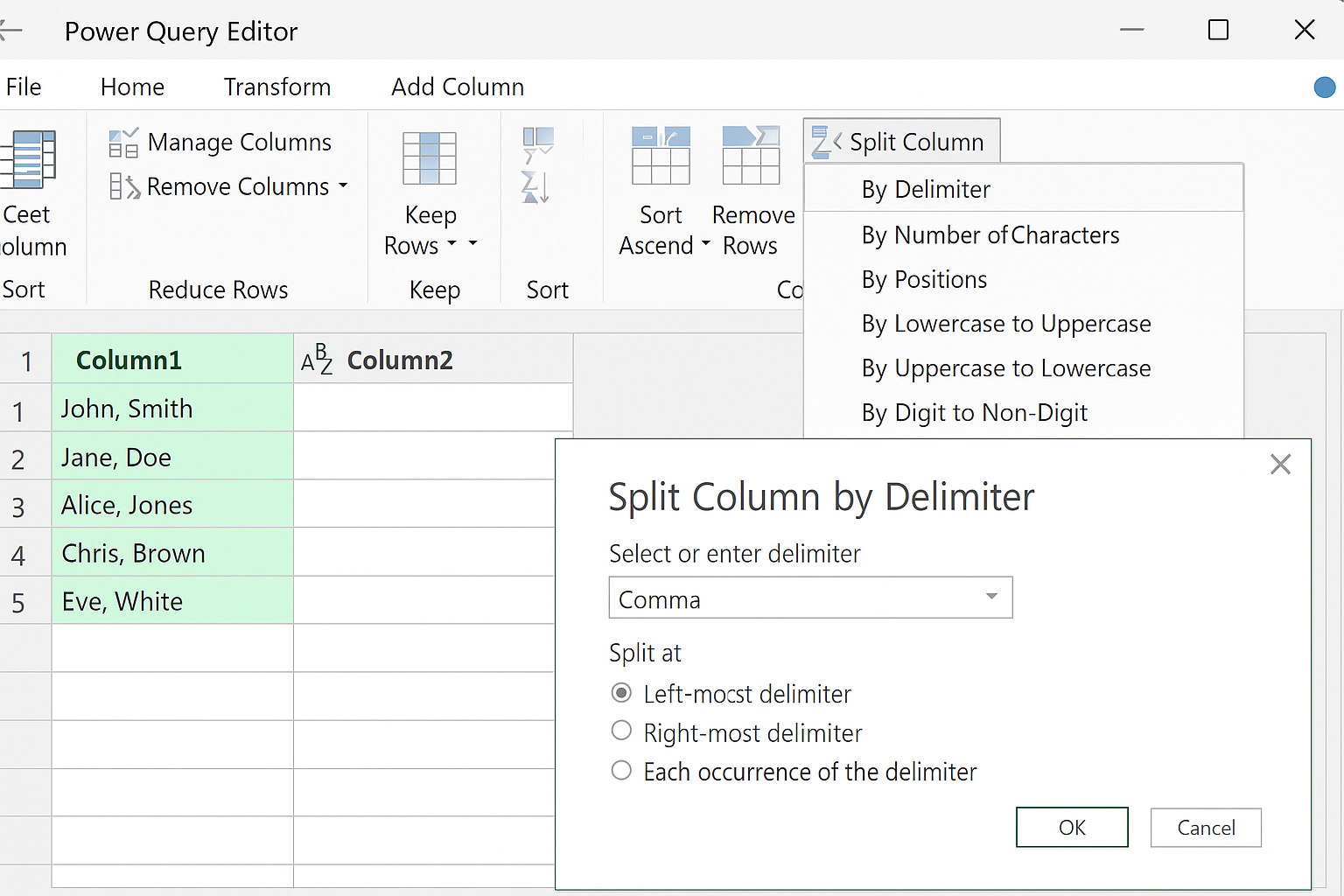
Sometimes data is combined in one column, like “City, State”. You can split this into two columns by selecting the column > Split Column > By Delimiter and choosing the comma as the delimiter.
5. Merging Queries
Combine data from two different queries using Merge Queries. This is useful for joining related tables, similar to a VLOOKUP operation.
Practical Example: Cleaning Sales Data
Imagine you have a sales dataset with columns like Order ID, Customer Name, Order Date, Product, and Sales Amount. Here’s how to clean and prepare it:
- Remove unnecessary columns like Order ID if not needed.
- Filter out rows where Sales Amount is null or zero.
- Change the Order Date column to Date type.
- Split Customer Name into First Name and Last Name if needed.
- Sort the data by Sales Amount descending to identify top sales.
Loading Transformed Data Back to Excel
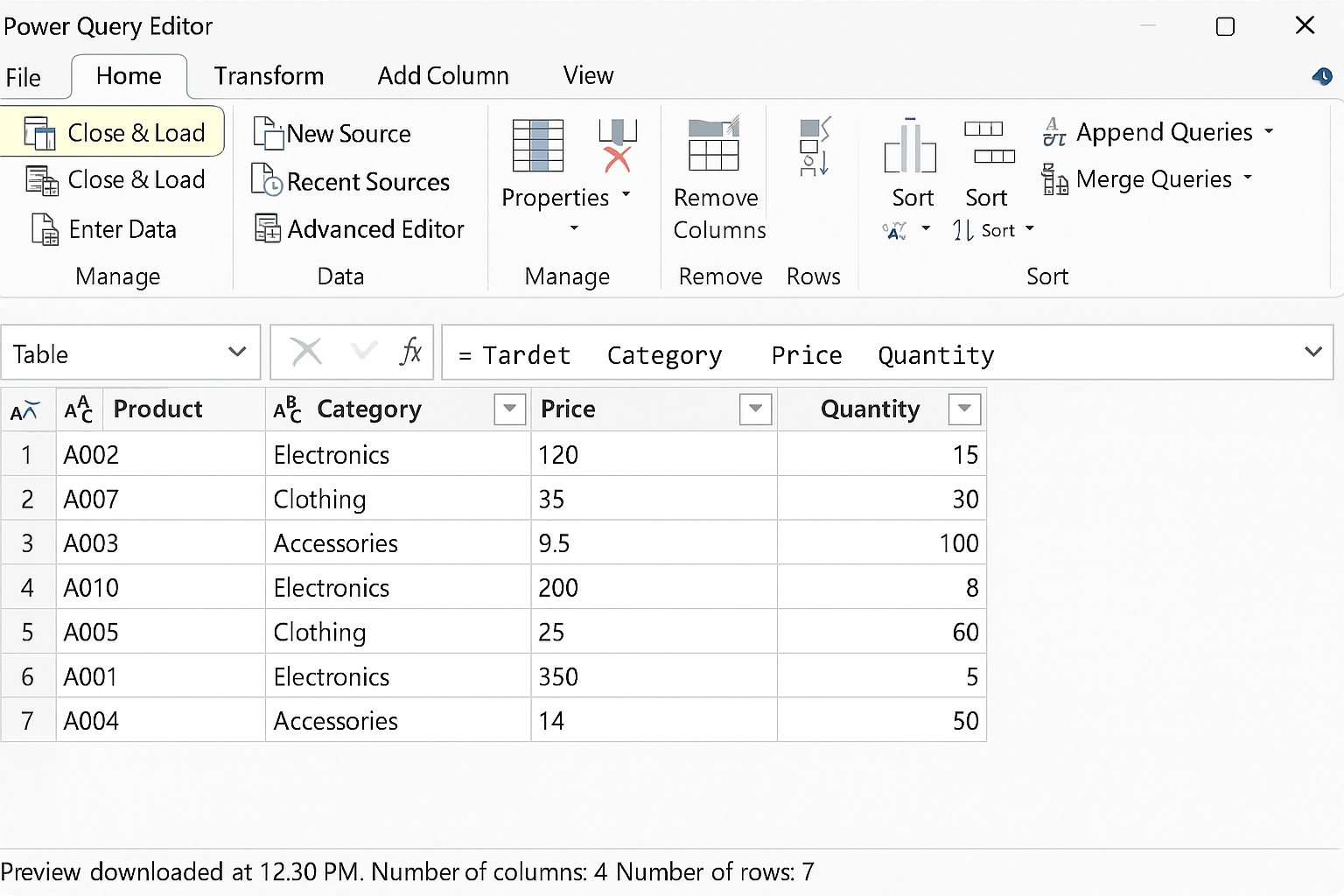
After completing your transformations, click Home > Close & Load to load the cleaned data back into an Excel worksheet or data model. You can refresh this query anytime to update your data with new source data.
Tips for Effective Use of Power Query
- Save your queries: Keep your Power Query steps saved so you can reuse or modify them later.
- Use descriptive step names: Rename query steps to make your transformations easier to understand.
- Combine queries: Use merge and append operations to combine multiple data sources efficiently.
- Experiment with the Advanced Editor: For advanced users, you can edit the M code directly to customize transformations.
FAQ
What types of data sources can Power Query connect to?
Power Query supports numerous data sources including Excel files, CSV, XML, JSON, SQL databases, SharePoint lists, web pages, and many others.
Is Power Query available in all versions of Excel?
Power Query is natively integrated in Excel 2016 and later versions. For Excel 2010 and 2013, it is available as a free add-in.
Can Power Query handle large datasets?
Yes, Power Query is designed to handle large datasets efficiently, but performance depends on your system and complexity of transformations.
Does Power Query require programming knowledge?
No, Power Query offers a user-friendly interface for most tasks, but advanced users can leverage the M language for complex operations.
How do I refresh data in Power Query?
After loading data, simply click Refresh in Excel to update your data with changes from the original source.
Related Articles
- Understanding the Power Query Interface: A Beginner’s Guide
- How to Use Power Query in Excel for Efficient Data Cleaning
- Top 10 Excel Power Query Tips to Boost Your Data Analysis
- Mastering Data Transformation with Power Query: Step-by-Step Guide
- How to Merge Queries in Power Query for Advanced Data Analysis
Want practical Excel help?
Support free Excel tutorials, get weekly tips, or contact us for Excel programming, VBA, Power Query, dashboards, and automation work.