How to Automatically Refresh Data in Excel Using Power Query
Introduction
Power Query is a powerful tool in Excel designed to simplify data importation, transformation, and automation processes. One of its most valuable features is the ability to refresh data automatically, ensuring your reports and dashboards are always up to date without manual intervention. This article guides you through the process of setting up automatic data refresh in Excel using Power Query, complete with practical examples to optimize your workflow.
What is Power Query Refresh Data?
Power Query refresh data refers to the process where Excel updates the data imported or transformed through Power Query queries. When your data sources change—be it files, databases, or online feeds—refreshing allows Excel to fetch the latest information and apply existing transformations automatically. This keeps your data models and reports accurate and current.
Why Automate Data Refresh in Excel?
- Save time: Avoid repetitive manual refreshes, especially when dealing with large or multiple data sources.
- Maintain accuracy: Ensure reports always reflect the most recent data.
- Improve productivity: Automate routine tasks, enabling focus on data analysis rather than data management.
Step-by-Step Guide to Automatically Refresh Data in Excel Using Power Query
Step 1: Import Data Using Power Query
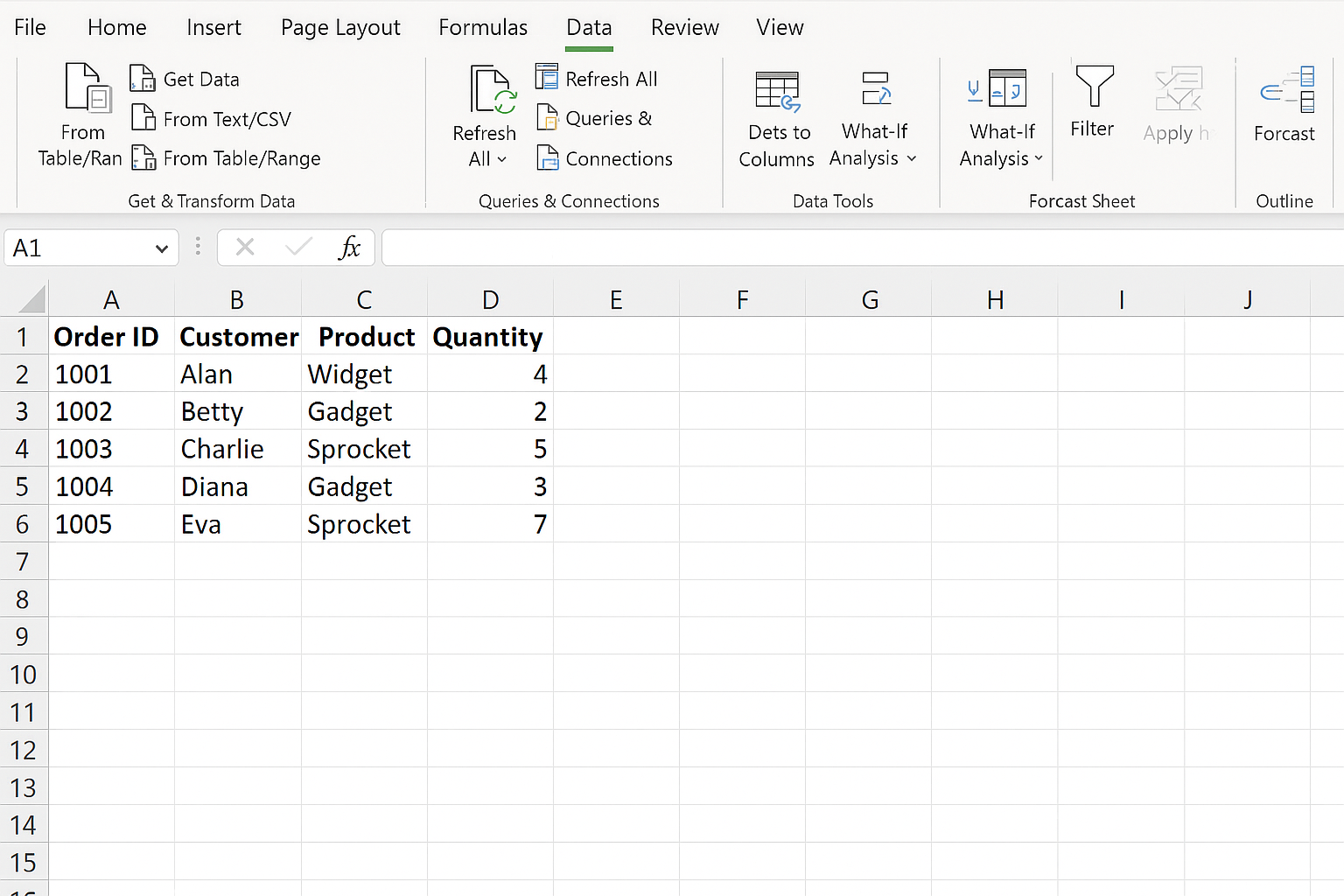
1. Open Excel and navigate to the Data tab.
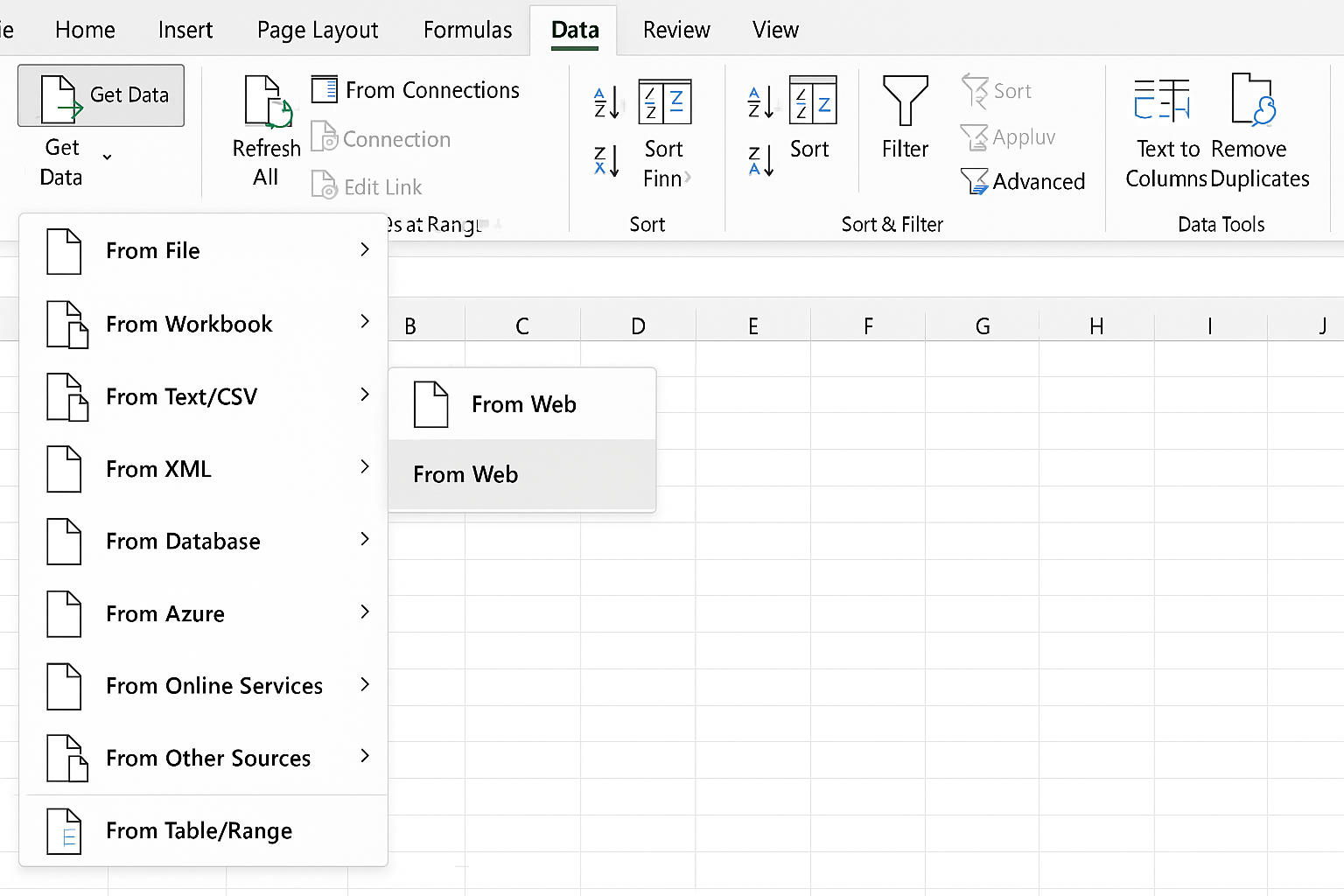
2. Click on Get Data then choose your data source—for example, From File > From Workbook or From Web.
3. Select the data file and click Import. The Power Query Editor window will open.
4. Perform any necessary transformations such as filtering rows, renaming columns, or merging tables.
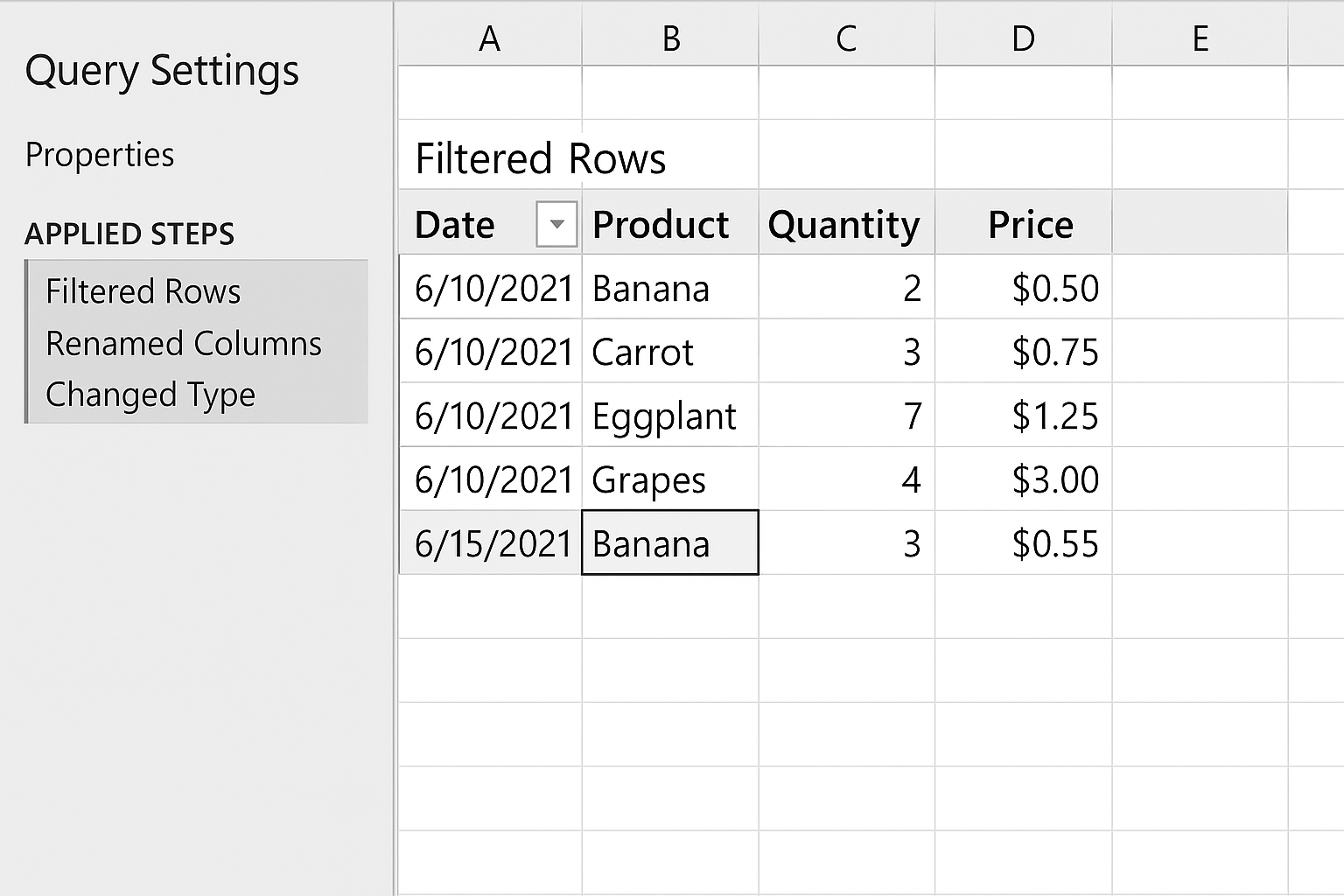
5. Click Close & Load to load the data into Excel.
Step 2: Enable Background Refresh
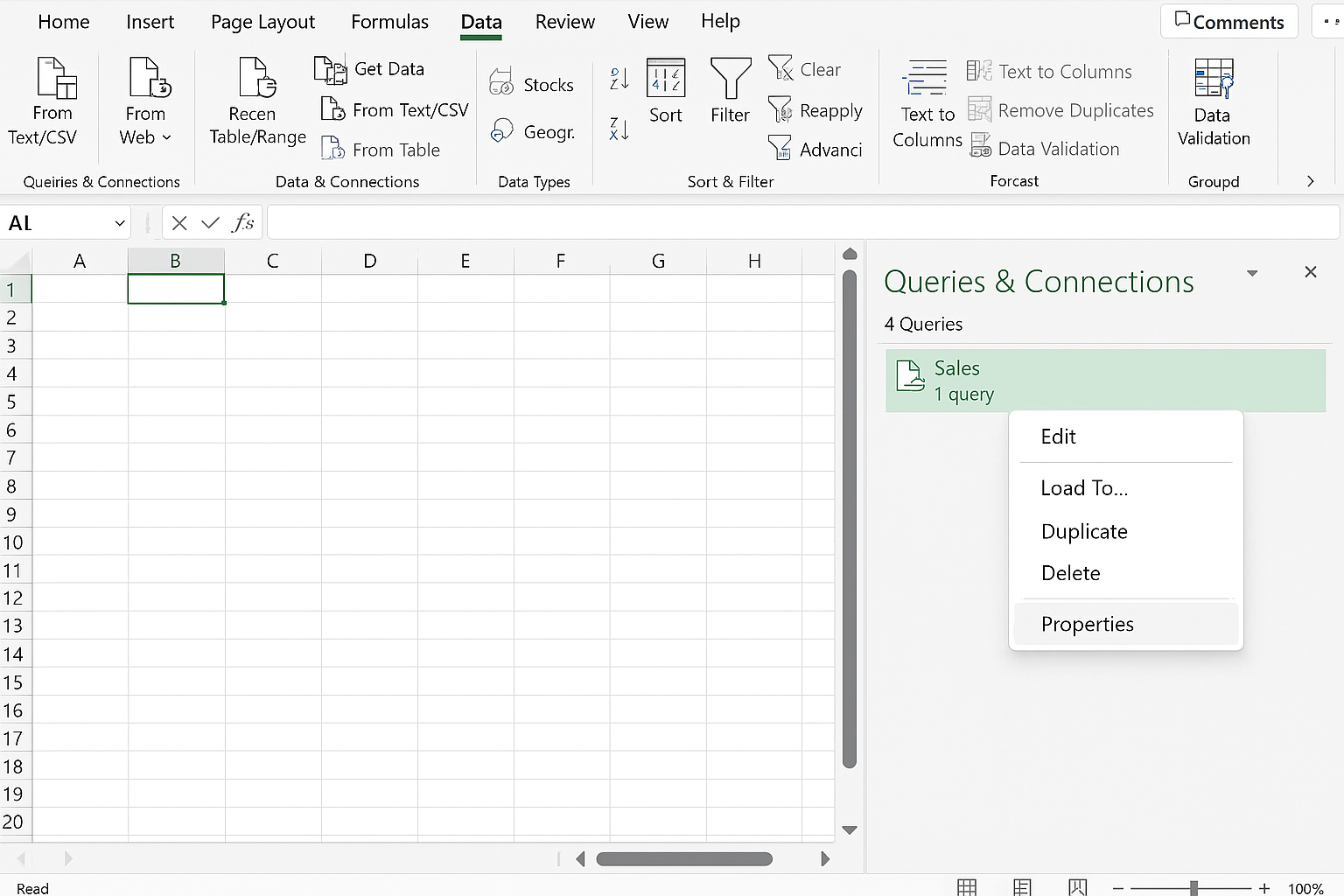
1. On your worksheet, go to the Data tab and select Queries & Connections.
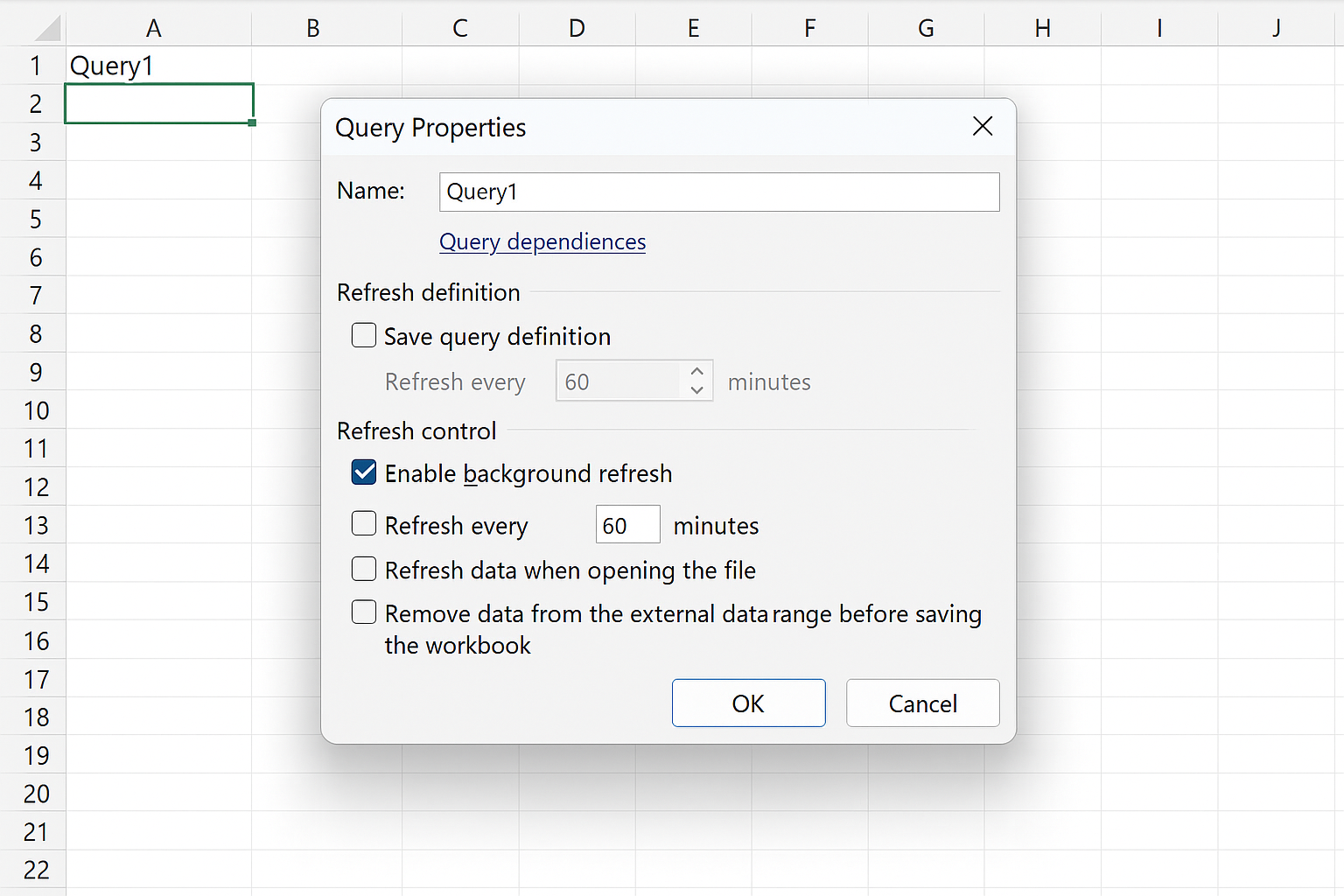
2. In the pane, right-click your query and select Properties.
3. In the Query Properties dialog box, check the option Enable background refresh. This allows Excel to refresh the data without interrupting your work.
Step 3: Set Automatic Refresh Interval
1. In the same Query Properties window, check Refresh every and specify the interval in minutes (e.g., 60 minutes).
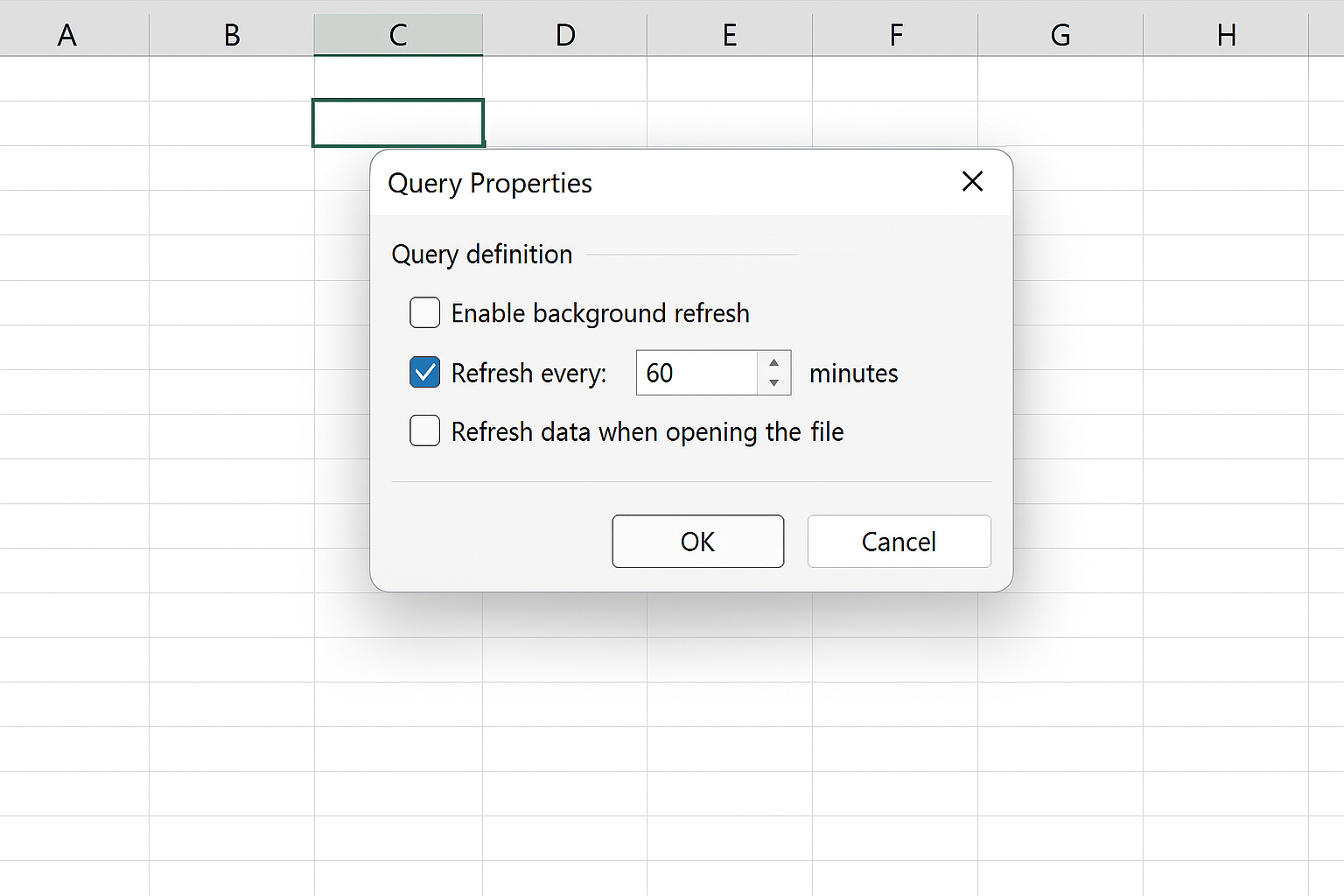
2. Click OK to save the settings.
This setting ensures Excel refreshes your Power Query data at the specified intervals automatically.
Step 4: Refresh Data on File Open
1. To refresh data every time the Excel file opens, check Refresh data when opening the file in Query Properties.
This guarantees that the data is always current when you or other users open the workbook.
Step 5: Using VBA for Advanced Automation (Optional)
For more control, such as refreshing multiple queries or triggering refreshes based on events, VBA (Visual Basic for Applications) can be used.
Example VBA code to refresh all queries on workbook open:
Private Sub Workbook_Open()
  ThisWorkbook.RefreshAll
End Sub
To add this code:
- Press Alt + F11 to open the VBA editor.
- Double-click ThisWorkbook in the Project pane.
- Paste the code above.
- Save the workbook as a macro-enabled file (.xlsm).
Practical Example: Automatically Refreshing Sales Data from an Excel File
Imagine you have monthly sales data stored in a separate Excel file named SalesData.xlsx. You want to import this data into your main report and have it refresh automatically every time you open the report or every hour.
Steps:
- Use Power Query to import data from SalesData.xlsx.
- Transform the data as needed (e.g., filter by date or product category).
- Enable background refresh and set it to refresh every 60 minutes.
- Enable refresh on file open.
With these settings, your sales report will always display the latest data without manual intervention.
Tips for Troubleshooting Power Query Refresh Issues
- Check data source accessibility: Ensure the source file or database is accessible and not moved or renamed.
- Review query errors: Open Power Query Editor to identify and resolve transformation errors.
- Manage credentials: Verify that Excel has the correct permissions to access the data source.
- Disable conflicting add-ins: Sometimes add-ins can interfere with refresh operations.
FAQ
Can Power Query refresh data automatically without opening Excel?
Power Query refreshes data only when the Excel file is opened or a manual/automatic refresh is triggered within Excel. To refresh data without opening Excel, consider using Power BI or scheduled scripts outside of Excel.
Does Power Query refresh data connected to online sources?
Yes, Power Query can refresh data from online sources like web pages, databases, or APIs, provided the connection and credentials are valid.
How can I refresh multiple queries at once?
Use the Refresh All button on the Data tab or VBA code (e.g., ThisWorkbook.RefreshAll) to refresh all queries simultaneously.
Will automatic refresh slow down my workbook?
Frequent or complex refreshes may impact performance. Set appropriate intervals and optimize queries to minimize delays.
Can I schedule Power Query refreshes to run overnight?
Excel itself does not support background scheduled refresh without being open. To run overnight refreshes, use Power BI or automate with Windows Task Scheduler and scripts.
Conclusion
Automating data refresh in Excel using Power Query is a practical way to keep your data accurate and save time. By configuring background refresh, setting refresh intervals, and optionally using VBA, you can ensure your reports and dashboards always display the most recent data with minimal manual effort. This improves efficiency and empowers better decision-making based on up-to-date information. Implement these techniques today to elevate your Excel automation skills and make your data workflows seamless and reliable.
Related Articles
- Power Query Tutorial: Getting Started with Data Transformation
- Understanding the Power Query Interface: A Beginner’s Guide
- How to Use Power Query in Excel for Efficient Data Cleaning
- Top 10 Excel Power Query Tips to Boost Your Data Analysis
- Mastering Data Transformation with Power Query: Step-by-Step Guide
Want practical Excel help?
Support free Excel tutorials, get weekly tips, or contact us for Excel programming, VBA, Power Query, dashboards, and automation work.