How to Handle Common Errors in Power Query Effectively

Introduction
Power Query is a powerful data connection technology that enables Excel users to automate and streamline data import and transformation tasks. Despite its robust capabilities, users often encounter errors during data processing. Effective Power Query error handling is essential to maintain smooth workflows, ensure data accuracy, and improve troubleshooting efficiency. This article explores the most common errors in Power Query, practical methods to handle them, and tips to optimize your queries for error-free performance.
Understanding Common Power Query Errors
Before diving into error handling techniques, it’s important to recognize typical Power Query errors. Some of the common errors include:
- Expression.Error: Usually caused by syntax issues or invalid operations in the M code.
- DataFormat.Error: Occurs when the data format does not match expected input, such as parsing dates or numbers.
- Formula.Firewall: Security error triggered by combining data sources with different privacy levels.
- Refresh Errors: Happen when Power Query fails to update due to missing files, broken connections, or incompatible data.
Techniques for Effective Power Query Error Handling
1. Using Try and Otherwise Expressions
The try ... otherwise expression is a powerful tool to catch and handle errors gracefully. It allows you to attempt an operation and provide a fallback result if an error occurs.
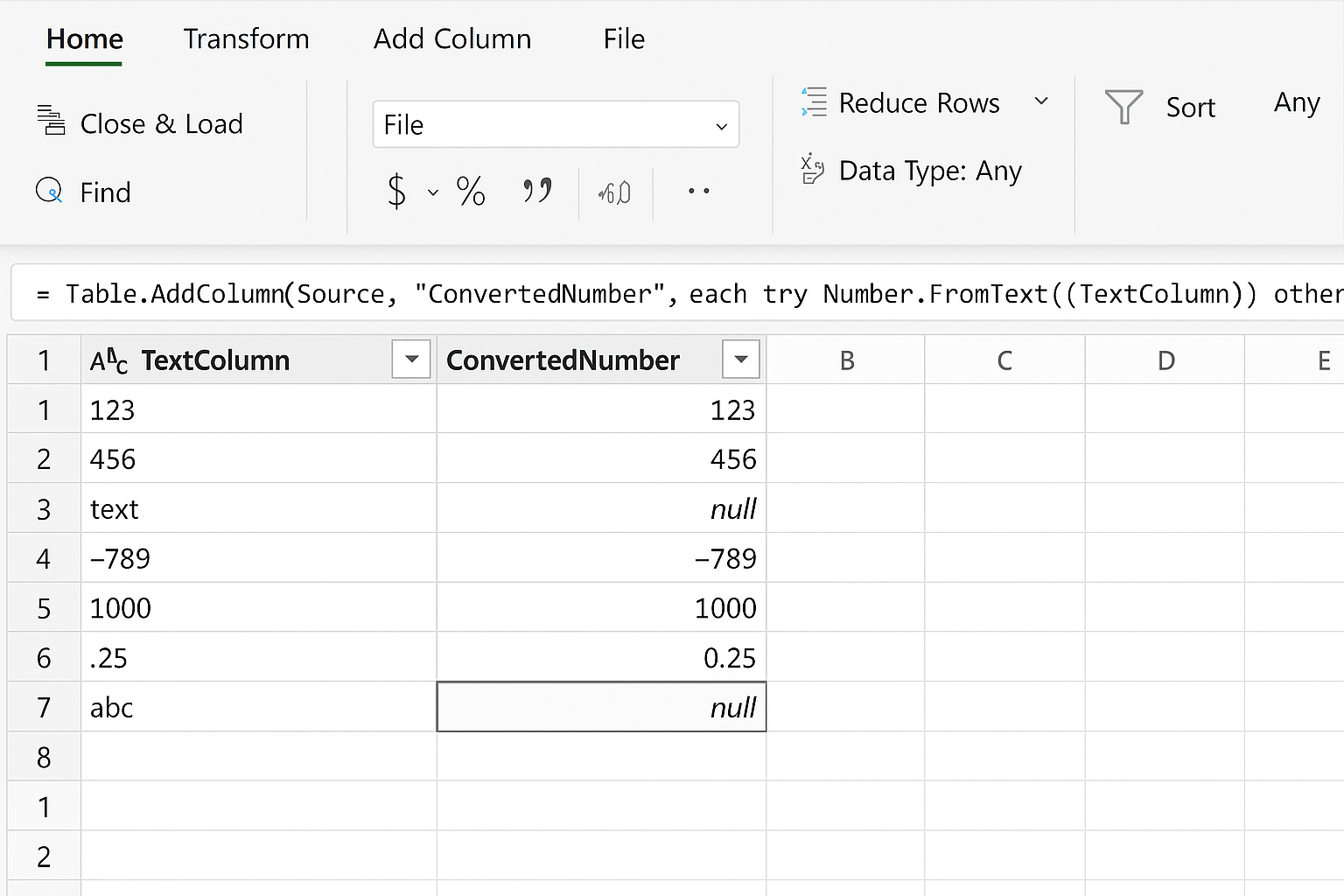
Example: Suppose you are converting a column to numbers but some values are not numeric. You can handle these errors as follows:
= Table.AddColumn(Source, "ConvertedNumber", each try Number.FromText([TextColumn]) otherwise null)This adds a new column where invalid conversions return null instead of stopping the query.
2. Validating Data Types Before Transformation
Before applying transformations, validate the data type of columns to avoid format errors.
Example: Use conditional logic to check if a value can be converted to date type:
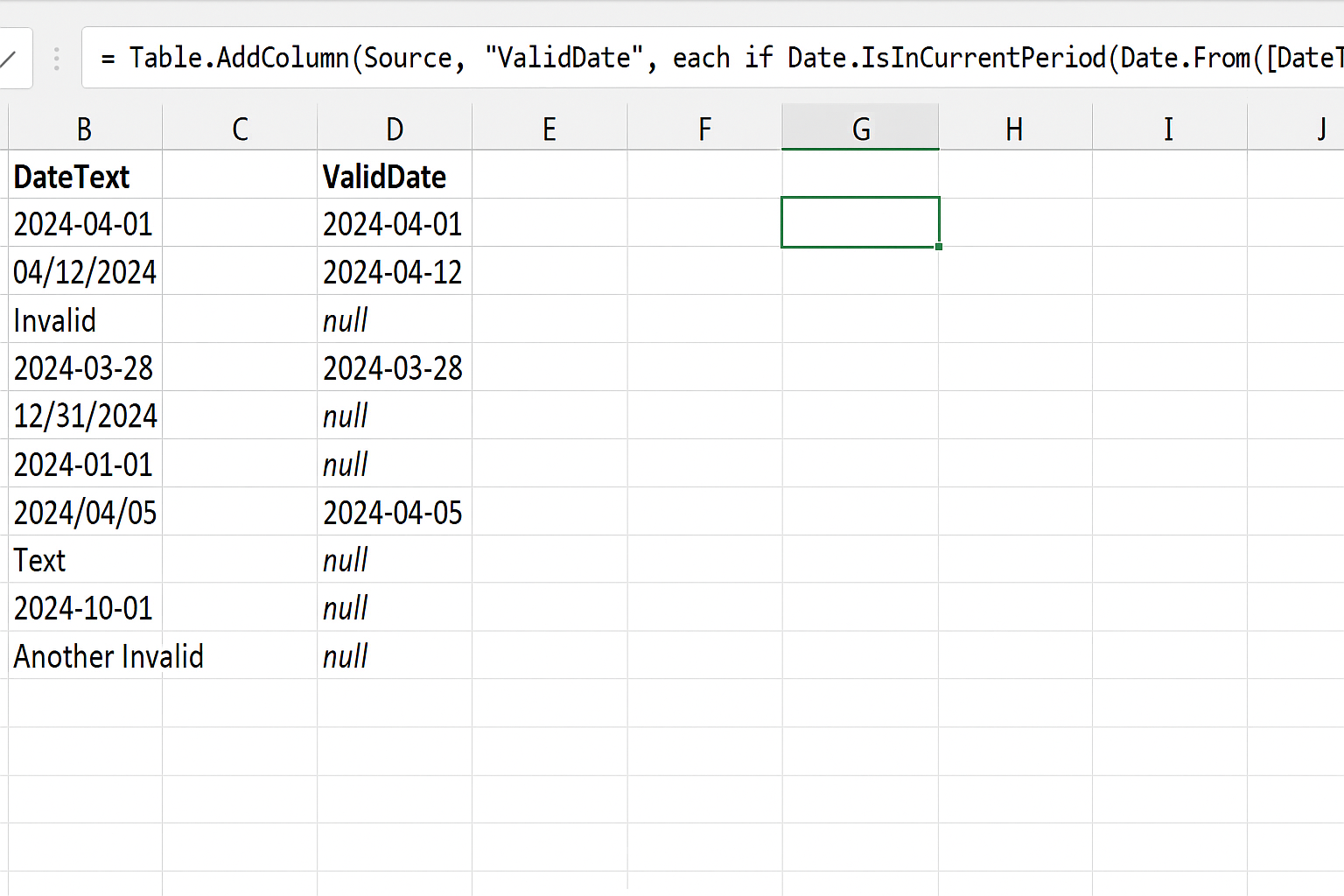
= Table.AddColumn(Source, "ValidDate", each if Date.IsInCurrentPeriod(Date.From([DateText])) then Date.From([DateText]) else null)This ensures only valid dates are processed.
3. Handling Missing or Null Values
Missing data is a frequent cause of errors. Use functions like Table.ReplaceValue or Table.FillDown to deal with nulls.
Example: Replace null values in a column with a default value:
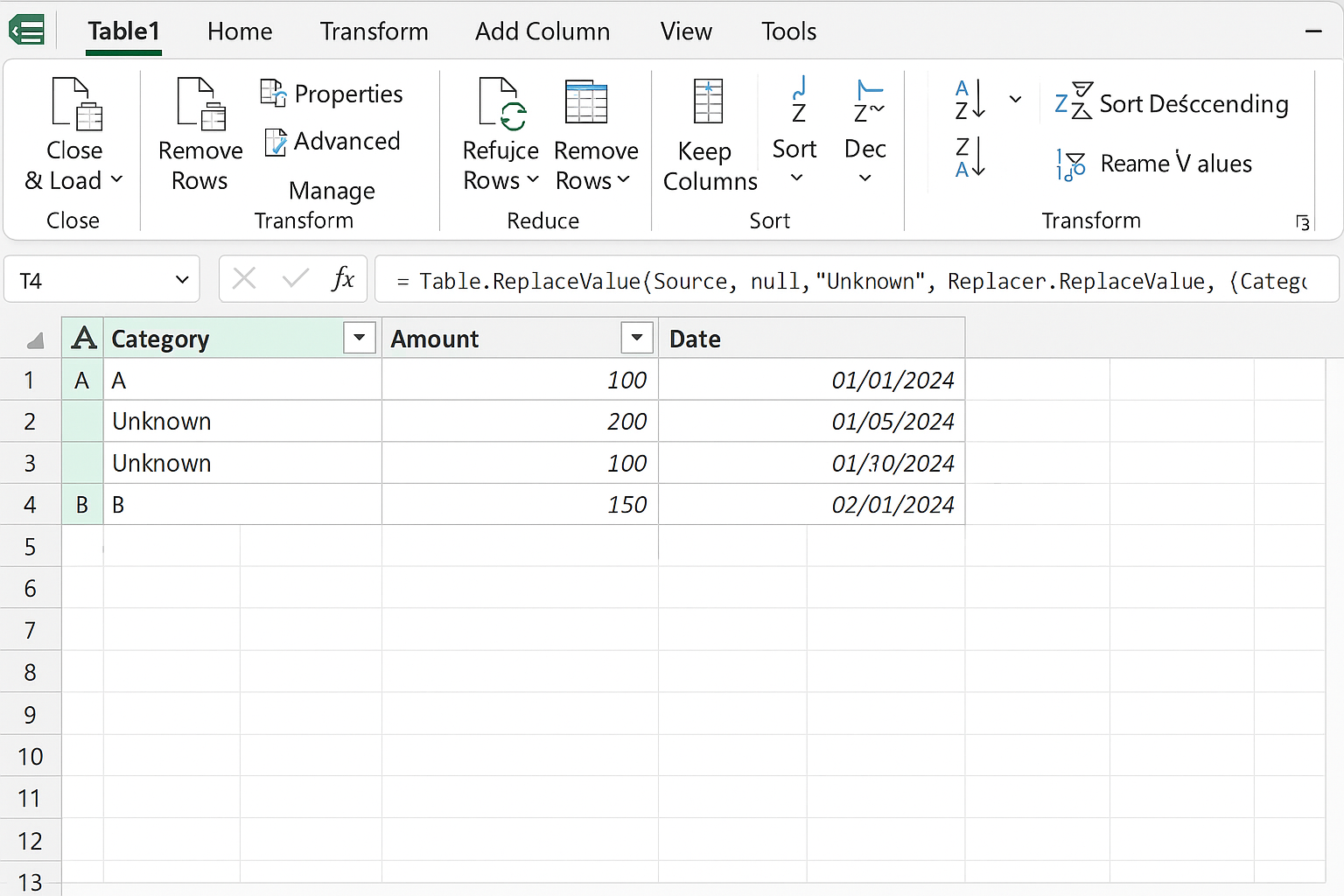
= Table.ReplaceValue(Source, null, "Unknown", Replacer.ReplaceValue, {"Category"})4. Managing Privacy Settings to Avoid Formula.Firewall Errors
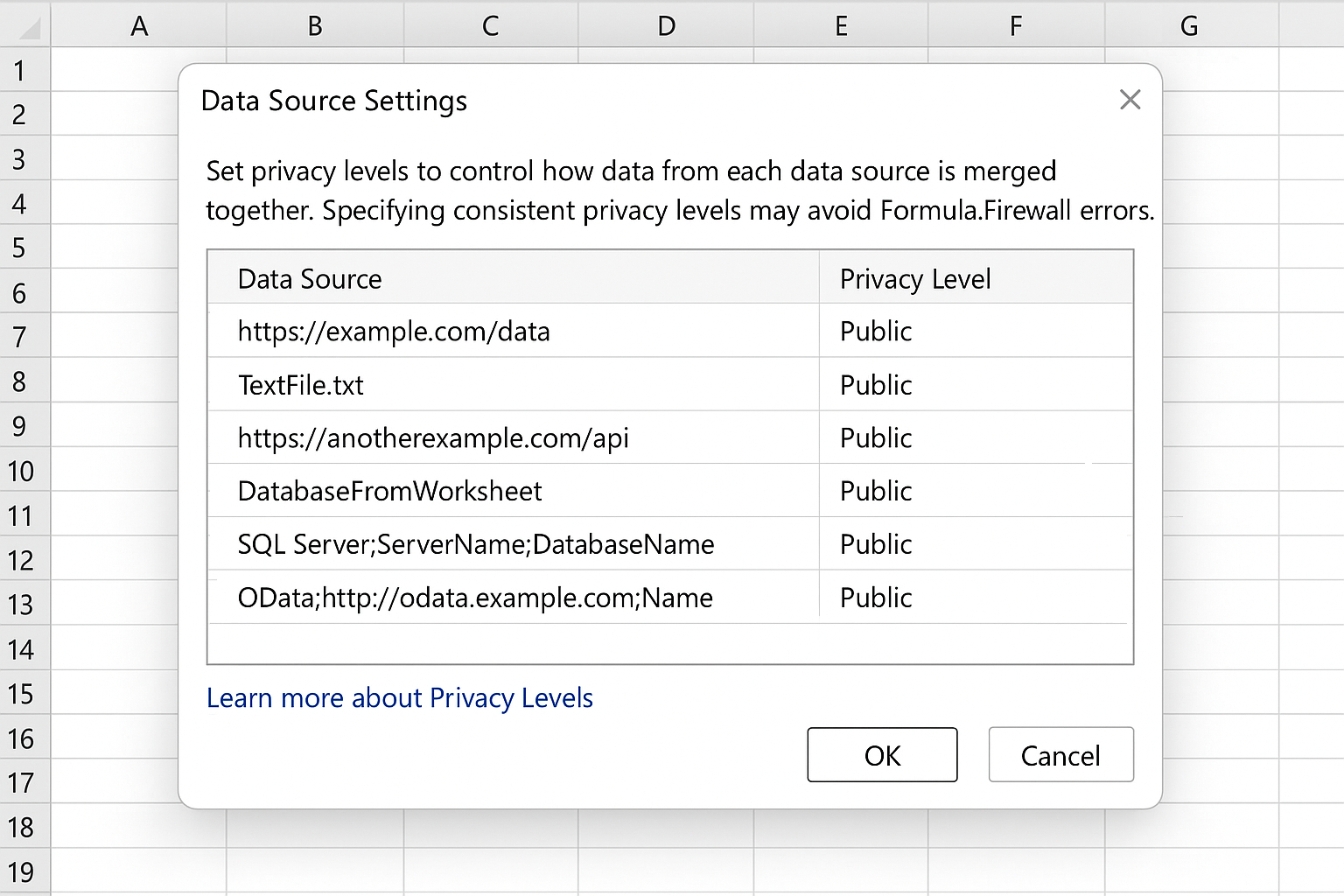
Formula.Firewall errors arise when combining data sources with conflicting privacy levels. To fix this:
- Set all sources to the same privacy level in Data Source Settings.
- Disable Privacy Levels temporarily (not recommended for sensitive data).
- Use
Table.Bufferto isolate queries.
5. Debugging with Step-by-Step Evaluation
Break down complex queries into smaller steps and preview results step-by-step. This helps isolate the step causing the error.
Example: If a join operation causes errors, check both tables individually first.
Practical Example: Handling Errors in a Sales Data Import
Imagine importing sales data from CSV files where some rows have missing price values or invalid dates.
Step 1: Load the CSV file.
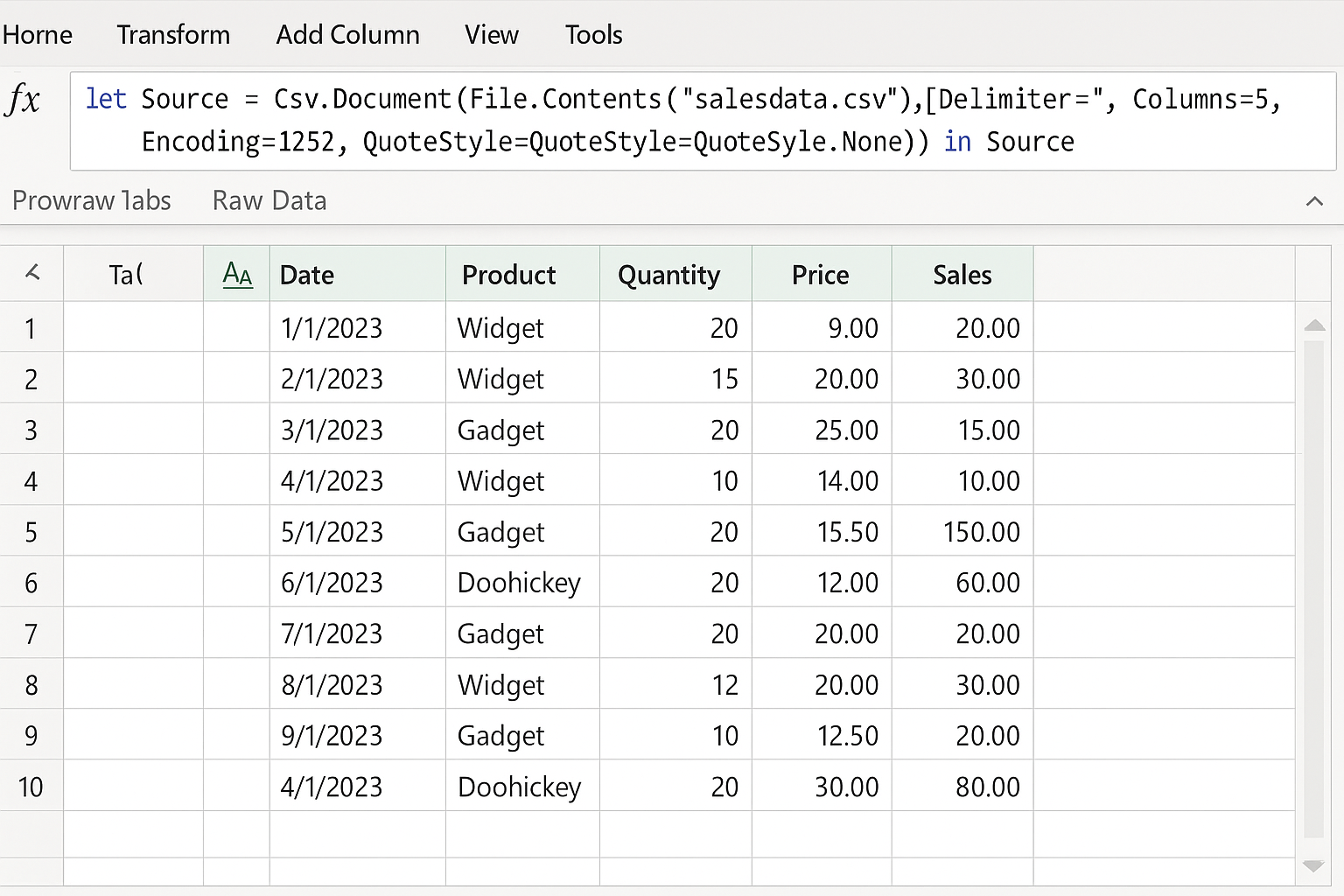
let
    Source = Csv.Document(File.Contents("salesdata.csv"),[Delimiter=",", Columns=5, Encoding=1252, QuoteStyle=QuoteStyle.None])
in
    Source
Step 2: Promote headers and change types with error handling.
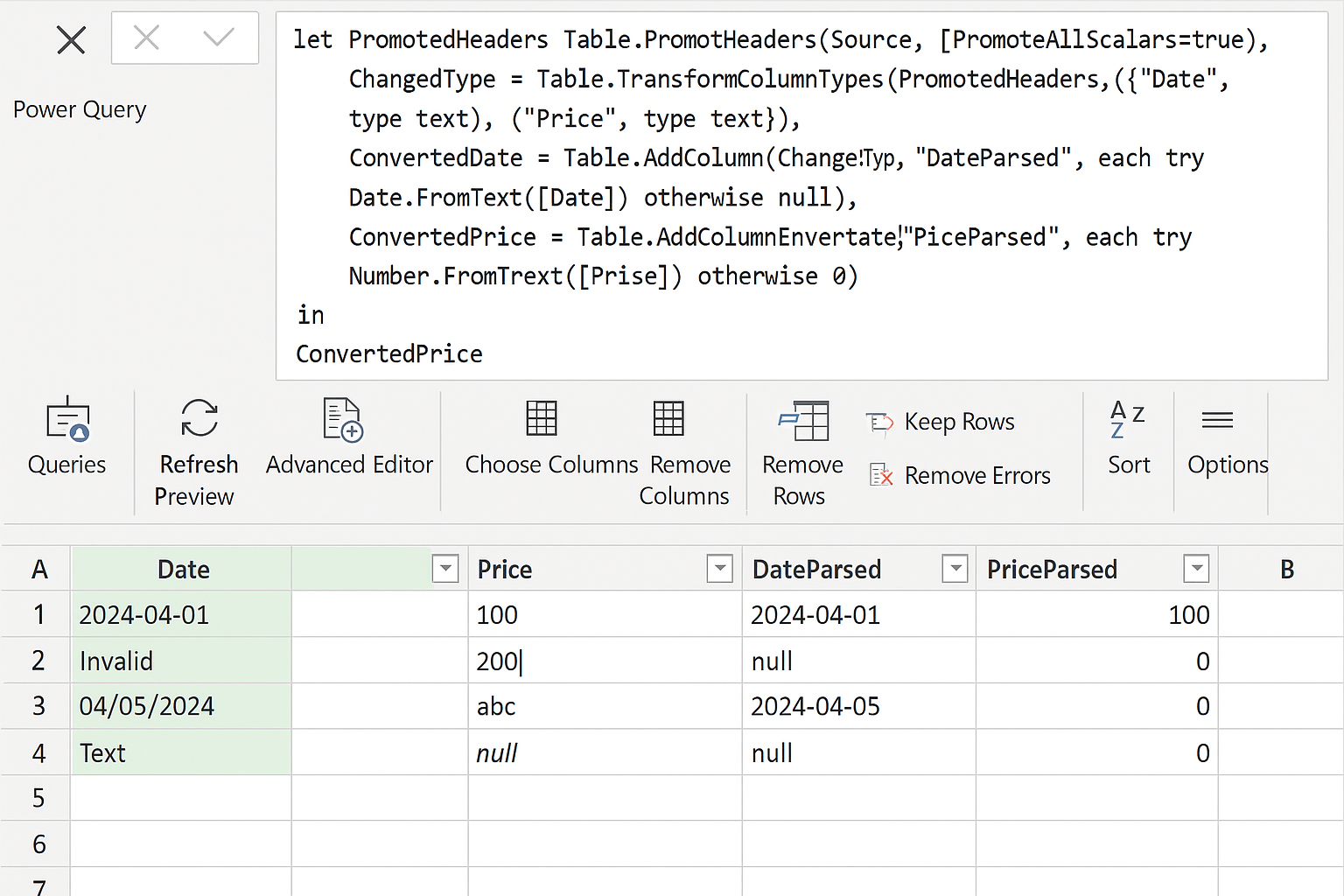
let
    PromotedHeaders = Table.PromoteHeaders(Source, [PromoteAllScalars=true]),
    ChangedType = Table.TransformColumnTypes(PromotedHeaders,{{"Date", type text}, {"Price", type text}}),
    ConvertedDate = Table.AddColumn(ChangedType, "DateParsed", each try Date.FromText([Date]) otherwise null),
    ConvertedPrice = Table.AddColumn(ConvertedDate, "PriceParsed", each try Number.FromText([Price]) otherwise 0)
in
    ConvertedPrice
Here, invalid dates become null and invalid prices become 0, preventing errors during processing.
Additional Tips for Optimizing Power Query to Reduce Errors
- Keep Queries Simple: Avoid overly complex transformations in a single step.
- Use Descriptive Step Names: Helps identify where errors occur quickly.
- Regularly Refresh Data: Detect broken connections early.
- Document Your Queries: Comments in M code make troubleshooting easier.
Conclusion
Effective Power Query error handling enhances data processing reliability and user confidence. By understanding common errors and applying practical techniques such as try ... otherwise expressions, data validation, and privacy management, you can optimize your Power Query workflows and minimize disruptions. Regular debugging and optimization practices further ensure smooth, error-free data transformations, making Power Query an even more powerful tool in your Excel arsenal.
Frequently Asked Questions (FAQ)
Related Articles
- Power Query Tutorial: Getting Started with Data Transformation
- Understanding the Power Query Interface: A Beginner’s Guide
- How to Use Power Query in Excel for Efficient Data Cleaning
- Top 10 Excel Power Query Tips to Boost Your Data Analysis
- Mastering Data Transformation with Power Query: Step-by-Step Guide
Want practical Excel help?
Support free Excel tutorials, get weekly tips, or contact us for Excel programming, VBA, Power Query, dashboards, and automation work.