Automate Data Cleaning Tasks in Excel with VBA Programming

Introduction
Data cleaning is a critical step in any data analysis process. It ensures that your dataset is accurate, consistent, and ready for meaningful insights. However, cleaning data manually in Excel can be time-consuming and prone to errors, especially with large datasets. This is where Excel VBA data cleaning comes in handy. By automating repetitive cleaning tasks with VBA (Visual Basic for Applications), you can streamline your workflow, save time, and improve data quality.
Why Use VBA for Data Cleaning in Excel?
Excel provides many built-in functions and features for data cleaning, such as Remove Duplicates, Text to Columns, and Find & Replace. While useful, these tools often require manual intervention and are not scalable for repetitive tasks. VBA programming allows you to create custom macros that automate these steps, ensuring consistency and reducing human error. VBA is especially beneficial for:
- Handling repetitive cleaning tasks on multiple worksheets or workbooks.
- Processing large datasets quickly.
- Combining multiple cleaning operations into a single automated workflow.
- Ensuring repeatability for future data imports.
Common Data Cleaning Tasks Automated by VBA
Below are some common data cleaning procedures that can be automated using VBA in Excel:
- Removing duplicate rows
- Trimming extra spaces
- Converting text case (upper, lower, proper)
- Replacing or removing invalid characters
- Filling missing values
- Validating data formats (dates, numbers)
Practical Examples of Excel VBA Data Cleaning
Example 1: Remove Duplicates Automatically
This VBA macro removes duplicate rows from the active worksheet based on all columns.
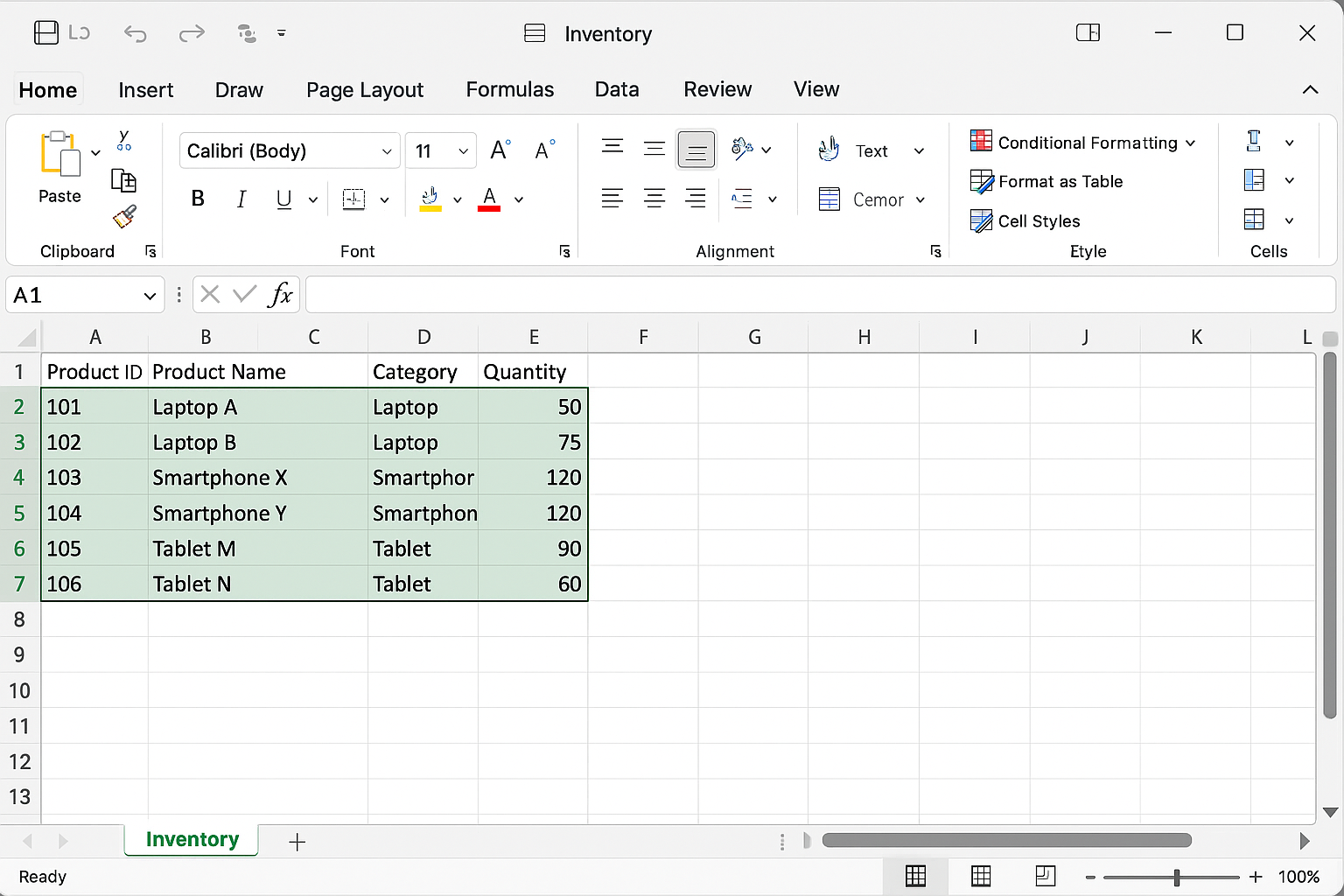
Sub RemoveDuplicates()
    Dim ws As Worksheet
    Set ws = ActiveSheet
    Dim LastRow As Long
    Dim LastCol As Long

    LastRow = ws.Cells(ws.Rows.Count, 1).End(xlUp).Row
    LastCol = ws.Cells(1, ws.Columns.Count).End(xlToLeft).Column

    ws.Range(ws.Cells(1, 1), ws.Cells(LastRow, LastCol)).RemoveDuplicates Columns:=Application.Evaluate("ROW(1:" & LastCol & ")"), Header:=xlYes
End Sub
Example 2: Trim Extra Spaces from All Cells
This code trims leading and trailing spaces in all used cells on the active worksheet.
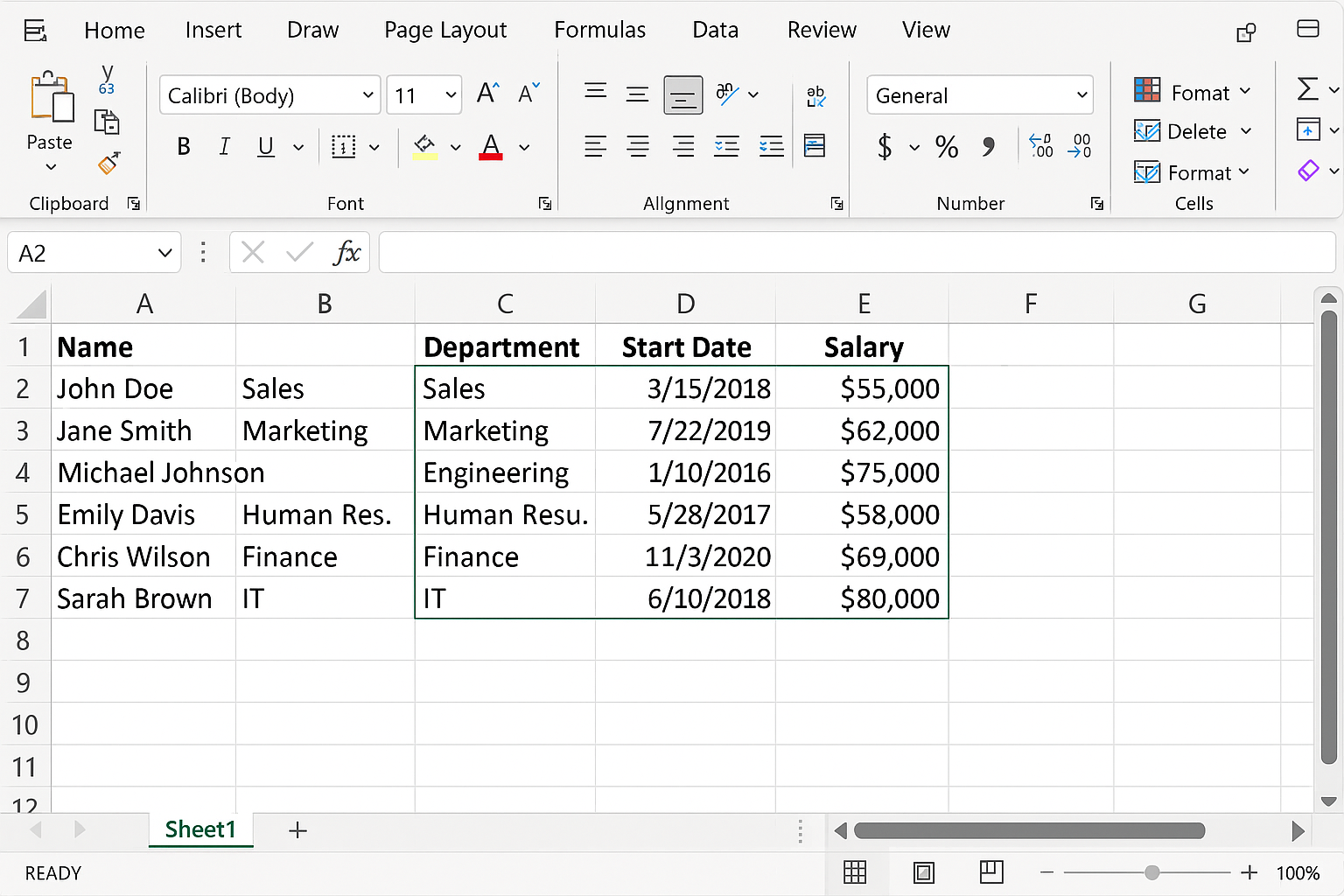
Sub TrimSpaces()
    Dim cell As Range
    Dim ws As Worksheet
    Set ws = ActiveSheet

    For Each cell In ws.UsedRange
        If Not IsEmpty(cell) And VarType(cell.Value) = vbString Then
            cell.Value = Trim(cell.Value)
        End If
    Next cell
End Sub
Example 3: Convert Text to Proper Case
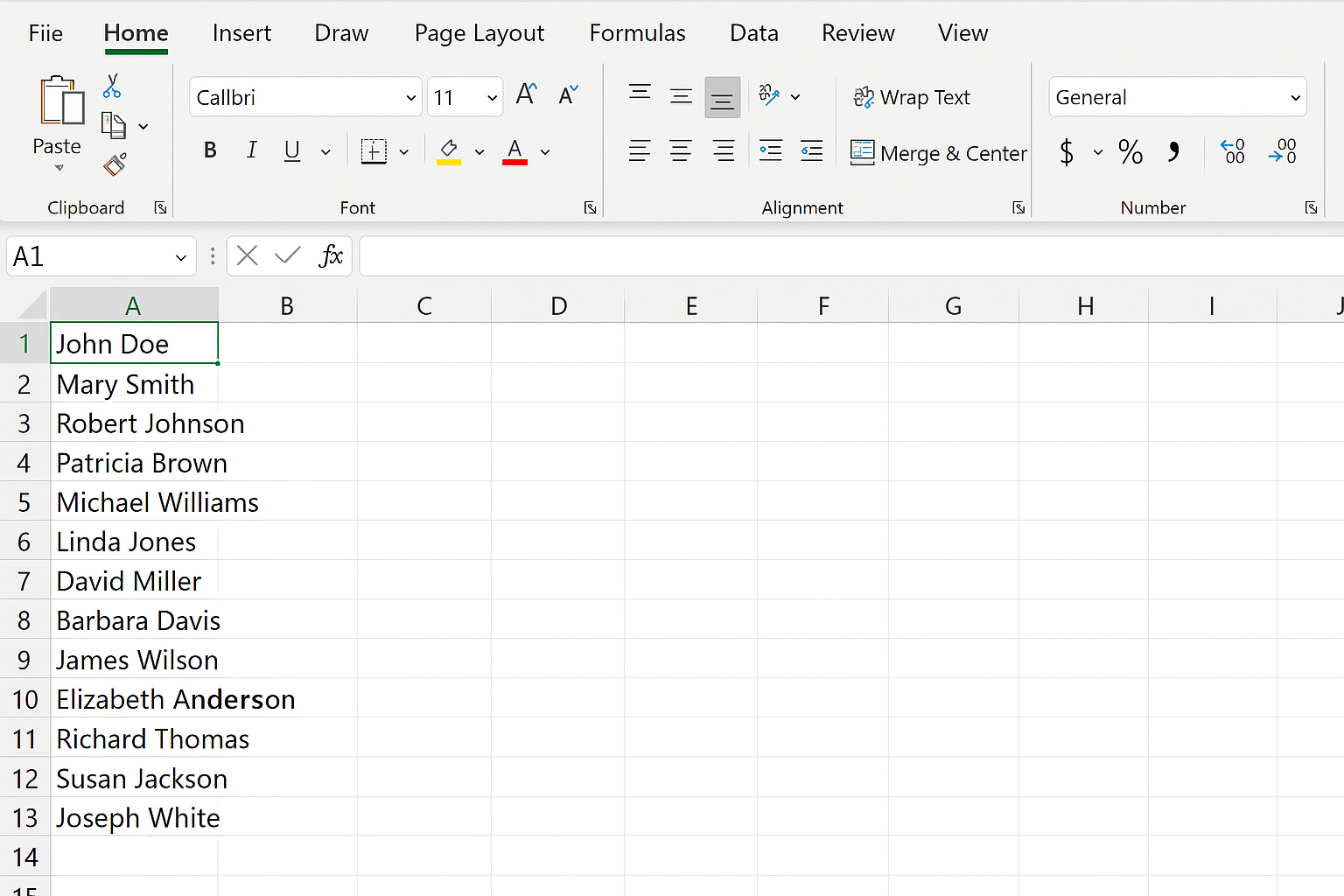
This macro converts all text in column A to Proper Case (e.g., “john doe” becomes “John Doe”).
Sub ProperCaseColumnA()
    Dim ws As Worksheet
    Dim LastRow As Long
    Dim i As Long

    Set ws = ActiveSheet
    LastRow = ws.Cells(ws.Rows.Count, 1).End(xlUp).Row

    For i = 2 To LastRow 'Assuming header in row 1
        If Not IsEmpty(ws.Cells(i, 1)) Then
            ws.Cells(i, 1).Value = Application.WorksheetFunction.Proper(ws.Cells(i, 1).Value)
        End If
    Next i
End Sub
Example 4: Replace Invalid Characters
This macro replaces all occurrences of a specified invalid character (e.g., “#”) with an empty string in the entire worksheet.
Sub ReplaceInvalidChars()
    Dim ws As Worksheet
    Dim cell As Range
    Dim invalidChar As String
    invalidChar = "#"

    Set ws = ActiveSheet

    For Each cell In ws.UsedRange
        If VarType(cell.Value) = vbString Then
            cell.Value = Replace(cell.Value, invalidChar, "")
        End If
    Next cell
End Sub
Example 5: Fill Missing Values in a Column
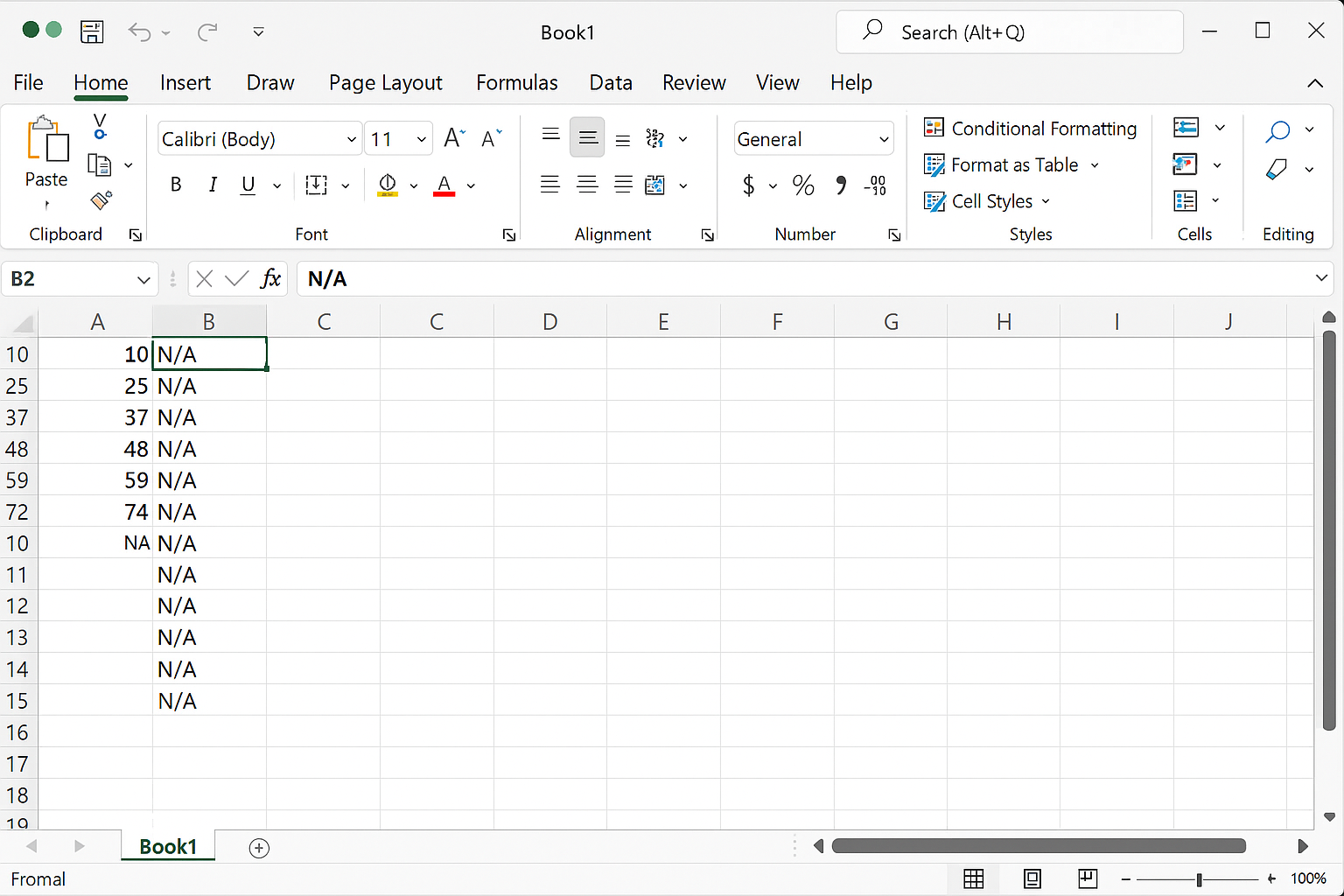
This macro fills blank cells in column B with the value “N/A”.
Sub FillMissingValues()
    Dim ws As Worksheet
    Dim LastRow As Long
    Dim i As Long

    Set ws = ActiveSheet
    LastRow = ws.Cells(ws.Rows.Count, 2).End(xlUp).Row

    For i = 2 To LastRow 'Assuming header in row 1
        If IsEmpty(ws.Cells(i, 2)) Then
            ws.Cells(i, 2).Value = "N/A"
        End If
    Next i
End Sub
Integrating Multiple Cleaning Steps into One Macro
You can combine multiple cleaning steps into a single macro for efficiency. Below is an example that removes duplicates, trims spaces, and converts column A to proper case all at once.
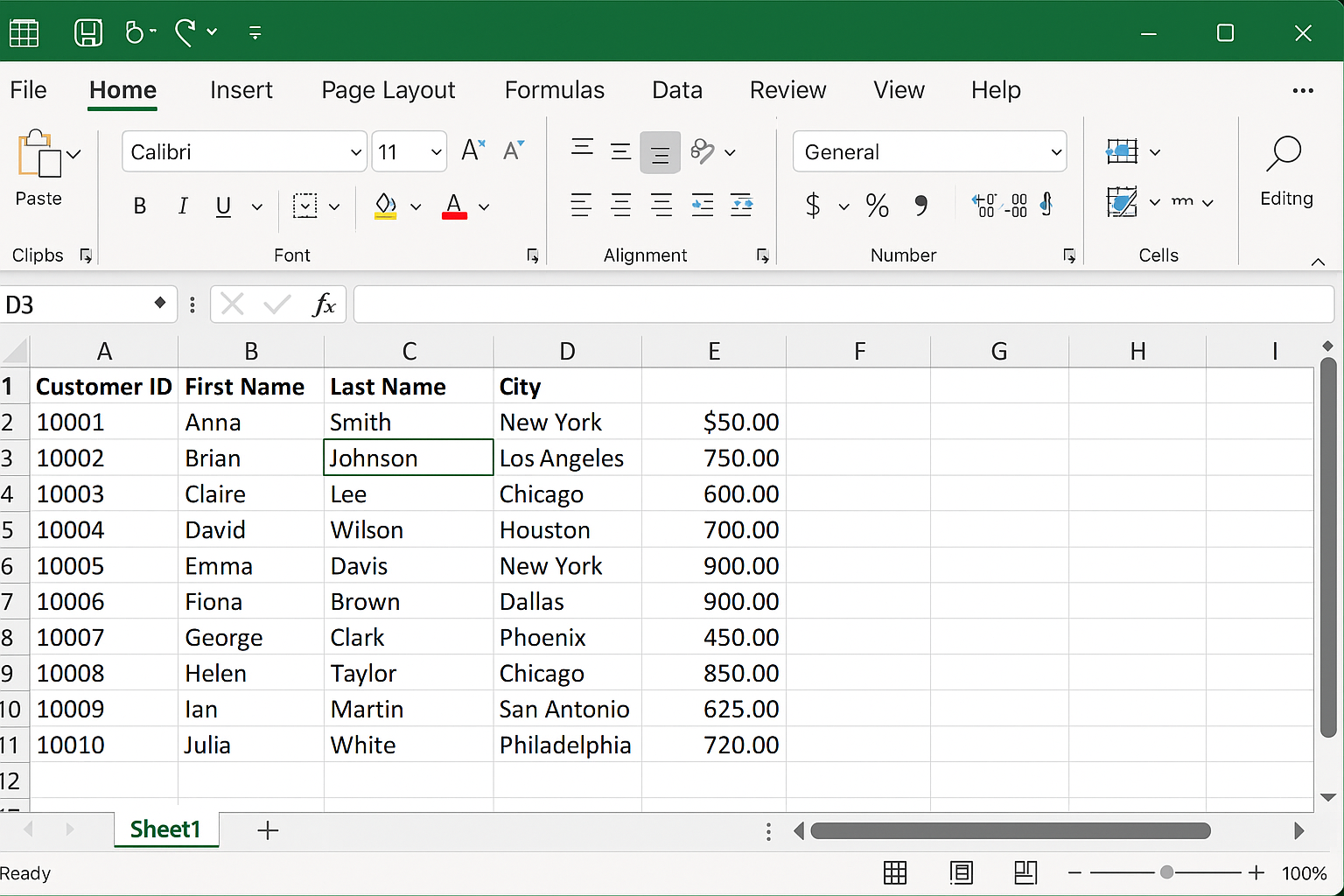
Sub FullDataClean()
    Dim ws As Worksheet
    Dim LastRow As Long
    Dim LastCol As Long
    Dim cell As Range
    Dim i As Long

    Set ws = ActiveSheet
    LastRow = ws.Cells(ws.Rows.Count, 1).End(xlUp).Row
    LastCol = ws.Cells(1, ws.Columns.Count).End(xlToLeft).Column

    ' Remove duplicates
    ws.Range(ws.Cells(1, 1), ws.Cells(LastRow, LastCol)).RemoveDuplicates Columns:=Application.Evaluate("ROW(1:" & LastCol & ")"), Header:=xlYes

    ' Trim spaces
    For Each cell In ws.UsedRange
        If Not IsEmpty(cell) And VarType(cell.Value) = vbString Then
            cell.Value = Trim(cell.Value)
        End If
    Next cell

    ' Convert column A to proper case
    LastRow = ws.Cells(ws.Rows.Count, 1).End(xlUp).Row ' Update after removing duplicates
    For i = 2 To LastRow
        If Not IsEmpty(ws.Cells(i, 1)) Then
            ws.Cells(i, 1).Value = Application.WorksheetFunction.Proper(ws.Cells(i, 1).Value)
        End If
    Next i
End Sub
Tips for Effective Excel VBA Data Cleaning
- Backup Your Data: Always create a backup before running macros to avoid accidental data loss.
- Test on Sample Data: Test your VBA scripts on a small dataset to ensure they work as expected.
- Use Comments: Add comments within your code to document what each section does for easier maintenance.
- Optimize for Performance: Disable screen updating and automatic calculations temporarily during macro execution to speed up processing.
- Modularize Code: Write reusable subroutines for common cleaning tasks to simplify your code.
Conclusion
Automating Excel VBA data cleaning tasks can significantly reduce the time and effort required to prepare your data for analysis. By leveraging VBA macros, you can handle repetitive and complex cleaning operations efficiently and consistently. The practical examples provided in this article serve as a foundation to build your custom data cleaning solutions tailored to your unique datasets. Start experimenting with these VBA scripts today to unlock the full potential of Excel in your data analysis workflow.
Related Articles
- How to Automate Repetitive Tasks in Excel Using VBA
- Creating Your First Macro in Excel with VBA: A Step-by-Step Guide
- Top 10 Simple VBA Scripts to Automate Excel Tasks for Beginners
- Using Loops in Excel VBA to Save Time on Data Entry
- Introduction to Excel VBA Programming for Absolute Beginners
Want practical Excel help?
Support free Excel tutorials, get weekly tips, or contact us for Excel programming, VBA, Power Query, dashboards, and automation work.