Best Practices for Writing Efficient and Optimized VBA Code in Excel

Introduction
Excel VBA is a powerful tool for automating tasks and enhancing productivity within Microsoft Excel. However, poorly written VBA code can result in slow execution, bugs, and maintenance challenges. Excel VBA code optimization ensures your macros run efficiently and reliably. This article covers the best practices for writing optimized VBA code in Excel, including practical examples to help you implement these techniques effectively.
1. Avoid Selecting or Activating Objects Unnecessarily
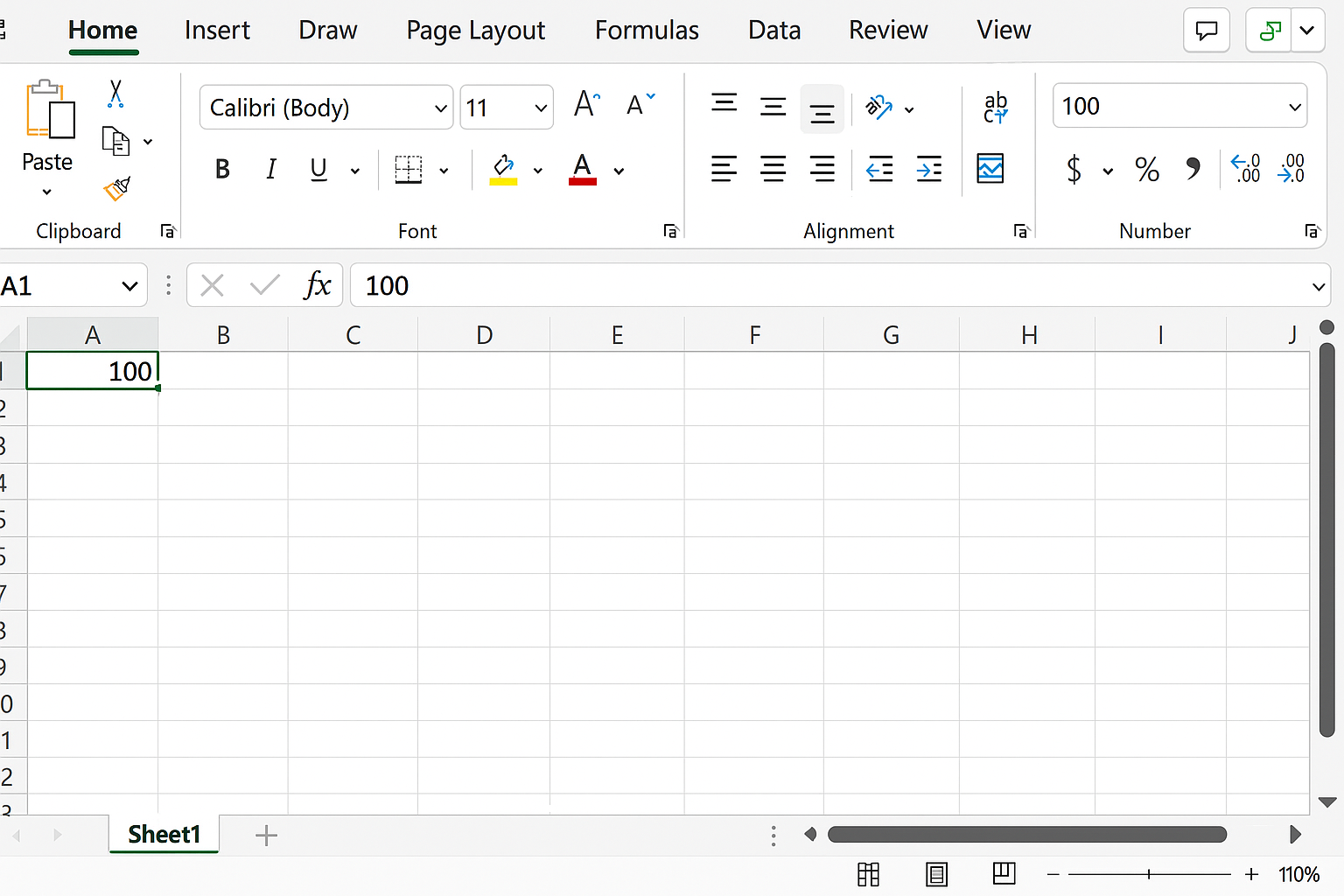
One of the most common inefficiencies in VBA code is the overuse of Select and Activate methods. These actions slow down the macro because they force Excel to update the user interface repeatedly.
Inefficient Code:
Worksheets("Sheet1").Select
Range("A1").Select
Selection.Value = 100
Optimized Code:
Worksheets("Sheet1").Range("A1").Value = 100
Avoid selecting or activating ranges or sheets unless necessary. Directly reference the objects.
2. Use Variables to Store Object References
Repeatedly referencing the same objects can slow down code. Store references in variables to reduce overhead and improve readability.
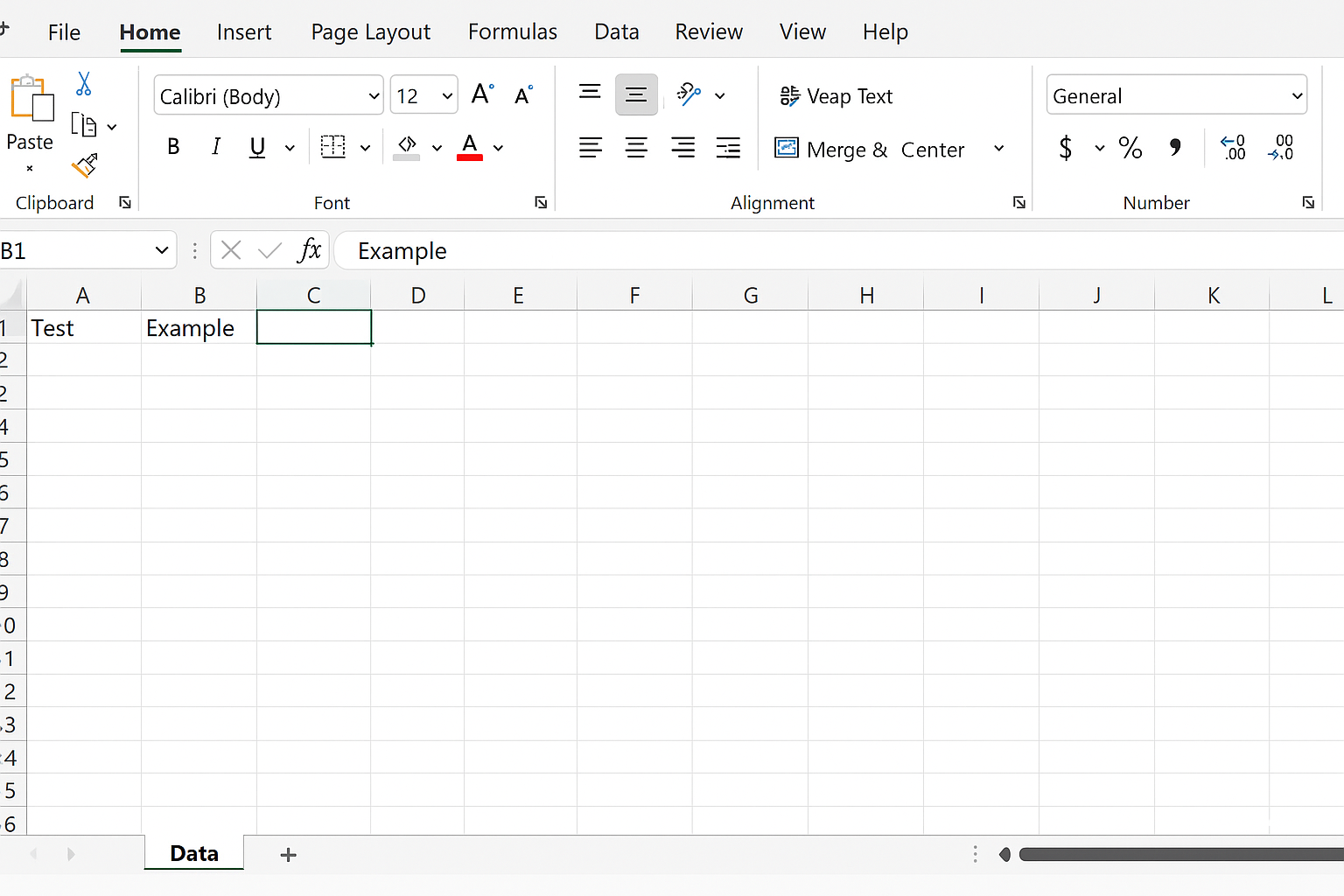
Example:
Dim ws As Worksheet
Set ws = ThisWorkbook.Sheets("Data")
ws.Range("A1").Value = "Test"
ws.Range("B1").Value = "Example"
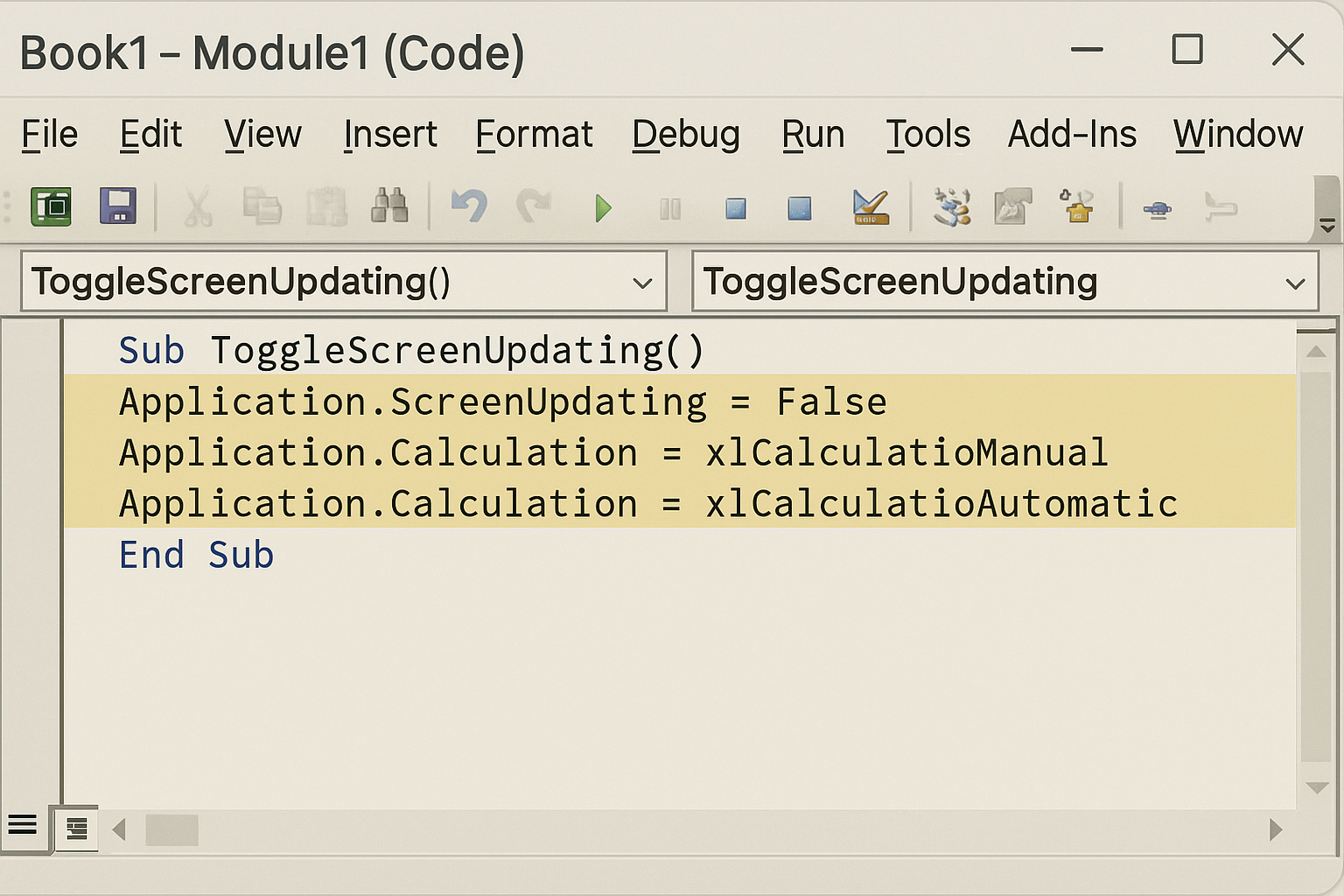
3. Turn Off Screen Updating and Automatic Calculations
Disabling Excel features during macro execution can drastically improve speed.
Application.ScreenUpdating = False
Application.Calculation = xlCalculationManual
'... your code here ...
Application.Calculation = xlCalculationAutomatic
Application.ScreenUpdating = True
Always ensure these settings are restored at the end to avoid user confusion.
4. Use Efficient Looping Techniques
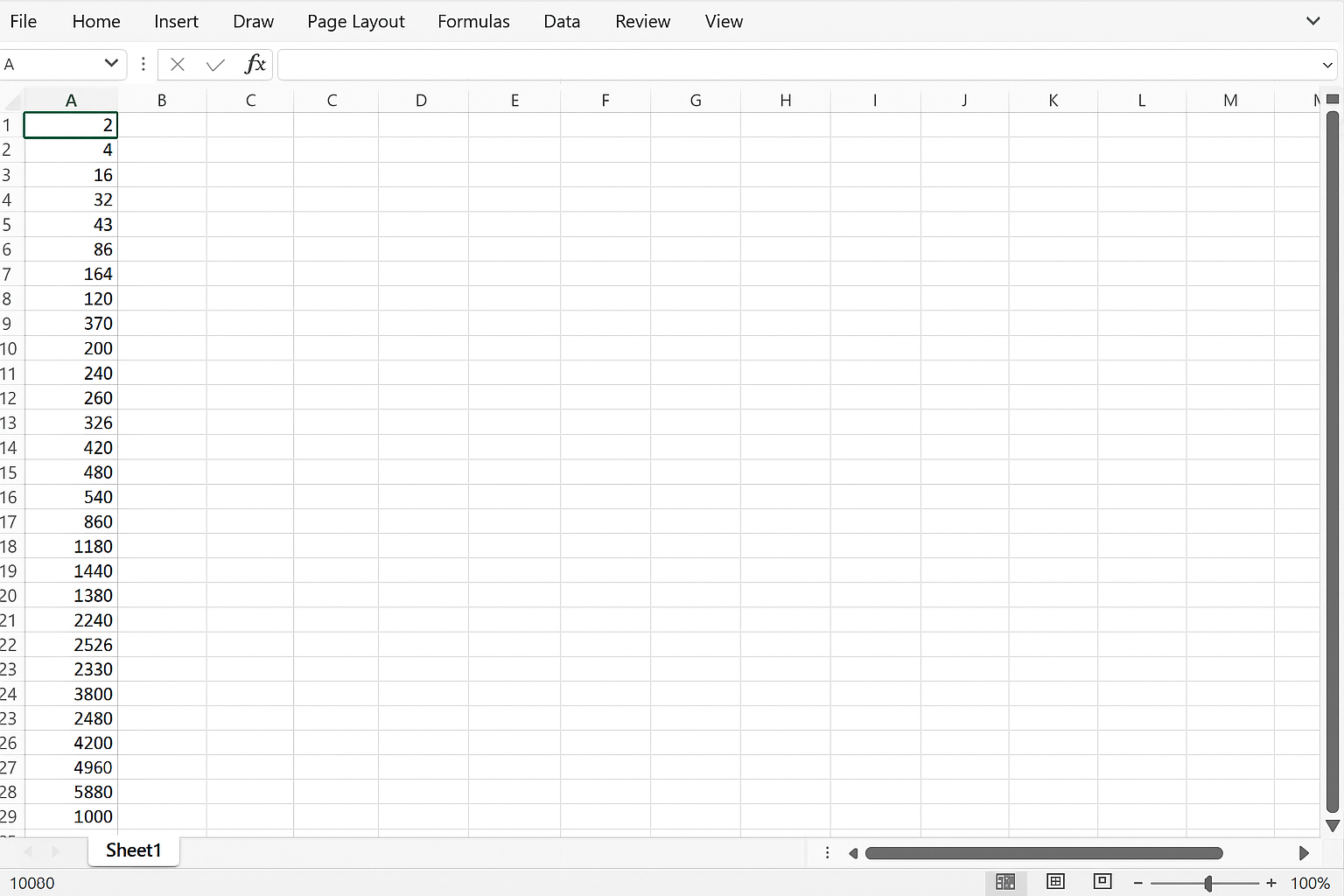
Loops are often necessary but can be slow if not optimized. Avoid using loops to process large ranges cell by cell if possible.
Example – Inefficient Loop:
For i = 1 To 1000
    Cells(i, 1).Value = Cells(i, 1).Value * 2
Next i
Optimized Vectorized Approach:
With Worksheets("Sheet1")
    Dim rng As Range
    Set rng = .Range("A1:A1000")
    rng.Value = Evaluate("INDEX(" & rng.Address & "*2,0)")
End With
This avoids looping by using Excel’s native evaluation engine.
5. Use Built-In Excel Functions Where Possible
VBA functions can be slower than native Excel functions. Use WorksheetFunction object to call Excel functions.
Dim sumResult As Double
sumResult = Application.WorksheetFunction.Sum(Range("A1:A100"))
6. Declare Variables Explicitly and Use Proper Data Types
Using Option Explicit and declaring variables helps prevent errors and improves performance. Use the most appropriate data types to reduce memory usage.
Option Explicit
Dim i As Long
Dim s As String
7. Avoid Using Variant Data Types When Not Needed
Variants consume more memory and processing time. Use specific data types such as Long, Integer, Double, or String.
8. Minimize Interaction with Worksheet Cells
Reading and writing to worksheet cells is time-consuming. Whenever possible, read data into arrays, process the data in memory, and write it back once.
Dim data As Variant
Dim i As Long

data = Worksheets("Sheet1").Range("A1:A1000").Value
For i = 1 To UBound(data, 1)
    data(i, 1) = data(i, 1) * 2
Next i
Worksheets("Sheet1").Range("A1:A1000").Value = data
9. Use Error Handling Wisely
Proper error handling prevents macro crashes and helps maintain control flow without unnecessary performance penalties.
On Error GoTo ErrorHandler
'... your code here ...
Exit Sub

ErrorHandler:
    MsgBox "An error occurred: " & Err.Description
    Resume Next
10. Modularize Code with Functions and Subroutines
Break your code into smaller, reusable functions or subroutines. This improves readability, makes debugging easier, and promotes code reuse.
Practical Example: Optimized VBA Macro to Clear and Populate Data
Sub ClearAndPopulate()
    Dim ws As Worksheet
    Dim data As Variant
    Dim i As Long

    Application.ScreenUpdating = False
    Application.Calculation = xlCalculationManual

    Set ws = ThisWorkbook.Sheets("Sheet1")

    ' Clear old data
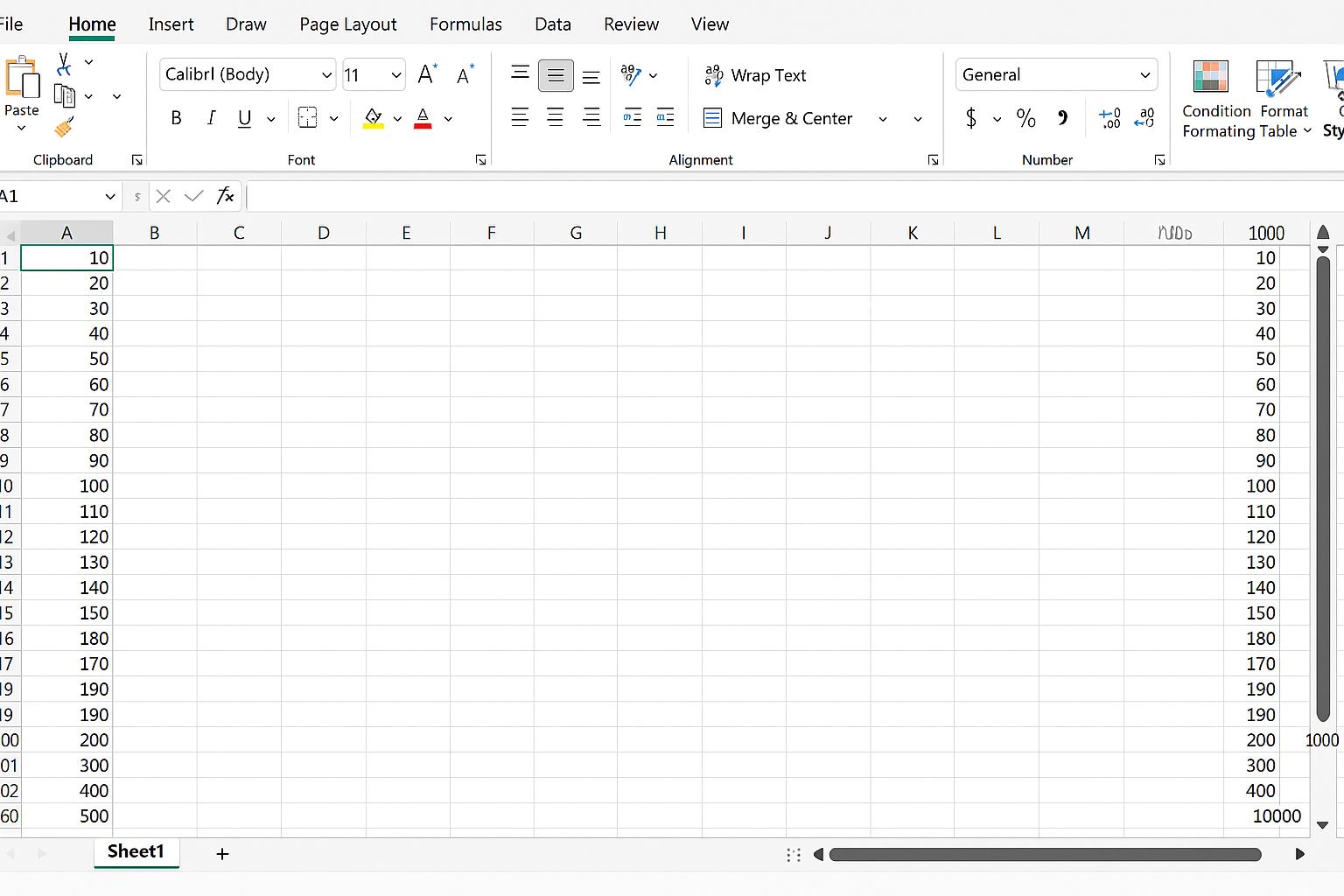
    ws.Range("A2:A1000").ClearContents

    ' Populate with new data
    ReDim data(1 To 1000, 1 To 1)
    For i = 1 To 1000
        data(i, 1) = i * 10
    Next i

    ws.Range("A2").Resize(UBound(data, 1), 1).Value = data

    Application.Calculation = xlCalculationAutomatic
    Application.ScreenUpdating = True
End Sub
FAQ
What is Excel VBA code optimization?
Excel VBA code optimization involves writing VBA macros in a way that improves their speed, efficiency, and maintainability by following best programming practices.
How can I speed up my VBA macros?
Speed up macros by avoiding unnecessary selections, turning off screen updating and automatic calculation during execution, using arrays for data processing, and minimizing worksheet interaction.
Why should I avoid using Select and Activate in VBA?
Using Select and Activate slows down macro execution as it forces Excel to update the screen and change focus. Directly referencing objects is faster and cleaner.
Is it better to use loops or Excel functions inside VBA?
Where possible, use built-in Excel functions accessed via Application.WorksheetFunction or array operations instead of loops, as they execute faster.
Should I always declare variables in VBA?
Yes, declaring variables explicitly with Option Explicit helps prevent errors and can improve performance by using appropriate data types.
How does turning off screen updating improve VBA performance?
Disabling screen updating prevents Excel from redrawing the screen during macro execution, which reduces overhead and speeds up the process.
Related Articles
- How to Automate Repetitive Tasks in Excel Using VBA
- Creating Your First Macro in Excel with VBA: A Step-by-Step Guide
- Top 10 Simple VBA Scripts to Automate Excel Tasks for Beginners
- Using Loops in Excel VBA to Save Time on Data Entry
- Introduction to Excel VBA Programming for Absolute Beginners
Want practical Excel help?
Support free Excel tutorials, get weekly tips, or contact us for Excel programming, VBA, Power Query, dashboards, and automation work.