Securing Your Excel VBA Projects: Tips and Techniques
Introduction
Visual Basic for Applications (VBA) is a powerful tool integrated into Microsoft Excel that allows users to automate tasks and develop complex applications. However, with great power comes the responsibility to secure your VBA projects from unauthorized access, tampering, or malicious code execution. Excel VBA security is essential not only to protect your intellectual property but also to safeguard sensitive data and ensure reliable operation of your macros.
In this article, we will explore practical tips and techniques to help you secure your Excel VBA projects effectively. From password protection to best coding practices, you’ll learn how to minimize risks and maintain control over your VBA environment.
Why Excel VBA Security Matters
Excel VBA projects often contain sensitive business logic, proprietary formulas, or automated workflows. Without adequate security measures, these projects can be exposed to unauthorized users who may:
- View or modify your code, potentially disrupting functionality.
- Steal your intellectual property or reuse your code without permission.
- Introduce malicious code or viruses that compromise data integrity.
- Cause accidental damage by unintentional changes to code or macros.
By implementing robust security measures, you can prevent these risks and enhance the trustworthiness of your Excel applications.
Top Tips for Enhancing Excel VBA Security
1. Protect Your VBA Project with a Password
One of the simplest yet most effective ways to protect your VBA code is to password-protect the VBA project. This prevents unauthorized users from accessing or editing the code.
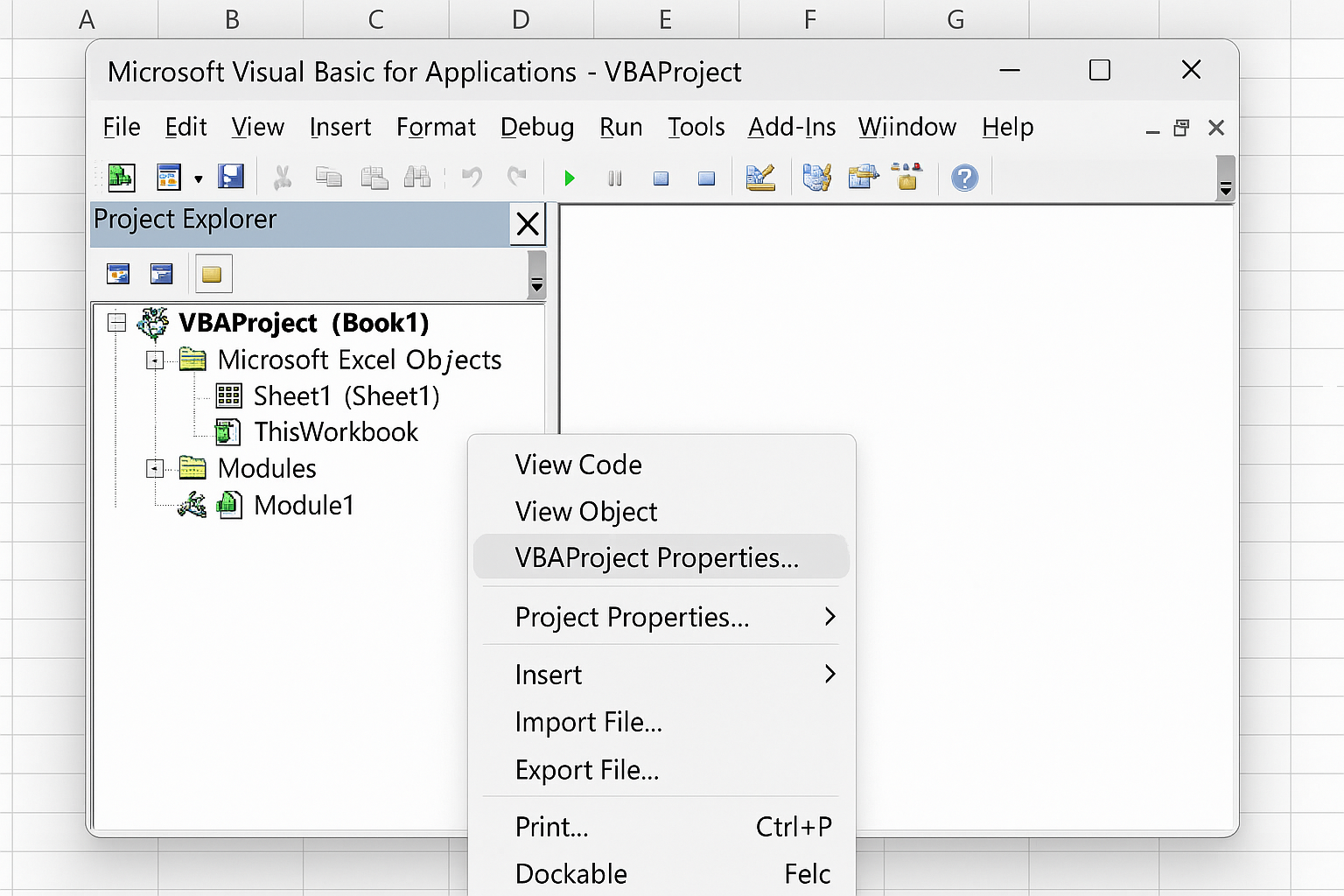
How to apply VBA project password protection:
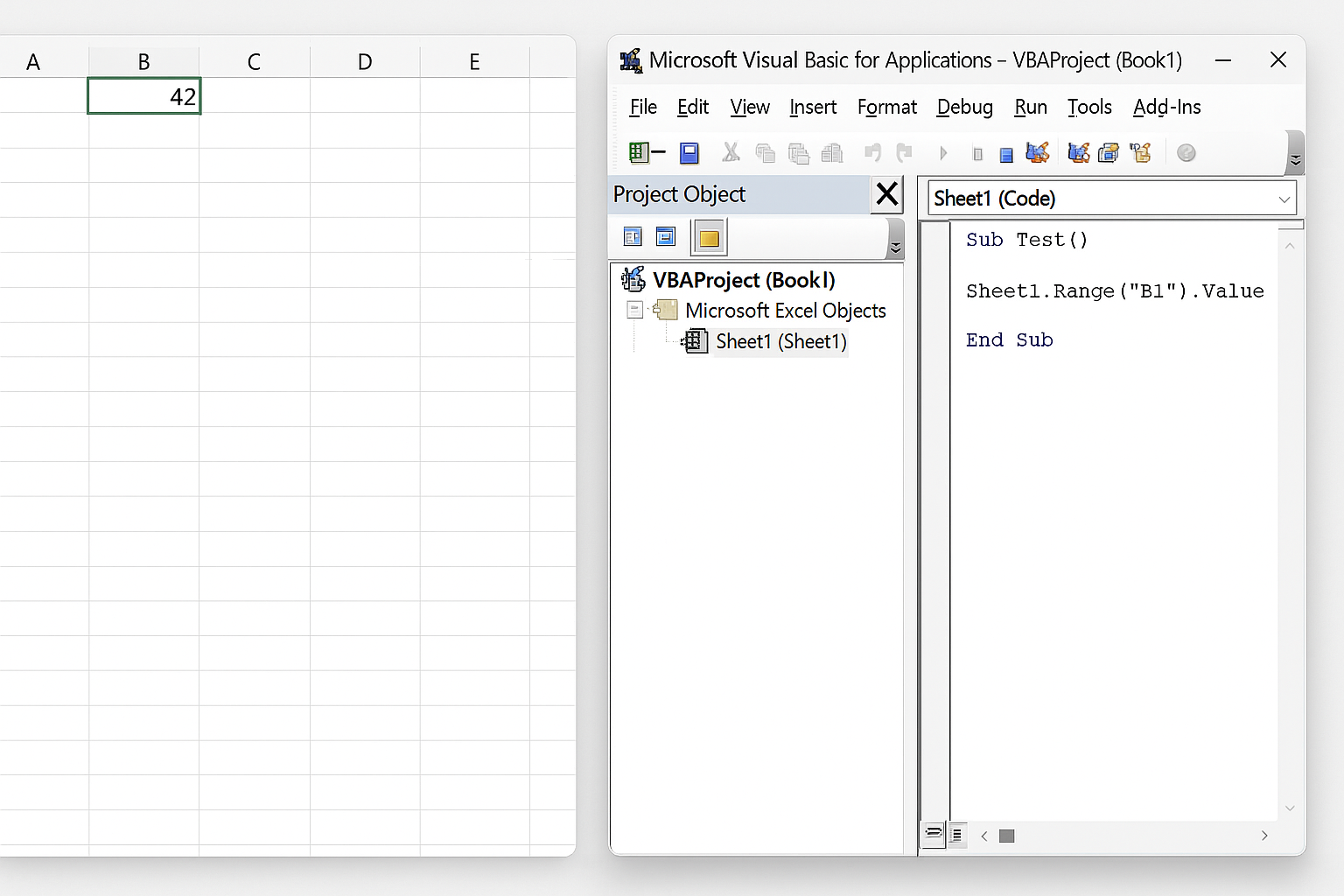
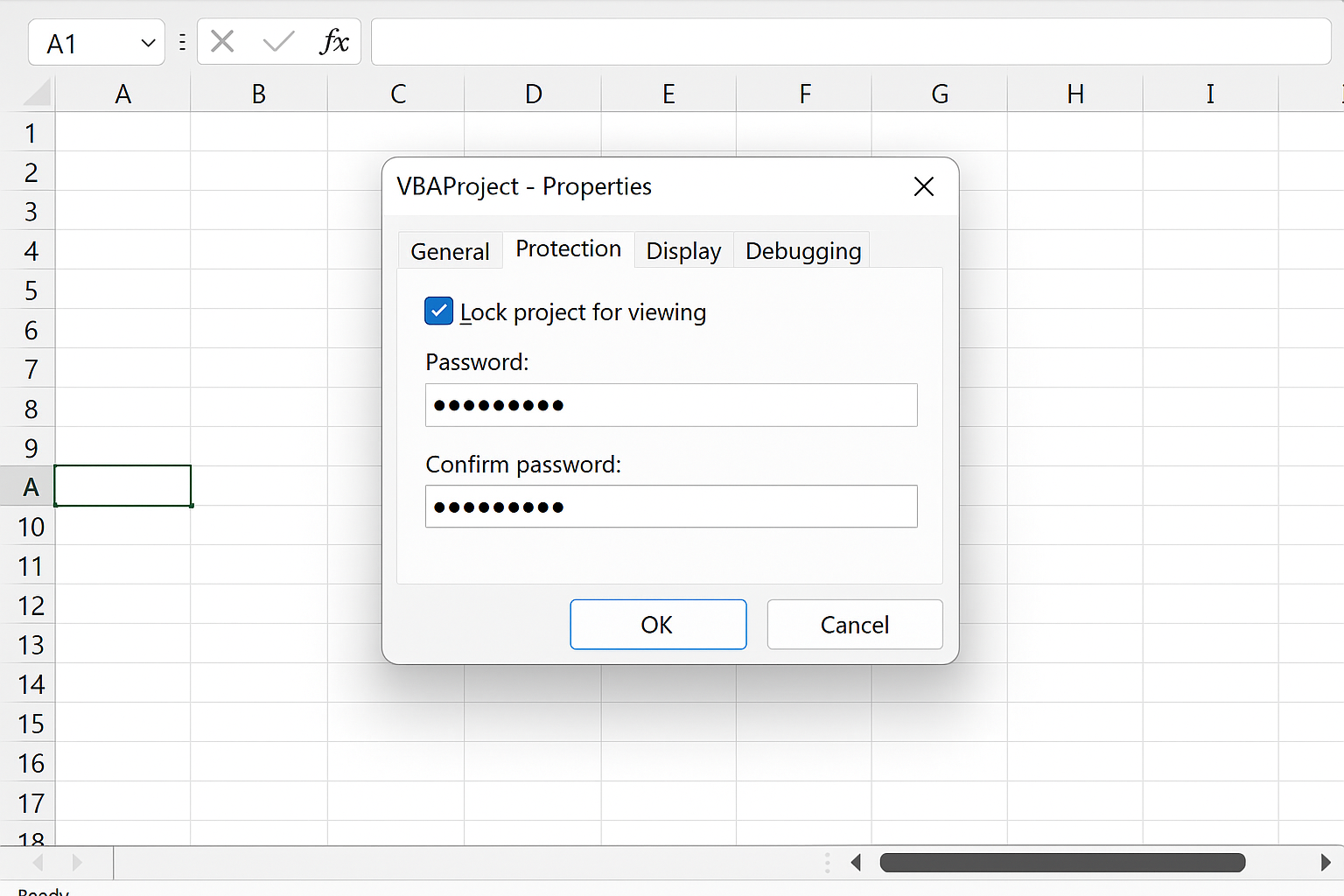
- Open the Visual Basic Editor (VBE) by pressing
Alt + F11. - In the Project Explorer, right-click your VBA project and select VBAProject Properties.
- Go to the Protection tab.
- Check Lock project for viewing and enter a strong password.
- Save and close the workbook.
Example: If you have a VBA project automating payroll calculations, locking the project will stop unauthorized users from seeing sensitive formulas or employee data processing logic.
2. Use Digital Signatures to Verify Macros
Digitally signing your macros with a trusted certificate ensures that recipients can verify the origin of the code and trust it has not been altered. This is critical when distributing Excel files within or outside your organization.
Steps to sign a VBA project:
- Obtain a digital certificate (self-signed for internal use or from a certificate authority for public distribution).
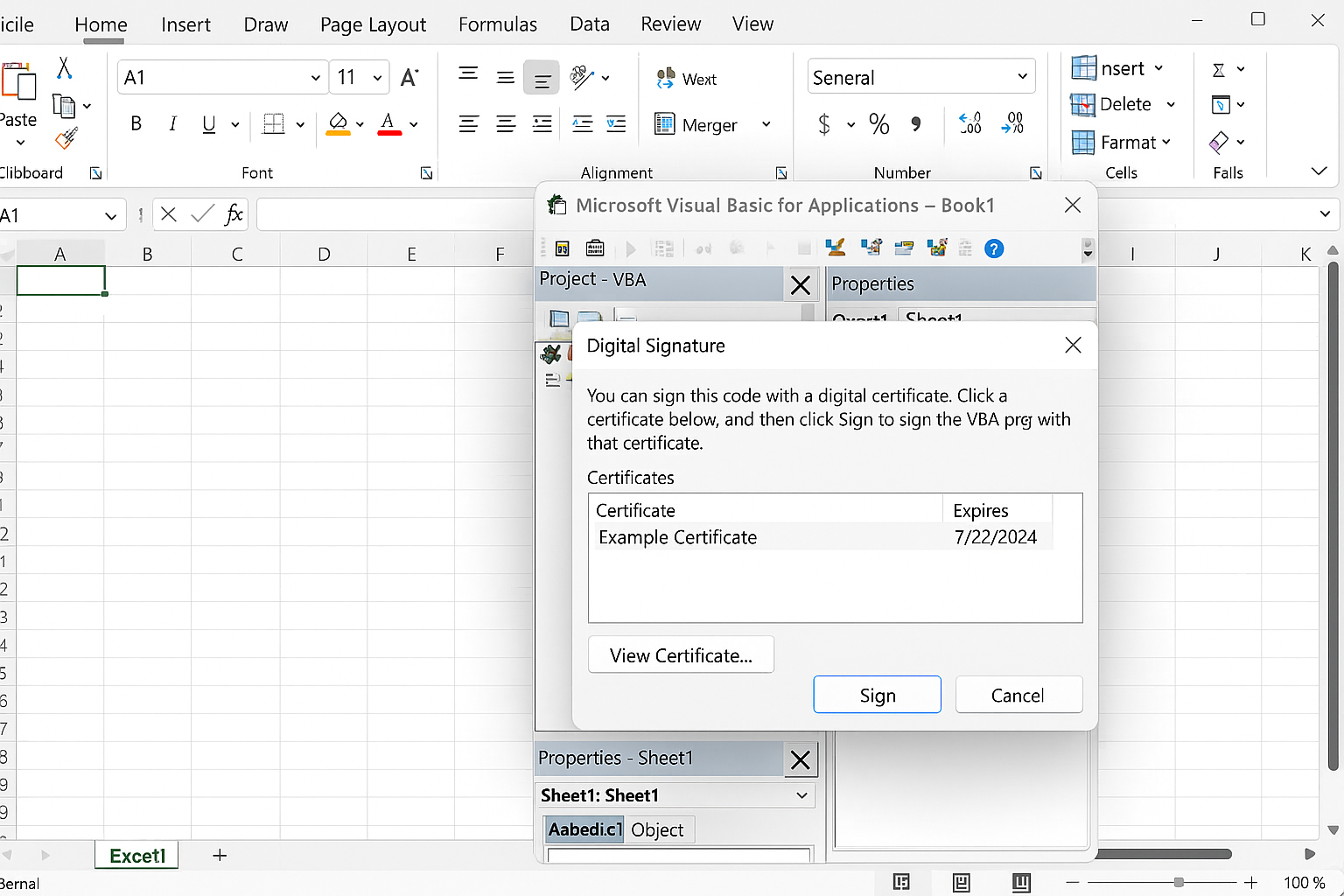
- In the VBE, go to Tools > Digital Signature.
- Select your certificate and sign the project.
Users can configure macro security settings to trust only signed macros, reducing the risk of running malicious code.
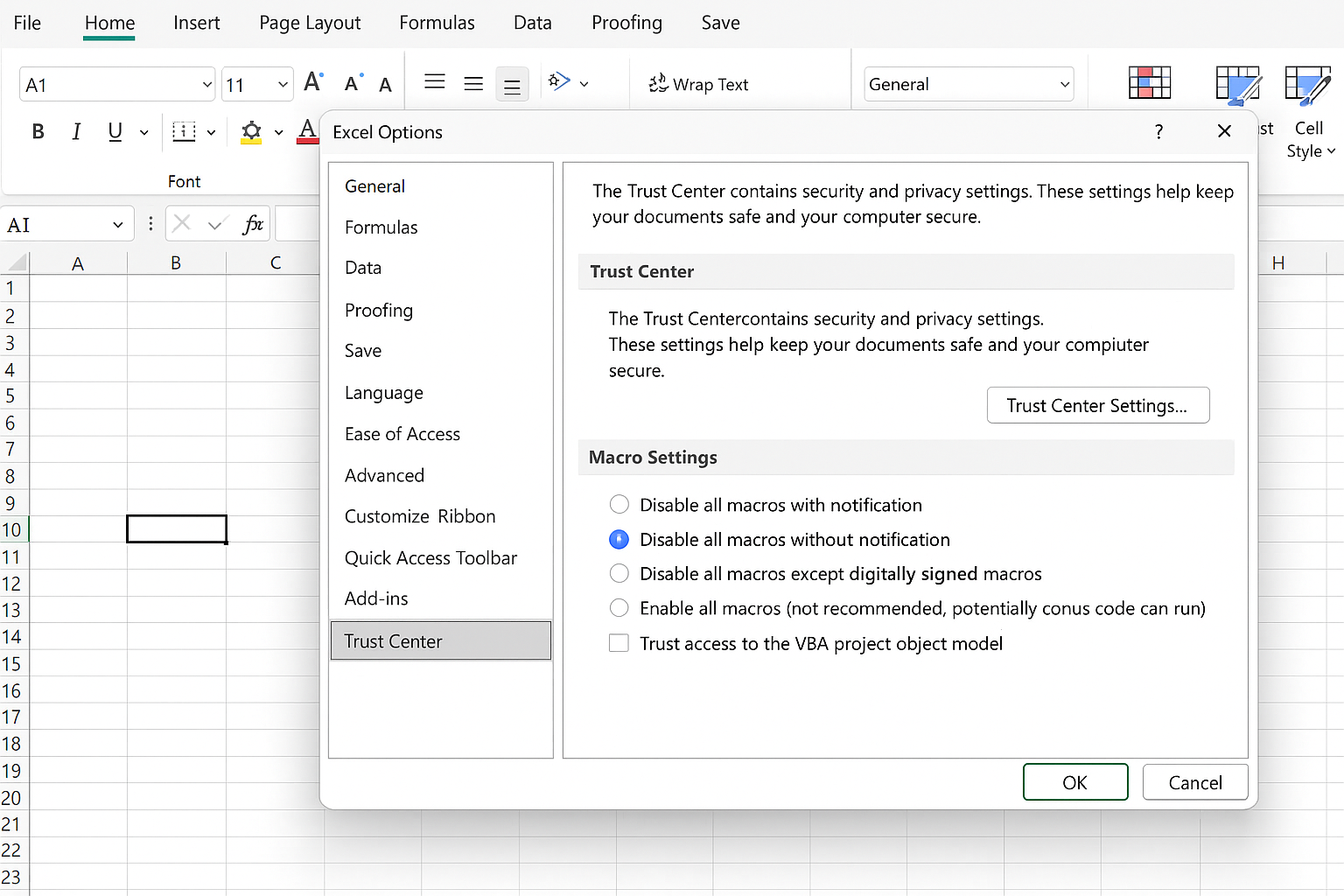
3. Limit Macro Execution by Controlling Macro Settings
Excel offers several macro security levels:
- Disable all macros without notification – prevents all macros from running.
- Disable all macros with notification – prompts users to enable macros.
- Disable all except digitally signed macros – runs only trusted signed macros.
- Enable all macros (not recommended) – runs all macros without restriction.
Encourage users to select the appropriate security level in File > Options > Trust Center > Trust Center Settings > Macro Settings to prevent unauthorized or harmful macros from executing.
4. Avoid Storing Sensitive Data in VBA Code
Embedding sensitive information such as passwords, API keys, or connection strings directly in VBA code is a significant security risk. If the VBA project is compromised, this data can be easily extracted.
Best practices include:
- Storing sensitive data in protected external sources like encrypted databases or configuration files.
- Using Windows Integrated Authentication or secure credential management tools.
- Encrypting sensitive data within your VBA project if it must be stored locally.
5. Use Error Handling and Input Validation
Robust error handling in VBA code can prevent unexpected application crashes and potential security issues caused by unhandled exceptions.
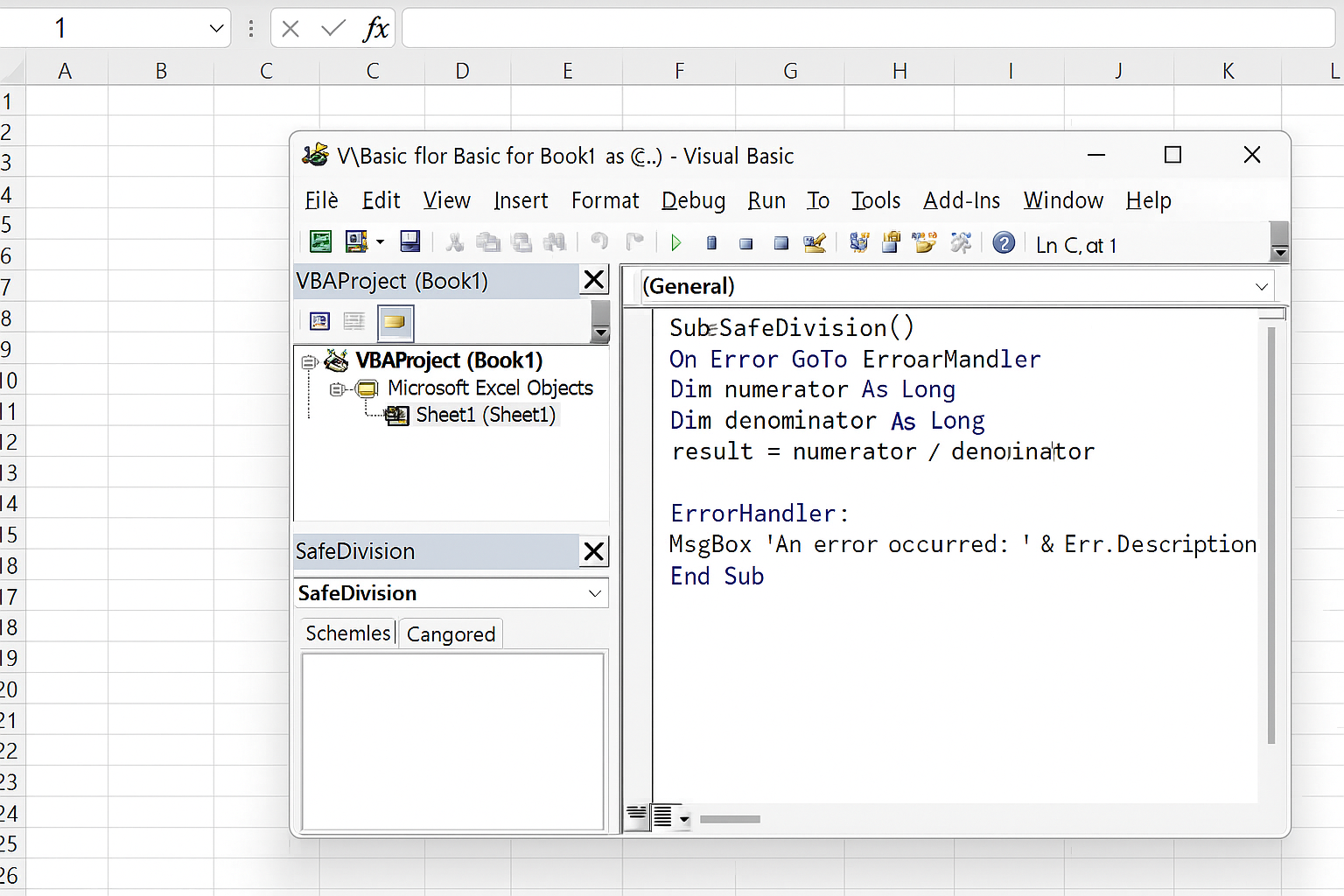
Example of error handling:
Sub SafeDivision()
    On Error GoTo ErrorHandler
    Dim x As Double, y As Double, result As Double
    x = 10
    y = 0 ' This will cause division by zero error
    result = x / y
    MsgBox "Result is " & result
    Exit Sub
ErrorHandler:
    MsgBox "Error occurred: " & Err.Description
End Sub
Input validation ensures that only proper data is processed, reducing the risk of code injection or logic errors.
6. Regularly Update and Audit Your VBA Code
Security is an ongoing process. Regularly review your VBA projects for outdated code, vulnerabilities, and compliance with your organization’s security policies.
Keep backups and maintain version control to track changes and easily revert to secure versions if necessary.
Practical Example: Securing a VBA Macro for Importing Data
Consider a macro that imports sensitive financial data from a CSV file and processes it in Excel.
Sub ImportFinancialData()
    On Error GoTo ErrHandler
    Dim filePath As String
    filePath = Application.GetOpenFilename("CSV Files (*.csv), *.csv")
    If filePath = "False" Then Exit Sub ' User cancelled

    ' Import data
    With ActiveSheet.QueryTables.Add(Connection:="TEXT;" & filePath, Destination:=Range("A1"))
        .TextFileParseType = xlDelimited
        .TextFileCommaDelimiter = True
        .Refresh BackgroundQuery:=False
    End With

    MsgBox "Data imported successfully.", vbInformation
    Exit Sub
ErrHandler:
    MsgBox "Error importing data: " & Err.Description, vbCritical
End Sub
Security measures applied here:
- Input validation by checking if the user cancels the file dialog.
- Error handling to gracefully manage failures.
- Recommend locking the project and signing the macro before distribution.
Conclusion
Securing your Excel VBA projects is essential to protect your code, data, and users from potential risks. By applying password protection, using digital signatures, managing macro execution settings, avoiding sensitive data in code, and following best coding practices such as error handling and input validation, you can significantly enhance your Excel VBA security.
Remember that security is a continuous effort. Regular audits and updates will help you maintain a safe and reliable VBA environment. Implement these tips and techniques to safeguard your Excel VBA projects effectively.
Related Articles
- How to Automate Repetitive Tasks in Excel Using VBA
- Creating Your First Macro in Excel with VBA: A Step-by-Step Guide
- Top 10 Simple VBA Scripts to Automate Excel Tasks for Beginners
- Using Loops in Excel VBA to Save Time on Data Entry
- Introduction to Excel VBA Programming for Absolute Beginners
Want practical Excel help?
Support free Excel tutorials, get weekly tips, or contact us for Excel programming, VBA, Power Query, dashboards, and automation work.