Creating and Using Classes in Excel VBA for Advanced Programming

Introduction
Excel VBA (Visual Basic for Applications) is a powerful tool that allows users to automate repetitive tasks and create complex programs within Excel. As your VBA projects grow in complexity, structuring your code efficiently becomes critical. One of the best ways to organize and manage your code is by using Excel VBA classes. Classes enable you to embrace object-oriented programming (OOP) principles, making your code modular, reusable, and easier to maintain.
In this article, we will explore how to create and use classes in Excel VBA for advanced programming. We’ll discuss the benefits of classes, walk through practical examples, and provide tips to help you integrate classes into your Excel VBA projects.
What Are Excel VBA Classes?
A class in VBA is a blueprint for creating objects. It defines properties, methods, and events that the object can have. Unlike standard VBA modules that contain procedures and functions, class modules encapsulate both data and behavior, allowing you to represent real-world entities more naturally in your code.
By using classes, you can create multiple instances (objects) each with its own set of properties and behaviors. This approach helps reduce code duplication and enhances code clarity.
Benefits of Using Classes in Excel VBA
- Modularity: Classes let you break down complex problems into smaller, manageable components.
- Reusability: Once a class is created, it can be reused across different projects.
- Maintainability: Updates can be made in one place (the class) rather than in multiple modules.
- Encapsulation: Data and related functionality are bundled together, improving code organization and security.
- Object-Oriented Design: Encourages best programming practices and design patterns.
How to Create a Class in Excel VBA
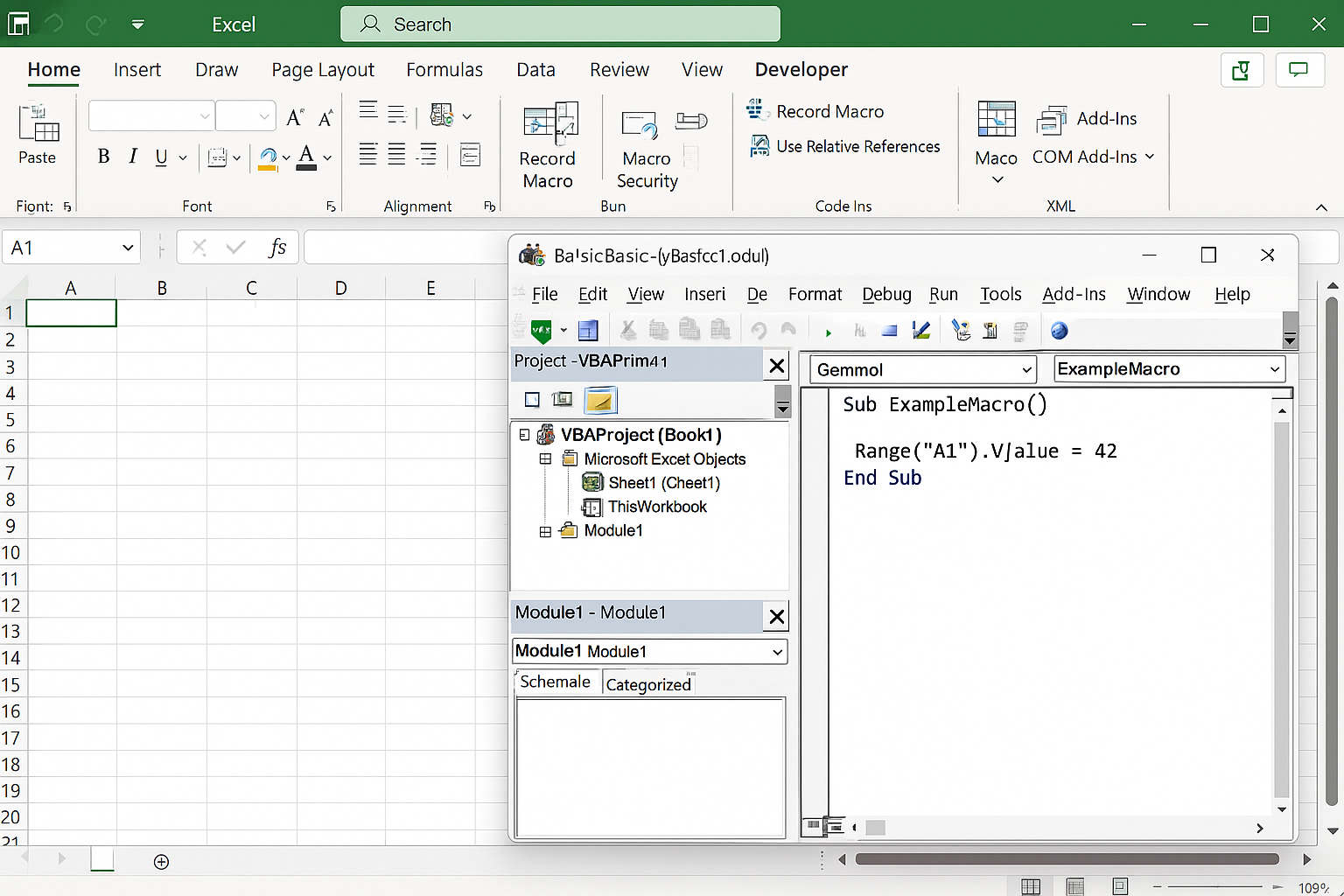
Follow these steps to create a class in your VBA project:
- Open the VBA editor by pressing
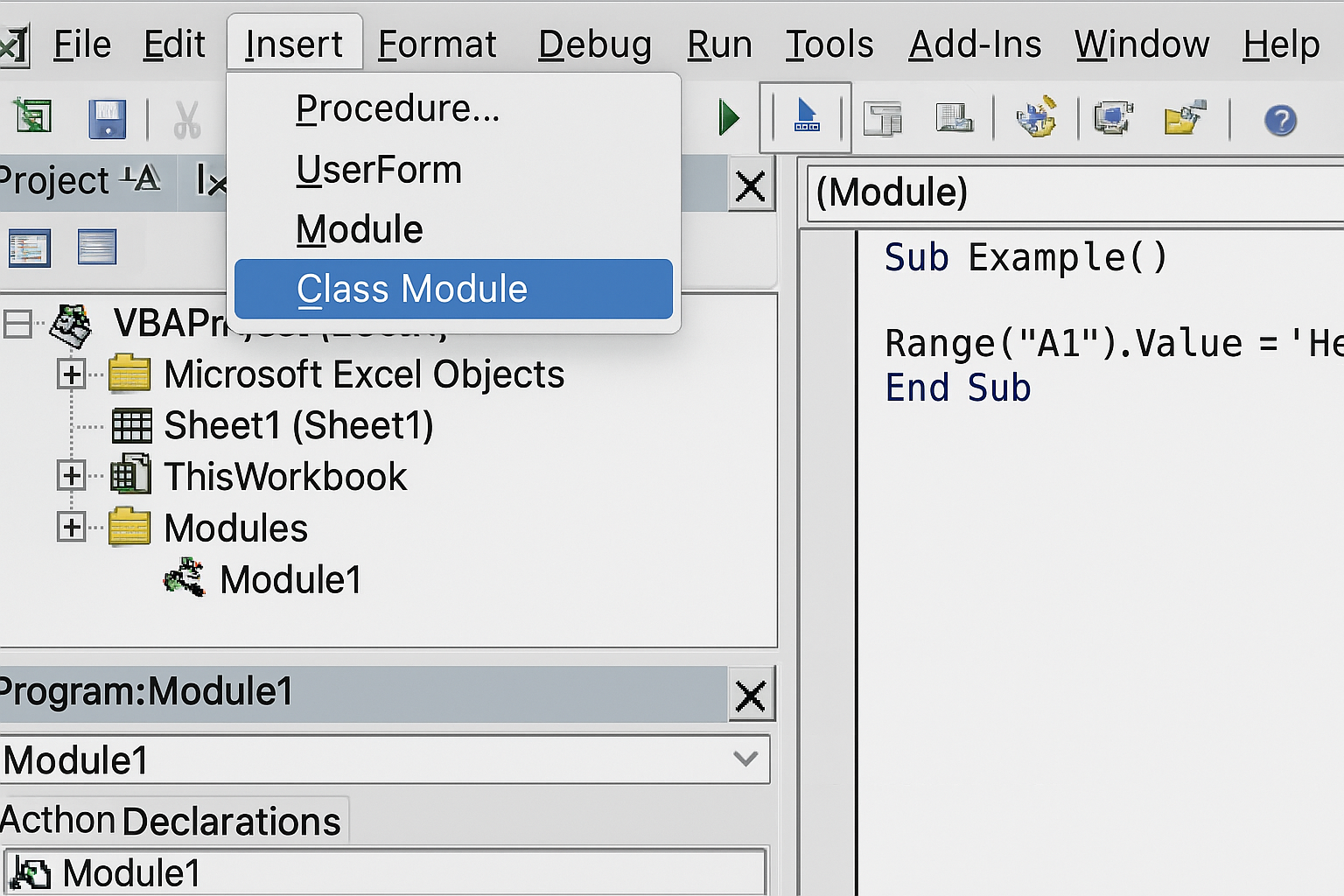
Alt + F11in Excel. - Insert a new class module by clicking Insert > Class Module.
- In the Properties window (press
F4if it’s not visible), rename the class module to a meaningful name, e.g.,clsEmployee. - Define properties and methods inside the class module.
Example: Creating a Simple Employee Class
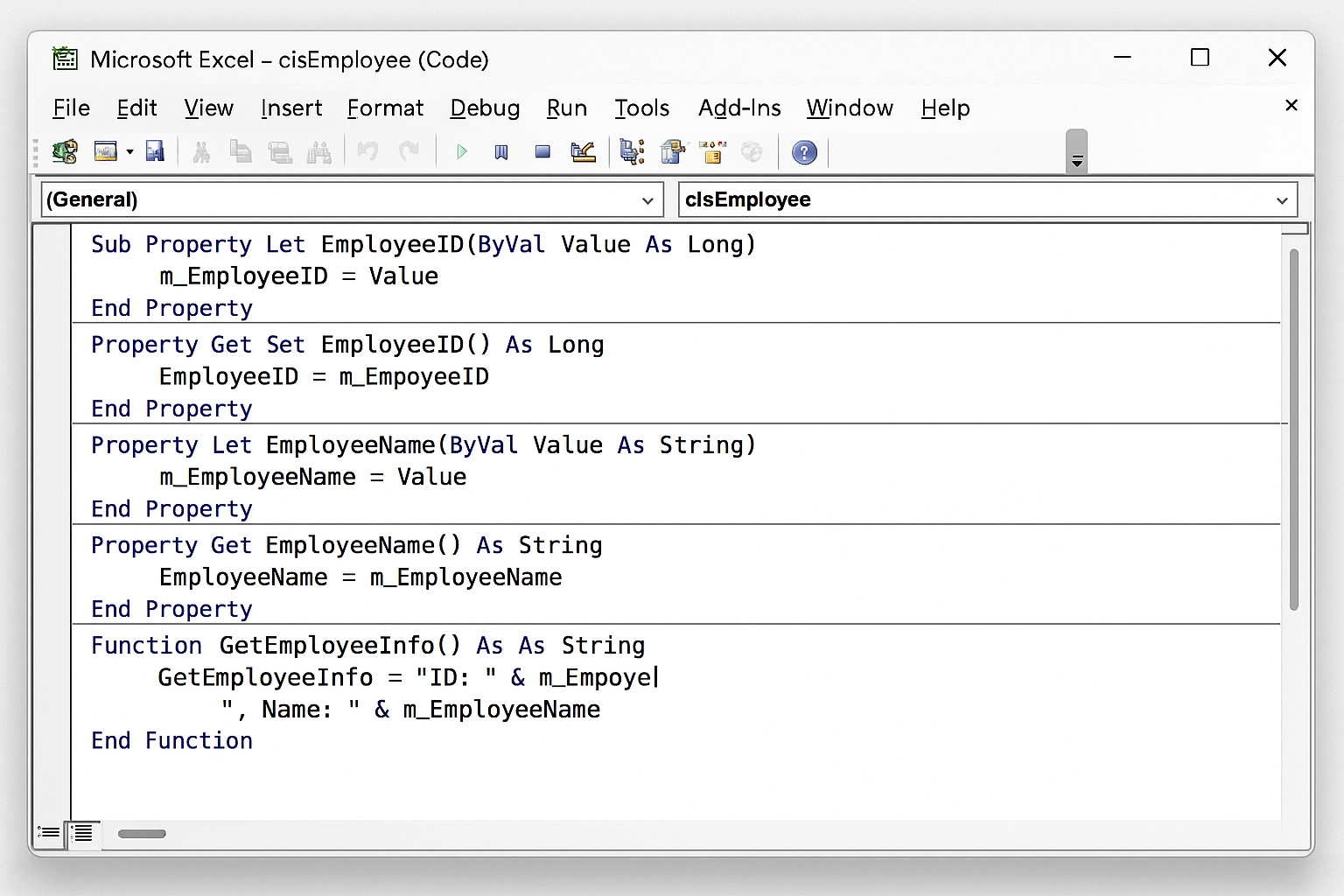
Let’s create a class representing an employee with properties such as Name, Age, and Salary, and a method to calculate yearly bonus.
' Inside clsEmployee class module
Private pName As String
Private pAge As Integer
Private pSalary As Double

' Property Let and Get for Name
Public Property Let Name(value As String)
    pName = value
End Property
Public Property Get Name() As String
    Name = pName
End Property

' Property Let and Get for Age
Public Property Let Age(value As Integer)
    pAge = value
End Property
Public Property Get Age() As Integer
    Age = pAge
End Property

' Property Let and Get for Salary
Public Property Let Salary(value As Double)
    pSalary = value
End Property
Public Property Get Salary() As Double
    Salary = pSalary
End Property

' Method to calculate bonus (e.g., 10% of salary)
Public Function CalculateBonus() As Double
    CalculateBonus = pSalary * 0.1
End Function
Using the Employee Class in a Standard Module
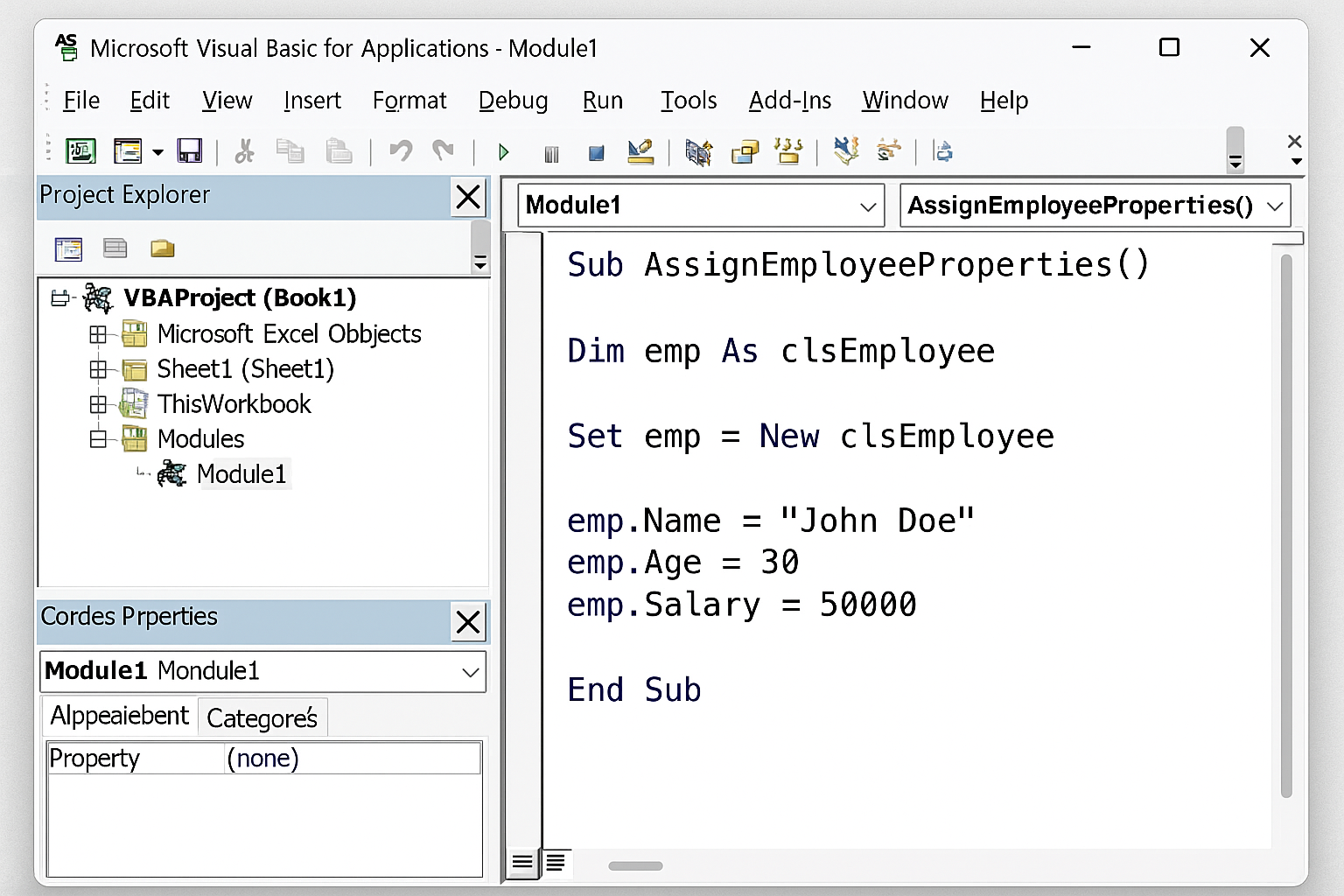
Now that we have our clsEmployee class, we can create objects and use them as follows:
Sub TestEmployeeClass()
    Dim emp As clsEmployee
    Set emp = New clsEmployee

    emp.Name = "Alice Johnson"
    emp.Age = 30
    emp.Salary = 60000

    MsgBox "Employee: " & emp.Name & vbCrLf & _
           "Age: " & emp.Age & vbCrLf & _
           "Salary: $" & Format(emp.Salary, "#,##0.00") & vbCrLf & _
           "Bonus: $" & Format(emp.CalculateBonus(), "#,##0.00")
End Sub
Advanced Example: Managing a Collection of Objects
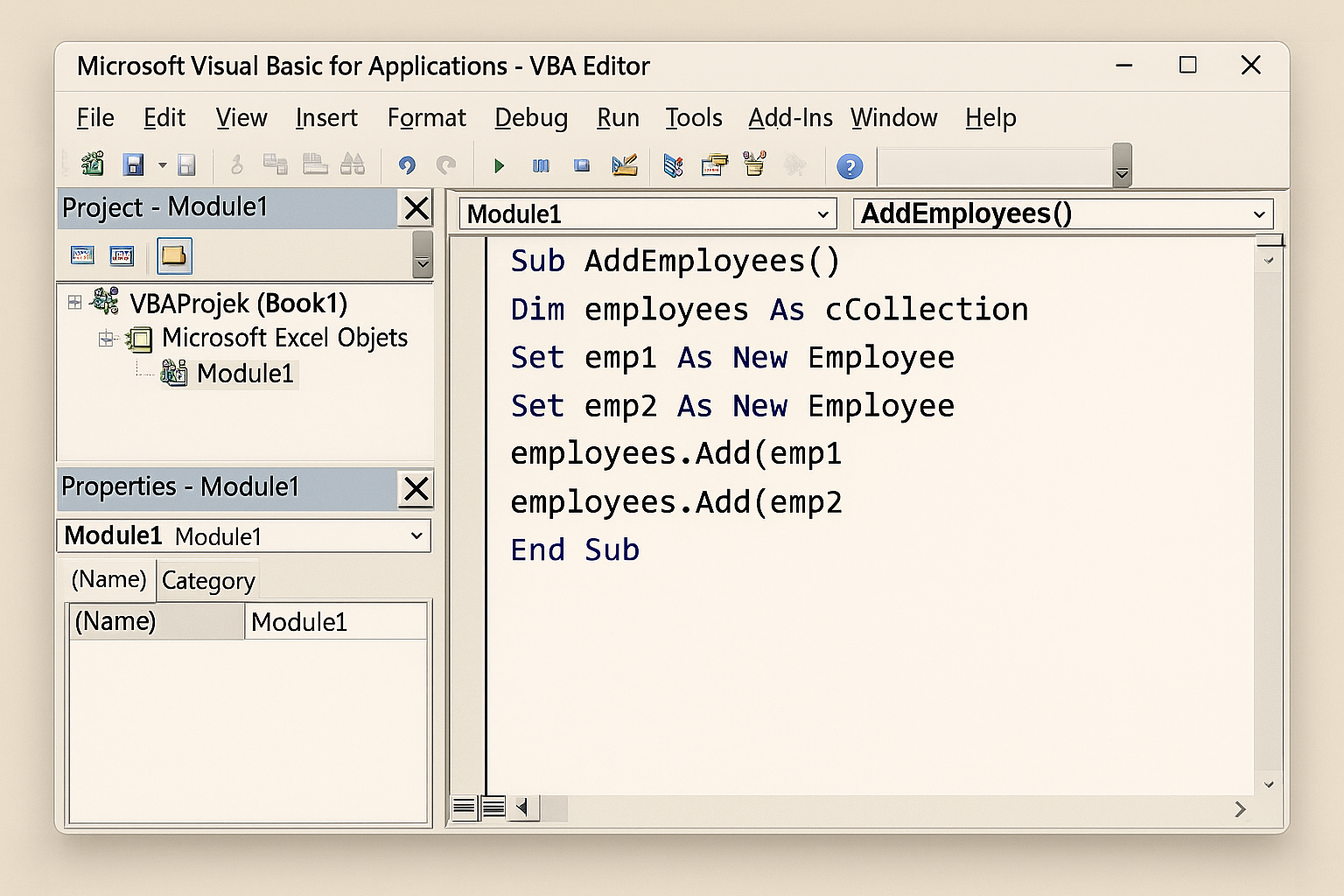
Classes become even more powerful when combined with collections to manage multiple objects. Let’s demonstrate this by creating a collection of employees and calculating the total payroll.
Sub ManageEmployeeCollection()
    Dim employees As Collection
    Set employees = New Collection

    Dim emp1 As clsEmployee
    Set emp1 = New clsEmployee
    emp1.Name = "John Smith"
    emp1.Age = 40
    emp1.Salary = 75000
    employees.Add emp1

    Dim emp2 As clsEmployee
    Set emp2 = New clsEmployee
    emp2.Name = "Jane Doe"
    emp2.Age = 28
    emp2.Salary = 68000
    employees.Add emp2

    Dim totalPayroll As Double
    totalPayroll = 0

    Dim emp As clsEmployee
    For Each emp In employees
        totalPayroll = totalPayroll + emp.Salary
    Next emp

    MsgBox "Total Payroll: $" & Format(totalPayroll, "#,##0.00")
End Sub
Best Practices When Working with Excel VBA Classes
- Use meaningful class names: This improves readability.
- Keep classes focused: Each class should represent a single concept.
- Implement error handling: Add validation inside property procedures.
- Document your classes: Include comments describing the purpose and usage.
- Use Property Get, Let, and Set carefully: Distinguish between returning values and assigning objects.
Common Use Cases for Excel VBA Classes
Excel VBA classes are ideal for scenarios such as:
- Modeling business objects (employees, invoices, products).
- Encapsulating complex calculations or algorithms.
- Handling custom events.
- Creating reusable components or libraries.
- Interfacing with external data sources through OOP.
FAQ
What is the difference between a standard module and a class module in Excel VBA?
A standard module contains procedures and functions accessible globally, while a class module defines objects with properties and methods, allowing you to create multiple instances with encapsulated data and behavior.
Can I create multiple instances of the same class in VBA?
Yes. You can create as many objects as needed from a single class definition, each maintaining its own state.
How do I handle errors in VBA classes?
You can include error handling within your class methods using On Error statements, just like in standard modules, to ensure robustness.
Are VBA classes suitable for beginners?
While VBA classes introduce object-oriented concepts that may be complex initially, they are valuable for learning advanced programming and creating maintainable code. Beginners can start with simple classes and gradually explore advanced features.
Can VBA classes interact with Excel worksheet data?
Absolutely. VBA classes can contain methods that read from or write to worksheet cells, enabling powerful integrations between your class logic and Excel data.
Is it possible to inherit classes in Excel VBA?
VBA does not support traditional class inheritance, but you can achieve similar behavior using interfaces and composition patterns.
Conclusion
Using classes in Excel VBA elevates your programming capabilities by promoting clean, modular, and reusable code. Whether you’re managing business entities, complex calculations, or collections of objects, classes empower you to write scalable and maintainable VBA solutions. By understanding how to create and implement Excel VBA classes, you open the door to advanced programming techniques that can significantly improve your automation projects.
Start small by creating simple classes and progressively incorporate them into your workflows. With practice, you’ll harness the full power of object-oriented programming in Excel VBA to build sophisticated and efficient macros.
Related Articles
- How to Automate Repetitive Tasks in Excel Using VBA
- Creating Your First Macro in Excel with VBA: A Step-by-Step Guide
- Top 10 Simple VBA Scripts to Automate Excel Tasks for Beginners
- Using Loops in Excel VBA to Save Time on Data Entry
- Introduction to Excel VBA Programming for Absolute Beginners
Want practical Excel help?
Support free Excel tutorials, get weekly tips, or contact us for Excel programming, VBA, Power Query, dashboards, and automation work.