How to Integrate External APIs with Excel Using VBA

Introduction
In today’s data-driven world, integrating external data sources directly into Excel can significantly enhance your productivity and analytical capabilities. Excel VBA API integration allows users to connect Excel spreadsheets with various web APIs, enabling automatic data fetching, processing, and manipulation all within the familiar Excel environment. This article will guide you through the process of integrating external APIs with Excel using VBA, including practical examples and best practices.
Understanding Excel VBA API Integration
API (Application Programming Interface) integration refers to the process of connecting your Excel application with external services or databases to exchange and use data. By leveraging VBA (Visual Basic for Applications), Excel users can automate HTTP requests, parse JSON or XML responses, and dynamically update worksheet data.
Benefits of Excel VBA API integration include:
- Automating data retrieval and updates
- Accessing real-time data such as stock prices, weather, or social media metrics
- Reducing manual data entry and errors
- Creating custom dashboards and reports
Prerequisites for API Integration in Excel VBA
Before starting, ensure you have the following:
- Basic knowledge of VBA programming
- Access to an external API with documentation (RESTful APIs are most common)
- Excel version that supports VBA (Excel 2010 or later recommended)
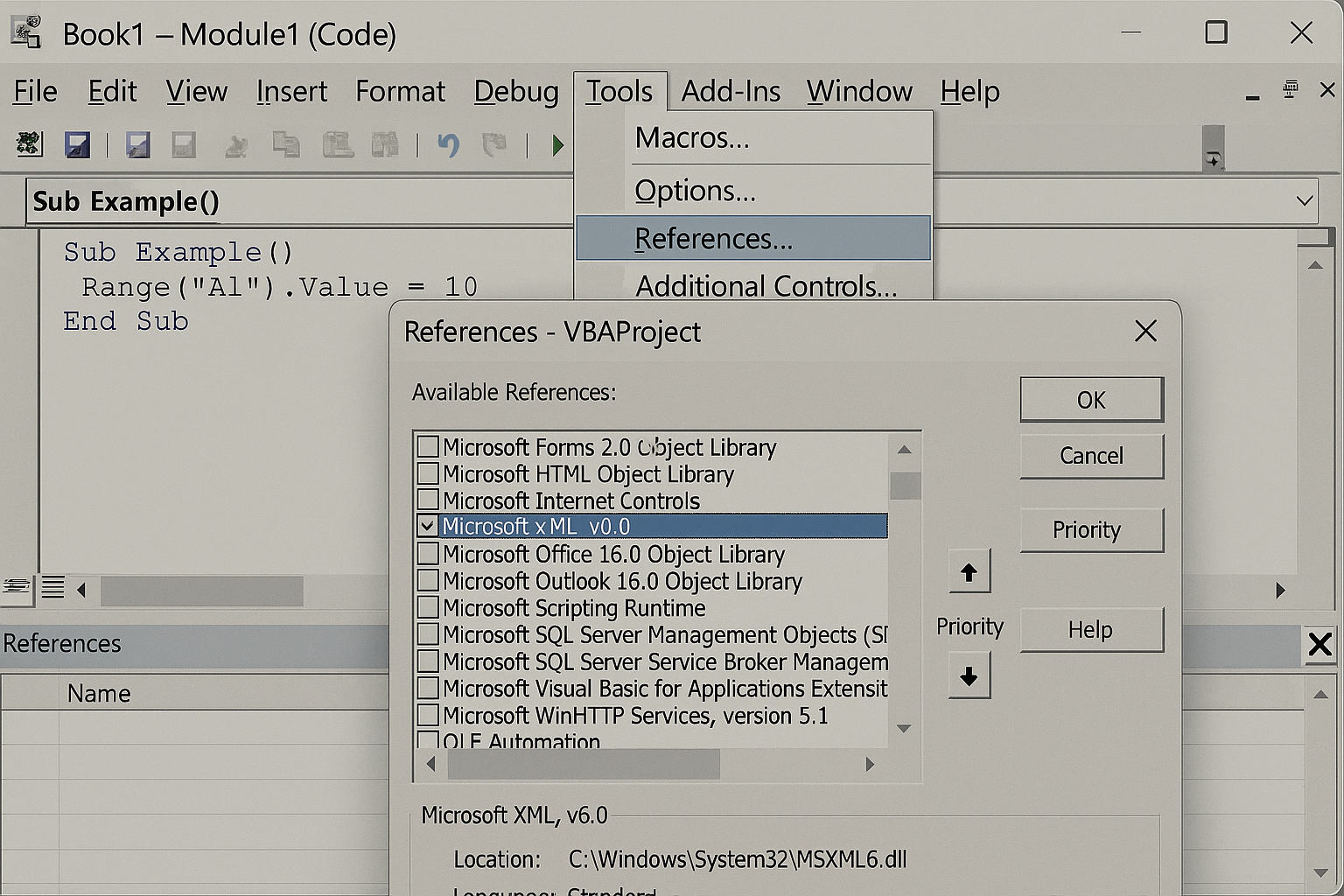
- Reference to Microsoft XML, v6.0 library enabled in VBA for HTTP requests (via Tools > References)
Step-by-Step Guide: Making an API Call with Excel VBA
1. Enable Microsoft XML Library
Open the VBA editor (Alt + F11), then go to Tools > References and check Microsoft XML, v6.0. This library provides the necessary tools to send HTTP requests.
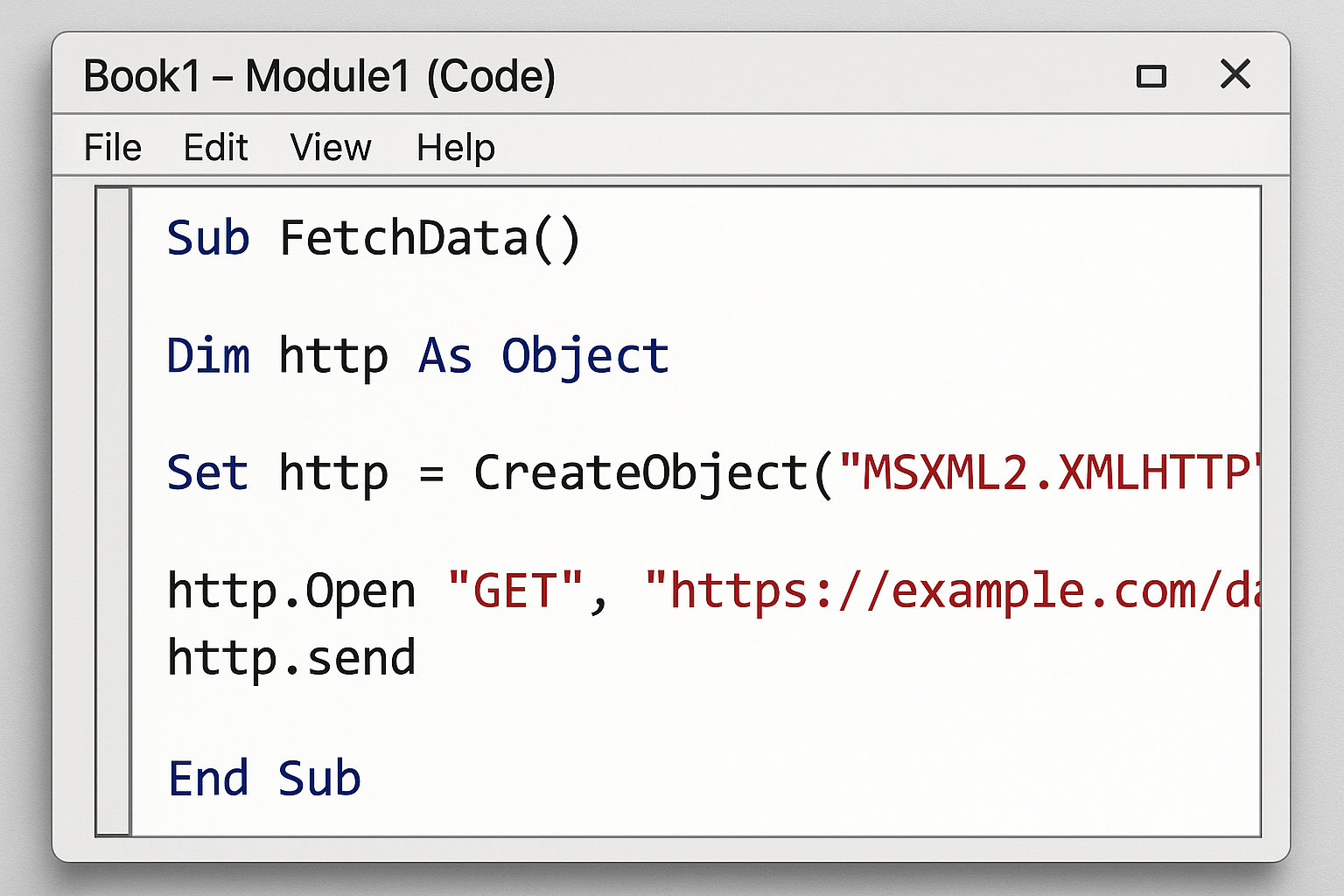
This code sends a GET request to the specified URL and displays the JSON response in a message box.
3. Parsing JSON Response in VBA
Excel VBA does not natively parse JSON, so you need to include a JSON parser library. One popular option is VBA-JSON. Download and import the module into your VBA project.
Once imported, you can parse the JSON string like this:
Sub GetAndParseJSON()
    Dim httpRequest As MSXML2.XMLHTTP60
    Dim url As String
    Dim jsonResponse As String
    Dim jsonObject As Object

    url = "https://jsonplaceholder.typicode.com/posts/1"
    Set httpRequest = New MSXML2.XMLHTTP60

    httpRequest.Open "GET", url, False
    httpRequest.send

    If httpRequest.Status = 200 Then
        jsonResponse = httpRequest.responseText
        Set jsonObject = JsonConverter.ParseJson(jsonResponse)
        MsgBox "Title: " & jsonObject("title")
    Else
        MsgBox "Error fetching data: " & httpRequest.Status
    End If

    Set httpRequest = Nothing
    Set jsonObject = Nothing
End Sub
Example: Fetching Weather Data from OpenWeatherMap API
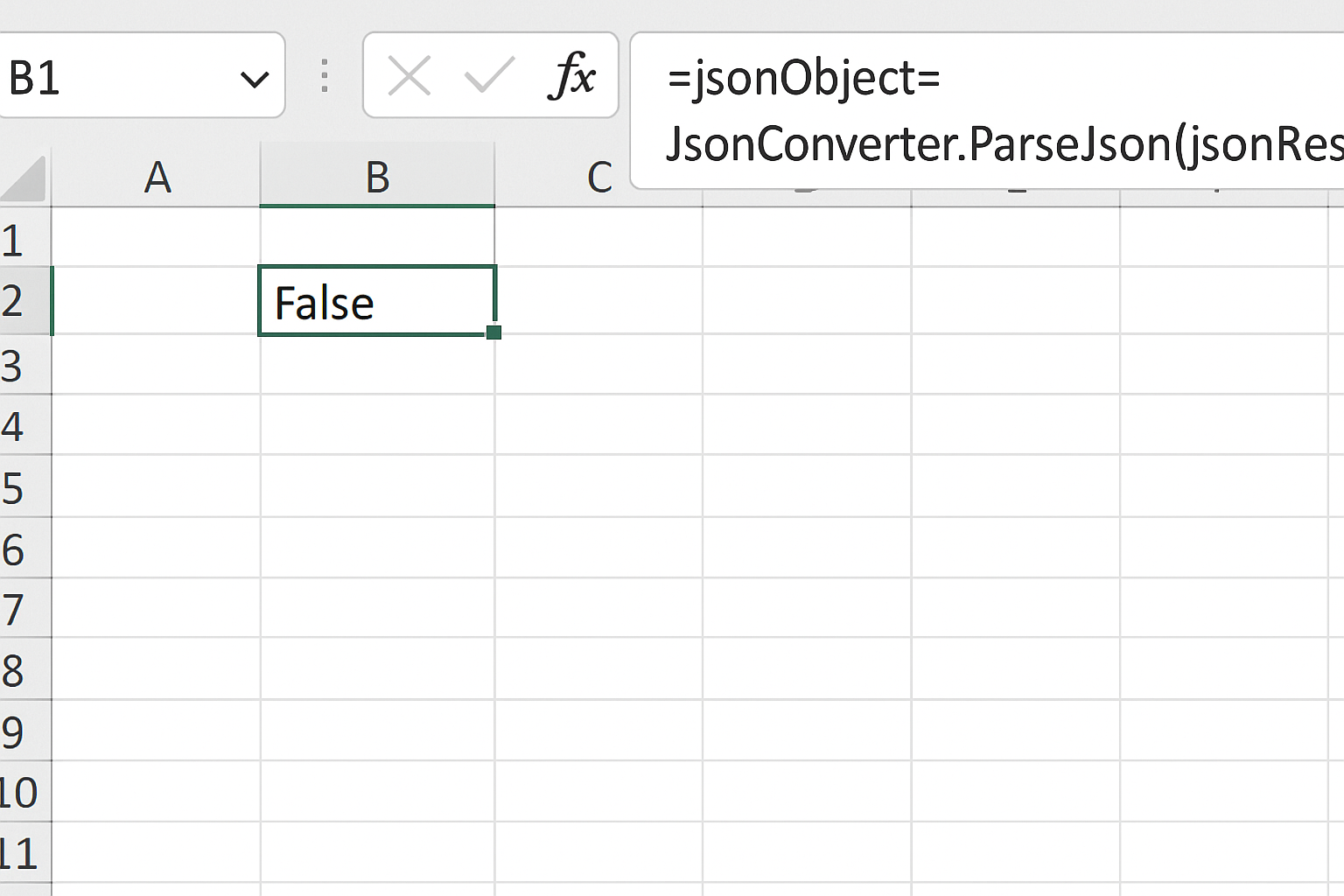
Let’s create a practical example by retrieving the current weather for a city using OpenWeatherMap API.
1. Register and Get API Key
Sign up for a free API key at OpenWeatherMap.
2. VBA Code to Get Weather Data
Sub GetWeatherData()
    Dim httpRequest As MSXML2.XMLHTTP60
    Dim url As String
    Dim jsonResponse As String
    Dim jsonObject As Object
    Dim apiKey As String
    Dim city As String

    apiKey = "YOUR_API_KEY_HERE"
    city = "London"

    url = "https://api.openweathermap.org/data/2.5/weather?q=" & city & "&appid=" & apiKey & "&units=metric"

    Set httpRequest = New MSXML2.XMLHTTP60
    httpRequest.Open "GET", url, False
    httpRequest.send

    If httpRequest.Status = 200 Then
        jsonResponse = httpRequest.responseText
        Set jsonObject = JsonConverter.ParseJson(jsonResponse)

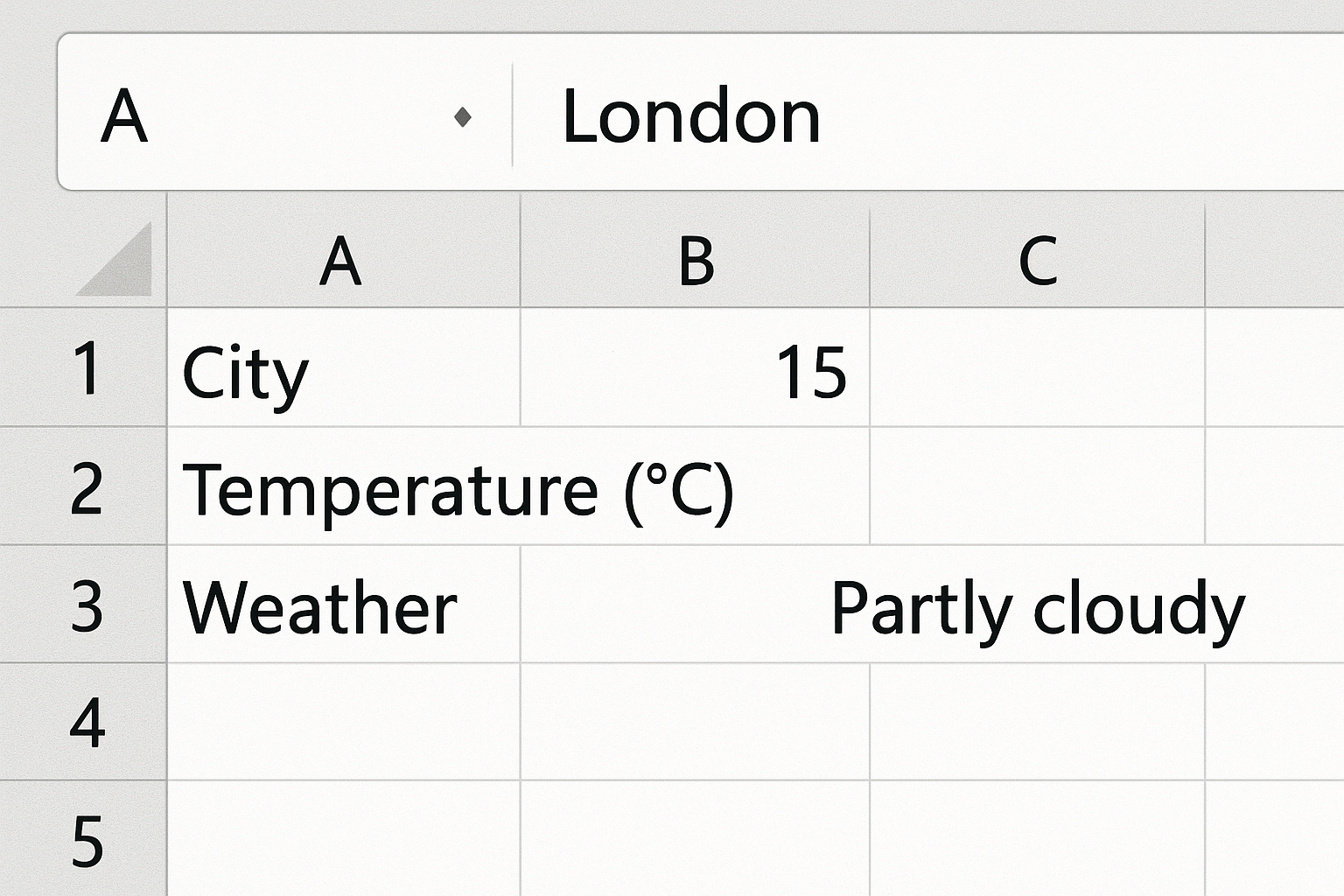
        Sheets("Sheet1").Range("A1").Value = "City"
        Sheets("Sheet1").Range("B1").Value = city
        Sheets("Sheet1").Range("A2").Value = "Temperature (°C)"
        Sheets("Sheet1").Range("B2").Value = jsonObject("main")("temp")
        Sheets("Sheet1").Range("A3").Value = "Weather"
        Sheets("Sheet1").Range("B3").Value = jsonObject("weather")(1)("description")

    Else
        MsgBox "Failed to get weather data: " & httpRequest.Status
    End If

    Set httpRequest = Nothing
    Set jsonObject = Nothing
End Sub
Replace YOUR_API_KEY_HERE with your actual API key. This script fetches the temperature and weather description, then outputs it to Sheet1.
Handling Authentication and POST Requests
Many APIs require authentication, commonly via API keys, bearer tokens, or OAuth. For API key authentication, you typically add the key in the URL or as a header.
Example adding an API key in header:
httpRequest.setRequestHeader "x-api-key", "YOUR_API_KEY"
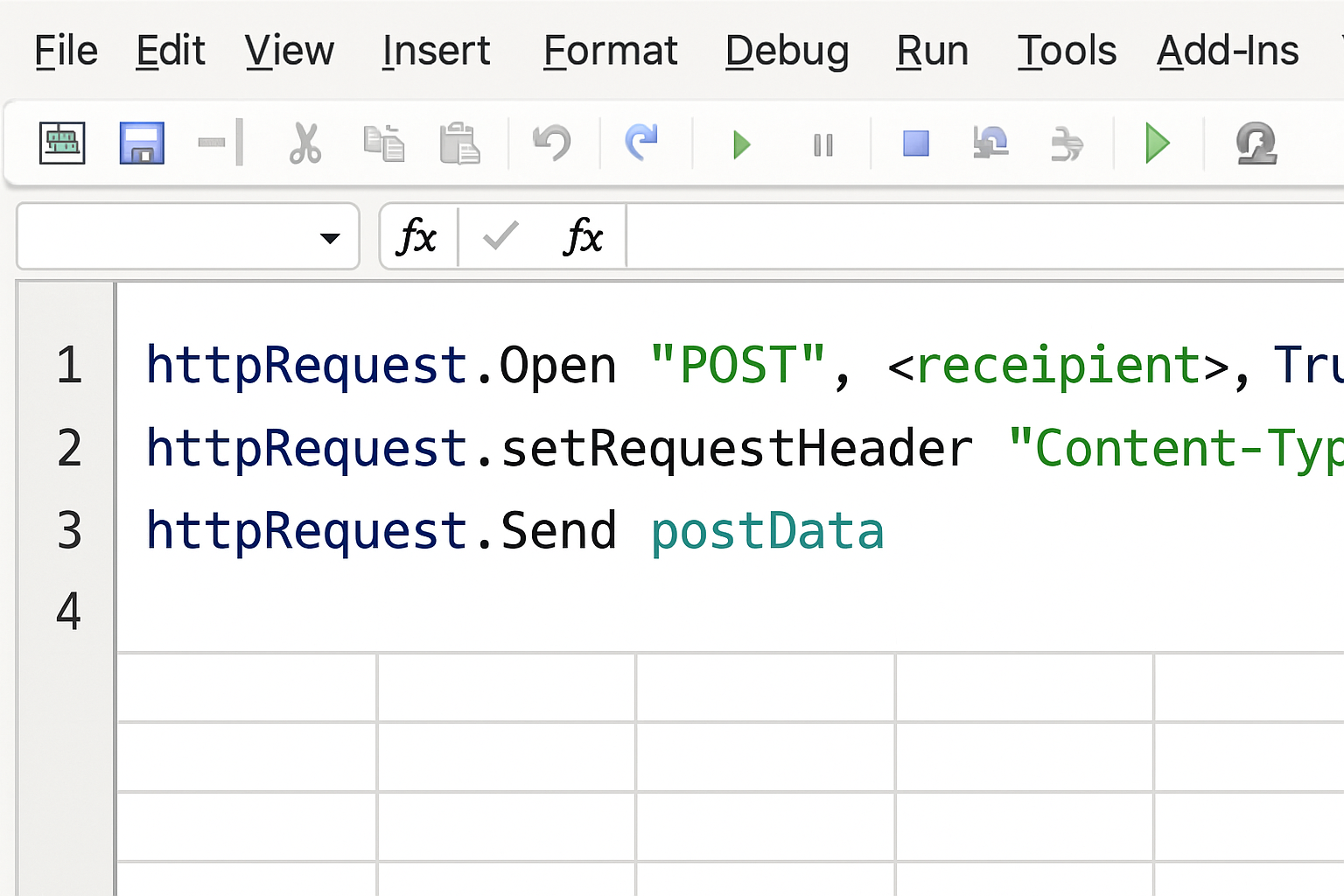
For POST requests, modify the VBA code:
httpRequest.Open "POST", url, False
httpRequest.setRequestHeader "Content-Type", "application/json"
httpRequest.send postData
Where postData is a JSON string payload.
Best Practices for Excel VBA API Integration
- Error Handling: Always check HTTP status codes and handle errors gracefully.
- Rate Limiting: Respect API rate limits by adding delays between requests.
- Secure API Keys: Avoid hardcoding keys; consider storing them in hidden sheets or encrypted files.
- Data Parsing: Use reliable JSON parsers to handle complex responses.
- Performance: Avoid excessive or unnecessary API calls to reduce latency.
Frequently Asked Questions
See the FAQ section below for common questions related to Excel VBA API integration.
Conclusion
Integrating external APIs with Excel using VBA unlocks powerful automation and data retrieval capabilities right inside your spreadsheets. By following the steps outlined in this guide, you can connect to multiple APIs, parse responses, and enrich your Excel-based solutions with dynamic external data. Whether you’re fetching weather reports, financial data, or social metrics, Excel VBA API integration is an essential skill for advanced Excel users and developers seeking enhanced functionality.
Related Articles
- How to Automate Repetitive Tasks in Excel Using VBA
- Creating Your First Macro in Excel with VBA: A Step-by-Step Guide
- Top 10 Simple VBA Scripts to Automate Excel Tasks for Beginners
- Using Loops in Excel VBA to Save Time on Data Entry
- Introduction to Excel VBA Programming for Absolute Beginners
Want practical Excel help?
Support free Excel tutorials, get weekly tips, or contact us for Excel programming, VBA, Power Query, dashboards, and automation work.