Troubleshooting Common XLOOKUP Errors in Excel

Introduction
XLOOKUP is one of the most powerful and flexible lookup functions available in modern Excel versions. It has largely replaced older functions like VLOOKUP and HLOOKUP because of its versatility and ease of use. However, like any formula, users can encounter errors that disrupt workflow and result in incorrect data outputs. This article covers the most common XLOOKUP errors, their causes, and practical ways to fix them. By mastering these troubleshooting techniques, you can ensure your Excel sheets run smoothly and deliver accurate results every time.
Understanding XLOOKUP Syntax
Before diving into errors, it’s important to understand the basic syntax of XLOOKUP:
=XLOOKUP(lookup_value, lookup_array, return_array, [if_not_found], [match_mode], [search_mode])Parameters explained:
lookup_value: The value you want to search for.lookup_array: The range or array to search within.return_array: The range or array to return a value from.if_not_found(optional): The value to return if no match is found.match_mode(optional): Defines the match type (exact, wildcard, etc.).search_mode(optional): Defines search order (first-to-last, last-to-first, binary search).
Common XLOOKUP Errors and How to Fix Them
1. #N/A Error
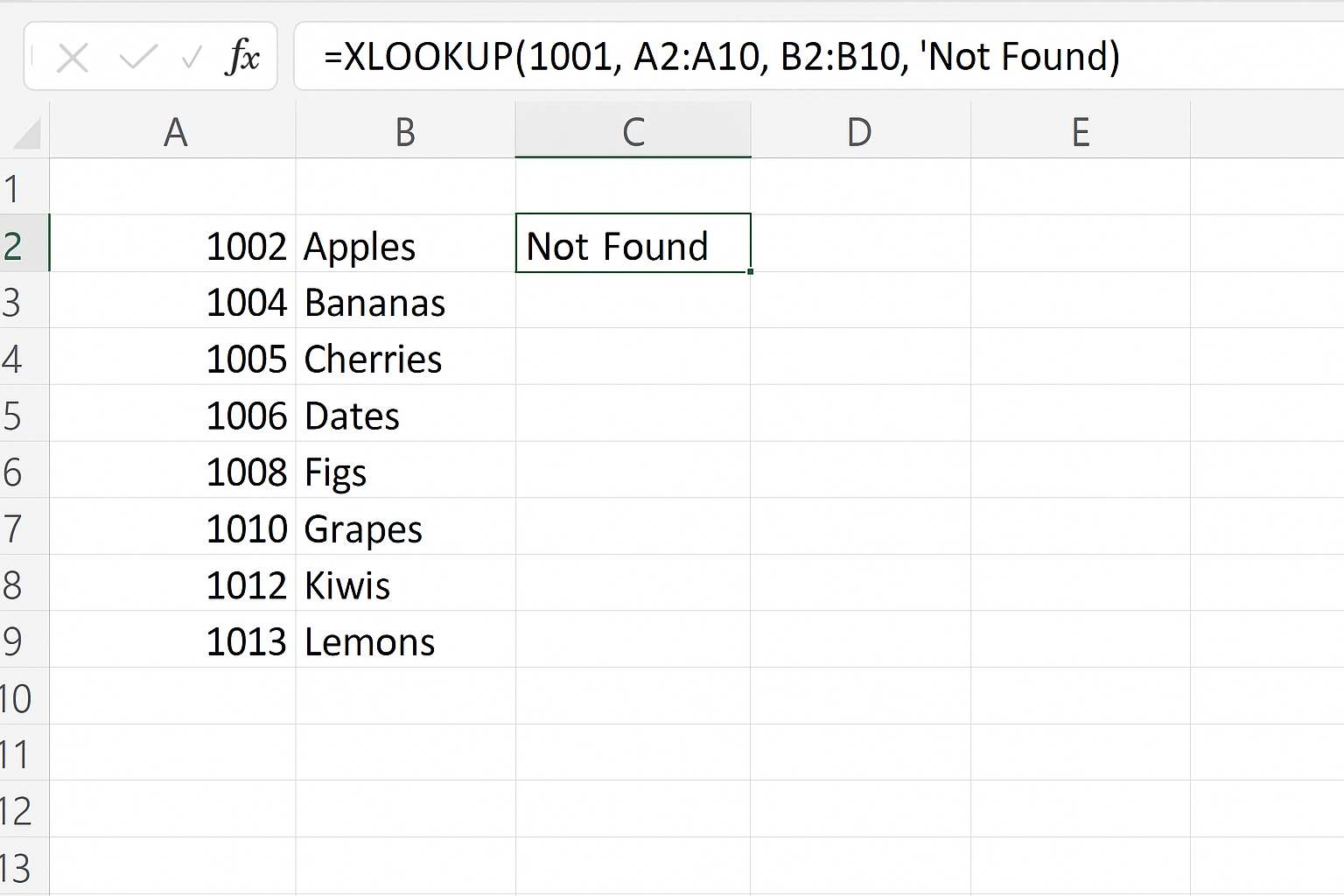
Cause: The most frequent error encountered is #N/A, which means the function did not find a lookup value in the lookup array.
Example:
=XLOOKUP(1001, A2:A10, B2:B10)If the value 1001 is not in A2:A10, the formula returns #N/A.
How to fix:
- Double-check the lookup value exists in the lookup array.
- Use the optional
if_not_foundargument to display a custom message instead of#N/A:
=XLOOKUP(1001, A2:A10, B2:B10, "Not Found")2. #VALUE! Error
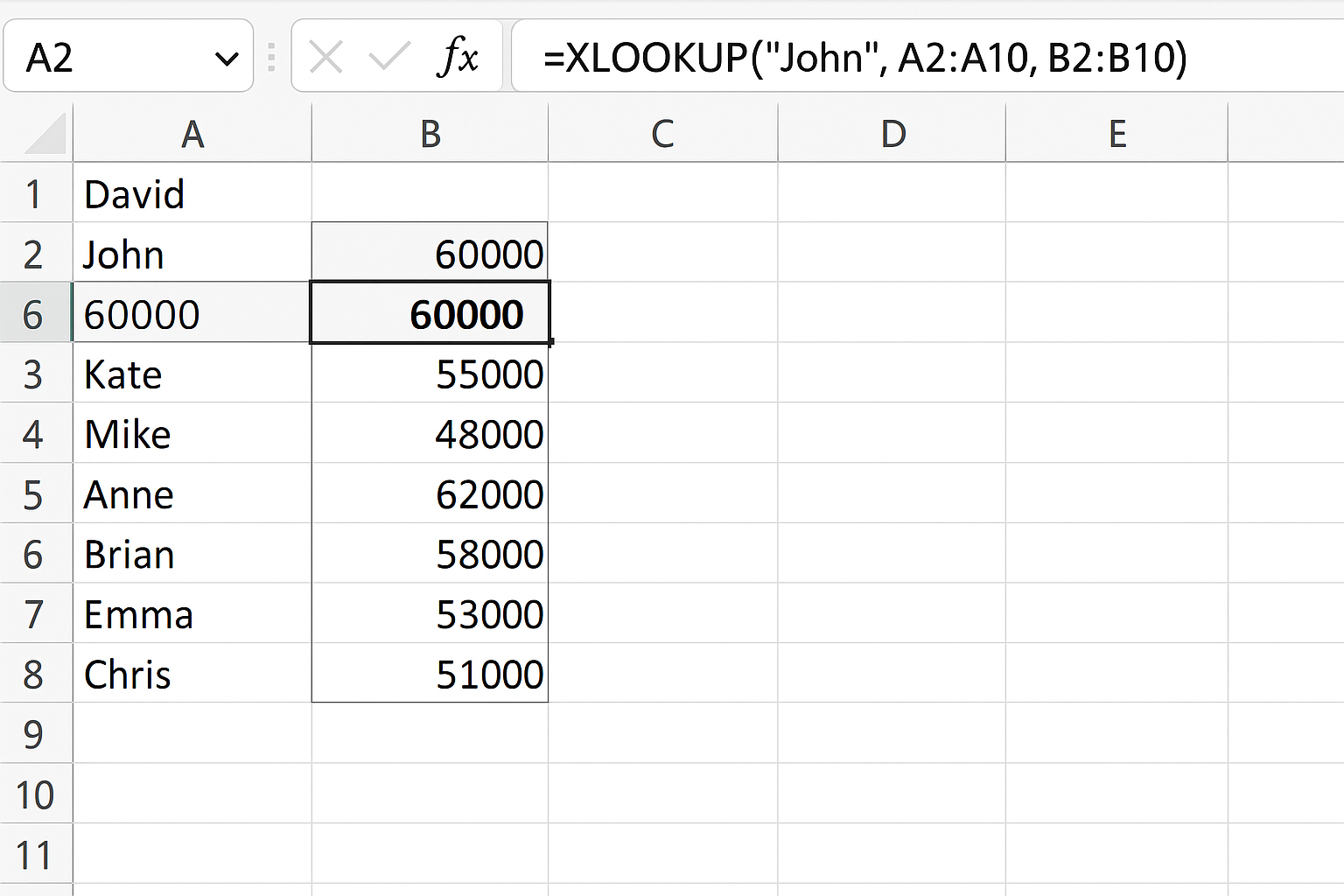
Cause: This error may occur if the lookup_array and return_array have different dimensions or sizes.
Example:
=XLOOKUP("John", A2:A10, B2:B12)Here, lookup_array has 9 rows, but return_array has 11 rows, causing a mismatch.
How to fix: Make sure both arrays are the same size and shape. For example:
=XLOOKUP("John", A2:A10, B2:B10)3. Incorrect Match Type Leading to Unexpected Results
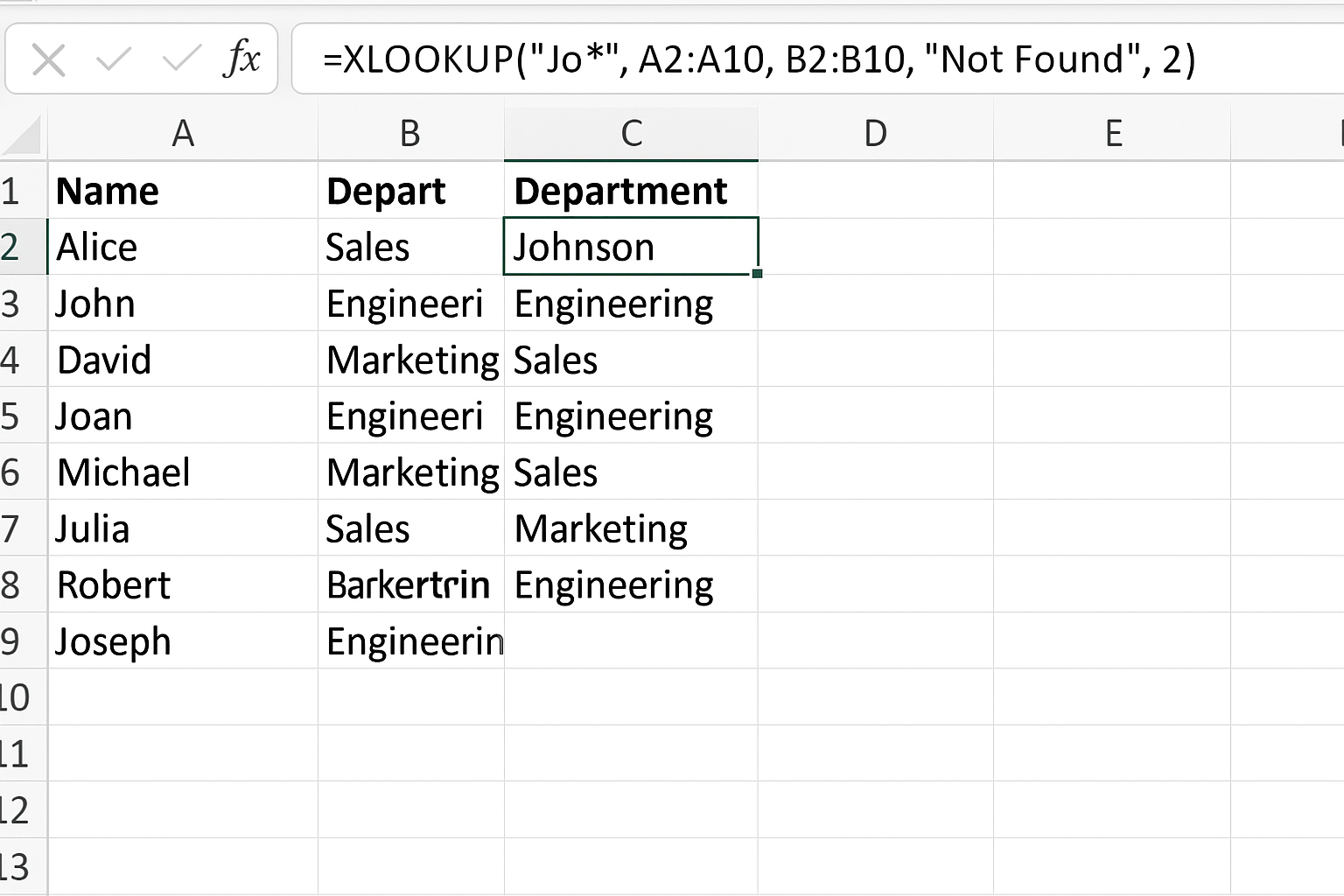
Cause: Using the wrong match_mode argument can cause XLOOKUP to return unexpected results, especially when partial matches or wildcards are involved.
Example:
=XLOOKUP("Jo*", A2:A10, B2:B10, "Not Found", 0)Here, match_mode=0 requires an exact match, so wildcards won’t work.
How to fix: Use match_mode=2 to enable wildcard matching:
=XLOOKUP("Jo*", A2:A10, B2:B10, "Not Found", 2)4. #REF! Error
Cause: This error occurs when one of the ranges used in the formula is invalid or deleted.
Example:
=XLOOKUP("Product1", A2:A10, C2:C20)If range C2:C20 is deleted or moved, the formula returns #REF!.
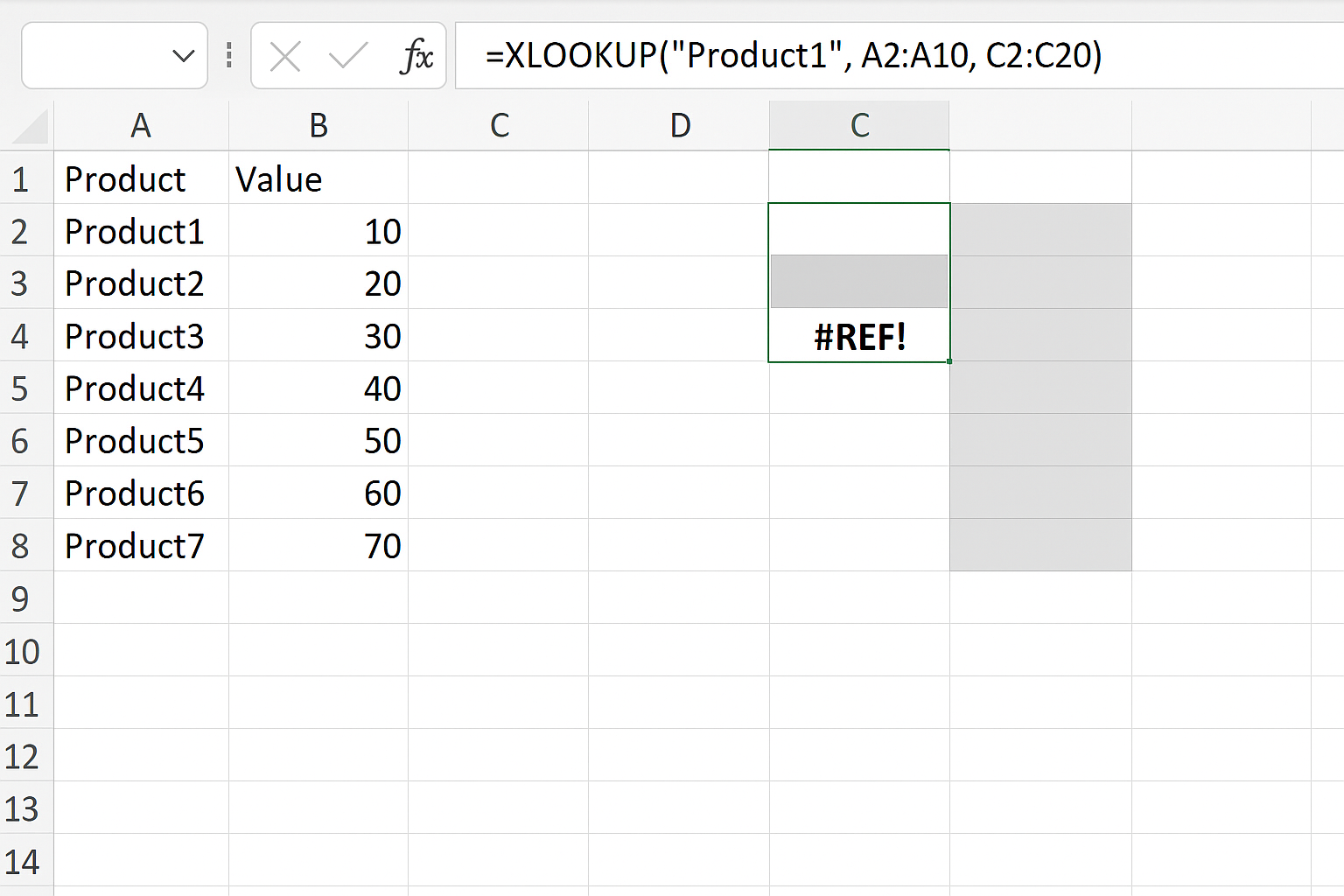
How to fix: Verify that all referenced ranges are intact and correctly specified.
5. Data Type Mismatch
Cause: If the data types between lookup_value and lookup_array do not match (e.g., number vs. text), XLOOKUP may not find a match.
Example:
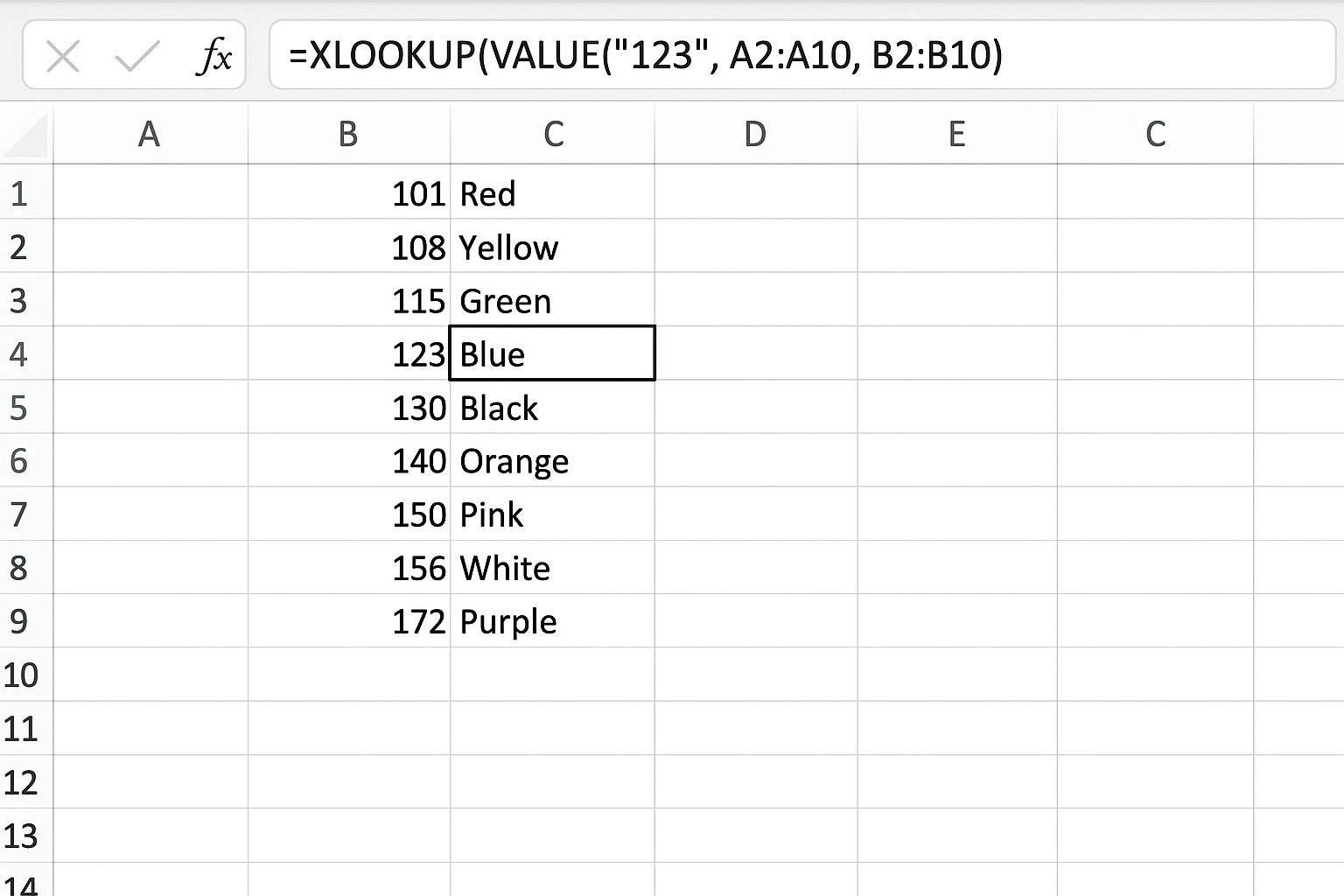
=XLOOKUP("123", A2:A10, B2:B10)If numbers in A2:A10 are numeric but lookup_value is text “123”, no match will be found.
How to fix: Convert data types to match. You can use TEXT() or VALUE() functions accordingly:
=XLOOKUP(VALUE("123"), A2:A10, B2:B10)Practical Example: Fixing an XLOOKUP Formula
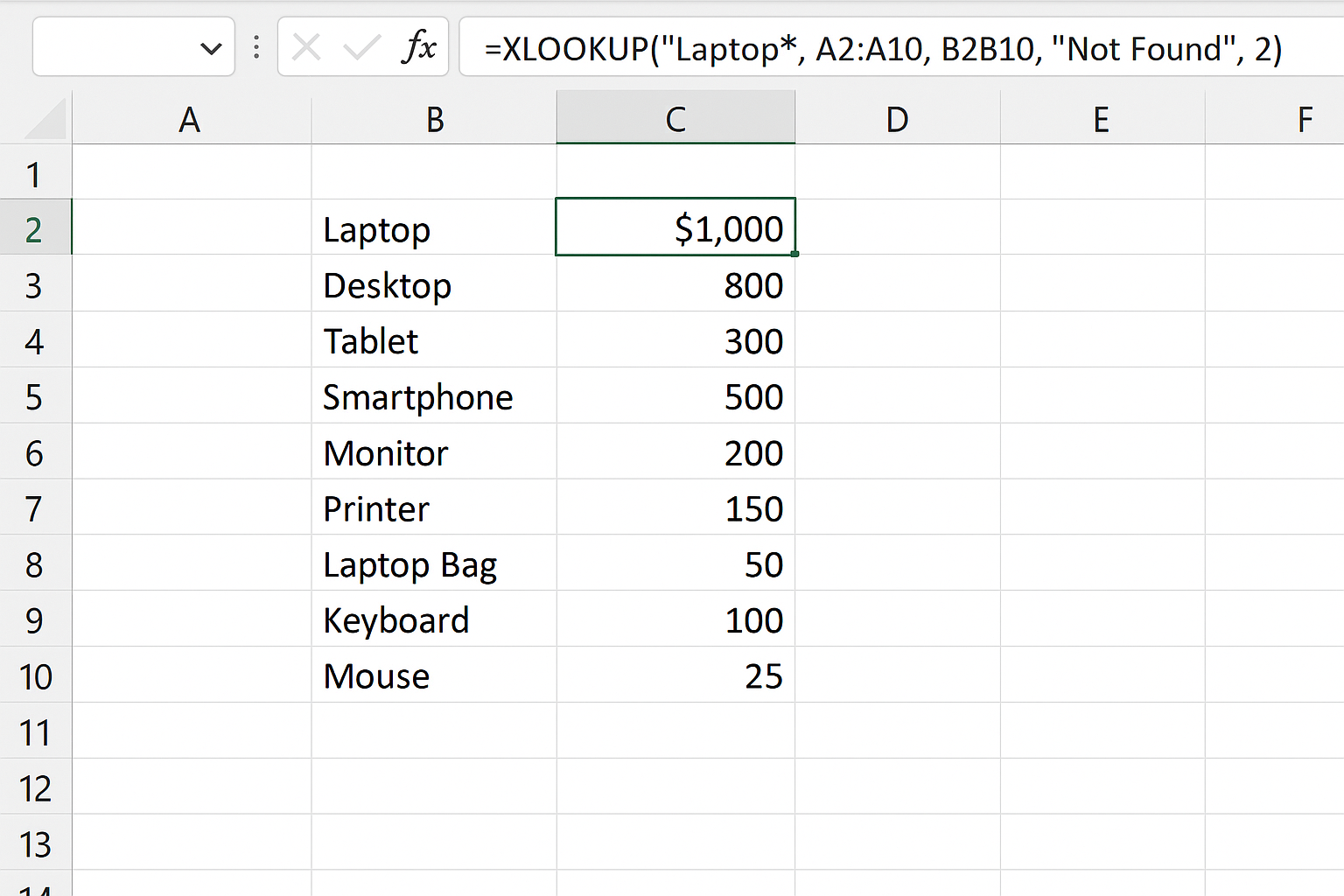
Imagine you have a product list in column A (A2:A10) and prices in column B (B2:B10). You want to find the price for product “Laptop”.
Incorrect formula that returns #N/A:
=XLOOKUP("Laptop", A2:A10, B2:B10)But “Laptop” is not exactly spelled the same or has extra spaces.
Fix: Use the TRIM() function and wildcard match:
=XLOOKUP("Laptop*", A2:A10, B2:B10, "Not Found", 2)This will find any product starting with “Laptop” and ignore extra spaces.
Tips to Avoid XLOOKUP Errors
- Always ensure your lookup_array and return_array have the same size.
- Use the
if_not_foundargument to handle missing data gracefully. - Check for extra spaces and inconsistent data types.
- Choose the correct
match_modefor your lookup needs. - Keep your ranges updated and avoid deleting referenced cells.
Conclusion
Troubleshooting common XLOOKUP errors is essential to harness the full power of this versatile Excel function. Understanding why errors like #N/A, #VALUE!, and #REF! occur helps you quickly identify problems and apply fixes. Using optional arguments such as if_not_found and match modes can enhance your formulas’ reliability and user-friendliness. With these tips and practical examples, you can confidently build robust spreadsheets that deliver accurate and dynamic lookup results.
Related Articles
- Getting Started with XLOOKUP in Excel: A Beginner’s Guide
- How to Use XLOOKUP in Excel to Find Data Quickly
- Understanding XLOOKUP Syntax and Parameters in Excel
- How to Use XLOOKUP with Multiple Criteria in Excel
- Error Handling in XLOOKUP: Tips to Avoid Common Mistakes
Want practical Excel help?
Support free Excel tutorials, get weekly tips, or contact us for Excel programming, VBA, Power Query, dashboards, and automation work.