How to Use XLOOKUP in Excel to Find Data Quickly

Introduction
Excel’s XLOOKUP function is a powerful tool designed to simplify data lookup tasks. Replacing older functions like VLOOKUP and HLOOKUP, XLOOKUP offers more flexibility, accuracy, and ease of use. In this comprehensive guide, you will learn how to use XLOOKUP in Excel to find data quickly and efficiently. We will cover the basic syntax, practical examples, and tips to get the most out of this essential function.
What is XLOOKUP?
XLOOKUP is a versatile Excel function that searches a range or array for a specified value and returns a corresponding value from another range or array. Unlike VLOOKUP, which searches only from left to right, XLOOKUP can search in any direction, making it ideal for more complex data retrieval tasks.
XLOOKUP Syntax
XLOOKUP(lookup_value, lookup_array, return_array, [if_not_found], [match_mode], [search_mode])
- lookup_value: The value you want to find.
- lookup_array: The array or range where to search for the lookup_value.
- return_array: The array or range from which to return a value.
- if_not_found (optional): The value to return if no match is found.
- match_mode (optional): Specifies the type of match (exact, approximate).
- search_mode (optional): Defines the search direction (first-to-last, last-to-first).
How to Use XLOOKUP in Excel: Step-by-Step Examples
Example 1: Basic XLOOKUP to Find a Price
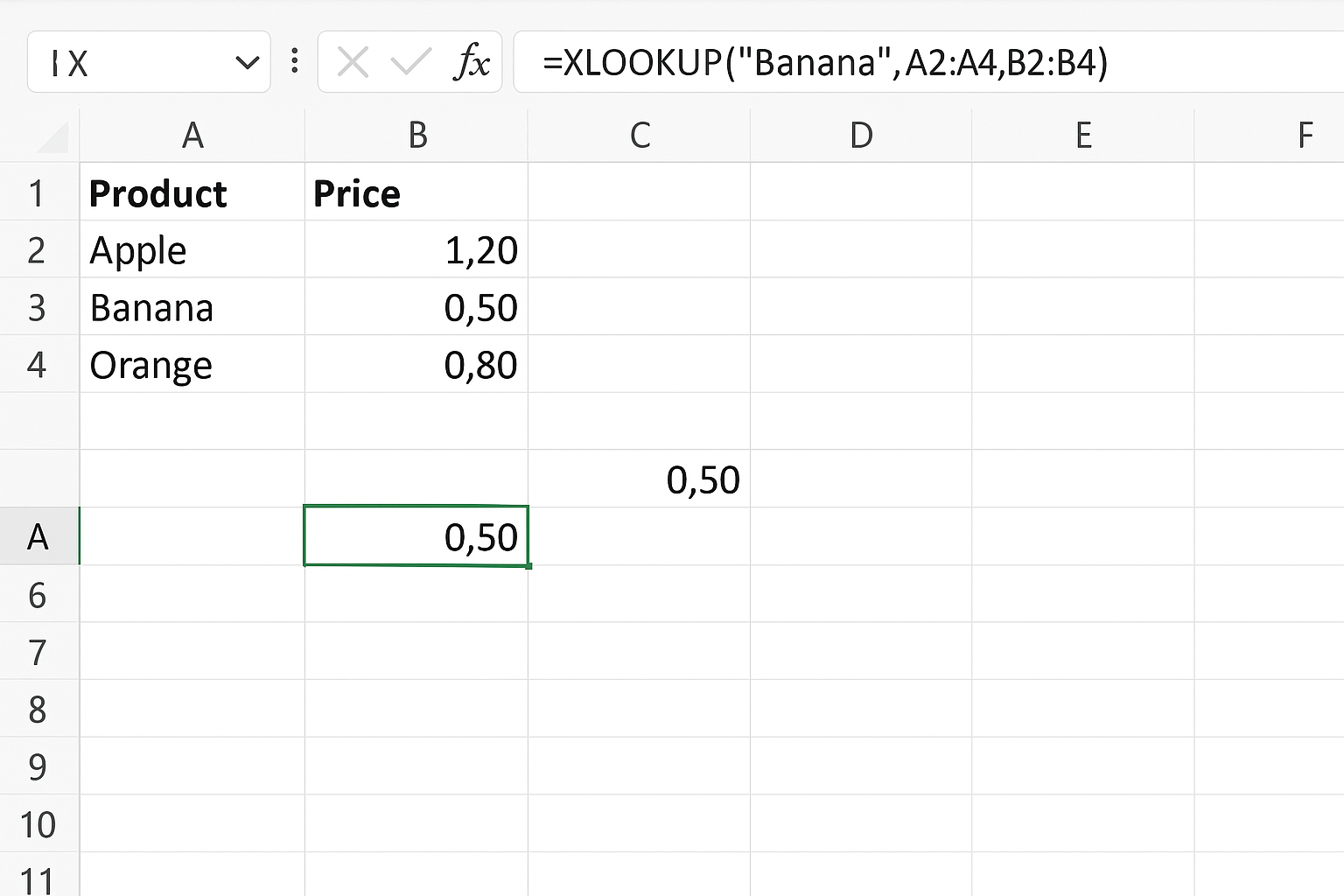
Imagine you have a product list with prices and want to find the price of a specific product.
Product      Price
Apple        1.20
Banana       0.50
Orange       0.80

Formula:
=XLOOKUP("Banana", A2:A4, B2:B4)
This formula searches column A for “Banana” and returns its price from column B, which is 0.50.
Example 2: Using if_not_found Argument
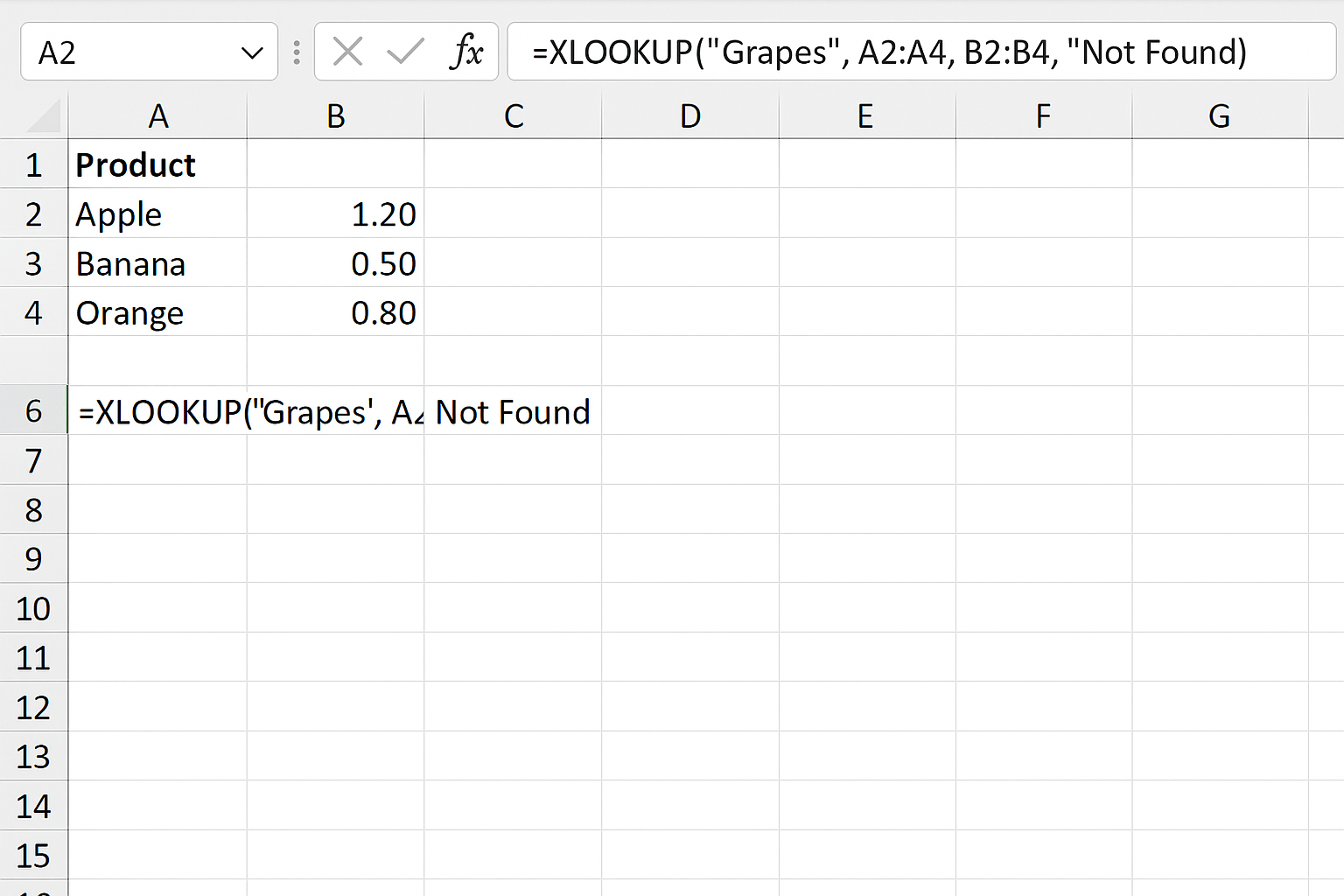
To avoid errors when the lookup value doesn’t exist, use the if_not_found argument.
=XLOOKUP("Grapes", A2:A4, B2:B4, "Not Found")If “Grapes” is not found in the list, the formula returns “Not Found” instead of an error.
Example 3: Exact and Approximate Match
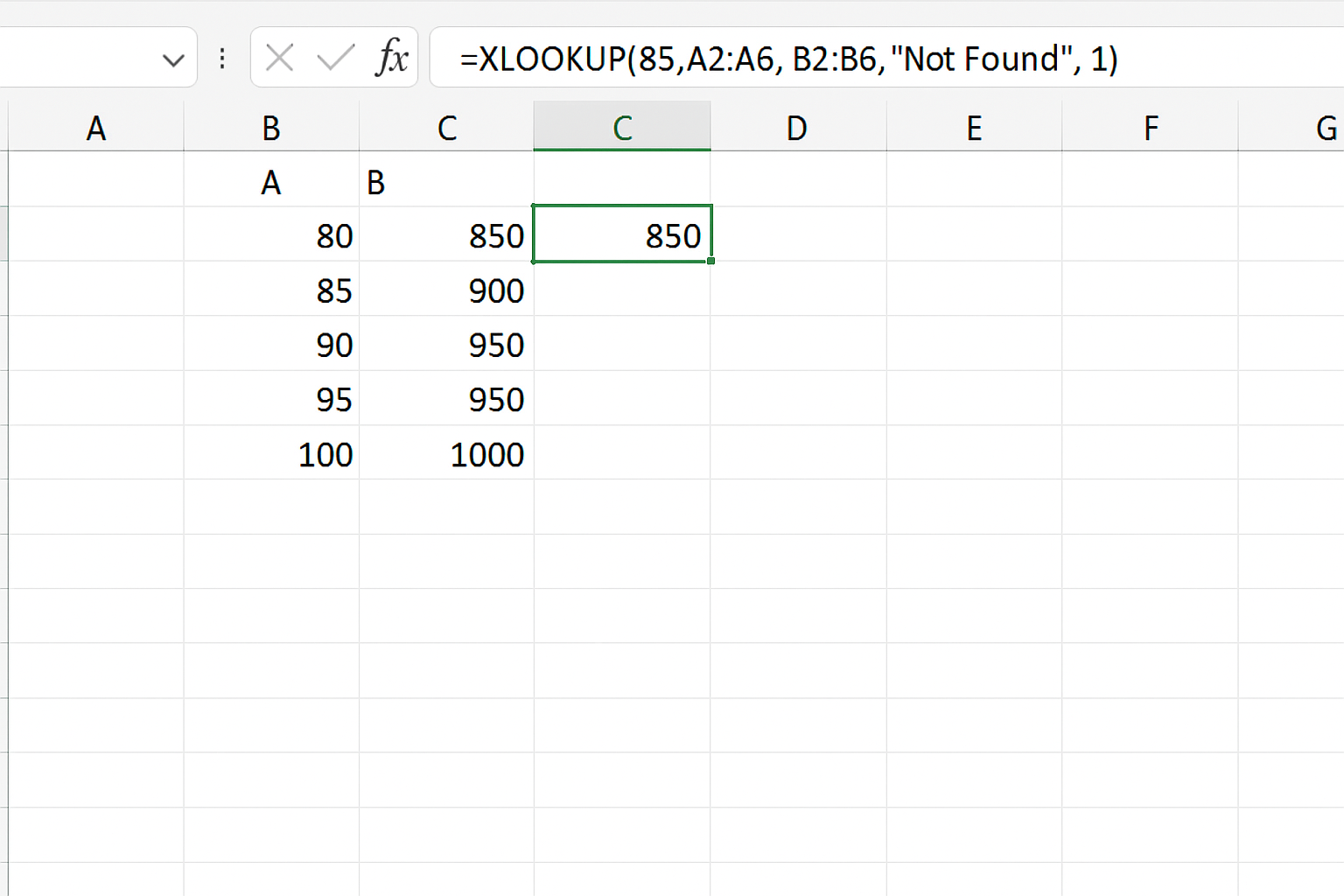
You can control whether XLOOKUP looks for an exact match or an approximate match.
=XLOOKUP(85, A2:A6, B2:B6, "Not Found", 1)Here, match_mode = 1 tells Excel to find an exact match or the next larger item.
Example 4: Searching from Bottom to Top
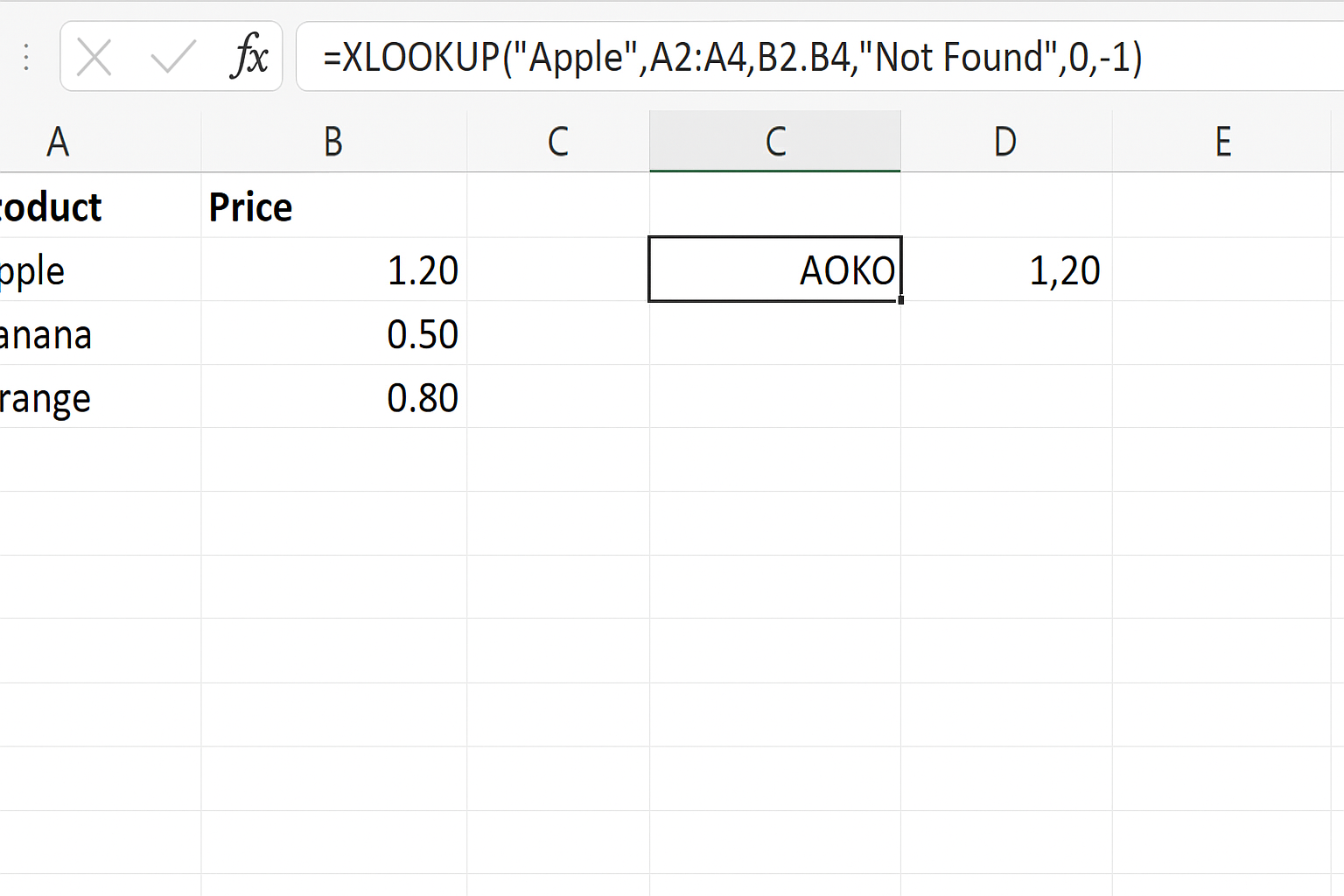
By default, XLOOKUP searches from top to bottom. To search from bottom to top, use the search_mode argument:
=XLOOKUP("Apple", A2:A4, B2:B4, "Not Found", 0, -1)This searches from the bottom up, useful when there are duplicates and you want the last occurrence.
Advantages of XLOOKUP Over Other Lookup Functions
- Supports left and right lookups: Unlike VLOOKUP, you can lookup values in any direction.
- No need to sort data: Works well with unsorted data when using exact match.
- Returns multiple values: Can return arrays without complex formulas.
- Customizable error handling: The
if_not_foundargument makes it easier to manage errors.
Tips for Using XLOOKUP Effectively
- Always specify the
if_not_foundargument to avoid errors in your spreadsheets. - Use named ranges for
lookup_arrayandreturn_arrayto improve formula readability. - Combine XLOOKUP with other functions like
SUMorFILTERfor advanced data analysis. - Remember that XLOOKUP is available in Excel 365 and Excel 2021 onward.
Common Errors and How to Fix Them
- #N/A Error: Occurs when the lookup value is not found. Fix by using the
if_not_foundargument. - #VALUE! Error: Happens if the lookup and return arrays are of different sizes. Ensure both ranges match in length.
- #REF! Error: Occurs if the referenced ranges are deleted or invalid. Check your cell references.
FAQ
What is the main difference between XLOOKUP and VLOOKUP?
XLOOKUP searches in any direction and returns values from ranges to the left or right, whereas VLOOKUP only searches left to right and requires the return column to be to the right of the lookup column.
Can I use XLOOKUP to search multiple columns?
Yes, XLOOKUP can return multiple columns by specifying a range as the return_array, making it a powerful tool for complex lookups.
Is XLOOKUP available in all versions of Excel?
No, XLOOKUP is available in Excel 365 and Excel 2021 or later. Older versions do not support this function.
How does XLOOKUP handle errors?
XLOOKUP includes an optional if_not_found argument that allows you to specify a custom value or message when a lookup value isn’t found, helping to avoid #N/A errors.
Can I use XLOOKUP for approximate matches?
Yes, by setting the match_mode argument appropriately, XLOOKUP can perform both exact and approximate matches.
Does XLOOKUP improve spreadsheet performance?
In many cases, yes. XLOOKUP is more efficient and flexible than older lookup functions, which can lead to faster calculations especially with large datasets.
Conclusion
Mastering how to use XLOOKUP in Excel can significantly improve your data lookup tasks, making them faster, more accurate, and easier to manage. With its flexible syntax and powerful features, XLOOKUP replaces older lookup functions while offering enhanced capabilities such as searching in any direction, handling errors gracefully, and returning multiple values. Whether you’re a beginner or an advanced Excel user, incorporating XLOOKUP into your workflow will save time and increase productivity.
Related Articles
- Getting Started with XLOOKUP in Excel: A Beginner’s Guide
- Understanding XLOOKUP Syntax and Parameters in Excel
- How to Use XLOOKUP with Multiple Criteria in Excel
- Error Handling in XLOOKUP: Tips to Avoid Common Mistakes
- XLOOKUP vs VLOOKUP: Which Excel Function Should You Use?
Want practical Excel help?
Support free Excel tutorials, get weekly tips, or contact us for Excel programming, VBA, Power Query, dashboards, and automation work.