Understanding Variables and Data Types in Excel VBA Programming
Introduction
When diving into Excel VBA programming, understanding variables and data types is fundamental. Variables allow you to store data temporarily while your macro or program is running, and data types determine what kind of data the variable can hold. Mastering these concepts helps create efficient, readable, and error-free VBA code.
What Are VBA Variables in Excel?
In VBA, a variable is a named storage location in memory that holds data you want to manipulate during code execution. Think of variables as containers that hold values such as numbers, text, dates, or objects.
Declaring variables properly is essential for better code management, improved performance, and fewer runtime errors.
Declaring Variables in VBA
You declare variables using the Dim statement, followed by the variable name and optionally the data type. For example:
Dim totalSales As DoubleThis declares a variable named totalSales that can store decimal numbers.
If you declare a variable without specifying a data type, VBA assumes the type Variant, which can store any kind of data but is less efficient.
Common Data Types in VBA Variables
Here are the most commonly used VBA data types in Excel:
- Integer: Stores whole numbers from -32,768 to 32,767.
- Long: Stores larger whole numbers from -2,147,483,648 to 2,147,483,647.
- Single: Stores single-precision floating-point numbers.
- Double: Stores double-precision floating-point numbers, ideal for decimals.
- String: Stores text or alphanumeric characters.
- Boolean: Stores True or False values.
- Date: Stores date and time values.
- Variant: Can store any type but slower and uses more memory.
Why Use Specific Data Types?
Using specific data types has several benefits:
- Improves performance: Typed variables use less memory and process faster than variants.
- Prevents errors: Data type mismatches can be caught at compile time.
- Makes code easier to understand: Other programmers know what kind of data each variable is meant to hold.
Practical Example: Declaring and Using Variables
Below is a simple example that calculates the total price based on quantity and unit price:
Sub CalculateTotalPrice()
    Dim quantity As Integer
    Dim unitPrice As Double
    Dim totalPrice As Double

    quantity = 10
    unitPrice = 15.75
    totalPrice = quantity * unitPrice

    MsgBox "Total Price: $" & Format(totalPrice, "0.00")
End Sub
This code declares three variables with explicit data types, assigns values, performs multiplication, and then displays the result formatted to two decimals.
Variable Scope and Lifetime
Understanding where and how variables can be accessed is important:
- Procedure-level variables: Declared inside a Sub or Function with
Dim, accessible only within that procedure. - Module-level variables: Declared at the top of a module with
Dimoutside any procedure, accessible by all procedures in that module. - Public variables: Declared with
Publicat the top of a module, accessible from any module in the project.
Example: Variable Scope
Dim moduleCounter As Integer ' Module-level variable

Sub IncrementCounter()
    Dim procedureCounter As Integer ' Procedure-level variable
    procedureCounter = 1
    moduleCounter = moduleCounter + 1
    MsgBox "Procedure Counter: " & procedureCounter & vbCrLf & "Module Counter: " & moduleCounter
End Sub
Every time you run IncrementCounter, the module-level variable moduleCounter retains its value, while the procedure-level variable resets.
Best Practices When Working with VBA Variables in Excel
- Always declare variables explicitly: Use
Option Explicitat the top of your modules to enforce this. - Use meaningful variable names: Names like
totalSalesorisCompleteimprove code readability. - Choose the most appropriate data type: Use the smallest data type that fits your data.
- Initialize variables where necessary: To avoid unexpected values.
Advanced Tip: Using Variant and Object Types
The Variant type is flexible but can slow down your code. Use it when the data type is unknown or can change. For example, user inputs may be stored as Variant first.
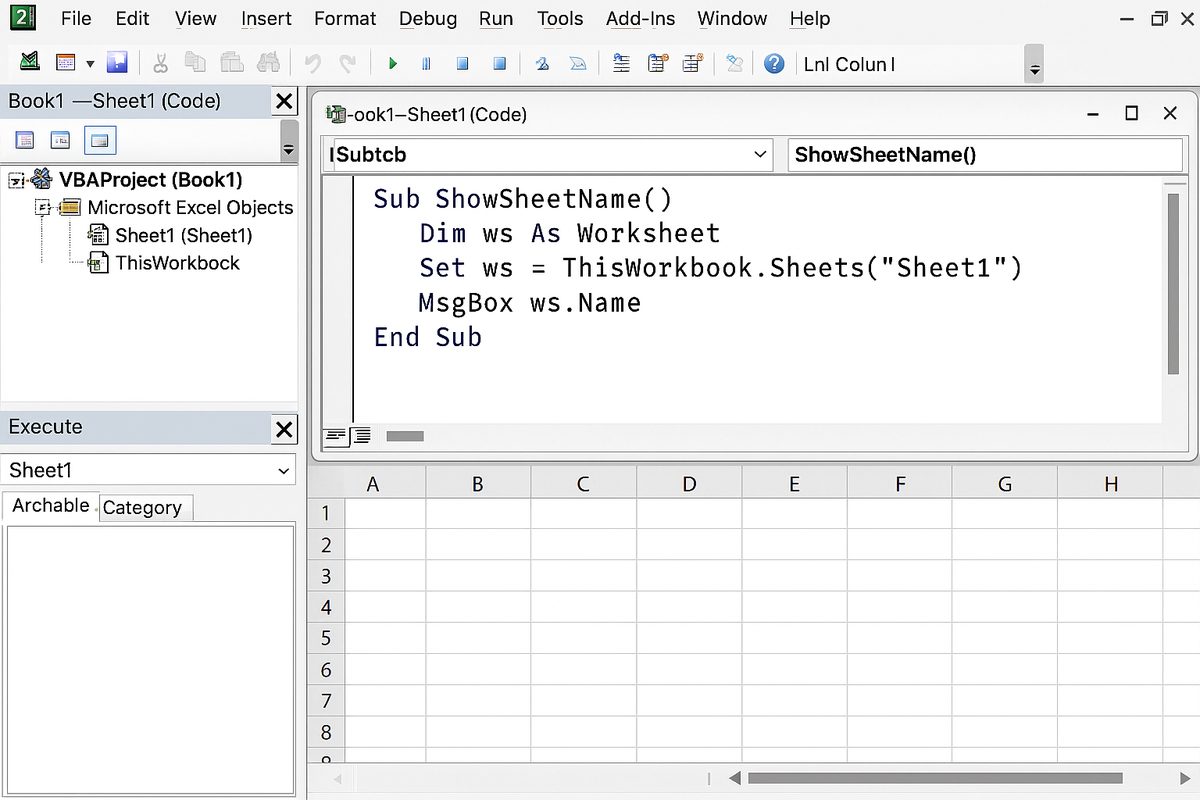
Objects like Range or Workbook can be declared as variables to manipulate Excel elements:
Dim ws As Worksheet
Set ws = ThisWorkbook.Sheets("Sheet1")
MsgBox ws.Name
Conclusion
Understanding VBA variables in Excel is a foundational skill for anyone looking to automate tasks or develop complex applications within Excel. By properly declaring variables with suitable data types and managing their scope, you can write efficient, robust, and maintainable VBA code. Practice using different data types and scopes to strengthen your programming skills.
FAQ
What is the default data type for variables if not declared?
If you do not specify a data type when declaring a variable, VBA assigns the Variant type by default.
Why should I use Option Explicit in my VBA modules?
Option Explicit forces you to declare all variables, helping to prevent errors caused by typos or undeclared variables.
Can I change a variable’s data type after declaring it?
No, once a variable is declared with a data type, it cannot change during runtime. You would need to declare a new variable or use a Variant type for flexibility.
What is the difference between Integer and Long data types?
Integer stores smaller whole numbers (-32,768 to 32,767), while Long stores larger whole numbers (-2,147,483,648 to 2,147,483,647). Use Long for most integer values to avoid overflow.
How do I declare a variable to hold a date?
Use the Date data type, for example: Dim myDate As Date.
Are Variant variables slower than other types?
Yes, because Variant can store any type of data, it requires more memory and processing time compared to specifically typed variables.
Related Articles
- How to Automate Repetitive Tasks in Excel Using VBA
- Creating Your First Macro in Excel with VBA: A Step-by-Step Guide
- Top 10 Simple VBA Scripts to Automate Excel Tasks for Beginners
- Using Loops in Excel VBA to Save Time on Data Entry
- Introduction to Excel VBA Programming for Absolute Beginners
Want practical Excel help?
Support free Excel tutorials, get weekly tips, or contact us for Excel programming, VBA, Power Query, dashboards, and automation work.