A Guide to Error Handling in Excel VBA Programming

Introduction
Error handling is a critical aspect of Excel VBA programming that ensures your macros can gracefully manage unexpected issues without crashing. In this guide, we will explore the fundamentals of Excel VBA error handling, including common error types, techniques to trap and manage errors, and best practices to improve your VBA code robustness.
Why Error Handling Matters in Excel VBA
When automating tasks in Excel using VBA, runtime errors can occur due to various reasons such as invalid user input, missing files, or unexpected Excel states. If not handled properly, these errors can interrupt code execution and confuse users. Effective error handling helps you:
- Prevent your macros from abruptly stopping
- Provide informative error messages to users
- Log errors for later debugging
- Recover from errors and continue code execution when appropriate
Common Types of Errors in Excel VBA
Before implementing error handling, it’s important to recognize common error types:
- Syntax Errors: Mistakes in code grammar that prevent code from compiling.
- Runtime Errors: Errors that occur while code is running, e.g., division by zero, file not found.
- Logic Errors: Code runs without crashing but produces incorrect results.
This guide focuses primarily on handling runtime errors, as syntax errors must be fixed in the code editor, and logic errors require debugging and testing.
Basic VBA Error Handling Techniques
1. On Error Resume Next
This statement tells VBA to ignore the error and continue with the next line of code. It is useful for non-critical errors that can be safely bypassed.
On Error Resume Next
Dim result As Double
result = 10 / 0 ' Division by zero error
If Err.Number <> 0 Then
  MsgBox "An error occurred: " & Err.Description
  Err.Clear
End If
On Error GoTo 0 ' Reset error handling
Note: Use this carefully as it can hide important errors.
2. On Error GoTo Label
This is the most common error handling method, directing VBA to jump to a labeled section of code when an error occurs.
Sub SampleErrorHandling()
  On Error GoTo ErrorHandler
  Dim ws As Worksheet
  Set ws = ThisWorkbook.Worksheets("SheetDoesNotExist") ' Causes error
  MsgBox "Worksheet found!"
  Exit Sub

ErrorHandler:
  MsgBox "Error " & Err.Number & ": " & Err.Description
  Err.Clear
End Sub
3. On Error GoTo 0
This statement disables error handling and causes VBA to stop execution when an error occurs.
4. On Error GoTo -1
Clears any active error in VBA and resets the error handler. Useful when managing multiple errors in complex procedures.
Practical Examples of Excel VBA Error Handling
Example 1: Handling File Not Found Error
Sub OpenWorkbookSafe()
  On Error GoTo ErrHandler
  Dim wb As Workbook
  Set wb = Workbooks.Open("C:\NonExistentFile.xlsx")
  MsgBox "Workbook opened successfully!"
  Exit Sub

ErrHandler:
  If Err.Number = 1004 Then
    MsgBox "File not found. Please check the file path.", vbExclamation
  Else
    MsgBox "Unexpected error: " & Err.Description
  End If
  Err.Clear
End Sub
Example 2: Handling Division by Zero
Function SafeDivide(num As Double, denom As Double) As Variant
  On Error GoTo ErrHandler
  SafeDivide = num / denom
  Exit Function

ErrHandler:
  SafeDivide = "Error: Division by zero"
  Err.Clear
End Function

Sub TestSafeDivide()
  MsgBox SafeDivide(10, 0) ' Displays error message
  MsgBox SafeDivide(10, 2) ' Displays 5
End Sub
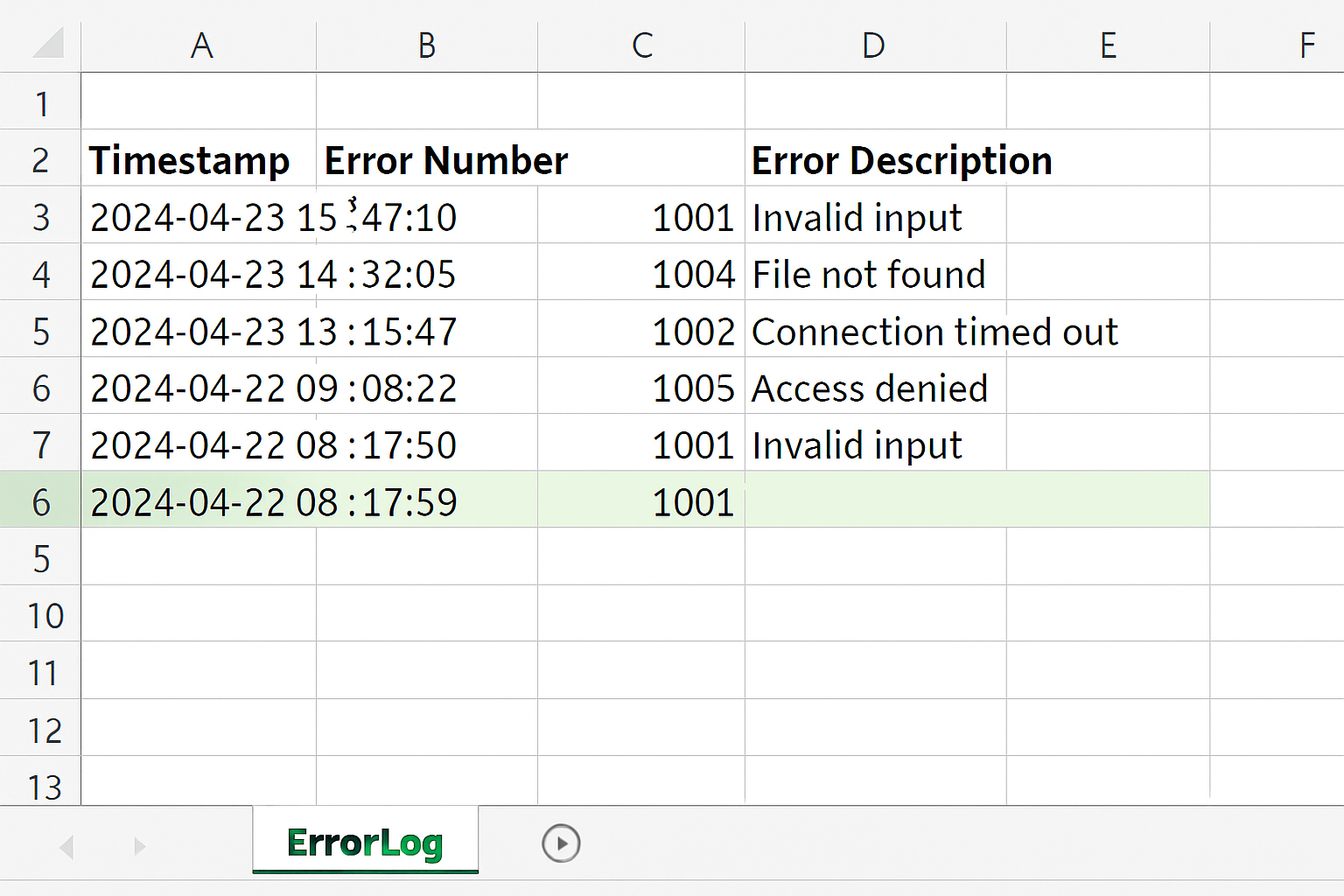
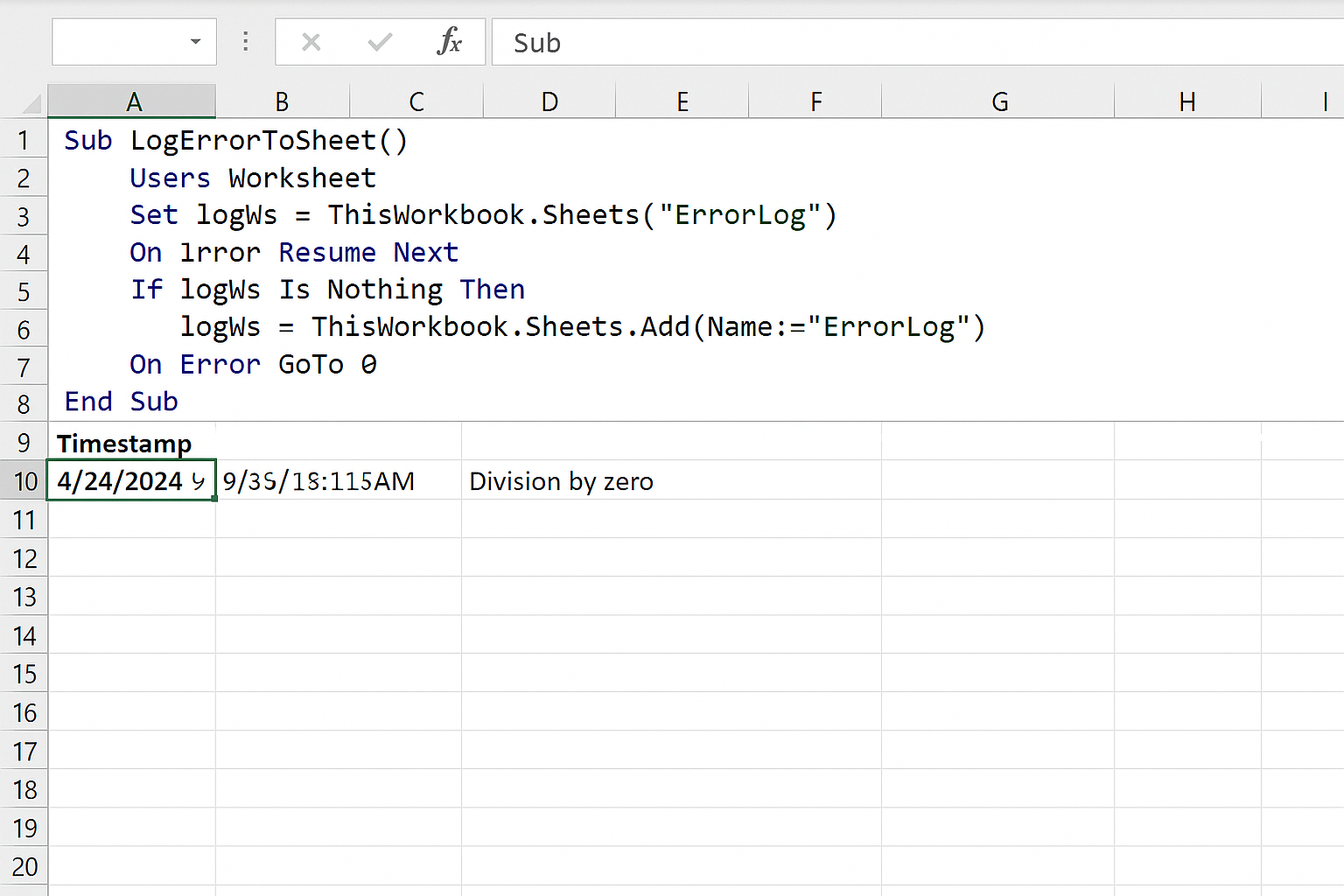
Example 3: Logging Errors to a Worksheet
Sub LogErrorToSheet()
  On Error GoTo ErrHandler
  ' Intentional error
  Dim x As Integer
  x = 1 / 0
  Exit Sub

ErrHandler:
  Dim logWs As Worksheet
  Set logWs = ThisWorkbook.Sheets("ErrorLog")
  If logWs Is Nothing Then
    Set logWs = ThisWorkbook.Sheets.Add
    logWs.Name = "ErrorLog"
  End If
  Dim lastRow As Long
  lastRow = logWs.Cells(logWs.Rows.Count, 1).End(xlUp).Row + 1
  logWs.Cells(lastRow, 1).Value = Now
  logWs.Cells(lastRow, 2).Value = Err.Number
  logWs.Cells(lastRow, 3).Value = Err.Description
  Err.Clear
  MsgBox "Error logged to ErrorLog sheet."
End Sub
Best Practices for Excel VBA Error Handling
- Always Clear Errors: Use
Err.Clearafter handling an error to reset the error object. - Use Specific Error Codes: Handle known errors differently using
Err.Number. - Provide User-Friendly Messages: Make error messages clear and helpful.
- Log Errors: Maintain an error log for easier debugging and maintenance.
- Limit Use of On Error Resume Next: Avoid suppressing errors indiscriminately.
- Test Error Handling Thoroughly: Simulate errors to ensure your handling works as expected.
Conclusion
Mastering Excel VBA error handling is essential to build reliable macros that can handle unexpected situations gracefully. By employing proper error trapping techniques such as On Error GoTo and providing meaningful feedback to users, you enhance the robustness and usability of your VBA projects. Remember to test your error handling thoroughly and maintain logs to facilitate troubleshooting. With these strategies, your Excel VBA programming skills will be much more professional and effective.
Related Articles
- How to Automate Repetitive Tasks in Excel Using VBA
- Creating Your First Macro in Excel with VBA: A Step-by-Step Guide
- Top 10 Simple VBA Scripts to Automate Excel Tasks for Beginners
- Using Loops in Excel VBA to Save Time on Data Entry
- Introduction to Excel VBA Programming for Absolute Beginners
Want practical Excel help?
Support free Excel tutorials, get weekly tips, or contact us for Excel programming, VBA, Power Query, dashboards, and automation work.