Comparing XLOOKUP and INDEX MATCH for Advanced Excel Lookups

Introduction
Microsoft Excel is a powerful tool for data manipulation and analysis, and its lookup functions like XLOOKUP and INDEX MATCH play a crucial role in extracting meaningful information from large datasets. While VLOOKUP was the traditional choice for many users, its limitations have led advanced Excel users to prefer INDEX MATCH for more complex lookups. Recently, Microsoft introduced XLOOKUP, a more versatile and user-friendly function that promises to simplify and enhance lookup tasks.
In this article, we will compare XLOOKUP vs INDEX MATCH to help you understand their differences, advantages, and practical uses. Whether you’re an Excel novice or an experienced analyst, this guide will equip you with the knowledge to choose the right function for your lookup tasks.
Understanding INDEX MATCH
INDEX MATCH is actually a combination of two functions: INDEX and MATCH. Together, they allow you to perform flexible and powerful lookups beyond the capabilities of VLOOKUP.
- INDEX(array, row_num, [column_num]): Returns a value or reference from a table or range based on given row and column numbers.
- MATCH(lookup_value, lookup_array, [match_type]): Returns the relative position of a value in a range.
By nesting MATCH inside INDEX, you can lookup values in any column or row, and perform left lookups, which VLOOKUP cannot do.
Example Using INDEX MATCH
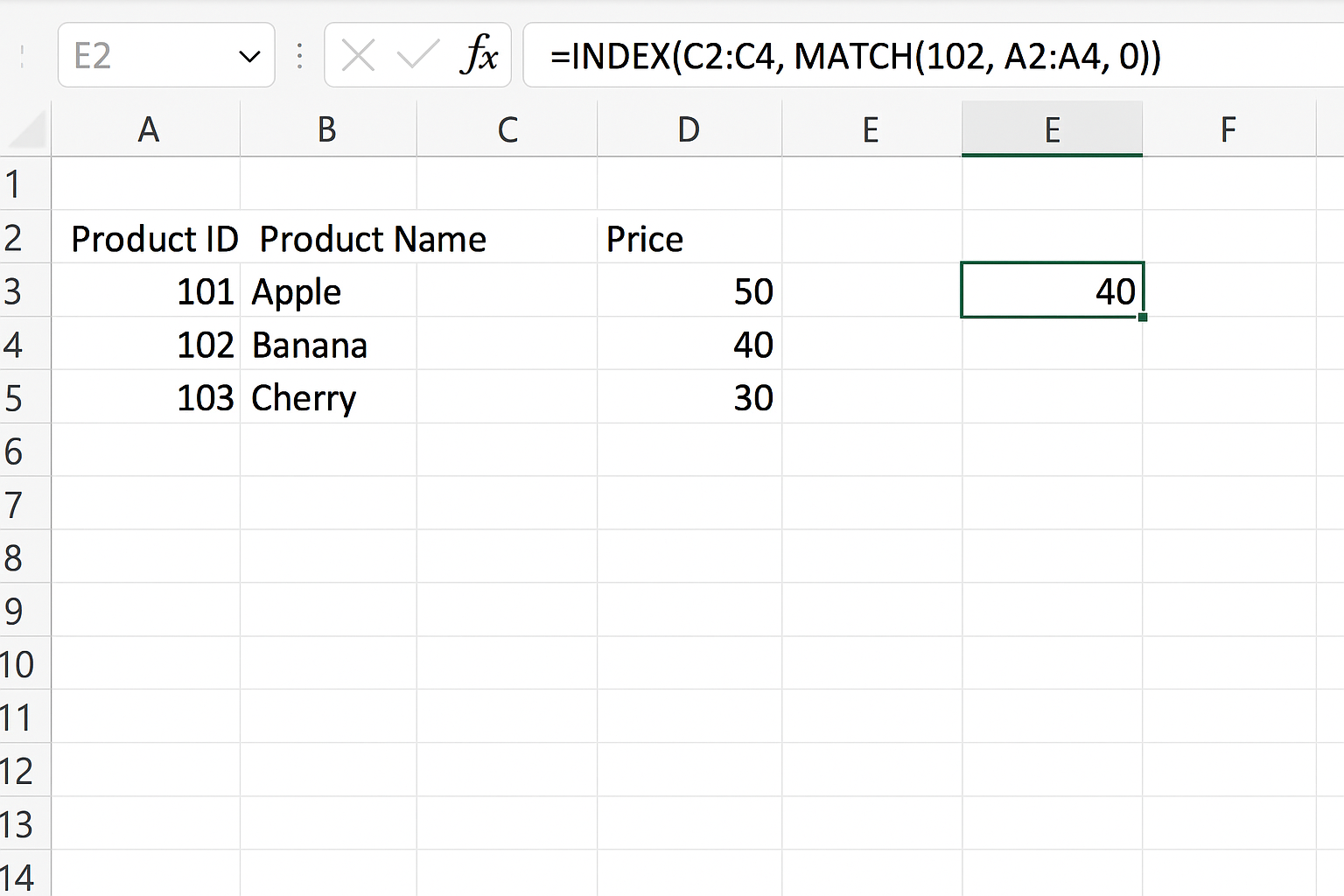
Suppose you have the following data:
| Product ID | Product Name | Price |
|---|---|---|
| 101 | Widget A | 25 |
| 102 | Widget B | 40 |
| 103 | Widget C | 35 |
To find the price of Product ID 102, you can use:
=INDEX(C2:C4, MATCH(102, A2:A4, 0))
This formula looks for 102 in the Product ID column and returns the corresponding price.
Exploring XLOOKUP
XLOOKUP is a newer Excel function introduced in Excel 365 and Excel 2019 that combines the best features of VLOOKUP, HLOOKUP, and INDEX MATCH into a single, easy-to-use formula. It solves many limitations of older lookup functions, including the inability to search to the left and the requirement that lookup values be in the first column.
The syntax of XLOOKUP is:
=XLOOKUP(lookup_value, lookup_array, return_array, [if_not_found], [match_mode], [search_mode])
Key features include:
- Lookup in any direction (left, right, vertical, horizontal)
- Exact match by default with optional approximate matching
- Built-in error handling with
if_not_foundargument - Ability to specify search mode (first-to-last, last-to-first)
Example Using XLOOKUP
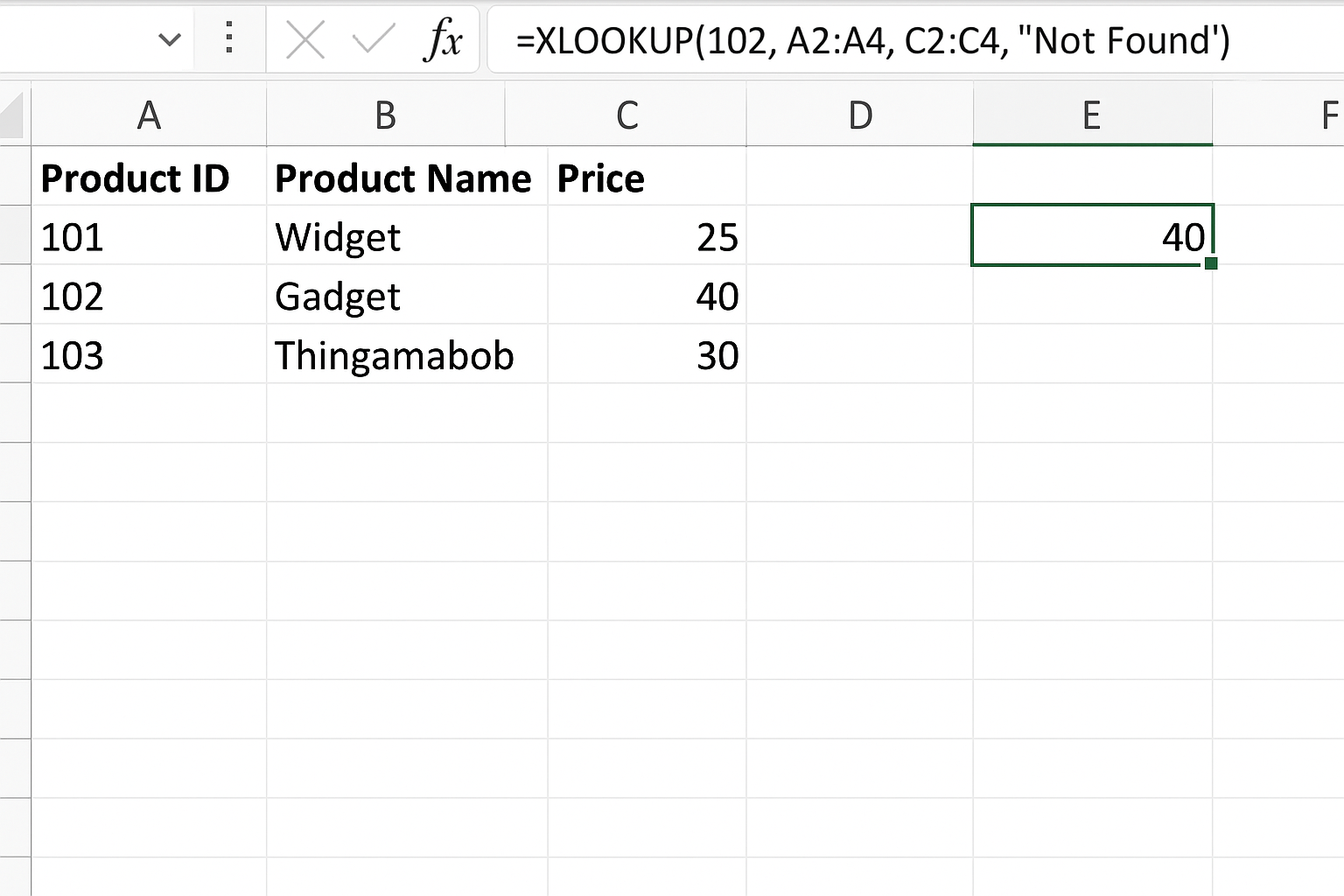
Using the same dataset, to get the price of Product ID 102, you can write:
=XLOOKUP(102, A2:A4, C2:C4, "Not Found")
This formula searches the Product ID column for 102 and returns the corresponding price, or “Not Found” if the value doesn’t exist.
XLOOKUP vs INDEX MATCH: Key Differences
| Feature | XLOOKUP | INDEX MATCH |
|---|---|---|
| Ease of Use | Single formula, simpler syntax | Requires nesting two functions |
| Lookup Direction | Can lookup left, right, vertical, horizontal | Can lookup any direction but requires careful setup |
| Error Handling | Built-in if_not_found argument |
Requires wrapping with IFERROR |
| Performance | Optimized for large datasets in latest Excel versions | Generally fast but can be slower with large or complex ranges |
| Availability | Excel 365, Excel 2019 and later | Available in all recent Excel versions |
When to Use XLOOKUP vs INDEX MATCH
Use XLOOKUP if:
- You have access to Excel 365 or Excel 2019+
- You want simpler and more readable formulas
- You need to lookup values in any direction without complicated formulas
- You want built-in error handling and search modes
Use INDEX MATCH if:
- You are working with older Excel versions where XLOOKUP is not available
- You prefer more control over lookup components
- You are comfortable with nested functions and don’t mind extra complexity
Practical Examples
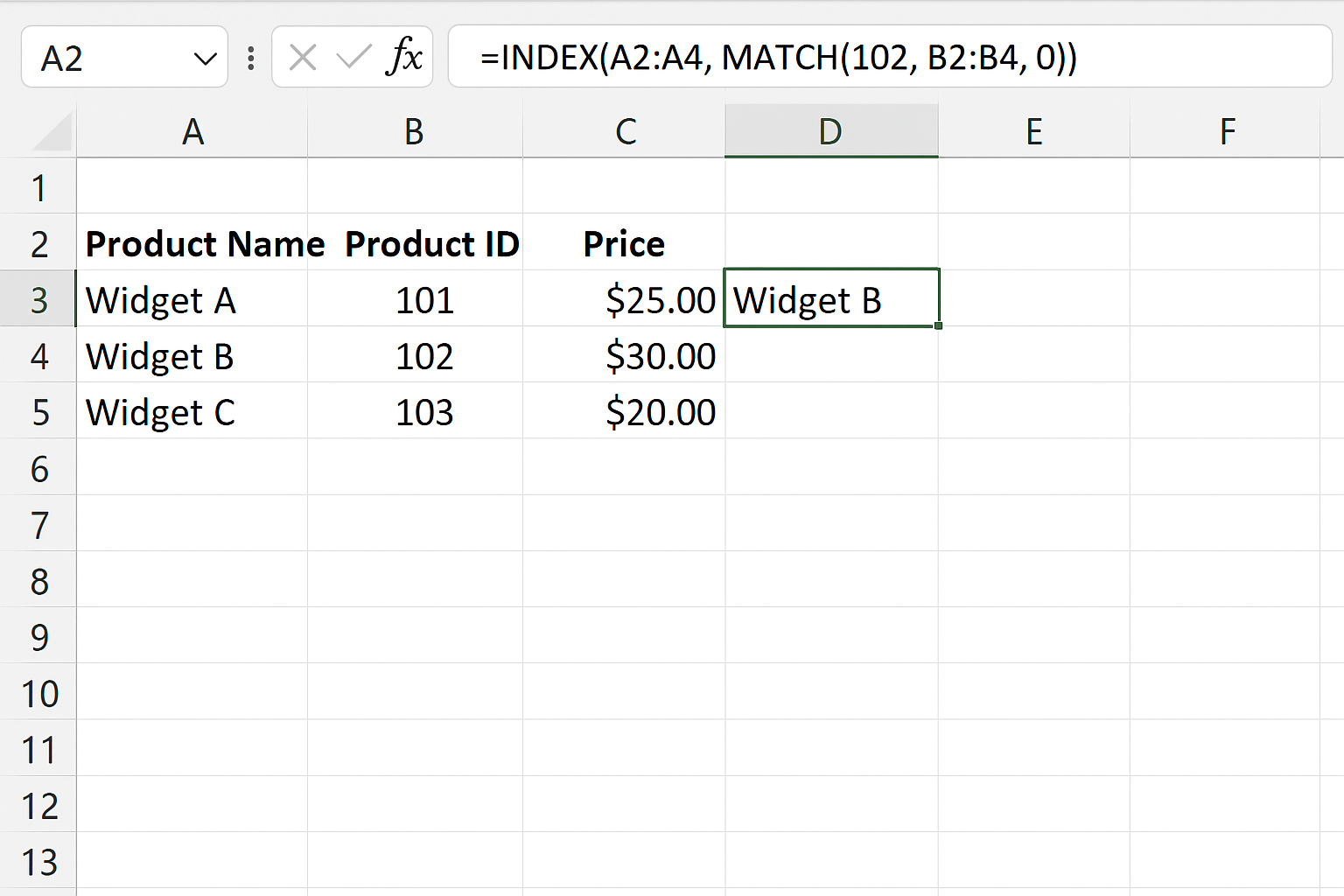
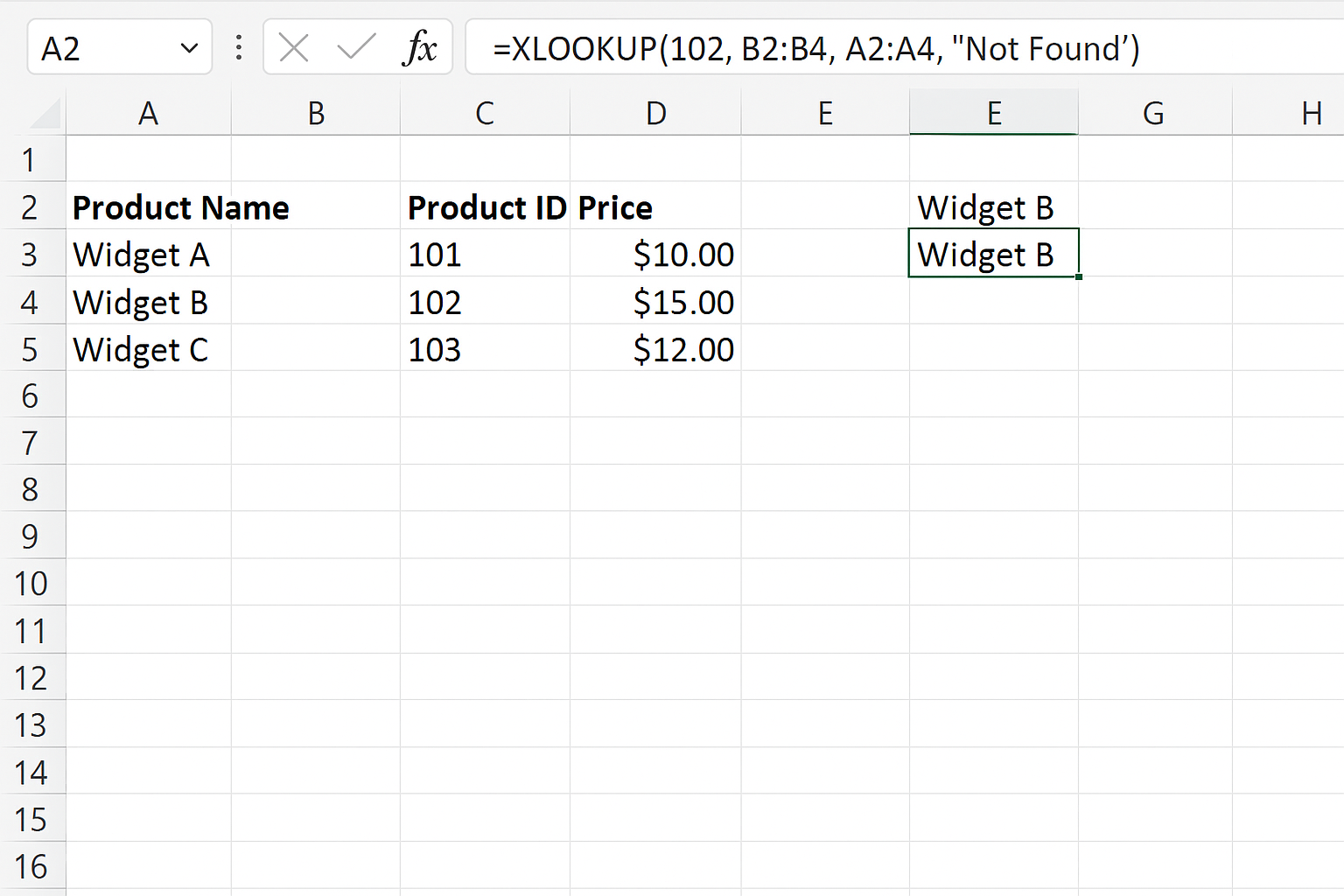
Example 1: Left Lookup
With VLOOKUP, you can’t lookup values to the left of the lookup column. Consider this dataset:
| Product Name | Product ID | Price |
|---|---|---|
| Widget A | 101 | 25 |
| Widget B | 102 | 40 |
| Widget C | 103 | 35 |
To find the Product Name given a Product ID (say 102):
- Using INDEX MATCH:
=INDEX(A2:A4, MATCH(102, B2:B4, 0)) - Using XLOOKUP:
=XLOOKUP(102, B2:B4, A2:A4, "Not Found")
Example 2: Handling Not Found Values
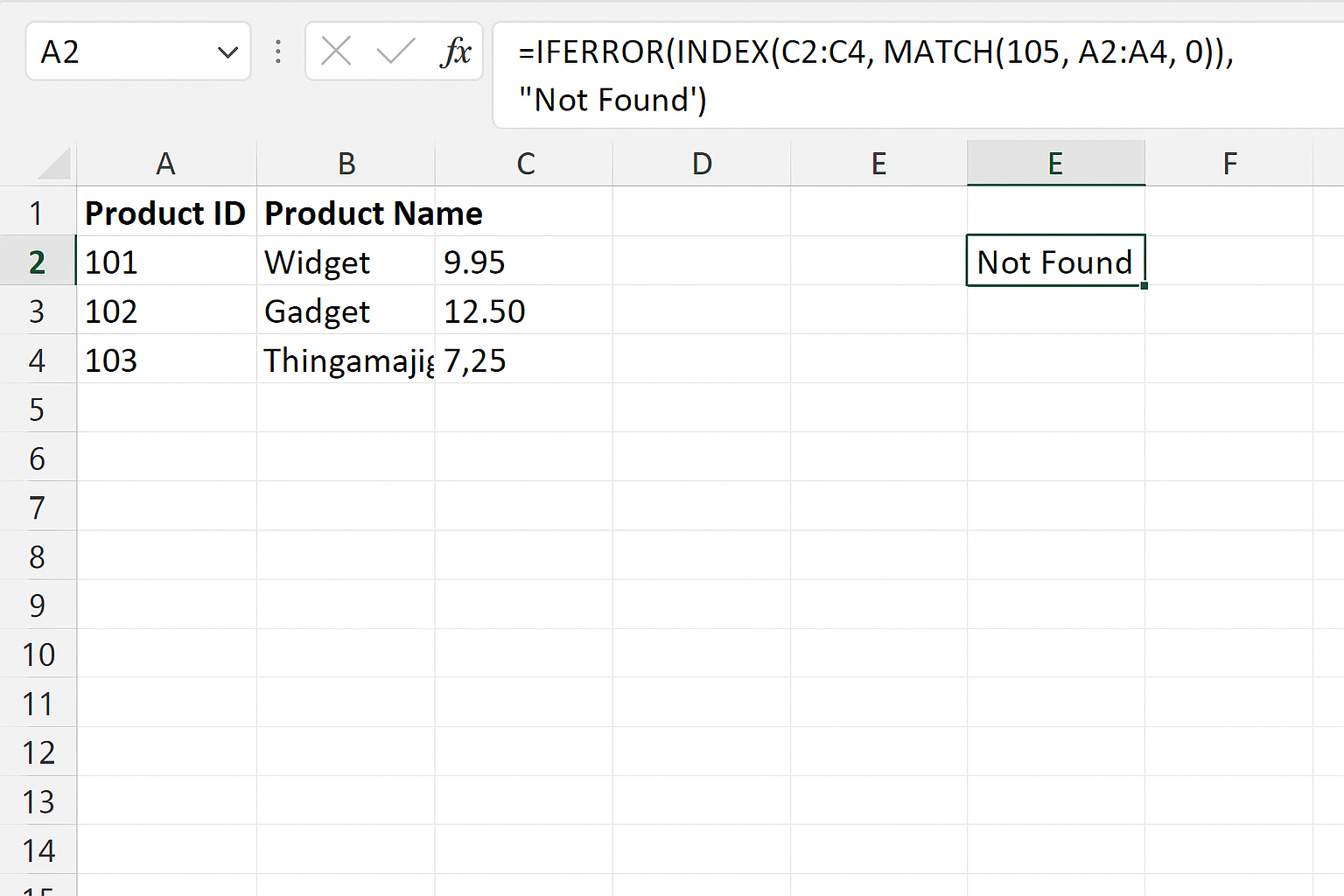
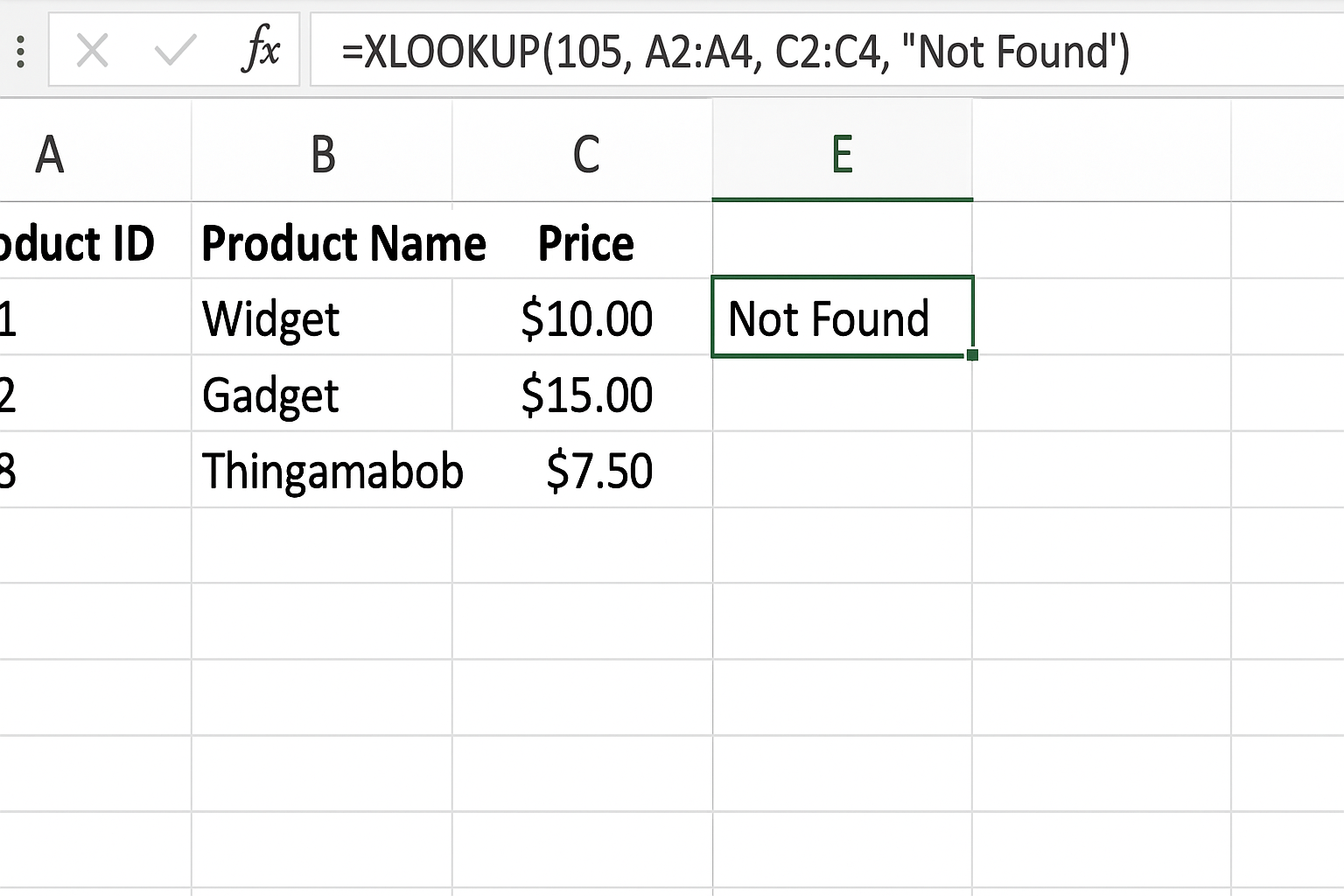
Search for Product ID 105 (which doesn’t exist):
- INDEX MATCH:
=IFERROR(INDEX(C2:C4, MATCH(105, A2:A4, 0)), "Not Found") - XLOOKUP:
=XLOOKUP(105, A2:A4, C2:C4, "Not Found")
Conclusion
Both XLOOKUP and INDEX MATCH are powerful tools for performing advanced lookups in Excel. XLOOKUP, with its simpler syntax and enhanced features, is the preferred choice for users with the latest Excel versions aiming for efficiency and readability. However, INDEX MATCH remains a vital technique, especially for compatibility with older Excel versions or when granular control over lookup logic is necessary.
Understanding the strengths and best use cases of each function will help you optimize your Excel workflows and make your data lookups more effective and error-resistant.
Frequently Asked Questions (FAQ)
Related Articles
- Getting Started with XLOOKUP in Excel: A Beginner’s Guide
- How to Use XLOOKUP in Excel to Find Data Quickly
- Understanding XLOOKUP Syntax and Parameters in Excel
- How to Use XLOOKUP with Multiple Criteria in Excel
- Error Handling in XLOOKUP: Tips to Avoid Common Mistakes
Want practical Excel help?
Support free Excel tutorials, get weekly tips, or contact us for Excel programming, VBA, Power Query, dashboards, and automation work.