Using XLOOKUP in Excel for Effective Data Analysis
Introduction
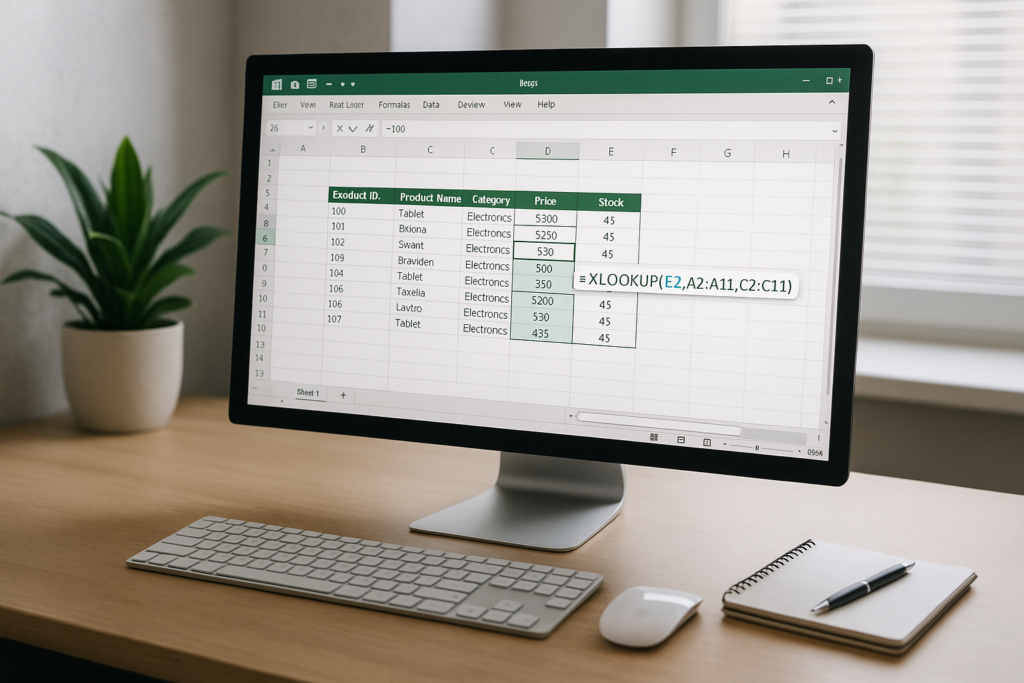
Excel has long been an essential tool for data analysis, and with the introduction of the XLOOKUP function, managing and analyzing data has become even more efficient and powerful. XLOOKUP is designed to replace older functions like VLOOKUP and HLOOKUP by offering a more flexible and intuitive way to search for and retrieve data in Excel spreadsheets. In this article, we will explore how to use XLOOKUP for data analysis with practical examples that you can apply directly to your work or projects.
What is XLOOKUP?
XLOOKUP is a function in Excel that searches a range or array, finds the matching item, and returns the corresponding value from another range or array. Unlike VLOOKUP, XLOOKUP allows you to search both horizontally and vertically, supports exact and approximate matches, and can handle errors gracefully.
The syntax for XLOOKUP is:
XLOOKUP(lookup_value, lookup_array, return_array, [if_not_found], [match_mode], [search_mode])
- lookup_value: The value you want to search for.
- lookup_array: The range or array to search within.
- return_array: The range or array from which to return the value.
- if_not_found (optional): The value to return if no match is found.
- match_mode (optional): Defines the type of match (exact, exact or next smaller/larger).
- search_mode (optional): Defines search direction (first-to-last or last-to-first).
Why Use XLOOKUP for Data Analysis?
XLOOKUP offers numerous advantages for data analysis:
- Versatility: Search vertically or horizontally without switching functions.
- Improved accuracy: More control over match types reduces errors.
- Handles missing data: Customizable error messages improve clarity.
- Performance: Efficient for large datasets.
Practical Applications of XLOOKUP for Data Analysis
1. Basic Data Retrieval
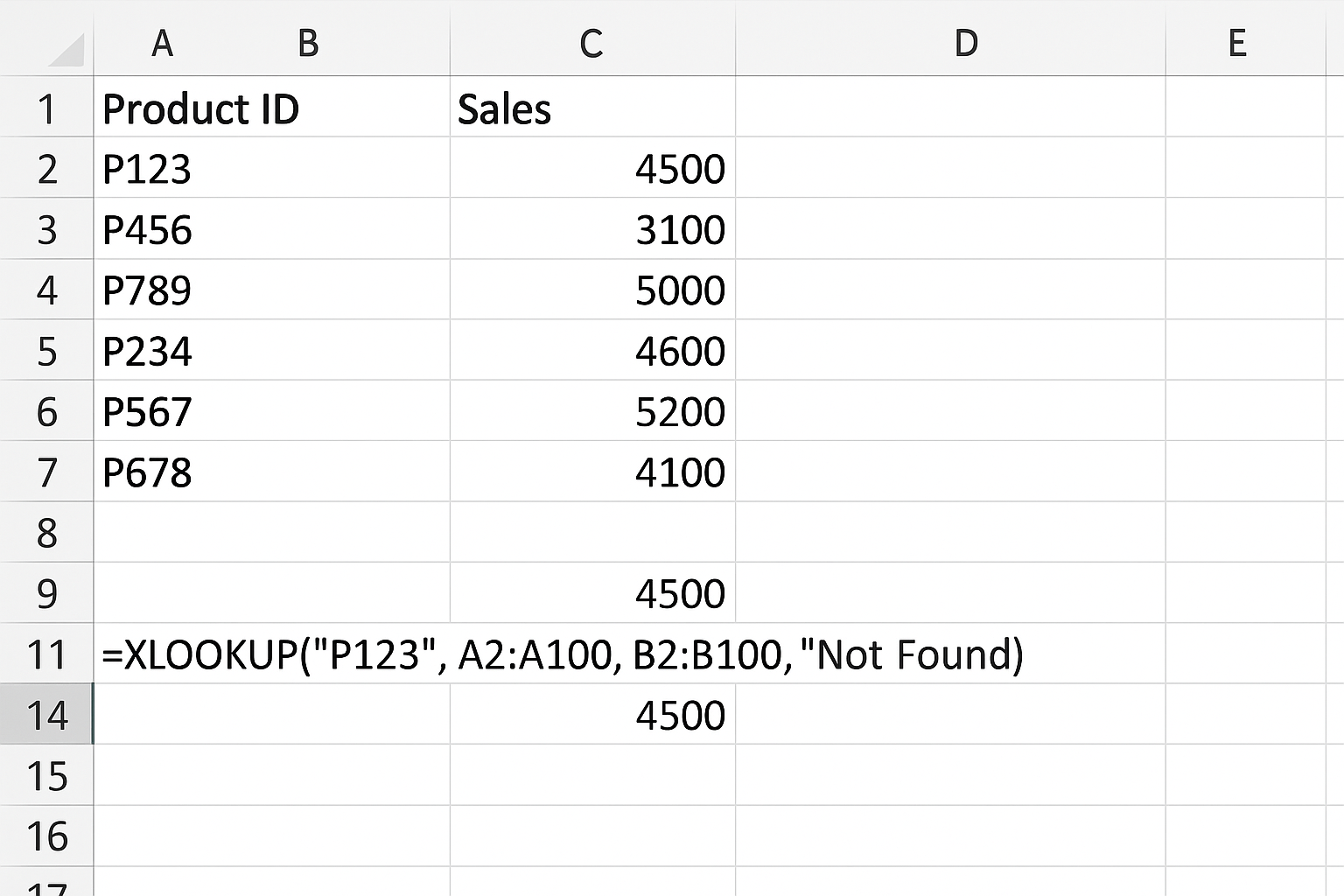
Suppose you have a sales dataset with product IDs and sales figures, and you want to find the sales figure for a specific product.
Example:
=XLOOKUP("P123", A2:A100, B2:B100, "Not Found")
This formula searches for product ID “P123” in the range A2:A100 and returns the corresponding sales figure from B2:B100. If “P123” is not found, it returns “Not Found”.
2. Two-Dimensional Lookup
XLOOKUP can be nested to perform lookups across both rows and columns.
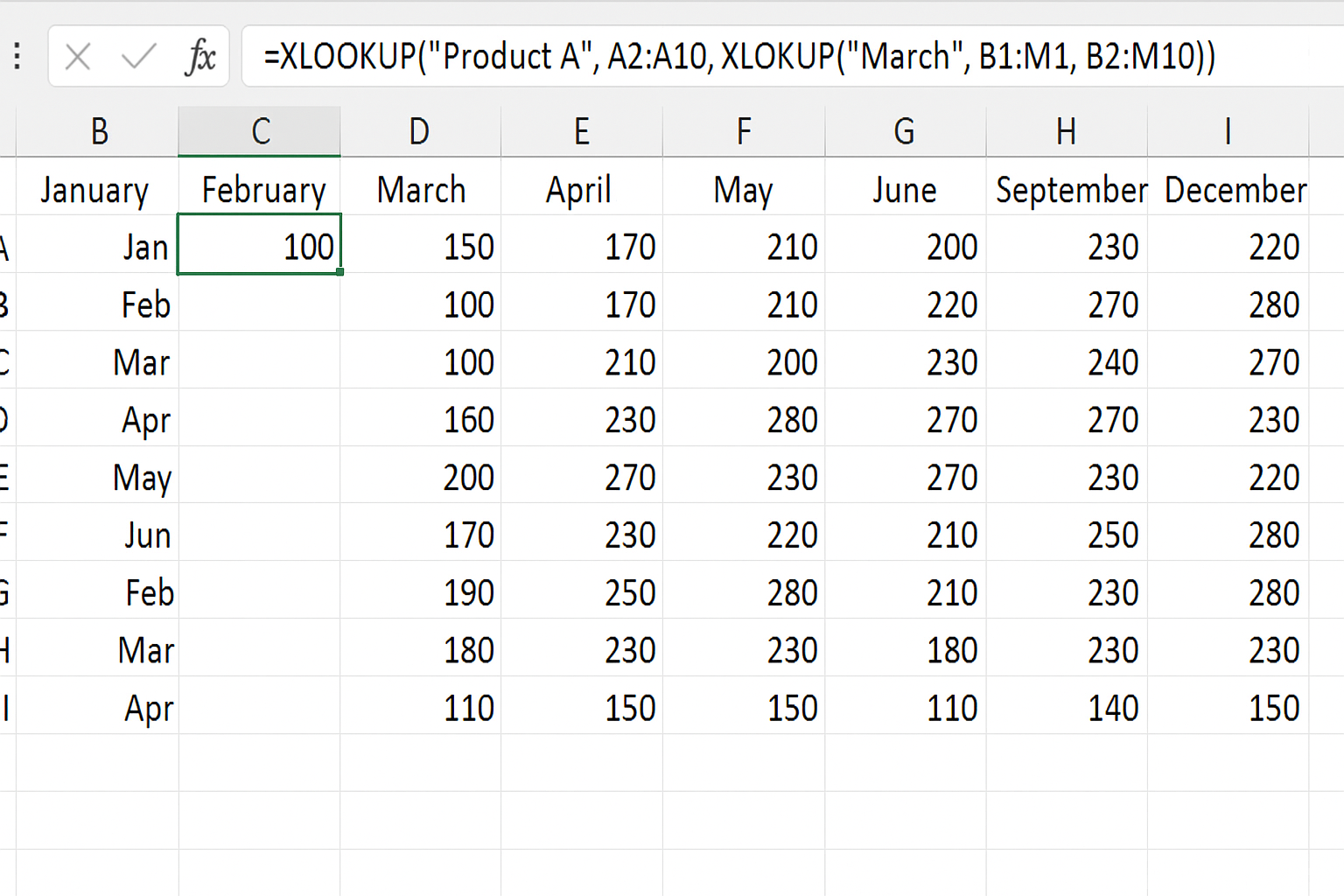
Scenario: You want to find the sales of “Product A” in “March” from a table where products are listed in rows and months in columns.
Example:
=XLOOKUP("Product A", A2:A10, XLOOKUP("March", B1:M1, B2:M10))
This formula first finds the column for “March” and then looks up “Product A” in that column to return the relevant sales figure.
3. Approximate Matching for Ranges
When working with ranges or grades, approximate matches are useful.
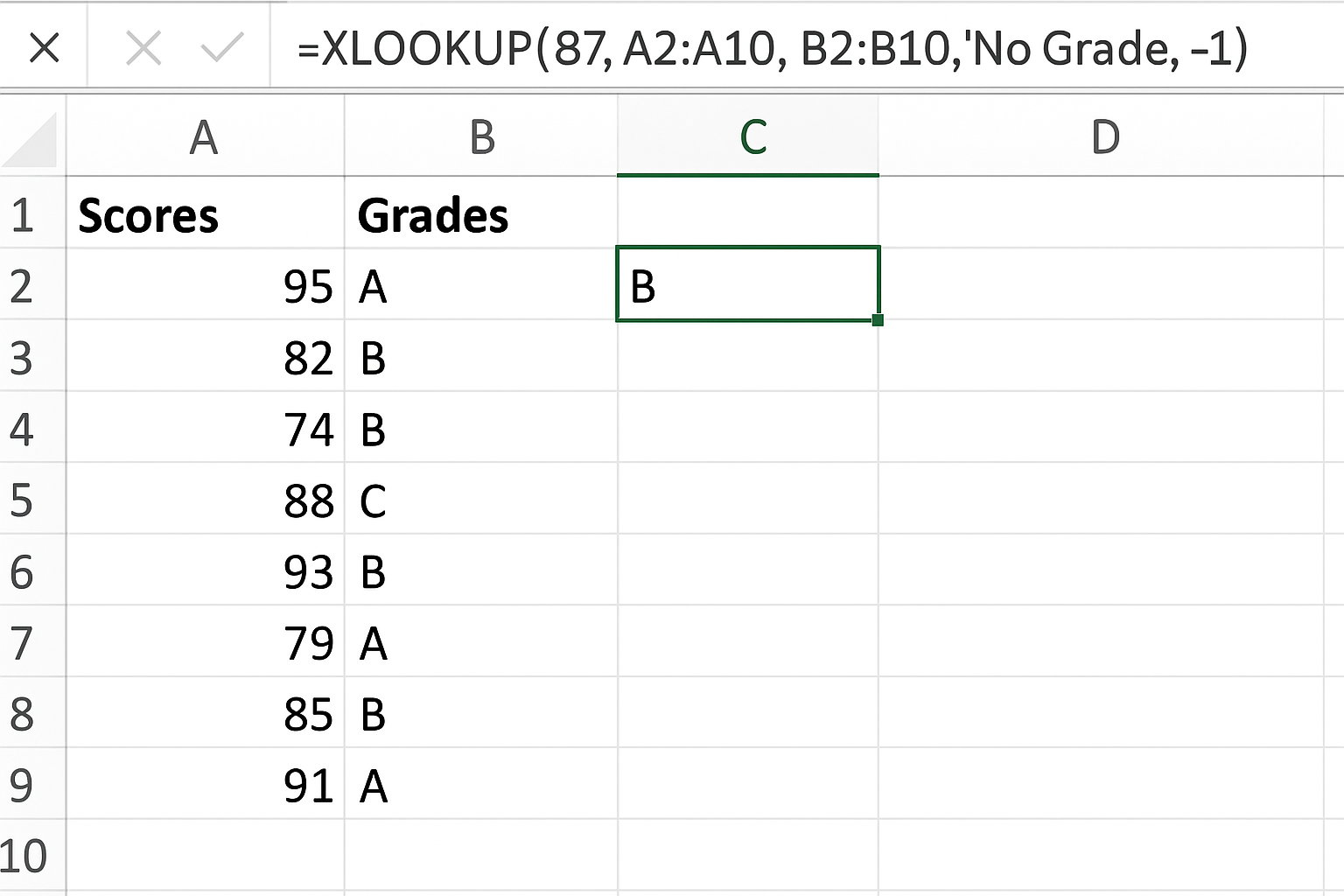
Example: You have scores and corresponding grade letters. To find the grade for a score of 87:
=XLOOKUP(87, A2:A10, B2:B10, "No Grade", -1)
The -1 in match_mode finds the next smaller value if an exact match is not found, returning the appropriate grade.
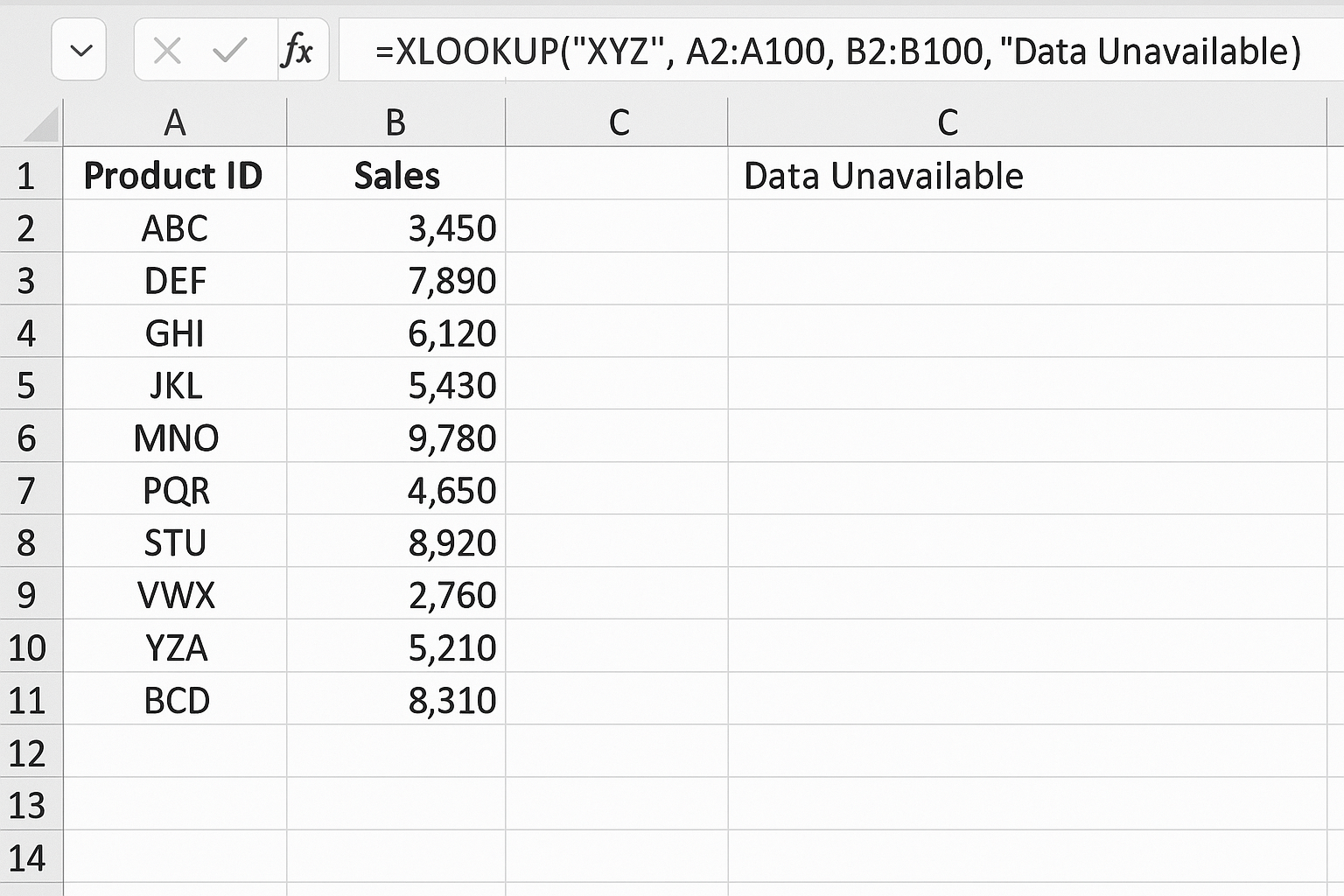
4. Handling Missing Data Gracefully
Instead of getting an error when a lookup value isn’t found, XLOOKUP allows you to specify a custom message or value.
Example:
=XLOOKUP("XYZ", A2:A100, B2:B100, "Data Unavailable")
This formula returns “Data Unavailable” if “XYZ” is not found.
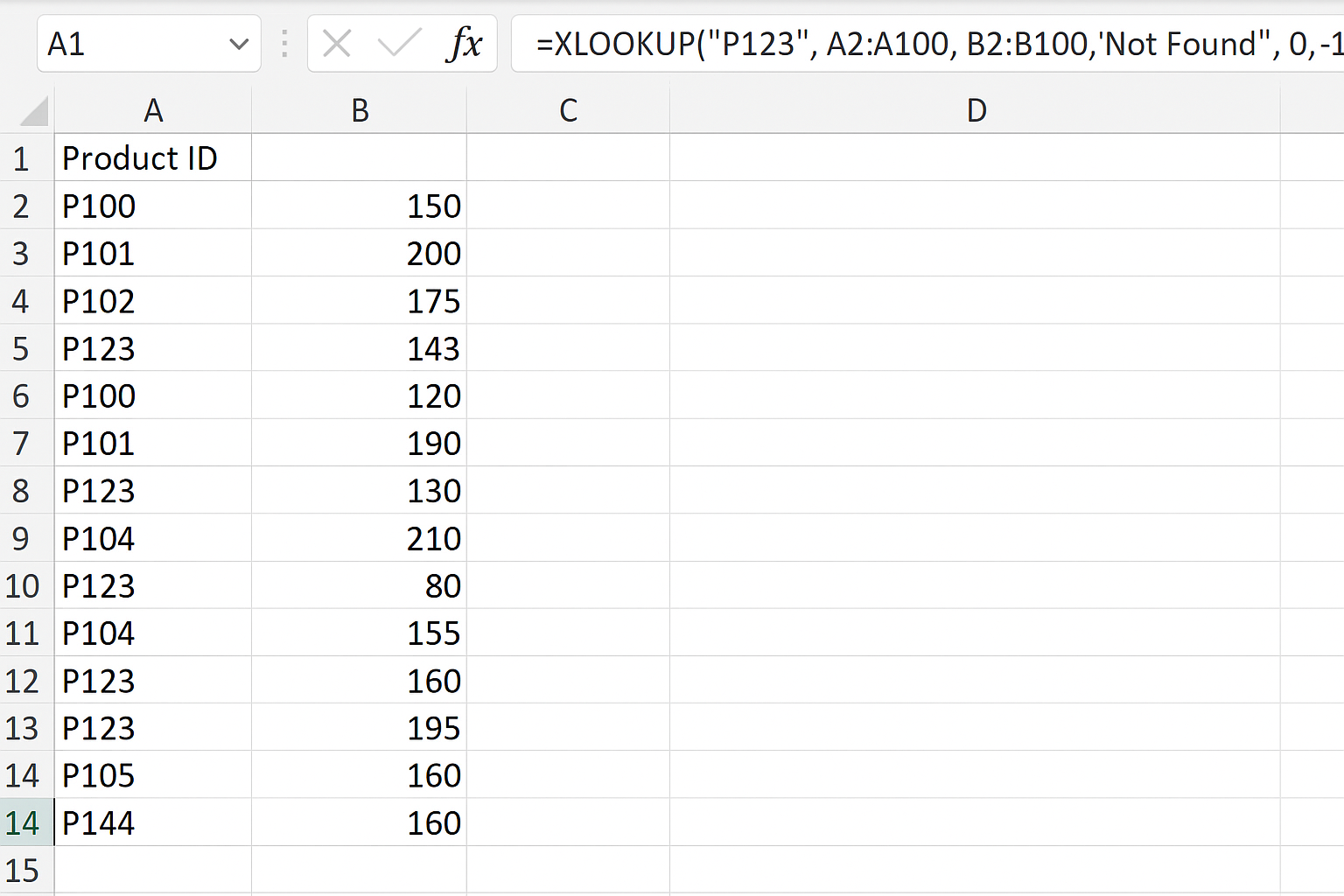
5. Reverse Lookup
XLOOKUP supports searching from the bottom up using the search_mode argument.
Example: To find the last occurrence of a product ID “P123”:
=XLOOKUP("P123", A2:A100, B2:B100, "Not Found", 0, -1)
Here, -1 tells Excel to search from the last item upward.
Step-by-Step Example: Sales Data Analysis Using XLOOKUP
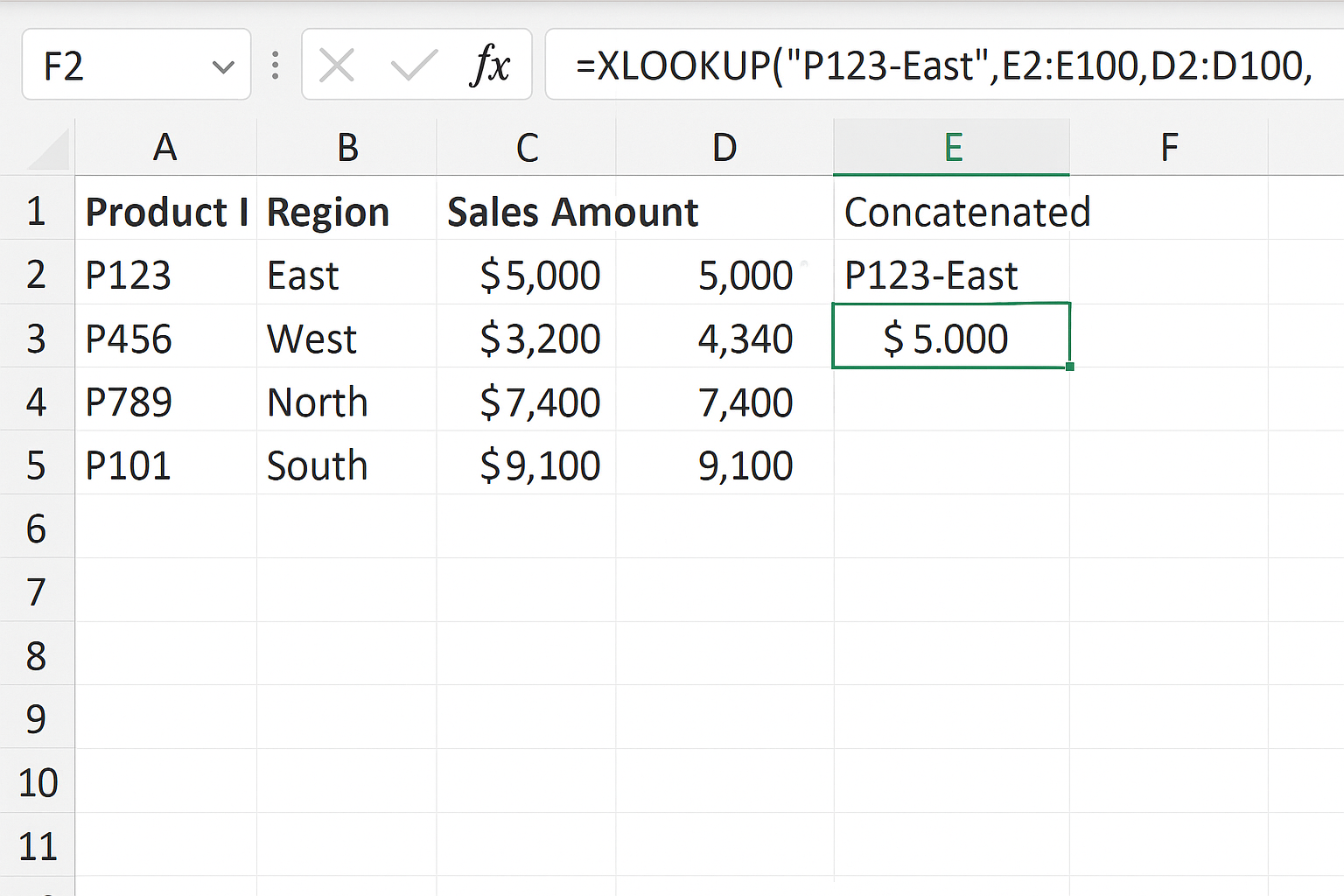
Imagine you manage a spreadsheet with columns for Product ID, Product Name, Region, and Sales Amount. You want to create a report that pulls the sales amount for a given product and region.
- Set up the data ranges: Assume Product IDs are in
A2:A100, Product Names inB2:B100, Regions inC2:C100, and Sales Amounts inD2:D100. - Combine criteria for lookup: Since XLOOKUP works with a single lookup value, use the
FILTERfunction or create a helper column that concatenates Product ID and Region. - Create helper column: In column
E, enter=A2 & "-" & C2and drag down. - Use XLOOKUP with combined criteria: To find sales for Product “P123” in region “East”, use:
=XLOOKUP("P123-East", E2:E100, D2:D100, "Not Found")
This formula retrieves the sales amount for the specified product and region.
Tips for Maximizing XLOOKUP in Data Analysis
- Use named ranges: For better readability and maintenance, define named ranges for your lookup arrays.
- Combine with other functions: Pair XLOOKUP with functions like
SUMIFS,FILTER, orIFERRORfor advanced analysis. - Validate data: Ensure lookup arrays are clean and free of duplicates unless you intend to handle them.
- Use dynamic arrays: Take advantage of Excel’s dynamic array capabilities for spill ranges when using XLOOKUP.
FAQ
Can XLOOKUP replace VLOOKUP and HLOOKUP completely?
Yes, XLOOKUP is designed to replace both VLOOKUP and HLOOKUP by offering more flexibility, including horizontal and vertical lookups, and better error handling.
Is XLOOKUP available in all versions of Excel?
XLOOKUP is available in Excel for Microsoft 365 and Excel 2021. It is not available in earlier versions like Excel 2019 or 2016.
How does XLOOKUP handle multiple matches?
XLOOKUP returns the first exact match by default. If multiple matches exist and you need to return all, consider combining XLOOKUP with other functions like FILTER.
Can I perform approximate matches with XLOOKUP?
Yes, by setting the match_mode argument, you can perform approximate matches such as next smaller or next larger value.
What happens if the lookup value is not found?
You can specify a custom value or message in the if_not_found argument to avoid errors and improve user experience.
Can XLOOKUP search in reverse order?
Yes, by setting search_mode to -1, XLOOKUP searches from the last item to the first, enabling reverse lookups.
Related Articles
- Getting Started with XLOOKUP in Excel: A Beginner’s Guide
- How to Use XLOOKUP in Excel to Find Data Quickly
- Understanding XLOOKUP Syntax and Parameters in Excel
- How to Use XLOOKUP with Multiple Criteria in Excel
- Error Handling in XLOOKUP: Tips to Avoid Common Mistakes
Want practical Excel help?
Support free Excel tutorials, get weekly tips, or contact us for Excel programming, VBA, Power Query, dashboards, and automation work.