Create Dynamic Reports in Excel Using XLOOKUP

Introduction
Excel is an essential tool for data analysis and reporting in many professional fields. One of its most powerful functions for building dynamic, flexible reports is XLOOKUP. This function replaces older lookup formulas like VLOOKUP and HLOOKUP, offering greater flexibility and ease of use. In this guide, we will explore how to use XLOOKUP for dynamic reports, providing practical examples that will help you elevate your data reporting skills.
What is XLOOKUP?
XLOOKUP is an Excel function designed to search a range or array, find the right value, and return a corresponding result from another range or array. Unlike its predecessors, XLOOKUP can search both vertically and horizontally, supports exact and approximate matches, and returns default values when no match is found. This versatility makes it ideal for creating dynamic reports that update automatically as data changes.
Why Use XLOOKUP for Dynamic Reports?
Dynamic reports are reports that automatically update when the underlying data changes, eliminating manual revisions and reducing errors. XLOOKUP enables dynamic referencing of data tables, allowing you to:
- Retrieve data from large datasets efficiently.
- Create interactive dashboards.
- Generate summary reports based on user inputs or selections.
- Handle missing or unmatched data gracefully.
Practical Example 1: Creating a Sales Summary Report
Imagine you have a dataset of monthly sales figures for a variety of products. You want to create a report where a user can select a product name, and the report will display the corresponding sales data dynamically.
Step 1: Organize your data with two columns: Product Name and Sales Amount.
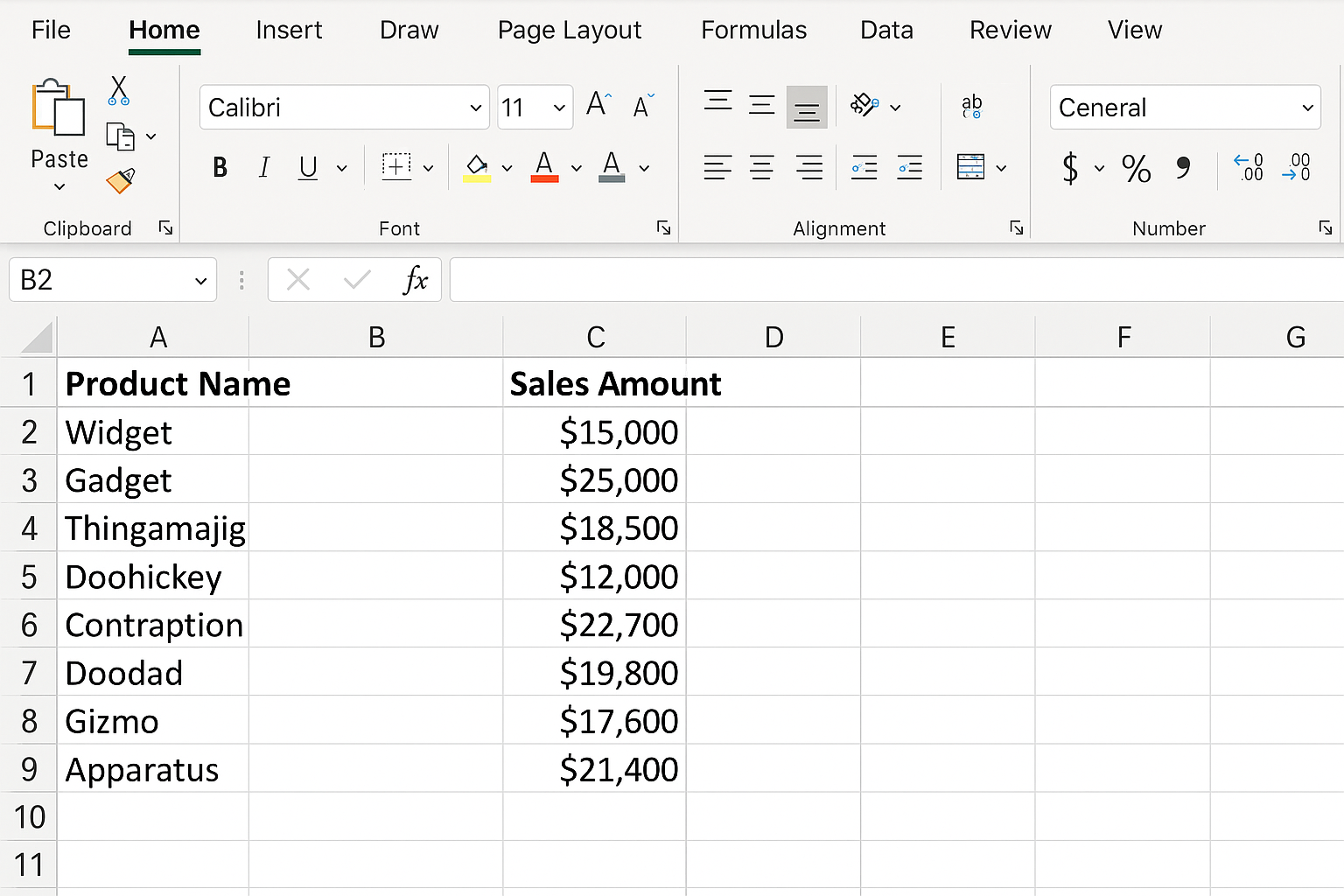
Step 2: Create a dropdown list for product selection using Data Validation.
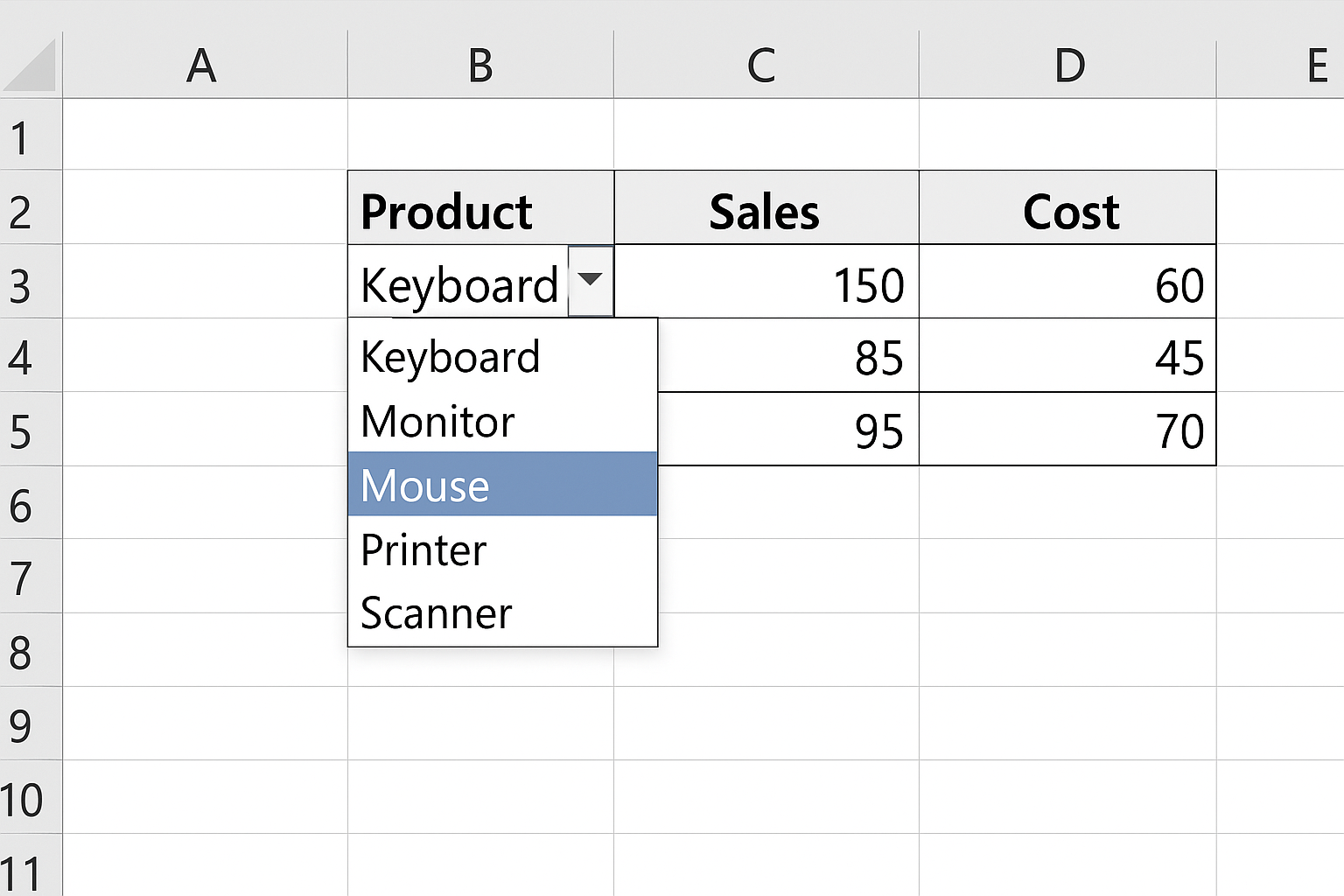
Step 3: Use the XLOOKUP function to fetch sales data based on the selected product:
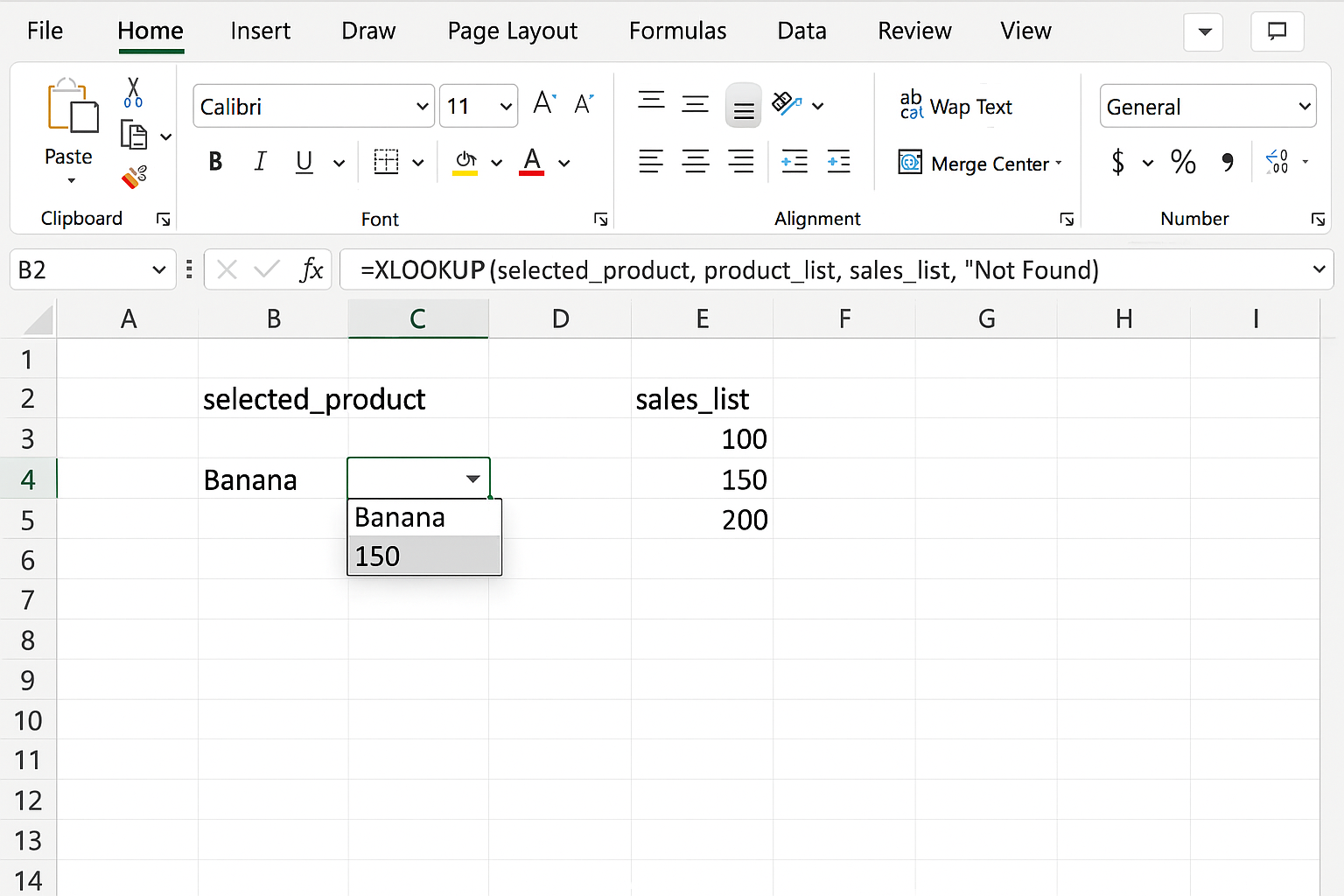
=XLOOKUP(selected_product, product_list, sales_list, "Not Found")
This formula looks up the selected_product in the product_list and returns the corresponding sale amount from sales_list. If the product is not found, it returns “Not Found.”
Practical Example 2: Building a Dynamic Employee Directory
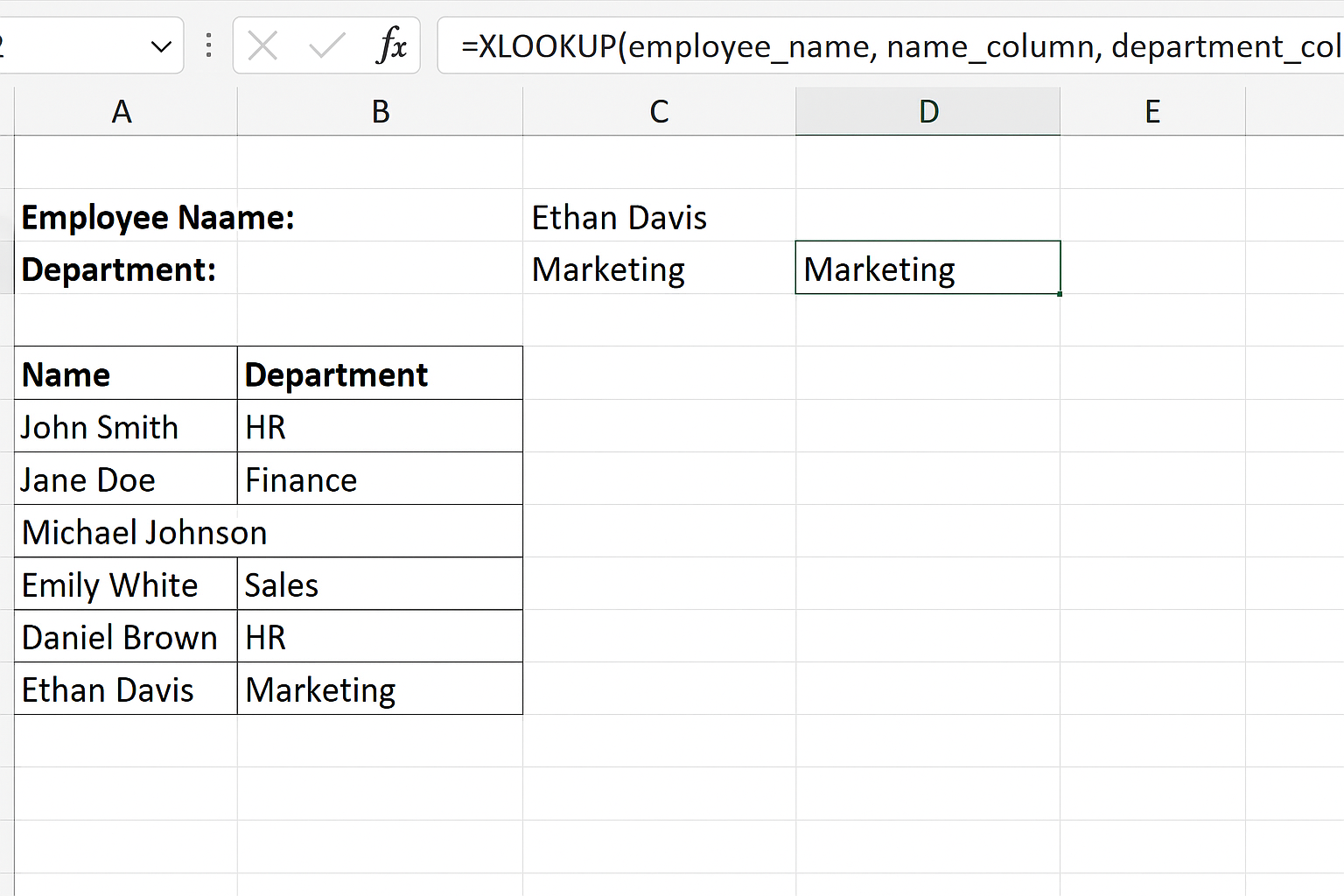
Suppose you manage a list of employees with their details such as name, department, and contact number. You want a report where entering an employee’s name instantly pulls their department and contact information.
Assuming your data is arranged with columns for Name, Department, and Contact Number, you can create dynamic lookup formulas as follows:
=XLOOKUP(employee_name, name_column, department_column, "No Data")
=XLOOKUP(employee_name, name_column, contact_column, "No Data")
These formulas will automatically update the department and contact fields based on the employee name input.
Practical Example 3: Combining XLOOKUP with Other Functions for Advanced Reports
Dynamic reports often require multiple lookups and calculations. For example, you can combine XLOOKUP with SUM or IF functions.
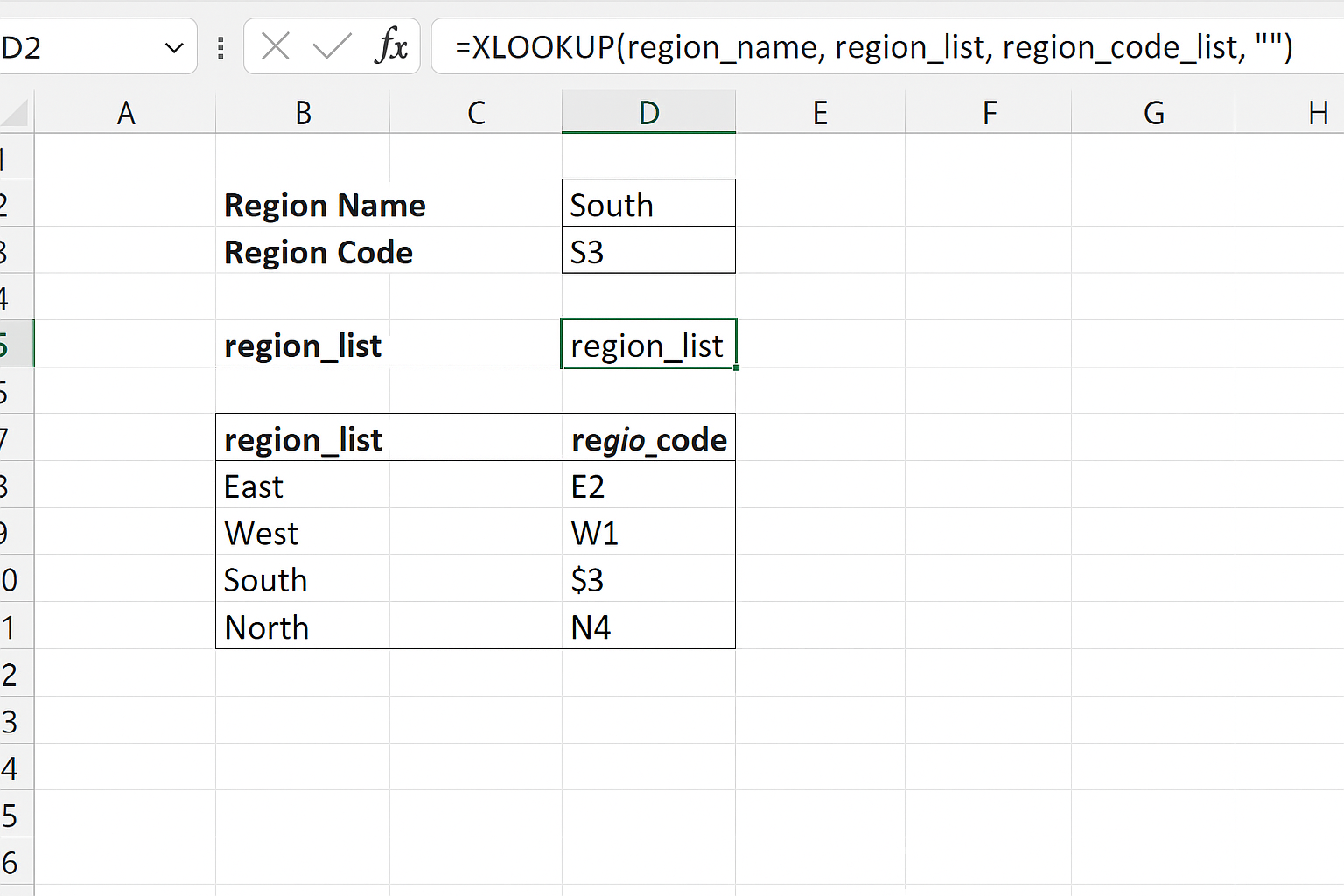
Imagine you want to calculate the total sales for a specific region. You can first use XLOOKUP to find the region code from a region name and then use SUMIF to add total sales for that region.
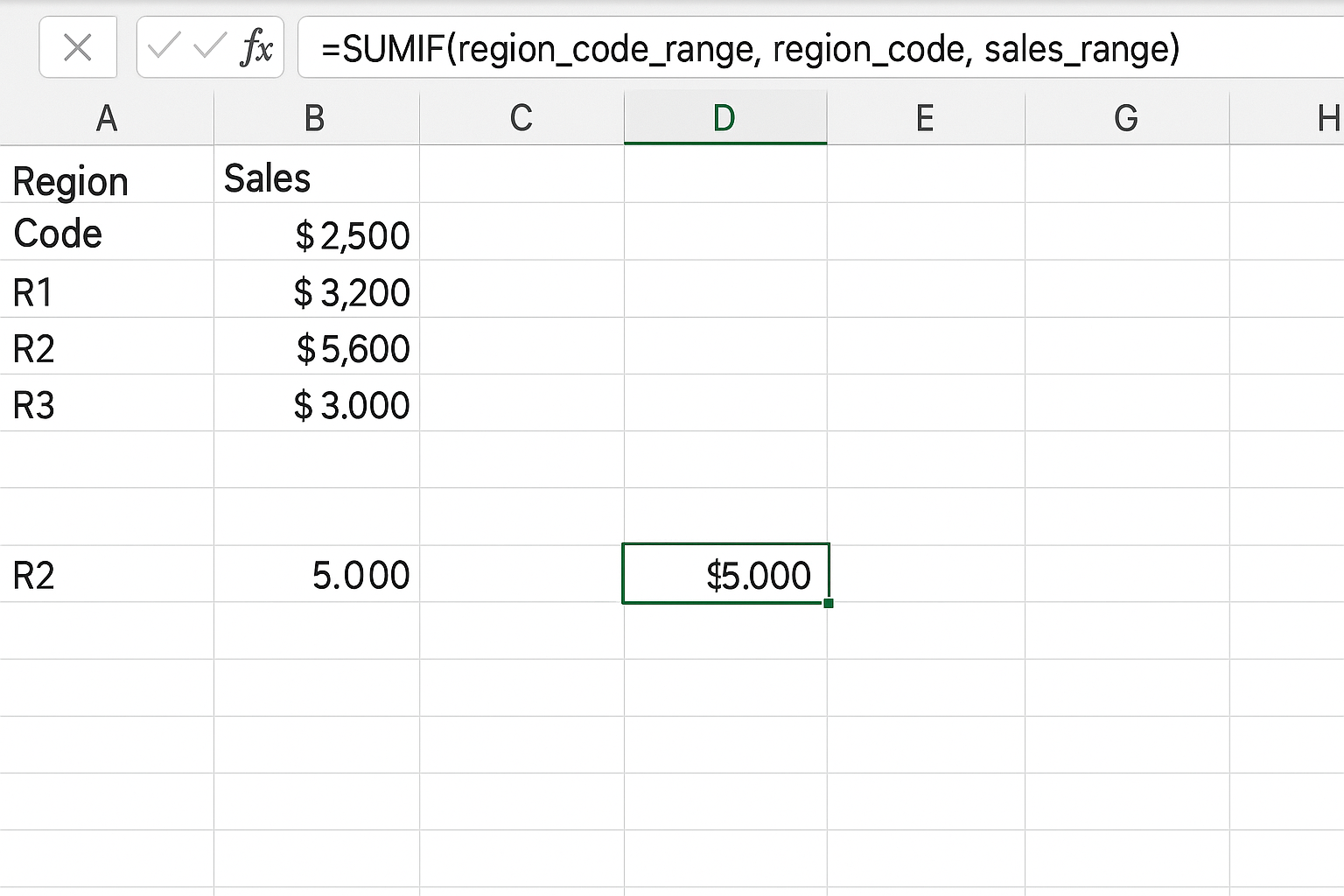
=XLOOKUP(region_name, region_list, region_code_list, "")
=SUMIF(region_code_range, region_code, sales_range)
This approach makes your reports adaptable and easy to update.
Tips for Using XLOOKUP in Dynamic Reports
- Use exact match mode: For precise lookups, set the match_mode argument to 0 (exact match).
- Handle errors gracefully: Use the if_not_found argument to display user-friendly messages or default values.
- Optimize performance: Limit lookup ranges to only necessary data to speed up calculations.
- Use named ranges: Named ranges make formulas more readable and easier to manage.
FAQ
What is the main advantage of XLOOKUP over VLOOKUP?
XLOOKUP can search both vertically and horizontally, supports exact and approximate matches by default, and allows you to specify a default return value if no match is found, making it more versatile than VLOOKUP.
Can XLOOKUP be used with dynamic ranges?
Yes, XLOOKUP works well with dynamic ranges and tables, allowing reports to update automatically as data grows or changes.
Is XLOOKUP compatible with all Excel versions?
XLOOKUP is available in Excel for Microsoft 365 and Excel 2021 and later versions. Older versions do not support this function.
How do I use XLOOKUP to handle missing data?
You can use the if_not_found argument in XLOOKUP to return a custom message or value when no match is found, helping maintain clean and user-friendly reports.
Can XLOOKUP be combined with other Excel functions?
Absolutely. Combining XLOOKUP with functions like SUM, IF, and FILTER enables you to build powerful and flexible dynamic reports.
Conclusion
Using XLOOKUP for dynamic reports in Excel streamlines the way you handle and present data. Its flexibility and enhanced capabilities make it an indispensable tool for anyone looking to create interactive and update-ready reports. By following the practical examples and tips shared here, you can build efficient, error-resistant reports that save time and improve decision-making.
Related Articles
- Getting Started with XLOOKUP in Excel: A Beginner’s Guide
- How to Use XLOOKUP in Excel to Find Data Quickly
- Understanding XLOOKUP Syntax and Parameters in Excel
- How to Use XLOOKUP with Multiple Criteria in Excel
- Error Handling in XLOOKUP: Tips to Avoid Common Mistakes
Want practical Excel help?
Support free Excel tutorials, get weekly tips, or contact us for Excel programming, VBA, Power Query, dashboards, and automation work.