Top 10 Excel Power Query Tips to Boost Your Data Analysis

Introduction
Excel Power Query has become an essential tool for data analysts and Excel users who want to efficiently clean, transform, and analyze data. Integrating seamlessly with Excel, Power Query empowers users to automate repetitive tasks and handle large datasets with ease. In this article, we will explore the top 10 Excel Power Query tips that help boost your data analysis capabilities, complete with practical examples to get you started quickly.
1. Use the Query Editor to Clean Data Automatically
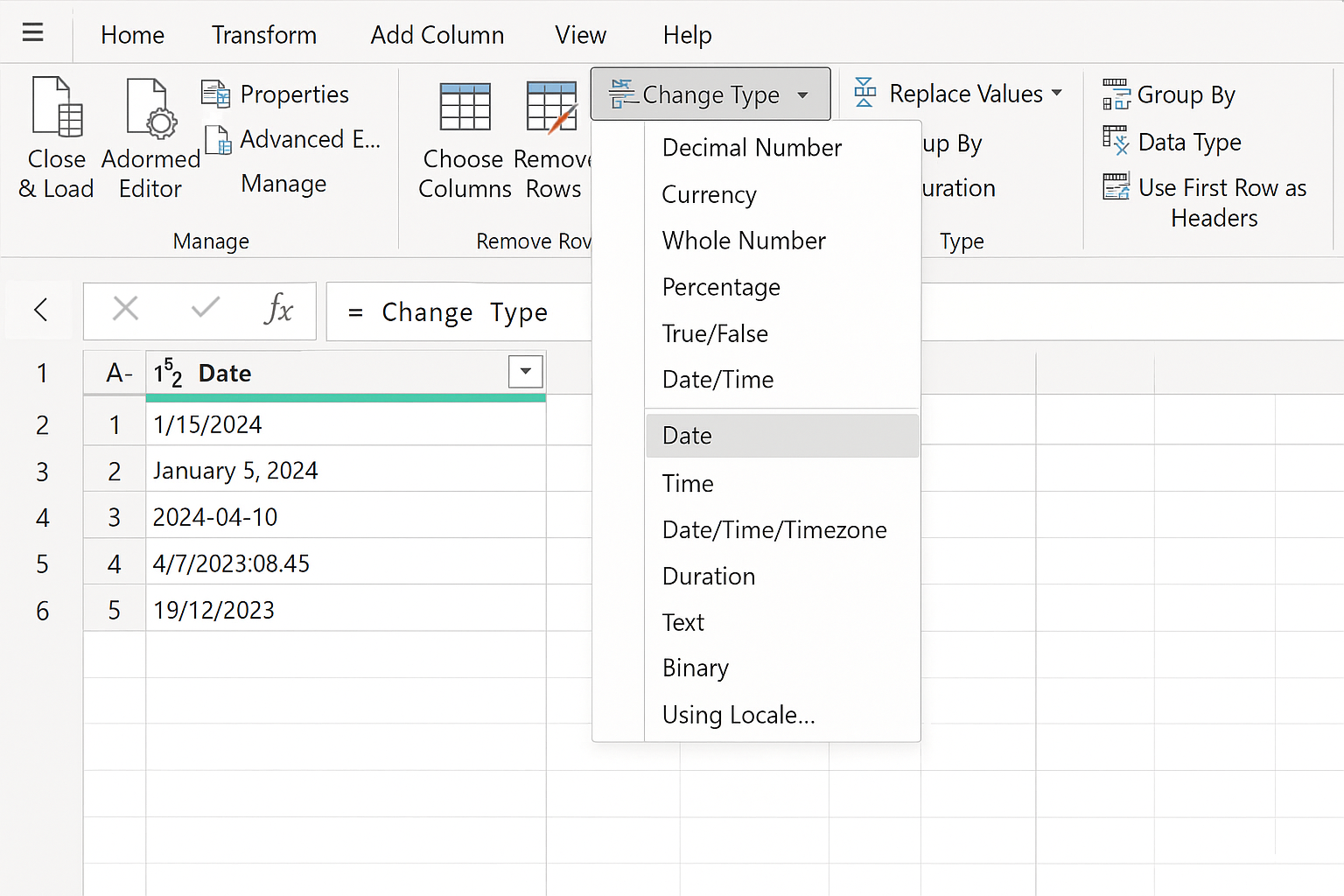
One of the biggest advantages of Power Query is its ability to clean data automatically. Instead of manually fixing errors or formatting inconsistencies, use the Query Editor to perform actions such as removing duplicates, trimming spaces, and changing data types.
Example: Load a dataset with inconsistent date formats. In the Query Editor, select the date column, then use the ‘Change Type’ feature to convert all dates to a standardized format.
2. Merge Queries to Combine Multiple Data Sources
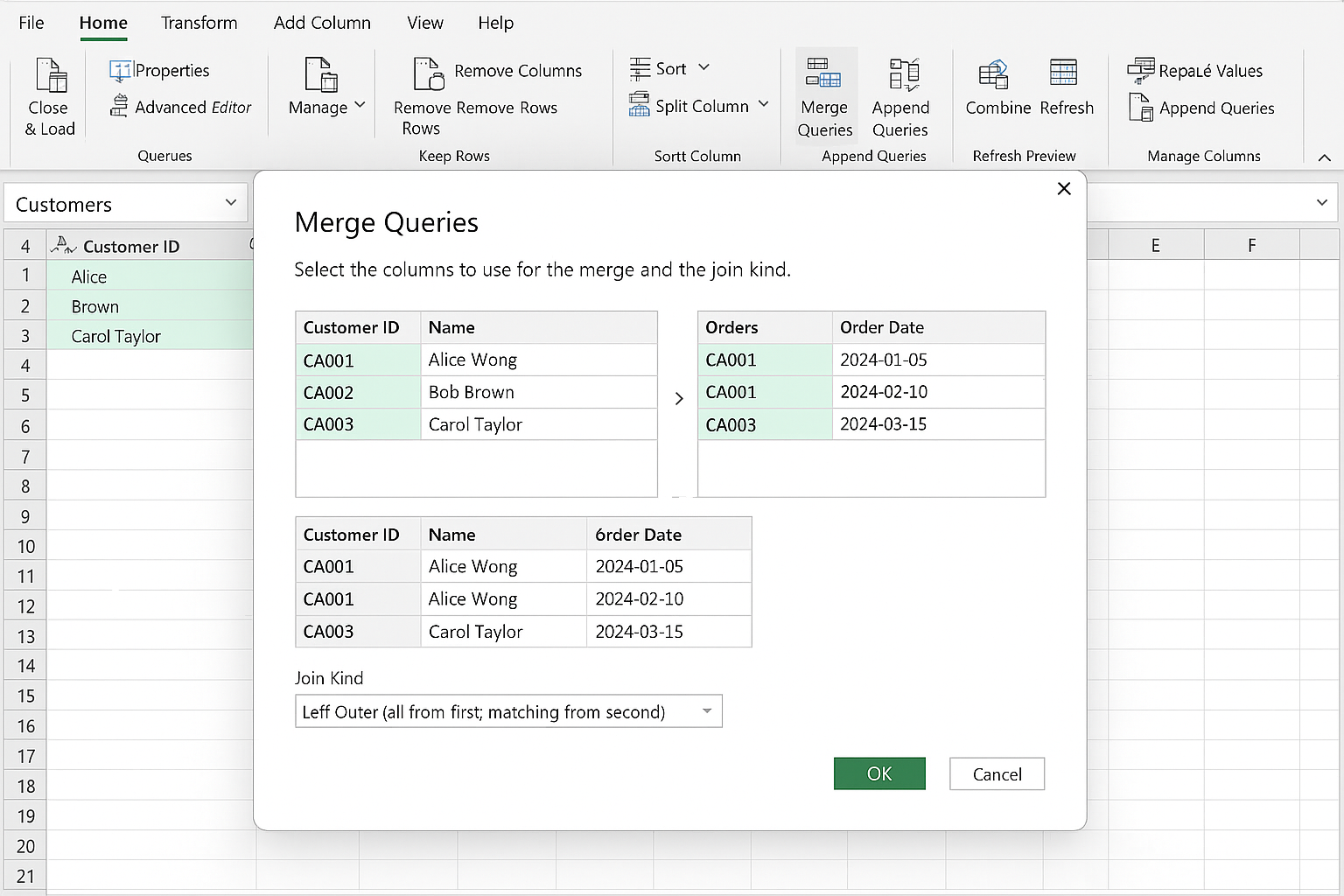
Power Query allows you to combine data from different tables or sources by merging queries. This is especially useful when you need to perform lookups across datasets.
Example: Suppose you have a sales table and a customer info table. Use ‘Merge Queries’ to join these tables on the customer ID to analyze sales by customer demographics.
3. Append Queries to Stack Data Vertically
Appending queries stacks datasets with the same structure on top of each other, which is perfect for consolidating monthly reports into a single dataset.
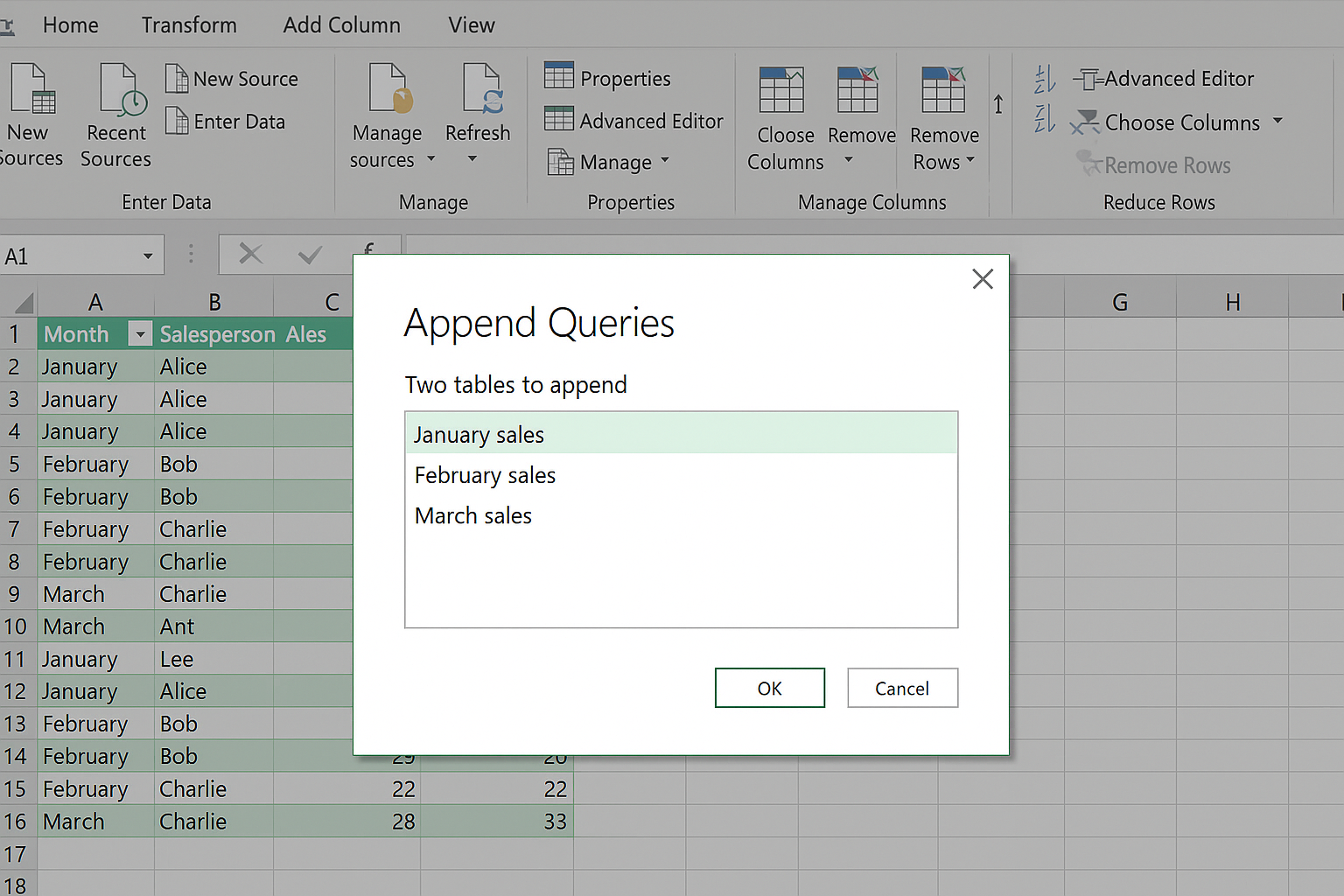
Example: Combine January, February, and March sales data stored in separate tables into one master sales table using the ‘Append Queries’ feature.
4. Leverage Parameters for Dynamic Queries
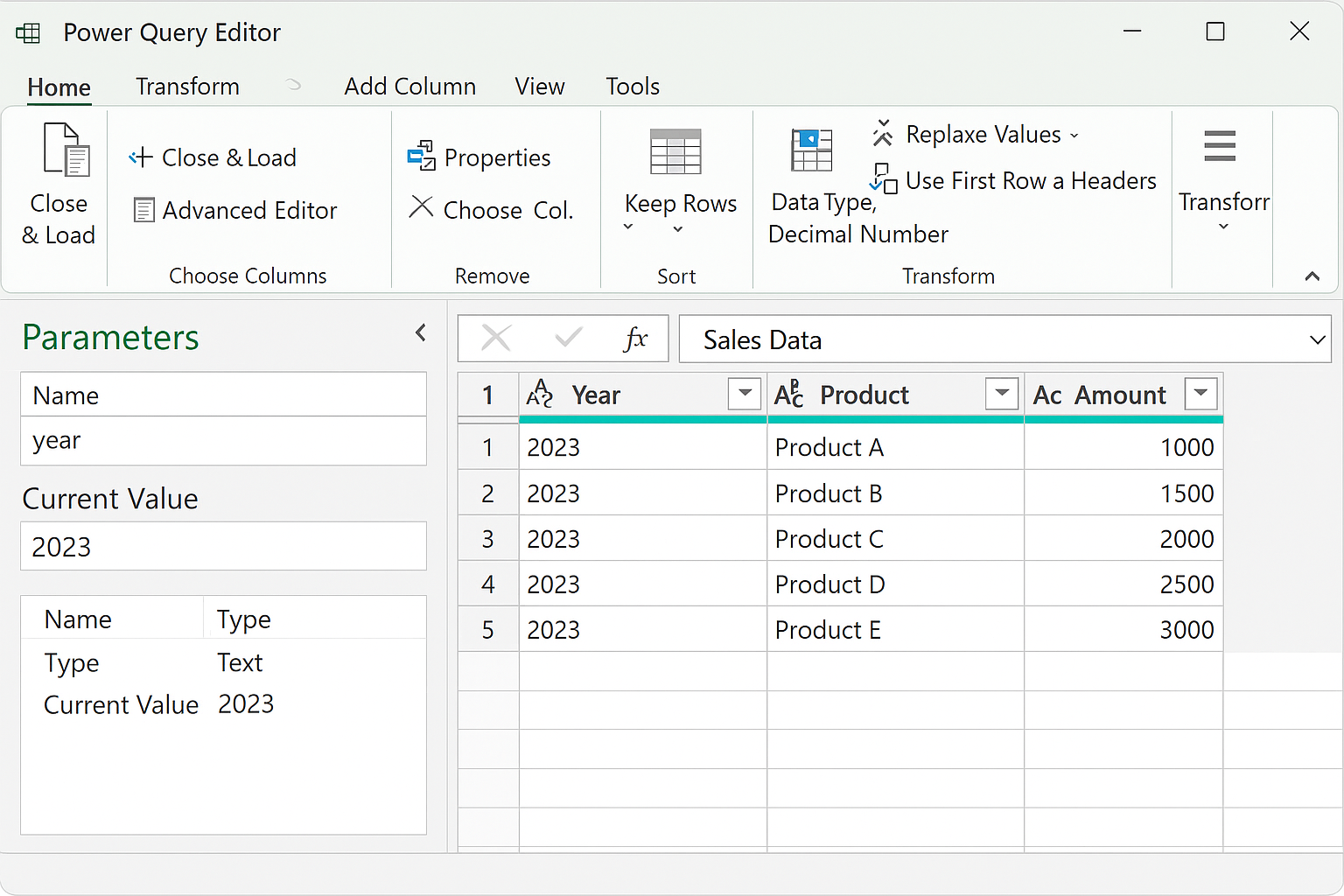
Parameters allow you to create dynamic queries that can be easily adjusted without editing the query itself. This is useful for filtering data based on user input.
Example: Create a parameter for the year, then filter your sales data query to load only the selected year’s data. Change the parameter to update the data instantly.
5. Use Custom Columns to Perform Calculations
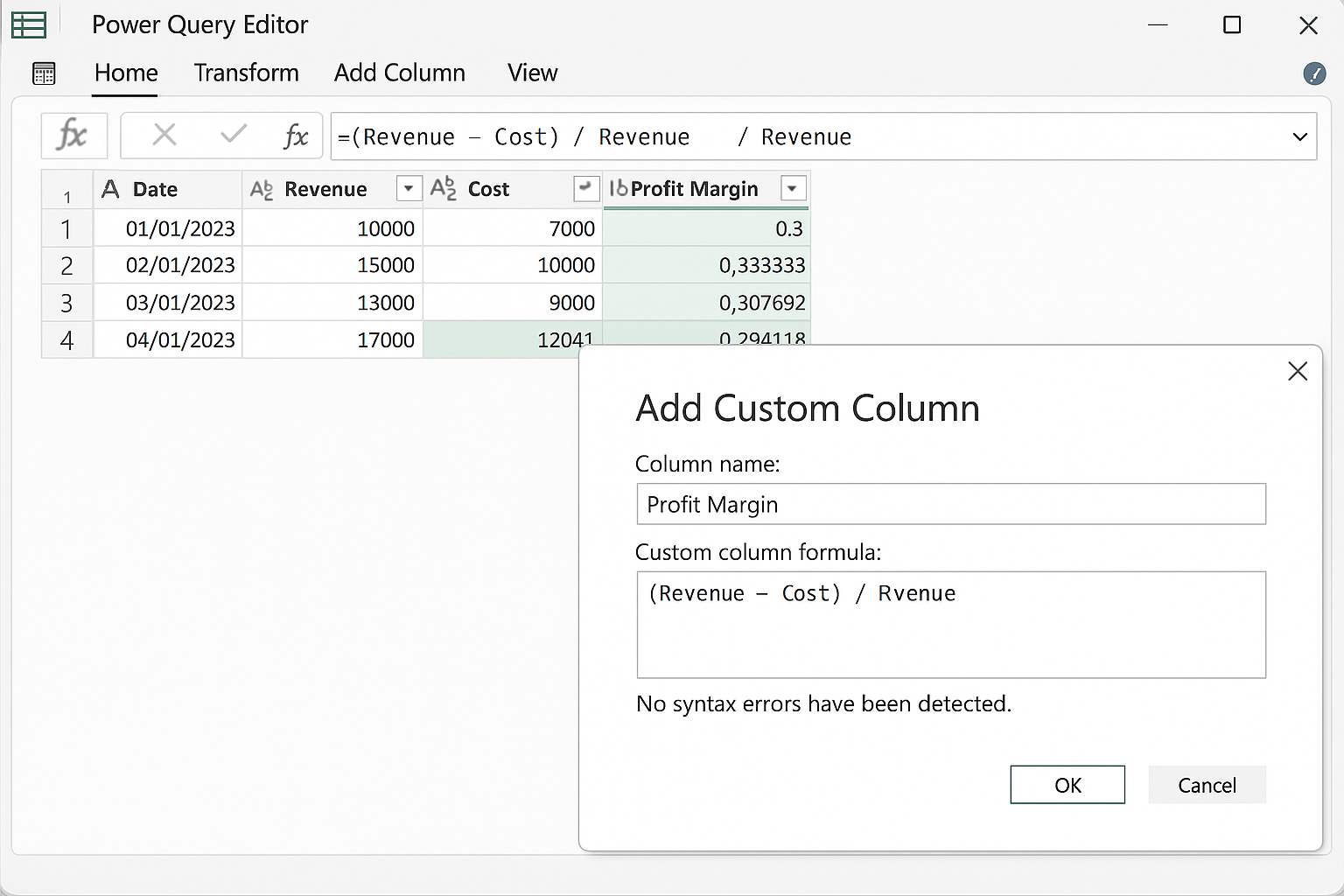
Transform your data by adding custom columns with calculated values. Power Query uses the M language, which supports many functions for data transformation.
Example: Add a new column that calculates the profit margin by subtracting cost from revenue and dividing by revenue.
6. Group Data for Summary Reports
Grouping data allows you to summarize information such as sums, averages, counts, and more.
Example: Group sales data by region and calculate the total sales per region to generate a quick summary report.
7. Remove Unnecessary Columns to Optimize Performance
Large datasets can slow down your workbook. Removing unused columns in Power Query helps optimize performance and keeps your queries clean.
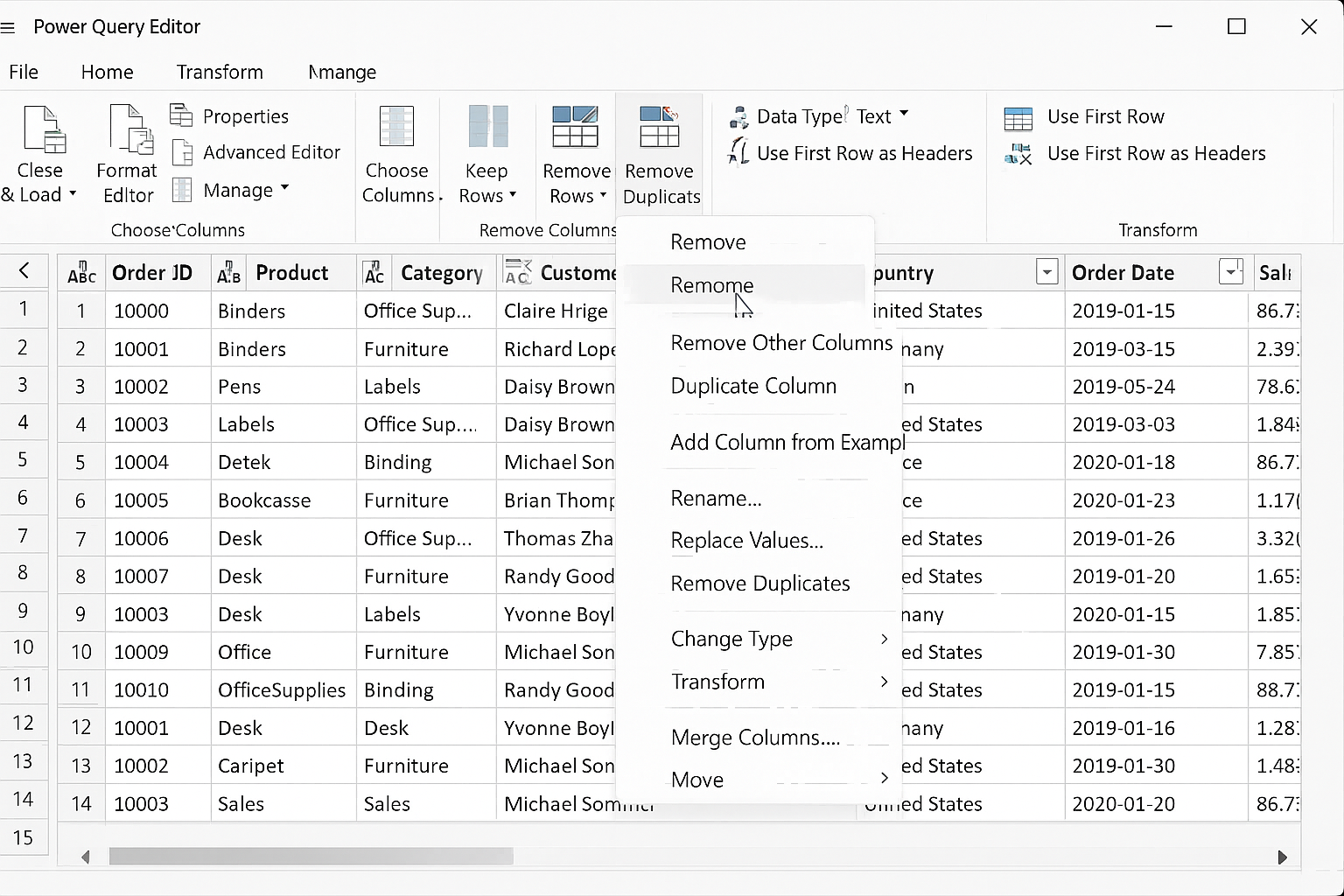
Example: After importing a large dataset, remove columns that are not required for your analysis by right-clicking the column headers and selecting ‘Remove’.
8. Use Conditional Columns for Advanced Logic
Create conditional logic directly in your query without complex formulas by using conditional columns.
Example: Categorize sales as ‘High’, ‘Medium’, or ‘Low’ based on sales value thresholds set in a conditional column.
9. Refresh Queries Automatically with Workbook Open
Ensure your data is always up-to-date by setting queries to refresh automatically when the workbook is opened.
Example: In Excel, enable the ‘Refresh data when opening the file’ option in the Query Properties to keep your reports current without manual intervention.
10. Combine Power Query with Excel PivotTables for Powerful Analysis
After shaping your data in Power Query, load it as a table and use Excel PivotTables to create interactive reports and dashboards.
Example: Load your cleaned sales data to Excel, then insert a PivotTable to analyze sales trends by product category and region with slicers for easy filtering.
Conclusion
Mastering these Excel Power Query tips can significantly improve your data analysis workflow, saving you time and reducing errors. From cleaning and transforming to combining and summarizing data, Power Query offers powerful features that integrate seamlessly with Excel. Start applying these techniques today and unlock the full potential of your data.
Frequently Asked Questions
Q1: What is Power Query in Excel?
Power Query is a data connection technology that enables you to discover, connect, combine, and refine data sources to meet your analysis needs within Excel.
Q2: Can Power Query handle large data sets?
Yes, Power Query is optimized to handle large datasets efficiently by performing transformations before loading data into Excel.
Q3: Do I need to know programming to use Power Query?
No, Power Query provides a user-friendly interface for most operations, but knowing the M language can help with advanced transformations.
Q4: How often should I refresh Power Query data?
It depends on your data source. For dynamic data, refreshing when opening the workbook or manually refreshing is recommended to keep data current.
Q5: Can I use Power Query with other data sources besides Excel files?
Yes, Power Query supports various data sources including databases, CSV files, web pages, and cloud services.
Related Articles
- Power Query Tutorial: Getting Started with Data Transformation
- Understanding the Power Query Interface: A Beginner’s Guide
- How to Use Power Query in Excel for Efficient Data Cleaning
- Mastering Data Transformation with Power Query: Step-by-Step Guide
- How to Merge Queries in Power Query for Advanced Data Analysis
Want practical Excel help?
Support free Excel tutorials, get weekly tips, or contact us for Excel programming, VBA, Power Query, dashboards, and automation work.