XLOOKUP vs VLOOKUP: Which Excel Function Should You Use?

Introduction
When working with Excel, lookup functions are essential tools for searching and retrieving data within spreadsheets. Two of the most popular lookup functions are VLOOKUP and XLOOKUP. While VLOOKUP has been a staple in Excel for decades, XLOOKUP is a newer, more versatile function introduced to address many of VLOOKUP’s limitations. In this article, we’ll compare XLOOKUP vs VLOOKUP, explore their differences, and provide practical examples to help you decide which function to use for your data tasks.
Understanding VLOOKUP
VLOOKUP stands for “Vertical Lookup.” It searches for a value in the first column of a range and returns a value in the same row from another column you specify. Its syntax is:
VLOOKUP(lookup_value, table_array, col_index_num, [range_lookup])
Parameters explained:
- lookup_value: The value you want to search for.
- table_array: The range of cells containing the data.
- col_index_num: The column number in the table from which to retrieve the value.
- range_lookup: Optional; TRUE for approximate match, FALSE for exact match.
Example of VLOOKUP usage:
=VLOOKUP("Apples", A2:C6, 3, FALSE)
This formula looks for “Apples” in the first column of the range A2:C6 and returns the value from the third column in the same row.
Understanding XLOOKUP
XLOOKUP is a more modern lookup function introduced in Excel 365 and Excel 2019. It overcomes many of the limitations of VLOOKUP and HLOOKUP. The syntax is:
XLOOKUP(lookup_value, lookup_array, return_array, [if_not_found], [match_mode], [search_mode])
Parameters explained:
- lookup_value: The value to search for.
- lookup_array: The array or range to search.
- return_array: The array or range to return a value from.
- if_not_found: Optional; value to return if no match is found.
- match_mode: Optional; 0 for exact match (default), -1 for exact or next smaller, 1 for exact or next larger, 2 for wildcard match.
- search_mode: Optional; 1 for first-to-last (default), -1 for last-to-first.
Example of XLOOKUP usage:
=XLOOKUP("Apples", A2:A6, C2:C6, "Not Found")
This formula looks for “Apples” in the range A2:A6 and returns the corresponding value from C2:C6. If “Apples” is not found, it returns “Not Found.”
Key Differences Between XLOOKUP and VLOOKUP
- Lookup Direction: VLOOKUP only searches left to right; XLOOKUP supports both left-to-right and right-to-left lookups.
- Return Column Flexibility: VLOOKUP requires a numeric column index; XLOOKUP directly uses the return array.
- Exact Match Default: VLOOKUP defaults to approximate match (TRUE), which can cause errors if omitted; XLOOKUP defaults to exact match.
- Error Handling: XLOOKUP allows custom “if_not_found” messages; VLOOKUP returns #N/A errors.
- Performance: XLOOKUP is optimized for large datasets and multiple criteria.
- Multiple Criteria: VLOOKUP requires complex formulas or helper columns; XLOOKUP can be combined with functions like FILTER for advanced lookups.
Practical Examples Comparing XLOOKUP vs VLOOKUP
Example 1: Basic Lookup
Suppose you have a product list with prices:
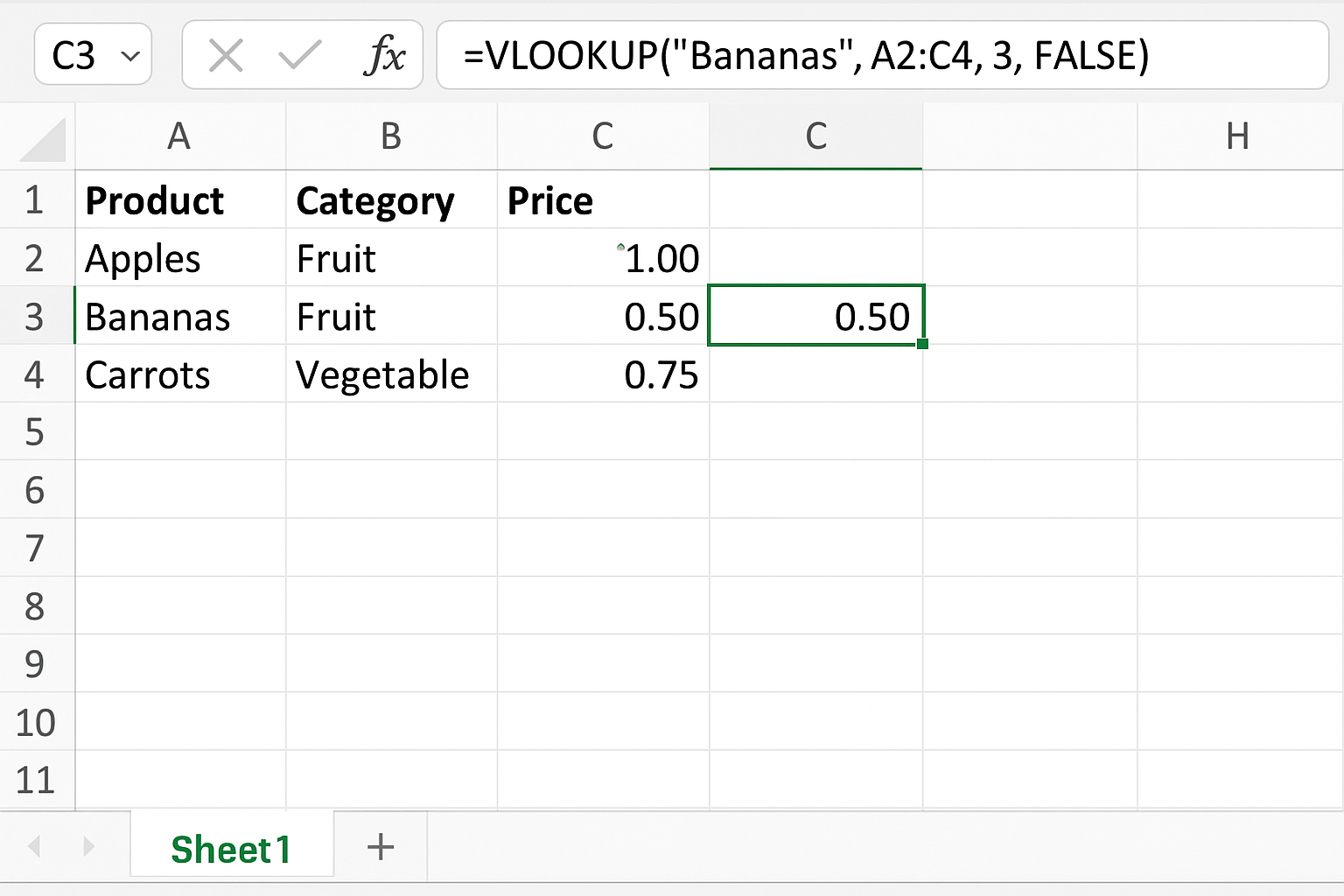
| Product | Category | Price |
|---|---|---|
| Apples | Fruit | 1.00 |
| Bananas | Fruit | 0.50 |
| Carrots | Vegetable | 0.75 |
You want to find the price of Bananas.
VLOOKUP formula:
=VLOOKUP("Bananas", A2:C4, 3, FALSE)
XLOOKUP formula:
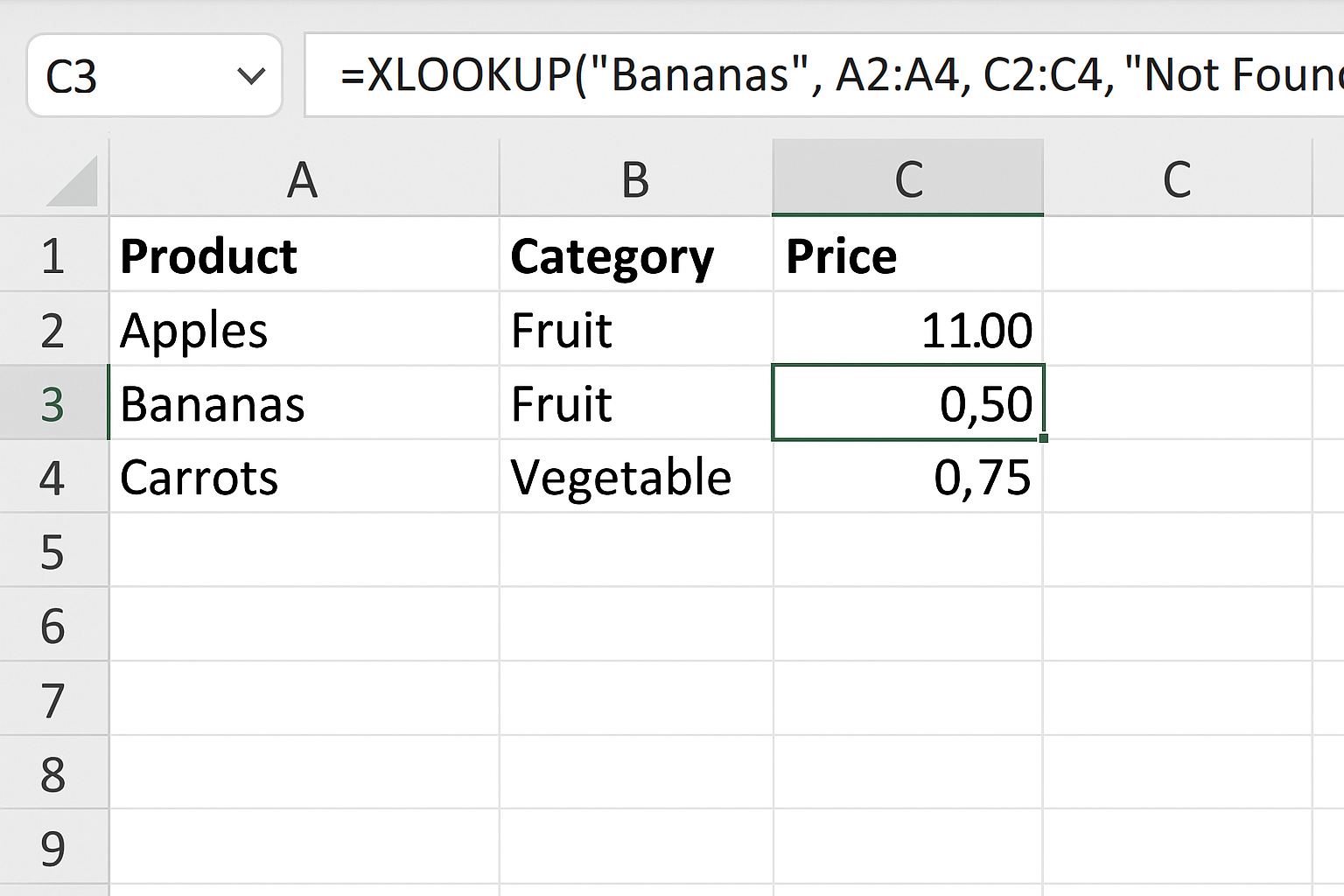
=XLOOKUP("Bananas", A2:A4, C2:C4, "Not Found")
Both return 0.50, but XLOOKUP is easier to read and more flexible.
Example 2: Lookup with Left Lookup
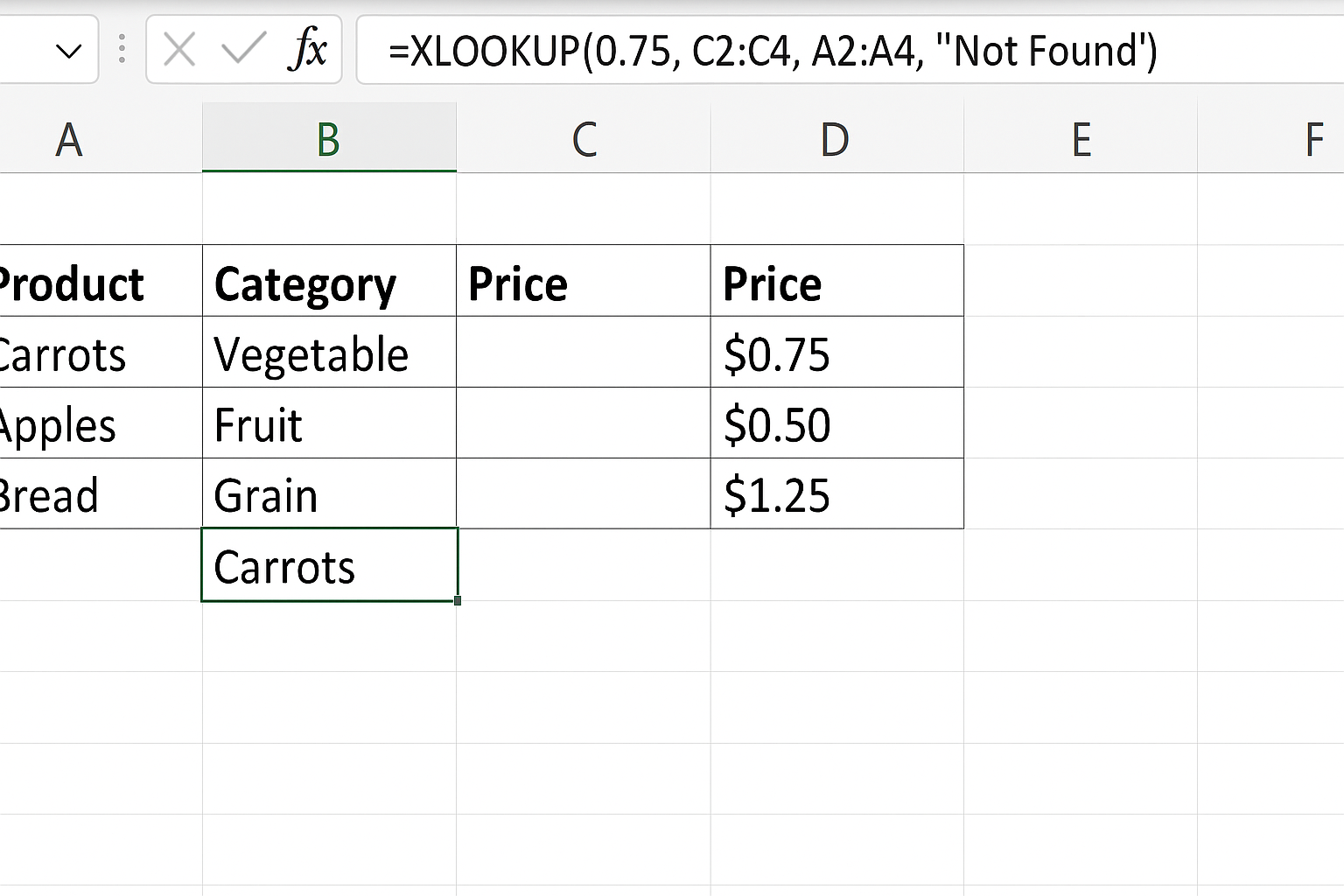
Say you want to find the product name by price 0.75.
With VLOOKUP, this is not possible directly because VLOOKUP can only search in the leftmost column.
XLOOKUP formula:
=XLOOKUP(0.75, C2:C4, A2:A4, "Not Found")
This returns “Carrots.” This right-to-left lookup is a major advantage of XLOOKUP.
Example 3: Handling Missing Values
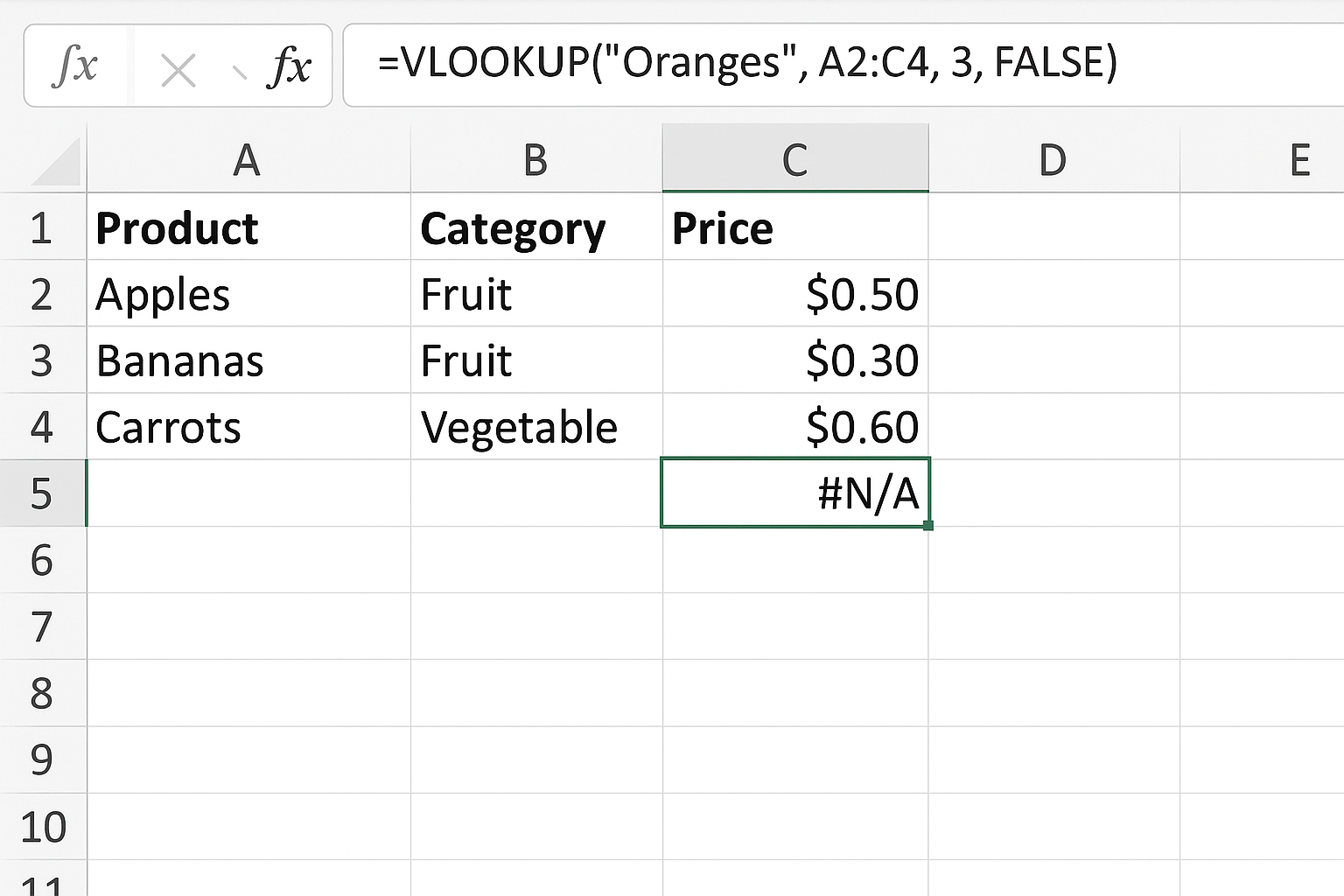
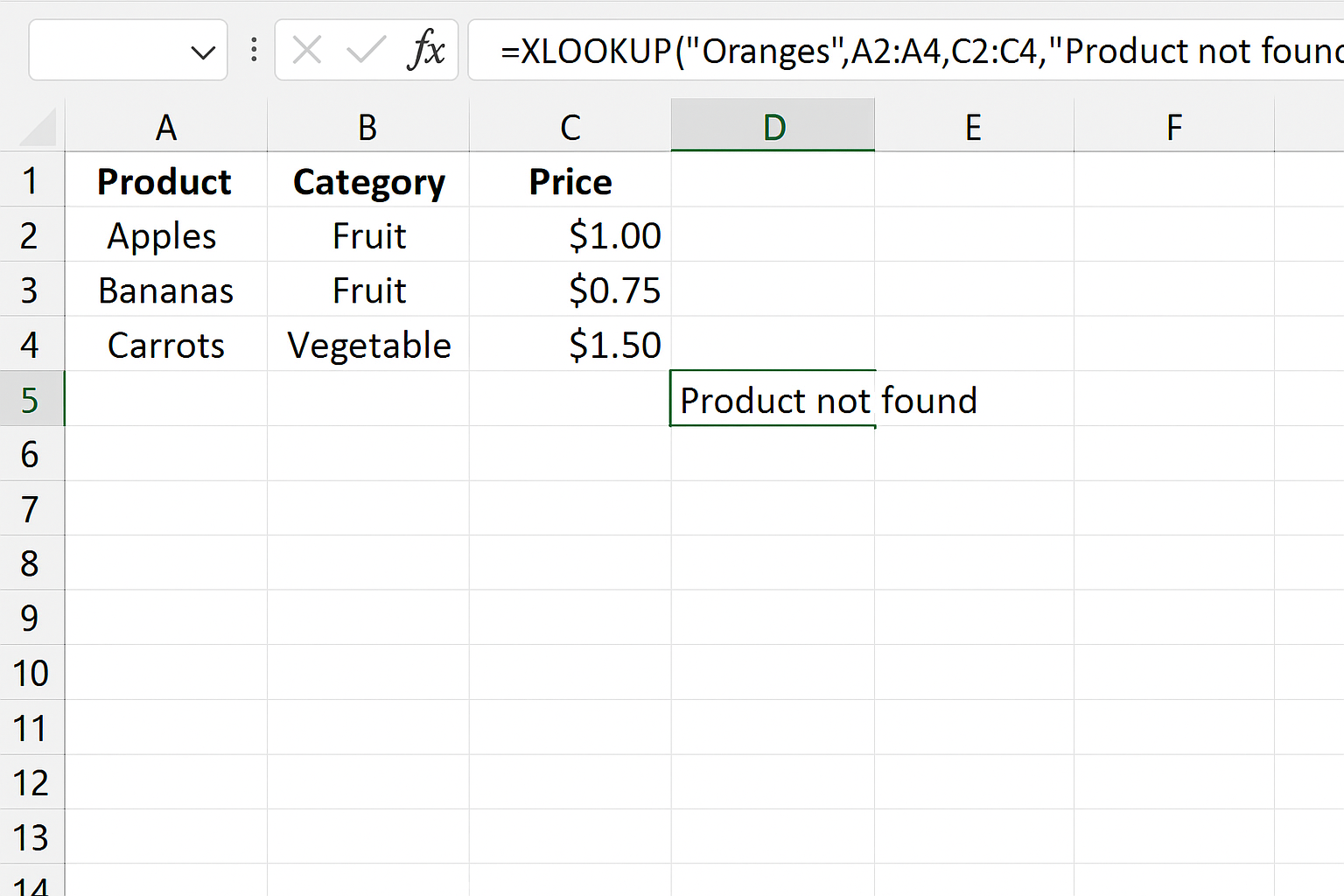
Looking for “Oranges” which are not in the list.
VLOOKUP:
=VLOOKUP("Oranges", A2:C4, 3, FALSE)
This returns #N/A.
XLOOKUP:
=XLOOKUP("Oranges", A2:A4, C2:C4, "Product not found")
This returns Product not found, a user-friendly message.
When to Use XLOOKUP vs VLOOKUP
Use VLOOKUP if:
- You work with older Excel versions that do not support XLOOKUP.
- You need a simple vertical lookup in a stable table where the structure won’t change.
Use XLOOKUP if:
- You want more flexibility, including left lookups.
- You want easier error handling and readable formulas.
- You need exact matches by default.
- You want to avoid mistakes caused by VLOOKUP’s column index numbers.
FAQ
Can XLOOKUP replace VLOOKUP completely?
Yes, XLOOKUP is designed to replace VLOOKUP and HLOOKUP by providing more powerful and flexible lookup capabilities. However, it requires Excel 365 or Excel 2019 and later.
Is XLOOKUP faster than VLOOKUP?
XLOOKUP is optimized for performance and can be faster especially in large datasets or complex lookups, but actual speed depends on the scenario.
Can XLOOKUP perform approximate matches like VLOOKUP?
Yes, by setting the match_mode parameter, XLOOKUP can perform exact or approximate matches, including wildcard matches.
What if my Excel version does not support XLOOKUP?
If your Excel version doesn’t support XLOOKUP, you will need to use VLOOKUP or other lookup functions like INDEX-MATCH, or upgrade to a newer version of Excel.
Does XLOOKUP support searching from bottom to top?
Yes, the search_mode parameter allows searching last-to-first, enabling reverse lookups.
Related Articles
- Getting Started with XLOOKUP in Excel: A Beginner’s Guide
- How to Use XLOOKUP in Excel to Find Data Quickly
- Understanding XLOOKUP Syntax and Parameters in Excel
- How to Use XLOOKUP with Multiple Criteria in Excel
- Error Handling in XLOOKUP: Tips to Avoid Common Mistakes
Want practical Excel help?
Support free Excel tutorials, get weekly tips, or contact us for Excel programming, VBA, Power Query, dashboards, and automation work.