Automating Pivot Table Creation in Excel with VBA
Introduction
Pivot tables are a powerful feature in Excel that allow users to summarize, analyze, and explore complex datasets with ease. However, creating and updating pivot tables manually can be time-consuming, especially when dealing with large or frequently changing data. This is where Excel VBA pivot tables come into play. By automating pivot table creation with VBA (Visual Basic for Applications), you can save valuable time, reduce errors, and enhance your data analysis workflows.
Why Automate Pivot Tables Using VBA?
Manual pivot table creation requires repetitive steps such as selecting data ranges, arranging fields, and formatting. Automation through VBA:
- Saves time by generating pivot tables with a single macro.
- Ensures consistency in pivot table structure and formatting.
- Allows dynamic data range handling for frequently updated data.
- Integrates pivot table generation into larger Excel automation tasks.
Basic Concepts for Creating Pivot Tables with VBA
Before diving into code, it’s essential to understand key objects:
- PivotCache: Holds the source data for the pivot table.
- PivotTable: The actual pivot table object created from the PivotCache.
- PivotFields: Fields from the data source that you place in rows, columns, filters, or values.
Typically, the workflow is to create a PivotCache from the data range, then create the PivotTable from this cache, and finally configure the PivotFields.
Step-by-Step Example: Automating a Pivot Table Creation
Let’s create a simple pivot table that summarizes sales data by region and product.
Sample Data Setup
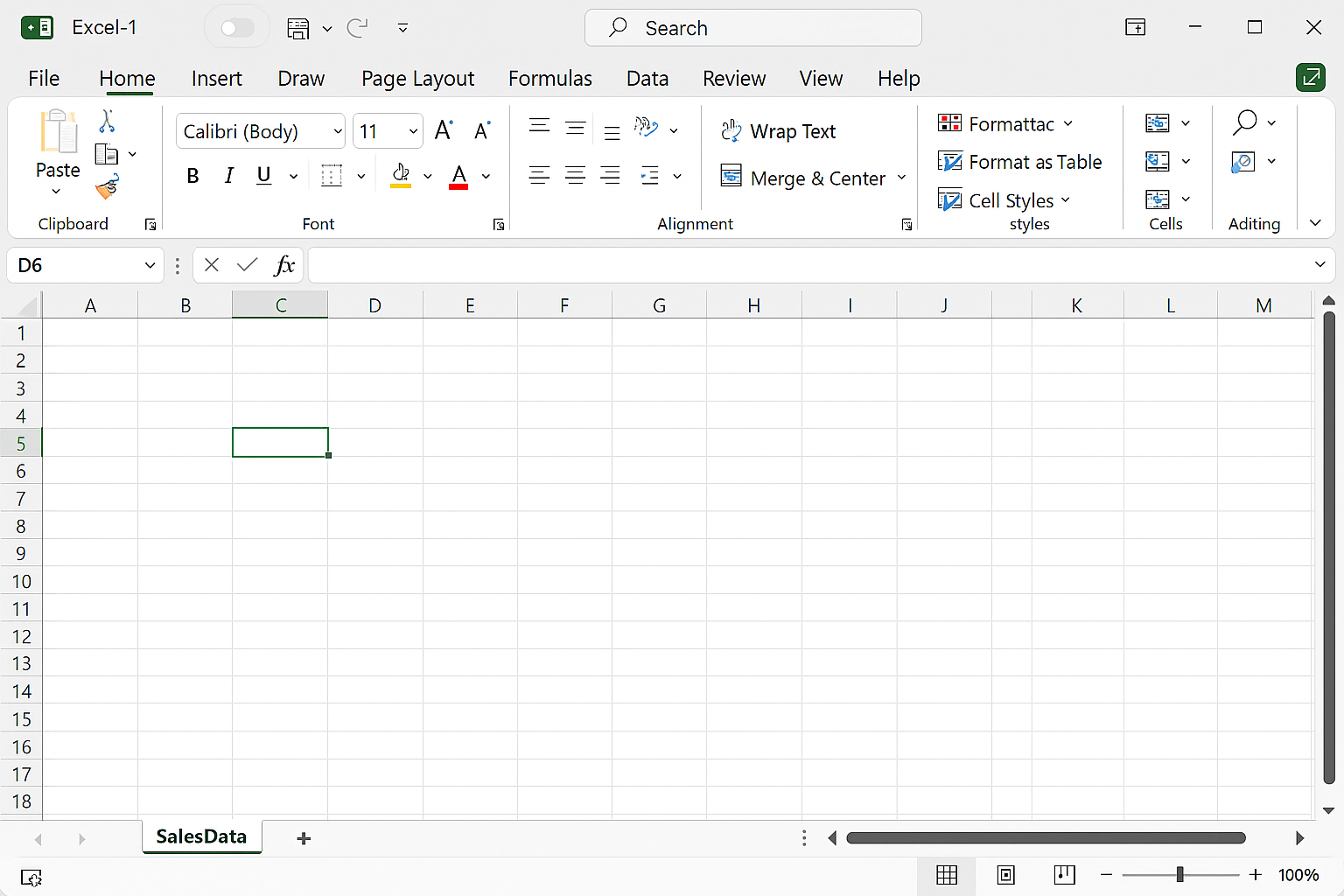
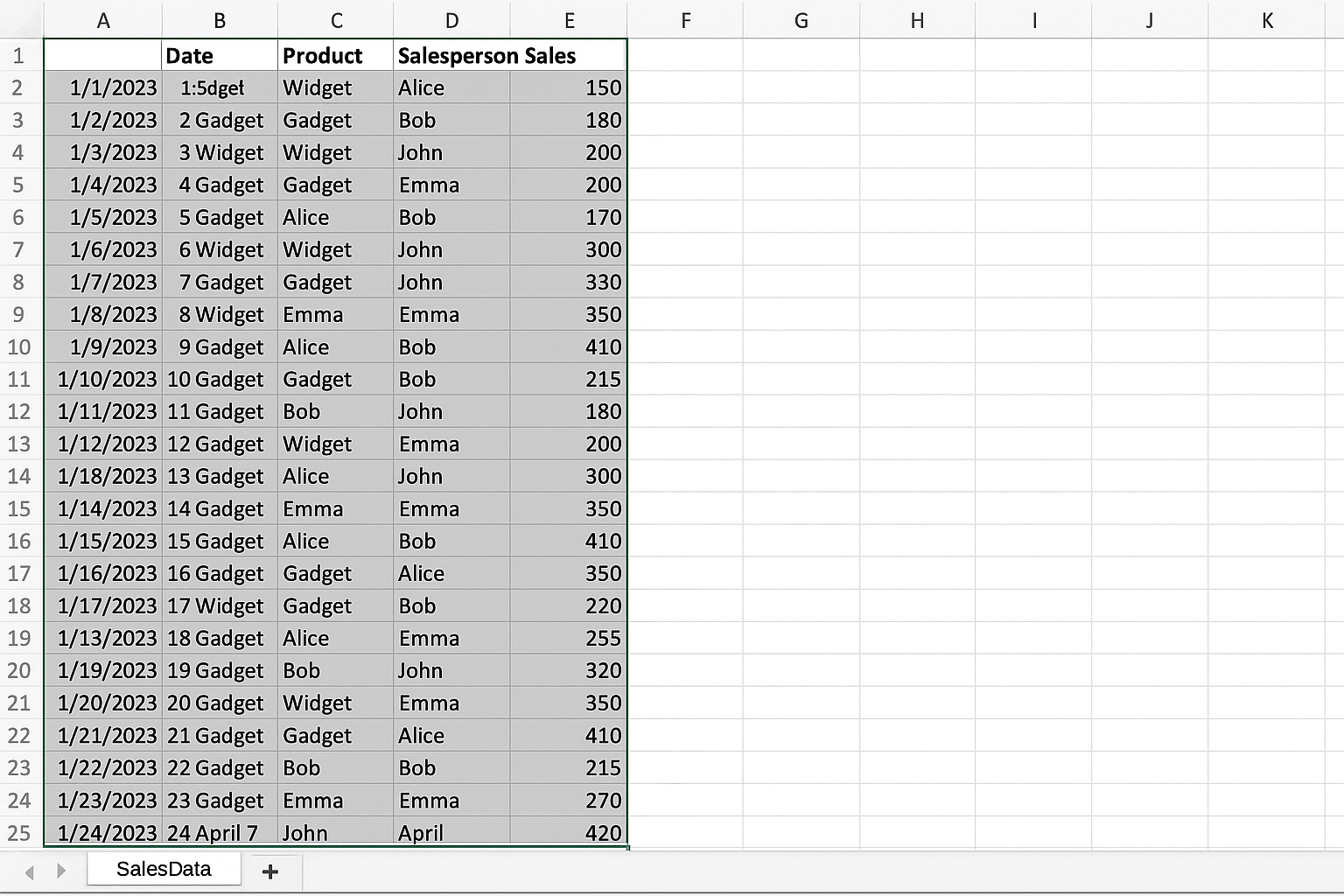
Assume you have an Excel sheet named SalesData with data in columns:
- Date
- Region
- Product
- SalesAmount
Data ranges from A1:D100.
VBA Code to Automate Pivot Table Creation
Sub CreatePivotTable()
    Dim wsData As Worksheet
    Dim wsPivot As Worksheet
    Dim pcache As PivotCache
    Dim ptable As PivotTable
    Dim dataRange As Range
    Dim pivotDest As Range

    ' Set references
    Set wsData = ThisWorkbook.Sheets("SalesData")
    ' Create or clear Pivot Table sheet
    On Error Resume Next
    Application.DisplayAlerts = False
    Sheets("PivotReport").Delete
    Application.DisplayAlerts = True
    On Error GoTo 0
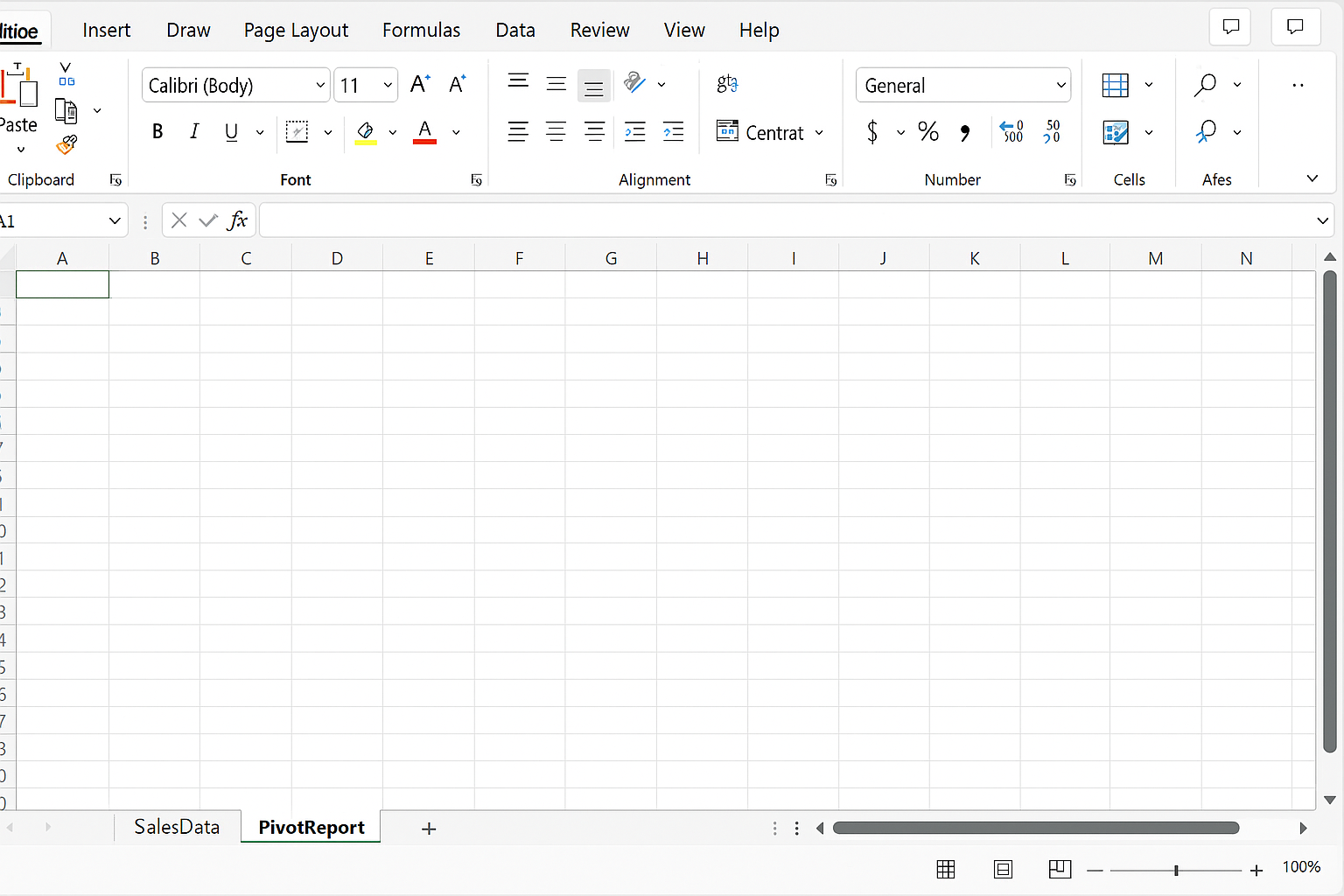
    Set wsPivot = ThisWorkbook.Sheets.Add
    wsPivot.Name = "PivotReport"

    ' Define the data range dynamically
    Set dataRange = wsData.Range("A1").CurrentRegion

    ' Create Pivot Cache
    Set pcache = ThisWorkbook.PivotCaches.Create( _
        SourceType:=xlDatabase, _
        SourceData:=dataRange)

    ' Set destination for pivot table
    Set pivotDest = wsPivot.Range("A3")

    ' Create Pivot Table
    Set ptable = pcache.CreatePivotTable( _
        TableDestination:=pivotDest, _
        TableName:="SalesPivot")

    ' Configure Pivot Fields
    With ptable
        .PivotFields("Region").Orientation = xlRowField
        .PivotFields("Region").Position = 1
        .PivotFields("Product").Orientation = xlColumnField
        .PivotFields("Product").Position = 1
        .PivotFields("SalesAmount").Orientation = xlDataField
        .PivotFields("SalesAmount").Function = xlSum
        .PivotFields("SalesAmount").NumberFormat = "$#,##0.00"
    End With

    ' Optional: Format the pivot table style
    ptable.TableStyle2 = "PivotStyleMedium9"

    MsgBox "Pivot Table created successfully on sheet 'PivotReport'.", vbInformation
End Sub
Understanding the Code
The macro above performs the following:
- Deletes any existing sheet named
PivotReportto avoid duplicates. - Creates a new worksheet named
PivotReportfor the pivot table output. - Uses
CurrentRegionto dynamically select the entire contiguous data range starting at A1. - Creates a PivotCache from the source data.
- Creates a PivotTable at cell A3 on the
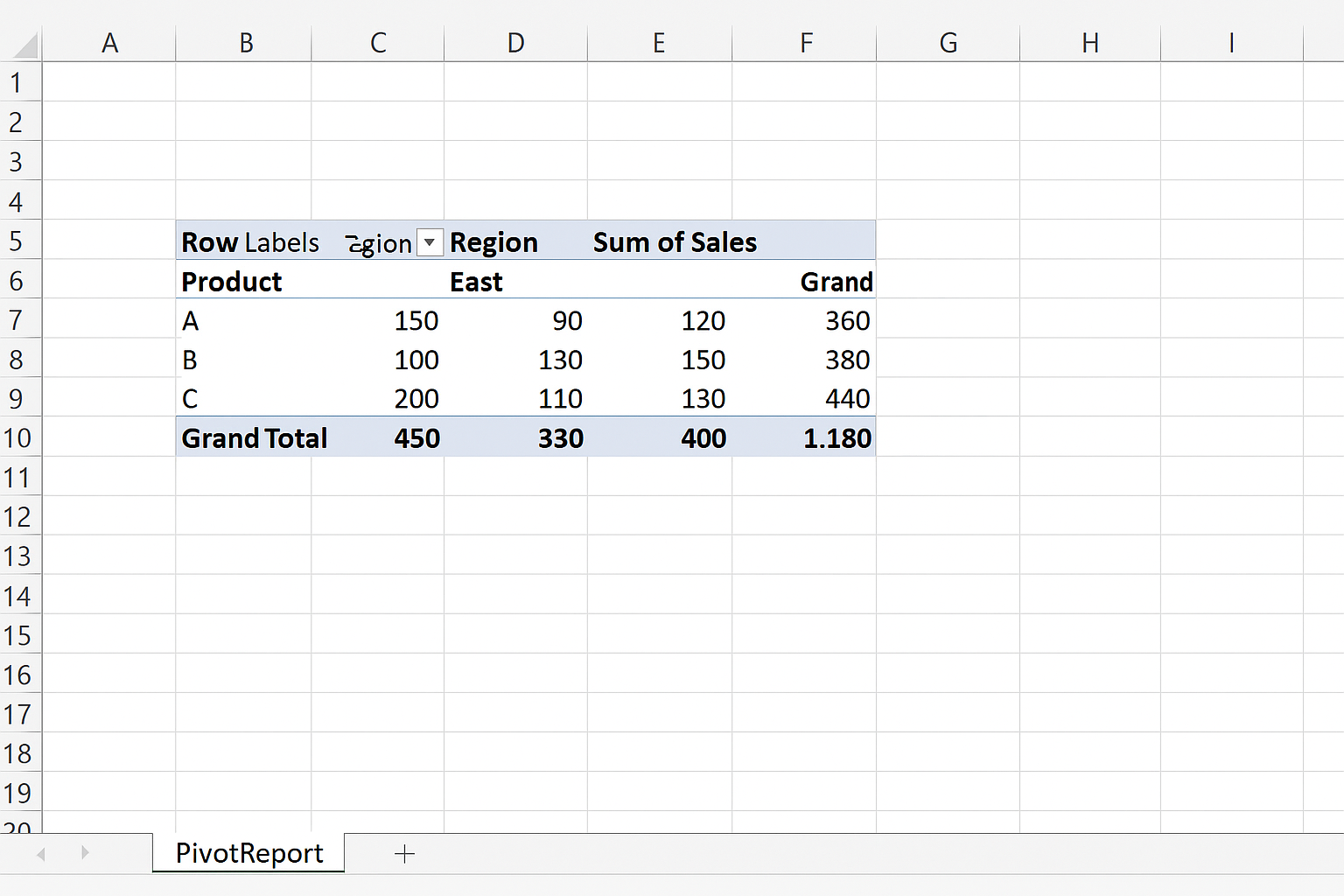
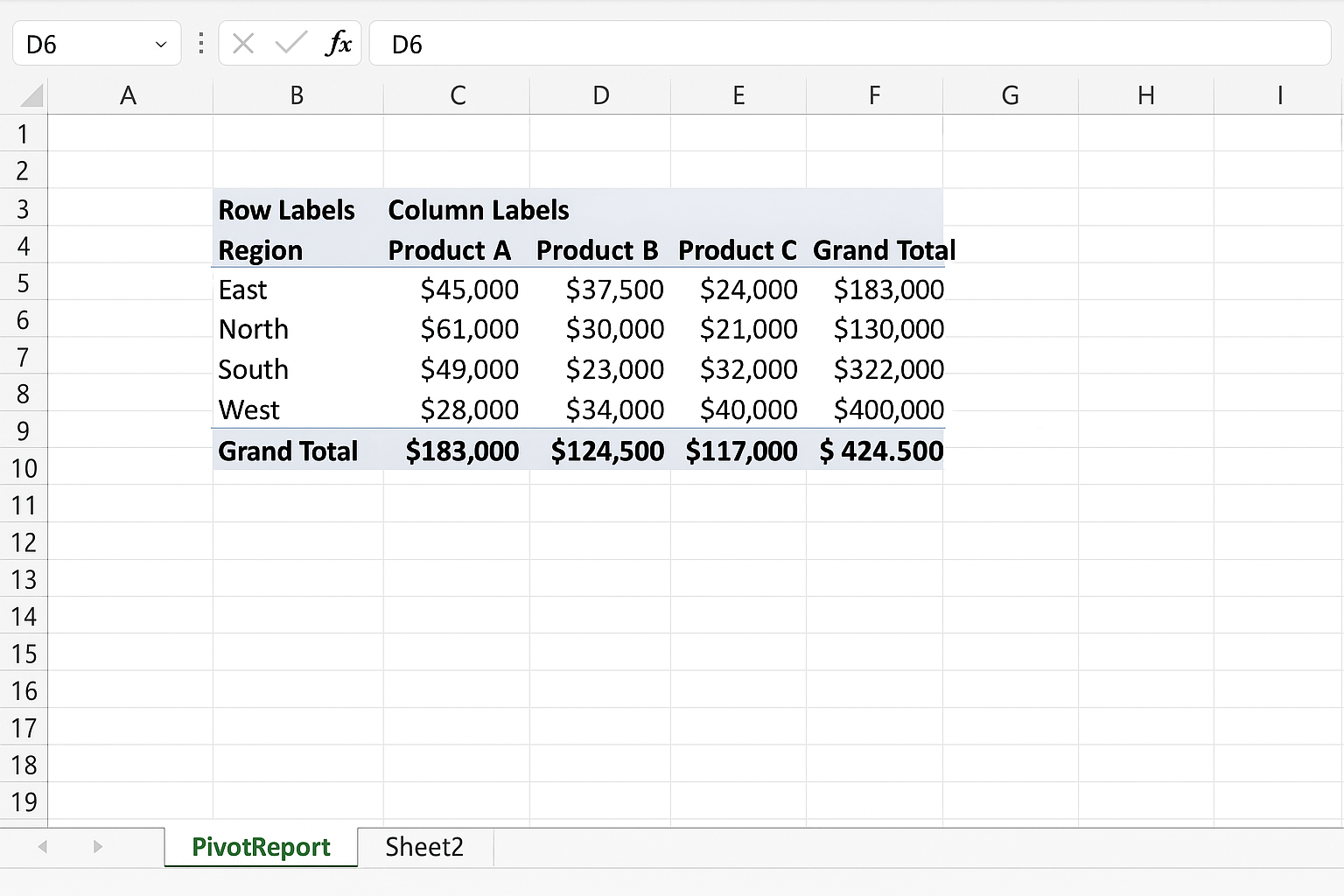
PivotReportsheet. - Sets the Region field as rows, the Product field as columns, and sums the SalesAmount in the data area.
- Applies a medium pivot table style for better visuals.
Advanced Tips for Excel VBA Pivot Tables
- Dynamic Data Ranges: Use named ranges or table objects (ListObjects) to make data sources automatically adjust as data grows.
- Multiple Row or Column Fields: Add multiple fields by setting their Orientation and Position properties sequentially.
- Refreshing Pivot Tables: Use
PivotTable.RefreshTableto update the pivot table after data changes. - Error Handling: Incorporate error handling for scenarios like missing fields or empty data.
- Filtering Pivot Fields: Use
.PivotFields("FieldName").ClearAllFiltersand.PivotFields("FieldName").CurrentPageto set filters programmatically.
Practical Example: Creating Multiple Pivot Tables from One Data Source
Sometimes you may want to create several pivot tables on the same sheet for different analyses. Here’s a snippet that creates two pivot tables with different configurations:
Sub CreateMultiplePivotTables()
    Dim wsData As Worksheet
    Dim wsPivot As Worksheet
    Dim pcache As PivotCache
    Dim pt1 As PivotTable, pt2 As PivotTable
    Dim dataRange As Range

    Set wsData = ThisWorkbook.Sheets("SalesData")
    Set wsPivot = ThisWorkbook.Sheets("PivotReport")

    Set dataRange = wsData.Range("A1").CurrentRegion

    Set pcache = ThisWorkbook.PivotCaches.Create(xlDatabase, dataRange)

    Set pt1 = pcache.CreatePivotTable(wsPivot.Range("A3"), "PivotByRegion")
    With pt1
        .PivotFields("Region").Orientation = xlRowField
        .PivotFields("SalesAmount").Orientation = xlDataField
        .PivotFields("SalesAmount").Function = xlSum
    End With

    Set pt2 = pcache.CreatePivotTable(wsPivot.Range("H3"), "PivotByProduct")
    With pt2
        .PivotFields("Product").Orientation = xlRowField
        .PivotFields("SalesAmount").Orientation = xlDataField
        .PivotFields("SalesAmount").Function = xlSum
    End With

    MsgBox "Two pivot tables created successfully.", vbInformation
End Sub
FAQ
What is the difference between PivotCache and PivotTable in VBA?
A PivotCache is an object that stores the source data for a pivot table. It acts as a bridge between your data and the pivot table. The PivotTable object is the actual table created on a worksheet that summarizes the data using the PivotCache.
Can VBA create pivot tables from Excel Tables (ListObjects)?
Yes. You can reference an Excel Table directly as the source for your PivotCache. For example, use the table name as the SourceData parameter to ensure dynamic range handling.
How can I refresh pivot tables automatically with VBA?
Use the PivotTable.RefreshTable method to refresh pivot tables after updating source data. You can call this method in your VBA code after data changes.
Is it possible to apply filters in pivot tables using VBA?
Absolutely. VBA allows you to control pivot field filters by using properties like CurrentPage for page fields or VisibleItemsList for multiple filters.
Can I format pivot table fields with VBA?
Yes, you can format data fields, row fields, or entire pivot tables using VBA properties like NumberFormat and TableStyle2 to customize appearance.
Does automating pivot tables improve performance?
Automating pivot tables can speed up repetitive tasks and reduce human errors, but depending on data size, VBA code optimization and efficient coding practices are important to maintain performance.
Conclusion
Automating pivot table creation in Excel with VBA is a powerful way to enhance your data analysis capabilities. By mastering Excel VBA pivot tables, you can streamline reporting, ensure consistency, and handle dynamic datasets effortlessly. The practical examples presented here provide a solid foundation to build customized pivot table automation tailored to your specific needs. Start integrating VBA pivot tables into your Excel workflows today to unlock faster and smarter data insights.
Related Articles
- How to Automate Repetitive Tasks in Excel Using VBA
- Creating Your First Macro in Excel with VBA: A Step-by-Step Guide
- Top 10 Simple VBA Scripts to Automate Excel Tasks for Beginners
- Using Loops in Excel VBA to Save Time on Data Entry
- Introduction to Excel VBA Programming for Absolute Beginners
Want practical Excel help?
Support free Excel tutorials, get weekly tips, or contact us for Excel programming, VBA, Power Query, dashboards, and automation work.