How to Create Dynamic Charts in Excel Using VBA

Introduction
Creating dynamic charts in Excel using VBA is an essential skill for anyone looking to automate data visualization and enhance data analysis workflows. Excel VBA charts allow you to build interactive and customizable charts that update automatically as your data changes, saving time and improving accuracy. This article will guide you through the process of creating dynamic charts using VBA, complete with practical examples and best practices.
Why Use Excel VBA Charts?
Excel’s built-in charting tools are powerful but often require manual updates when data changes. VBA (Visual Basic for Applications) enables automation of chart creation and updates, making charts dynamic and responsive. Benefits include:
- Automatic updating of charts when data changes
- Customizable chart elements through code
- Ability to handle large or complex datasets dynamically
- Integration with other Excel automation tasks
Getting Started with VBA for Dynamic Charts
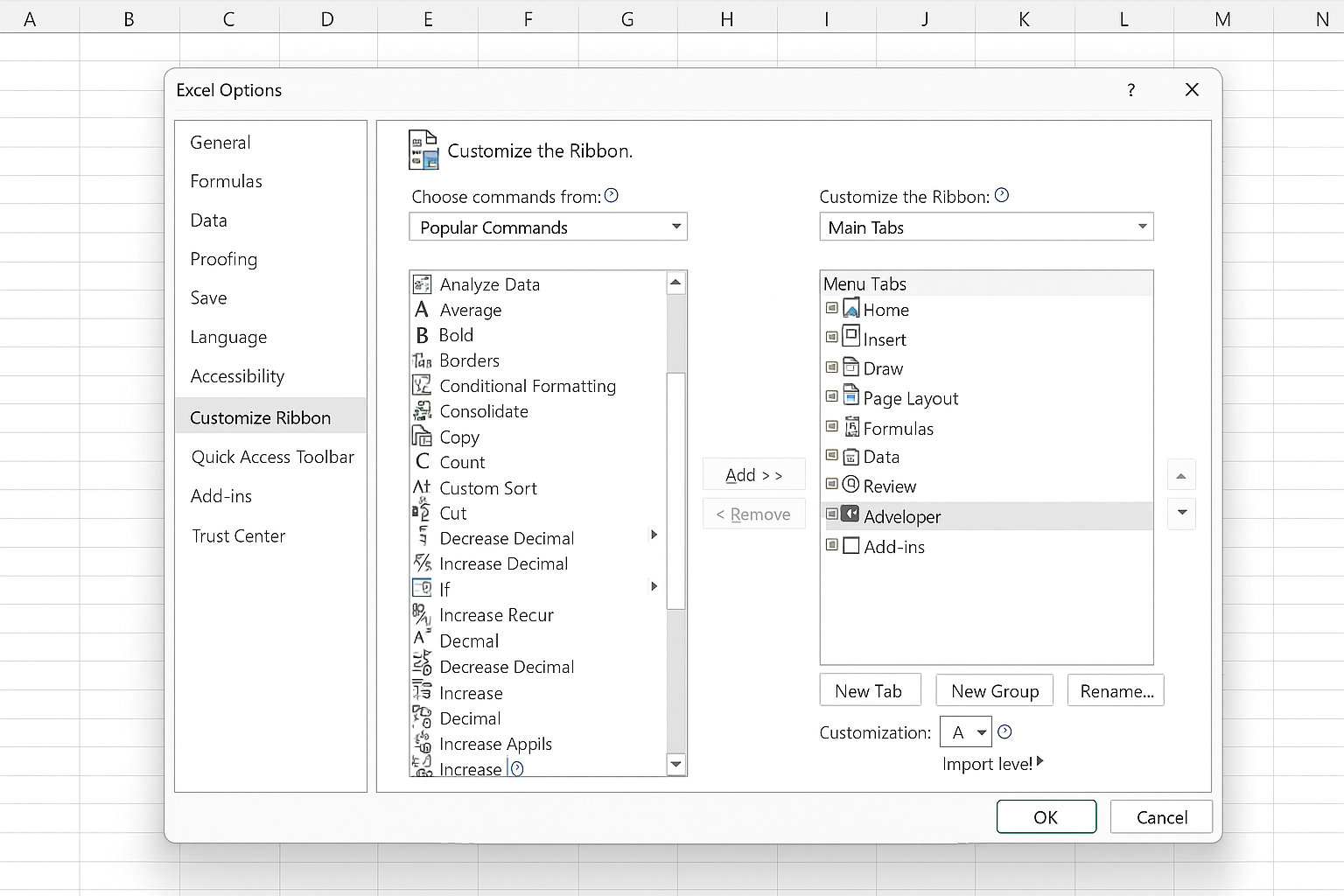
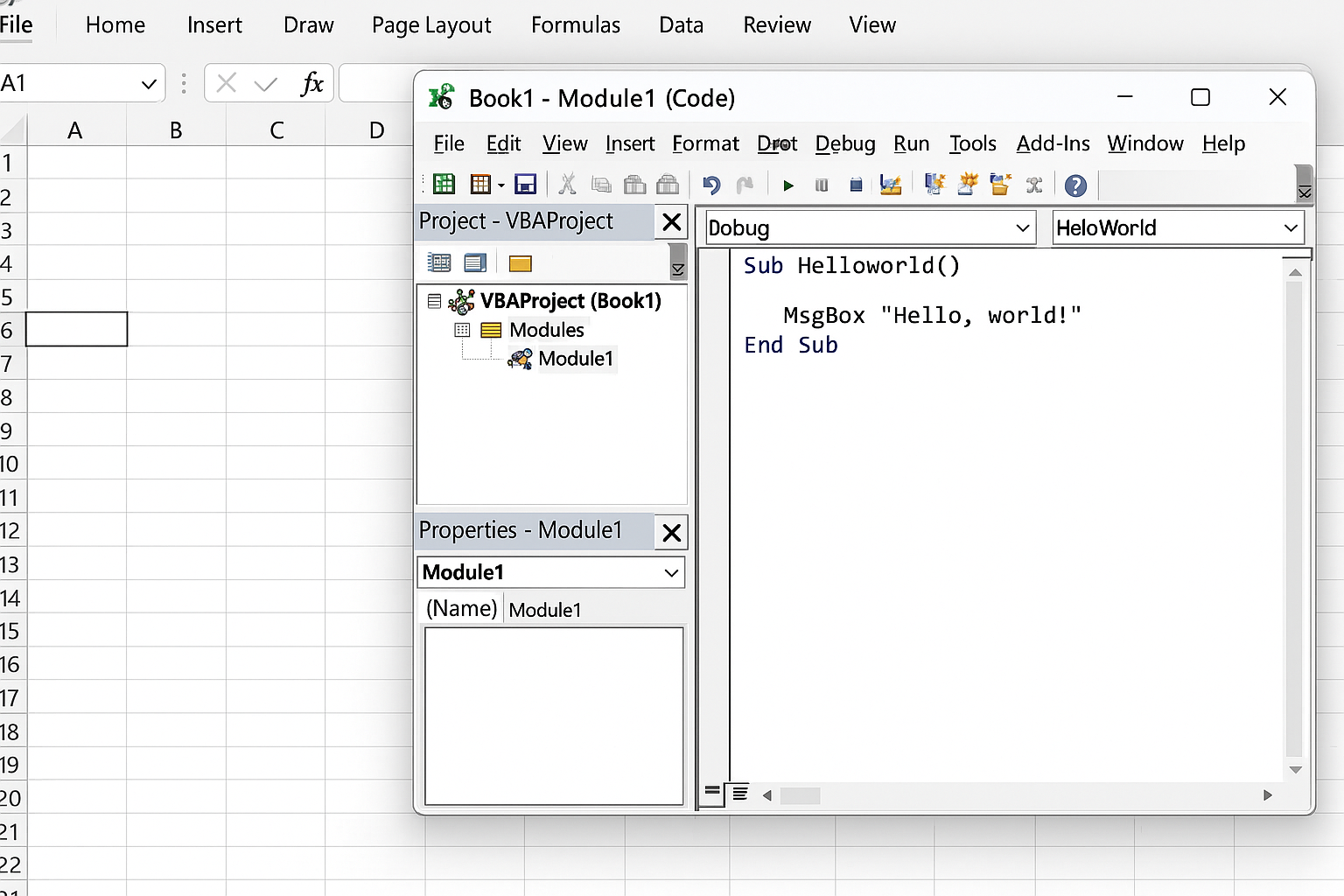
Before diving into code, ensure that the Developer tab is enabled in Excel. This tab provides access to the VBA editor and tools necessary for writing macros.
To enable Developer tab: File > Options > Customize Ribbon > Check Developer.
Open the VBA editor by pressing ALT + F11.
Practical Example: Creating a Dynamic Chart Using VBA
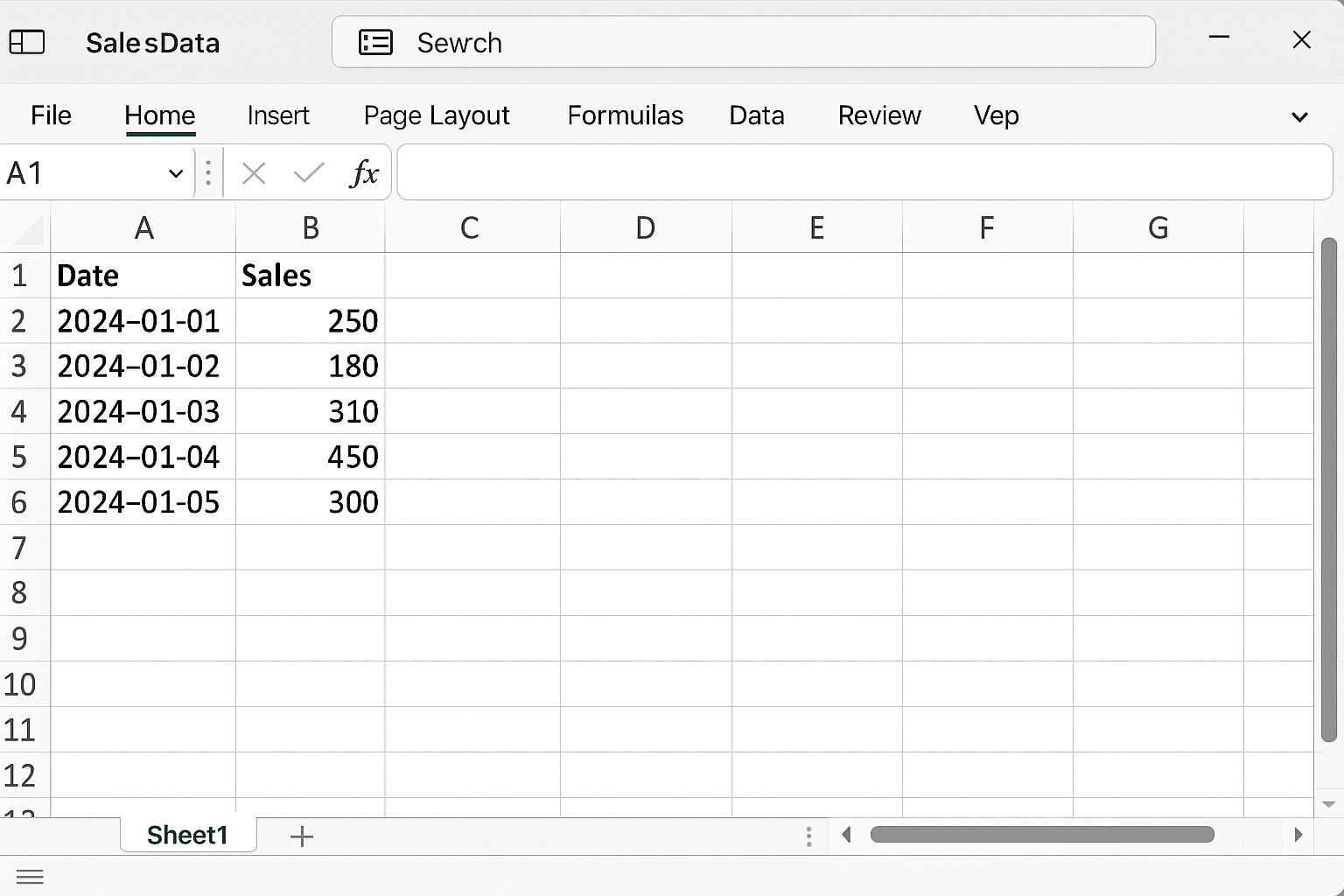
Suppose you have sales data in columns A and B: Dates in A2:A10 and Sales in B2:B10. You want to create a dynamic line chart that updates automatically as you add more sales data.
Step 1: Prepare Your Data
Your worksheet “SalesData” might look like this:
| Date | Sales |
|---|---|
| 2024-01-01 | 500 |
| 2024-01-02 | 620 |
| 2024-01-03 | 580 |
| 2024-01-04 | 700 |
| 2024-01-05 | 690 |
Step 2: VBA Code to Create Dynamic Chart
Sub CreateDynamicChart()
    Dim ws As Worksheet
    Dim chartObj As ChartObject
    Dim lastRow As Long
    Dim chartRange As Range

    Set ws = ThisWorkbook.Sheets("SalesData")

    ' Find the last row with data in column B
    lastRow = ws.Cells(ws.Rows.Count, "B").End(xlUp).Row

    ' Define the range for the chart data
    Set chartRange = ws.Range("A1:B" & lastRow)

    ' Delete existing chart if present
    For Each chartObj In ws.ChartObjects
        chartObj.Delete
    Next chartObj

    ' Add a new chart object
    Set chartObj = ws.ChartObjects.Add(Left:=300, Width:=500, Top:=50, Height:=300)

    ' Set chart type
    chartObj.Chart.ChartType = xlLine

    ' Set data source for the chart
    chartObj.Chart.SetSourceData Source:=chartRange

    ' Add chart title
    chartObj.Chart.HasTitle = True
    chartObj.Chart.ChartTitle.Text = "Sales Over Time"

    ' Set x-axis title
    chartObj.Chart.Axes(xlCategory).HasTitle = True
    chartObj.Chart.Axes(xlCategory).AxisTitle.Text = "Date"

    ' Set y-axis title
    chartObj.Chart.Axes(xlValue).HasTitle = True
    chartObj.Chart.Axes(xlValue).AxisTitle.Text = "Sales"

End Sub
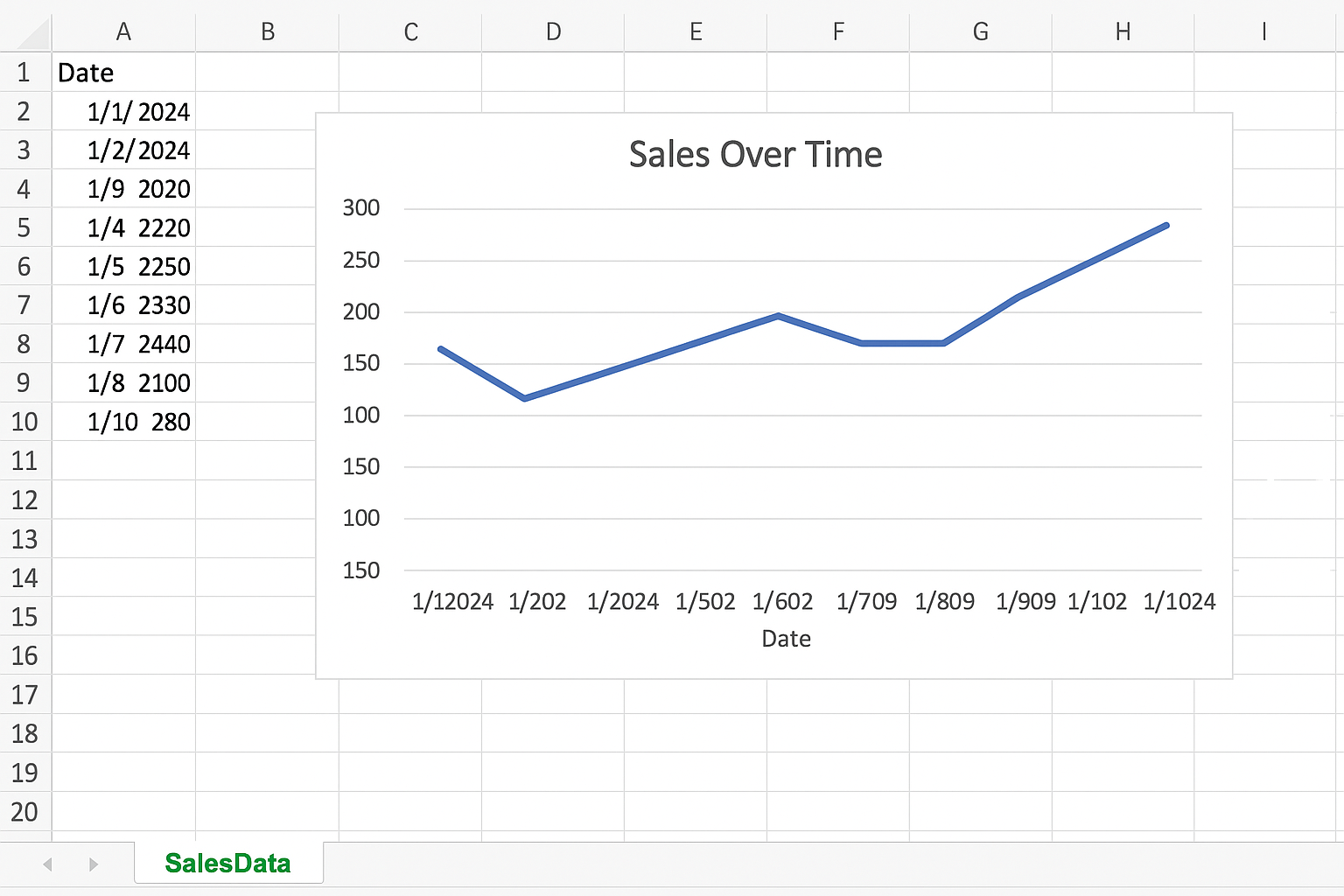
This macro finds the last row in your sales data, creates a line chart based on the data range, and adds axis titles and a chart title.
Step 3: Run the Macro
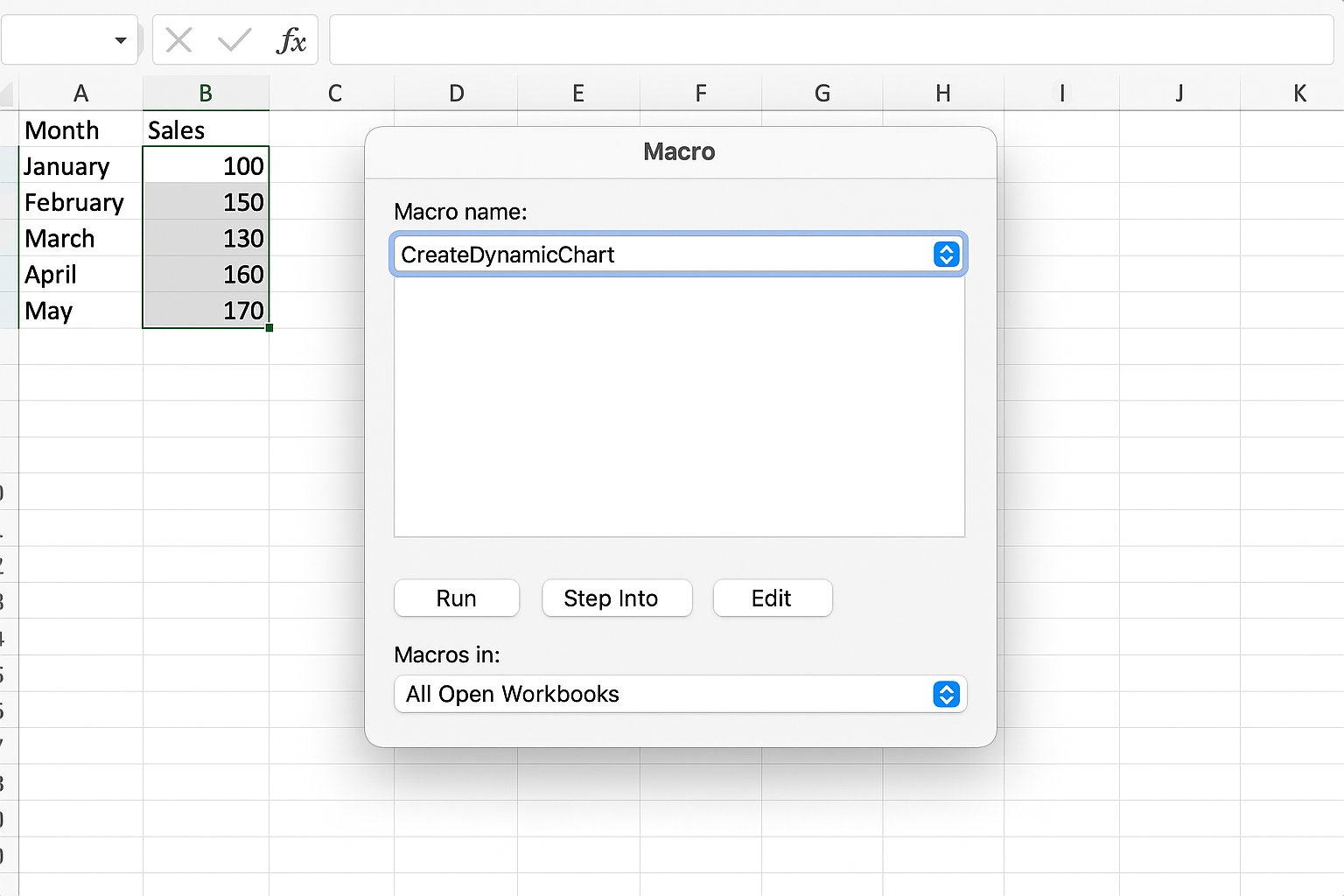
To run the macro, return to Excel, press ALT + F8, select CreateDynamicChart, and click Run. Your dynamic chart will appear on the worksheet.
Enhancing Dynamic Charts: Updating the Chart Automatically
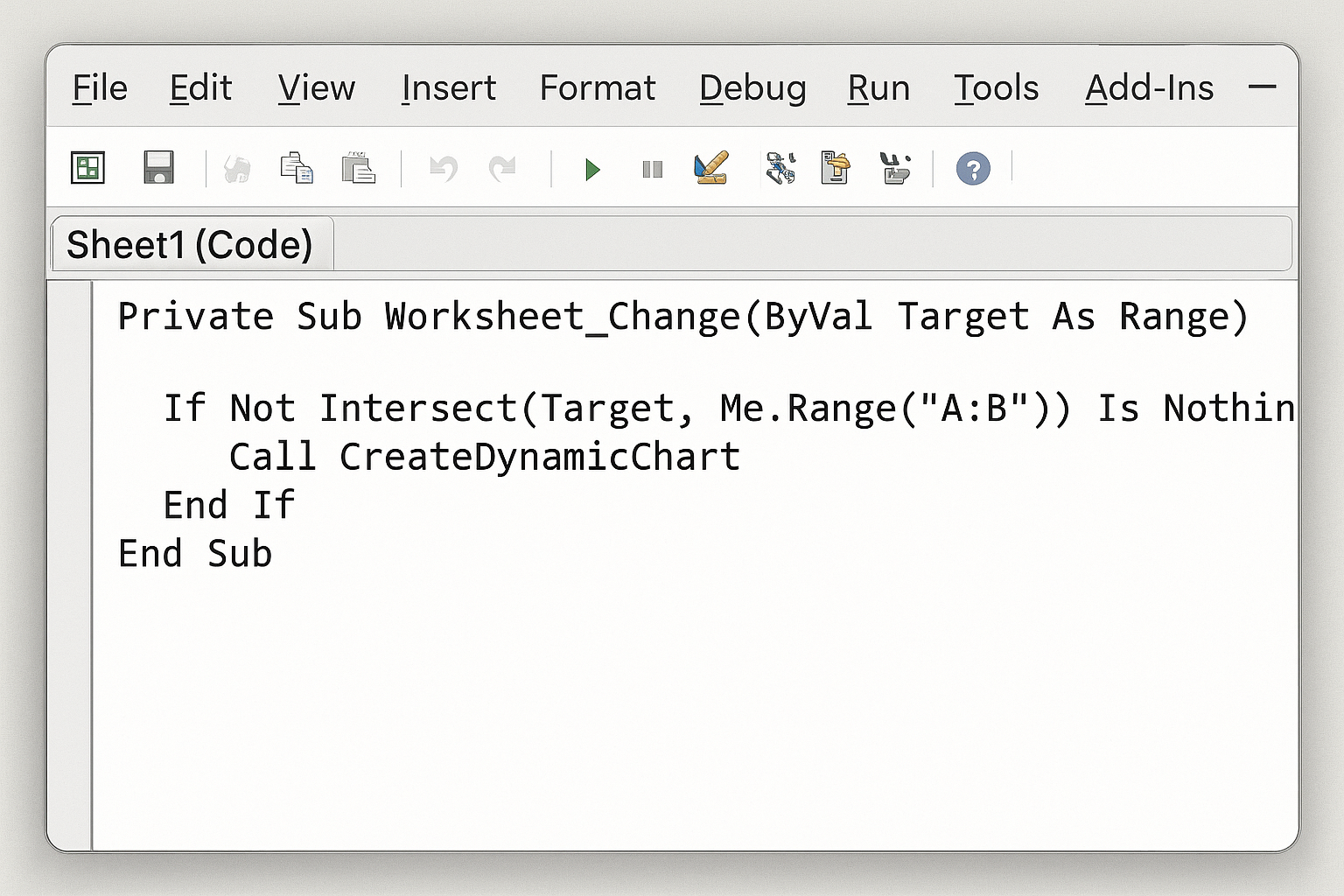
To make the chart truly dynamic, you can call the CreateDynamicChart subroutine each time data is updated. For example, you can link it to a button or call it within a Worksheet_Change event.
Example of Worksheet_Change event:
Private Sub Worksheet_Change(ByVal Target As Range)
    If Not Intersect(Target, Me.Range("A:B")) Is Nothing Then
        Call CreateDynamicChart
    End If
End Sub
This code automatically updates the chart whenever data in columns A or B changes.
Customizing Excel VBA Charts
You can customize charts further by modifying colors, line styles, markers, and adding multiple series. Here’s an example to add a second data series:
Sub CreateChartWithTwoSeries()
    Dim ws As Worksheet
    Dim chartObj As ChartObject
    Dim lastRow As Long

    Set ws = ThisWorkbook.Sheets("SalesData")
    lastRow = ws.Cells(ws.Rows.Count, "B").End(xlUp).Row

    ' Delete existing chart
    For Each chartObj In ws.ChartObjects
        chartObj.Delete
    Next chartObj

    Set chartObj = ws.ChartObjects.Add(Left:=300, Width:=500, Top:=50, Height:=300)
    With chartObj.Chart
        .ChartType = xlLine
        .SetSourceData Source:=ws.Range("A1:B" & lastRow)
        .SeriesCollection.NewSeries
        .SeriesCollection(2).Name = "=SalesData!$C$1"
        .SeriesCollection(2).Values = ws.Range("C2:C" & lastRow)
        .SeriesCollection(2).XValues = ws.Range("A2:A" & lastRow)

        .HasTitle = True
        .ChartTitle.Text = "Sales and Expenses Over Time"
        .Axes(xlCategory).HasTitle = True
        .Axes(xlCategory).AxisTitle.Text = "Date"
        .Axes(xlValue).HasTitle = True
        .Axes(xlValue).AxisTitle.Text = "Amount"
    End With
End Sub
This example assumes you have a third column, “Expenses”, in column C.
Tips for Effective Excel VBA Charting
- Use Named Ranges or Tables: Named ranges or Excel Tables can simplify dynamic range management.
- Keep Macros Modular: Write reusable subroutines for chart creation and data updates.
- Optimize Performance: Disable screen updating during macro execution to speed up processing.
- Error Handling: Add error handling to manage unexpected issues gracefully.
Conclusion
Mastering Excel VBA charts opens powerful opportunities for creating automated, dynamic, and interactive data visualizations. By leveraging VBA, you can free yourself from repetitive manual updates and deliver reports that reflect real-time data changes. The examples provided here offer a solid foundation to build customized charting solutions tailored to your data analysis needs.
Related Articles
- How to Automate Repetitive Tasks in Excel Using VBA
- Creating Your First Macro in Excel with VBA: A Step-by-Step Guide
- Top 10 Simple VBA Scripts to Automate Excel Tasks for Beginners
- Using Loops in Excel VBA to Save Time on Data Entry
- Introduction to Excel VBA Programming for Absolute Beginners
Want practical Excel help?
Support free Excel tutorials, get weekly tips, or contact us for Excel programming, VBA, Power Query, dashboards, and automation work.