Building Custom Excel Add-ins with VBA Programming
Introduction
Excel VBA custom add-ins are powerful tools that extend the functionality of Microsoft Excel beyond its standard features. By leveraging VBA (Visual Basic for Applications) programming, you can create tailored add-ins that automate repetitive tasks, add new features, and improve overall productivity. This article will guide you through the process of building custom Excel add-ins using VBA, complete with practical examples to help you get started.
What Are Excel VBA Custom Add-ins?
Excel VBA custom add-ins are files that contain VBA code, user forms, and sometimes custom functions that can be loaded into Excel to enhance its capabilities. Unlike regular macros that are stored in individual workbooks, add-ins are designed to be reusable and available across multiple Excel workbooks. They typically have the file extension .xlam for Excel 2007 and later versions.
Benefits of Using Excel VBA Custom Add-ins
- Reusability: Use the same VBA code across multiple workbooks without copying code repeatedly.
- Improved Organization: Keep your VBA code separate from data files, making maintenance easier.
- Enhanced Productivity: Automate complex tasks and workflows to save time.
- Distribution: Easily share your custom tools with colleagues or clients.
Step-by-Step Guide to Building a Custom Excel VBA Add-in
1. Plan Your Add-in Functionality
Before writing any code, decide what features or macros your add-in will provide. For example, a custom add-in might automate data formatting, generate reports, or add specialized functions.
2. Create a New Excel Workbook
Open a new blank workbook in Excel. This workbook will serve as the container for your add-in’s code and objects.
3. Develop Your VBA Code
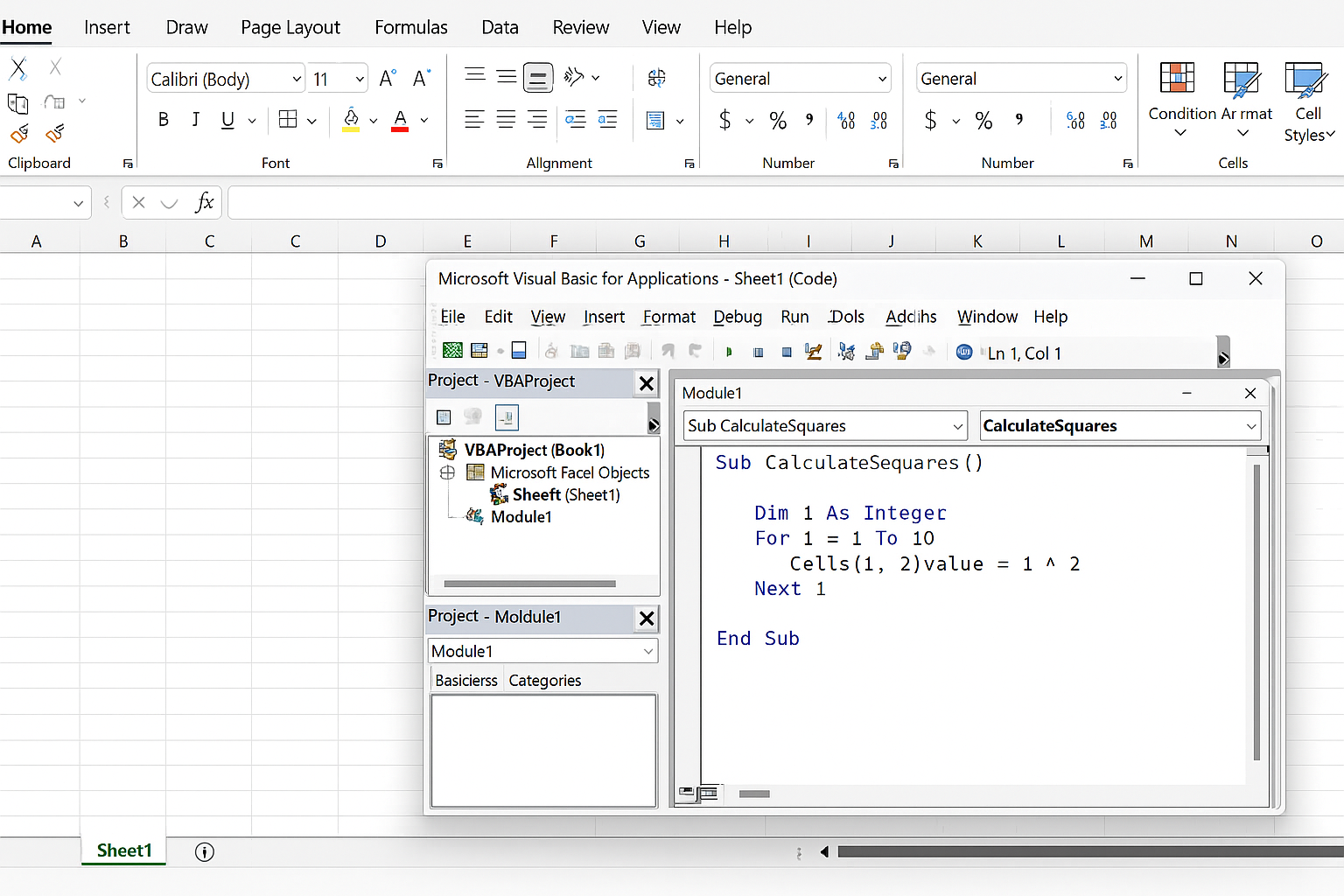
Press ALT + F11 to open the VBA editor. Write the macros, functions, or user forms that you want to include in your add-in. For example, here is a simple macro that formats selected cells with a custom style:
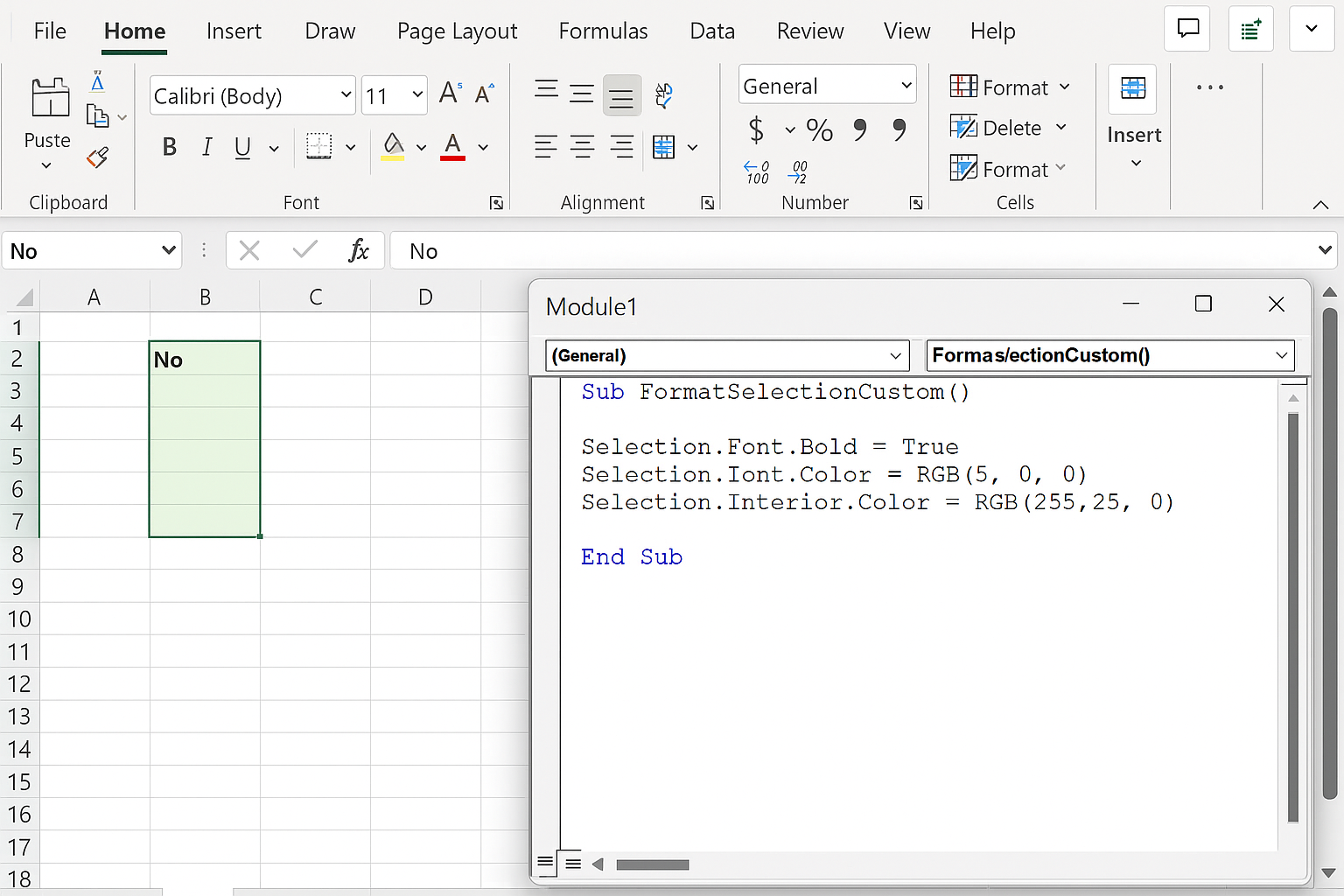
Public Sub FormatSelectionCustom()
    With Selection
        .Font.Name = "Calibri"
        .Font.Size = 12
        .Interior.Color = RGB(220, 230, 241) ' Light blue fill
        .Borders.LineStyle = xlContinuous
    End With
End Sub
4. Add Custom Functions
You can also create custom worksheet functions that users can call like native Excel functions. Here’s an example of a simple function that converts Celsius to Fahrenheit:
Public Function CelsiusToFahrenheit(celsius As Double) As Double
    CelsiusToFahrenheit = (celsius * 9 / 5) + 32
End Function
5. Test Your Code
Run and debug your macros and functions within the workbook to ensure they work correctly.
6. Save as an Add-in
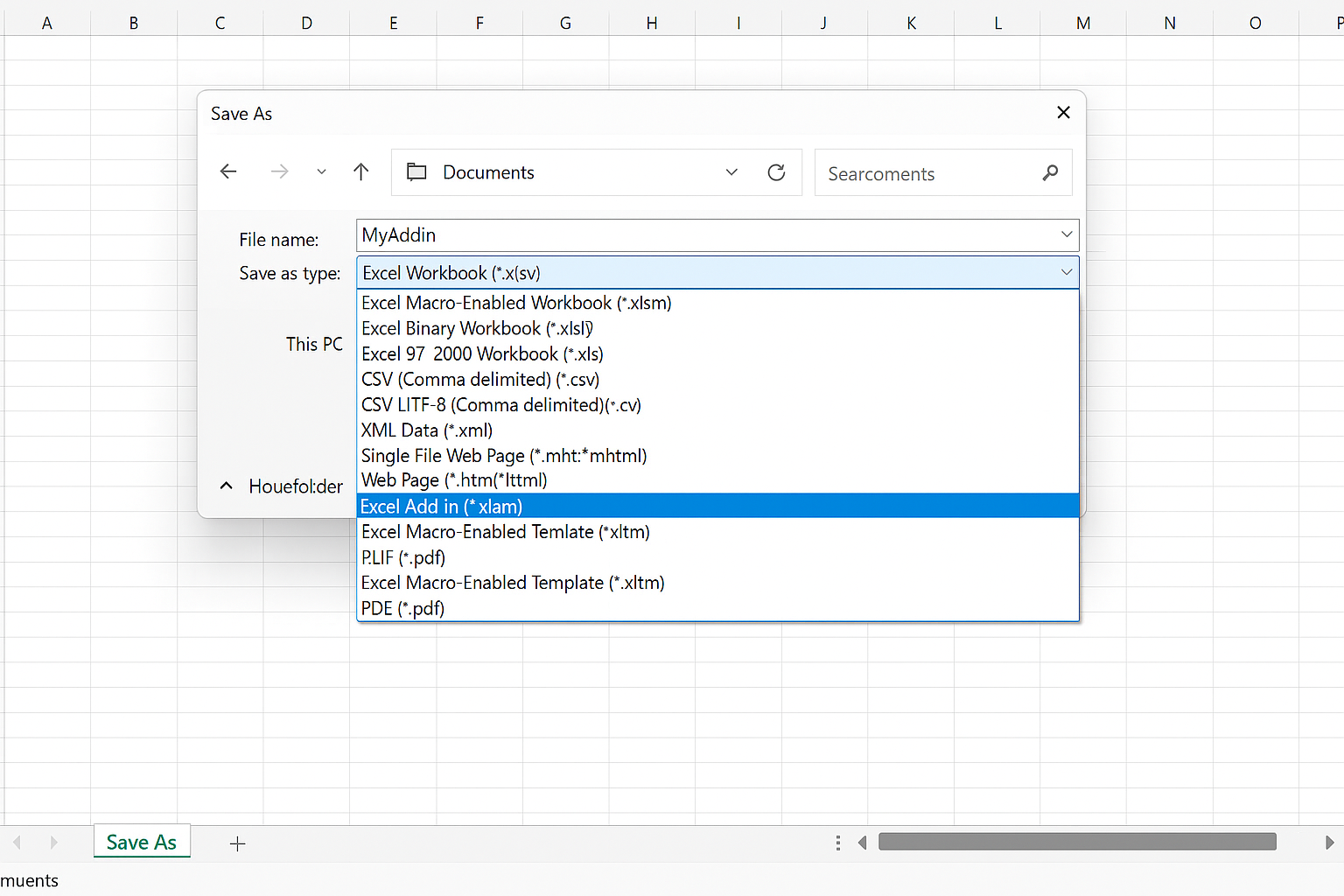
Go to File > Save As, then choose the file type Excel Add-in (*.xlam). Give your add-in a descriptive name and save it in the default add-ins folder or a location you choose.
7. Install and Load the Add-in
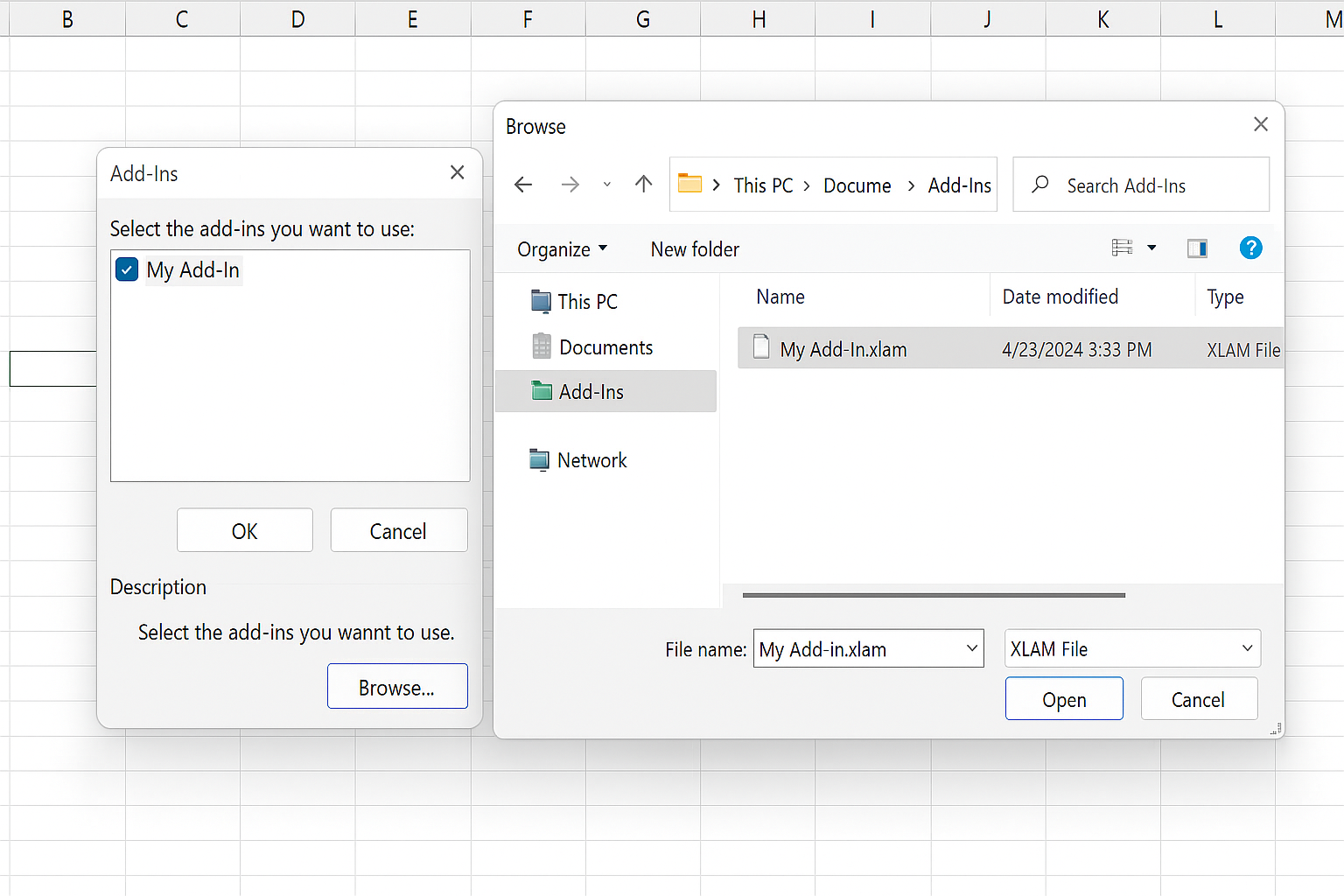
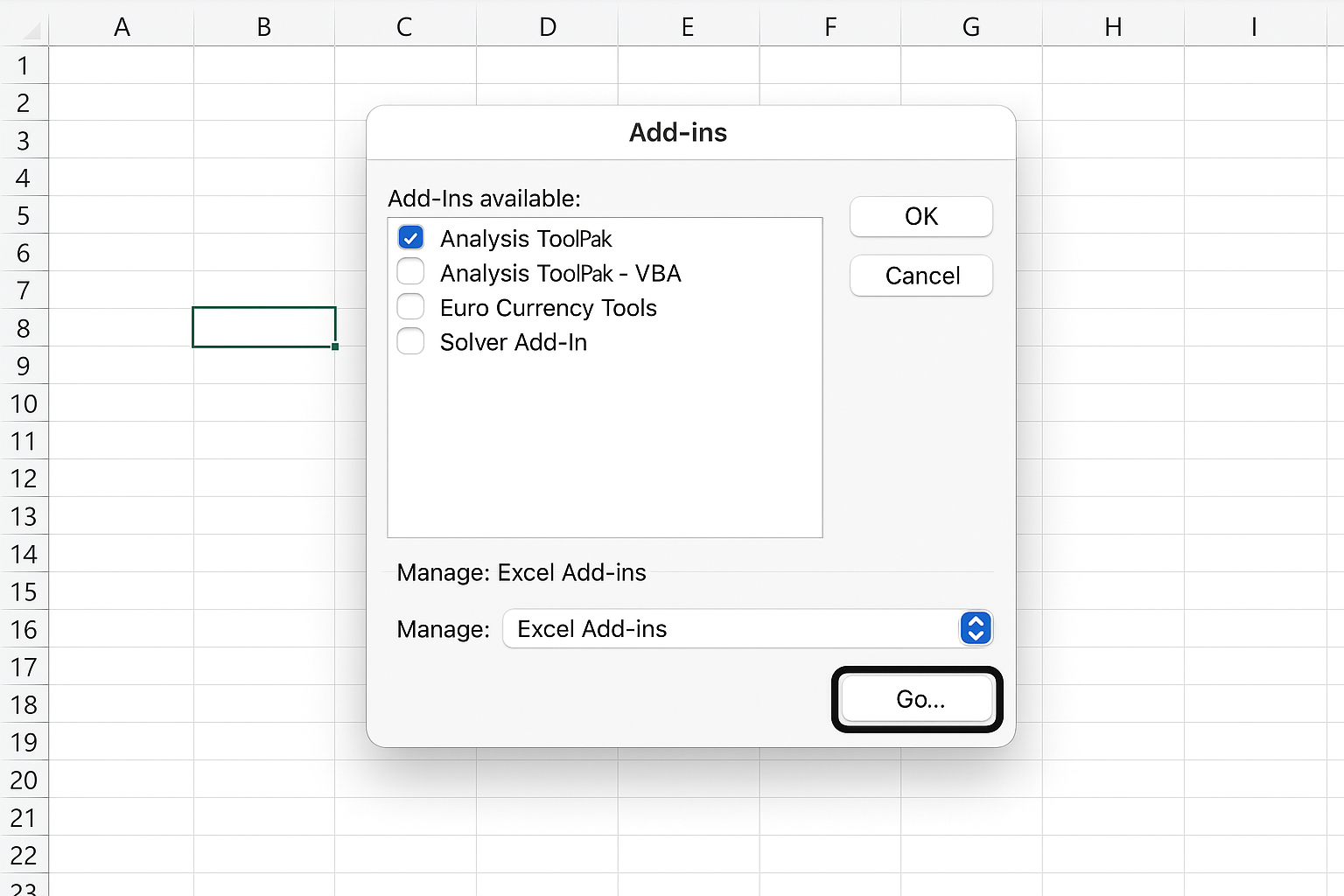
In Excel, go to File > Options > Add-ins. At the bottom, select Excel Add-ins and click Go. Use Browse to locate your add-in file and add it. Check the box next to your add-in to enable it.
8. Access Your Add-in Features
Once loaded, your macros and functions are available in any open workbook. You can assign macros to buttons or ribbon tabs for easy access.
Practical Example: Creating a Custom Ribbon Button for Your Add-in
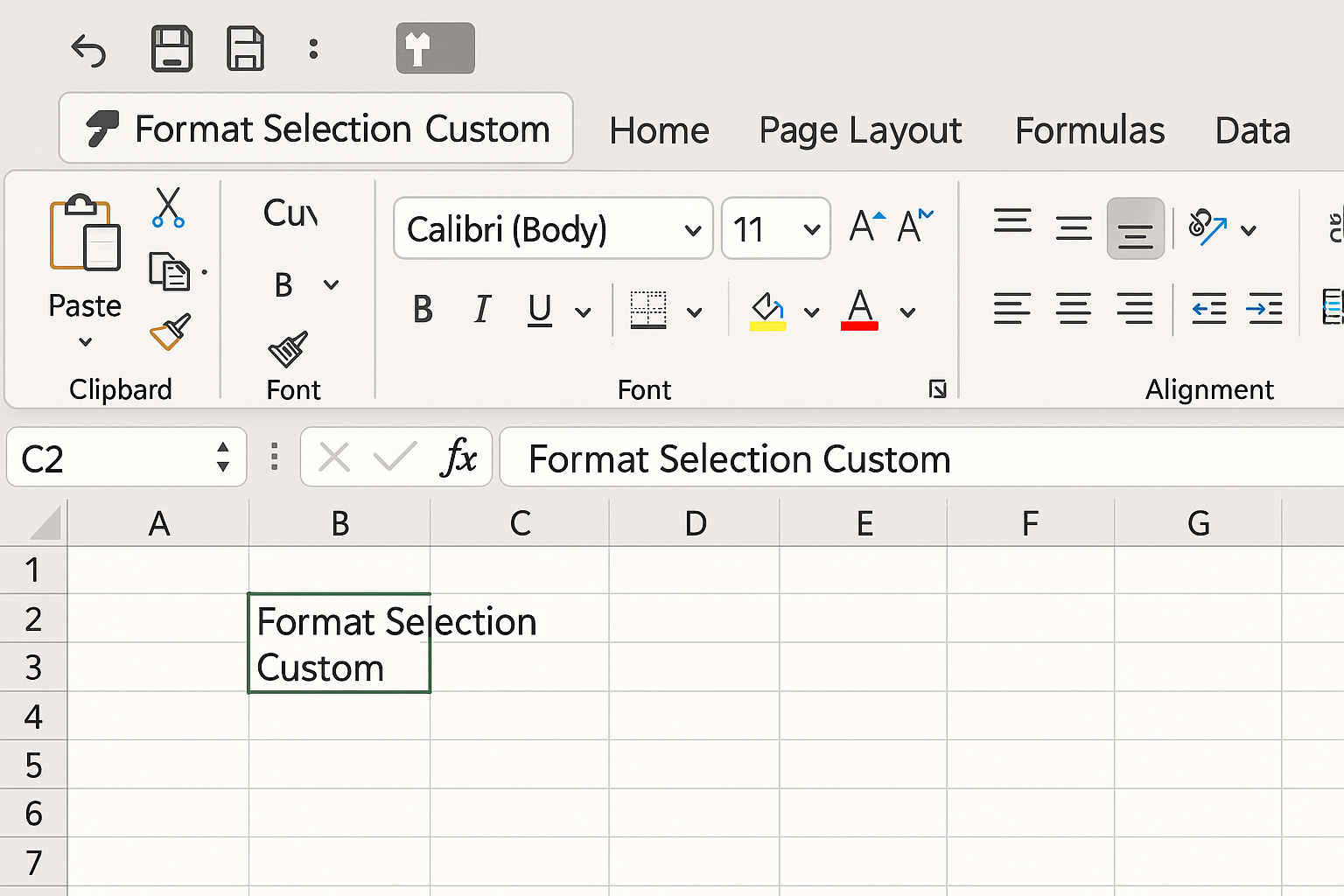
To enhance usability, you can add custom buttons to the Excel ribbon that run your add-in’s macros. This requires editing the ribbon XML, but here’s a simplified example using VBA to add a button on the Quick Access Toolbar:
Sub AddMacroToQAT()
    Dim customUI As Office.CommandBar
    Set customUI = Application.CommandBars("Quick Access Toolbar")
    On Error Resume Next
    customUI.Controls("Format Selection Custom").Delete
    On Error GoTo 0

    With customUI.Controls.Add(Type:=msoControlButton, Temporary:=True)
        .Caption = "Format Selection Custom"
        .OnAction = "FormatSelectionCustom"
        .FaceId = 59 ' Icon ID for formatting
    End With
End Sub
Run this macro once to add the button. Clicking it will execute your formatting macro.
Tips for Building Robust Excel VBA Custom Add-ins
- Use Error Handling: Incorporate error-handling routines to make your add-in stable.
- Comment Your Code: Write clear comments for maintainability.
- Optimize Performance: Avoid unnecessary screen updates and calculations during macro execution.
- Use UserForms: Create interactive forms for better user experience.
- Secure Your Code: Protect your VBA project with a password to prevent unauthorized access.
FAQ
What is the difference between a macro and an Excel add-in?
A macro is a set of instructions stored in a workbook that automates tasks, whereas an Excel add-in is a special file (.xlam) that stores reusable macros and functions accessible across multiple workbooks.
Can I distribute my custom Excel add-ins to others?
Yes, you can share your add-in file with others, who can install it in their Excel to access the functionality you created.
How do I update an Excel VBA add-in after deployment?
Make changes to the original add-in workbook, save it as an .xlam file, and replace the existing add-in file on users’ computers.
Are there limitations to what I can do with Excel VBA custom add-ins?
While VBA is powerful for automating Excel, it cannot modify Excel’s core functionalities or interface beyond what the VBA object model allows. For advanced UI customizations, other technologies like Office Add-ins might be required.
How do I protect my VBA code in an add-in?
You can password protect your VBA project via the VBA editor’s Tools > VBAProject Properties > Protection tab to prevent users from viewing or editing your code.
Can custom functions in an add-in be used like native Excel functions?
Yes, user-defined functions (UDFs) in your add-in can be called directly from worksheet cells just like built-in Excel functions.
Conclusion
Building Excel VBA custom add-ins is a highly effective way to extend Excel’s capabilities and tailor it to your specific needs. Through careful planning, coding, and deployment, you can create powerful tools that improve your productivity and make complex workflows simple. With the practical examples and tips provided, you are now equipped to start developing your own Excel VBA add-ins and unlock the full potential of Excel automation.
Related Articles
- How to Automate Repetitive Tasks in Excel Using VBA
- Creating Your First Macro in Excel with VBA: A Step-by-Step Guide
- Top 10 Simple VBA Scripts to Automate Excel Tasks for Beginners
- Using Loops in Excel VBA to Save Time on Data Entry
- Introduction to Excel VBA Programming for Absolute Beginners
Want practical Excel help?
Support free Excel tutorials, get weekly tips, or contact us for Excel programming, VBA, Power Query, dashboards, and automation work.