Mastering Event Handling in Excel VBA for Interactive Spreadsheets
Introduction
Excel VBA event handling is a powerful tool that enables developers to create interactive spreadsheets that respond dynamically to user actions. Whether you want to automatically validate data, update values, or respond to changes in worksheet cells, mastering event handling in Excel VBA is essential for building sophisticated and efficient automation solutions.
In this article, we will explore the fundamentals of Excel VBA event handling, demonstrate practical examples, and provide best practices to help you take your Excel programming skills to the next level.
Understanding Excel VBA Event Handling
Event handling in Excel VBA involves writing code that responds to specific actions or events triggered by the user or the system. These events can range from opening a workbook, changing a cell’s value, selecting a range, double-clicking a cell, or even changes in the worksheet or workbook structure.
Excel VBA has a range of built-in events categorized under Application, Workbook, Worksheet, and UserForm objects. By writing event procedures, you can automate tasks that occur when these events happen.
Common Excel VBA Events
- Workbook_Open: Runs code when a workbook opens.
- Worksheet_Change: Executes when changes are made to cells in a worksheet.
- Worksheet_SelectionChange: Triggers when a different cell or range is selected.
- Workbook_BeforeClose: Runs code before the workbook closes.
- Worksheet_BeforeDoubleClick: Executes on a cell double-click.
How to Write Event Procedures in Excel VBA
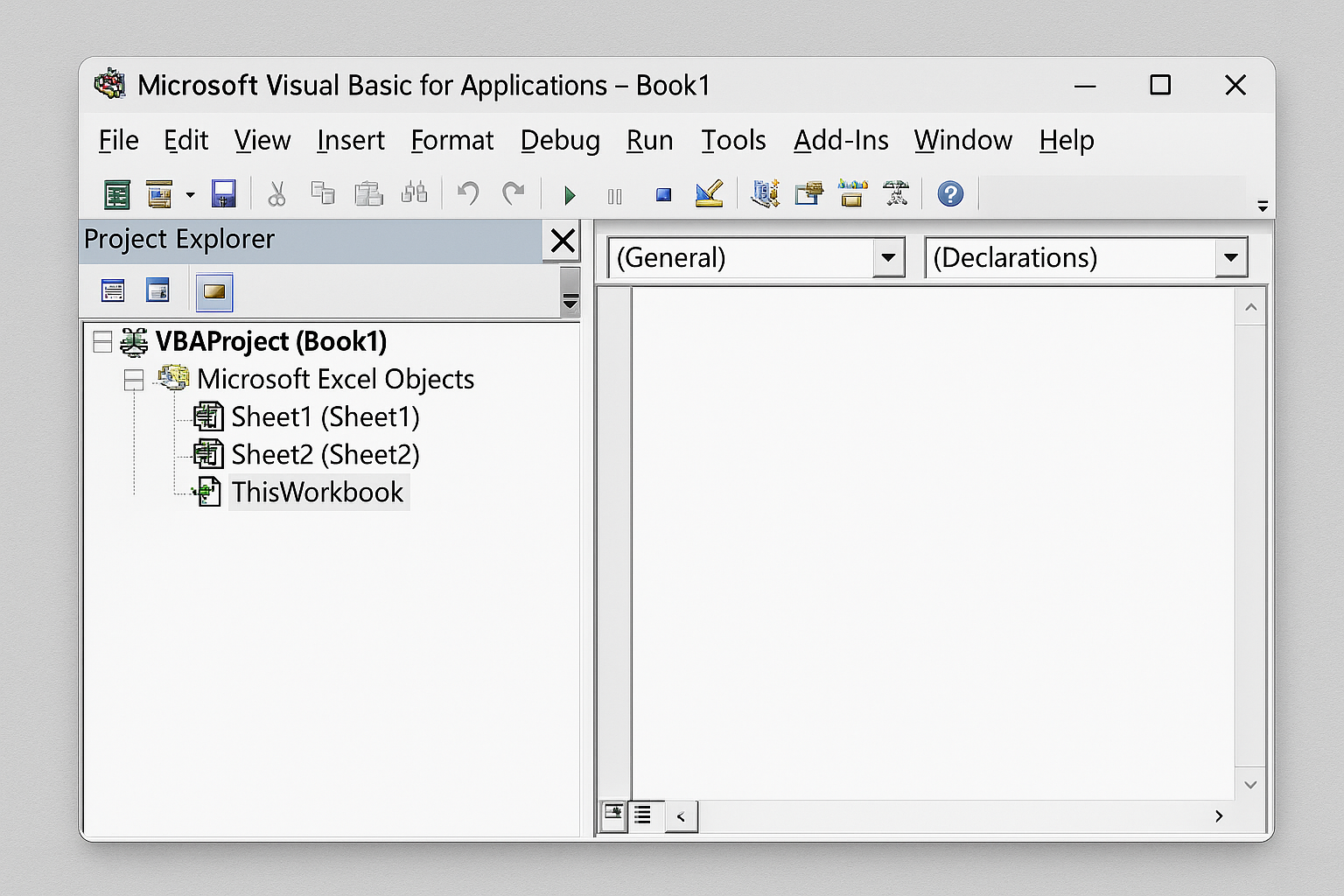
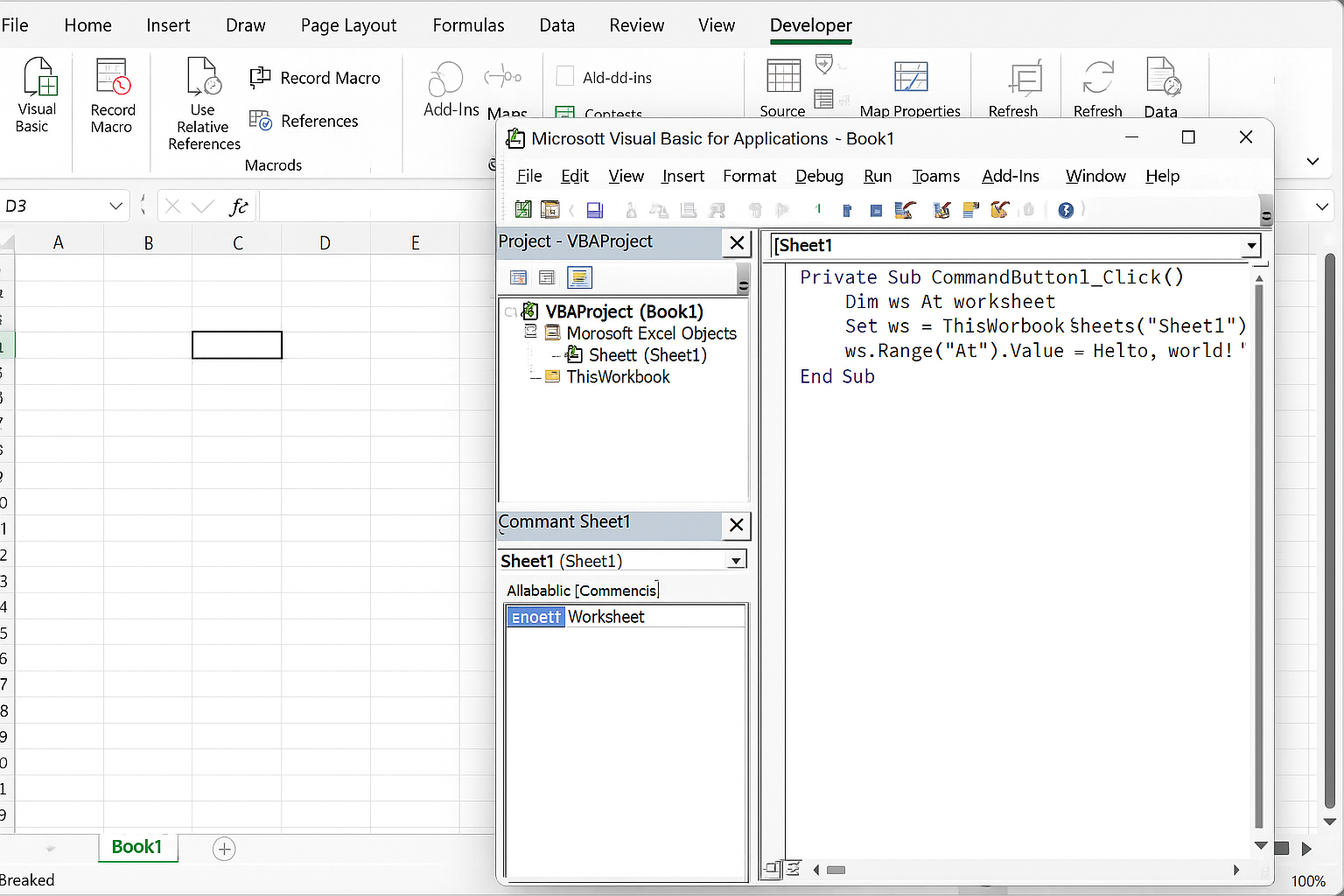
Event procedures must be placed in the appropriate object module within the VBA editor. For example, worksheet events go into the specific worksheet’s code module, while workbook events go into the ThisWorkbook module.
To write an event handler:
- Open the VBA editor (press
Alt + F11). - In the Project Explorer, double-click the object (worksheet or ThisWorkbook) where the event will be handled.
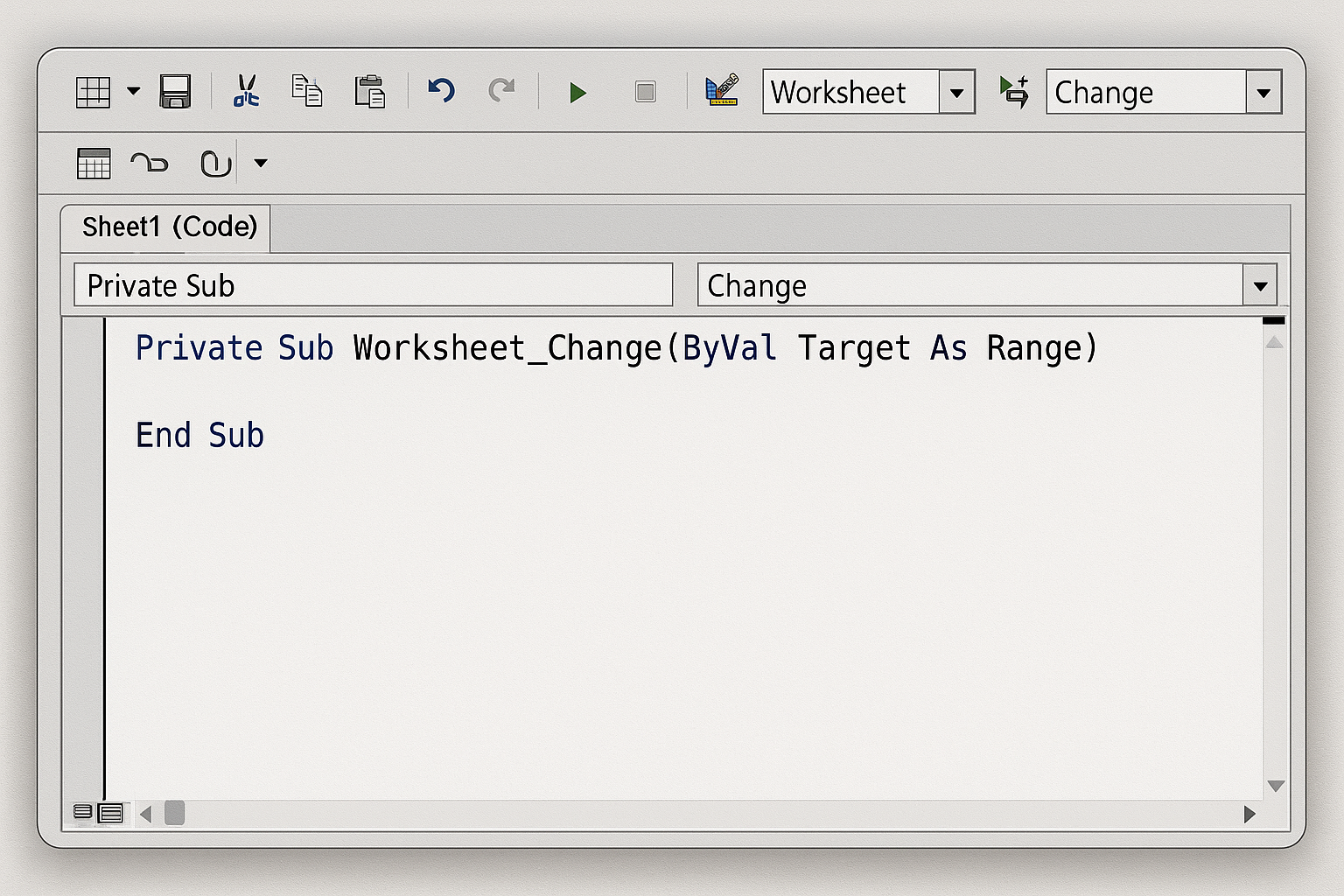
- From the dropdown menus at the top of the code window, select the object (e.g., Worksheet) and then the event (e.g., Change).
- Write your VBA code inside the generated subroutine.
Practical Examples of Excel VBA Event Handling
Example 1: Automatically Highlight Cells When Value Changes
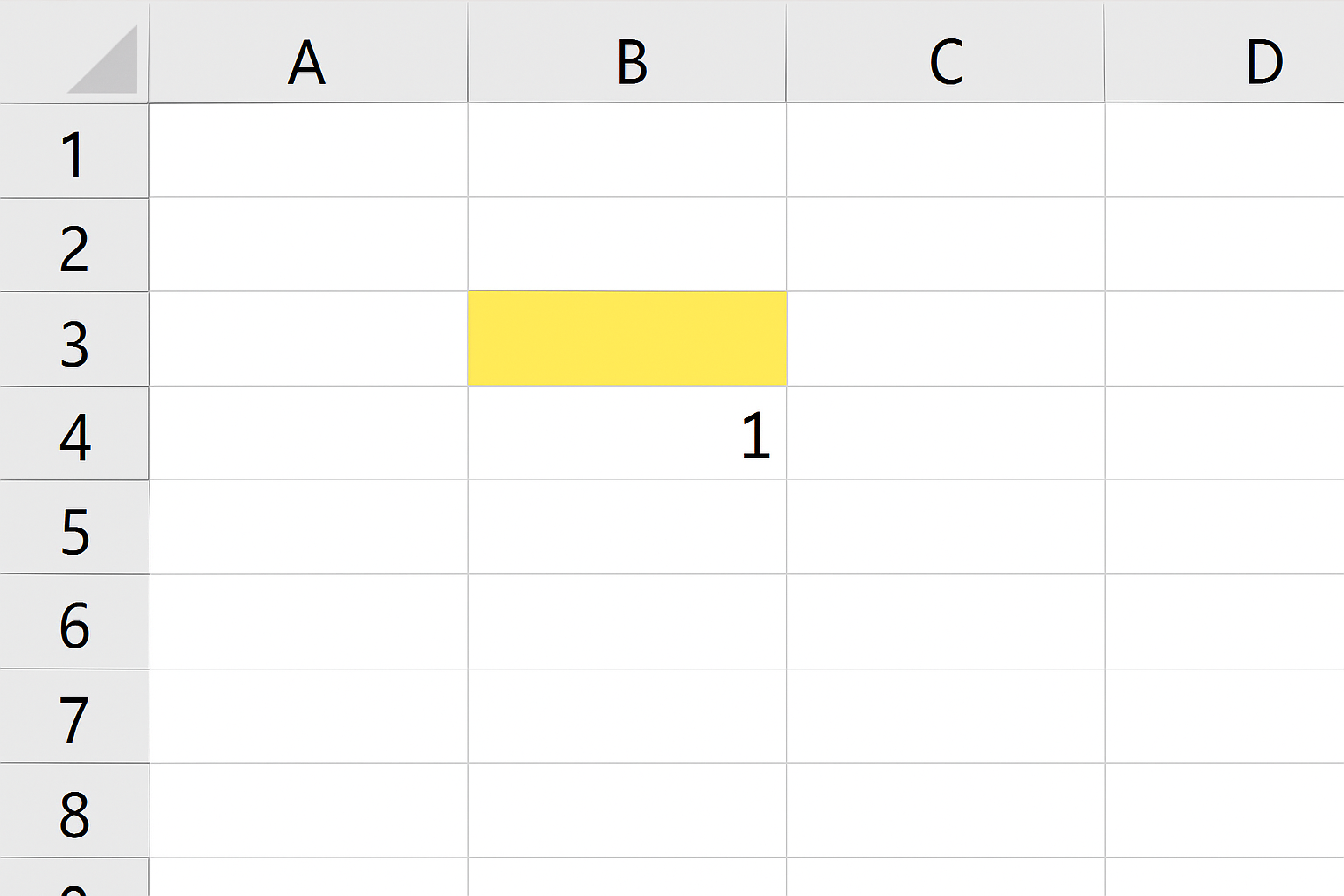
This example demonstrates how to use the Worksheet_Change event to highlight any cell that the user modifies.
Private Sub Worksheet_Change(ByVal Target As Range)
    Target.Interior.Color = RGB(255, 255, 0) ' Yellow highlight
End Sub
Every time a user edits a cell on the worksheet, that cell will be filled with yellow color.
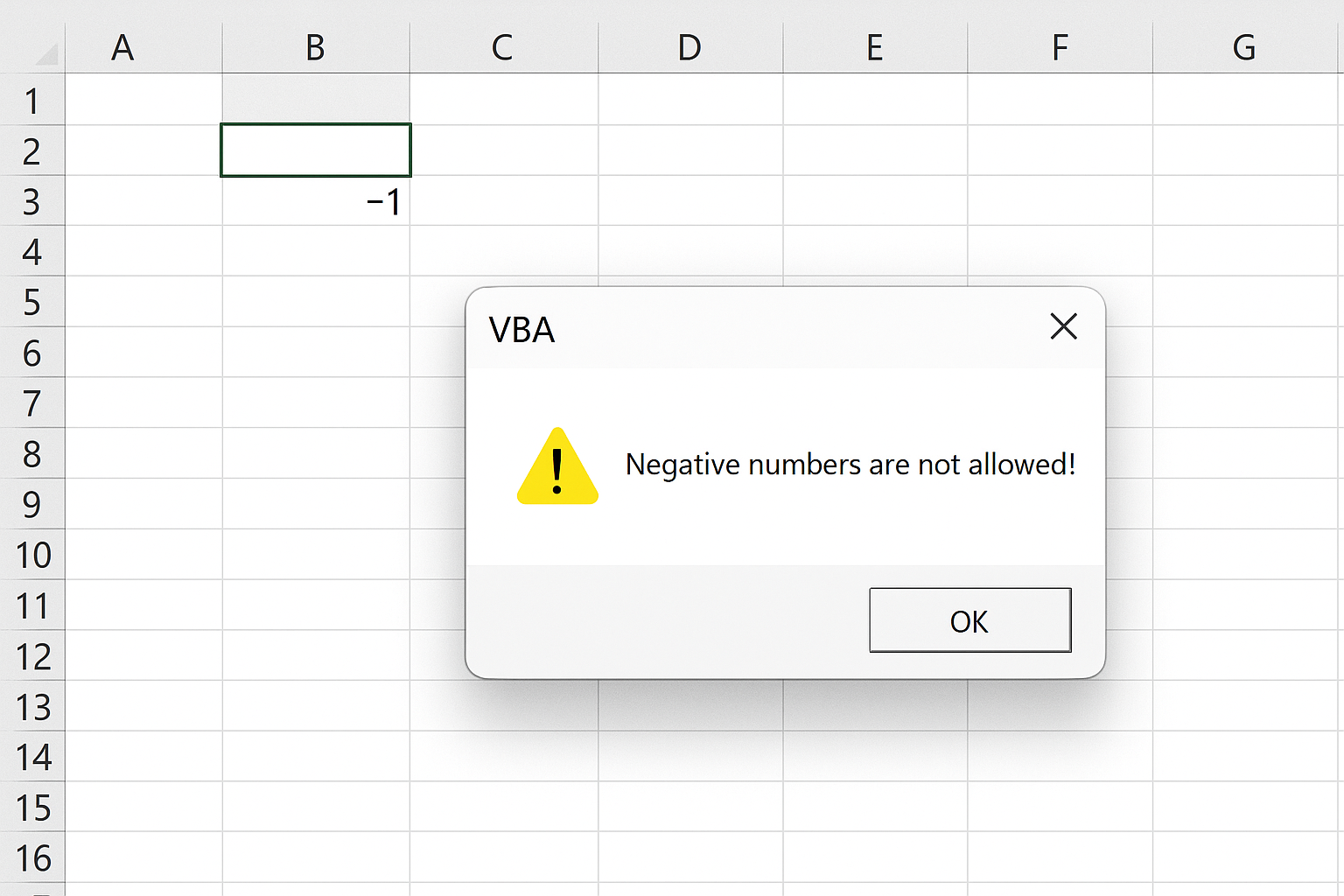
Example 2: Prevent Entry of Negative Numbers
Using Worksheet_Change you can validate input and revert invalid changes.
Private Sub Worksheet_Change(ByVal Target As Range)
    On Error GoTo ExitHandler
    Application.EnableEvents = False
    Dim cell As Range
    For Each cell In Target
        If IsNumeric(cell.Value) And cell.Value < 0 Then
            MsgBox "Negative numbers are not allowed!", vbExclamation
            cell.ClearContents
        End If
    Next
ExitHandler:
    Application.EnableEvents = True
End Sub
This code checks if any changed cell contains a negative number and clears the entry while informing the user.
Example 3: Display a Message When the Workbook Opens
You can add a welcome message or instructions using the Workbook_Open event.
Private Sub Workbook_Open()
    MsgBox "Welcome! Please ensure all data entries are accurate.", vbInformation
End Sub
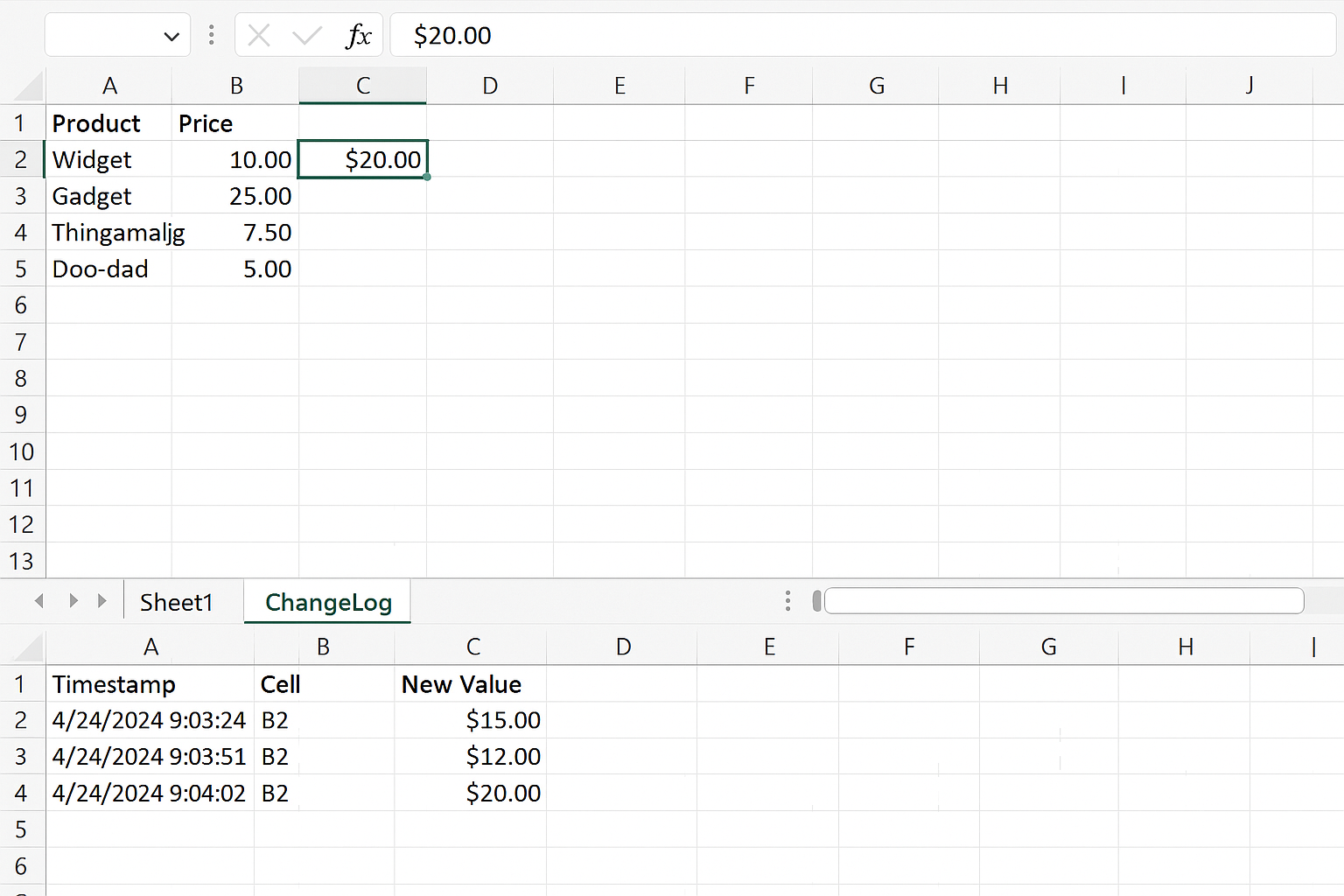
Example 4: Log Changes to a Separate Worksheet
Track changes made to a worksheet by logging details such as the changed cell, old value, new value, and timestamp.
Private Sub Worksheet_Change(ByVal Target As Range)
    Dim logSheet As Worksheet
    Set logSheet = ThisWorkbook.Sheets("ChangeLog")
    Dim c As Range
    Application.EnableEvents = False
    For Each c In Target
        logSheet.Cells(logSheet.Rows.Count, 1).End(xlUp).Offset(1, 0).Value = Now()
        logSheet.Cells(logSheet.Rows.Count, 2).End(xlUp).Offset(1, 0).Value = c.Address
        logSheet.Cells(logSheet.Rows.Count, 3).End(xlUp).Offset(1, 0).Value = "New: " & c.Value
    Next
    Application.EnableEvents = True
End Sub
This example assumes you have a worksheet named “ChangeLog” to store the logs.
Best Practices for Using Excel VBA Event Handling
- Disable and re-enable events when changing cells programmatically to avoid recursive calls and potential stack overflow errors (
Application.EnableEvents = FalseandTrue). - Use error handling inside event procedures to prevent unexpected crashes.
- Keep event procedures efficient by limiting the code inside event handlers to what is necessary.
- Consider using specific ranges to monitor changes instead of the entire worksheet for better performance.
- Document your event handlers clearly so others (and future you) understand the purpose of the code.
Frequently Asked Questions (FAQ)
What is Excel VBA event handling?
Excel VBA event handling is the process of writing VBA code that automatically runs in response to specific actions or events, such as changes to cells, opening workbooks, or selecting ranges.
Where do I write event procedures in VBA?
Event procedures must be written inside the relevant object modules in the VBA editor. For example, worksheet events go into the worksheet’s code module, and workbook events go into the ThisWorkbook module.
How can I prevent infinite loops when using event handlers?
When event handlers modify cells, you should disable events temporarily using Application.EnableEvents = False before making changes, and re-enable them afterward to avoid recursive calls.
Can event handling slow down my workbook?
If event handlers contain complex or inefficient code, they can slow down workbook performance. It’s best to optimize code and limit event handling to necessary actions.
What are some common events used in Excel VBA?
Common events include Workbook_Open, Worksheet_Change, Worksheet_SelectionChange, Workbook_BeforeClose, and Worksheet_BeforeDoubleClick.
Conclusion
Mastering Excel VBA event handling allows you to create interactive and dynamic spreadsheets that respond automatically to user actions. By understanding how to write event procedures and applying best practices, you can build powerful automation tools that enhance productivity and user experience.
With the practical examples provided, you now have a solid foundation to implement event-driven programming in your Excel projects. Experiment with different events, optimize your code, and unlock the full potential of Excel VBA for advanced spreadsheet solutions.
Related Articles
- How to Automate Repetitive Tasks in Excel Using VBA
- Creating Your First Macro in Excel with VBA: A Step-by-Step Guide
- Top 10 Simple VBA Scripts to Automate Excel Tasks for Beginners
- Using Loops in Excel VBA to Save Time on Data Entry
- Introduction to Excel VBA Programming for Absolute Beginners
Want practical Excel help?
Support free Excel tutorials, get weekly tips, or contact us for Excel programming, VBA, Power Query, dashboards, and automation work.