Effective Debugging Techniques for Excel VBA Programming
Introduction
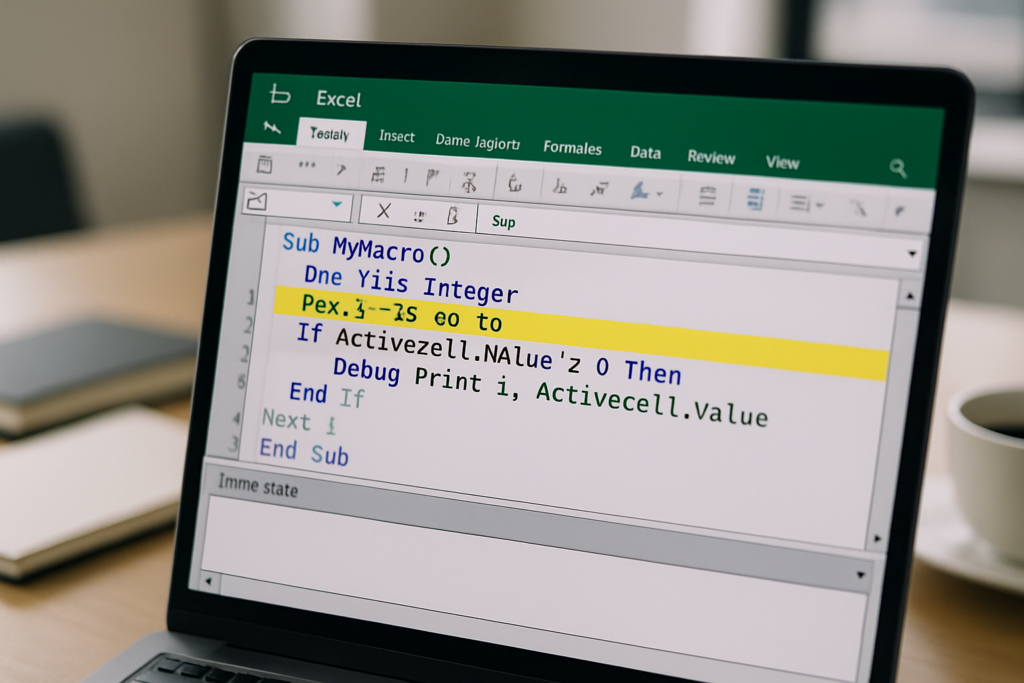
Excel VBA (Visual Basic for Applications) is a powerful tool that allows users to automate repetitive tasks and create custom solutions within Microsoft Excel. However, writing efficient VBA code can be challenging without proper debugging techniques. Effective Excel VBA debugging is essential to identify errors, optimize code performance, and ensure your macros run smoothly. In this article, we will explore practical debugging strategies and tools to help you troubleshoot and refine your VBA projects.
Understanding Common VBA Errors
Before diving into debugging methods, it’s important to recognize common types of VBA errors:
- Syntax Errors: These occur when the code violates the rules of the VBA language, such as missing parentheses or incorrect keywords.
- Runtime Errors: Errors that happen while the code is running, like trying to divide by zero or referencing an invalid object.
- Logical Errors: These are flaws in the code logic that cause incorrect results but do not necessarily throw an error.
Using the Built-in VBA Debugging Tools
Excel VBA provides several built-in tools to help identify and fix errors:
1. The VBA Editor Debugger
Access the VBA Editor by pressing Alt + F11. The editor includes a debugger that allows you to step through your code line by line using the following commands:
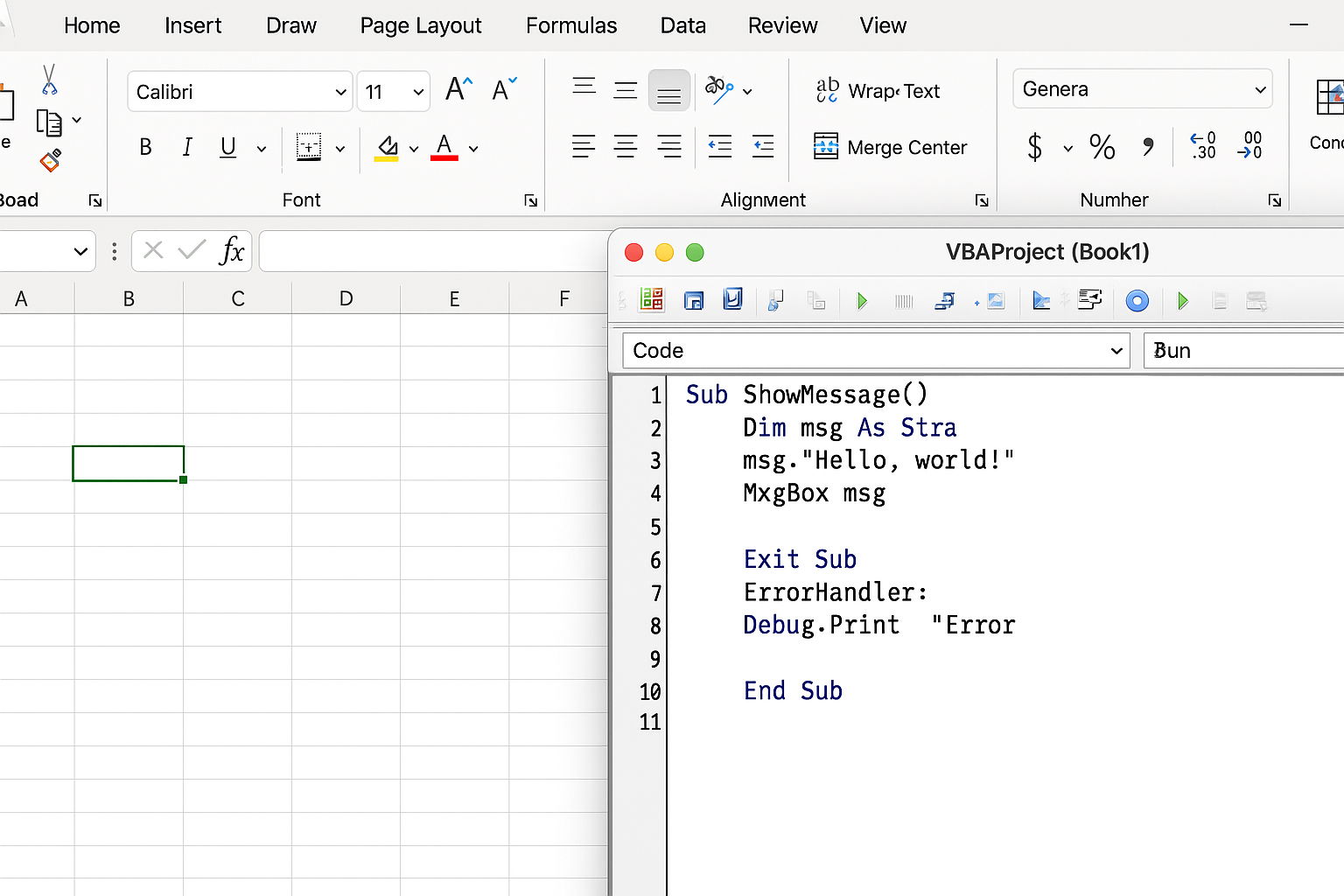
F8– Step Into: Runs the code line by line.Shift + F8– Step Over: Executes called procedures without stepping into them.Ctrl + Shift + F8– Step Out: Runs the rest of the current procedure and returns to the calling code.
2. Breakpoints
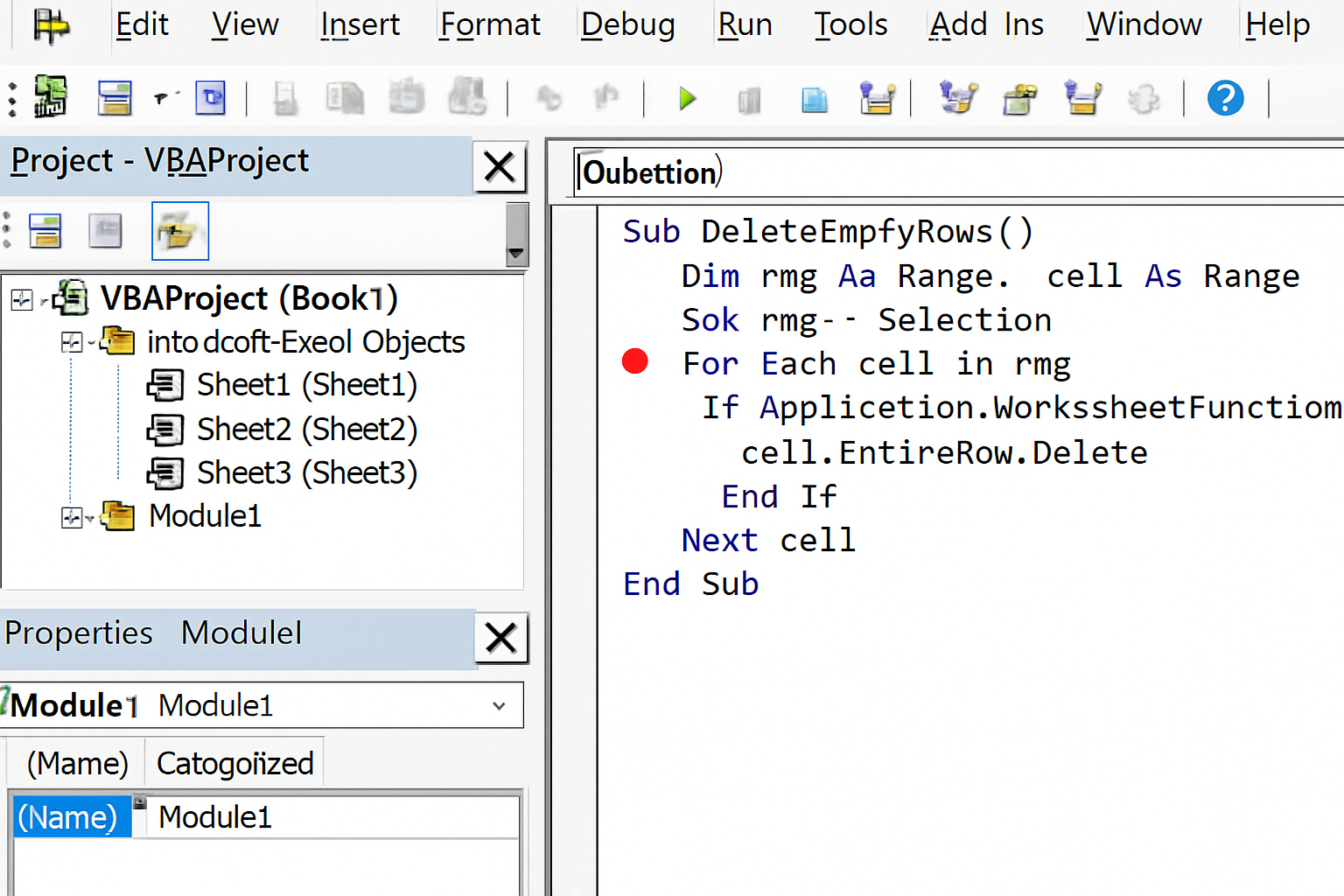
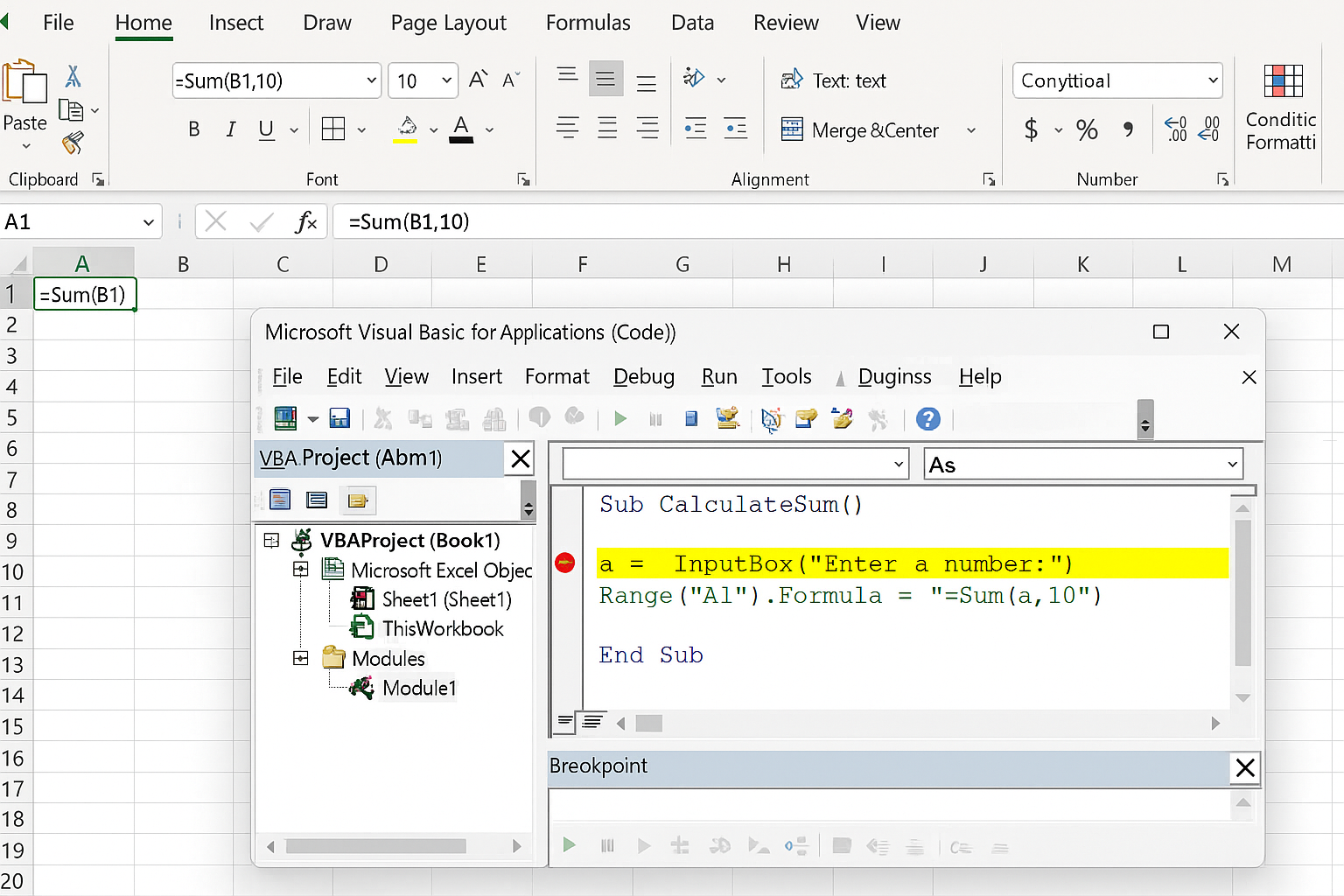
Set breakpoints by clicking in the left margin next to a line of code or pressing F9. The code execution will pause at these points, allowing you to inspect variables and program flow.
3. Watch Window
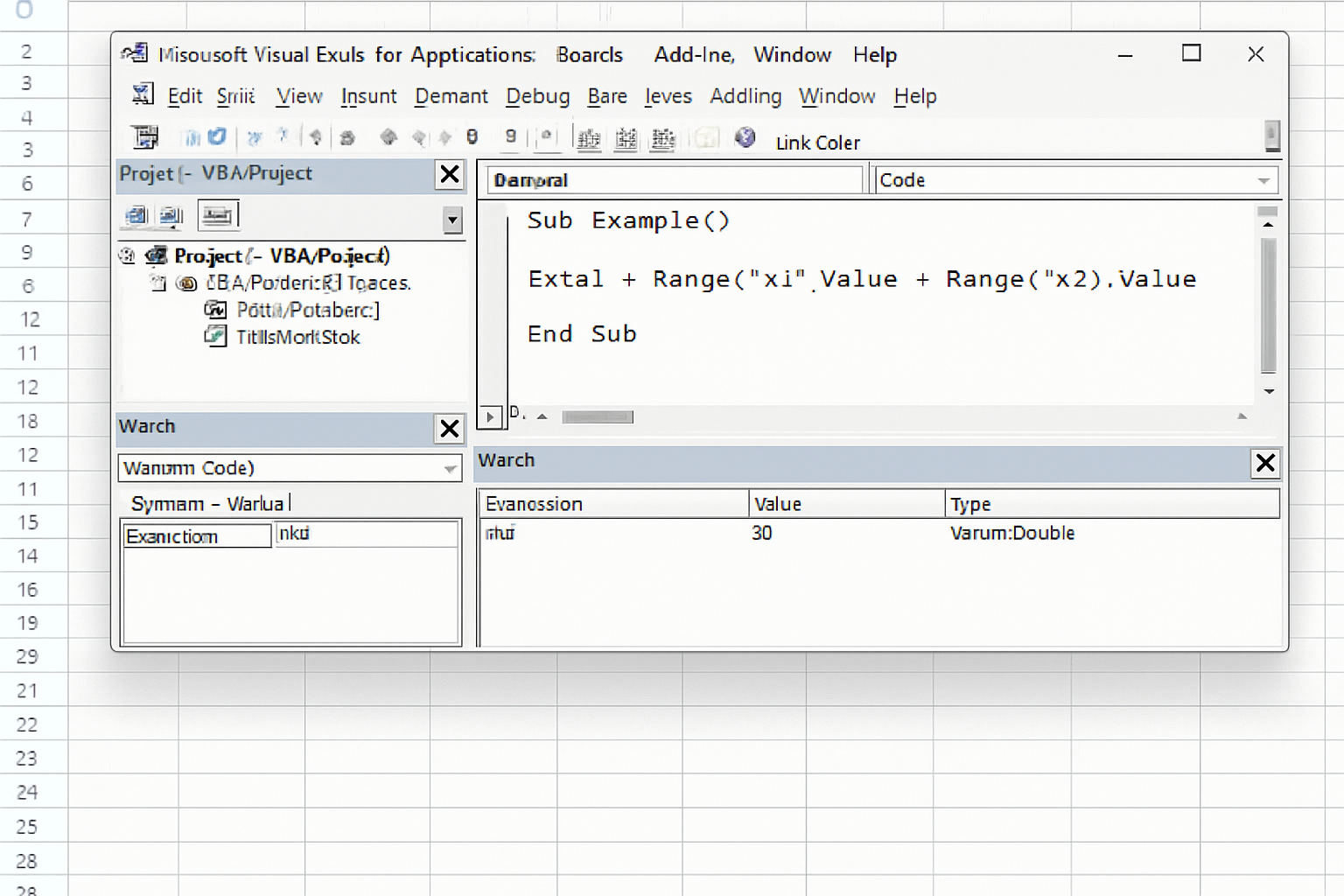
The Watch Window lets you monitor the values of variables or expressions as your code runs. Right-click a variable and select Add Watch to track it.
4. Immediate Window
Use the Immediate Window to execute VBA statements on the fly or print variable values using Debug.Print. For example:
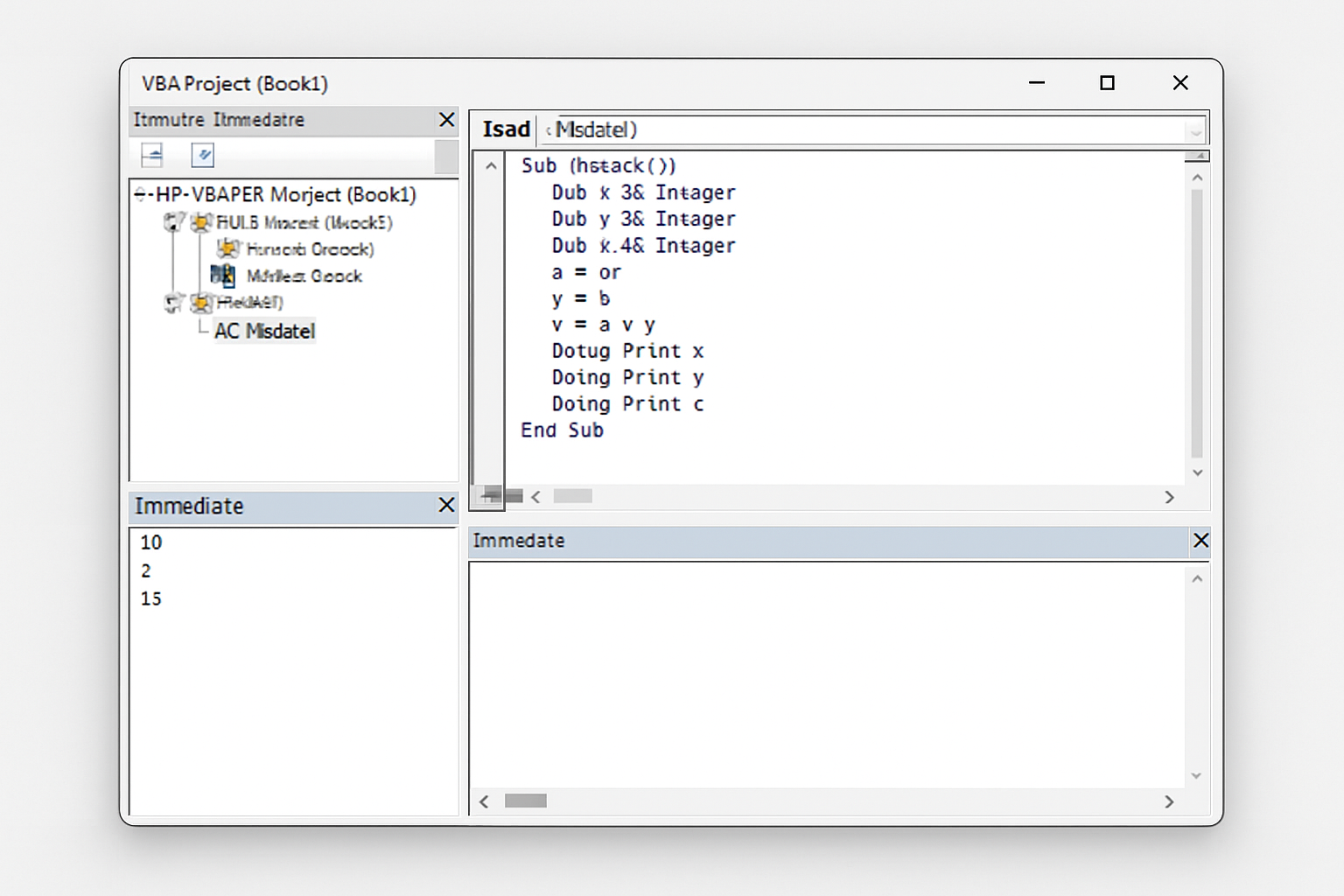
Debug.Print "Current value of i: " & iPractical Debugging Techniques
1. Step Through Code to Identify Issues
Using F8 to step through your code can help you understand flow and spot where things go wrong.
Sub CalculateSum()
    Dim total As Integer
    Dim i As Integer
    total = 0
    For i = 1 To 5
        total = total + i
    Next i
    MsgBox "Total is " & total
End Sub
Step through each line to verify total increments correctly.
2. Use Breakpoints to Pause Execution
Insert breakpoints before suspicious code blocks to examine variable states.
3. Add Debug.Print Statements
Place Debug.Print statements throughout your code to output key variable values and program states to the Immediate Window.
4. Implement Error Handling
Use On Error statements to gracefully handle runtime errors and debug them effectively. For example:
Sub SafeDivision()
    On Error GoTo HandleError
    Dim x As Double, y As Double, result As Double
    x = 10
    y = 0
    result = x / y
    MsgBox "Result: " & result
    Exit Sub
HandleError:
    MsgBox "Error occurred: " & Err.Description
End Sub
5. Utilize Watches for Critical Variables
Keep an eye on variables whose values are crucial to program logic by adding them to the Watch Window.
Advanced Debugging Tips
1. Use Locals Window
The Locals Window displays all local variables and their current values in the current context during execution.
2. Conditional Breakpoints
Right-click a breakpoint and set a condition, such as i = 10, so the debugger stops only when that condition is met.
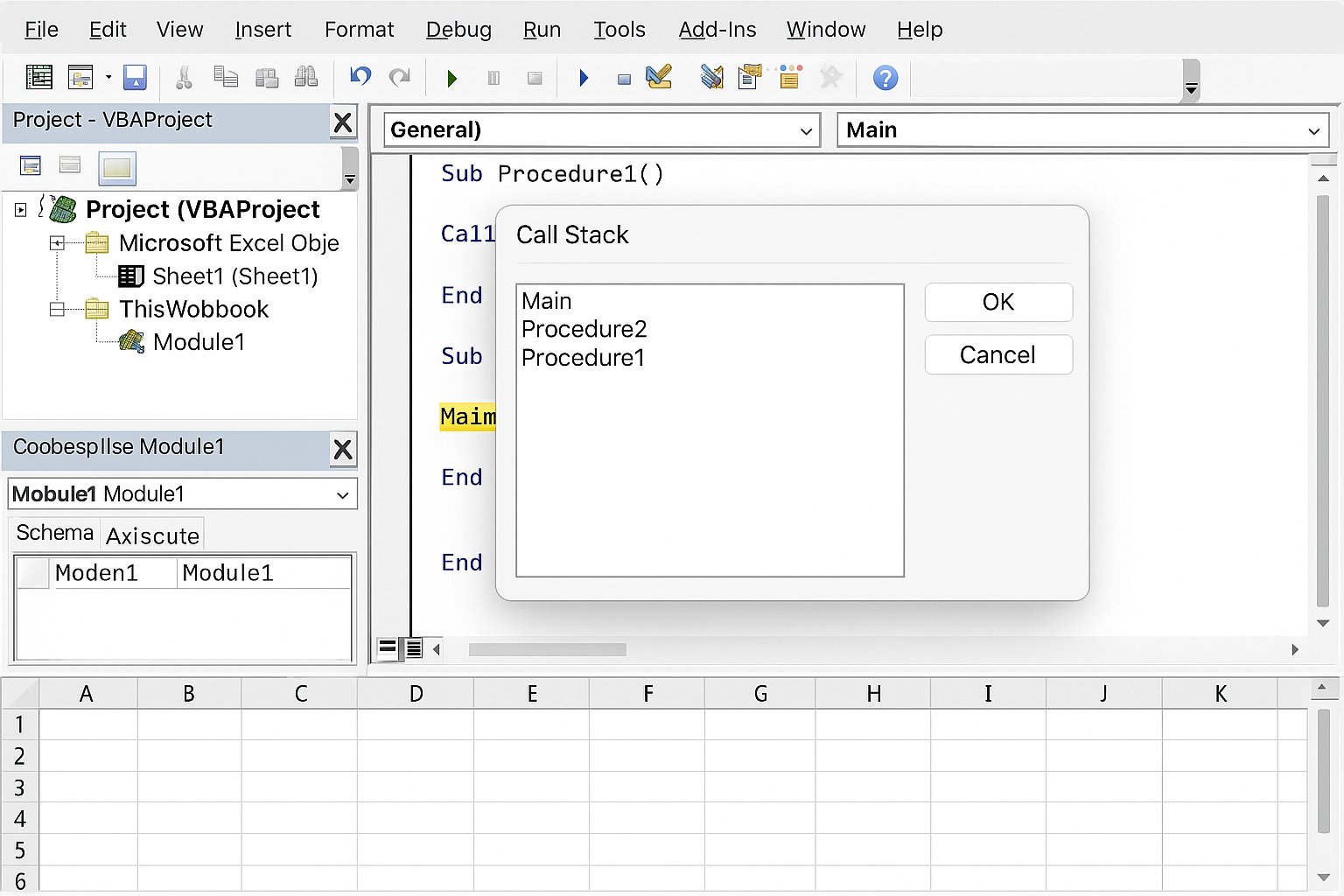
3. Call Stack Inspection
Use View > Call Stack in the VBA Editor to see the sequence of procedure calls leading to the current point, helping you trace errors in complex code.
Example: Debugging a Simple Macro
Consider a macro that copies data from one worksheet to another but occasionally throws a runtime error:
Sub CopyData()
    Dim sourceSheet As Worksheet
    Dim destSheet As Worksheet
    Set sourceSheet = ThisWorkbook.Sheets("Sheet1")
    Set destSheet = ThisWorkbook.Sheets("Sheet2")
    Dim lastRow As Long
    lastRow = sourceSheet.Cells(sourceSheet.Rows.Count, "A").End(xlUp).Row
    sourceSheet.Range("A1:A" & lastRow).Copy destSheet.Range("A1")
End Sub
To debug:
- Set a breakpoint at
lastRow = ...and verify the value oflastRow. - Use
Debug.Print lastRowto confirm the last row identified. - Check if
sourceSheetanddestSheetare correctly set. - Ensure the destination range is valid and not protected.
Frequently Asked Questions (FAQ)
What is the best way to start debugging Excel VBA code?
Begin by using the VBA Editor’s step-through feature (F8) to run your code line by line and watch how variables change. This helps isolate where errors occur.
How can I handle runtime errors effectively?
Implement On Error statements to catch runtime errors and provide meaningful messages or fallback routines, preventing your code from crashing unexpectedly.
Can I debug code that runs automatically on workbook open?
Yes, you can insert breakpoints in Workbook_Open or related event procedures, or temporarily disable automatic events to debug those routines.
What tools help monitor variable values during debugging?
The Watch Window, Locals Window, and Immediate Window are excellent tools to observe and test variable values while stepping through your VBA code.
How do conditional breakpoints improve debugging?
Conditional breakpoints stop code execution only when specific criteria are met, making it easier to debug loops or repetitive tasks without stopping every iteration.
Is debugging VBA different from debugging other programming languages?
The core debugging principles are similar, but VBA’s integration with Excel objects and its built-in editor tools provide a unique environment tailored specifically for Excel automation.
Conclusion
Effective Excel VBA debugging is a vital skill that improves code quality and reduces development time. By leveraging the VBA Editor’s debugging tools—such as stepping through code, breakpoints, watch windows, and error handling—you can efficiently identify and fix errors. Incorporating these debugging techniques into your Excel VBA best practices will help you build more reliable and maintainable macros, ultimately enhancing your productivity and Excel automation capabilities.
Related Articles
- How to Automate Repetitive Tasks in Excel Using VBA
- Creating Your First Macro in Excel with VBA: A Step-by-Step Guide
- Top 10 Simple VBA Scripts to Automate Excel Tasks for Beginners
- Using Loops in Excel VBA to Save Time on Data Entry
- Introduction to Excel VBA Programming for Absolute Beginners
Want practical Excel help?
Support free Excel tutorials, get weekly tips, or contact us for Excel programming, VBA, Power Query, dashboards, and automation work.