Getting Started with XLOOKUP in Excel: A Beginner’s Guide
Introduction
Excel is a powerful tool for managing and analyzing data, and one of its most useful features is the ability to search and retrieve information quickly. The XLOOKUP function is a modern and versatile function introduced in Excel to replace older lookup functions like VLOOKUP and HLOOKUP. This function is easier to use, more flexible, and more efficient.
In this beginner’s guide, we will explore the basics of the XLOOKUP function, how it works, and practical examples to help you get started using it in your Excel workflows.
What is the XLOOKUP Function?
The XLOOKUP function searches a range or array for a specified value and returns a corresponding value from another range or array. Unlike VLOOKUP, which only searches vertically and requires the lookup column to be the first column, XLOOKUP can search both vertically and horizontally, and you can specify the lookup and return arrays independently.
The syntax of the XLOOKUP function is:
=XLOOKUP(lookup_value, lookup_array, return_array, [if_not_found], [match_mode], [search_mode])lookup_value: The value to search for.lookup_array: The array or range to search.return_array: The array or range to return the corresponding value from.[if_not_found]: Optional. The value to return if the lookup value is not found.[match_mode]: Optional. Defines the type of match (exact, exact or next smaller, exact or next larger, wildcard).[search_mode]: Optional. Defines the search direction (first-to-last, last-to-first, binary search, etc.).
Why Use XLOOKUP Instead of VLOOKUP or HLOOKUP?
XLOOKUP offers several advantages:
- Flexible lookup direction: Search both vertically and horizontally.
- Return values from any column or row: No need for the lookup column to be the first one.
- Built-in error handling: Specify a custom message if the value isn’t found.
- Exact match by default: No need to specify TRUE or FALSE for match type.
- Supports wildcards: For partial matches.
Getting Started: A Practical Example
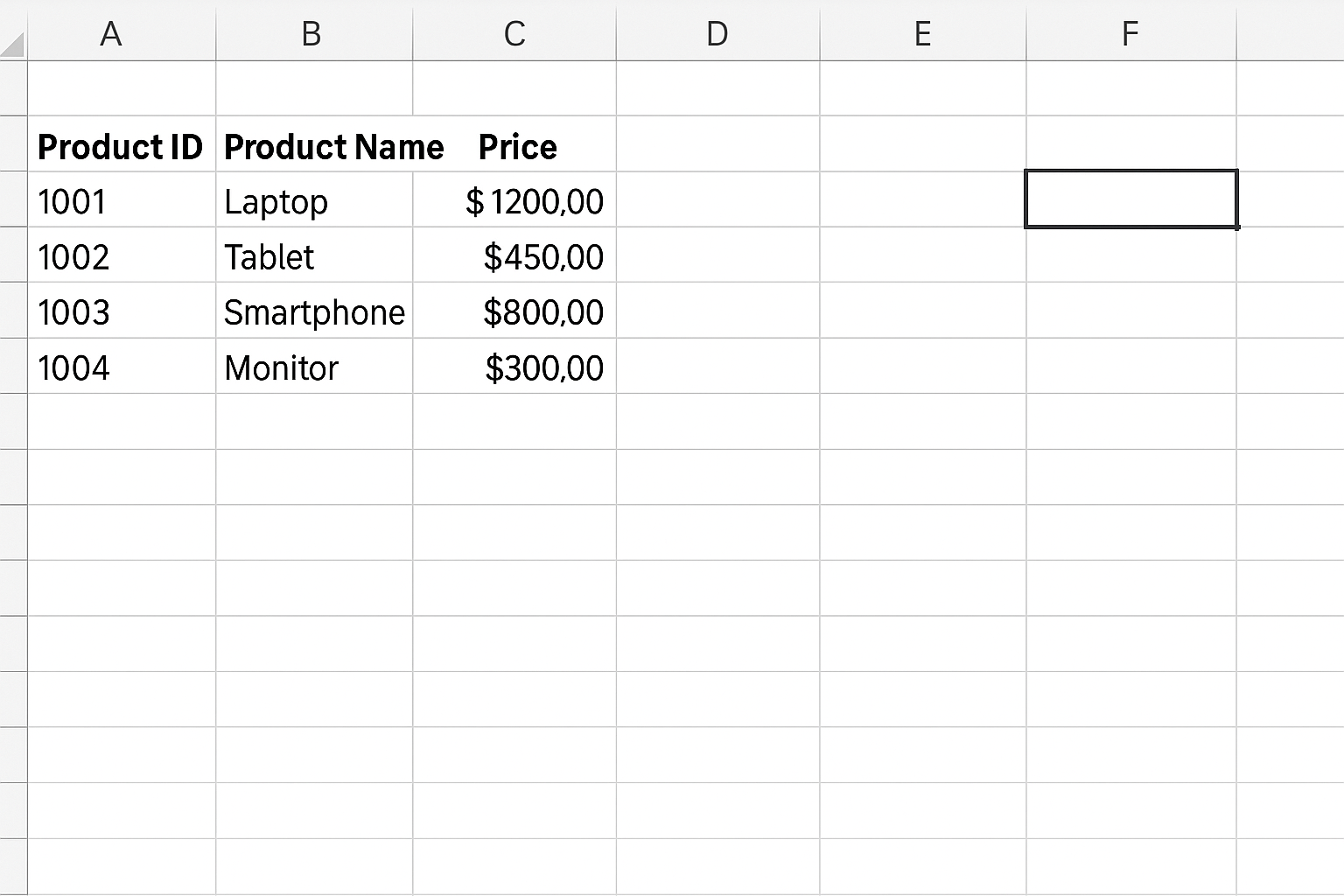
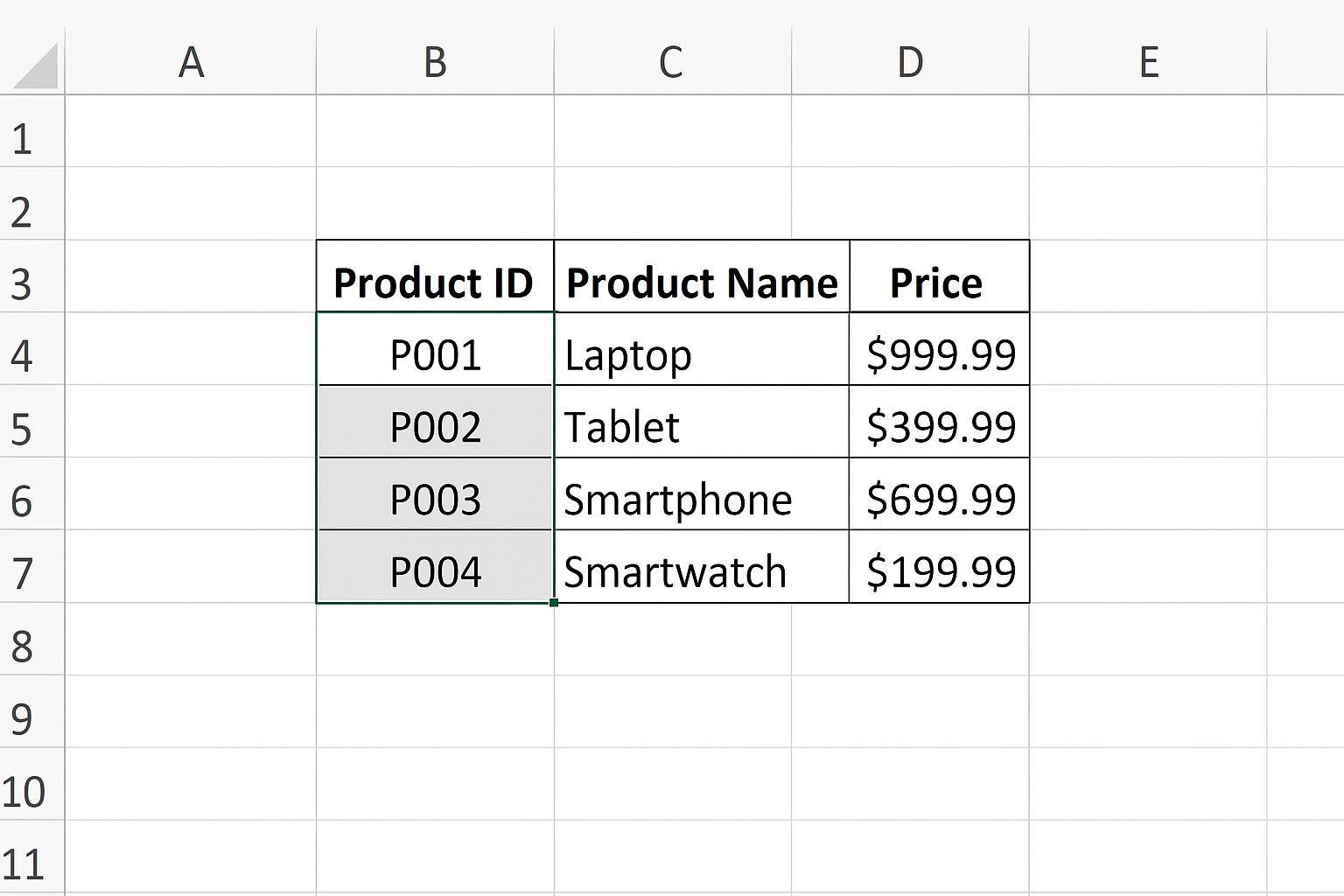
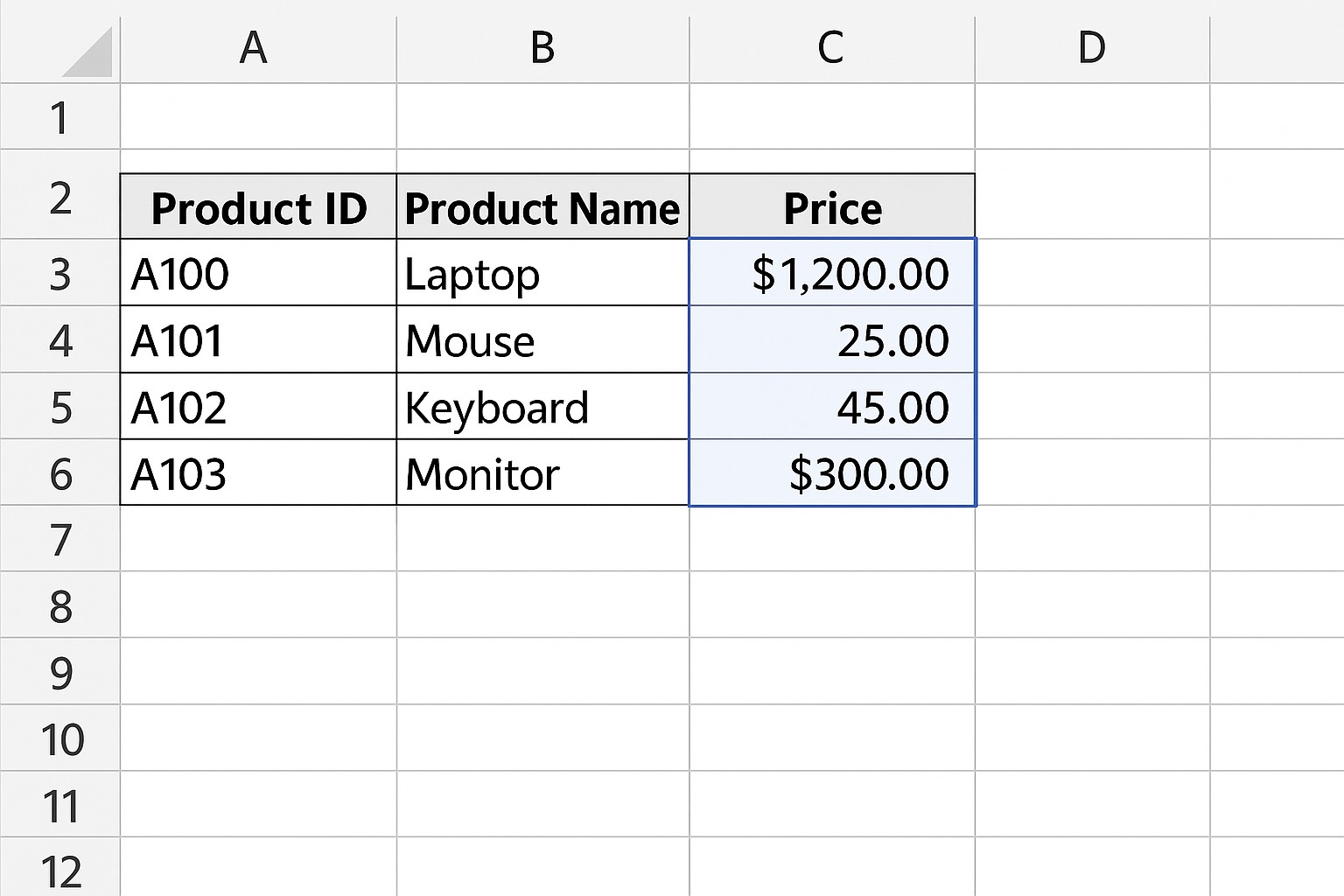
Imagine you have a simple product list table in Excel:
| Product ID | Product Name | Price |
|---|---|---|
| 101 | Wireless Mouse | 25 |
| 102 | Keyboard | 30 |
| 103 | USB-C Hub | 45 |
| 104 | Monitor | 150 |
You want to find the price of a product based on its Product ID. Here is how you can do it using XLOOKUP:
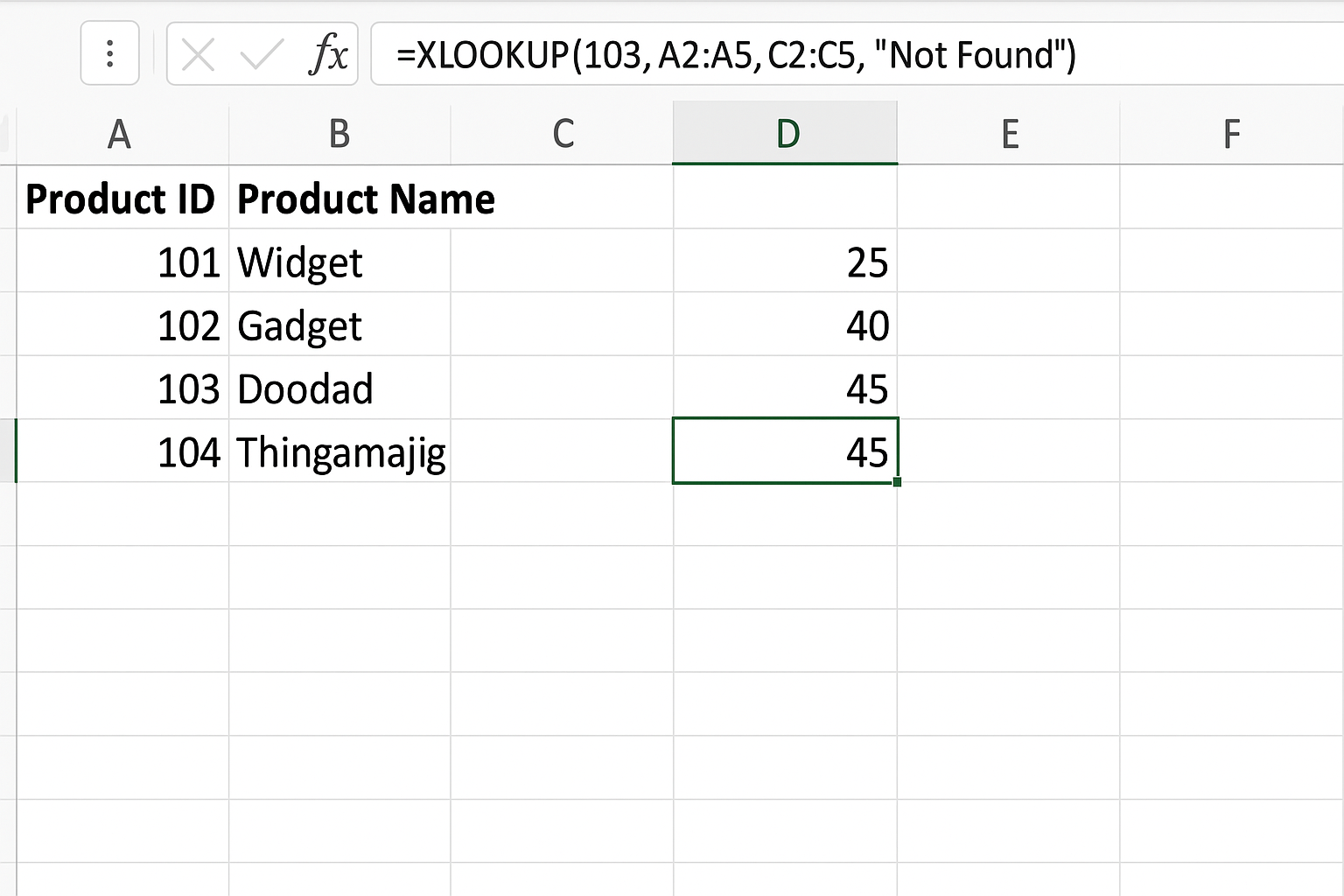
=XLOOKUP(103, A2:A5, C2:C5, "Not Found")This formula looks for the value 103 in the range A2:A5 (Product ID column) and returns the corresponding value from C2:C5 (Price column). If the product ID is not found, it will return “Not Found”.
Step-by-Step Guide to Using XLOOKUP
- Identify the lookup value: This is the value you want to search for. In the example above, it’s the Product ID.
- Determine the lookup array: The range where Excel will search for the lookup value.
- Set the return array: The range from which the function will return the matching value.
- Optionally, specify what to return if no match is found.
- Use optional parameters for match type and search mode as needed.
Advanced Example: Using XLOOKUP with Wildcards
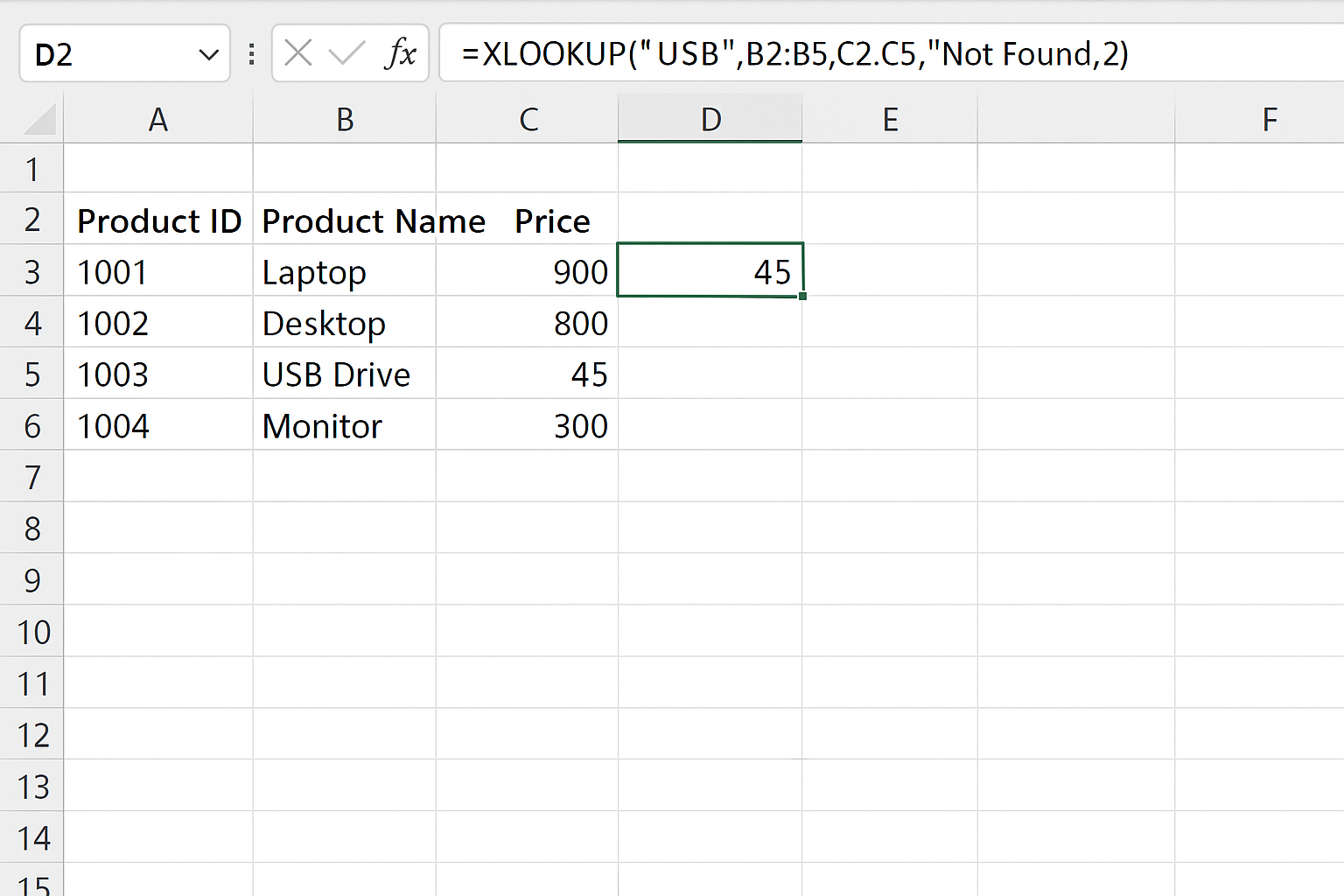
XLOOKUP supports wildcards when used with the match_mode parameter set to 2. For example, suppose you want to find a product name that contains the word “USB” anywhere in the product name list:
=XLOOKUP("*USB*", B2:B5, C2:C5, "Not Found", 2)This will match any product name containing “USB” and return its price.
Handling Errors Gracefully
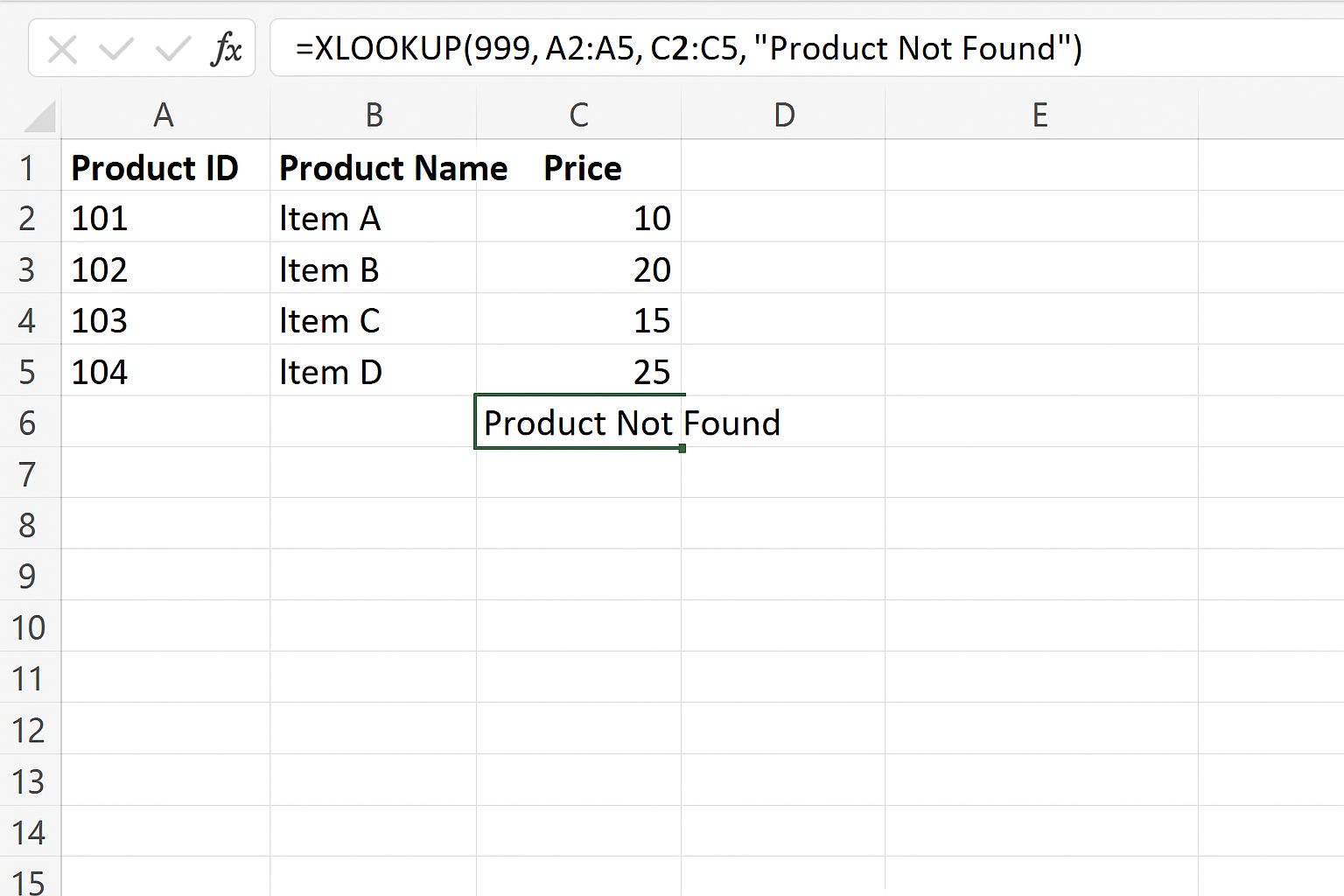
Unlike older lookup functions where you need to use IFERROR to handle errors, XLOOKUP has a built-in if_not_found argument. For example:
=XLOOKUP(999, A2:A5, C2:C5, "Product Not Found")This will return “Product Not Found” if the Product ID 999 does not exist in the lookup array.
Practical Tips for Using XLOOKUP
- Use named ranges to make formulas easier to read and manage.
- Remember that XLOOKUP defaults to an exact match, so you often don’t need to specify the match mode.
- Combine XLOOKUP with other functions like
SUM,IF, orFILTERfor more powerful data analysis. - XLOOKUP can return arrays, so it works great with dynamic arrays in modern Excel versions.
FAQ
Here are some frequently asked questions about the XLOOKUP function.
Related Articles
- How to Use XLOOKUP in Excel to Find Data Quickly
- Understanding XLOOKUP Syntax and Parameters in Excel
- How to Use XLOOKUP with Multiple Criteria in Excel
- Error Handling in XLOOKUP: Tips to Avoid Common Mistakes
- XLOOKUP vs VLOOKUP: Which Excel Function Should You Use?
Want practical Excel help?
Support free Excel tutorials, get weekly tips, or contact us for Excel programming, VBA, Power Query, dashboards, and automation work.